Skip to content
50% off this one-time $1.99 pack with HALFOFF — or unlimited with Pro.HALFOFF
Premium

Free Test Case Templates (Excel)

Analysis
nadiafabre by nadiafabre
Updated 0 downloads Quality-checked template

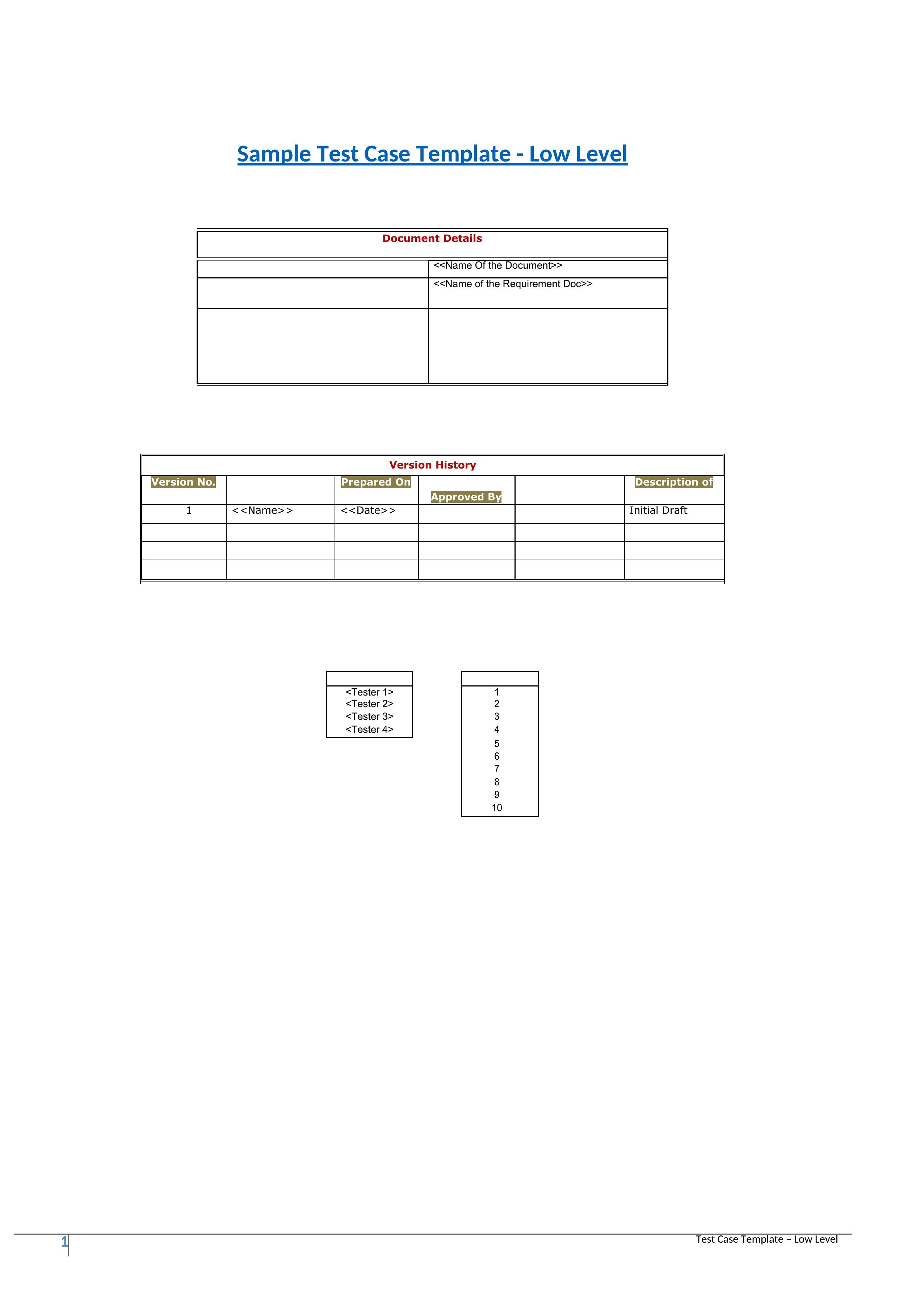
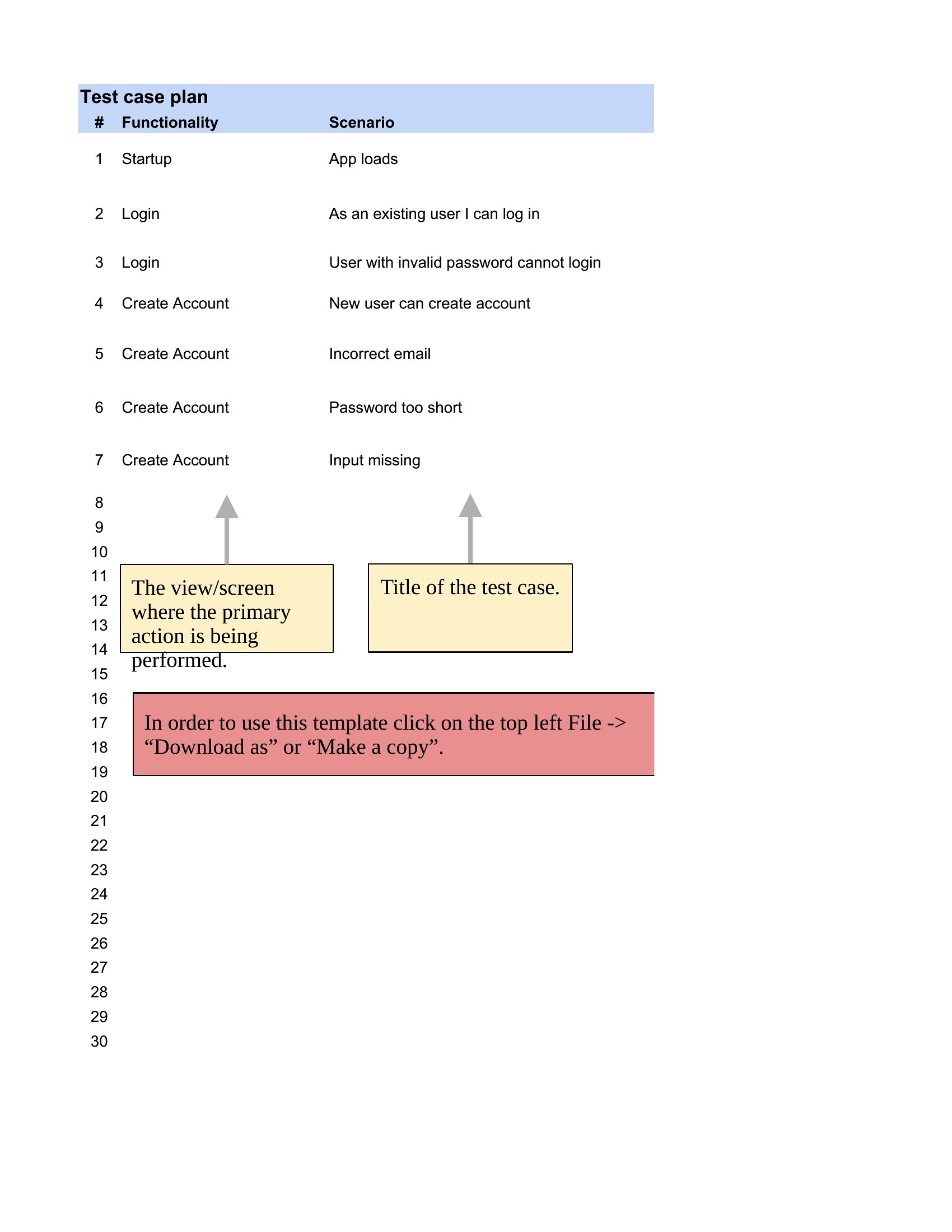
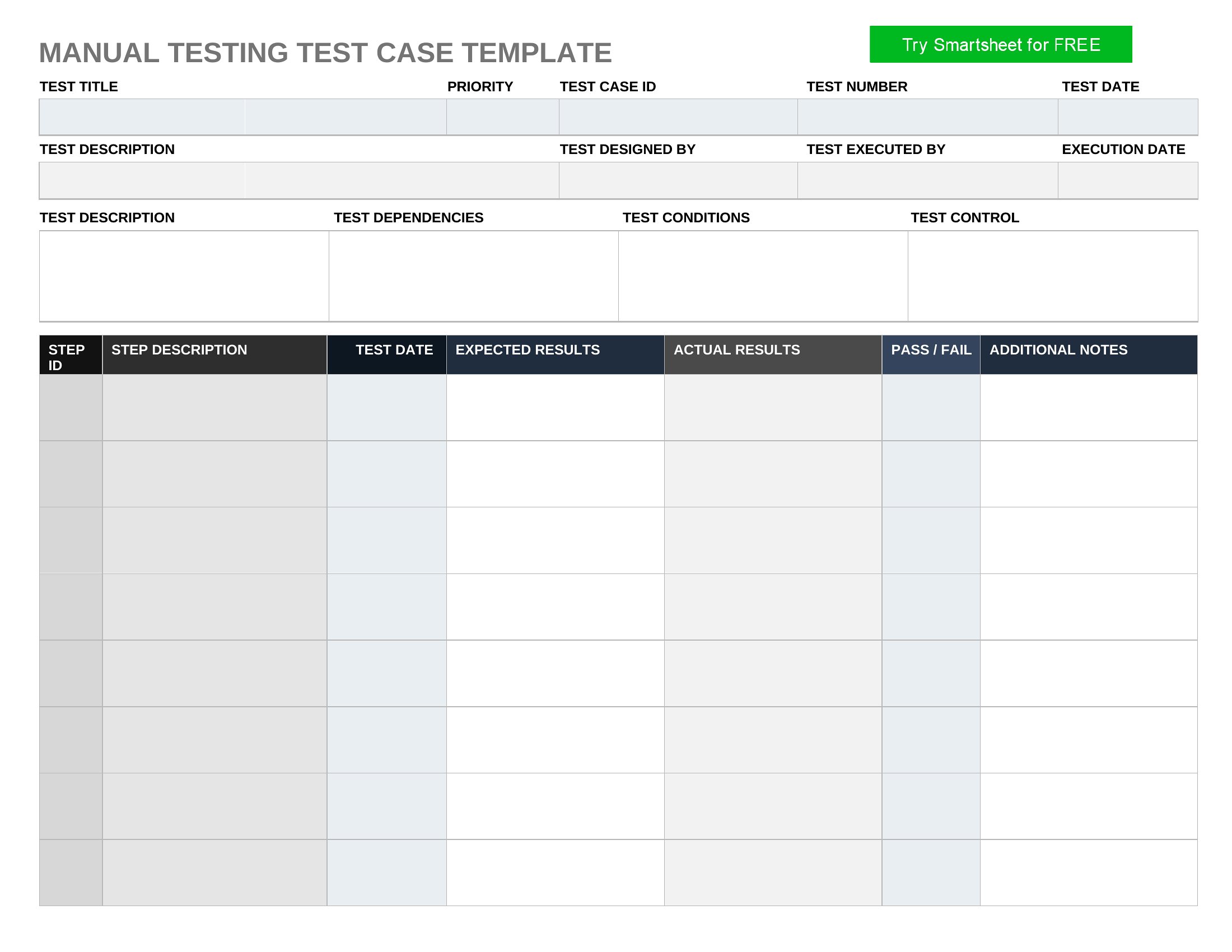
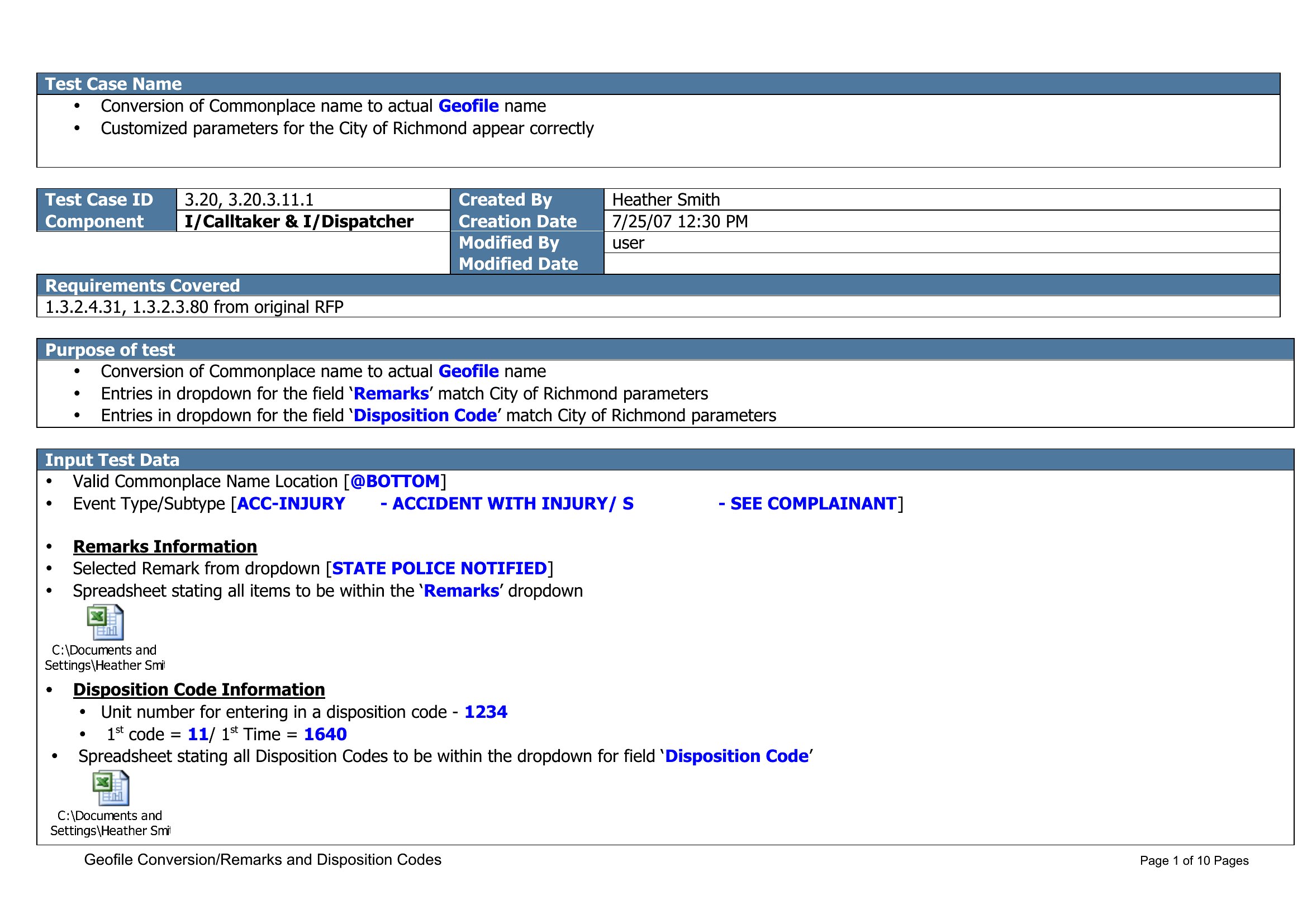
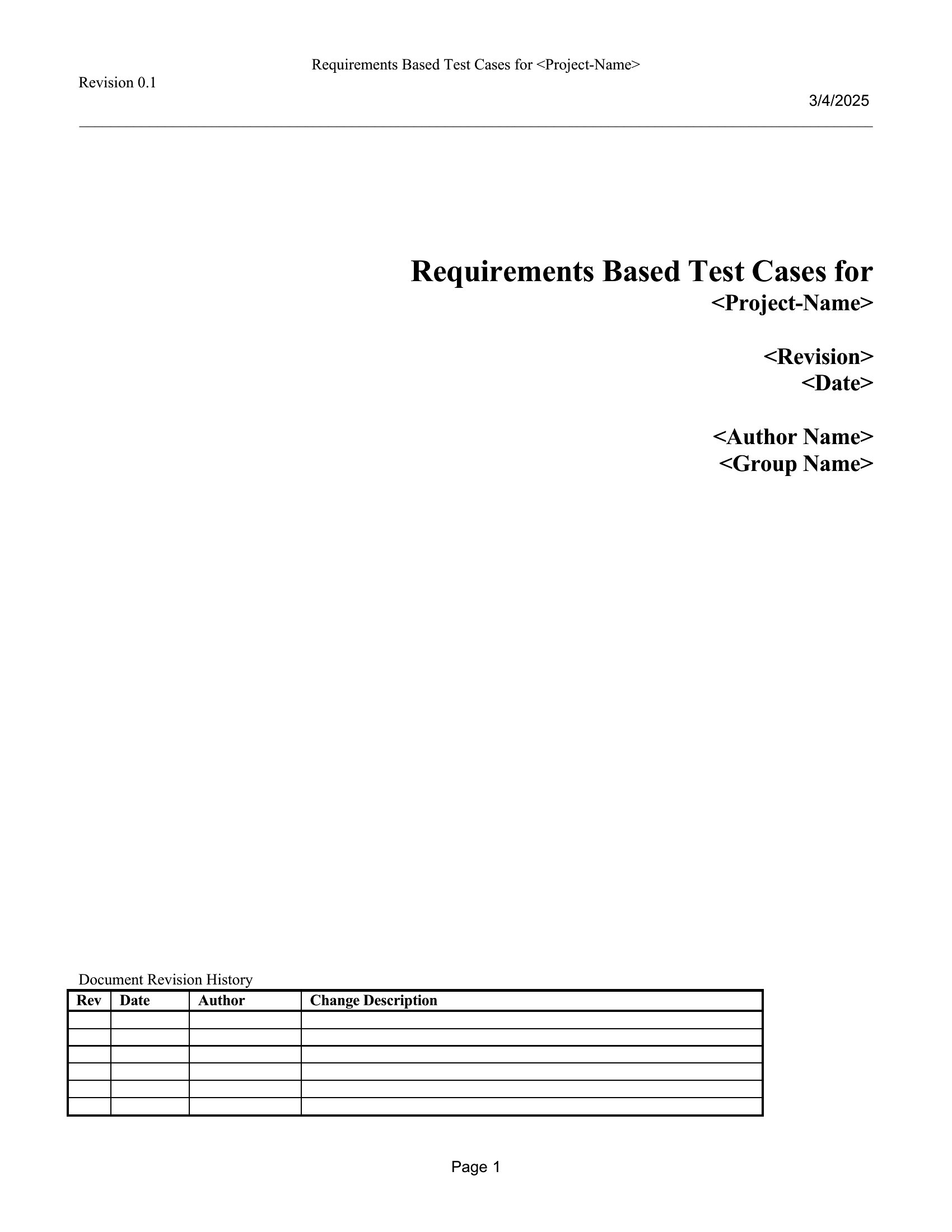
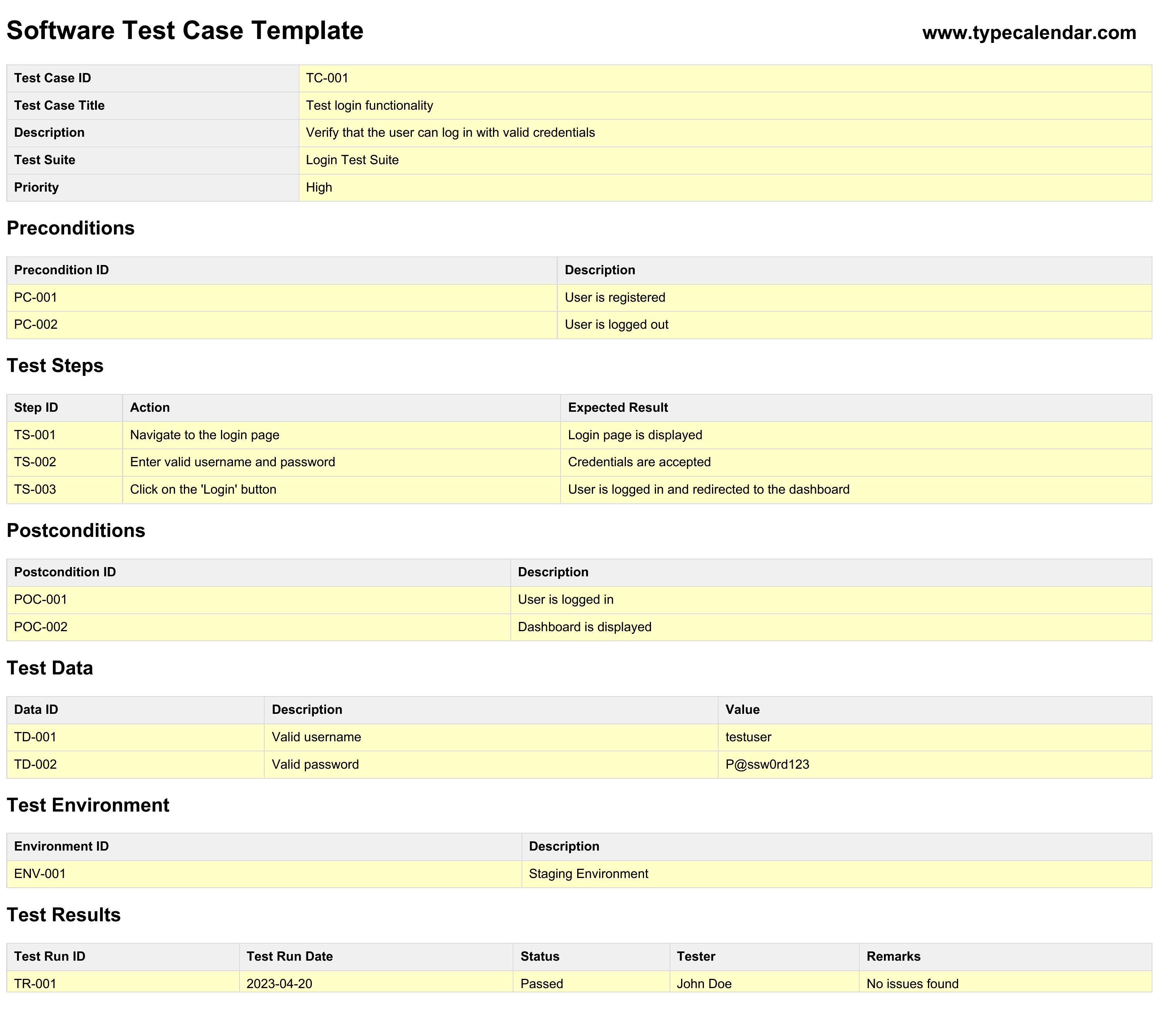
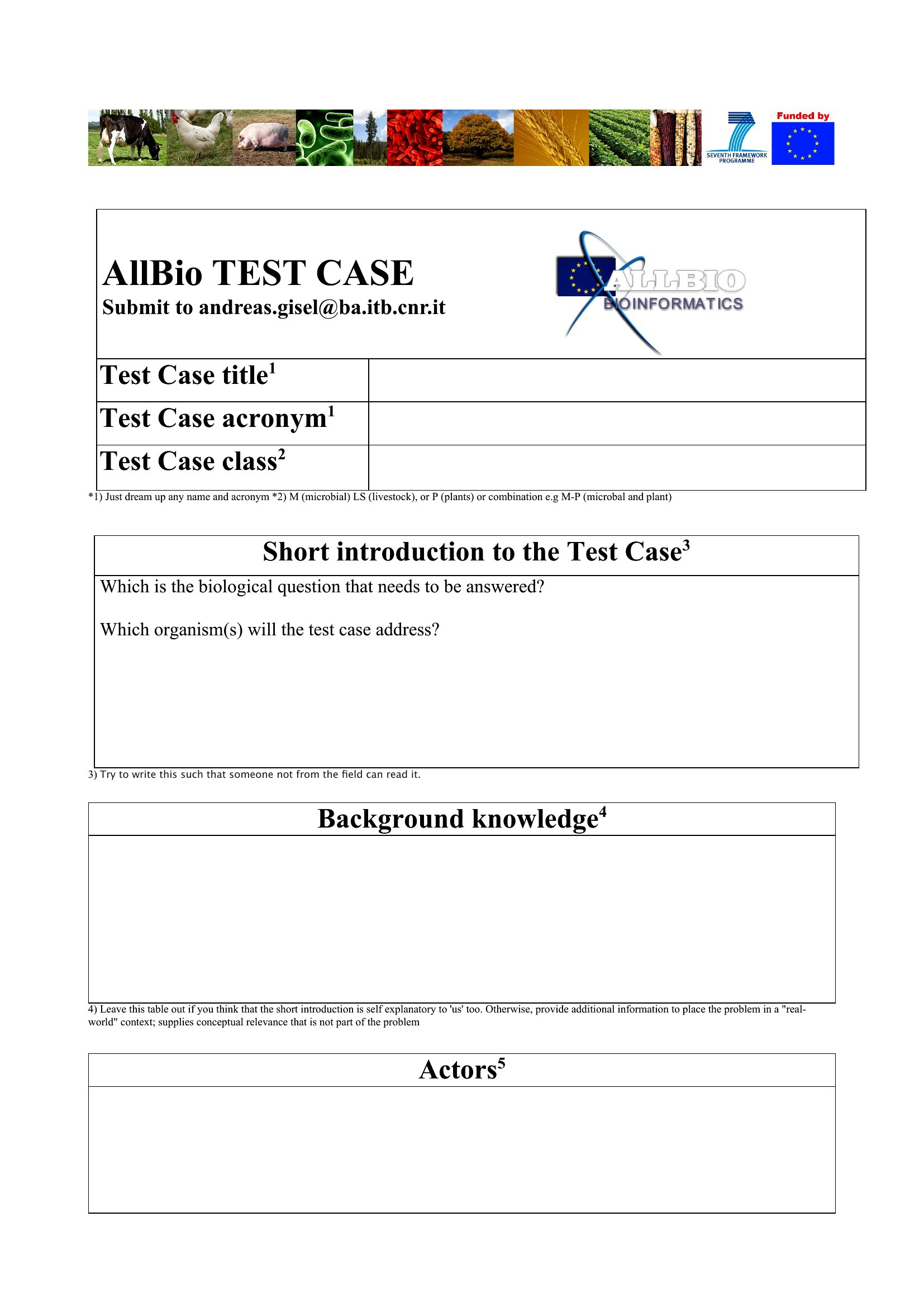
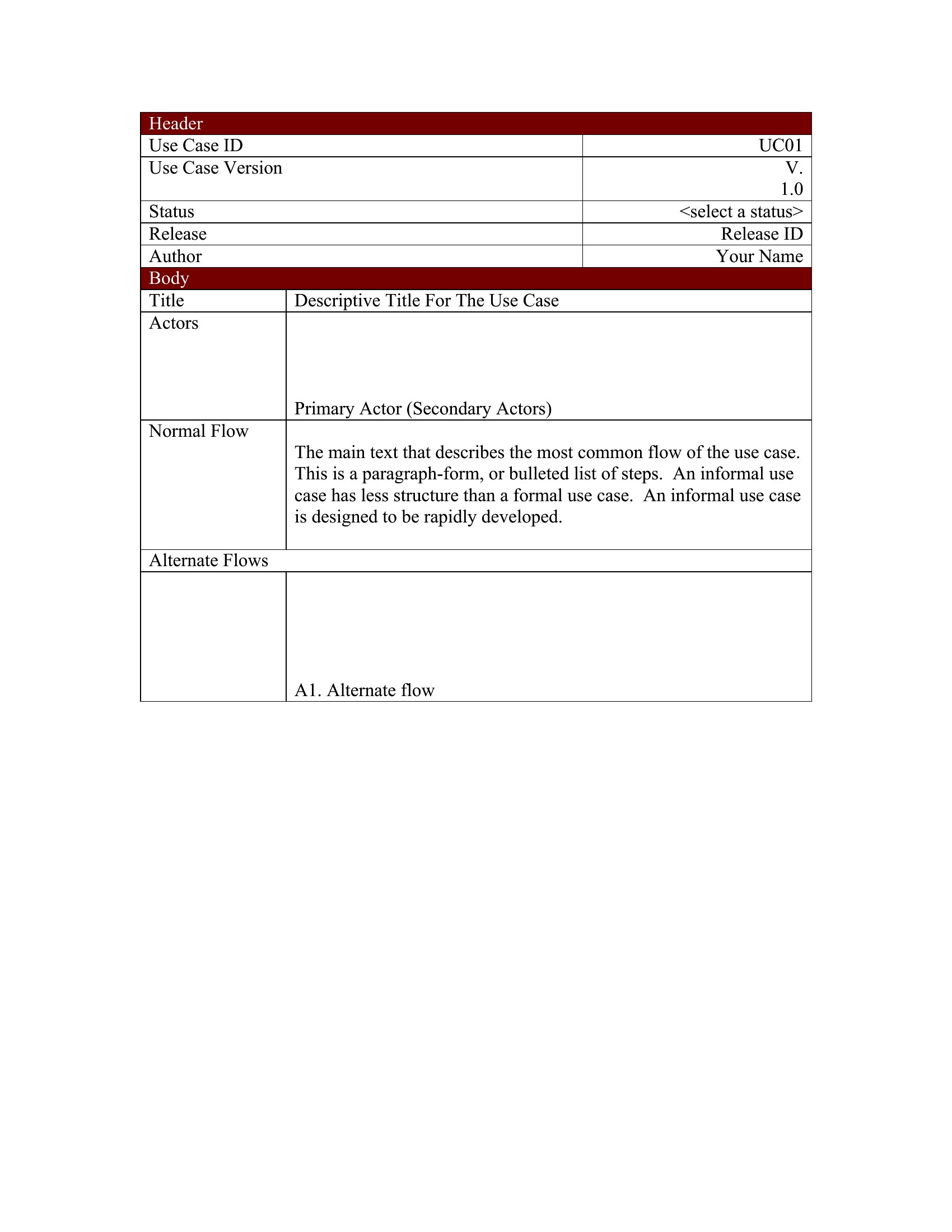
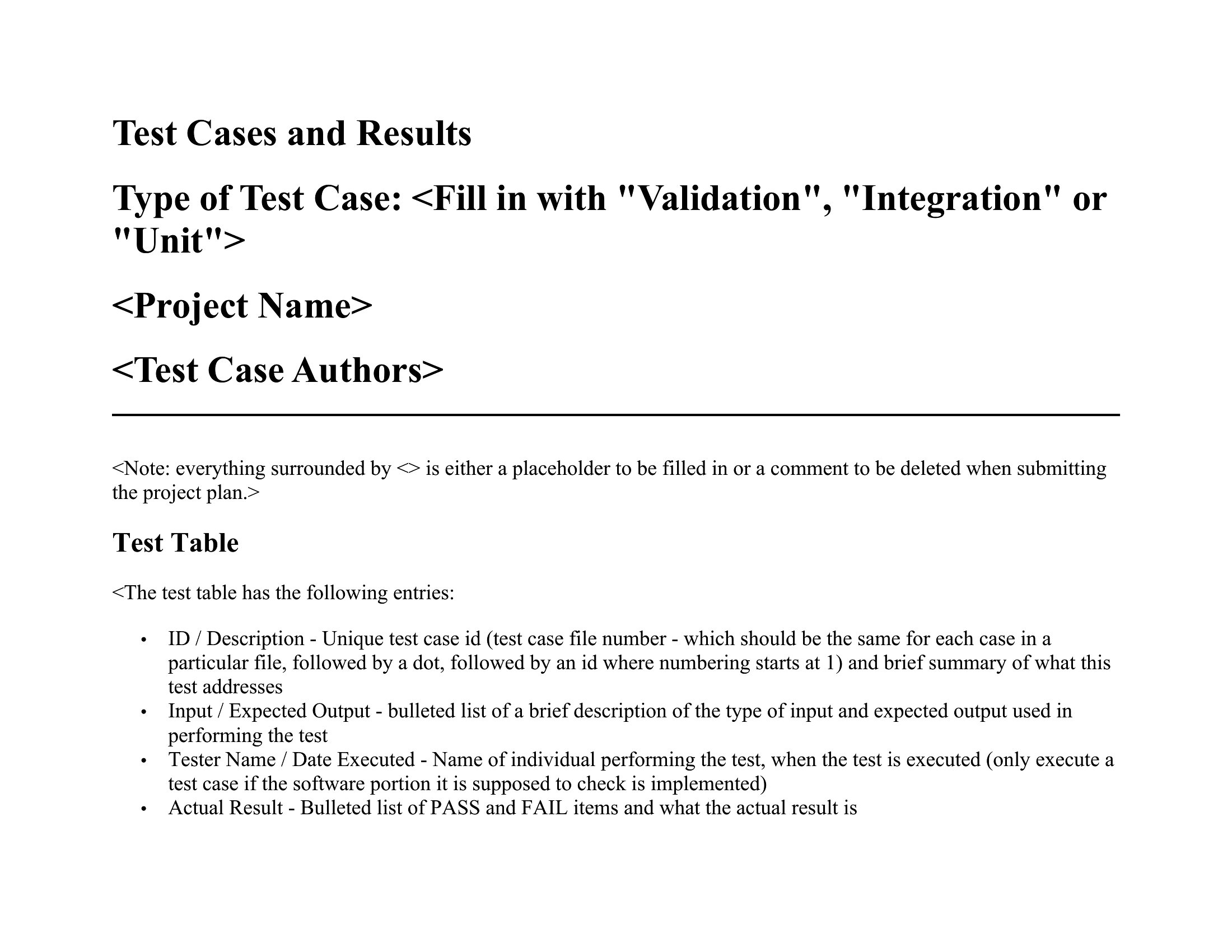
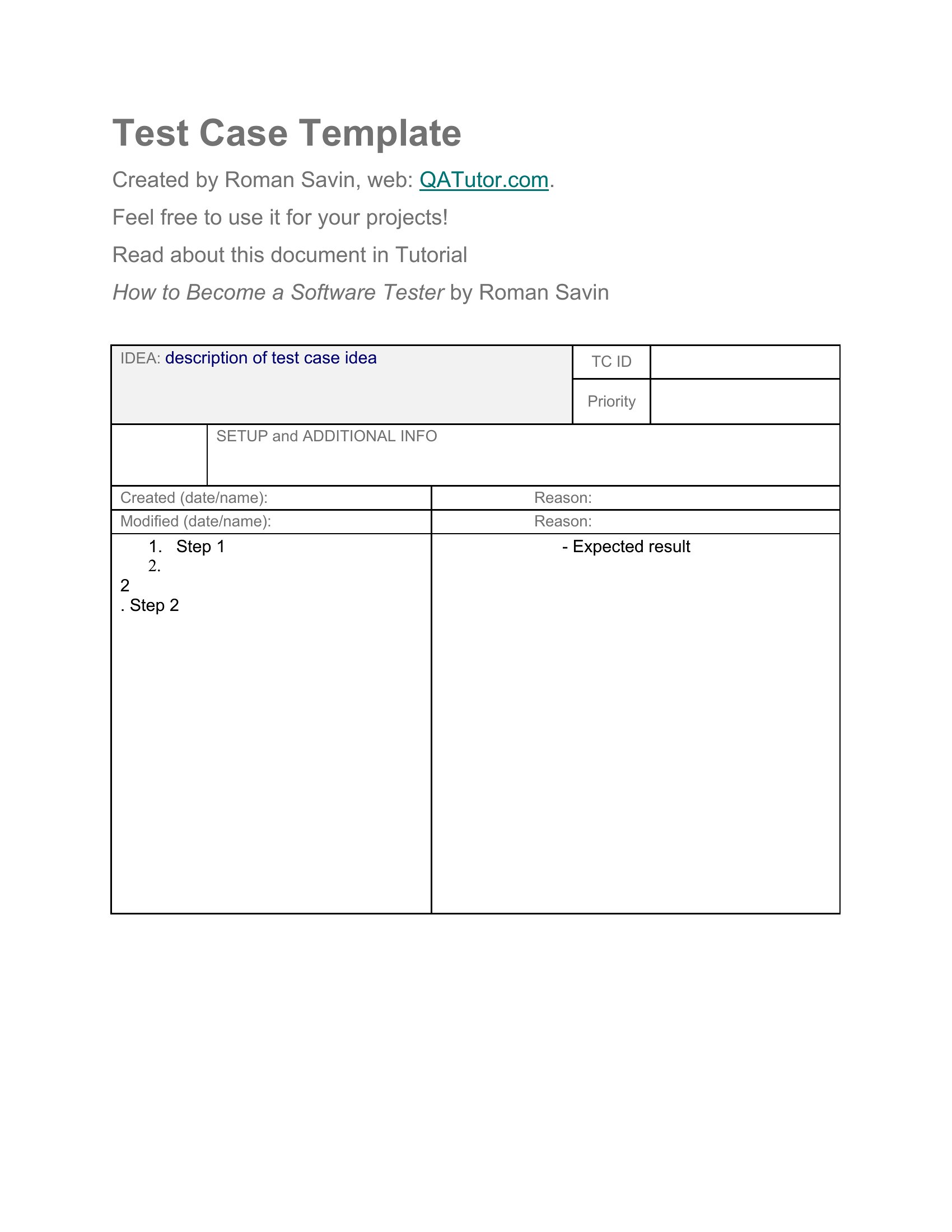
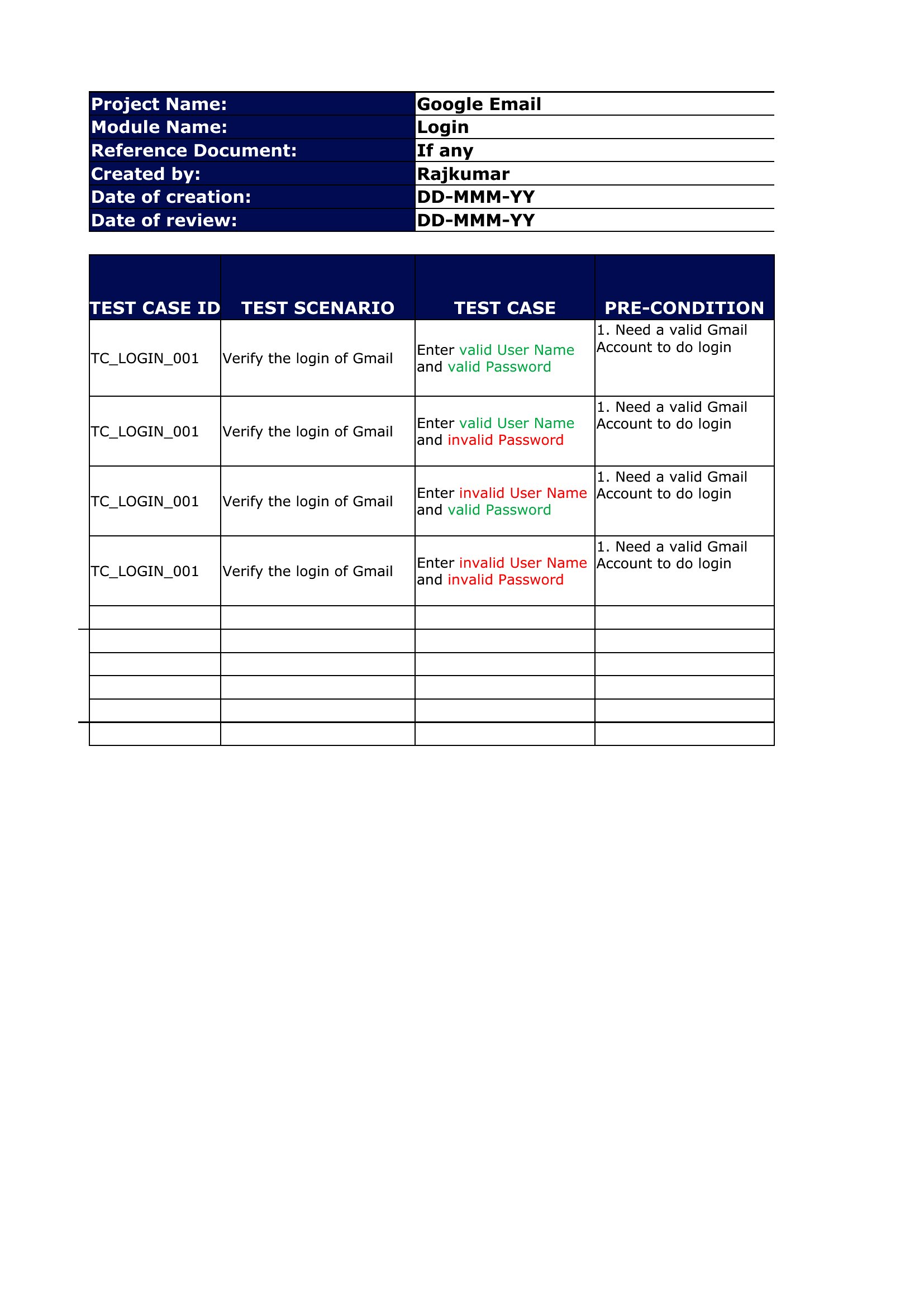
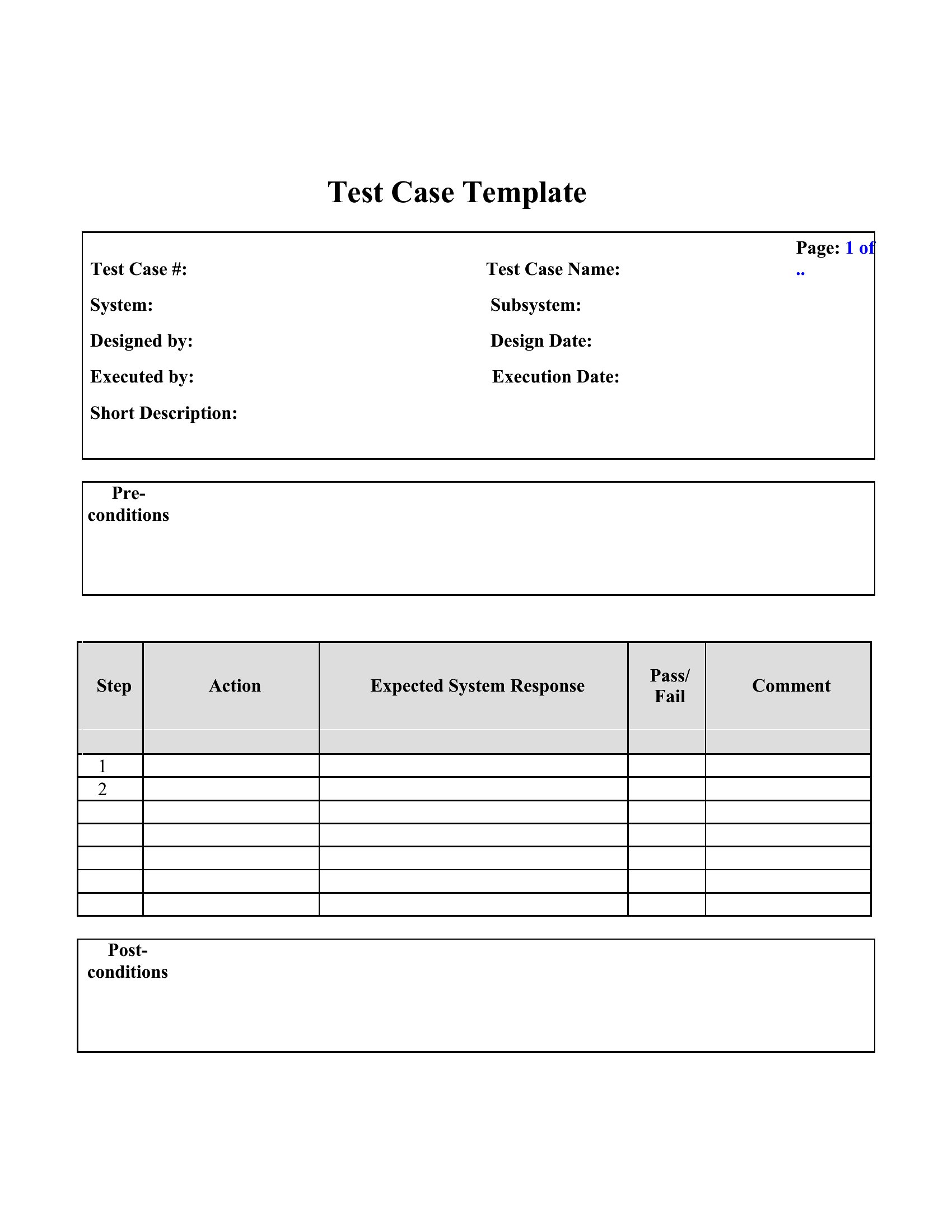
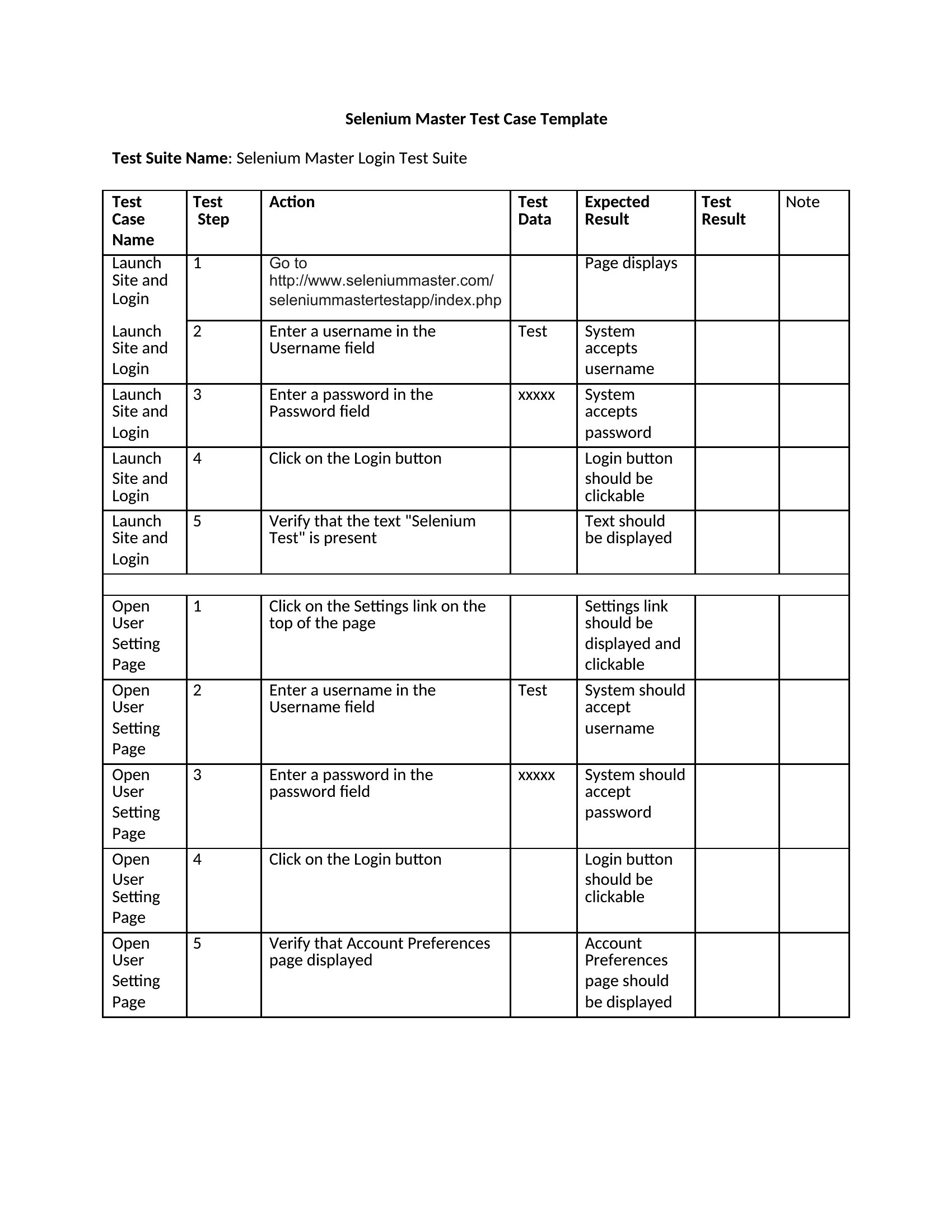
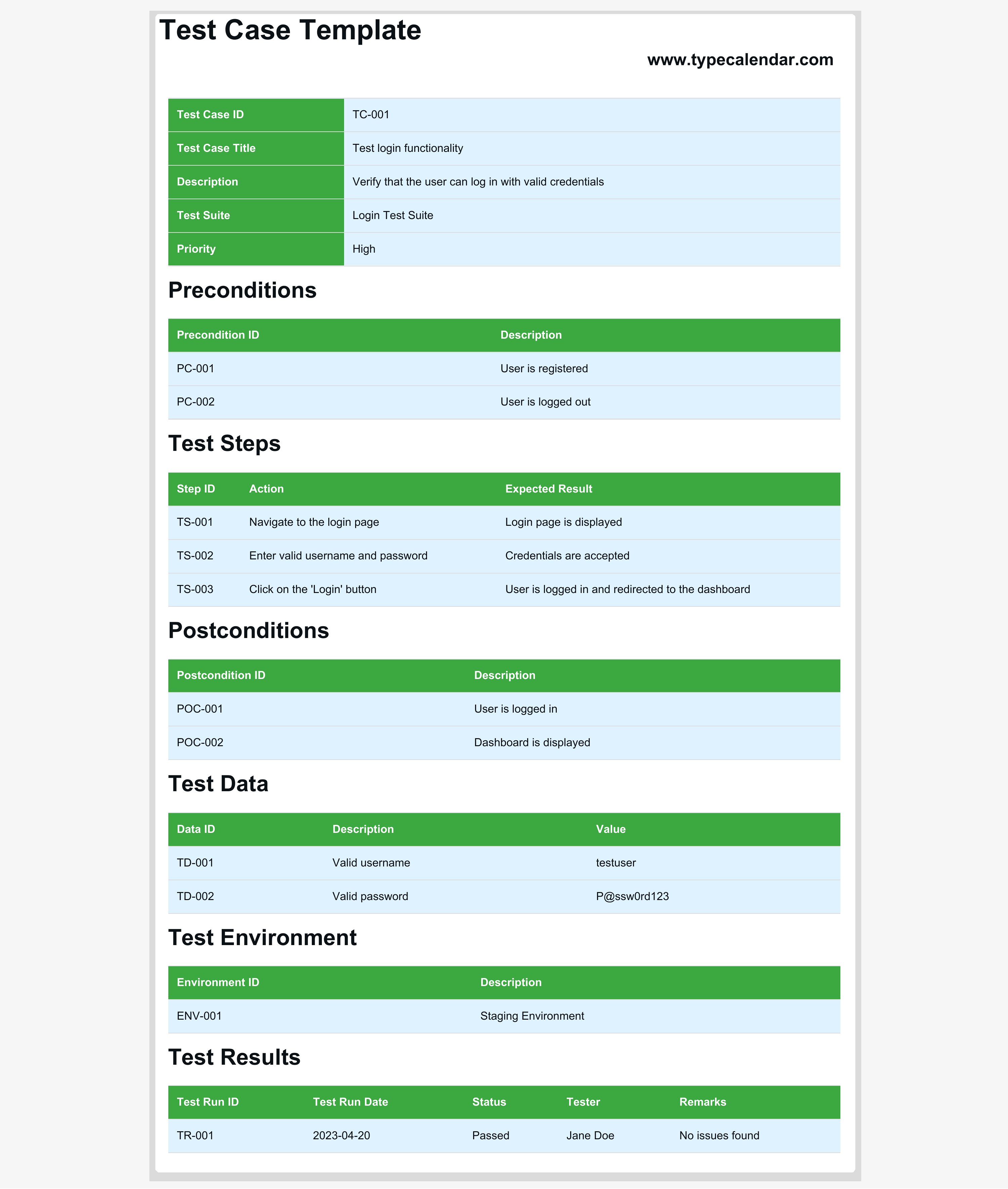
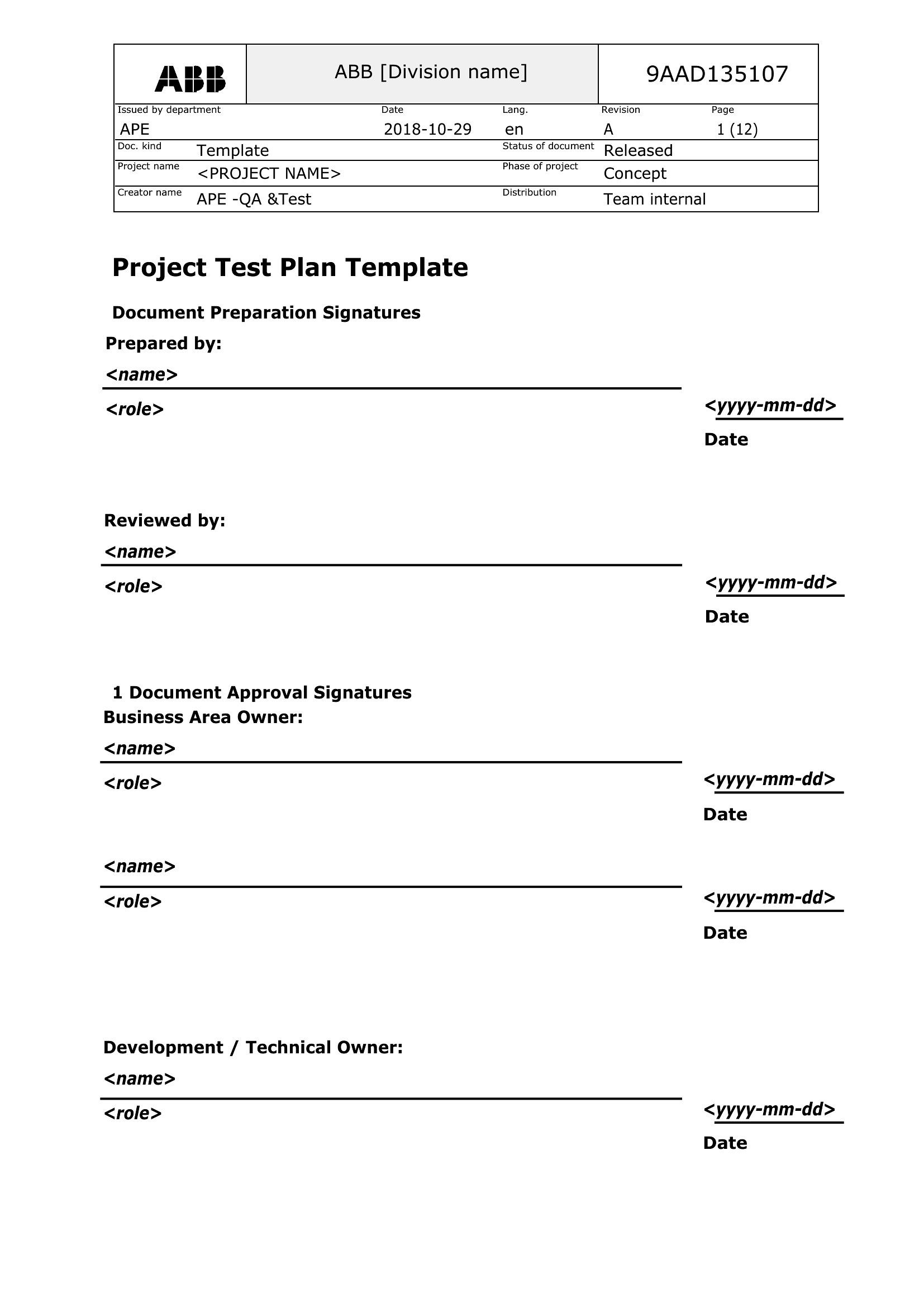
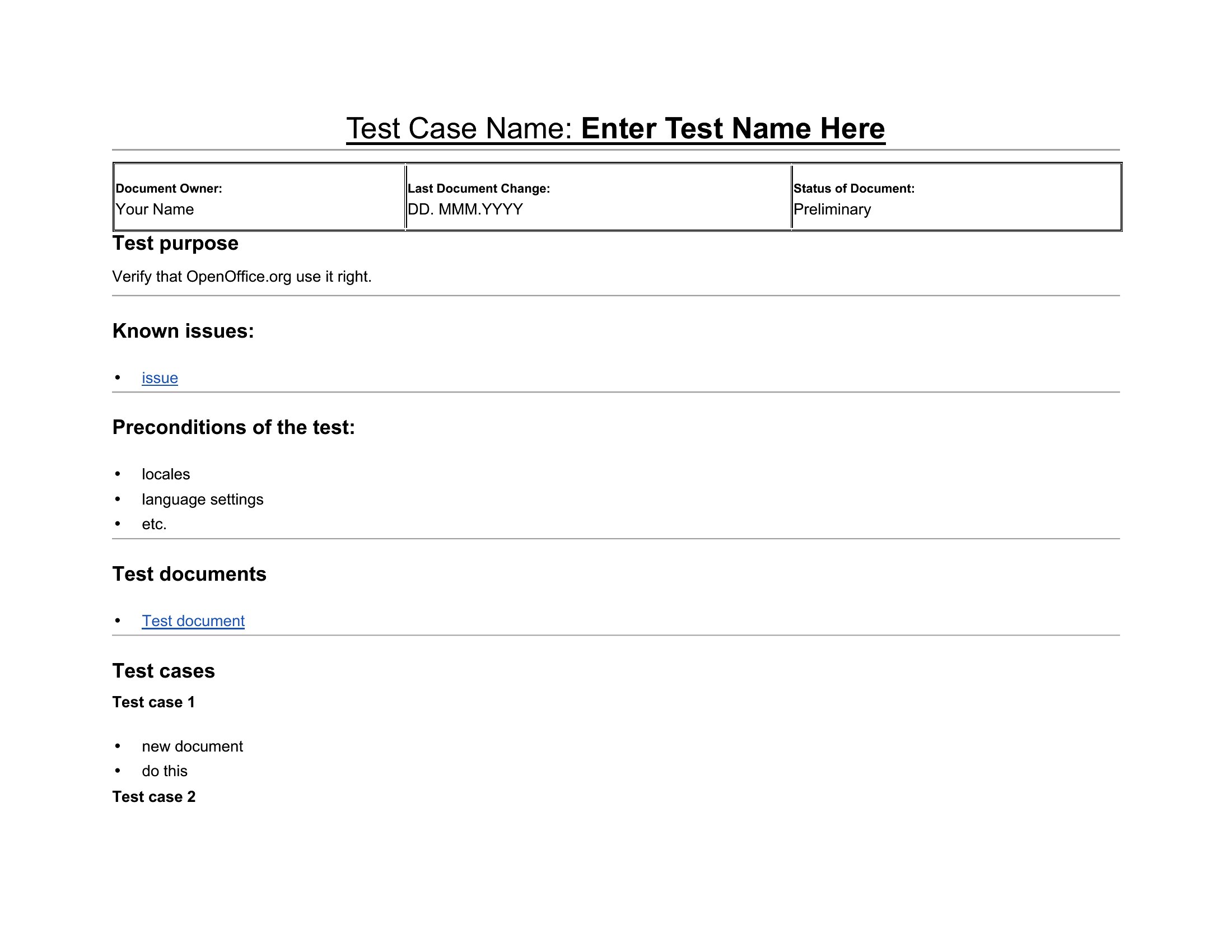
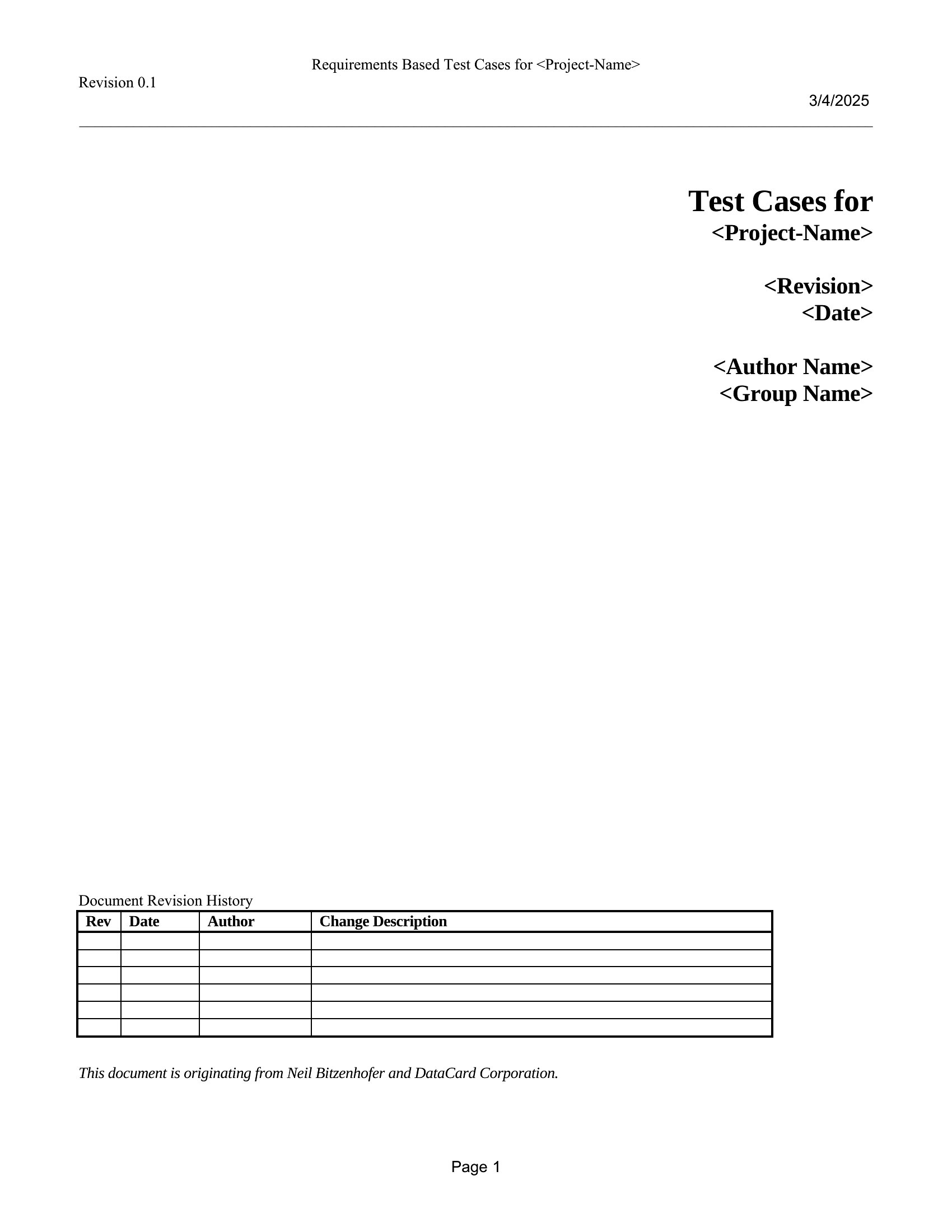
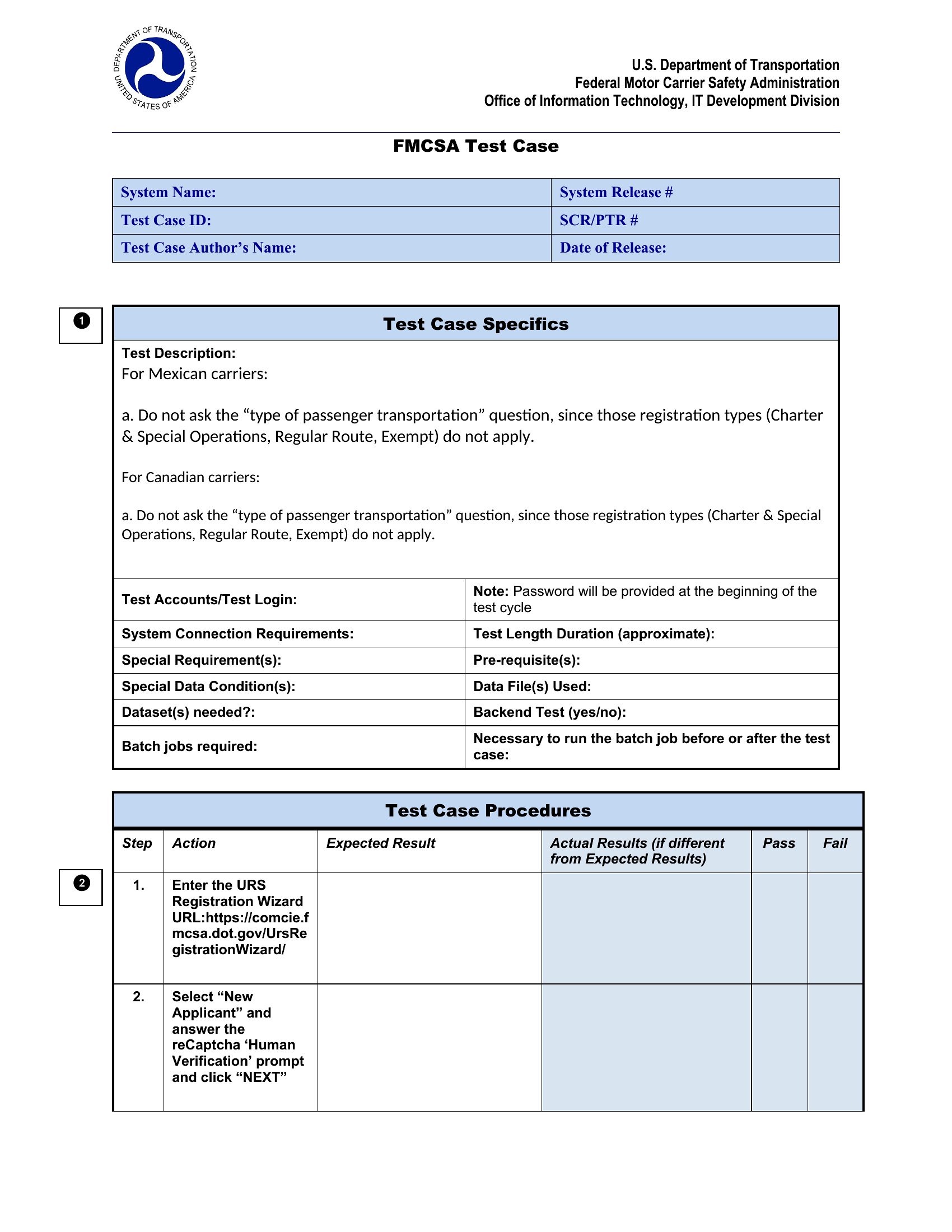
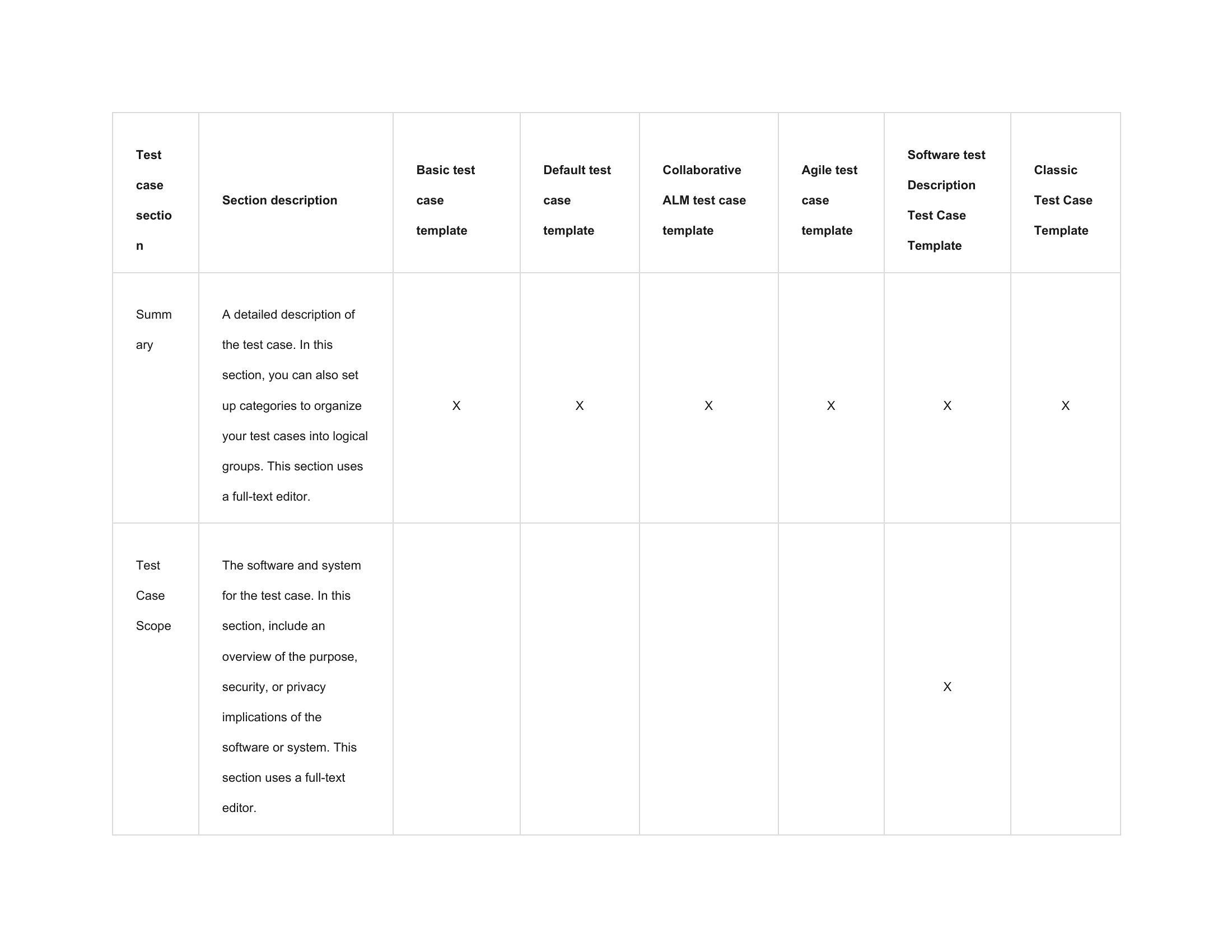
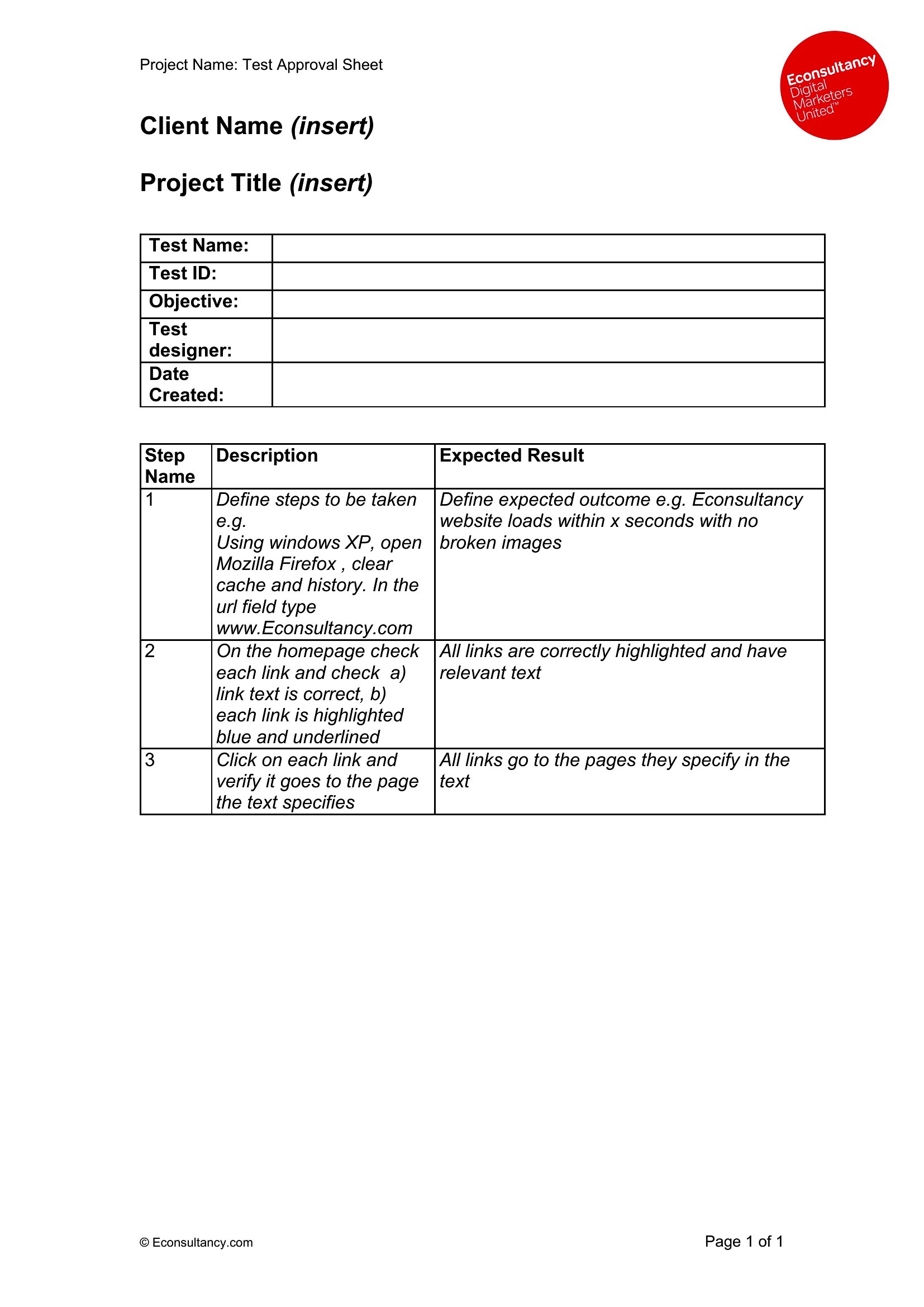
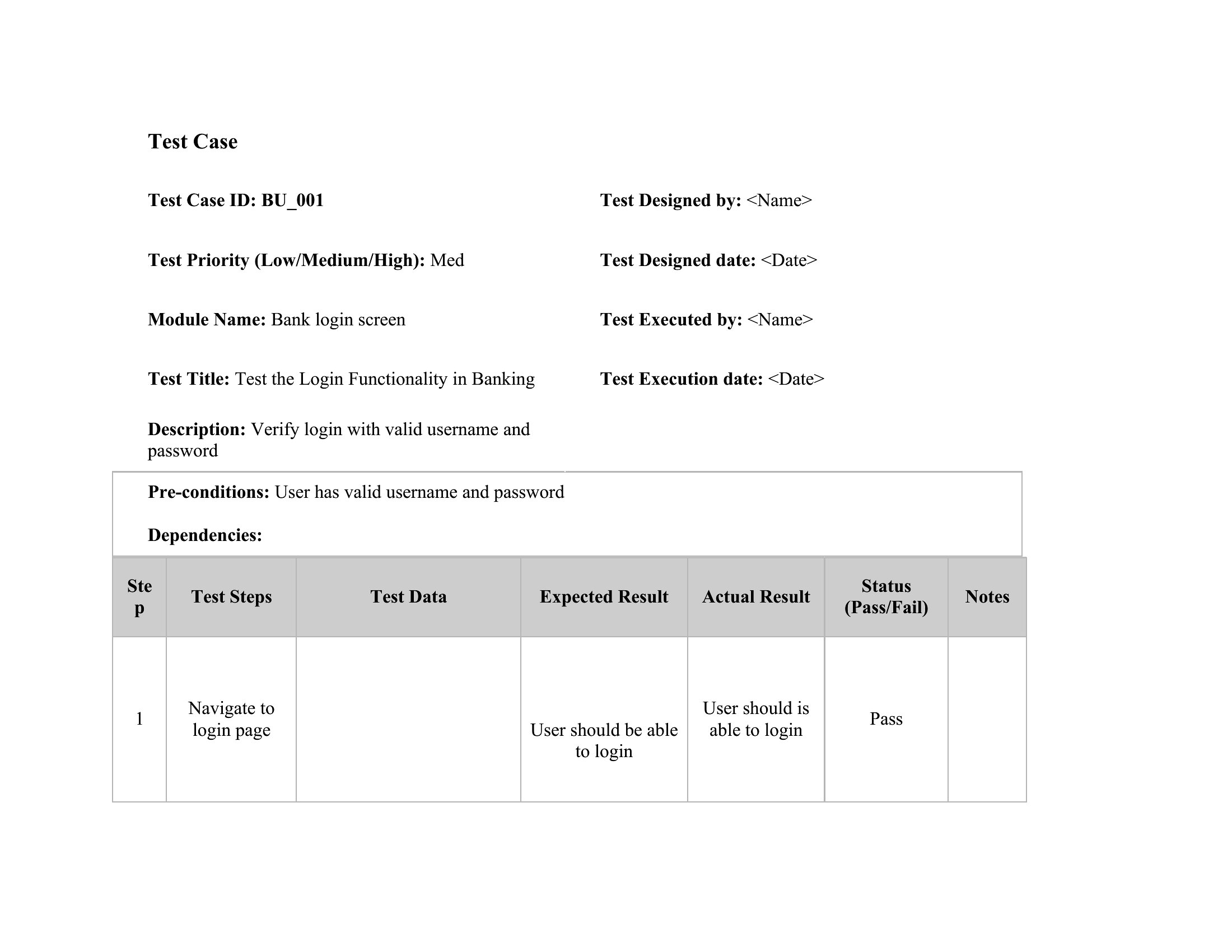
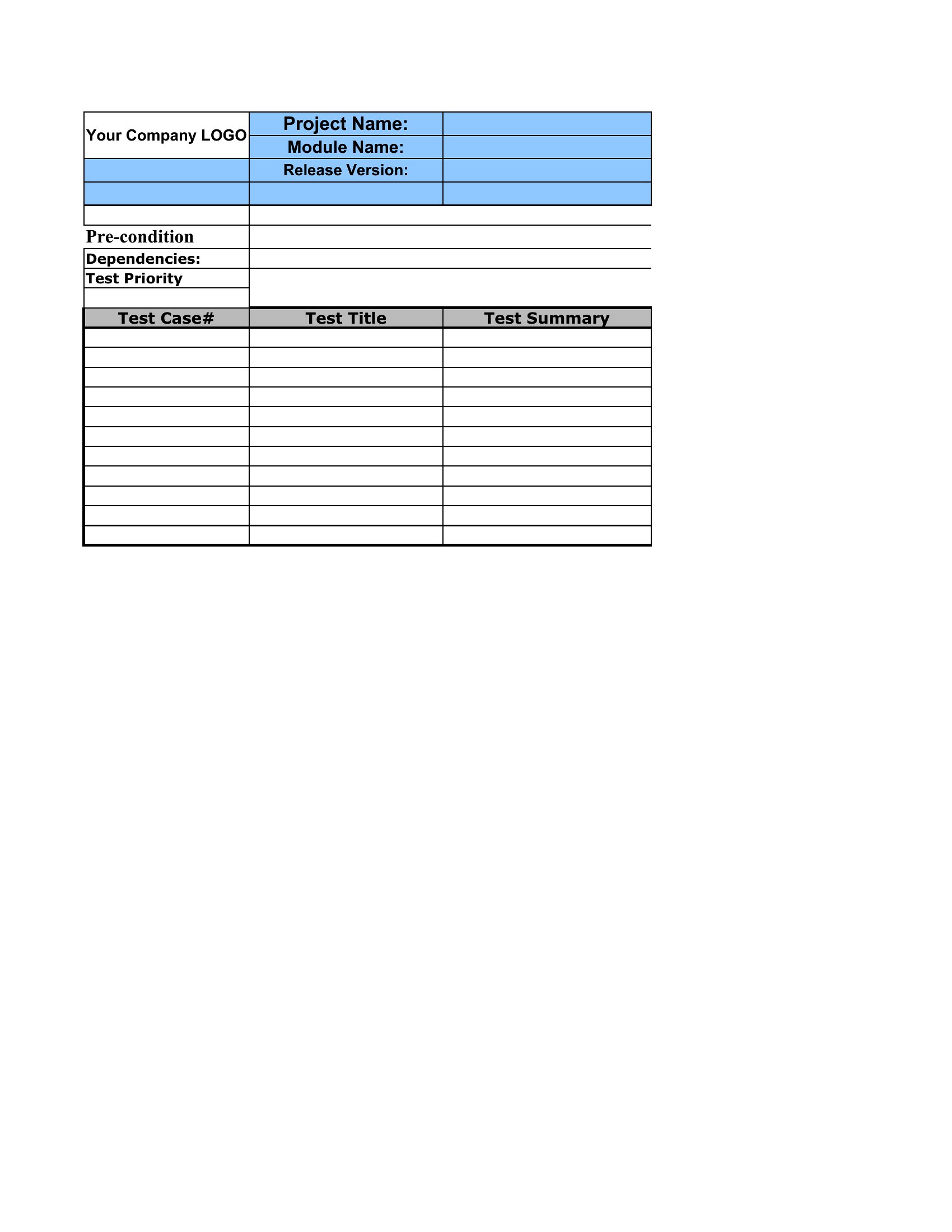
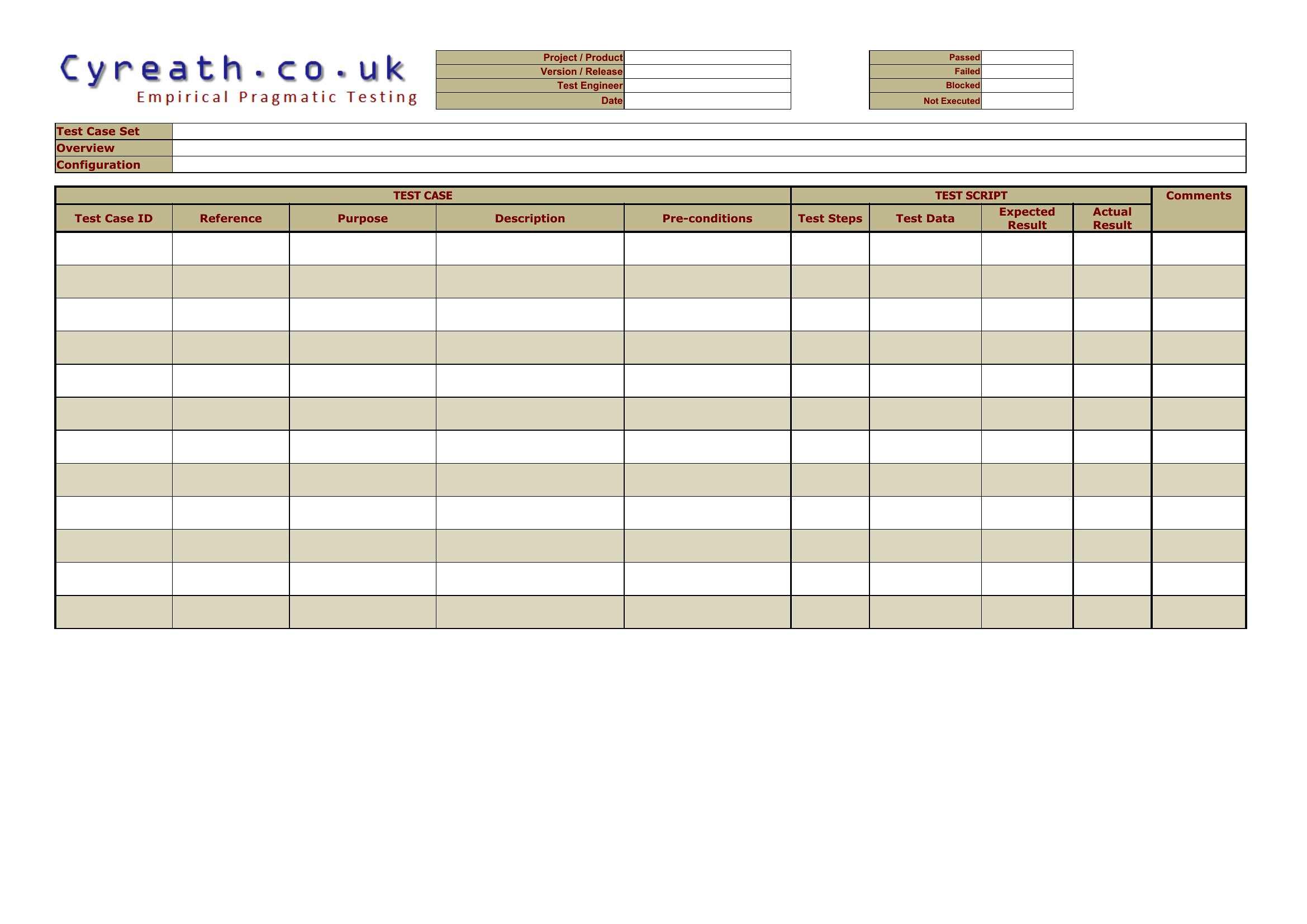
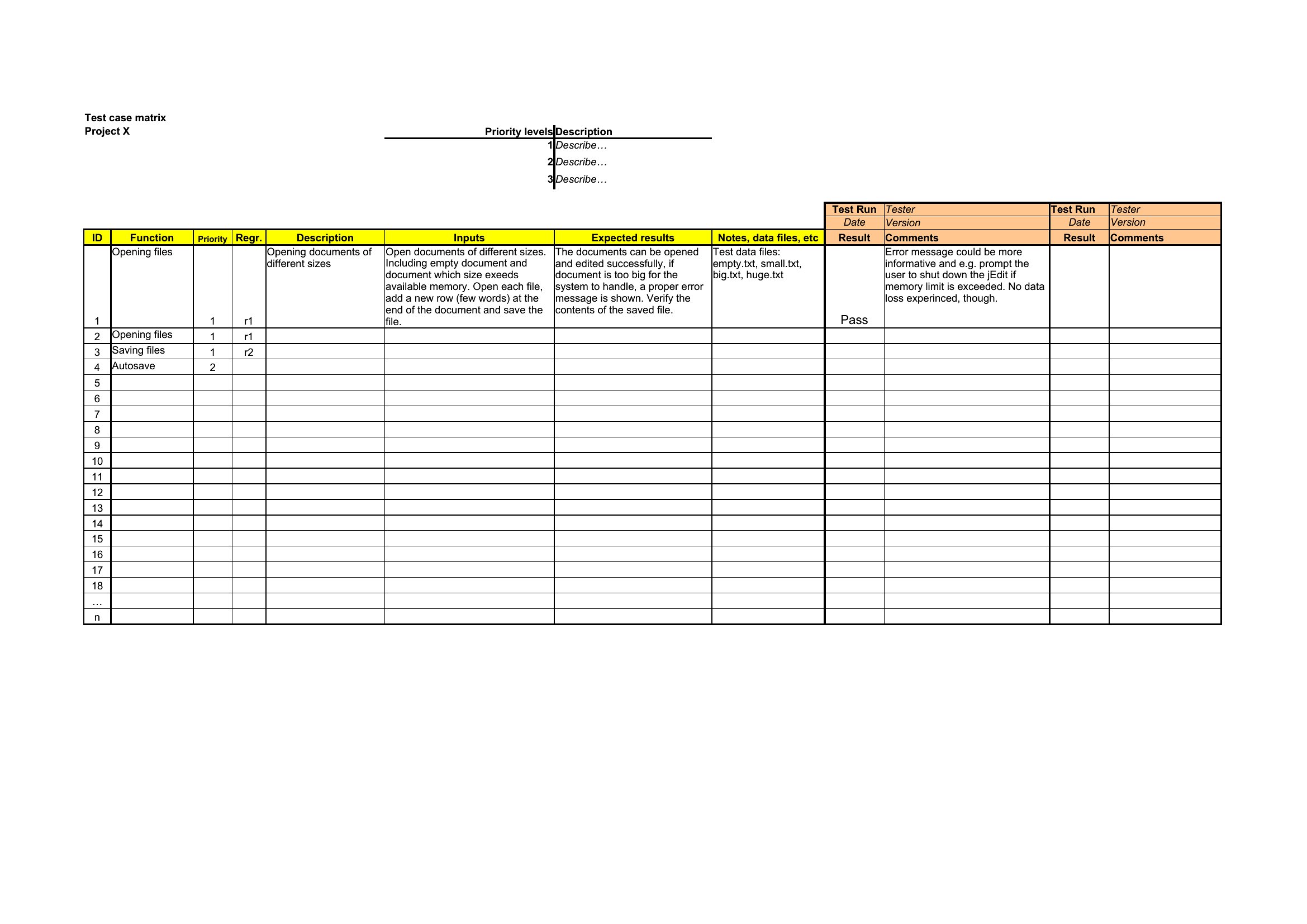
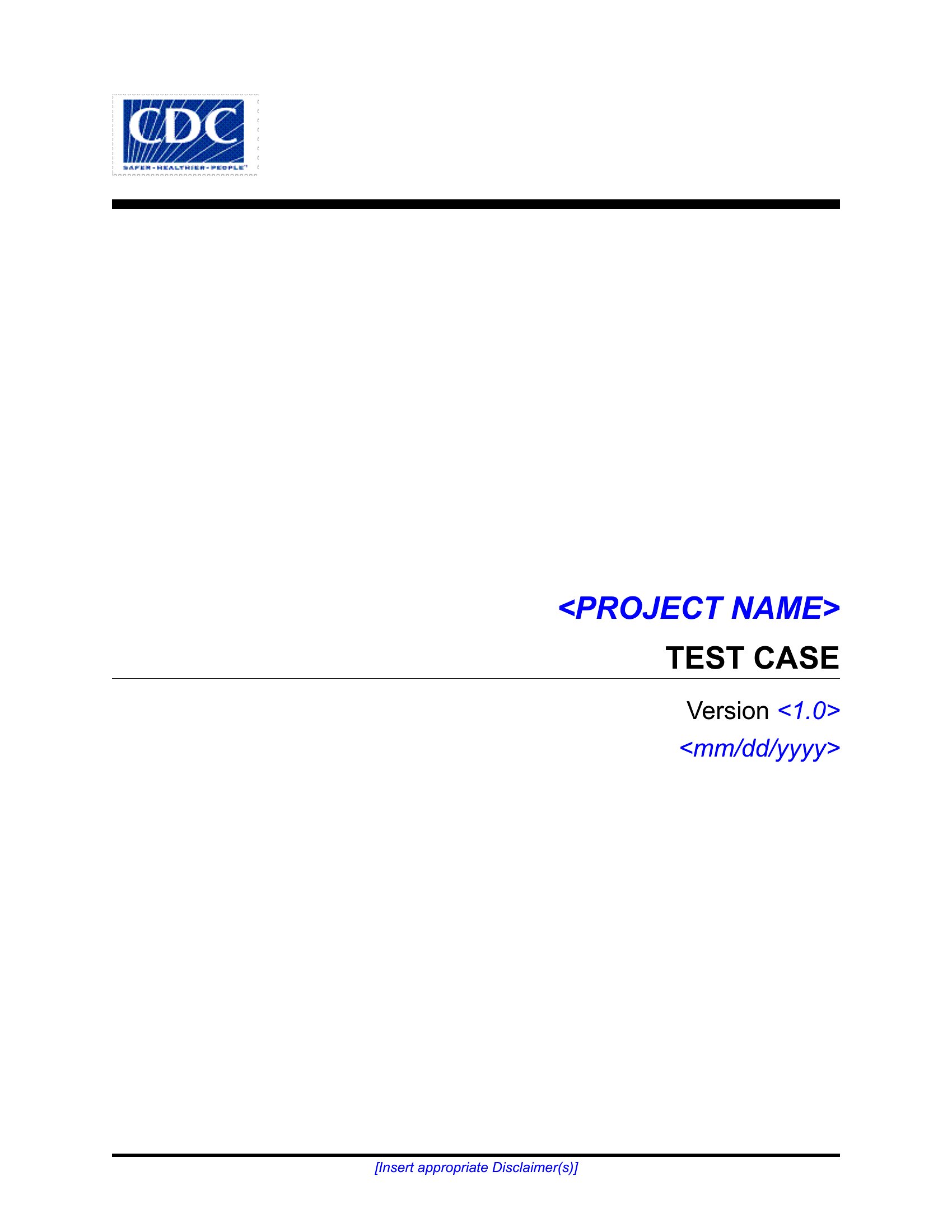
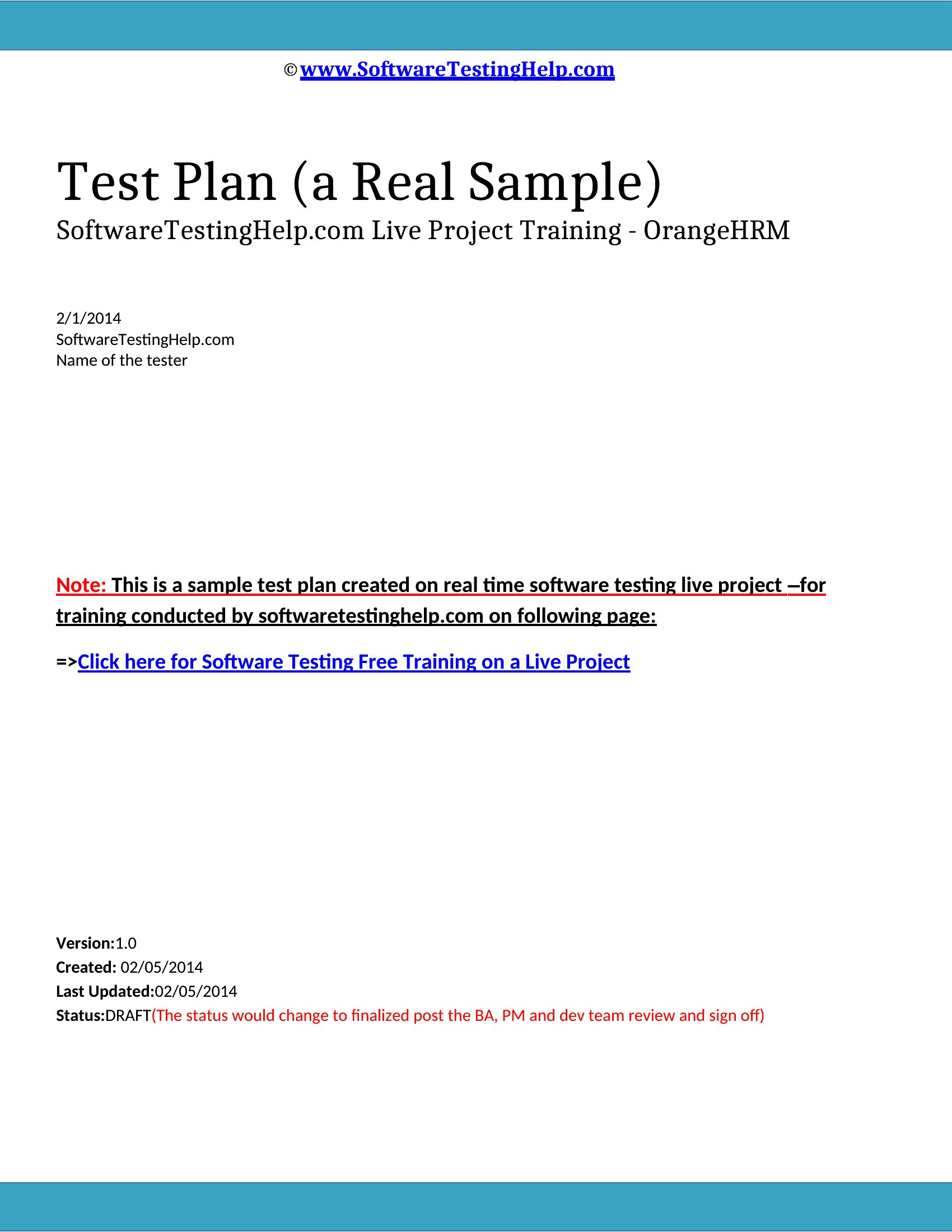
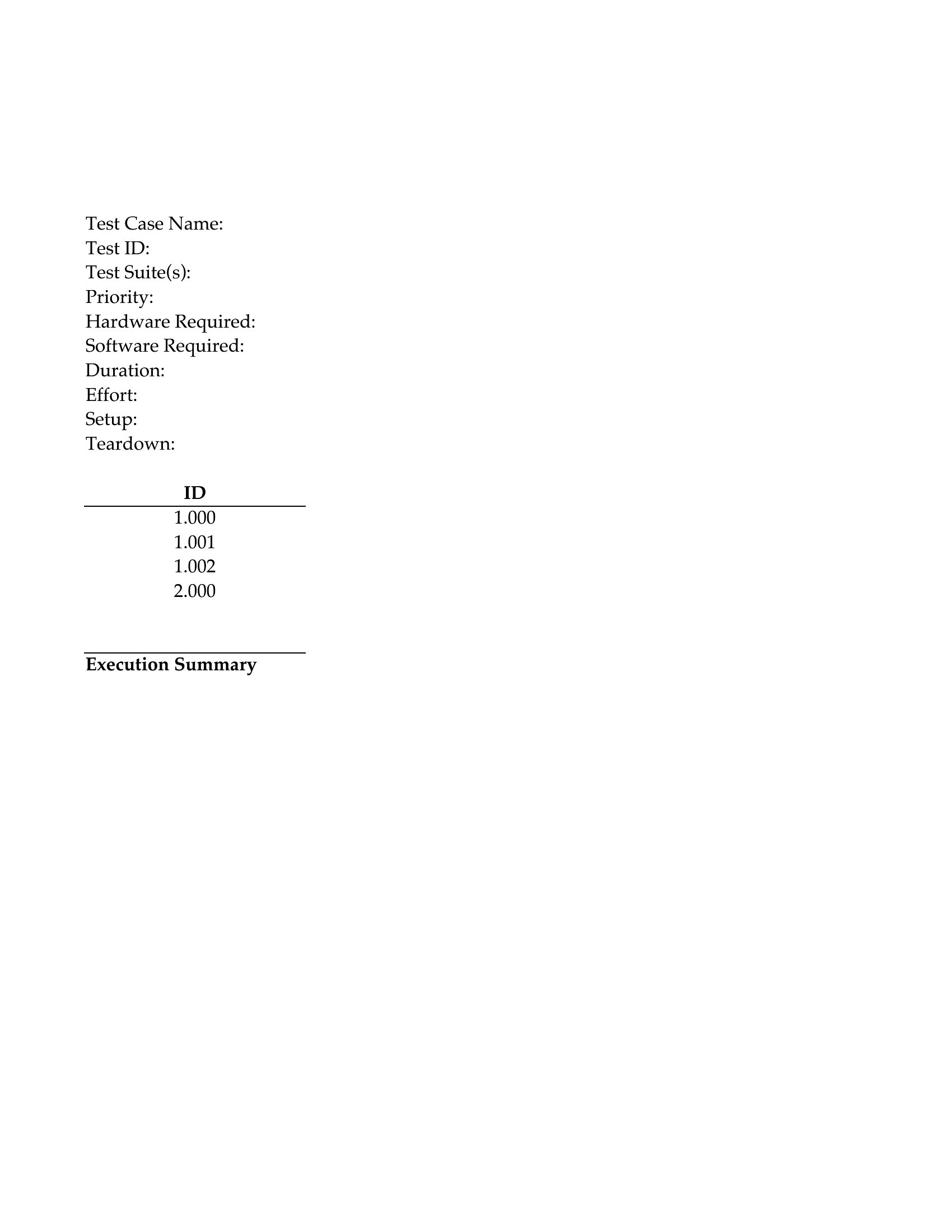
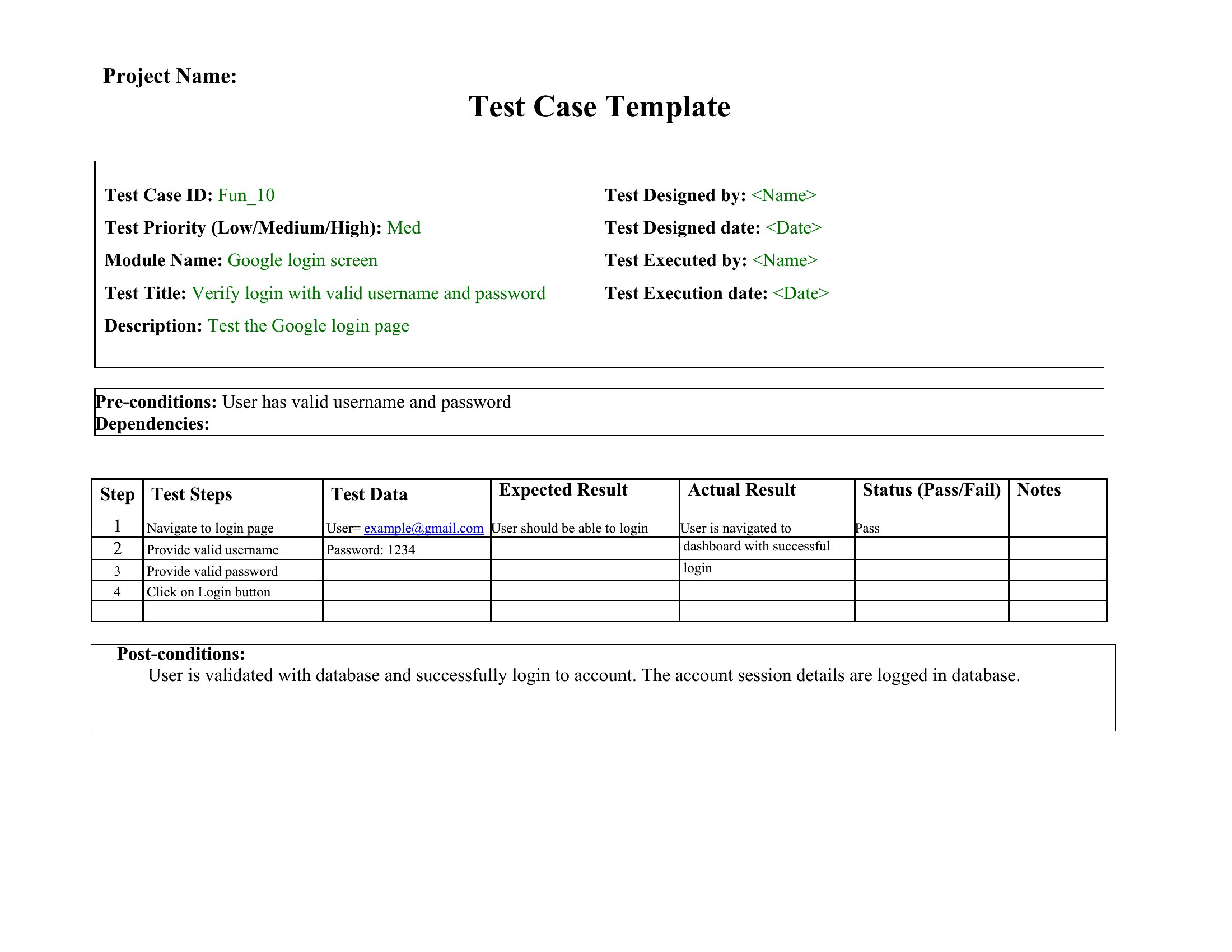
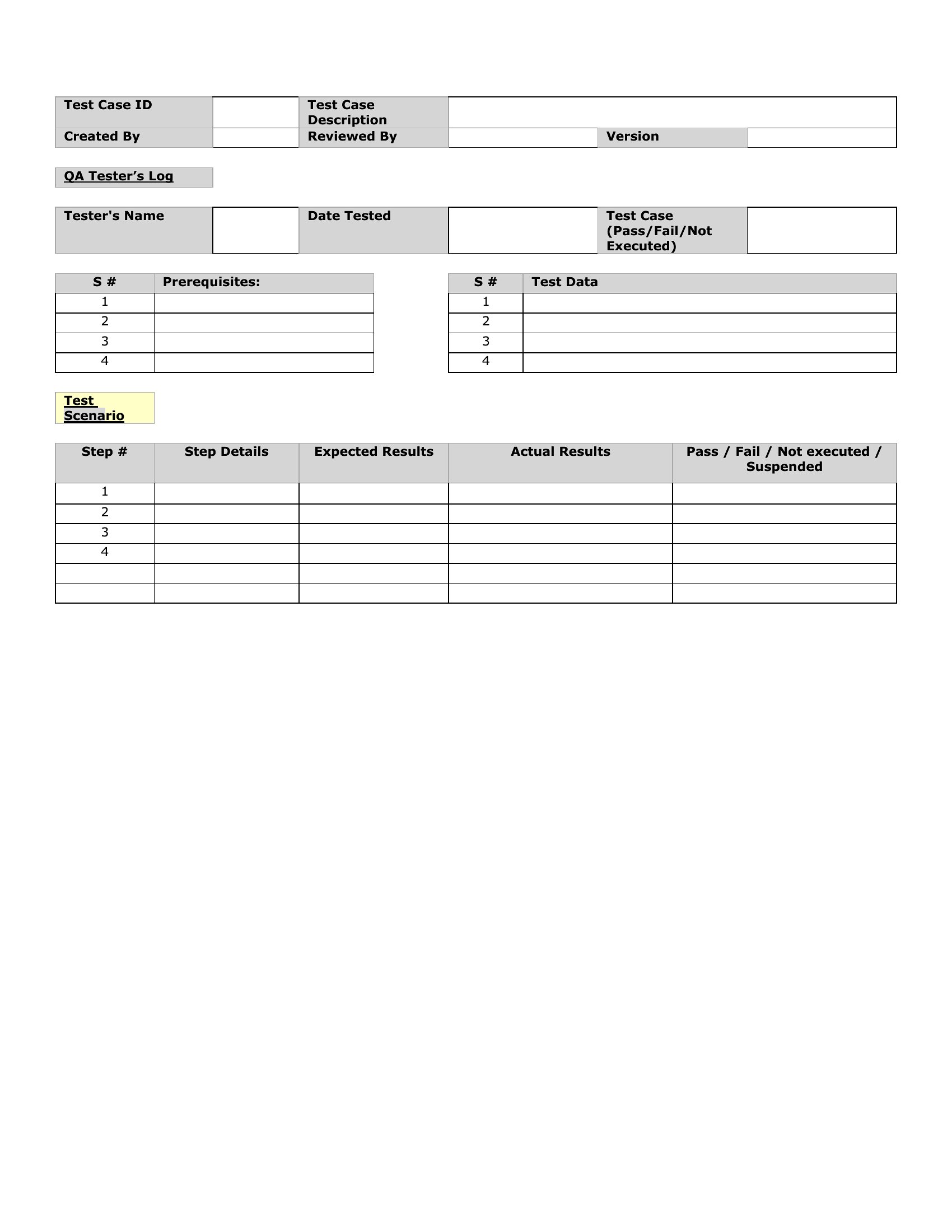
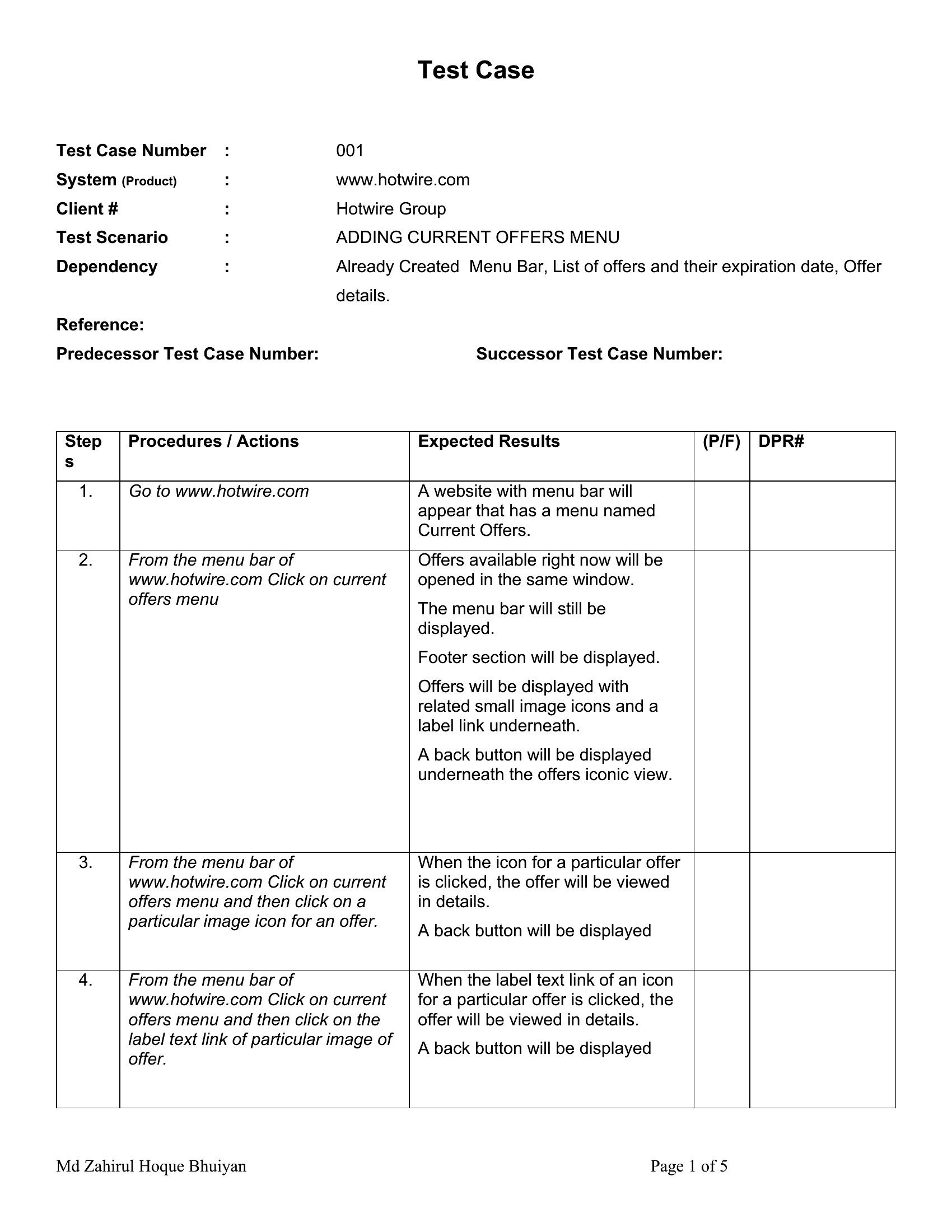
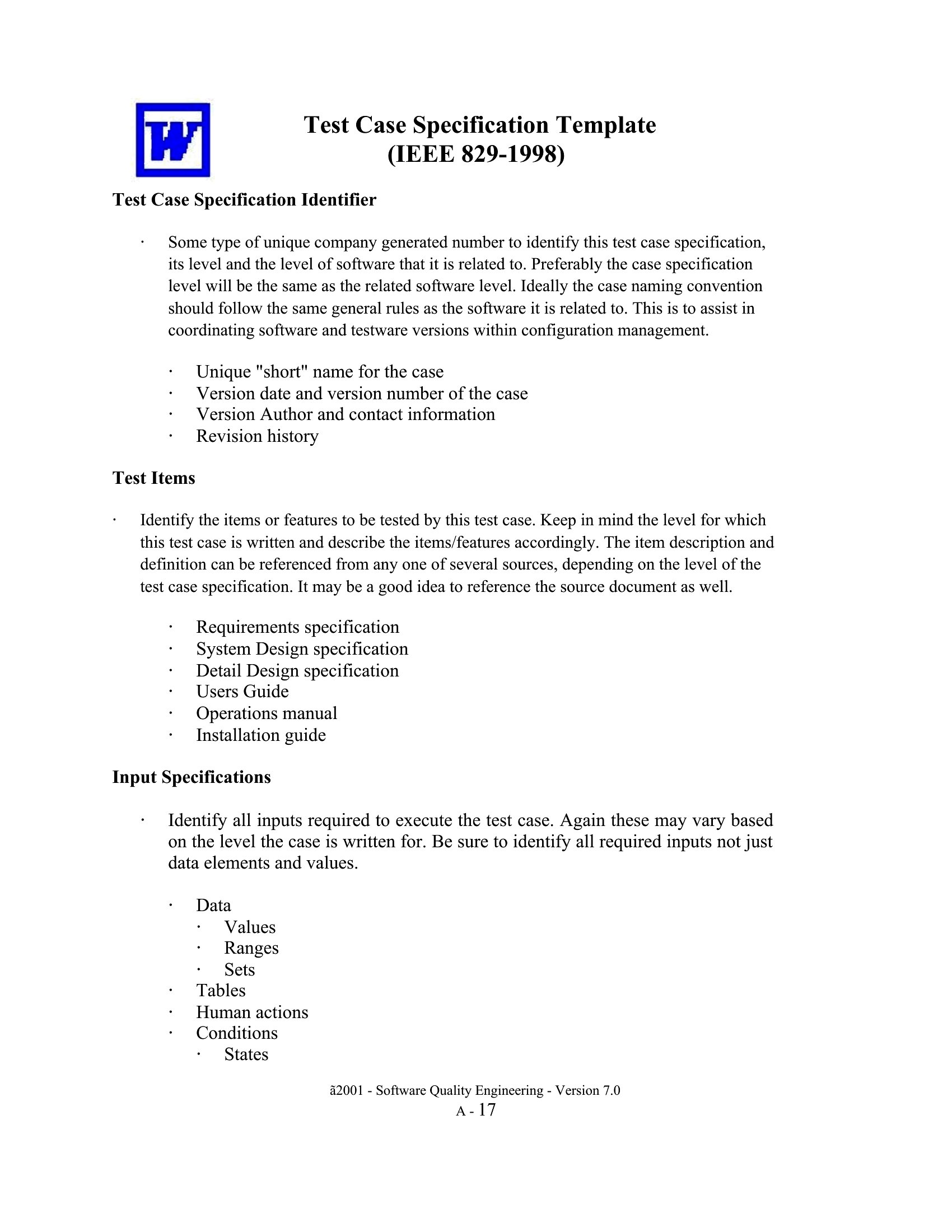
Good software testing depends on knowing exactly what to check and what counts as a pass, and that's where a test case template earns its place. This collection of 62 templates documents test steps, input data, expected results, and actual outcomes, covering manual, functional, and automation testing. QA engineers, developers, and product teams can build repeatable test suites instead of testing from memory.

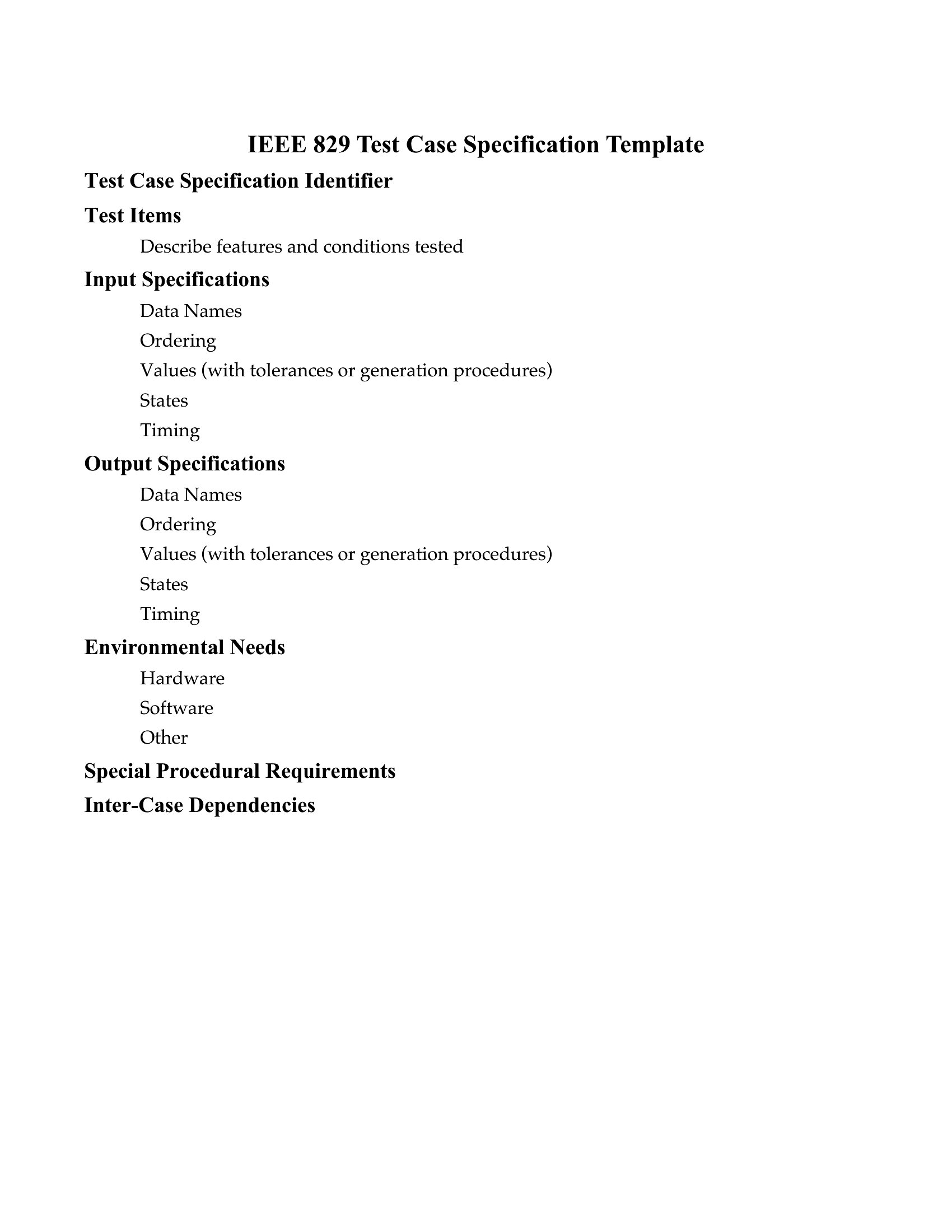
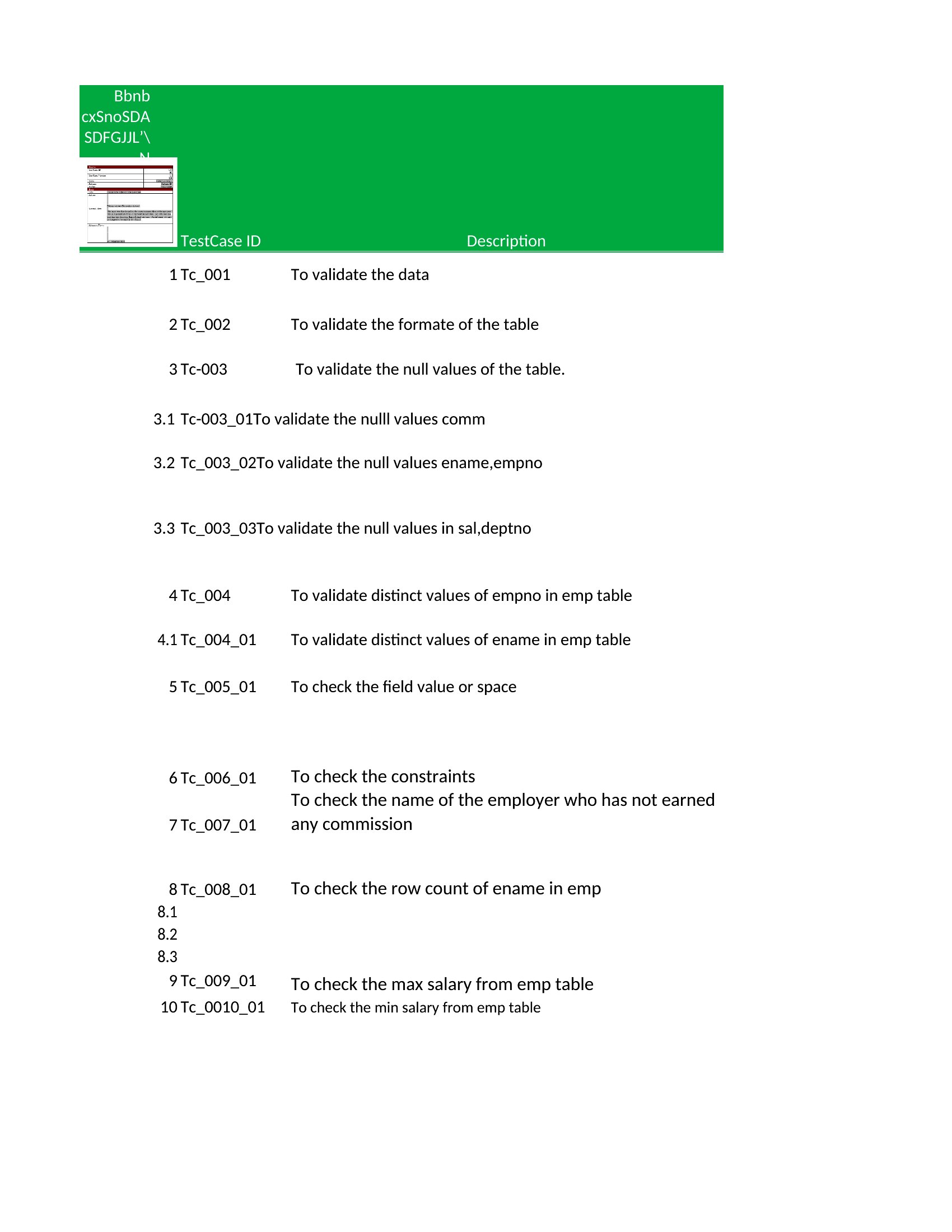
You'll find Excel sheets for tracking large sets of cases with pass-fail columns, plus Word versions for documenting individual scenarios in detail. Fill in the steps, log the results, and you've got a clear record for the whole team. Pick the format that fits your workflow and start writing test cases that catch bugs early.

When to use this Test Case template

  • QA engineers at a fintech startup validating transaction flows use structured Word test cases to align manual testing steps with compliance requirements, ensuring every edge case is documented for audits.
  • A healthcare app development team employs Excel test cases to track patient data validation rules across multiple API integrations, reducing bugs in HIPAA-sensitive workflows before launch.
  • Automation testers on a SaaS project leverage reusable Word templates to map UI test scenarios for CI/CD pipelines, ensuring regression suites stay synchronized with sprint deliverables.
  • Product managers at a gaming studio use Excel test case grids to prioritize feature testing by risk level, assigning severity weights to bugs that impact core gameplay before beta release.

Which format should I download?

WordExcel

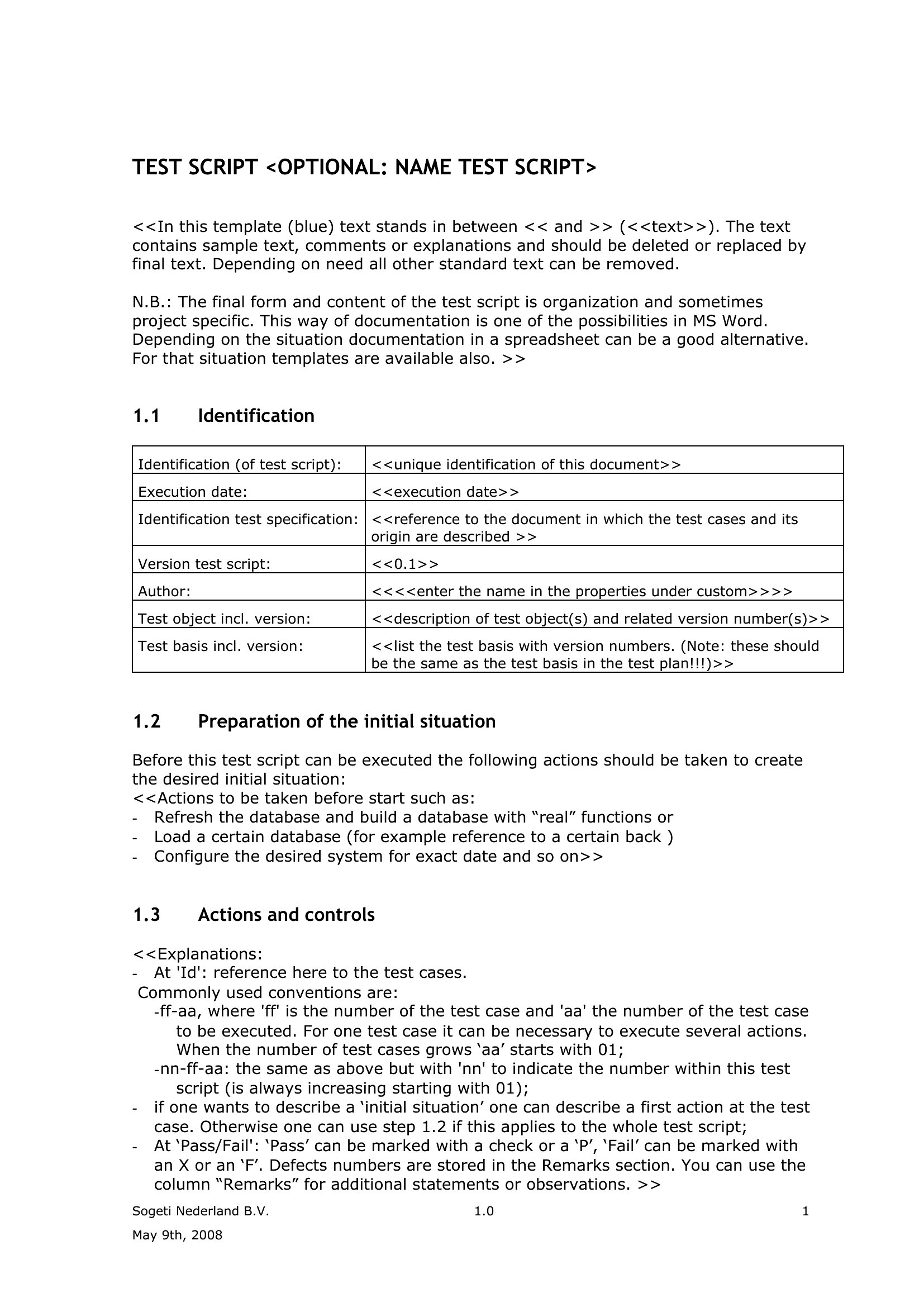
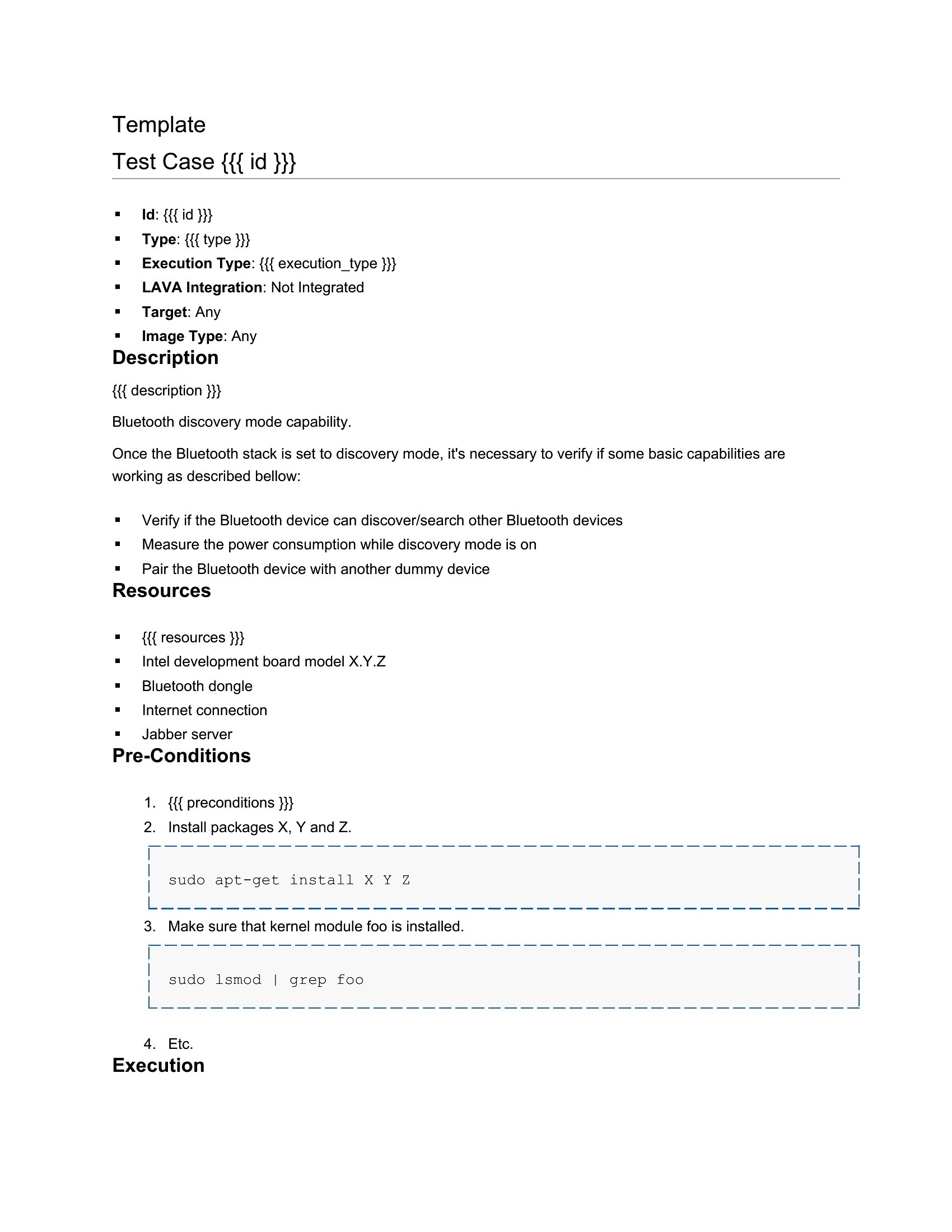
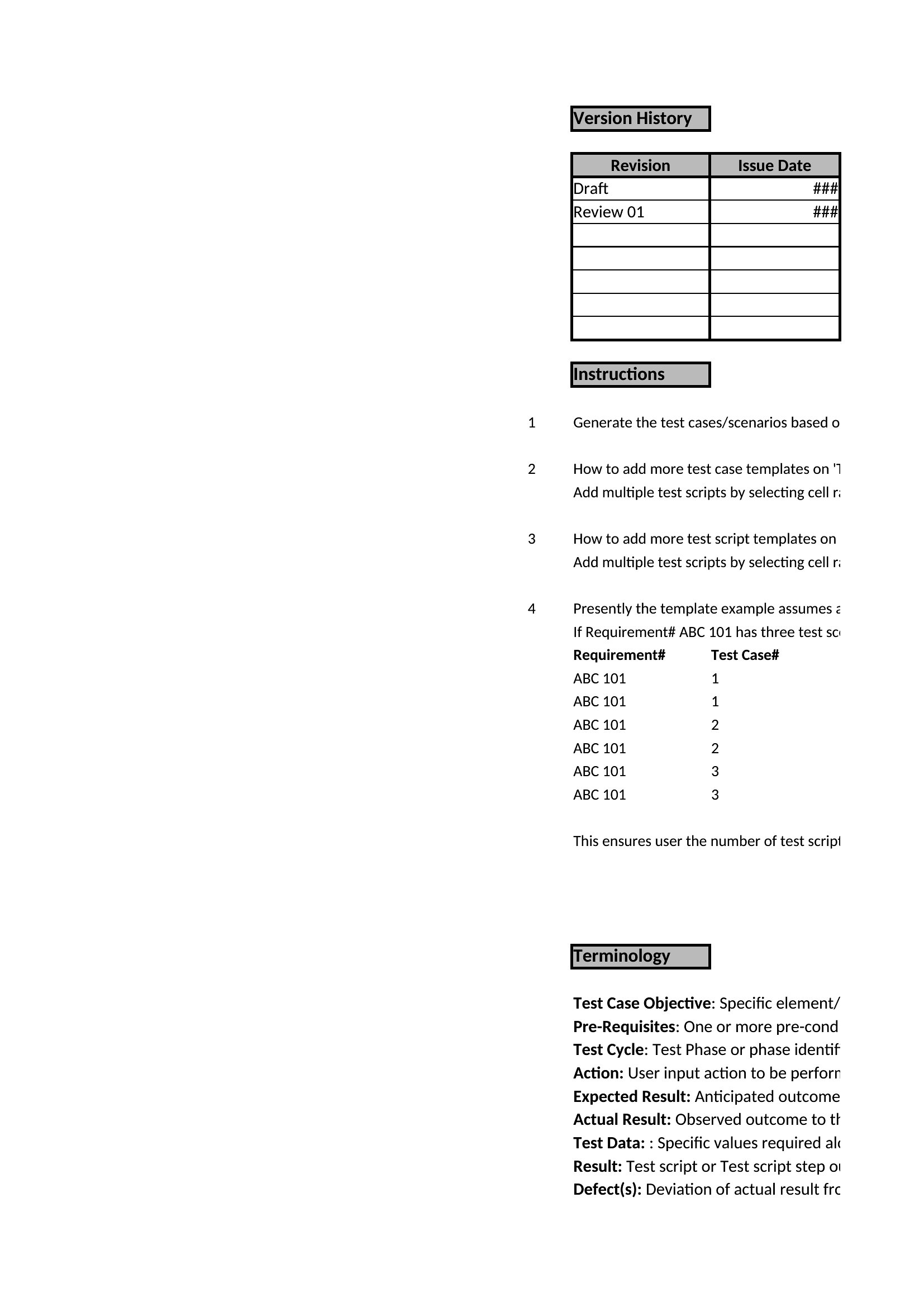
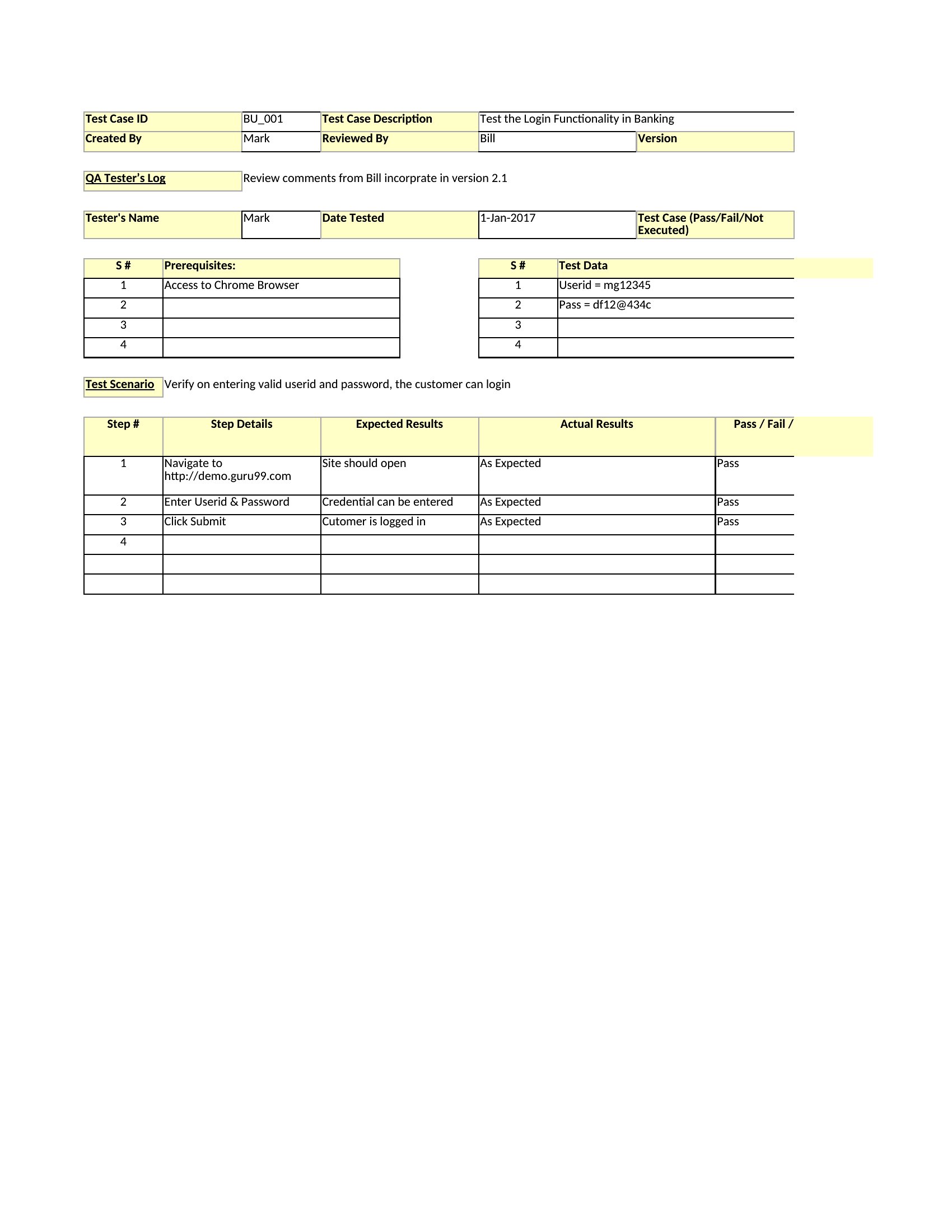
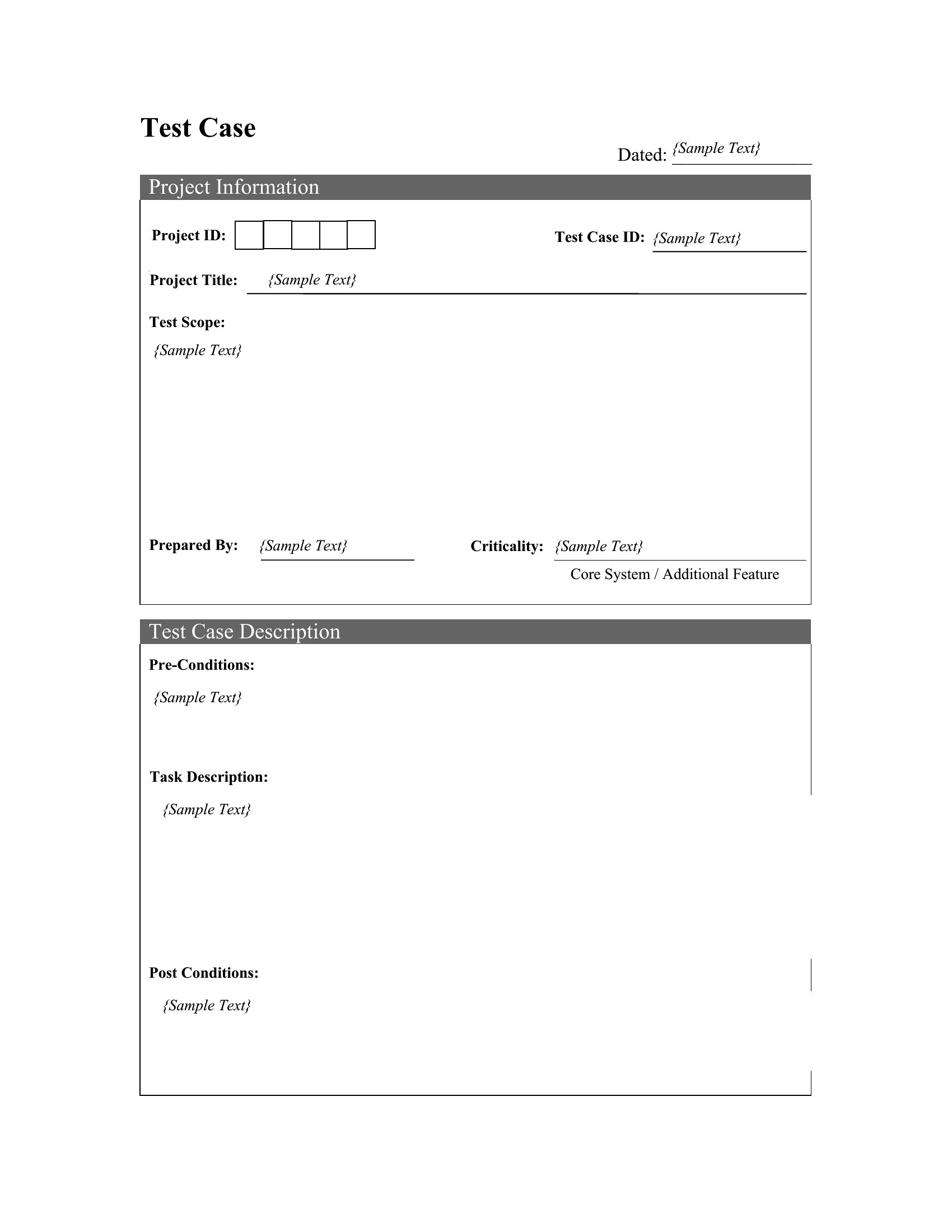
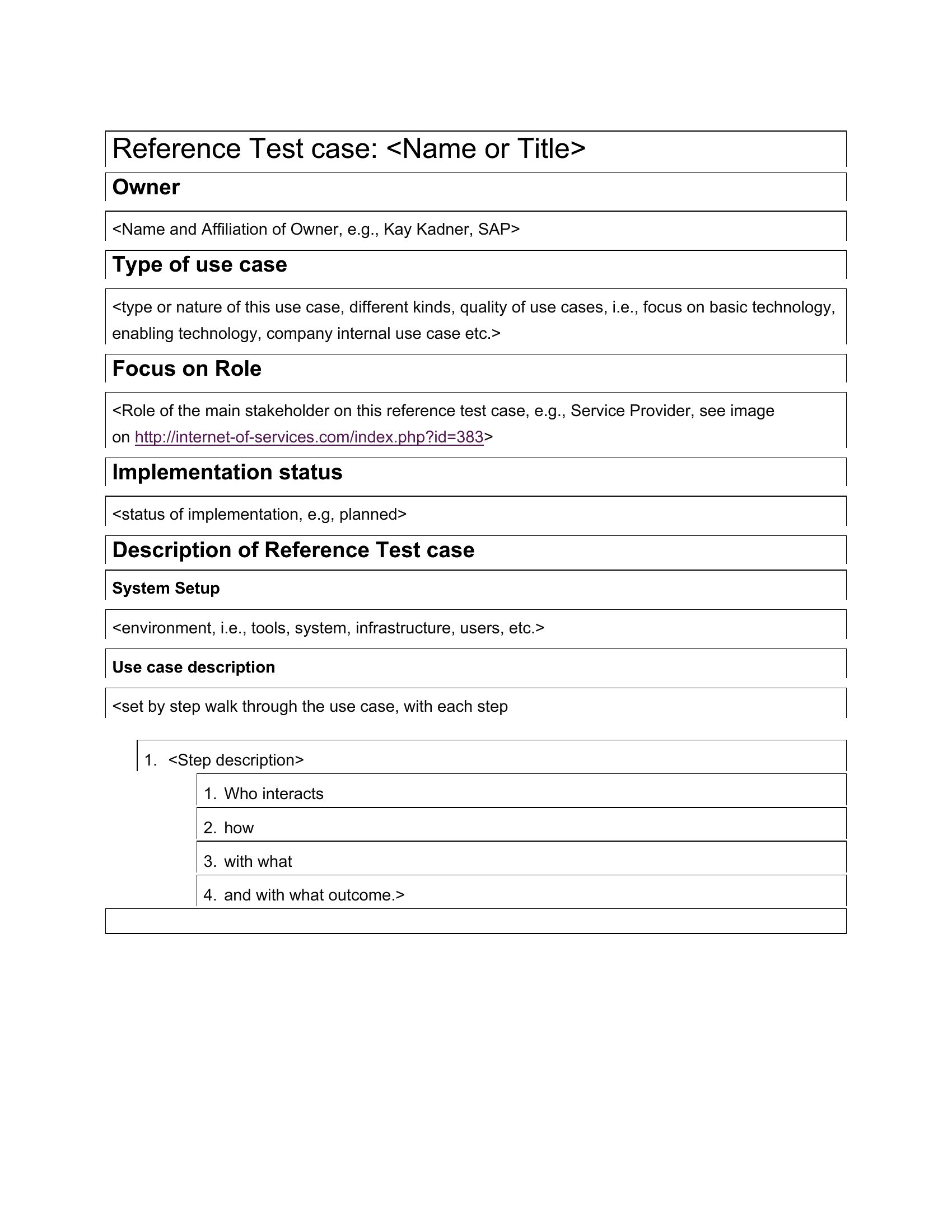
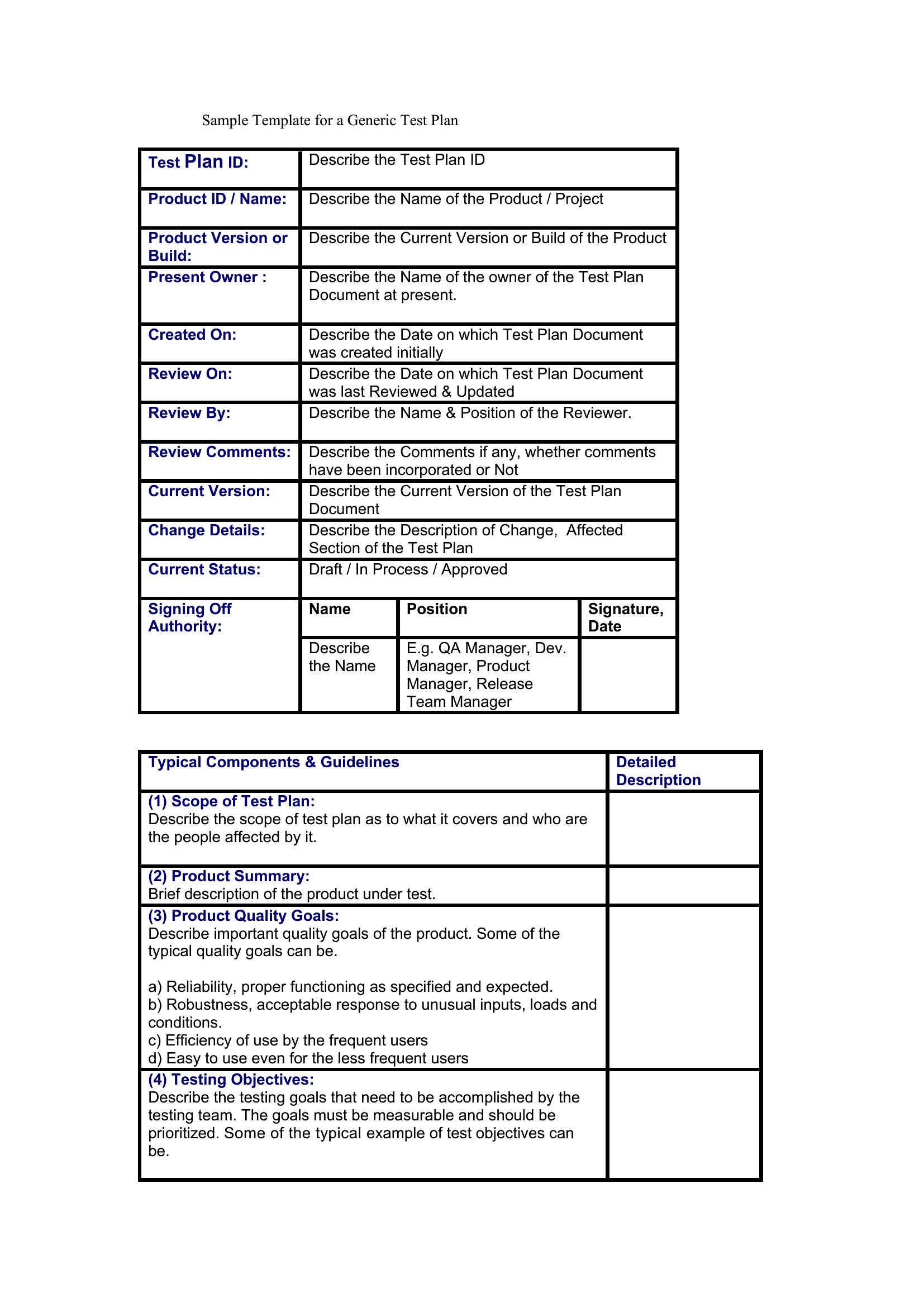
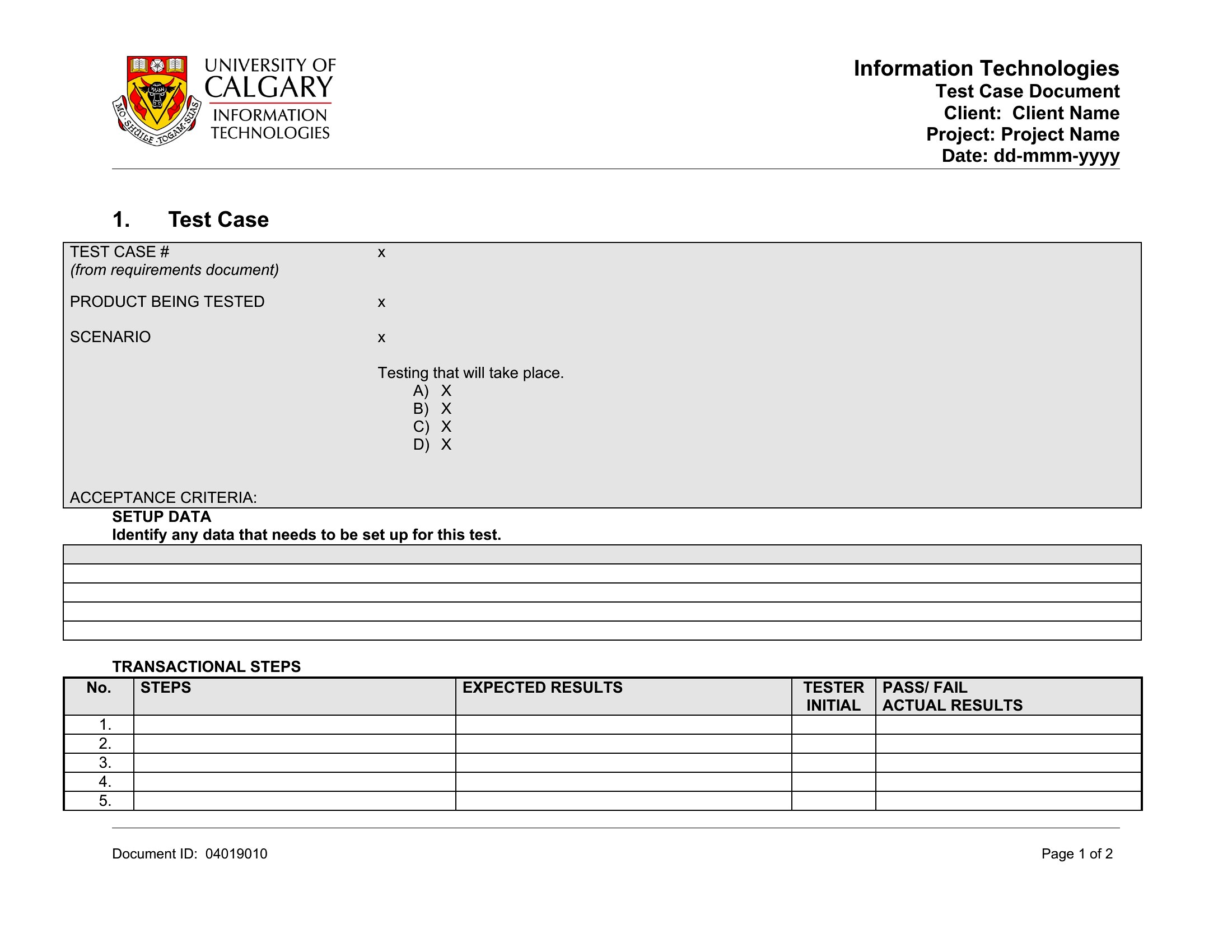
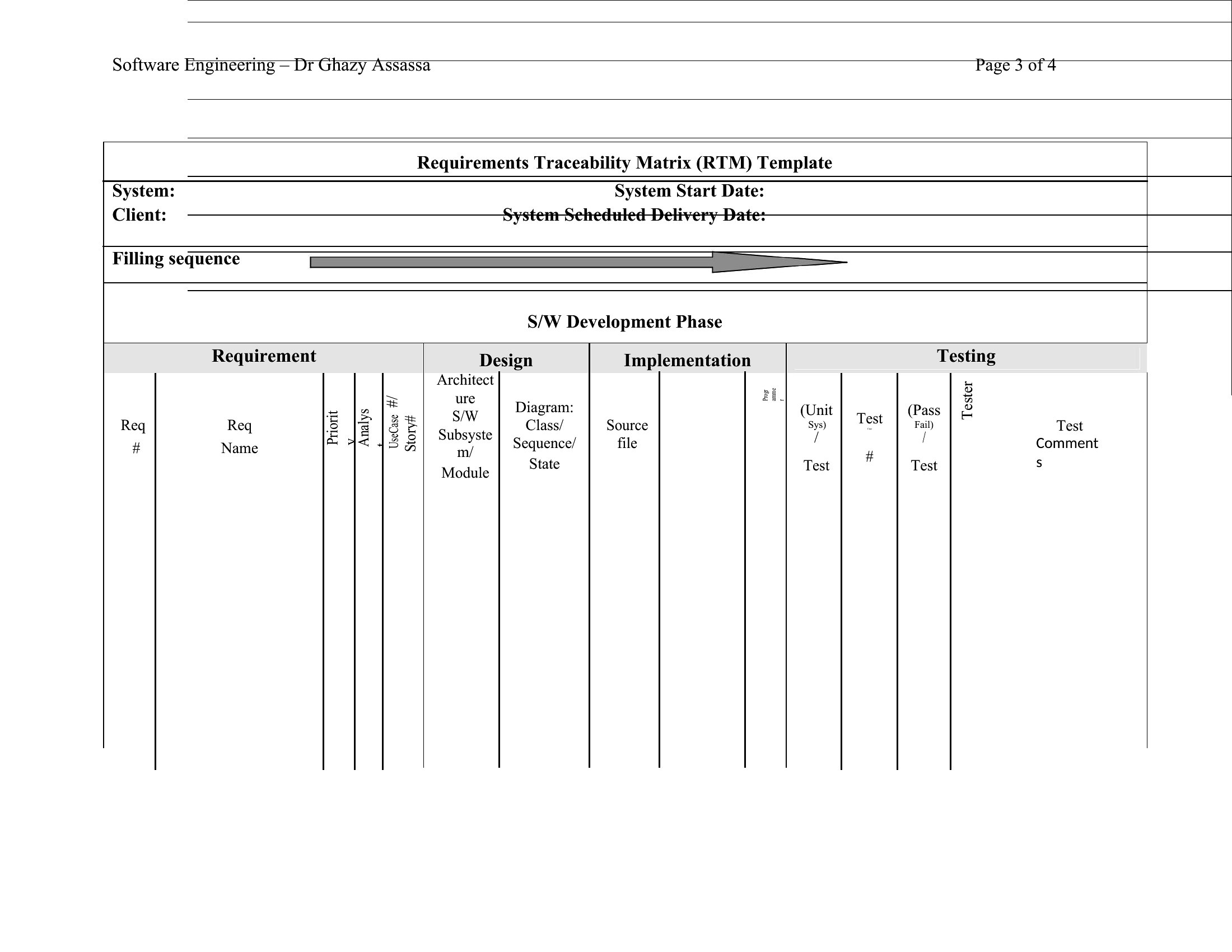
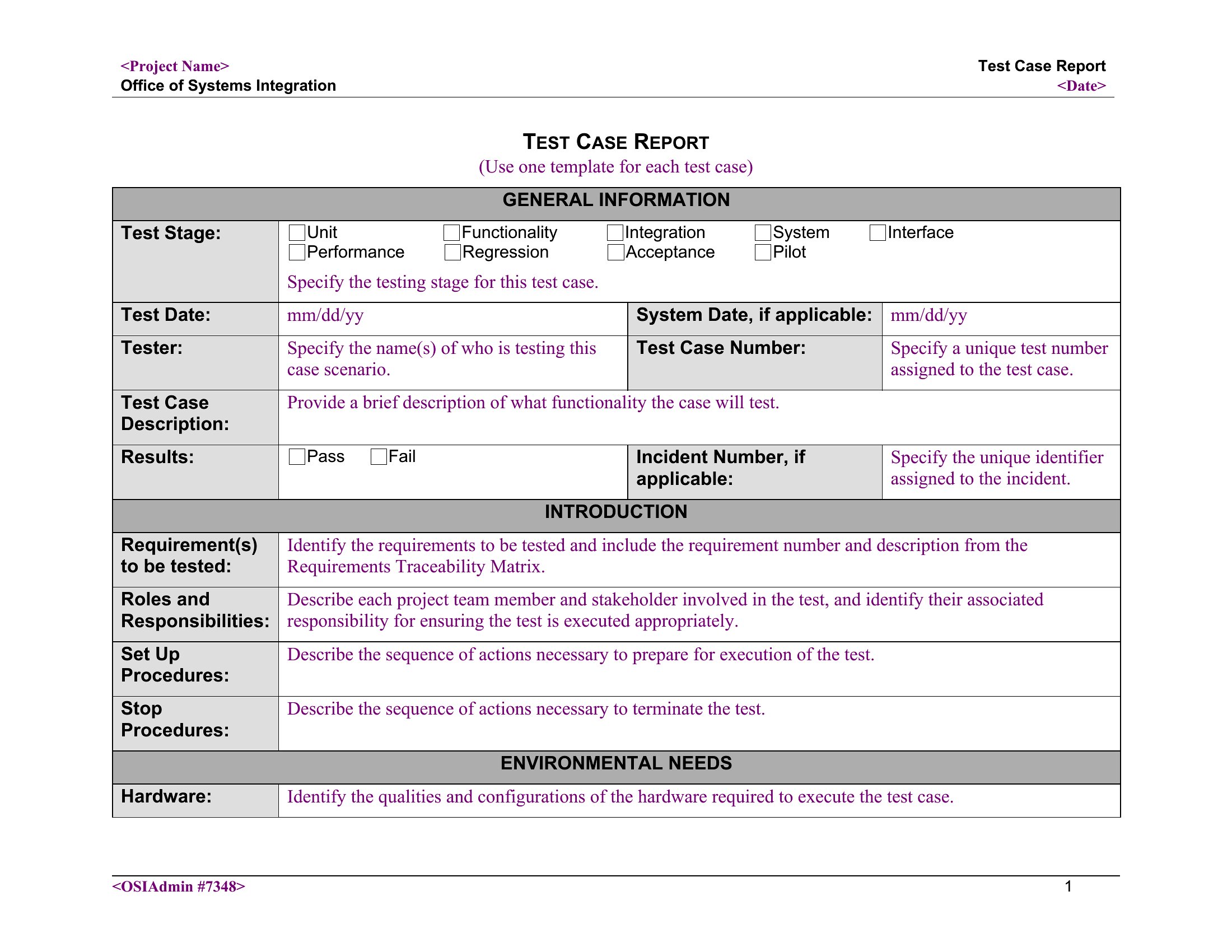
Choose Word when you need to embed detailed narrative instructions, screenshots, or regulatory references alongside test steps—ideal for complex manual testing where context matters. Opt for Excel when managing large volumes of test data, running data-driven tests, or integrating with test management tools like Jira or Zephyr. Excel’s tables and formulas simplify version control for dynamic test matrices, while Word excels at maintaining readable, annotated test scripts for collaborative teams. If your priority is traceability (e.g., linking requirements to test cases), Word’s section breaks and cross-references work better; for quantitative analysis (e.g., pass/fail rates per sprint), Excel’s pivot tables and conditional formatting are superior.

Choose from 62 Test Case Templates

How to use this Test Case template

How do these templates help bridge the gap between functional specs and actual testing execution?

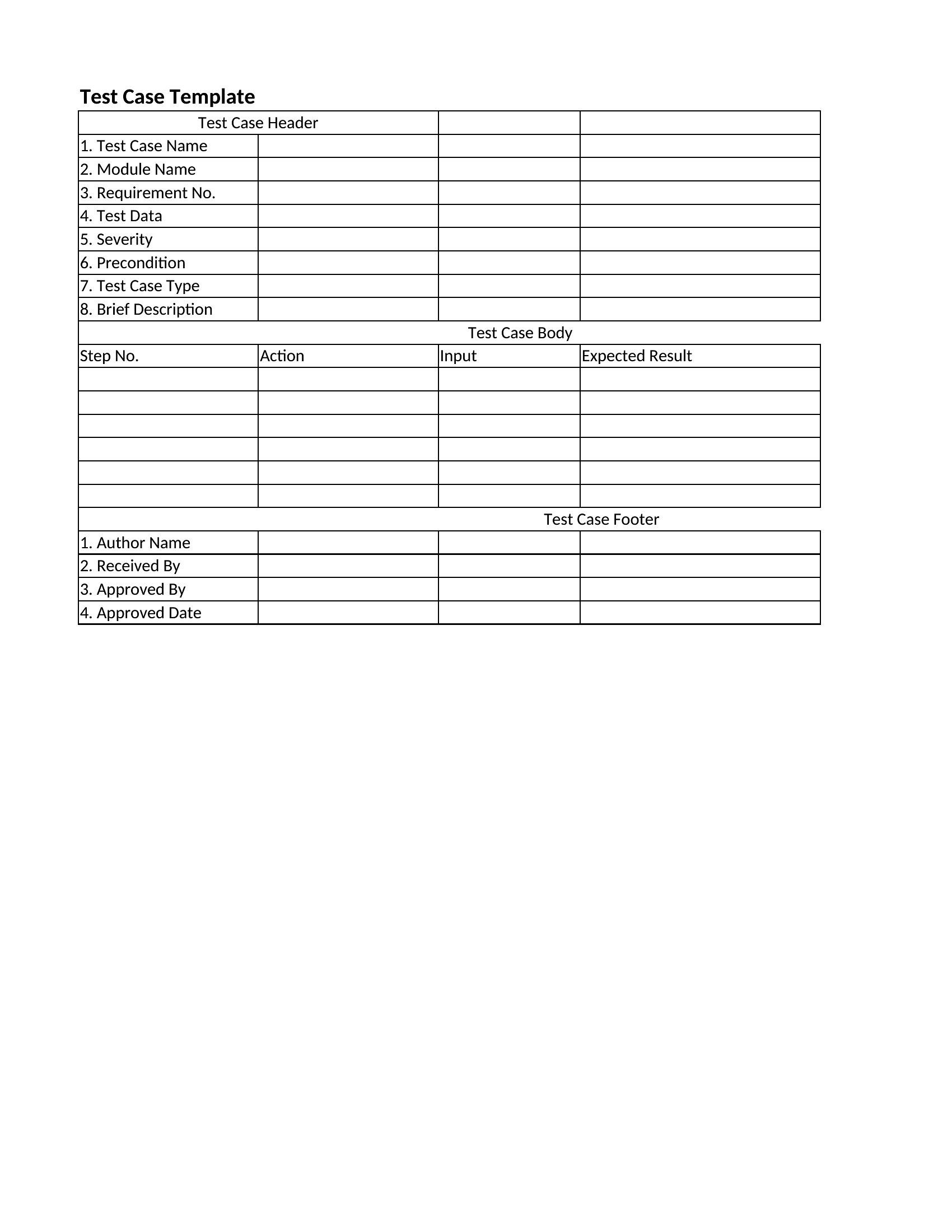
Templates standardize the translation of requirements into actionable test steps by forcing clarity on inputs, expected outcomes, and acceptance criteria. For example, a Word template’s ‘Preconditions’ section ensures testers account for system states like ‘user logged in with admin privileges,’ while Excel’s ‘Data Set’ column flags missing test scenarios early. This reduces misalignment between what developers build and what QA validates, cutting rework cycles by up to 40% for teams using these structures consistently.

Can I adapt these templates to include exploratory testing notes alongside scripted test cases?

Yes, but the approach differs by format. In Word, add a ‘Notes’ section at the end of each test case to capture ad-hoc observations or risks spotted during execution—ideal for manual exploratory sessions. In Excel, use a separate ‘Exploratory Findings’ tab with columns for ‘Tester,’ ‘Discovery Time,’ ‘Severity,’ and ‘Linked Case.’ This keeps structured and unscripted testing artifacts in the same file while maintaining audit trails. Pair Excel with a version control tool if multiple testers contribute notes simultaneously.

What’s the best way to reuse these templates across multiple projects with similar but not identical testing needs?

Start by creating a master template in Word for reusable prose (e.g., ‘Test Case Header’ or ‘Defect Reporting Guidelines’) and a base Excel file with locked columns for core fields like ‘Test ID,’ ‘Priority,’ and ‘Status.’ Use Excel’s ‘Data Validation’ dropdowns to standardize values (e.g., ‘Pass/Fail/Blocked’) across projects. For variations, duplicate the master files and use Word’s ‘Quick Parts’ gallery to insert project-specific variables (e.g., ‘System Under Test: [Project Name]’). Store these in a shared drive with version-controlled folders to avoid duplication.

Comments

Join the conversation

Sign in to share your thoughts and leave a comment on this resource.

Newsletter

Get Weekly Design Updates

Join our community to receive curated resources and inspiration.

Weekly Tips Resources Early Access

We respect your privacy. Confirmation email required. Privacy Policy