Free Test Case Templates (Excel)
AnalysisTemplates
Casas Testing
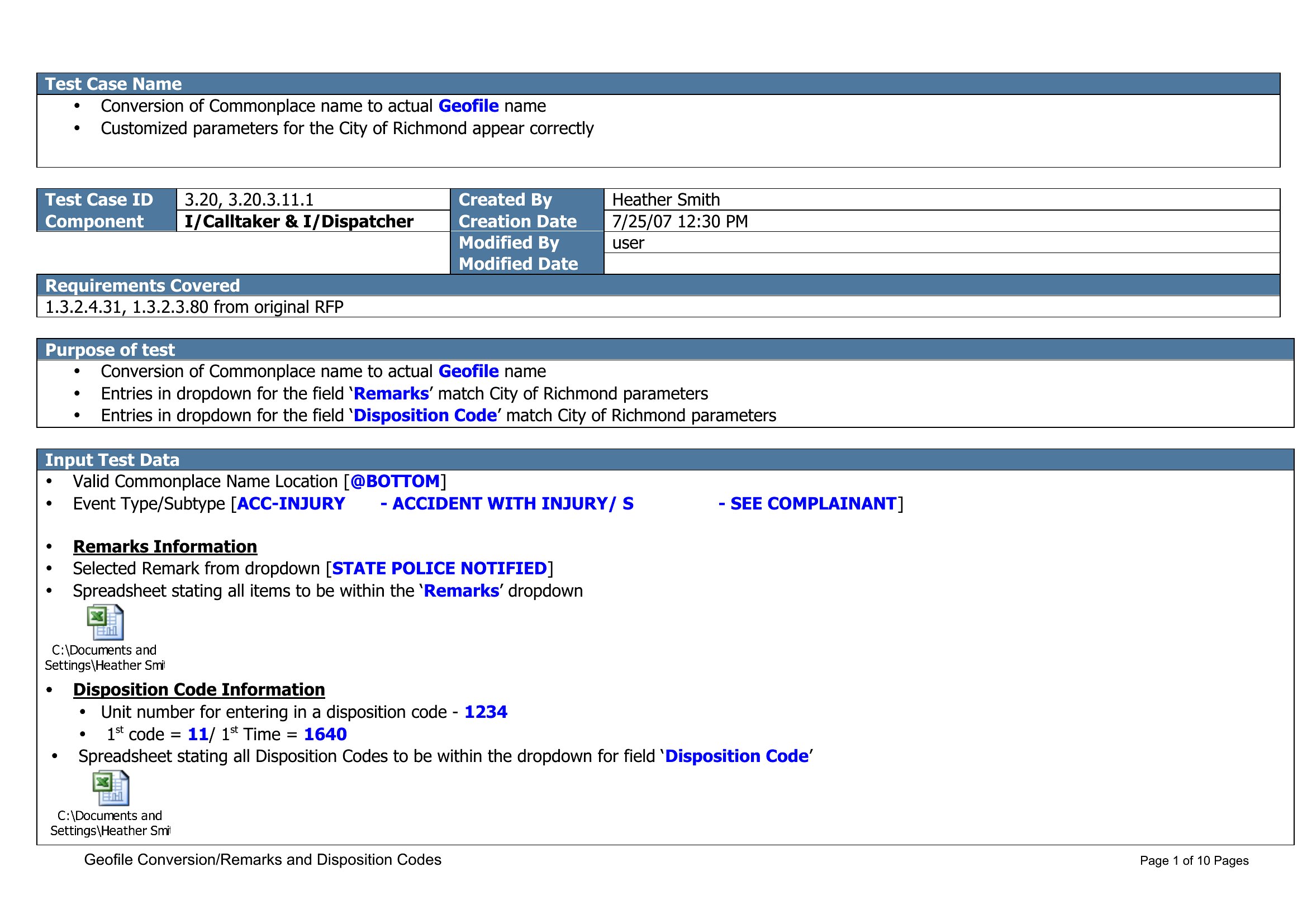
Case Testing
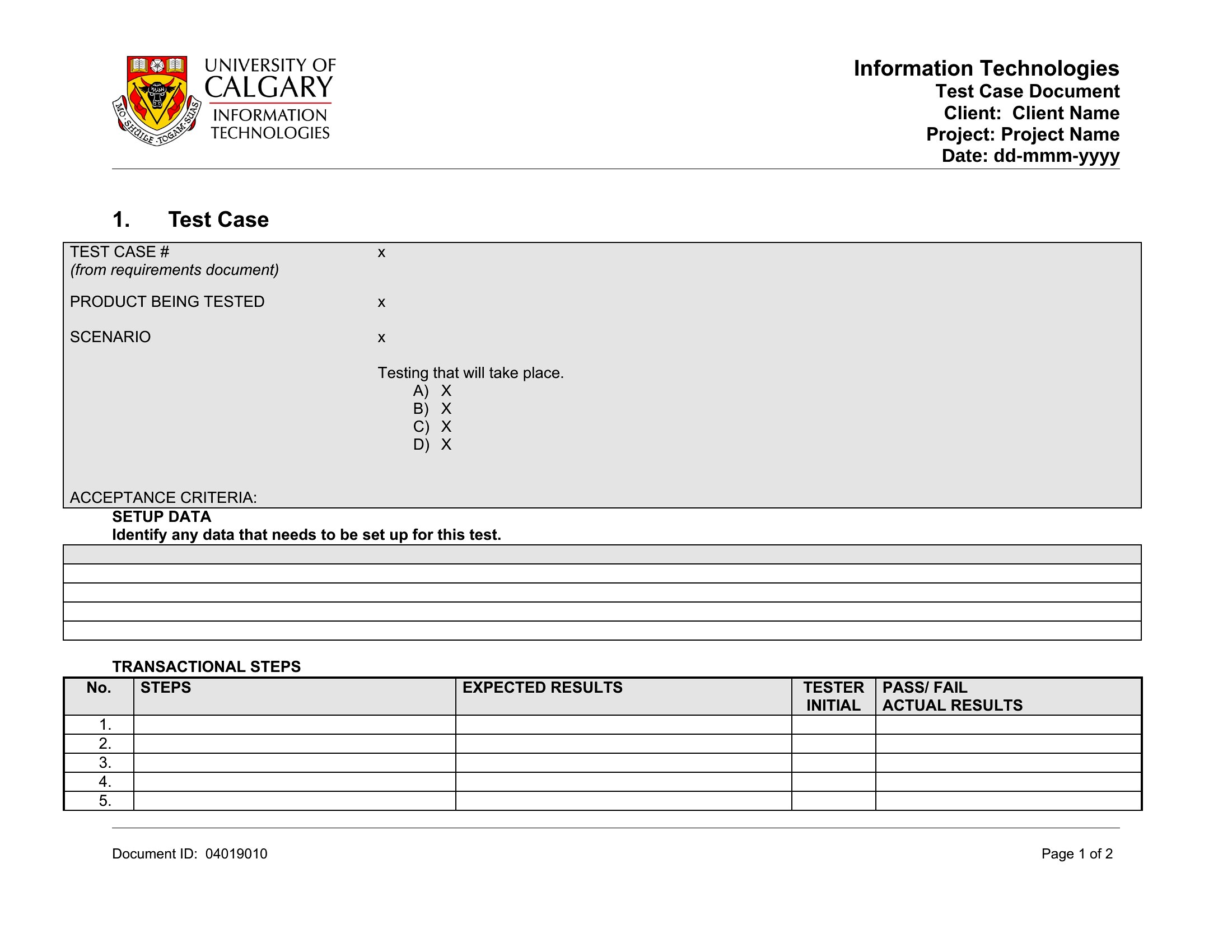
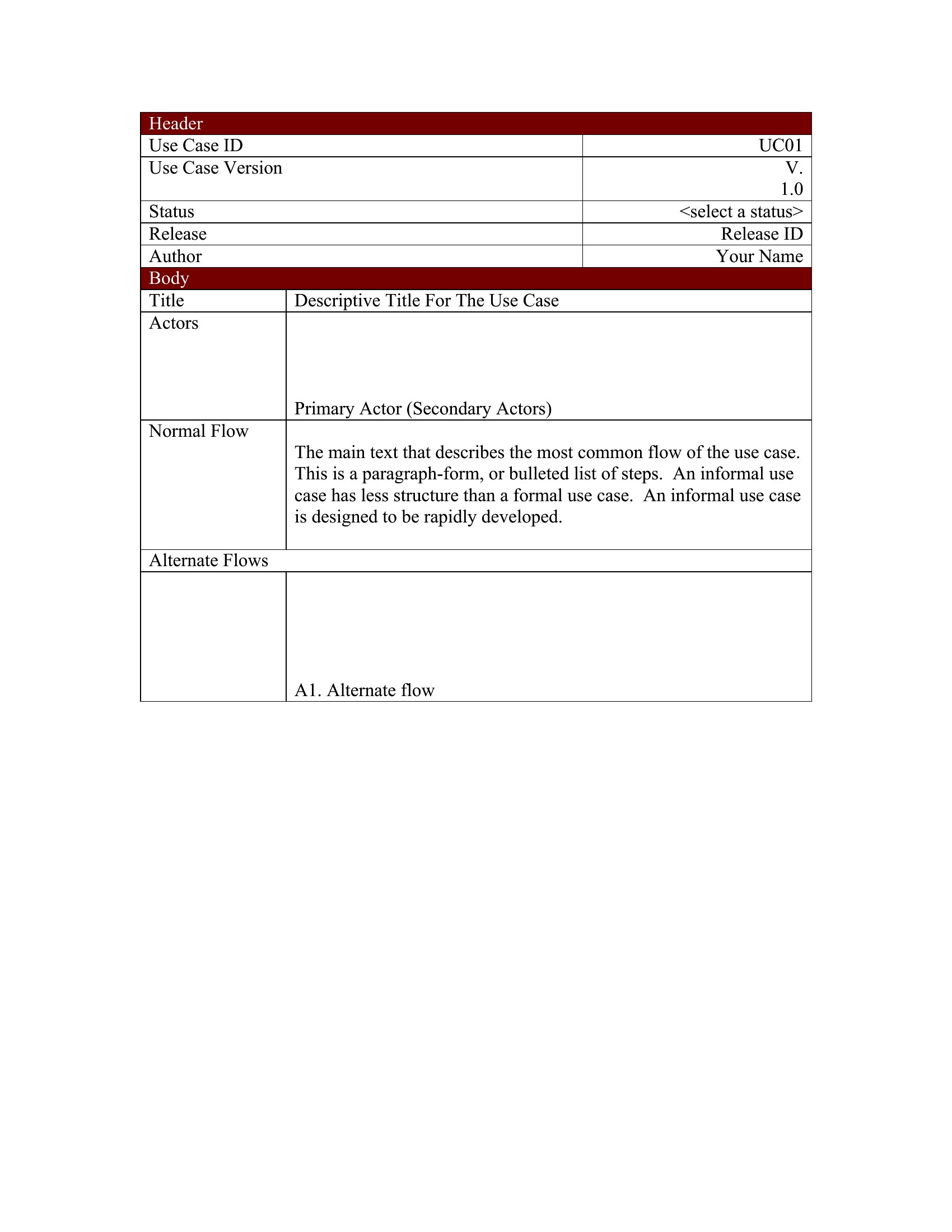
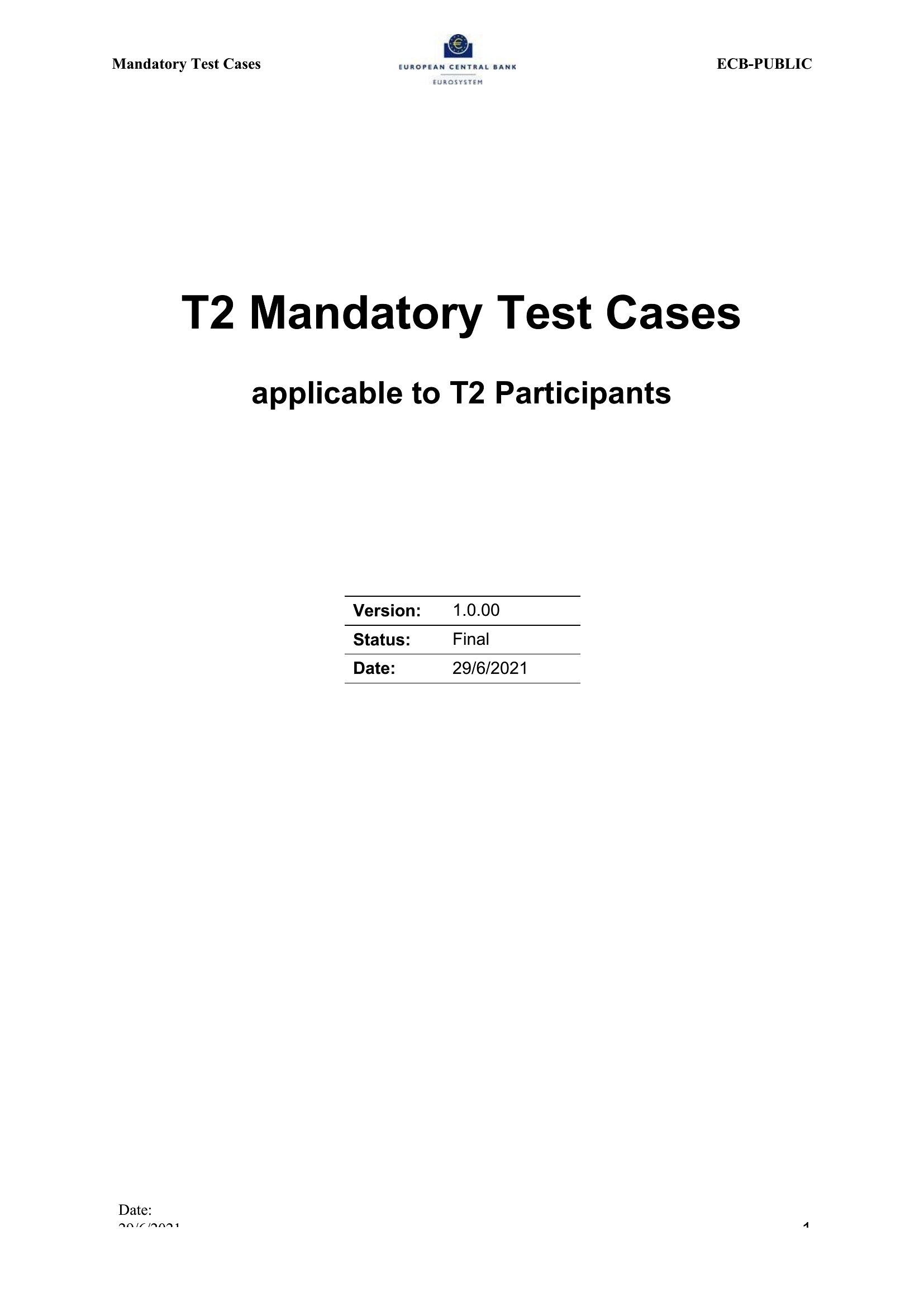
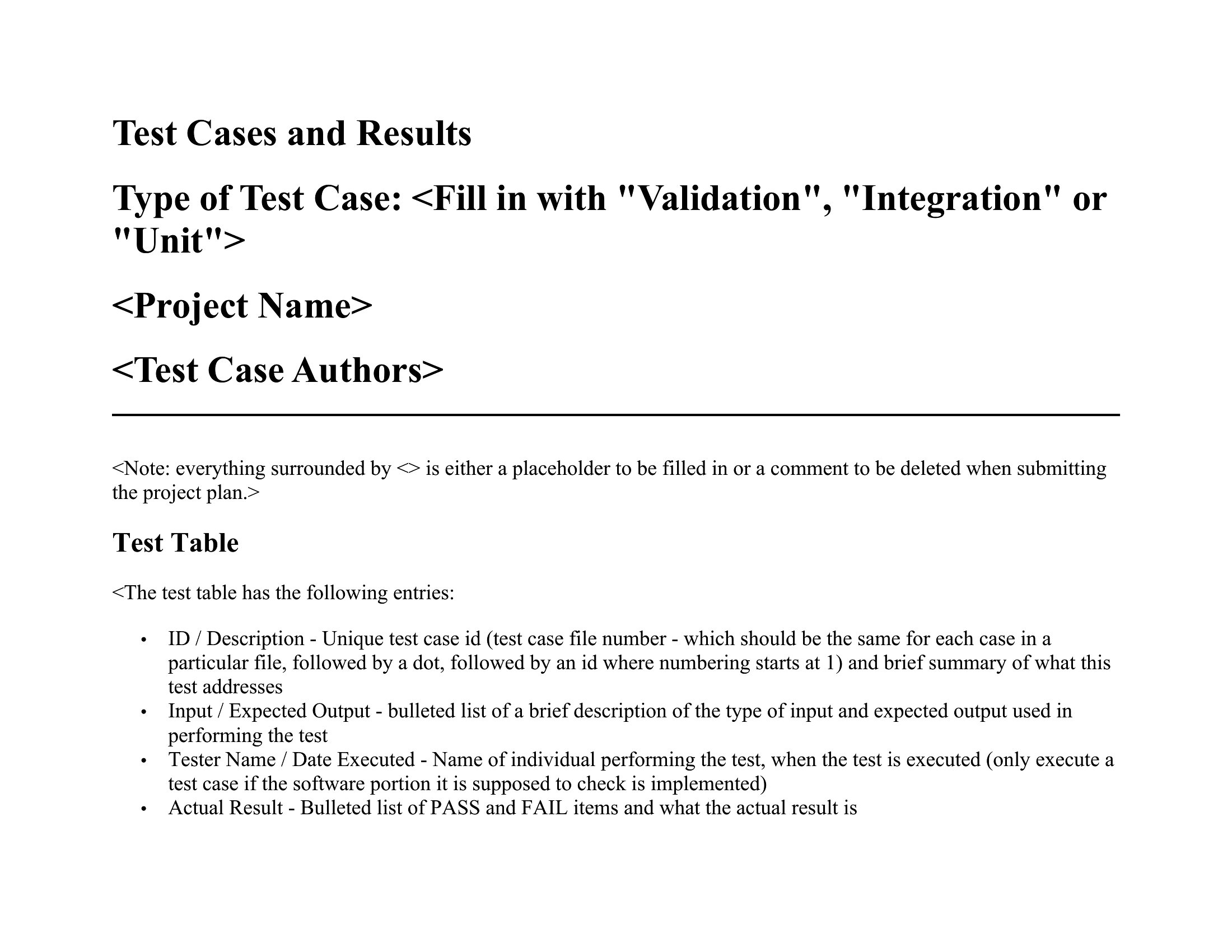
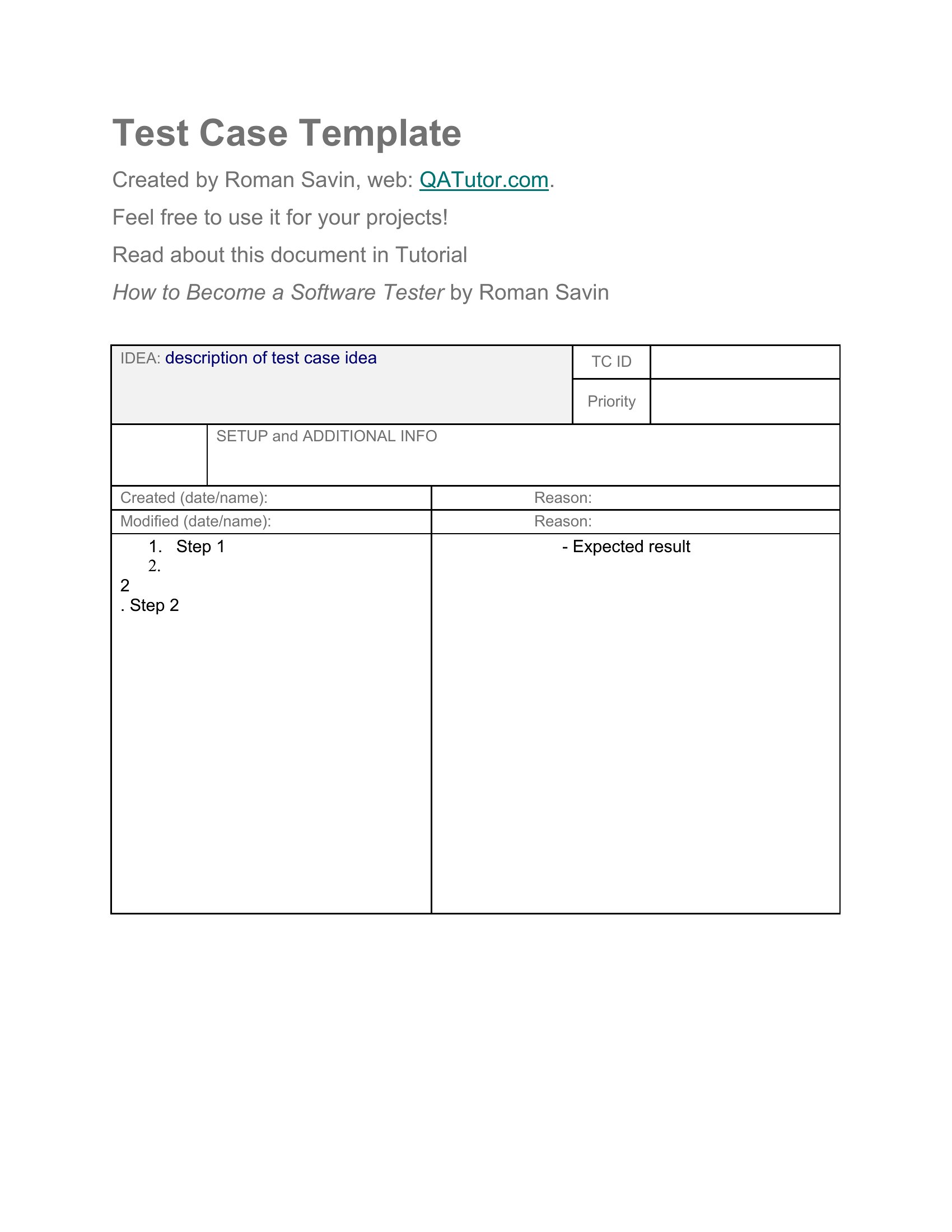
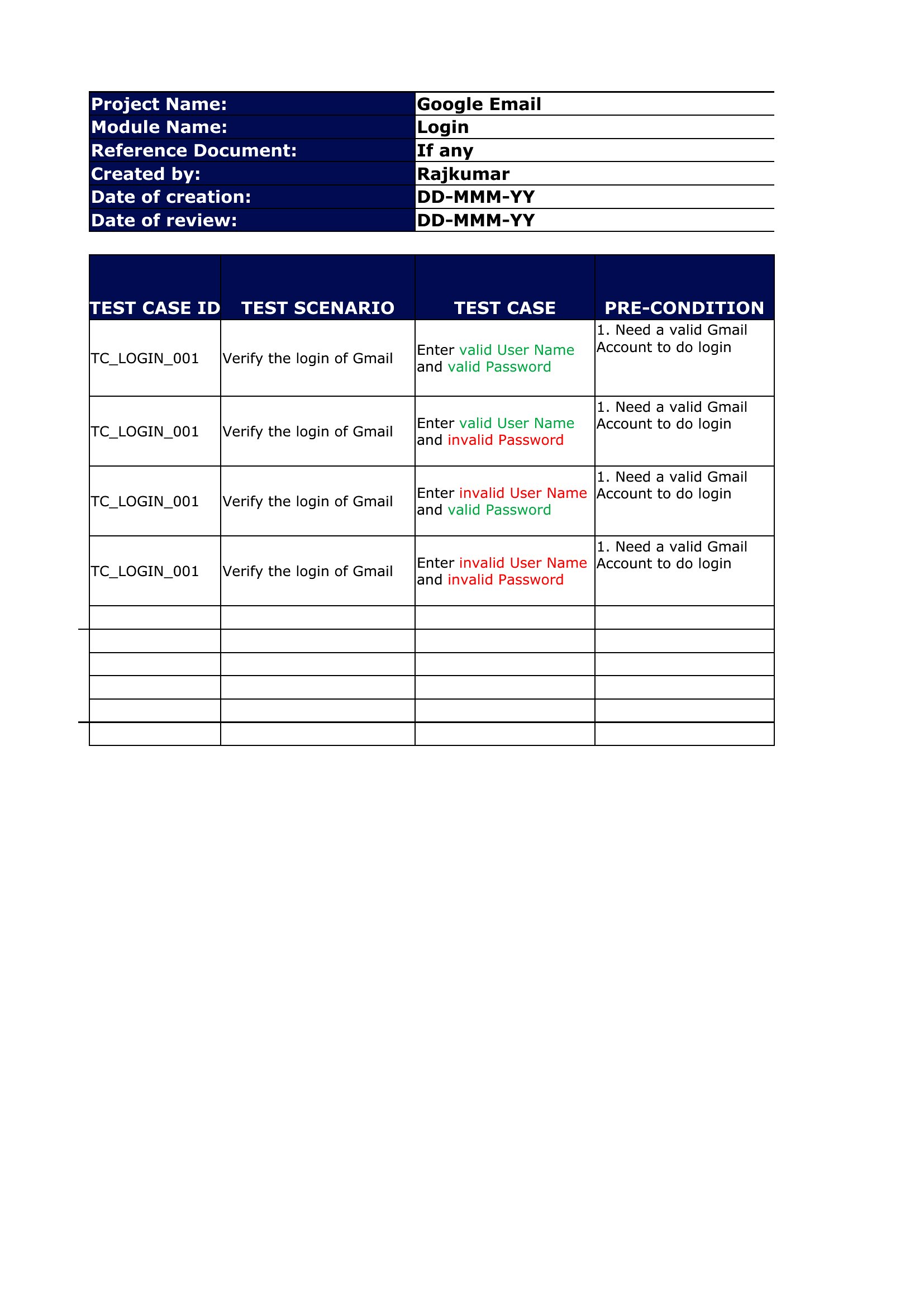
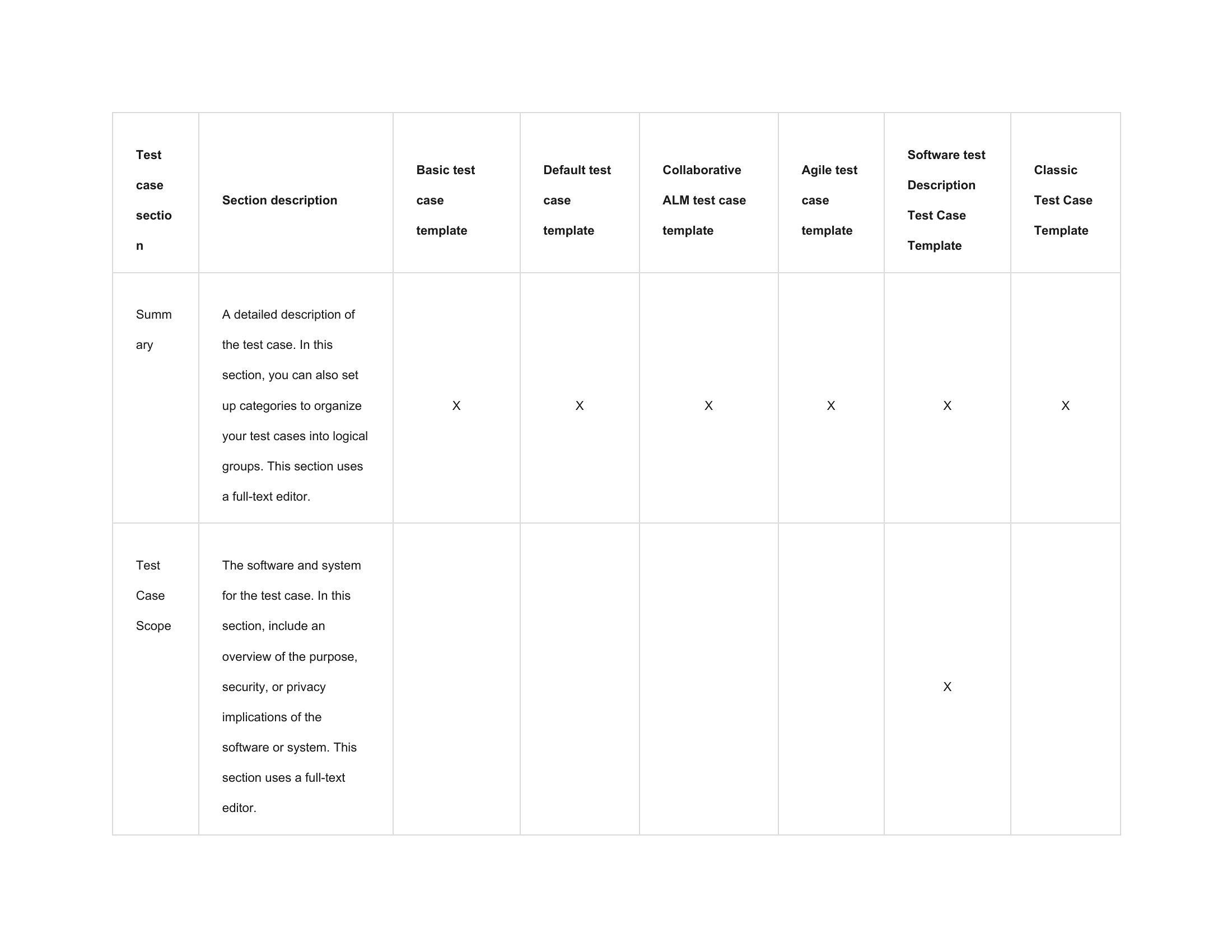
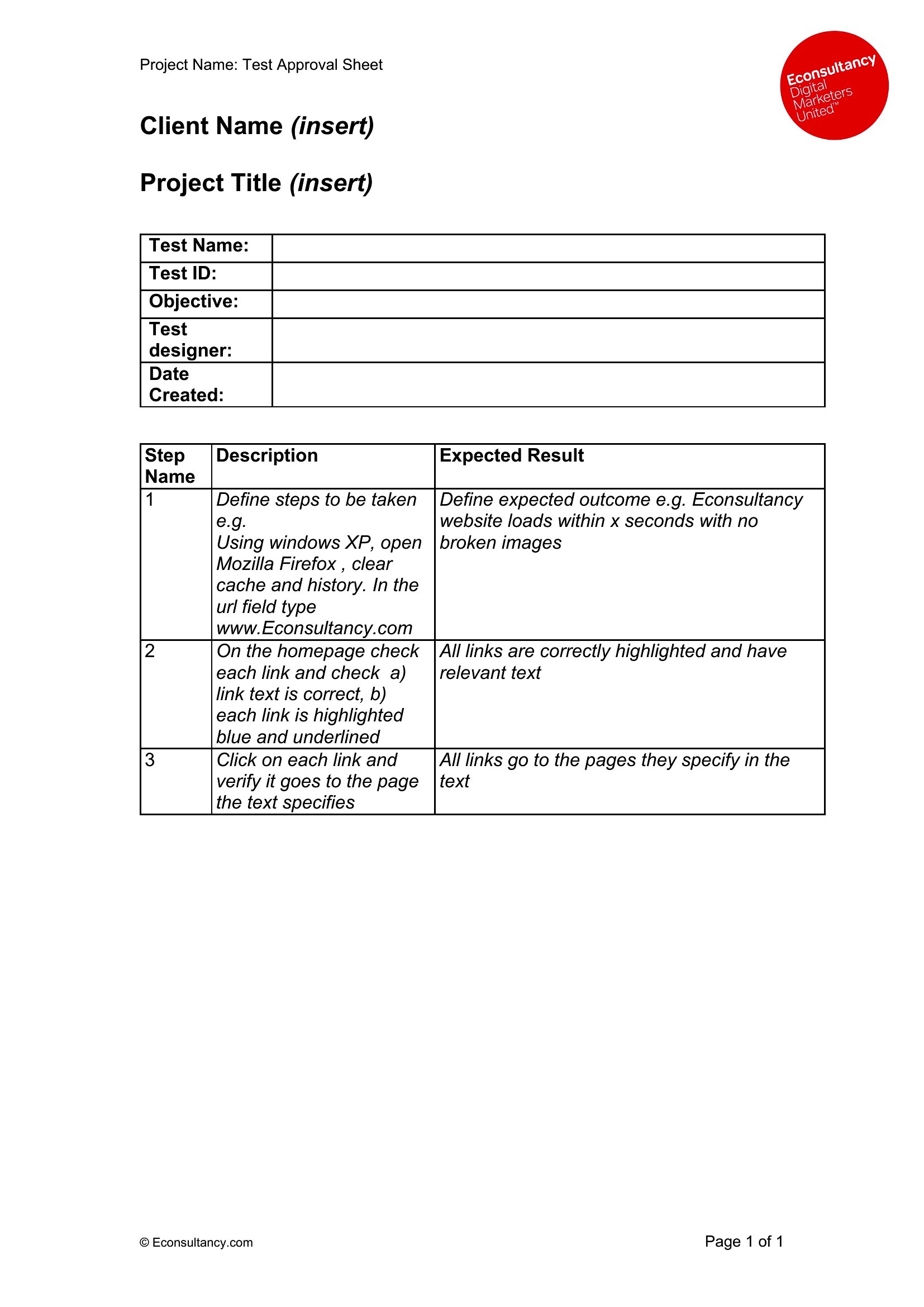
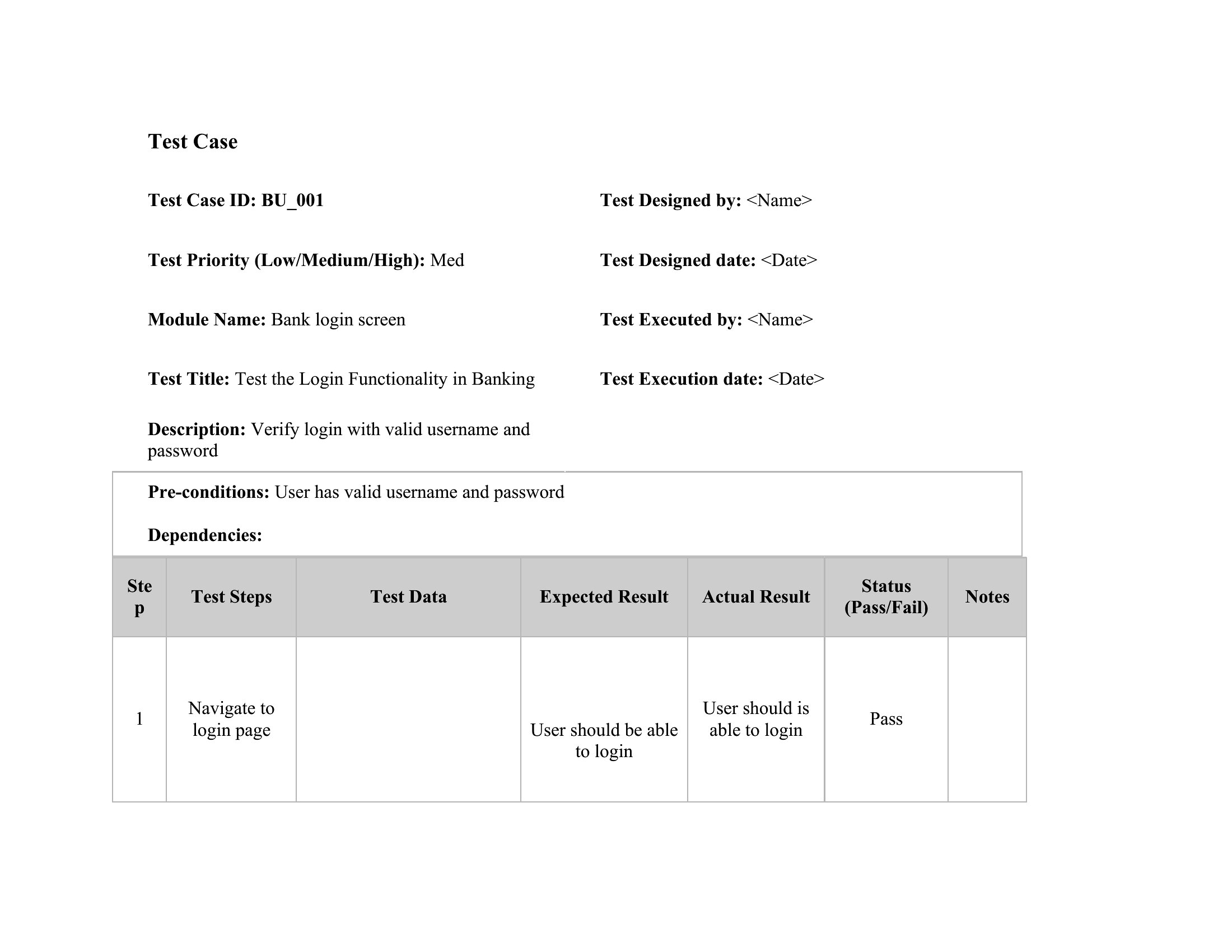
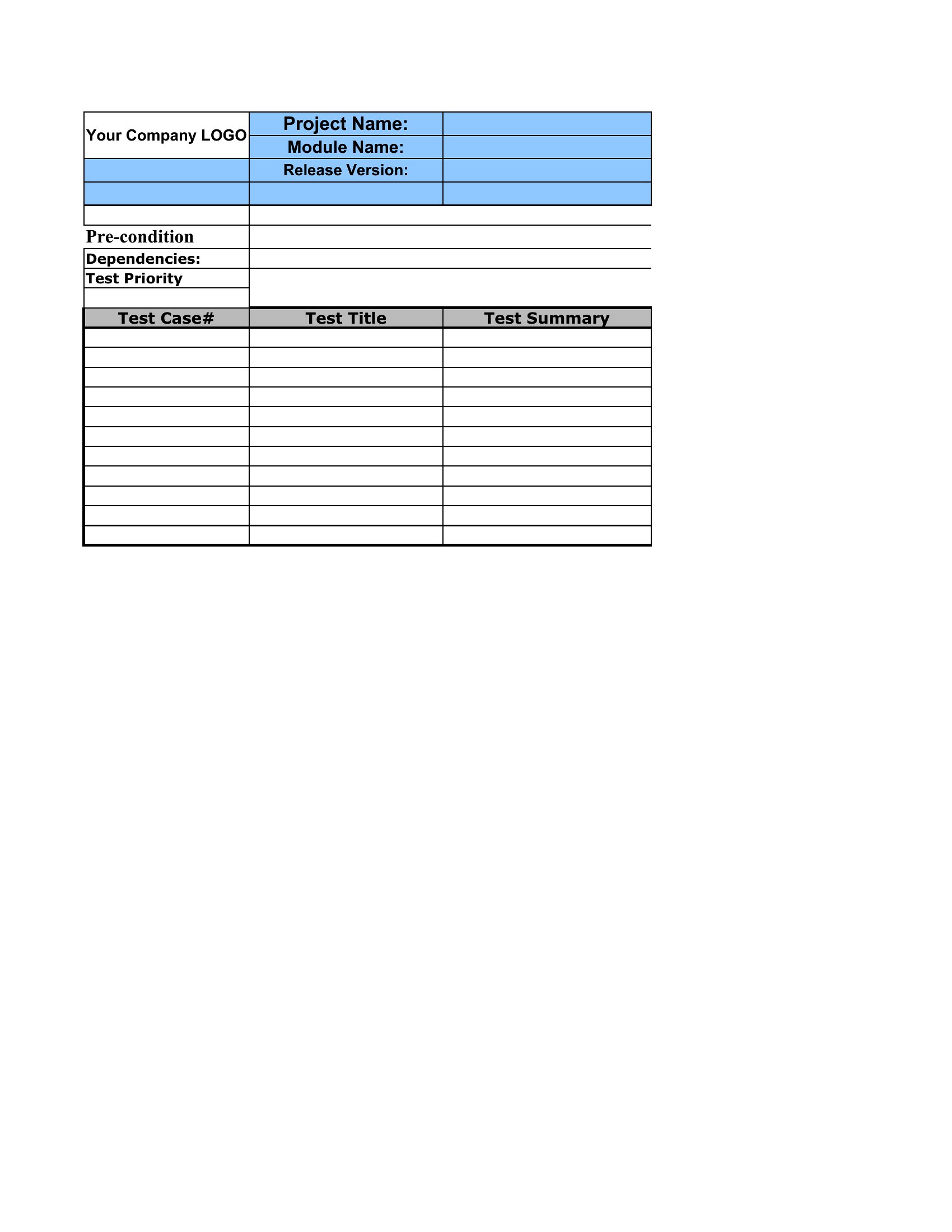
Test Cases

FAQ
How do these templates help bridge the gap between functional specs and actual testing execution?
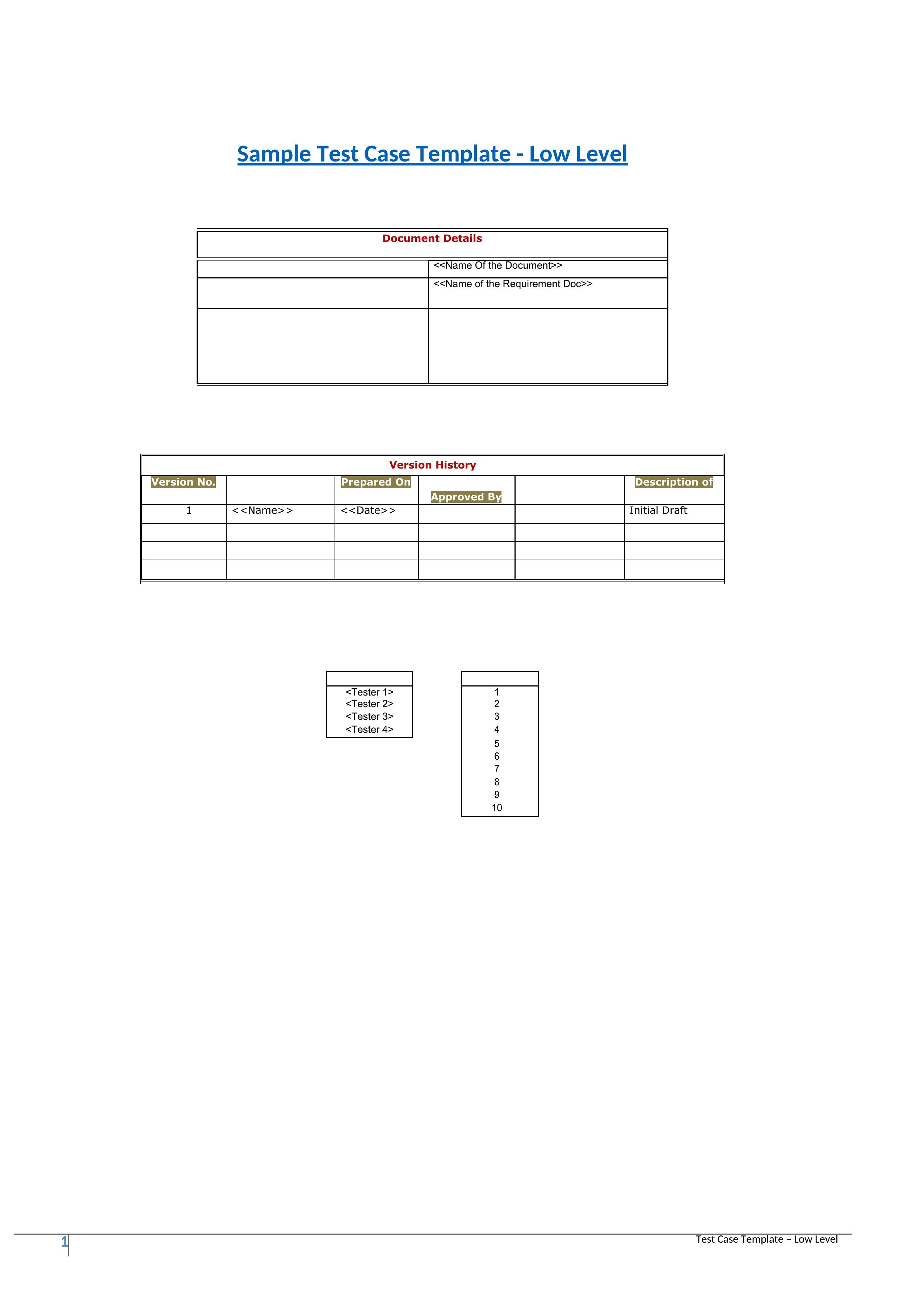
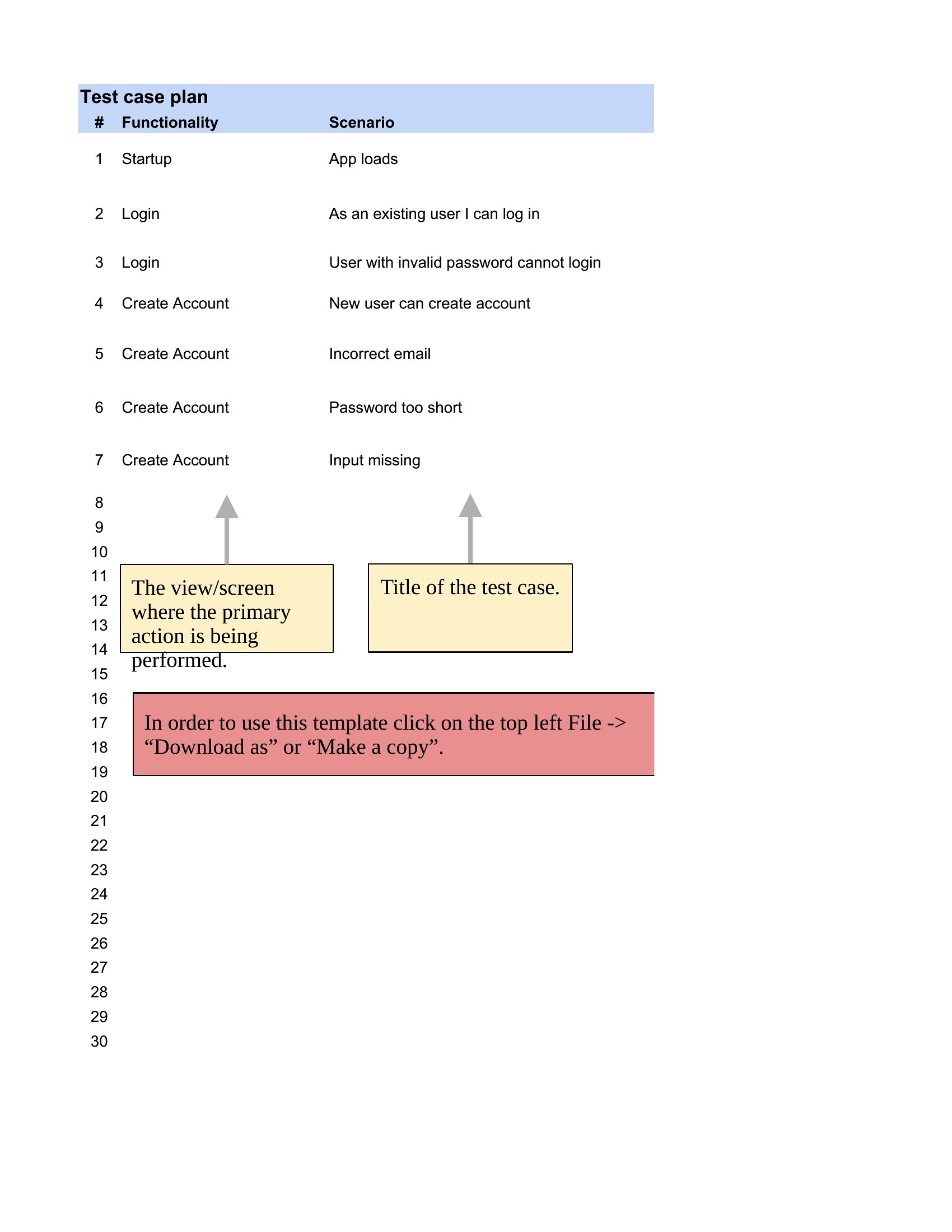
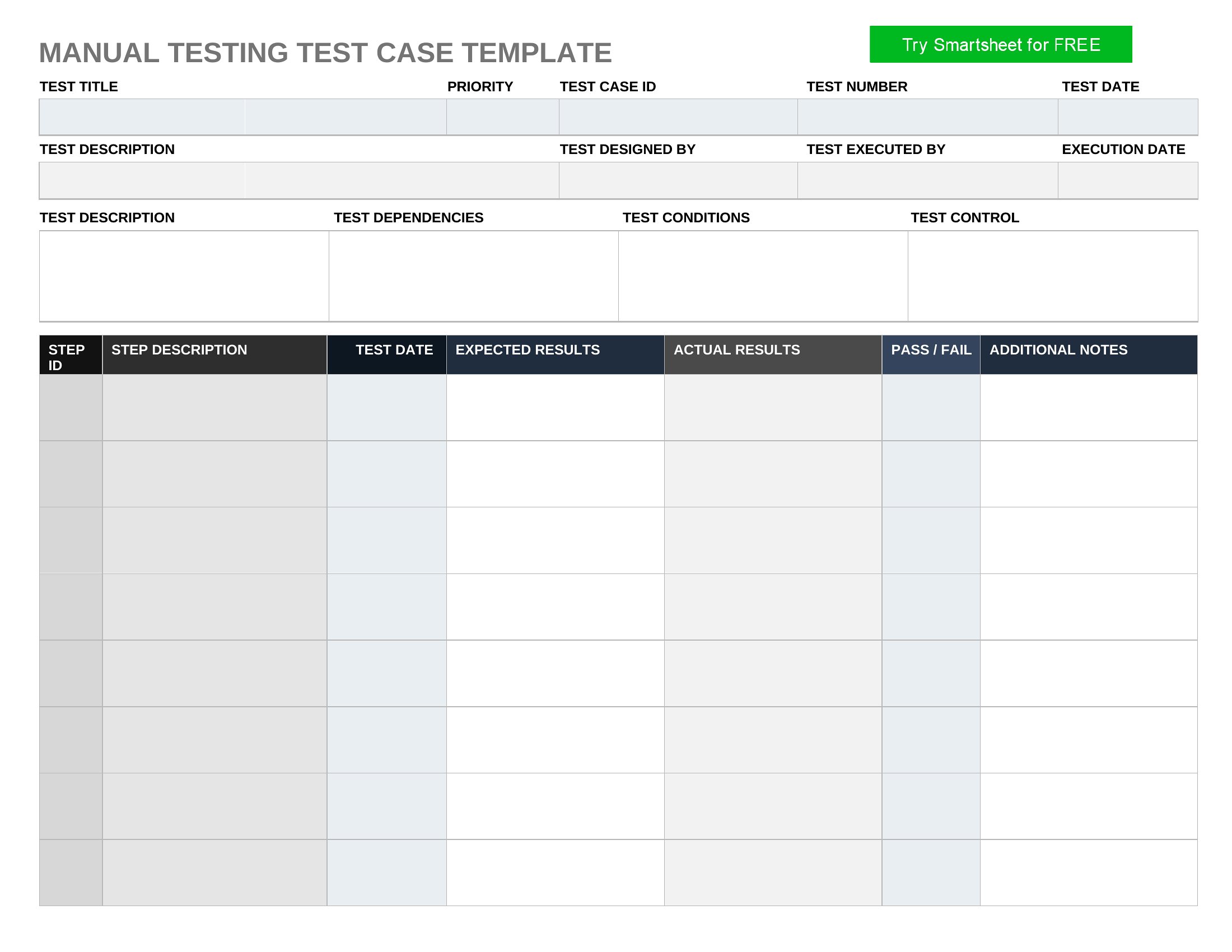
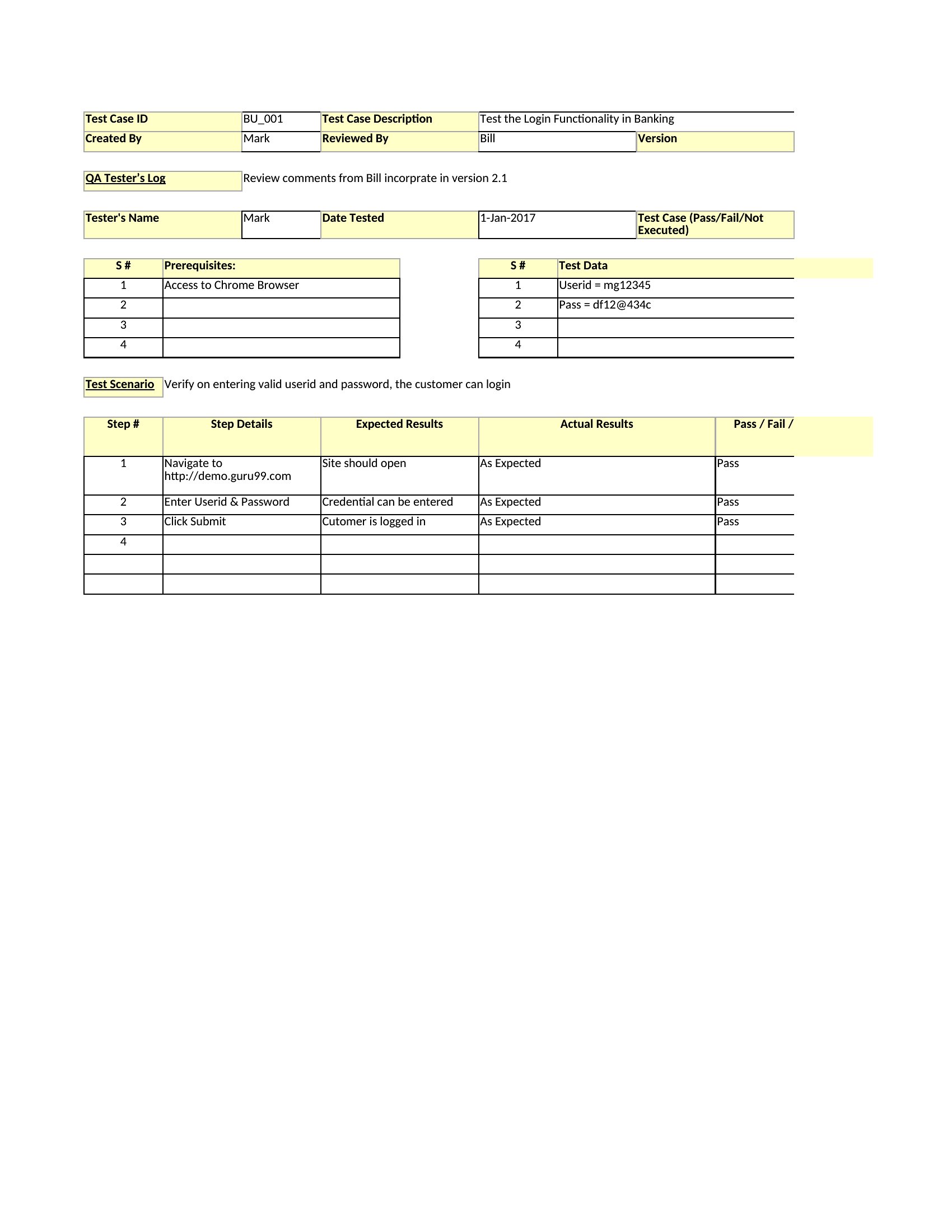
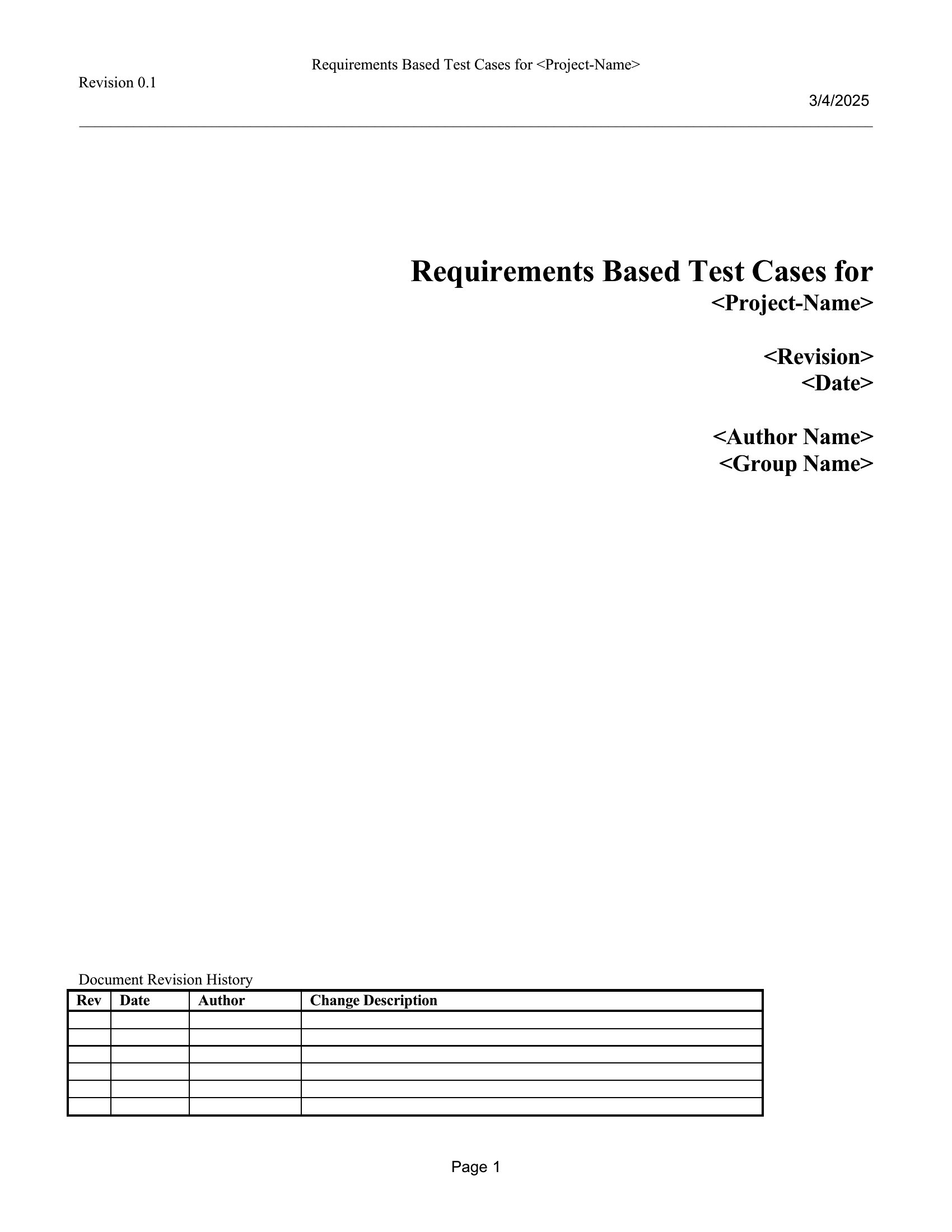
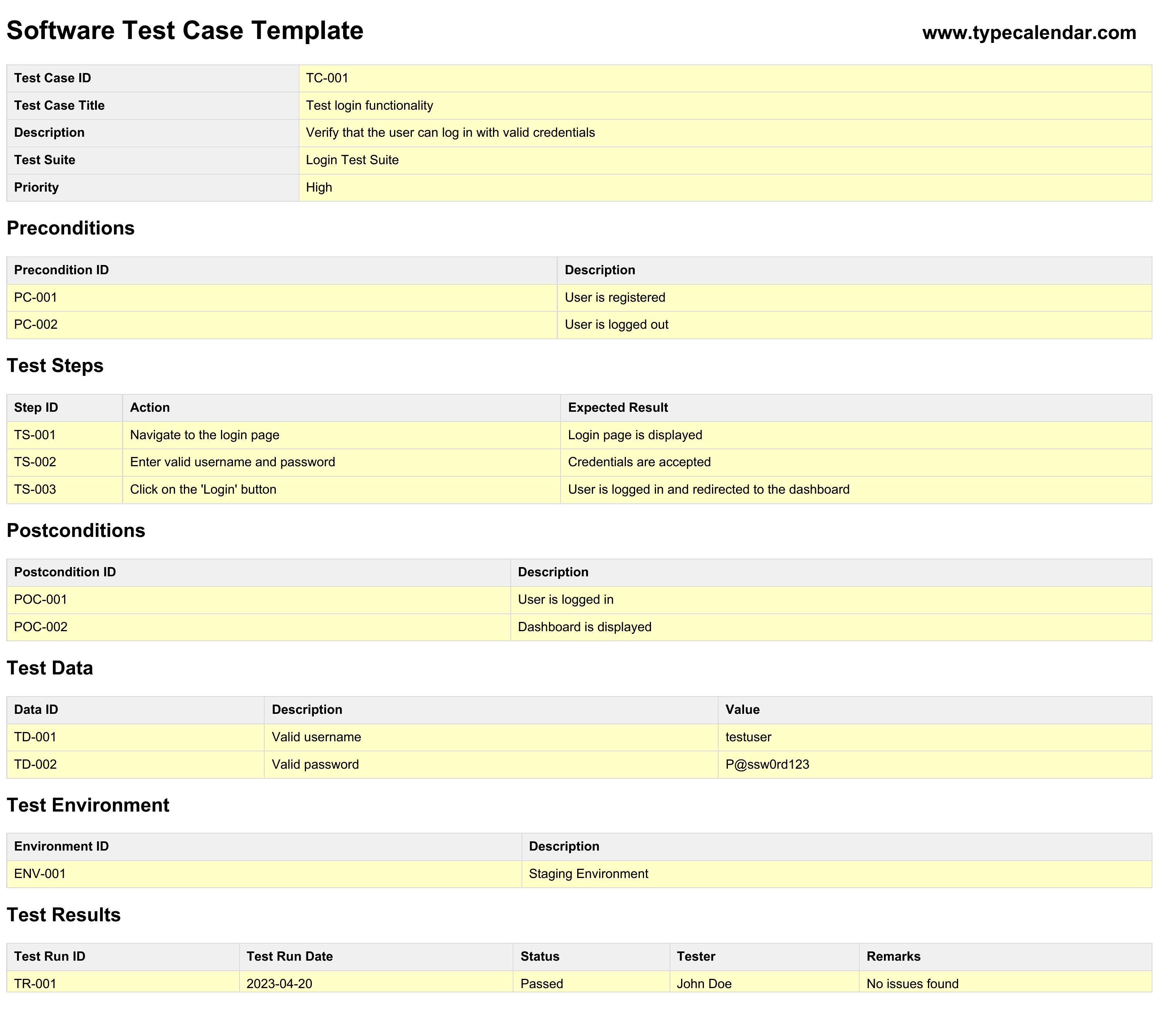
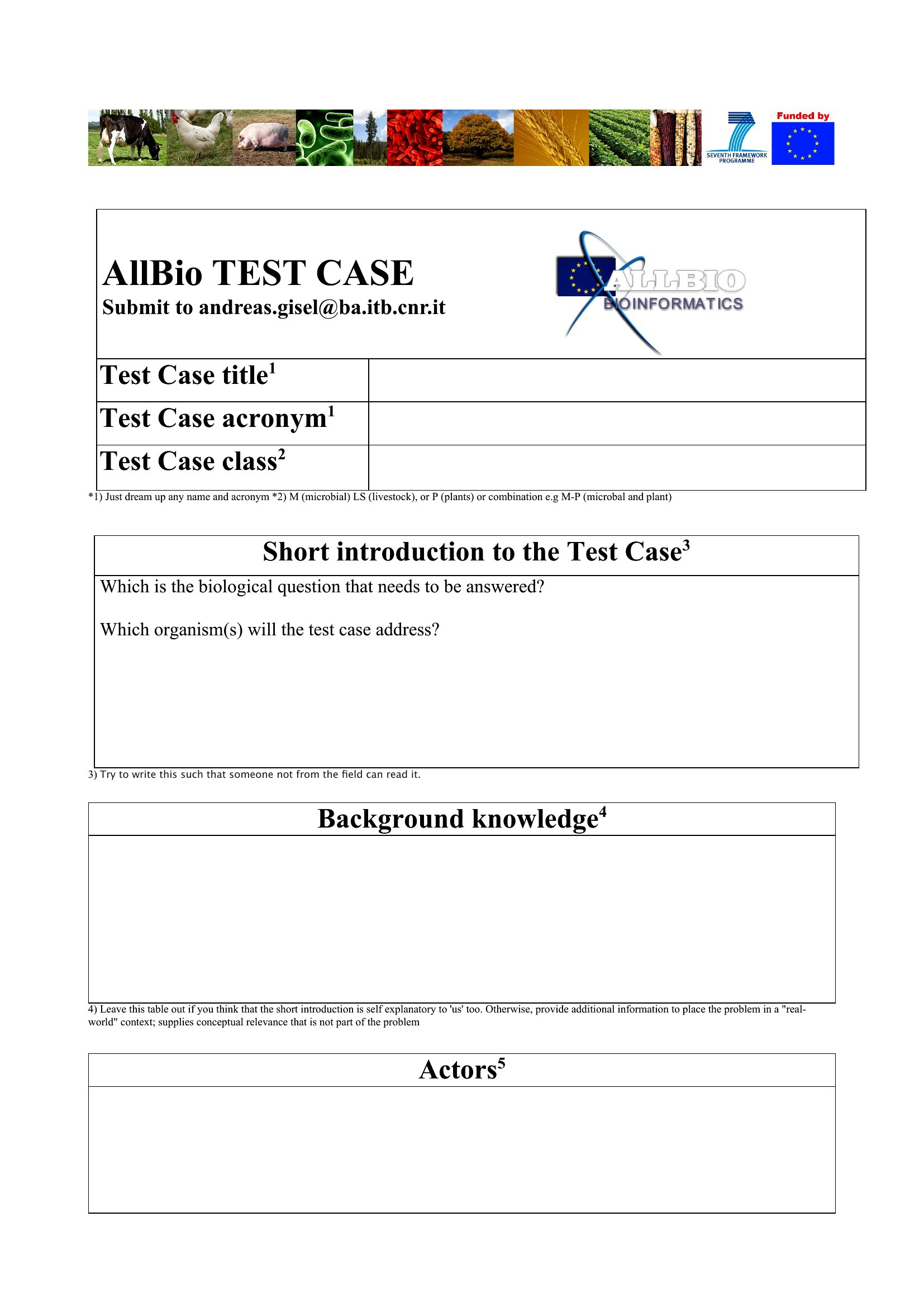
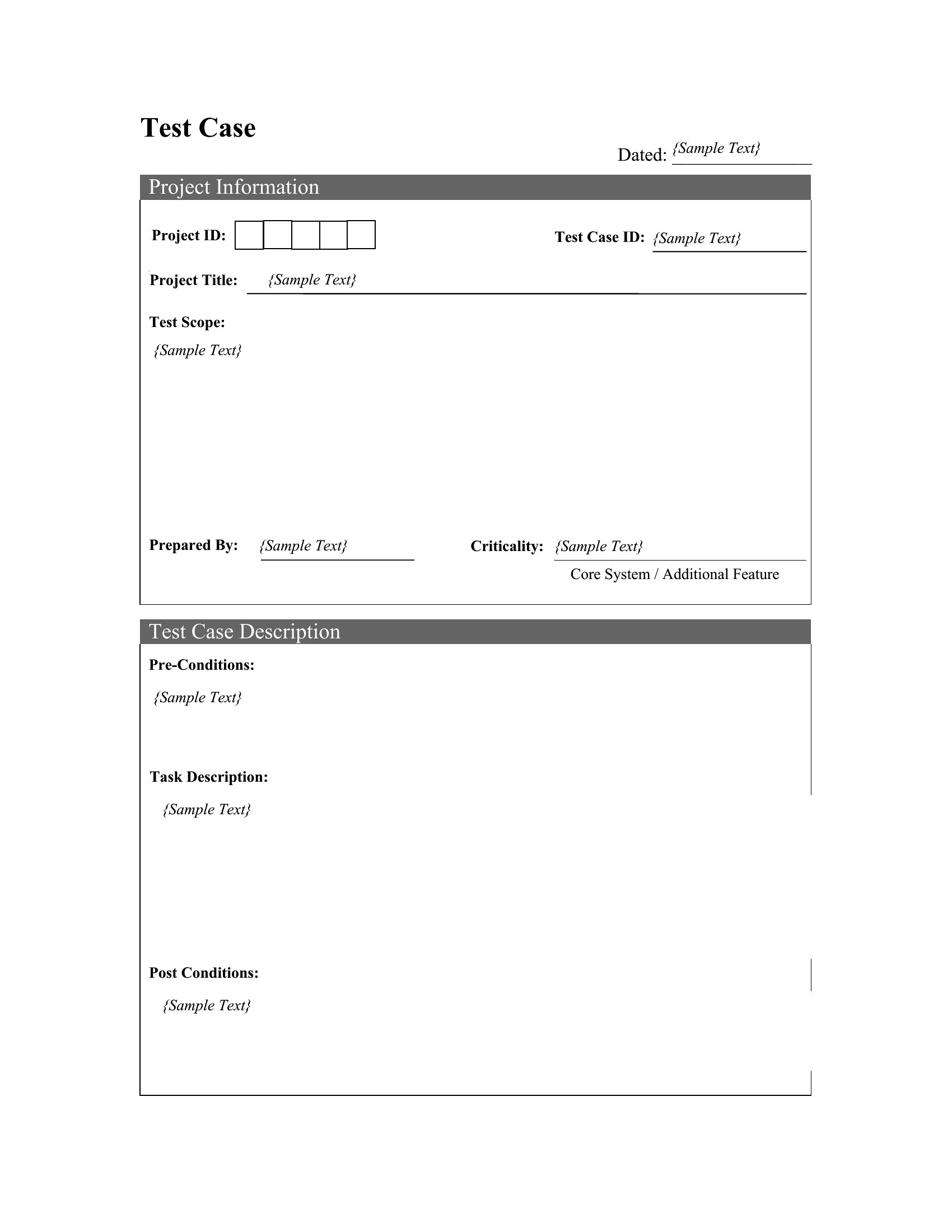
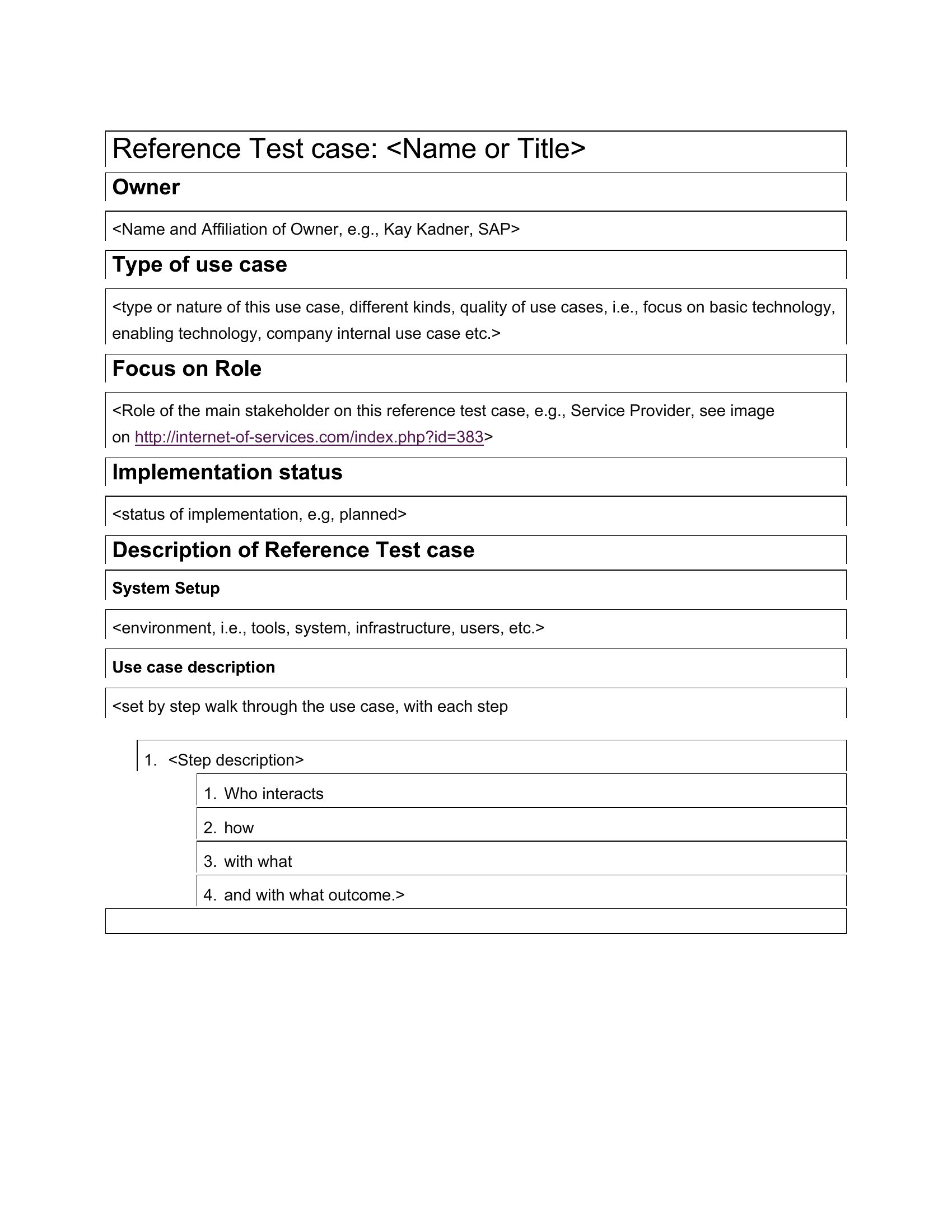
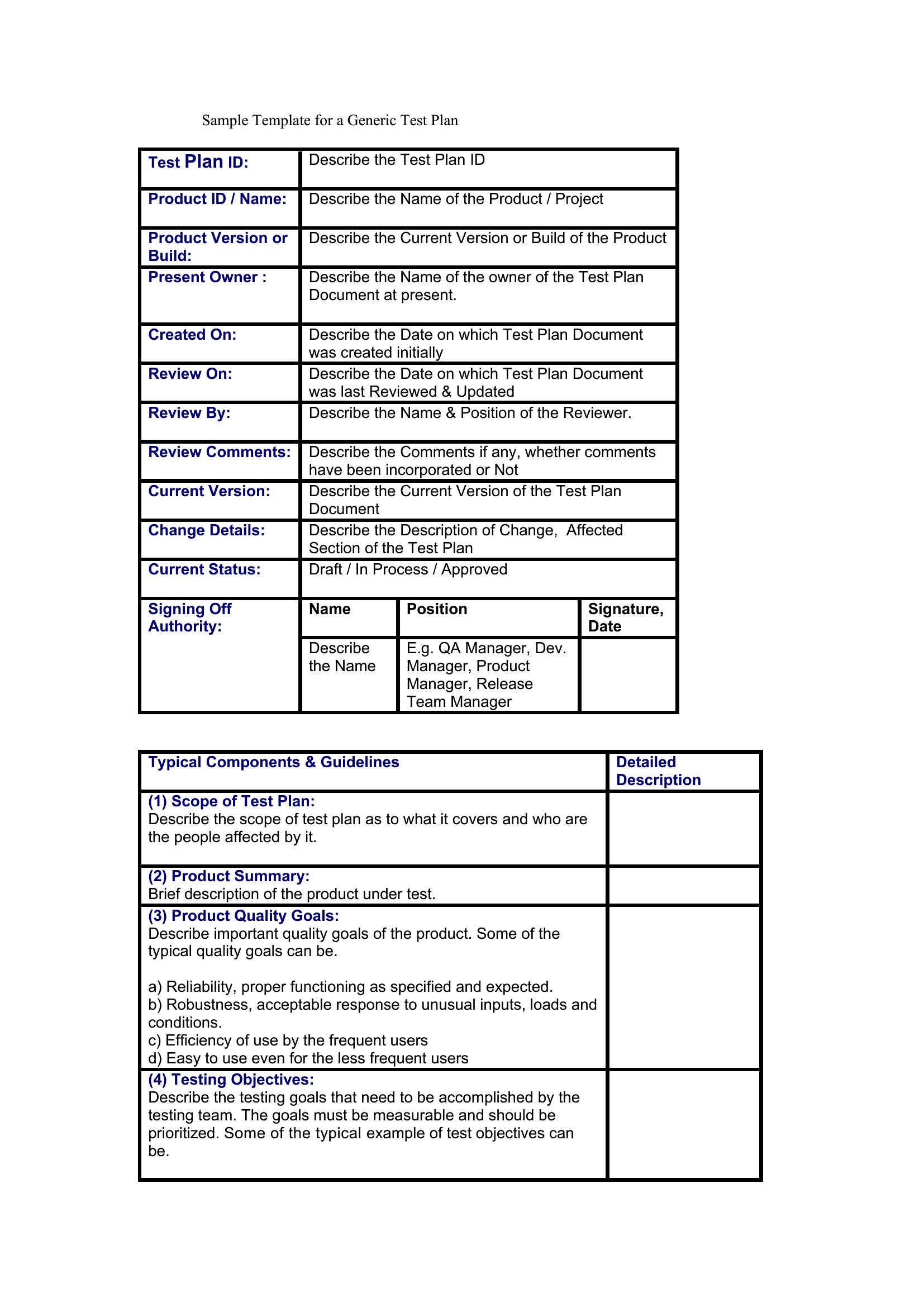
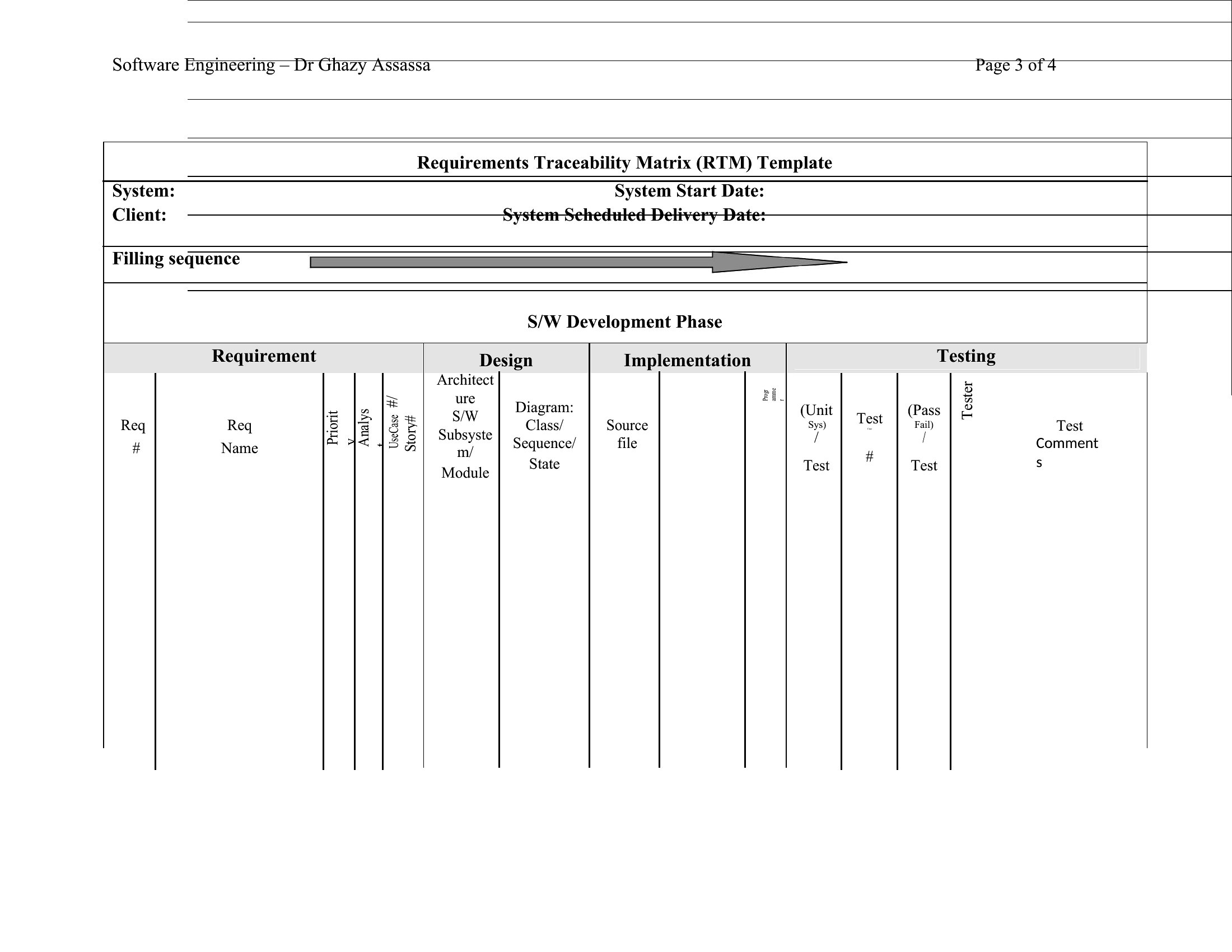
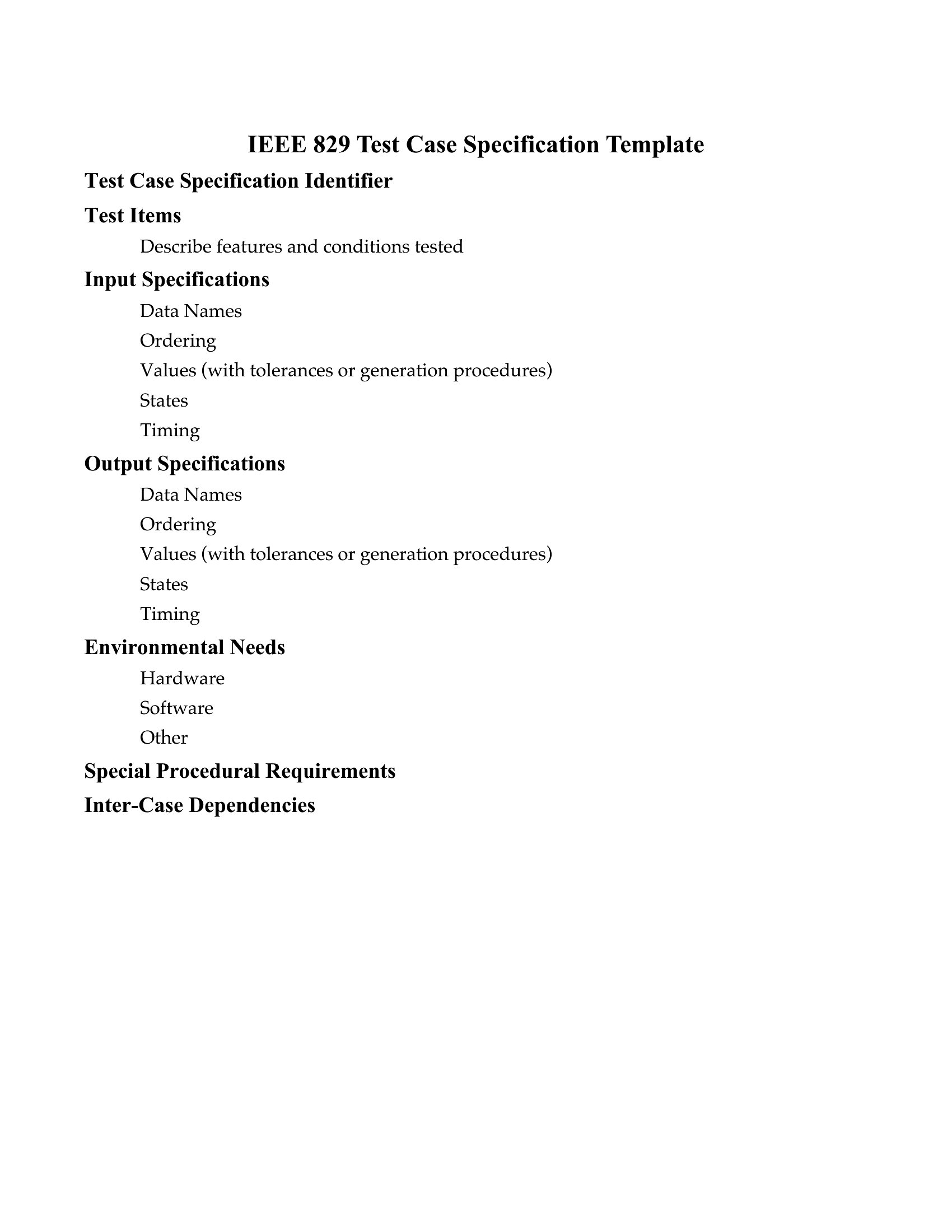
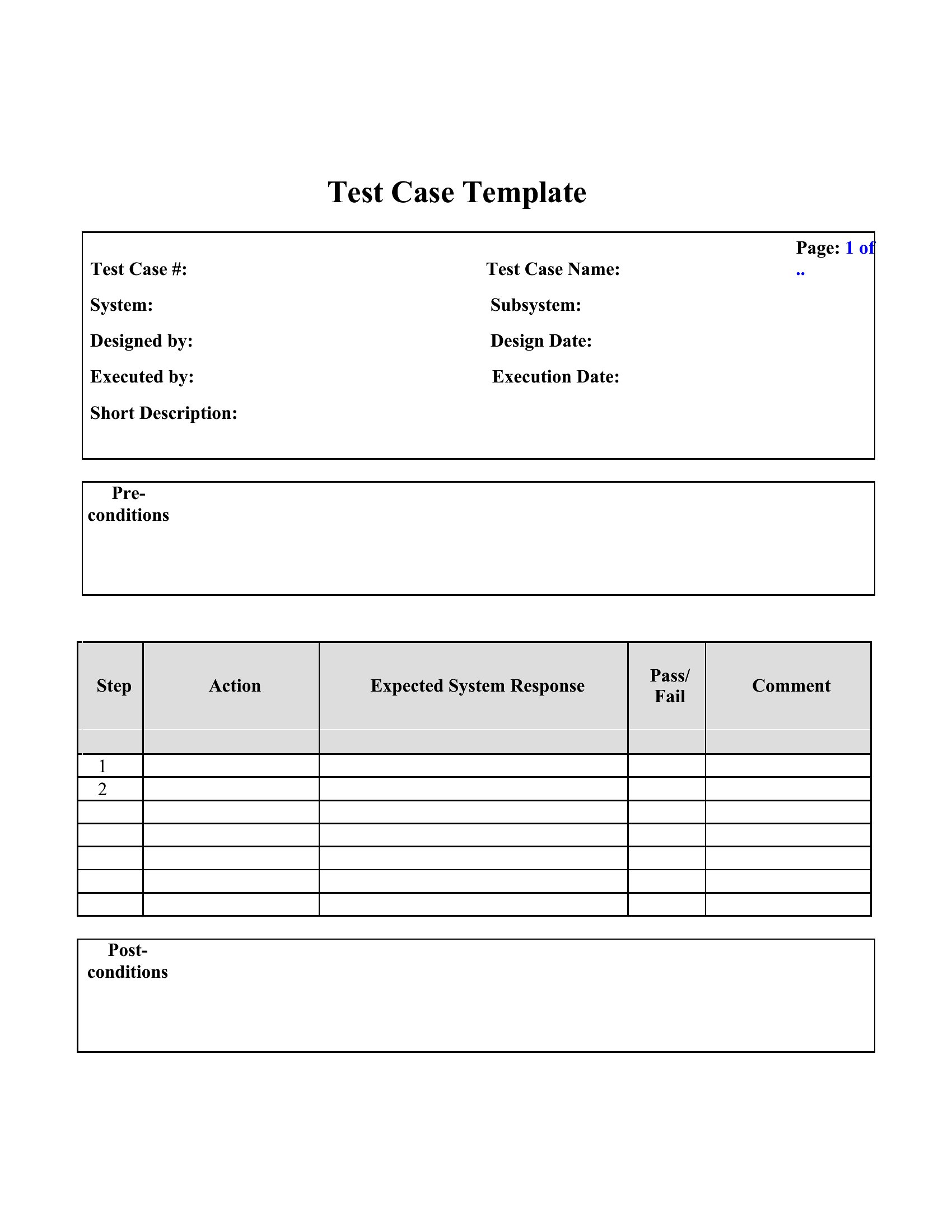
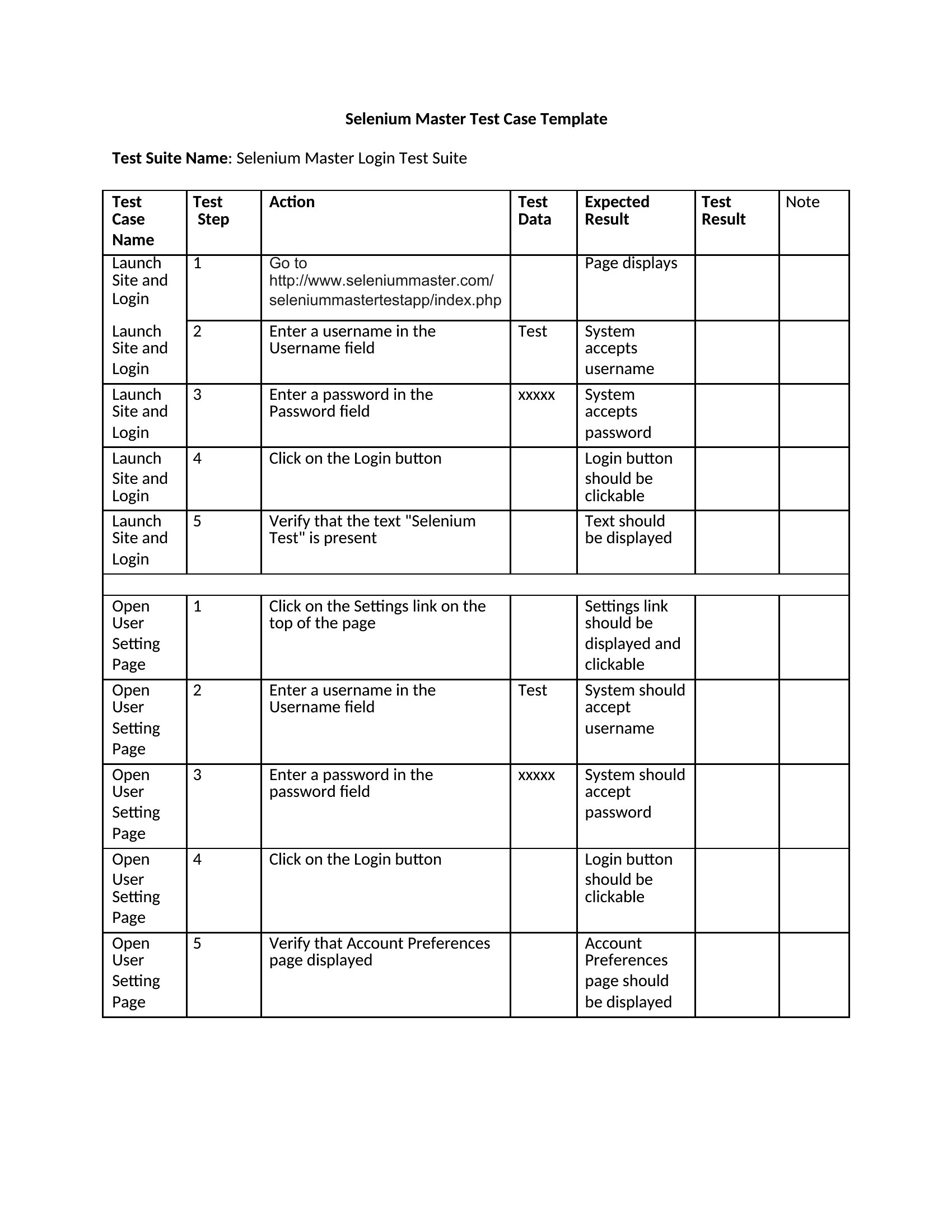
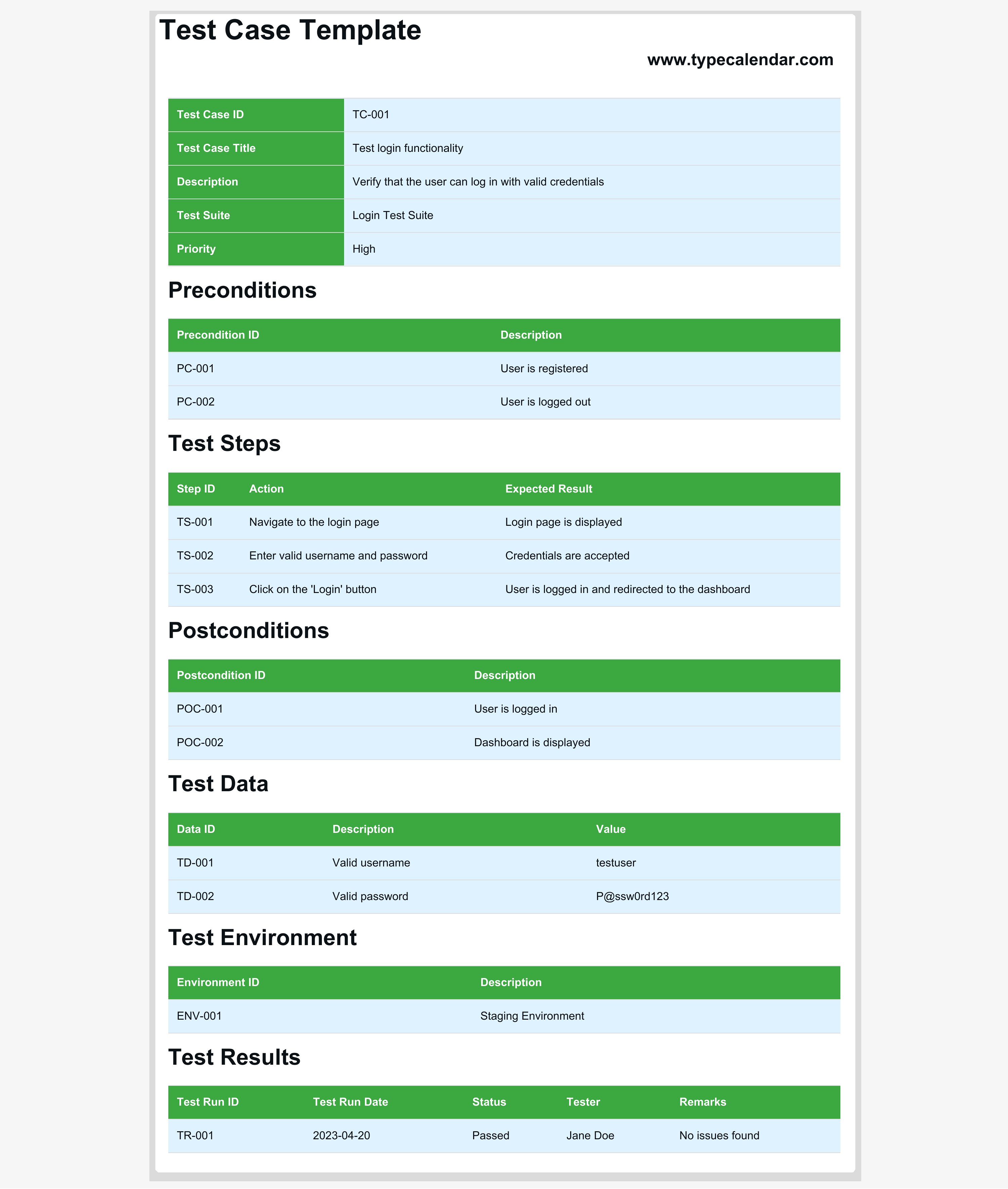
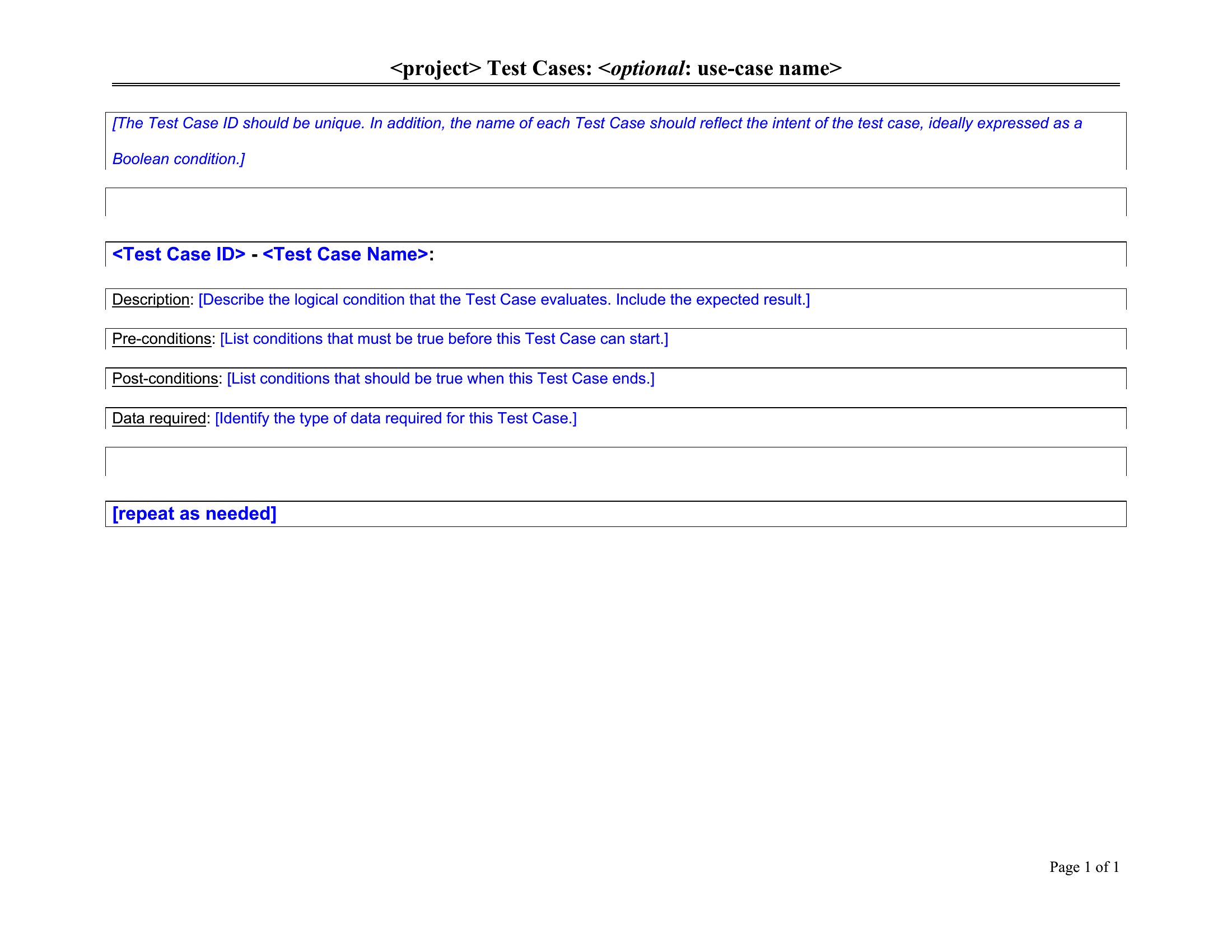
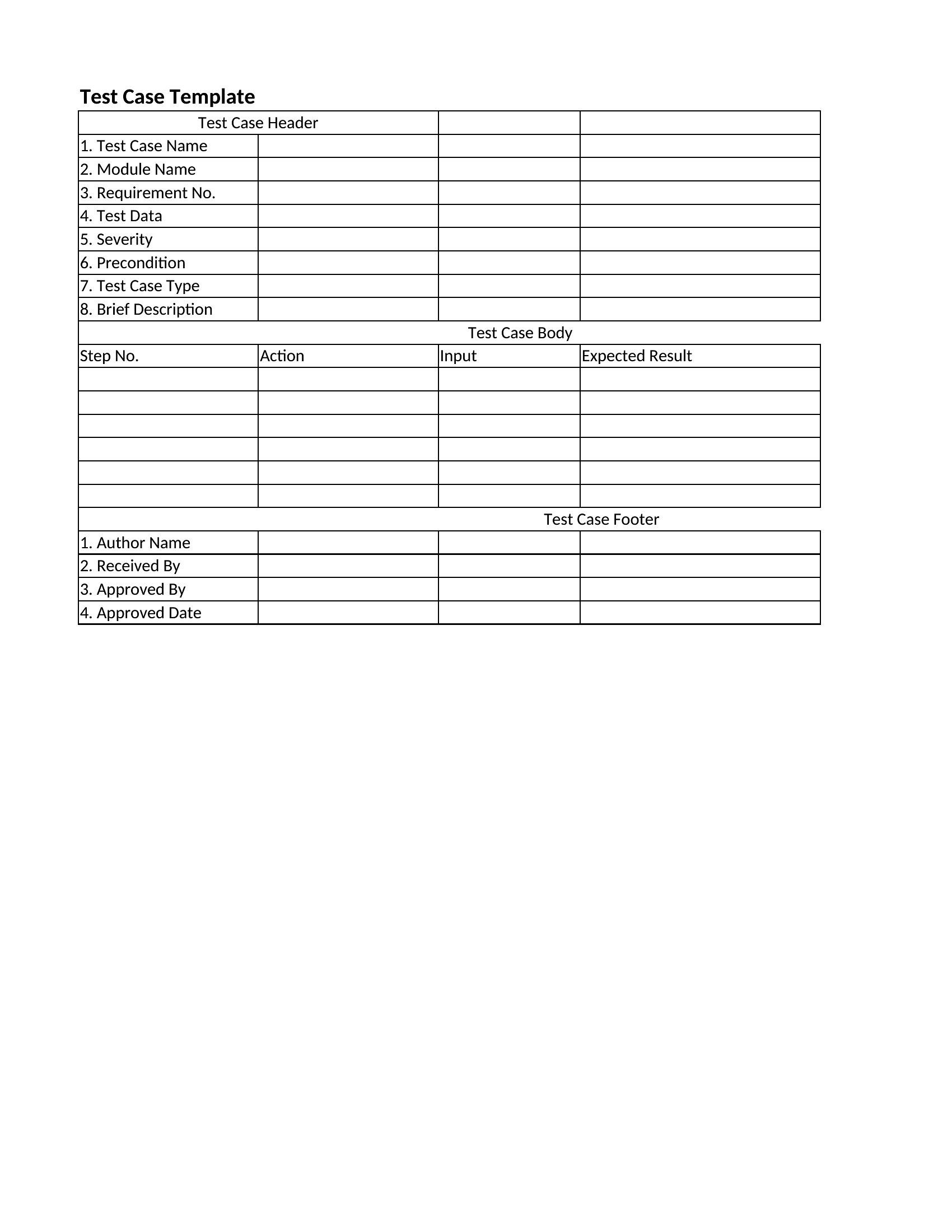
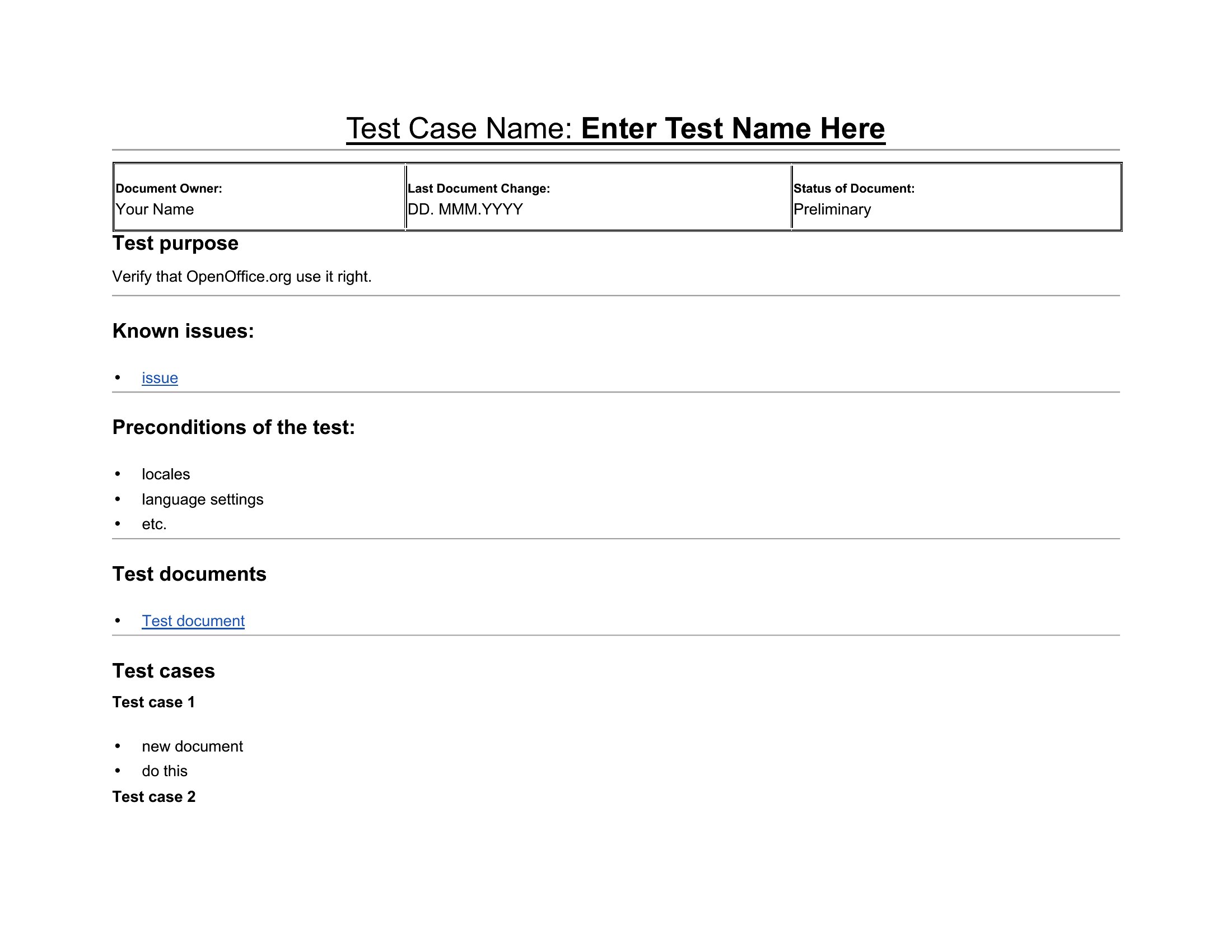
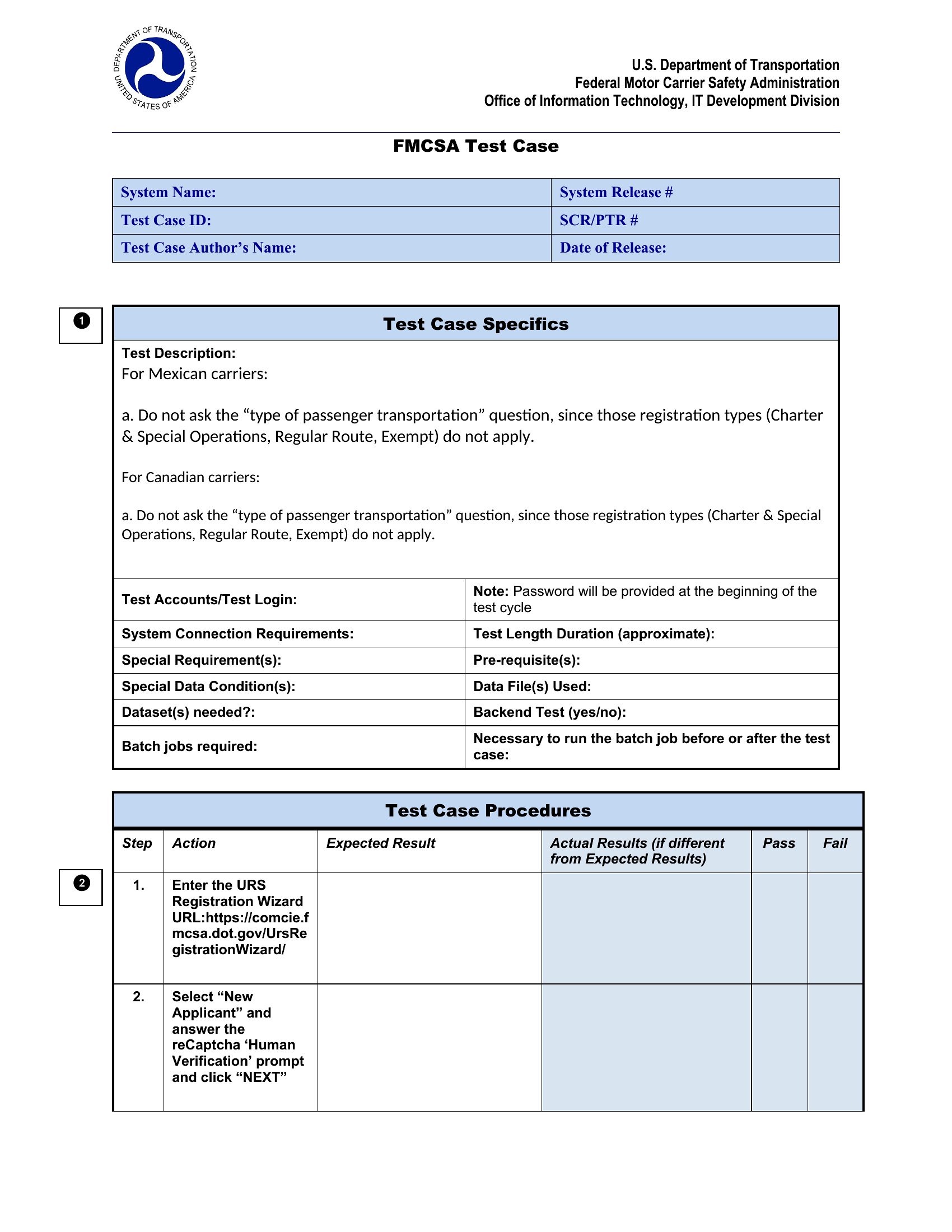
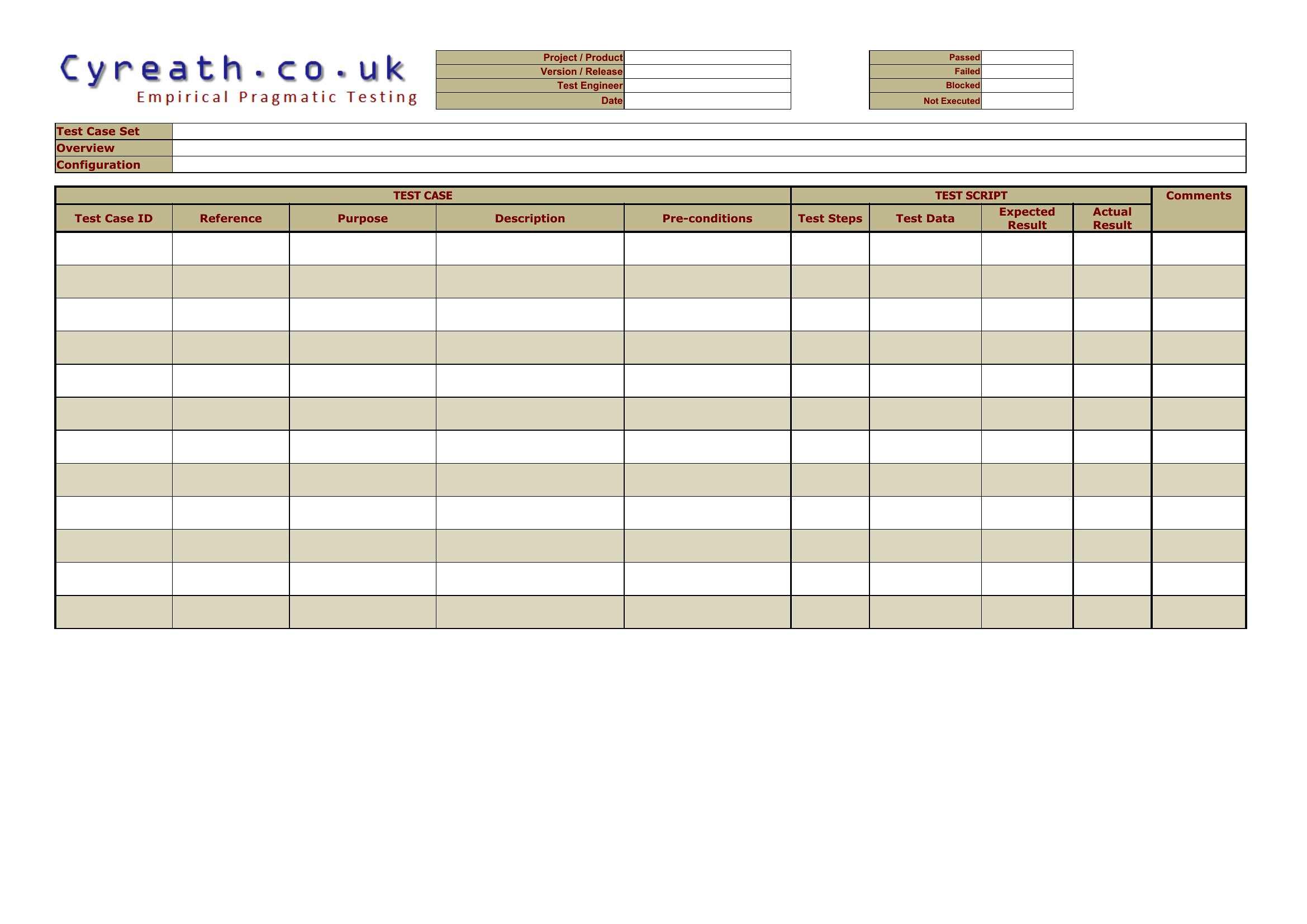
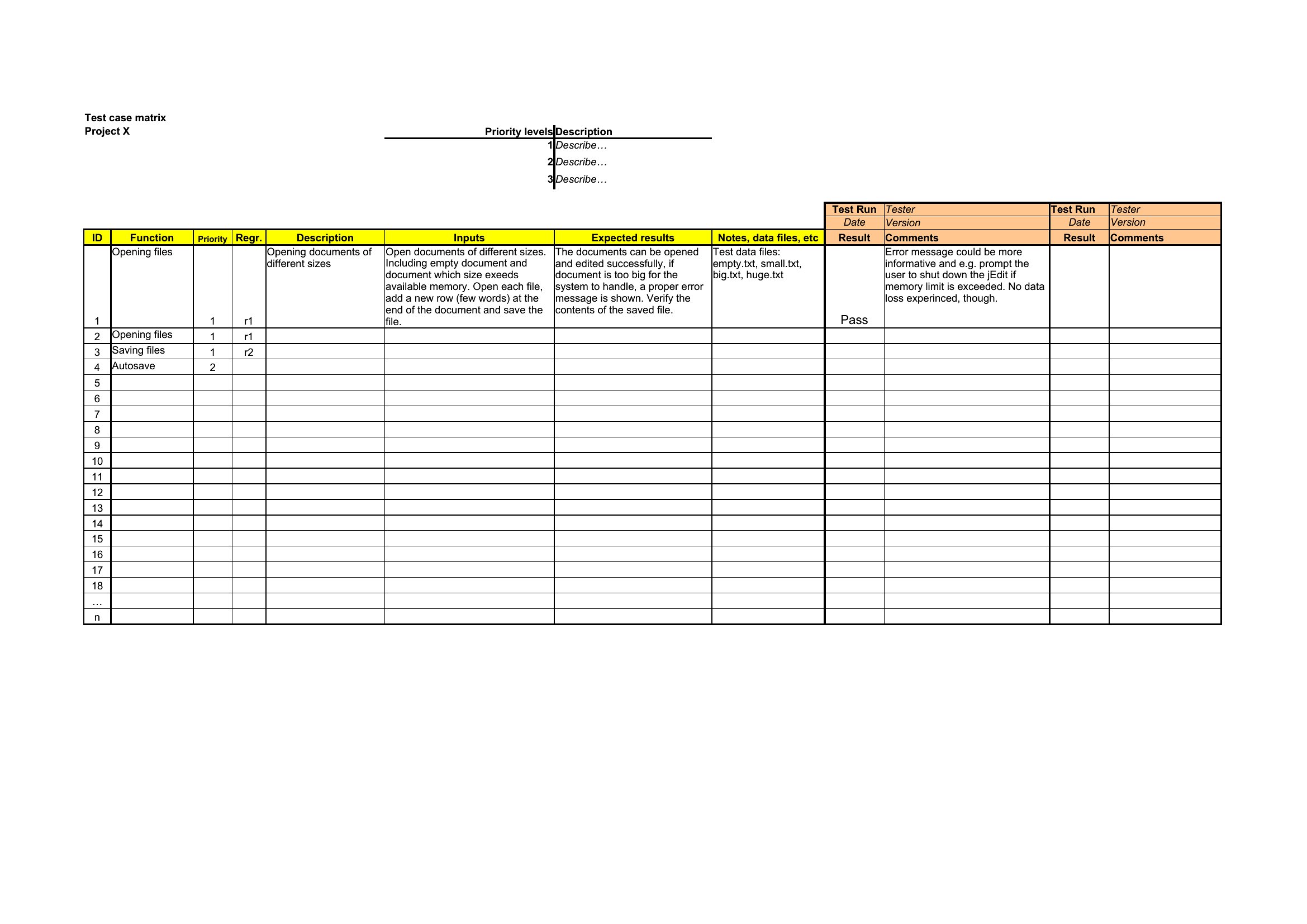
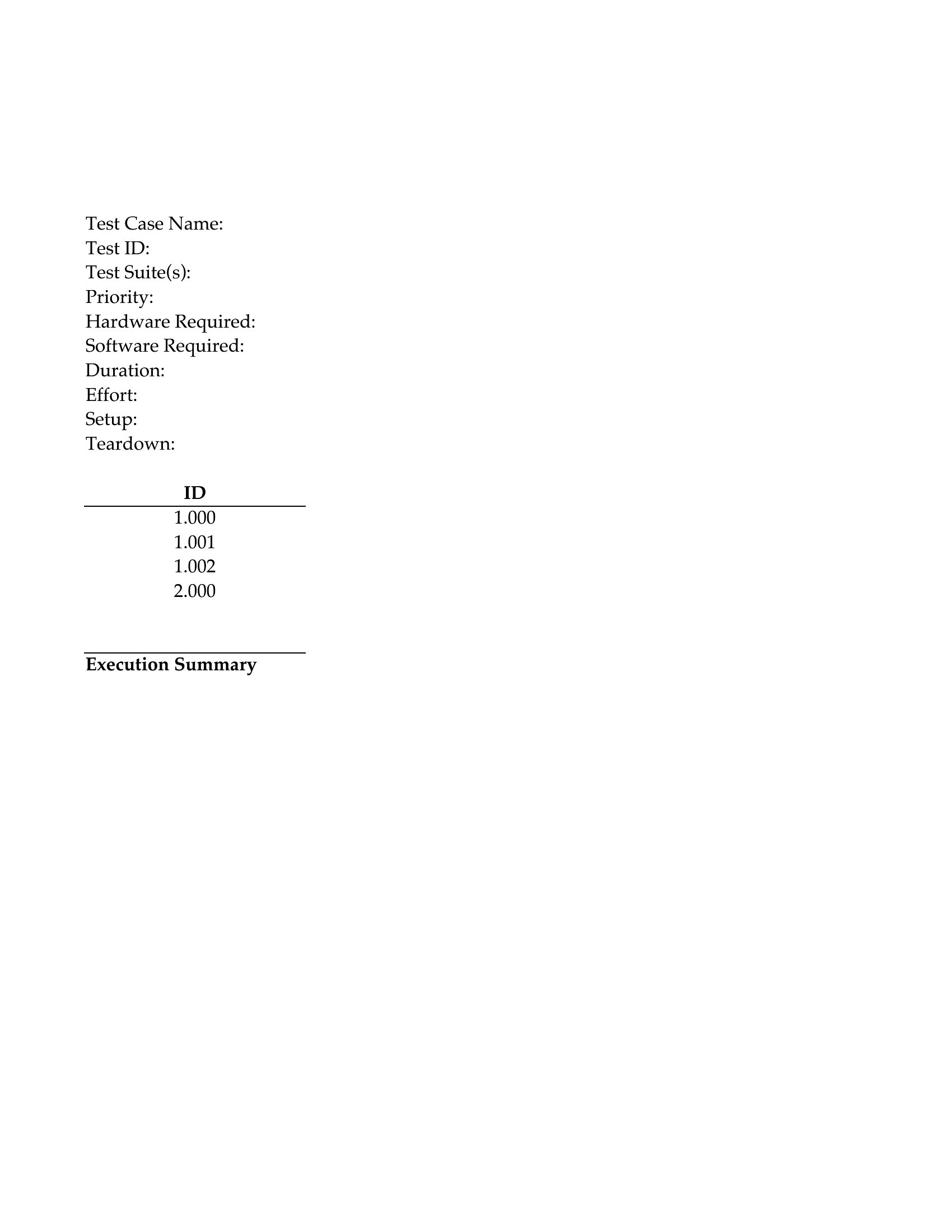
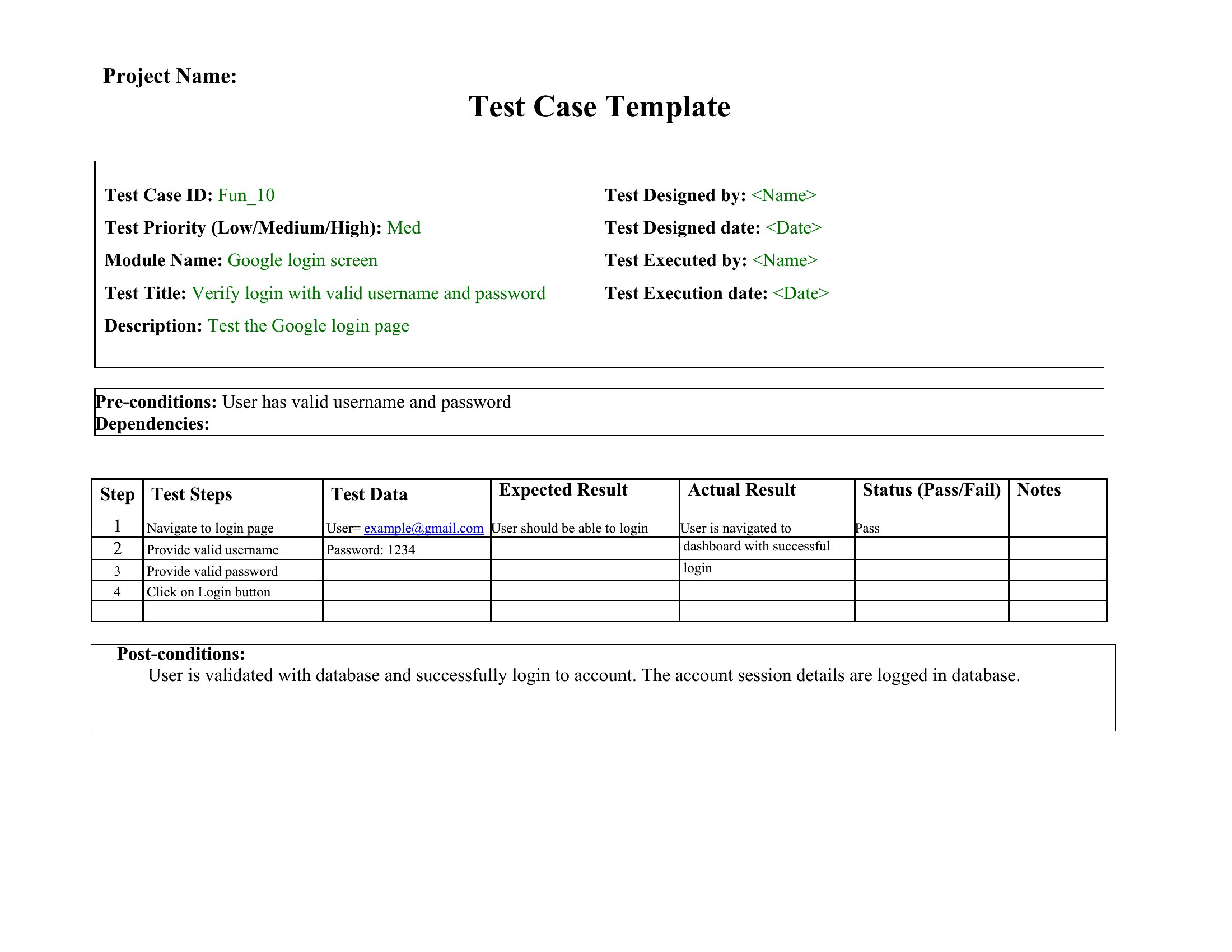
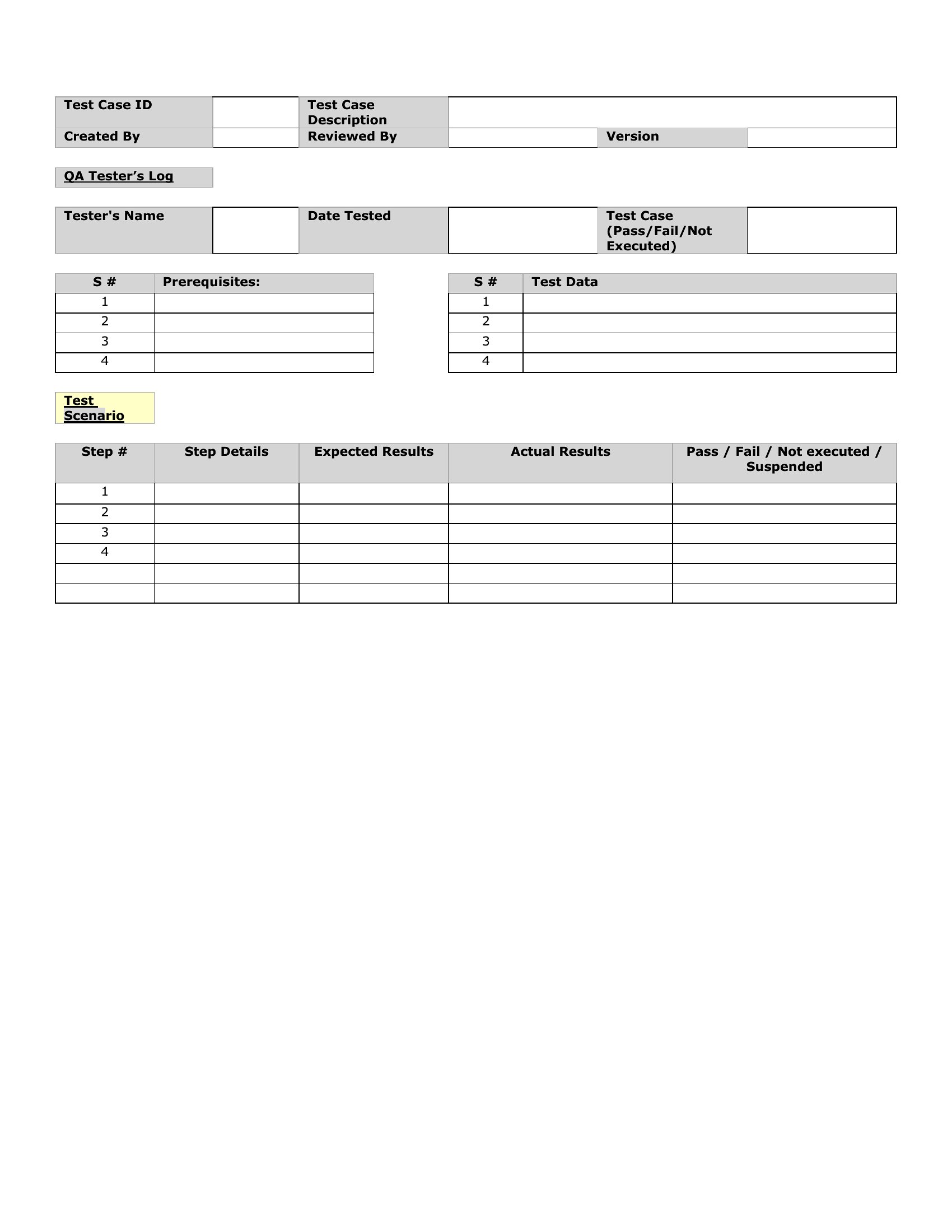
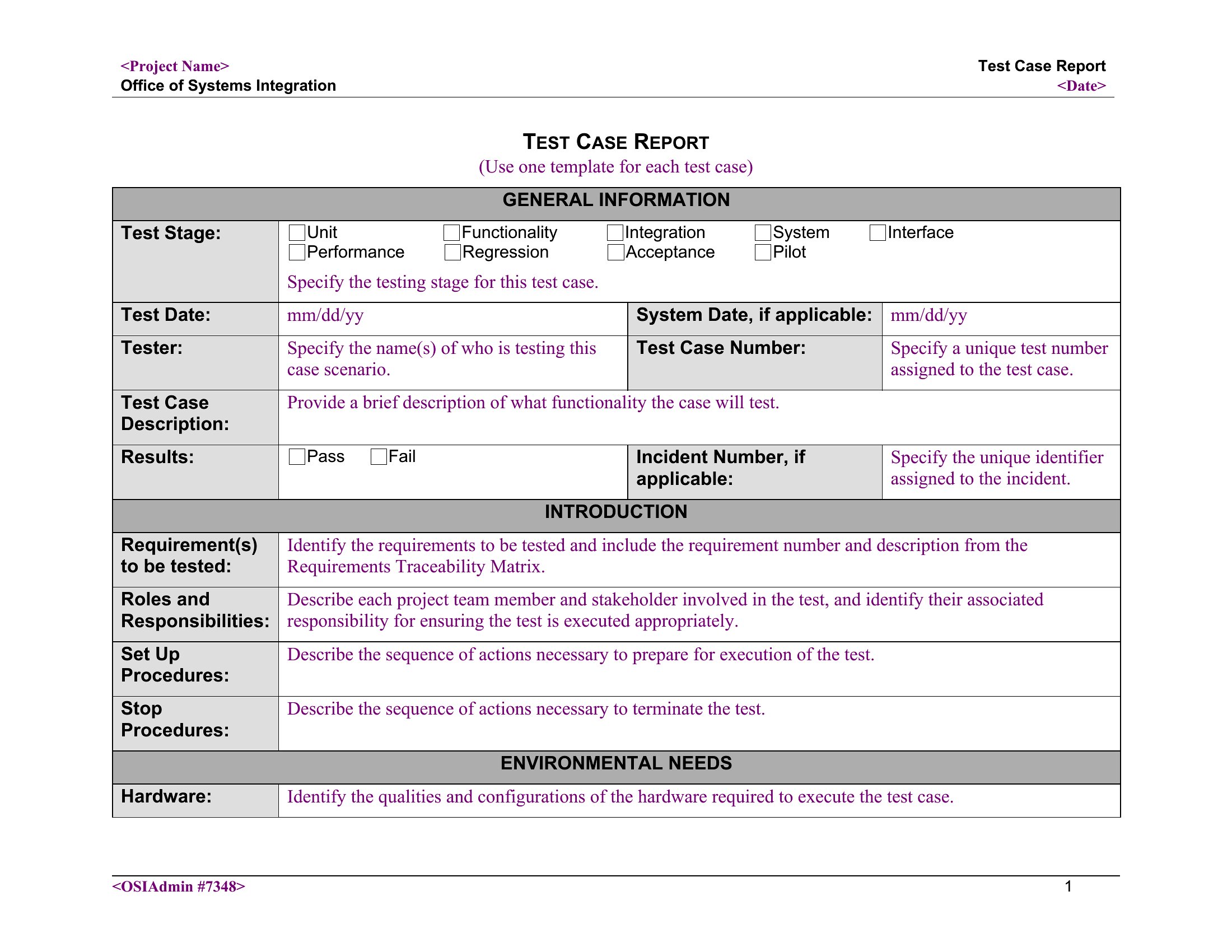
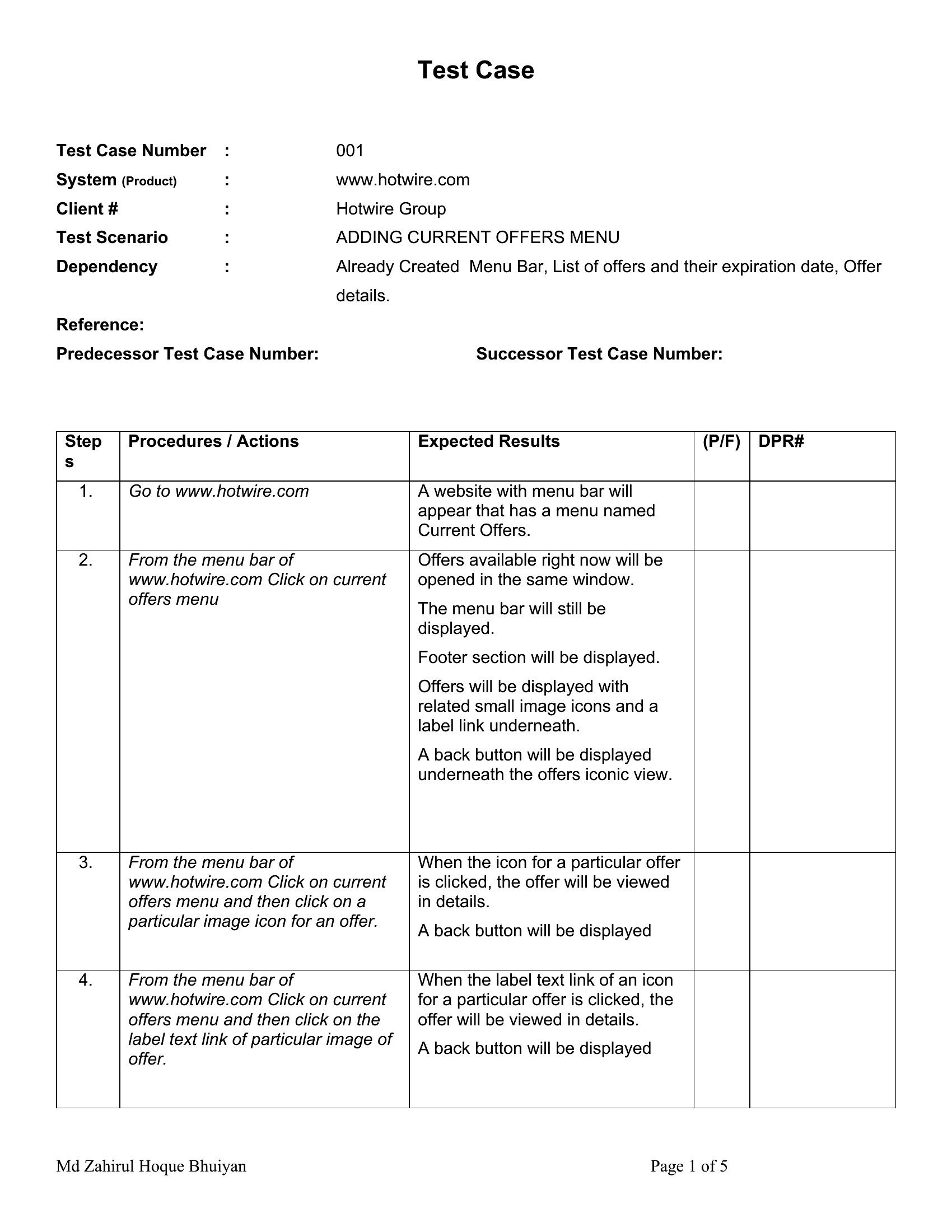
Templates standardize the translation of requirements into actionable test steps by forcing clarity on inputs, expected outcomes, and acceptance criteria. For example, a Word template’s ‘Preconditions’ section ensures testers account for system states like ‘user logged in with admin privileges,’ while Excel’s ‘Data Set’ column flags missing test scenarios early. This reduces misalignment between what developers build and what QA validates, cutting rework cycles by up to 40% for teams using these structures consistently.
Can I adapt these templates to include exploratory testing notes alongside scripted test cases?
Yes, but the approach differs by format. In Word, add a ‘Notes’ section at the end of each test case to capture ad-hoc observations or risks spotted during execution—ideal for manual exploratory sessions. In Excel, use a separate ‘Exploratory Findings’ tab with columns for ‘Tester,’ ‘Discovery Time,’ ‘Severity,’ and ‘Linked Case.’ This keeps structured and unscripted testing artifacts in the same file while maintaining audit trails. Pair Excel with a version control tool if multiple testers contribute notes simultaneously.
What’s the best way to reuse these templates across multiple projects with similar but not identical testing needs?
Start by creating a master template in Word for reusable prose (e.g., ‘Test Case Header’ or ‘Defect Reporting Guidelines’) and a base Excel file with locked columns for core fields like ‘Test ID,’ ‘Priority,’ and ‘Status.’ Use Excel’s ‘Data Validation’ dropdowns to standardize values (e.g., ‘Pass/Fail/Blocked’) across projects. For variations, duplicate the master files and use Word’s ‘Quick Parts’ gallery to insert project-specific variables (e.g., ‘System Under Test: [Project Name]’). Store these in a shared drive with version-controlled folders to avoid duplication.
Comments
Join the conversation
Sign in to share your thoughts and leave a comment on this resource.