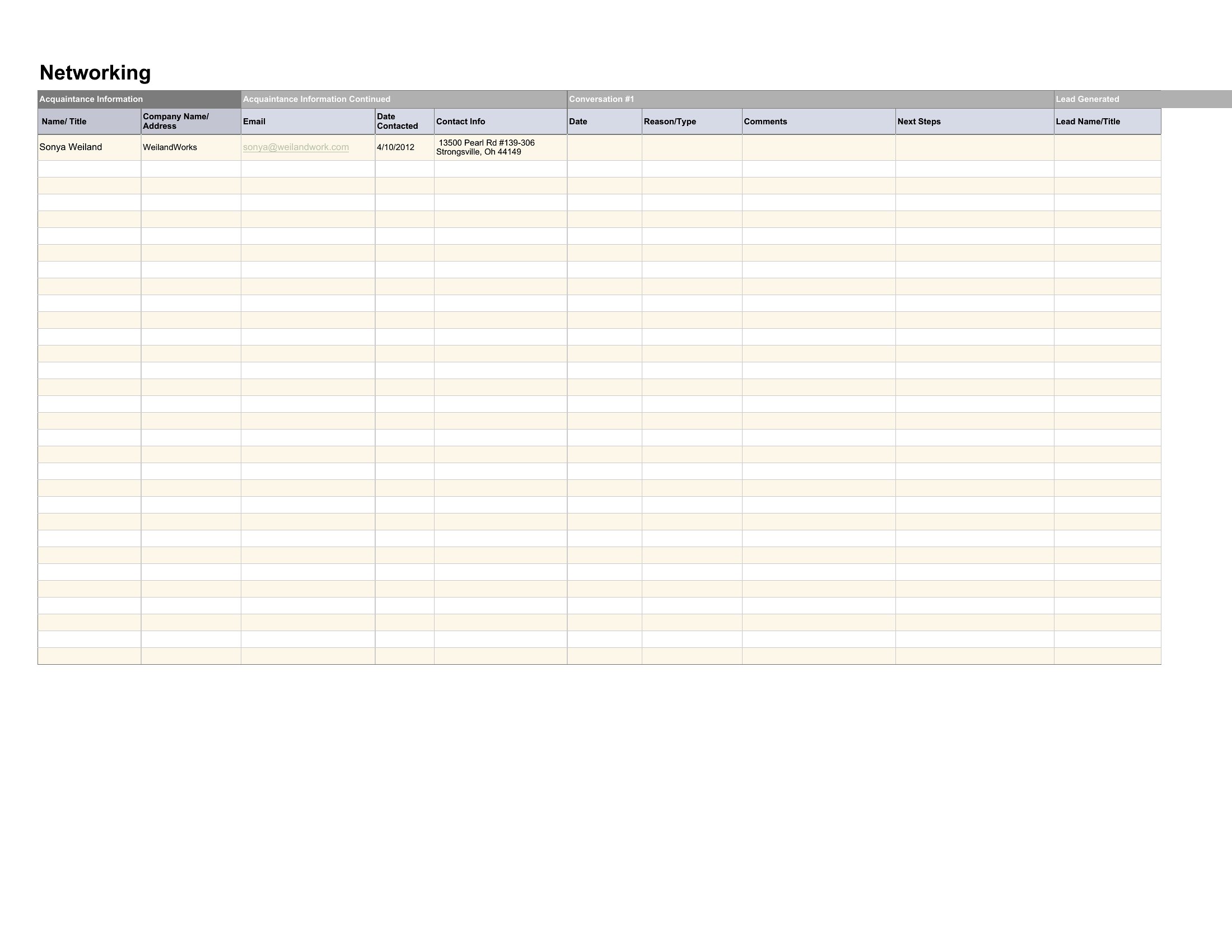
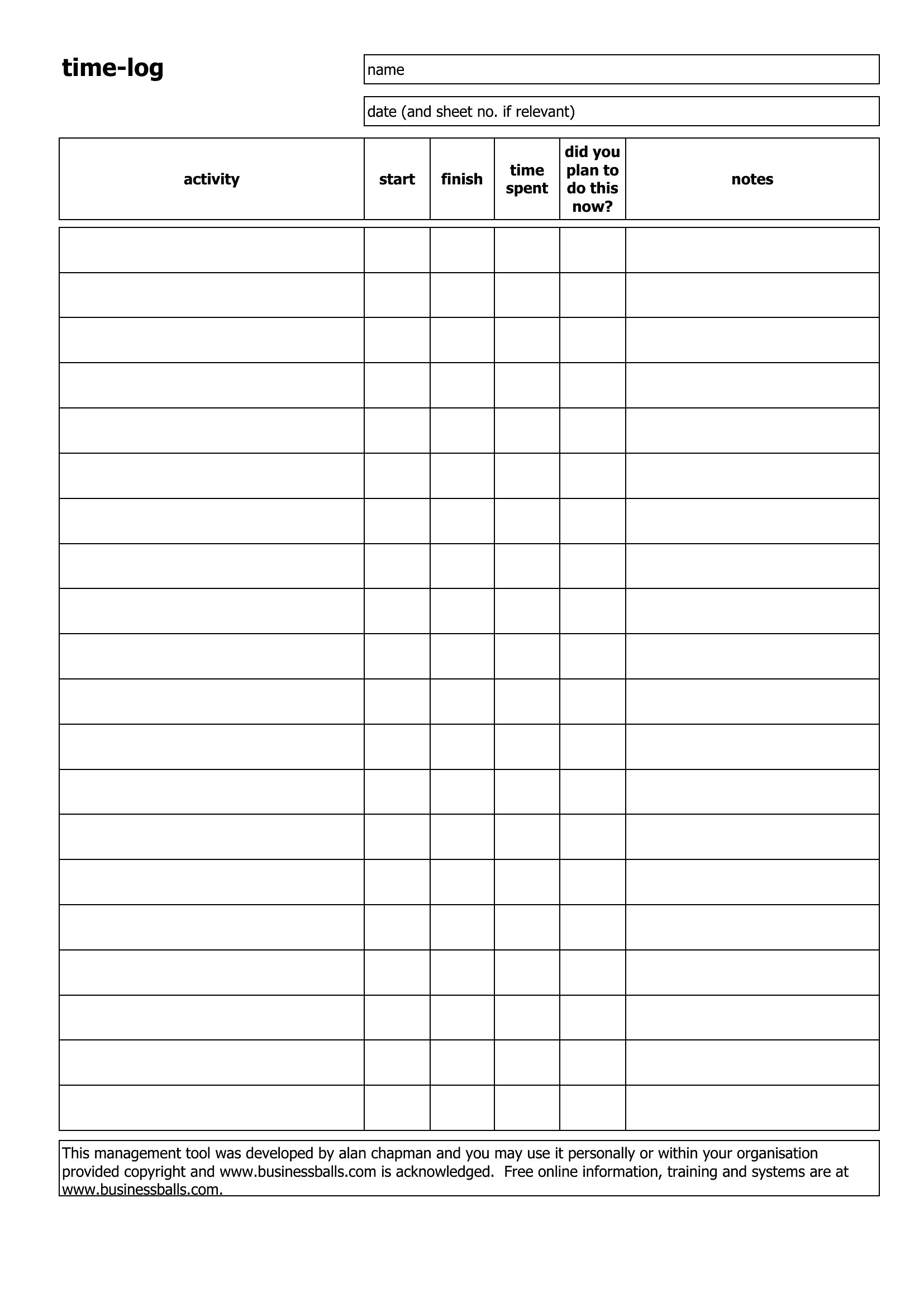
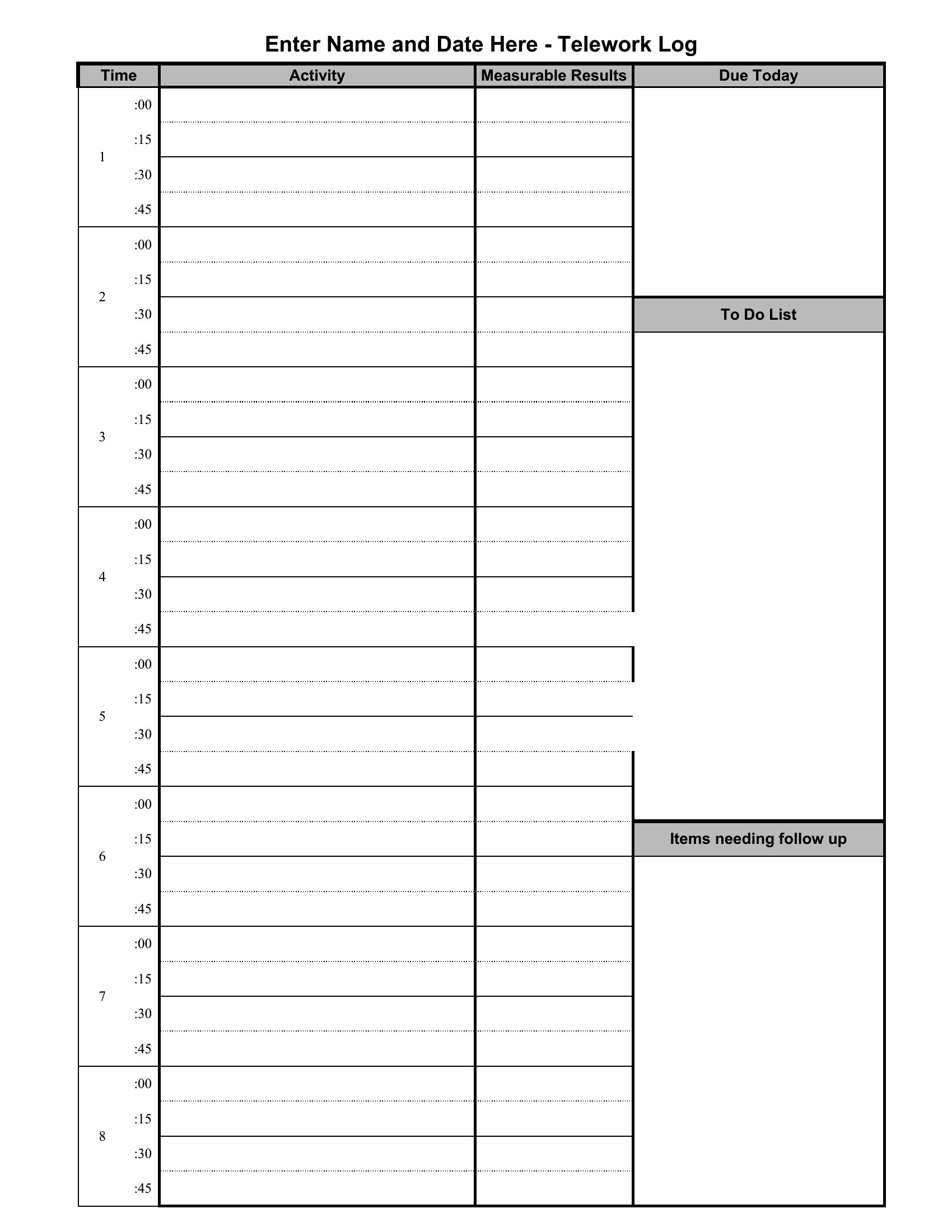
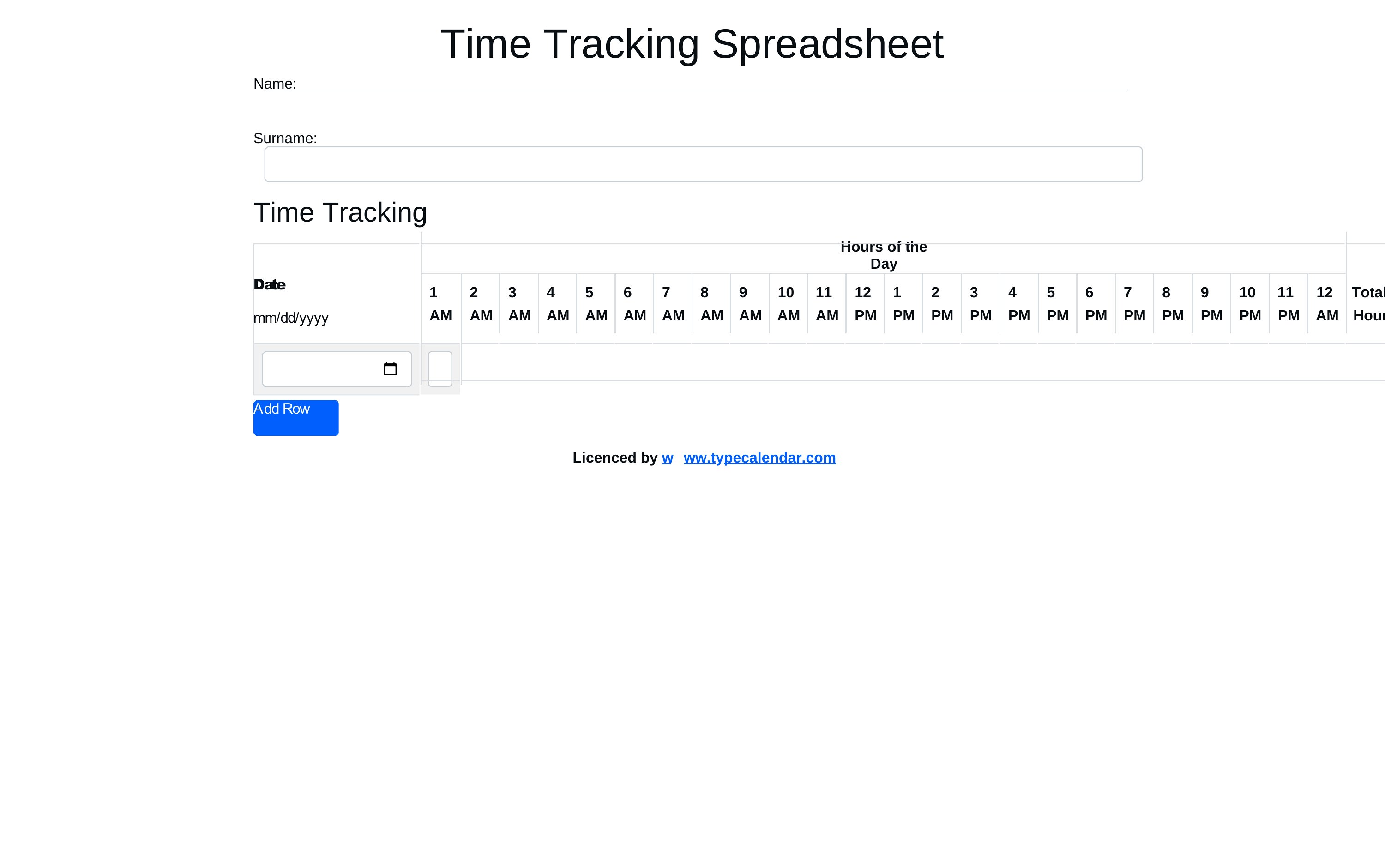

FAQ
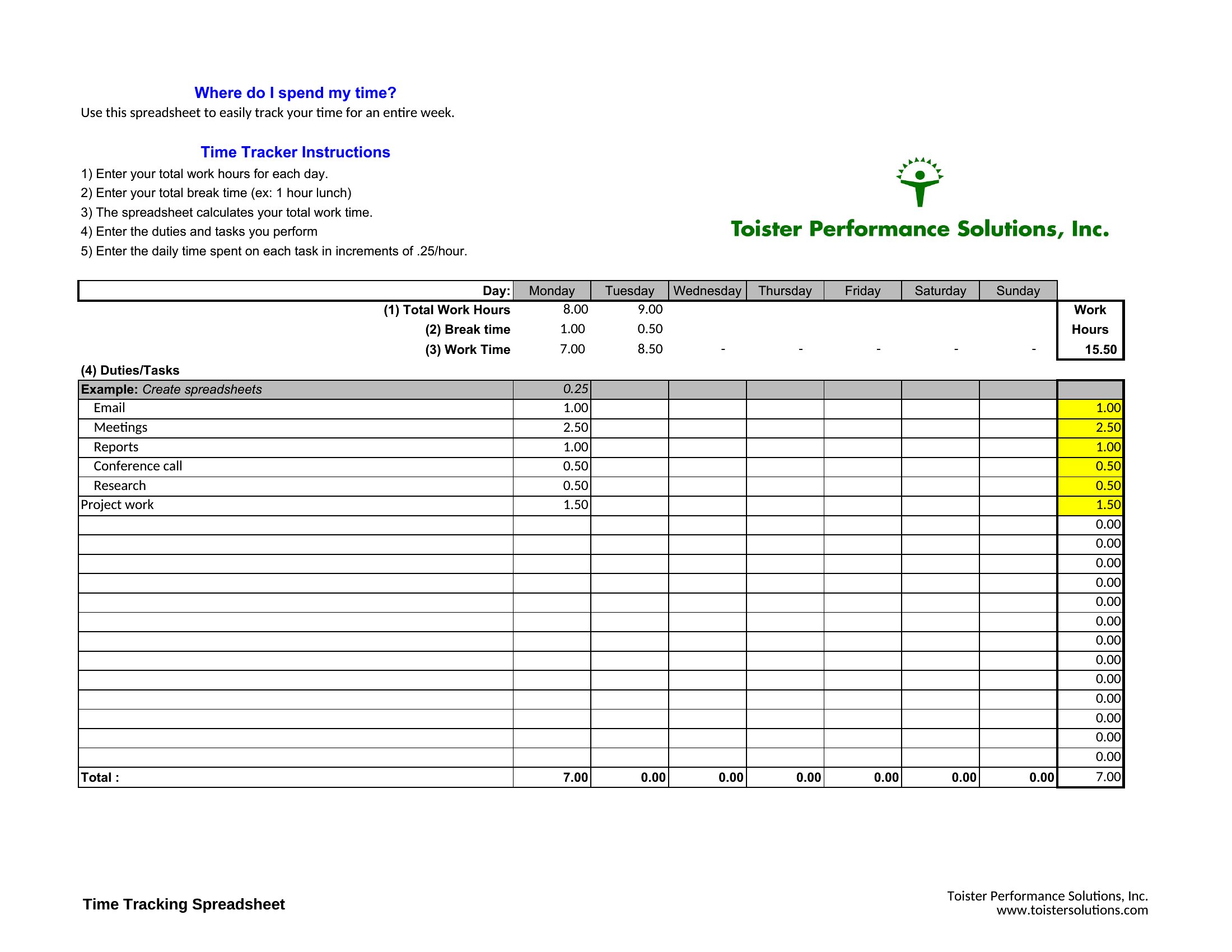
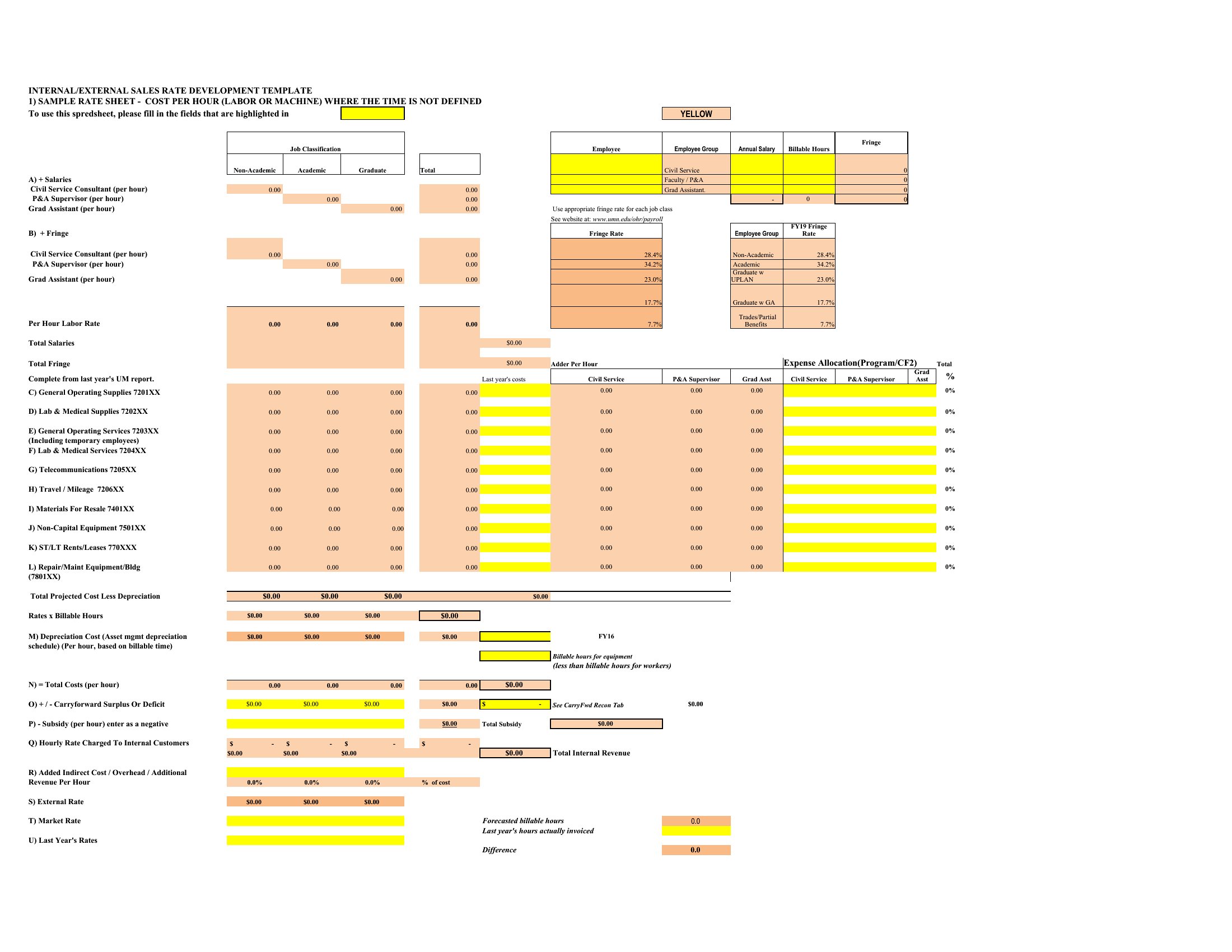
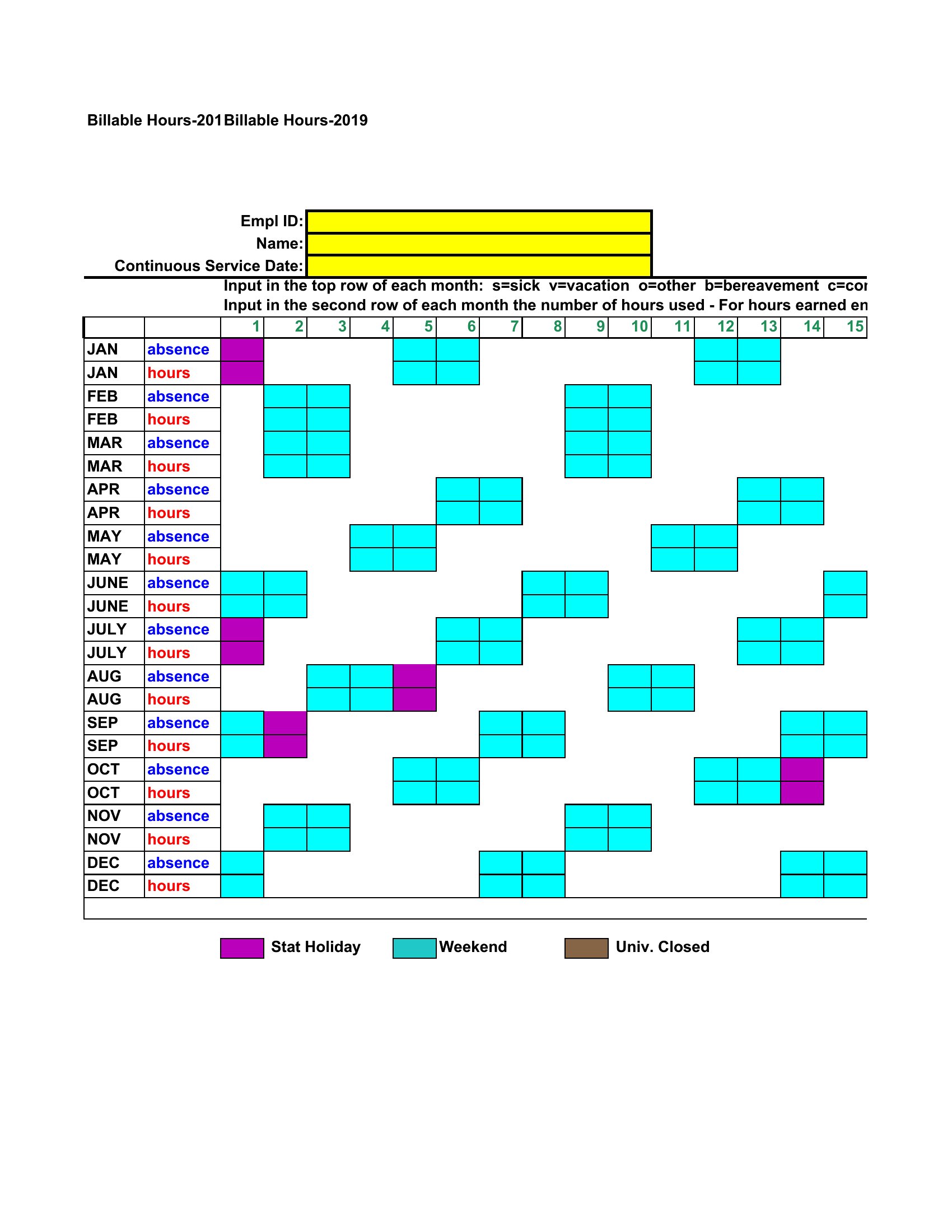
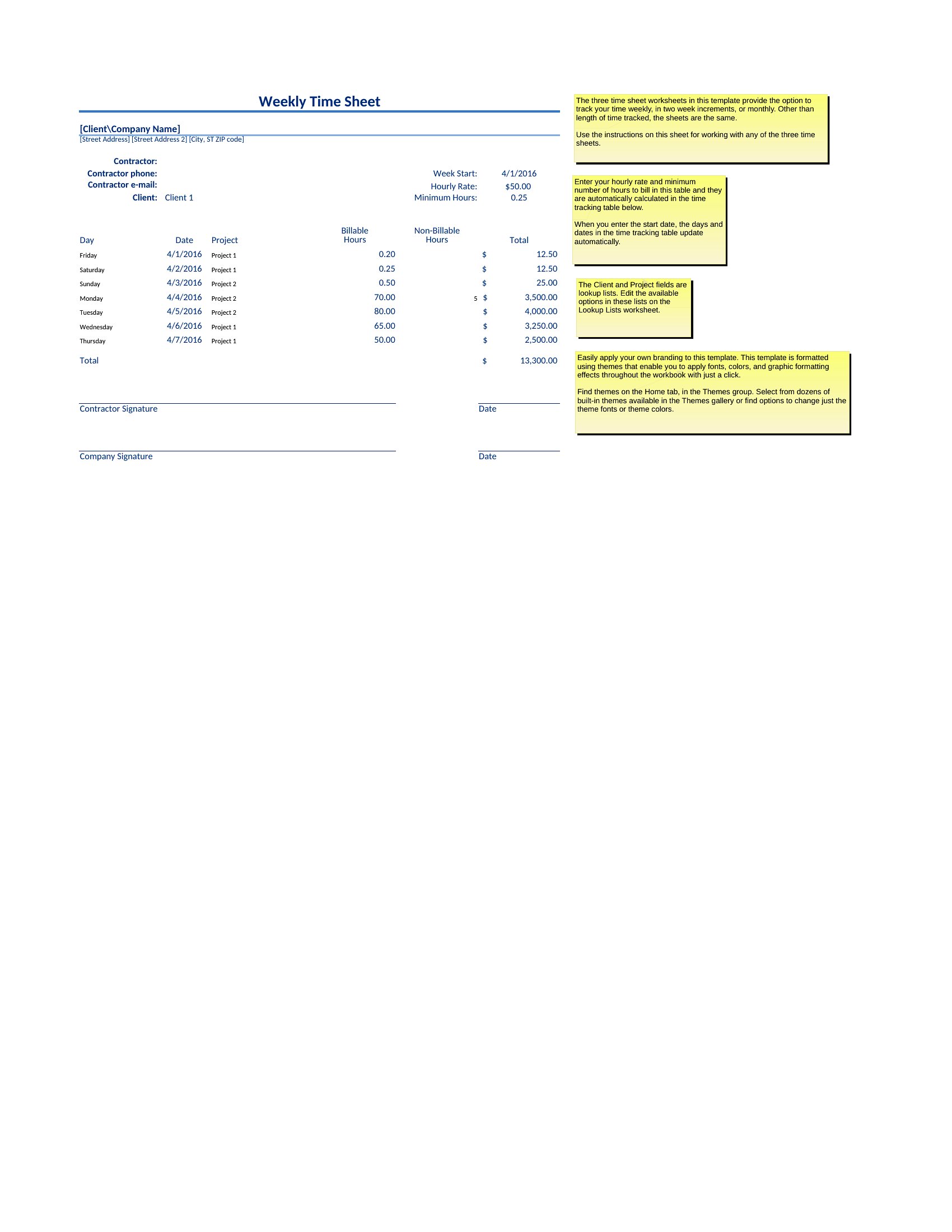
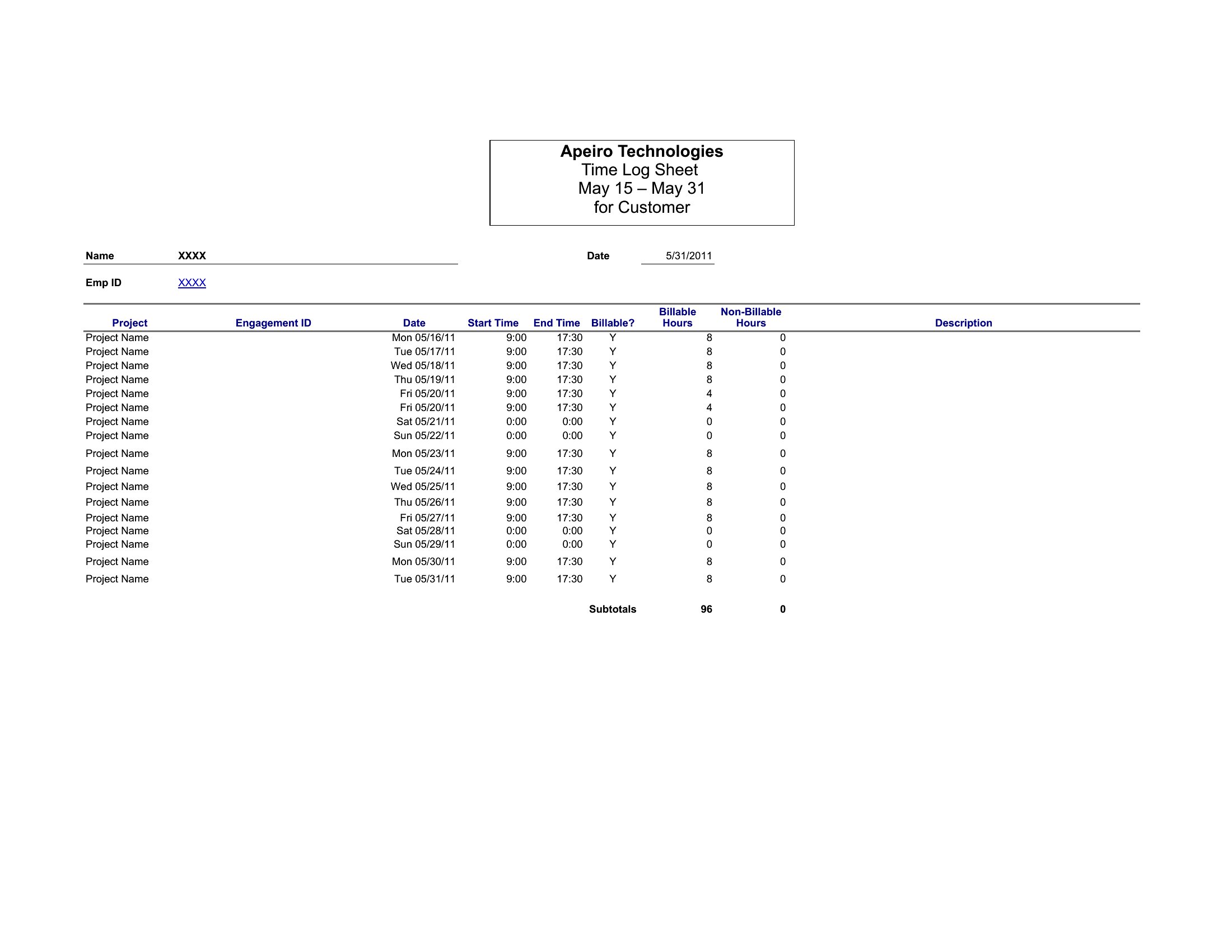
Can these spreadsheets calculate billable vs. non-billable hours automatically?
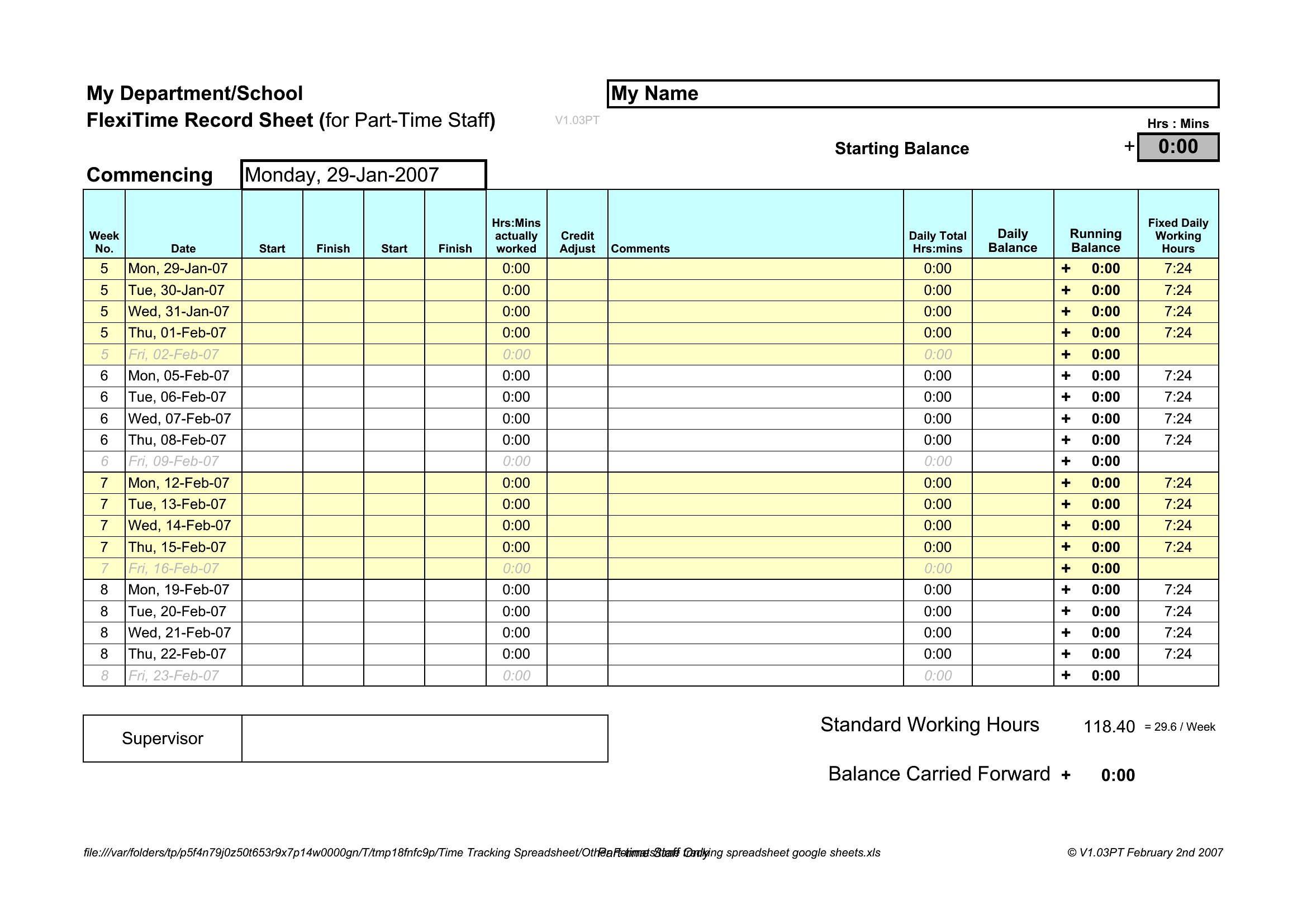
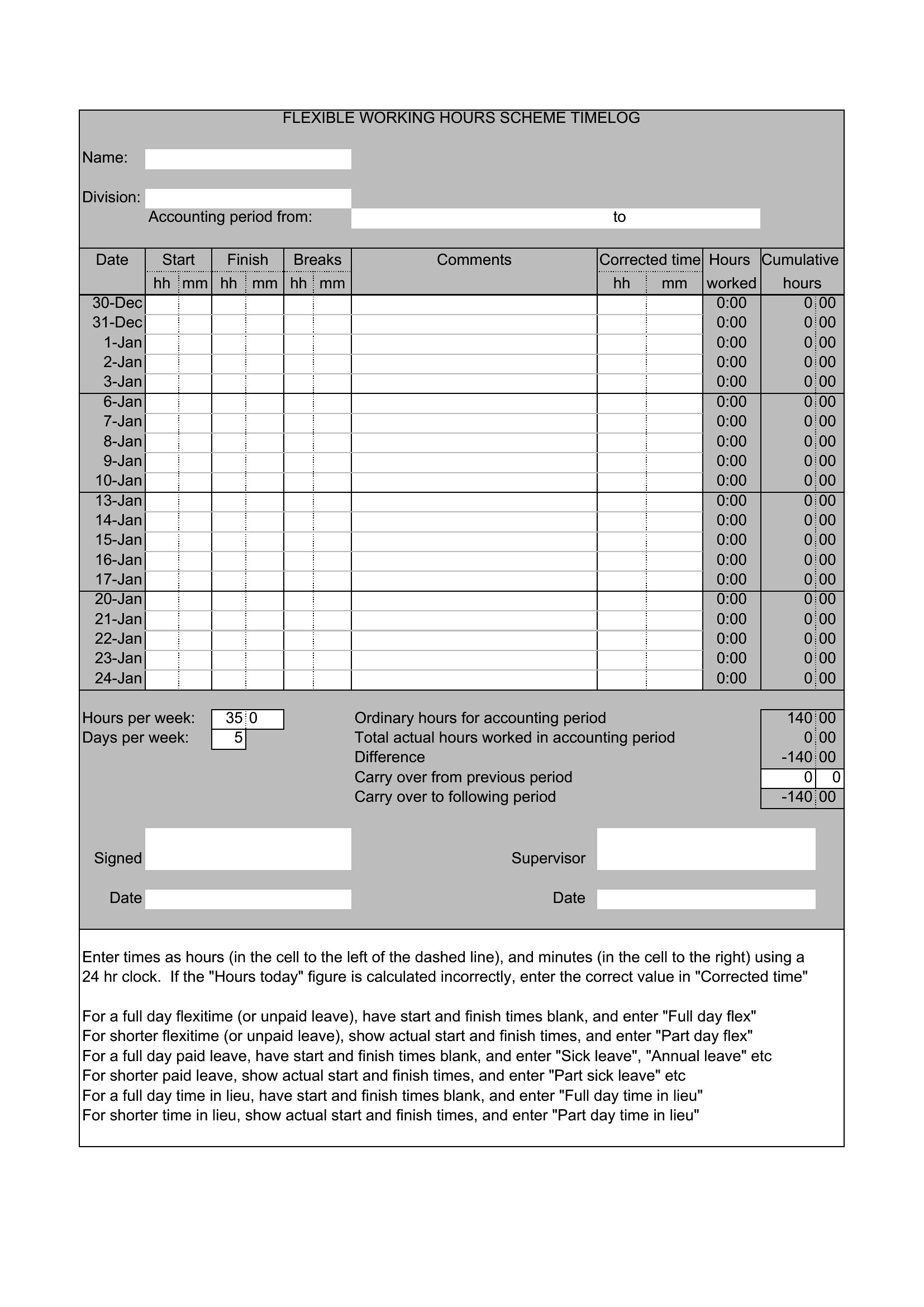
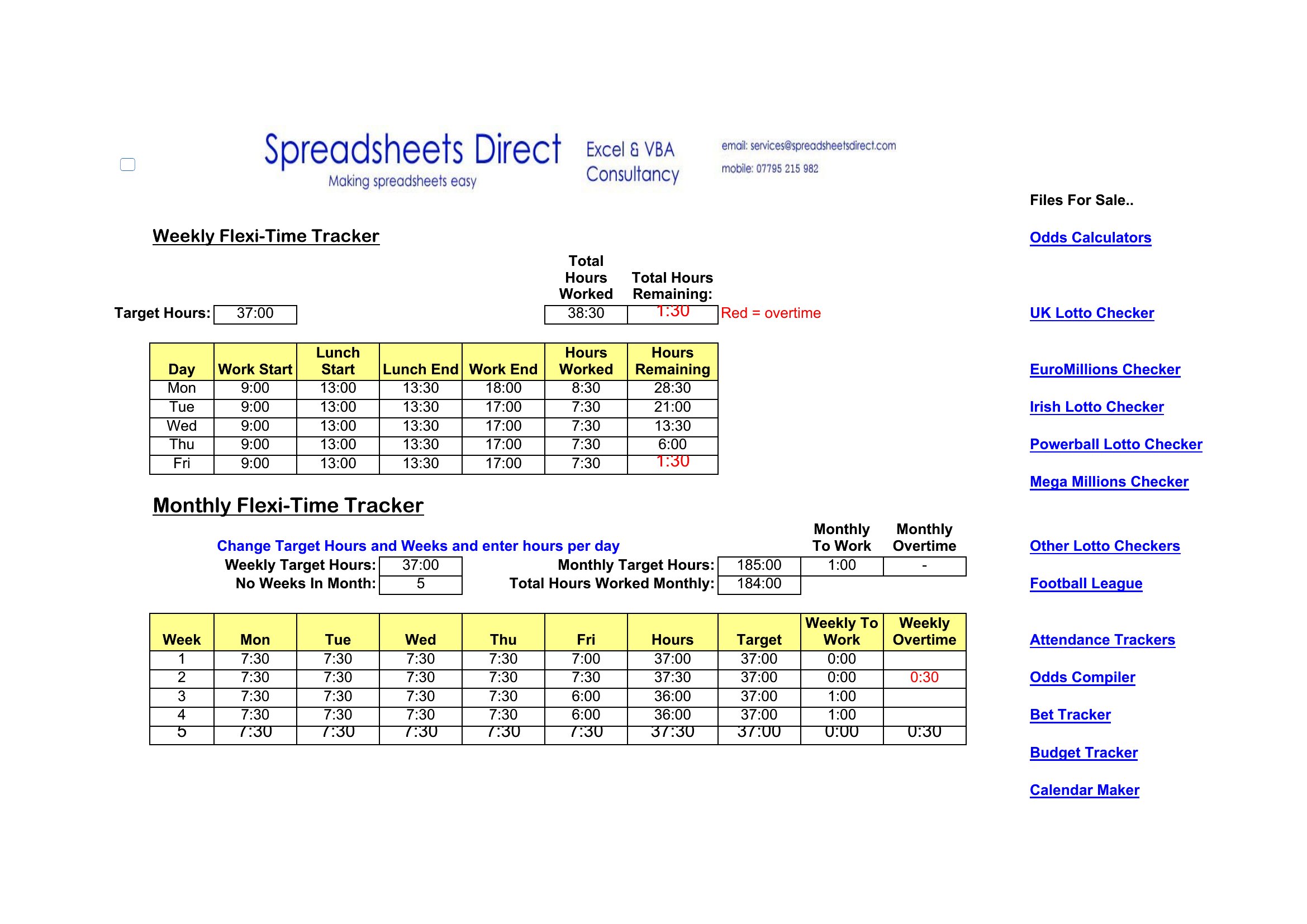
Yes, most Excel-based templates include conditional formatting and formulas to categorize hours (e.g., billable, administrative, or unpaid) based on predefined rules. Simply input your rate and project codes, and the sheet will flag non-billable time for review. Adjust the formulas if your billing structure differs from the default setup.
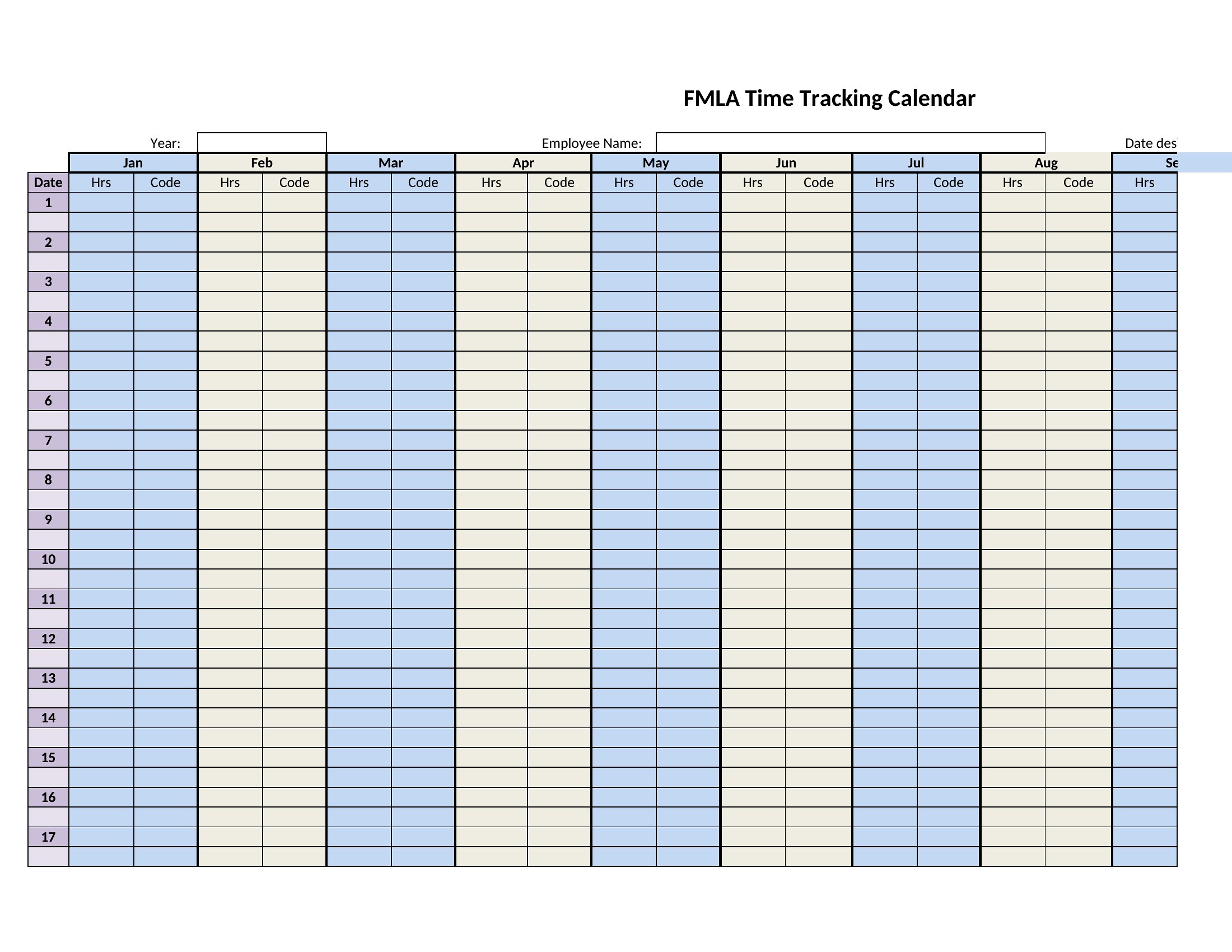
How do I adapt a vacation tracking template for seasonal employees with variable schedules?
Copy the Excel template and modify the ‘Weekly Hours’ column to include a dropdown menu with your seasonal schedule (e.g., ‘Part-time 20 hrs,’ ‘Full-time 40 hrs’). Use a separate tab to log PTO accruals by schedule type, then link it to the main sheet with VLOOKUP. This keeps accruals accurate even when hours fluctuate weekly.
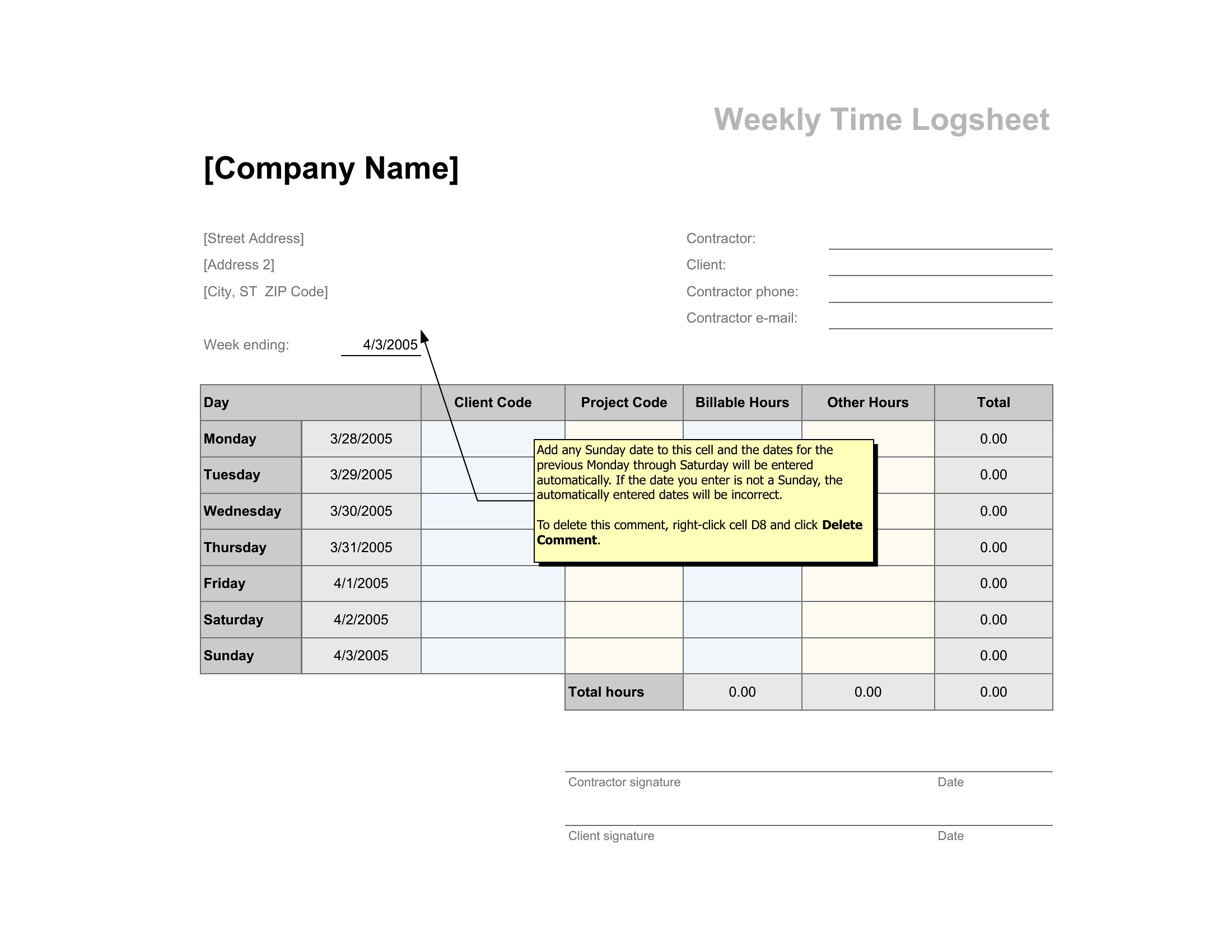
Are these templates compatible with payroll software like QuickBooks or Gusto?
Yes, all Excel templates export cleanly to CSV format, which most payroll platforms accept for importing hours. For seamless integration, save the file as a CSV and map the ‘Date,’ ‘Employee,’ and ‘Hours’ columns to your payroll software’s fields. Check your software’s import guide for column-name requirements—some use ‘Pay Period’ instead of ‘Date.’
Comments
Join the conversation
Sign in to share your thoughts and leave a comment on this resource.