
Free Time Tracking Spreadsheets (Word, Excel)
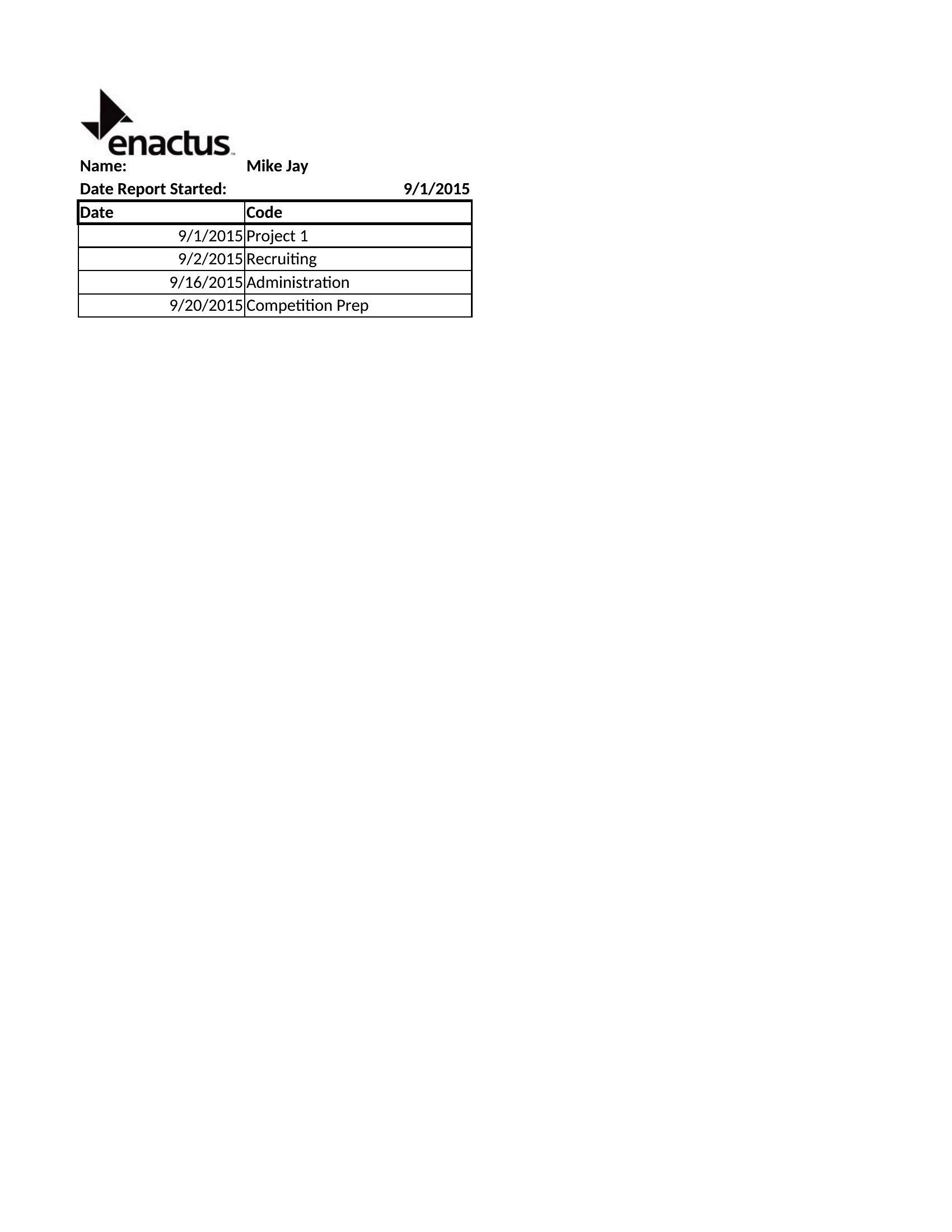
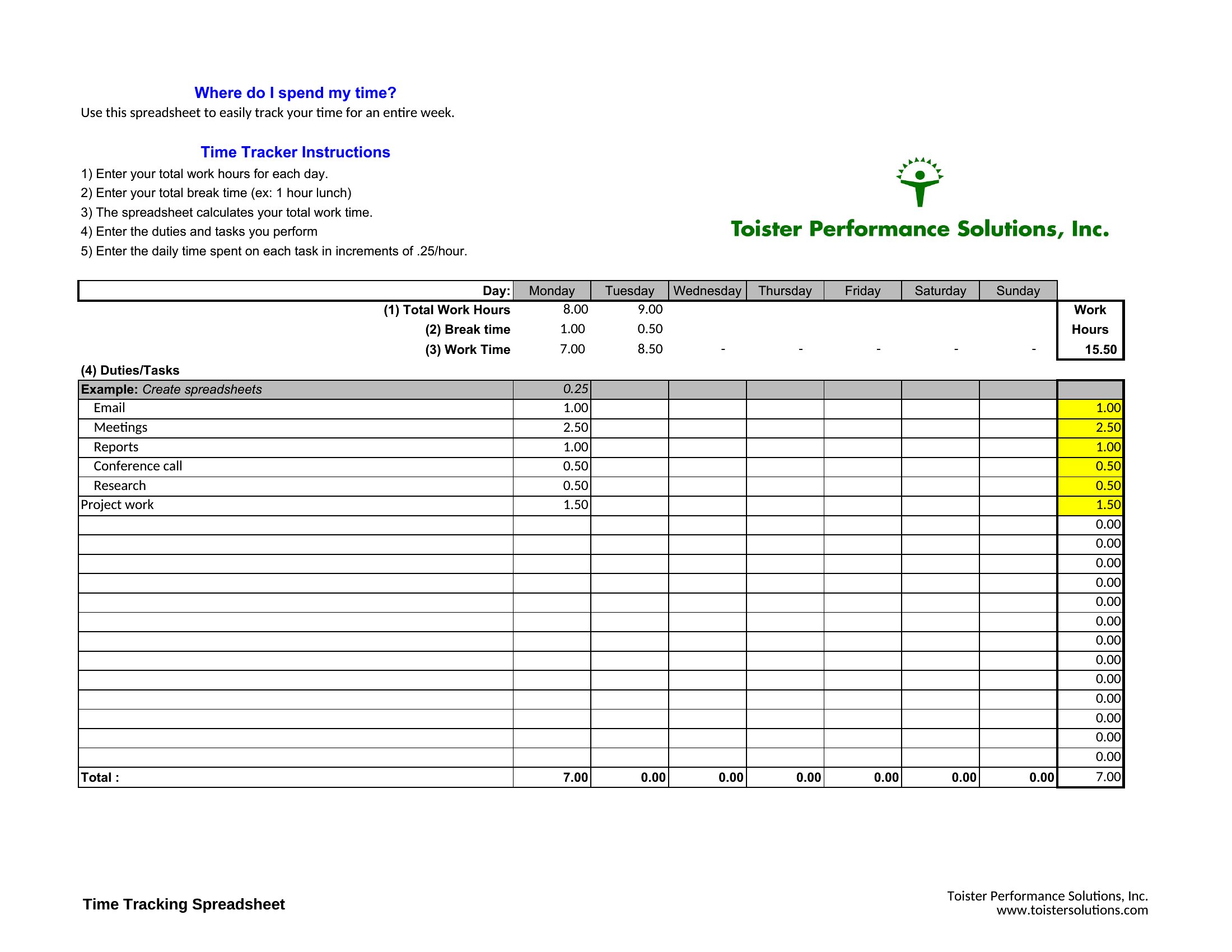
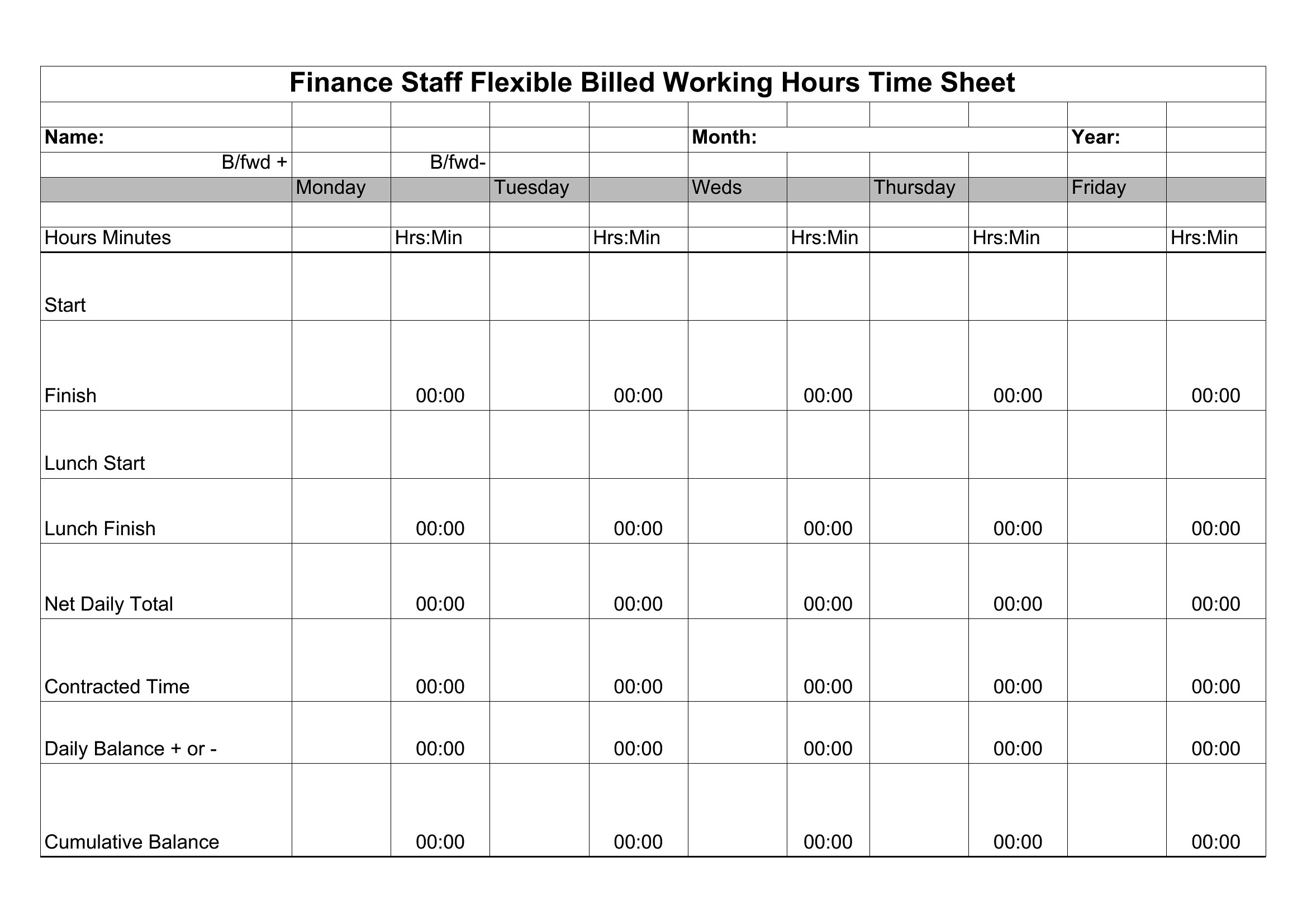
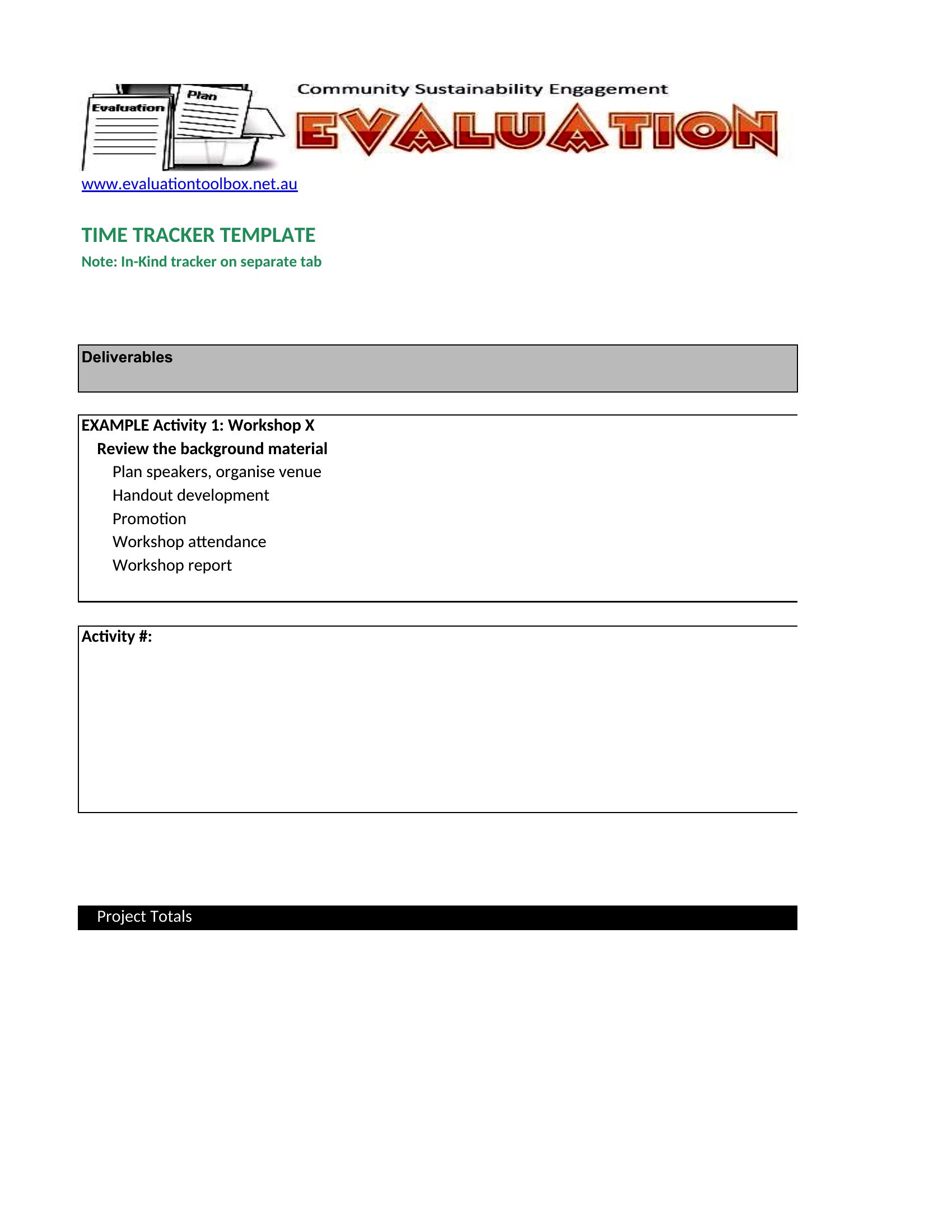
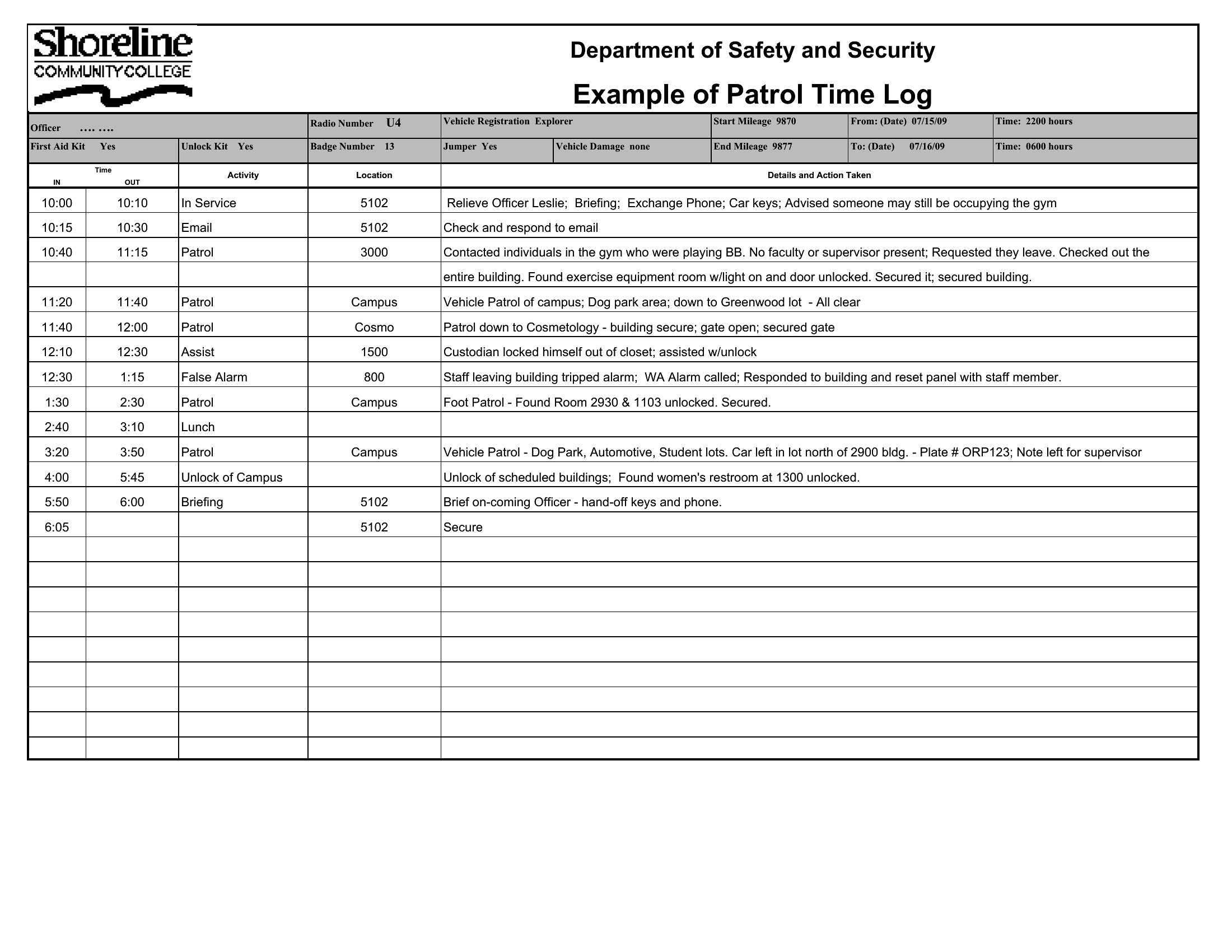
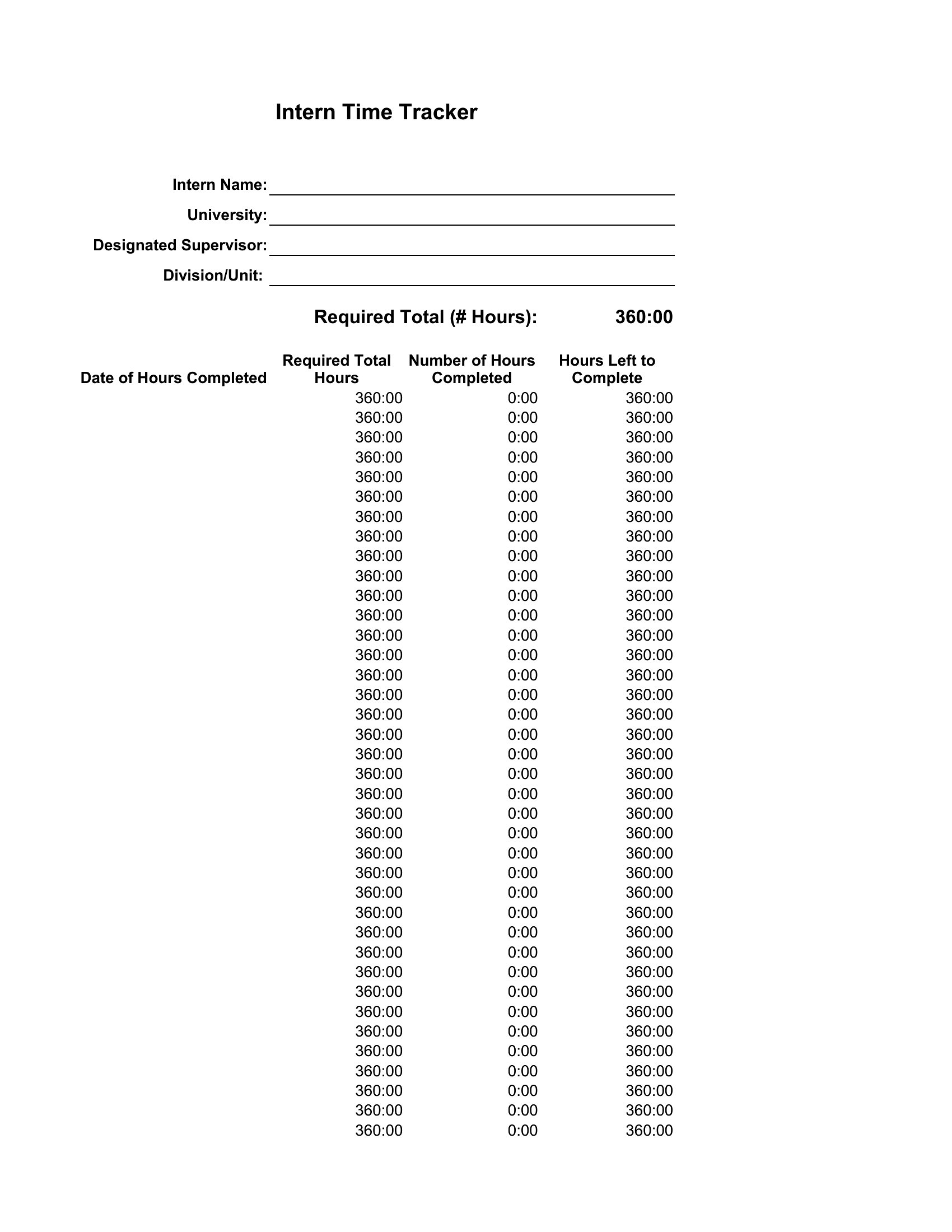
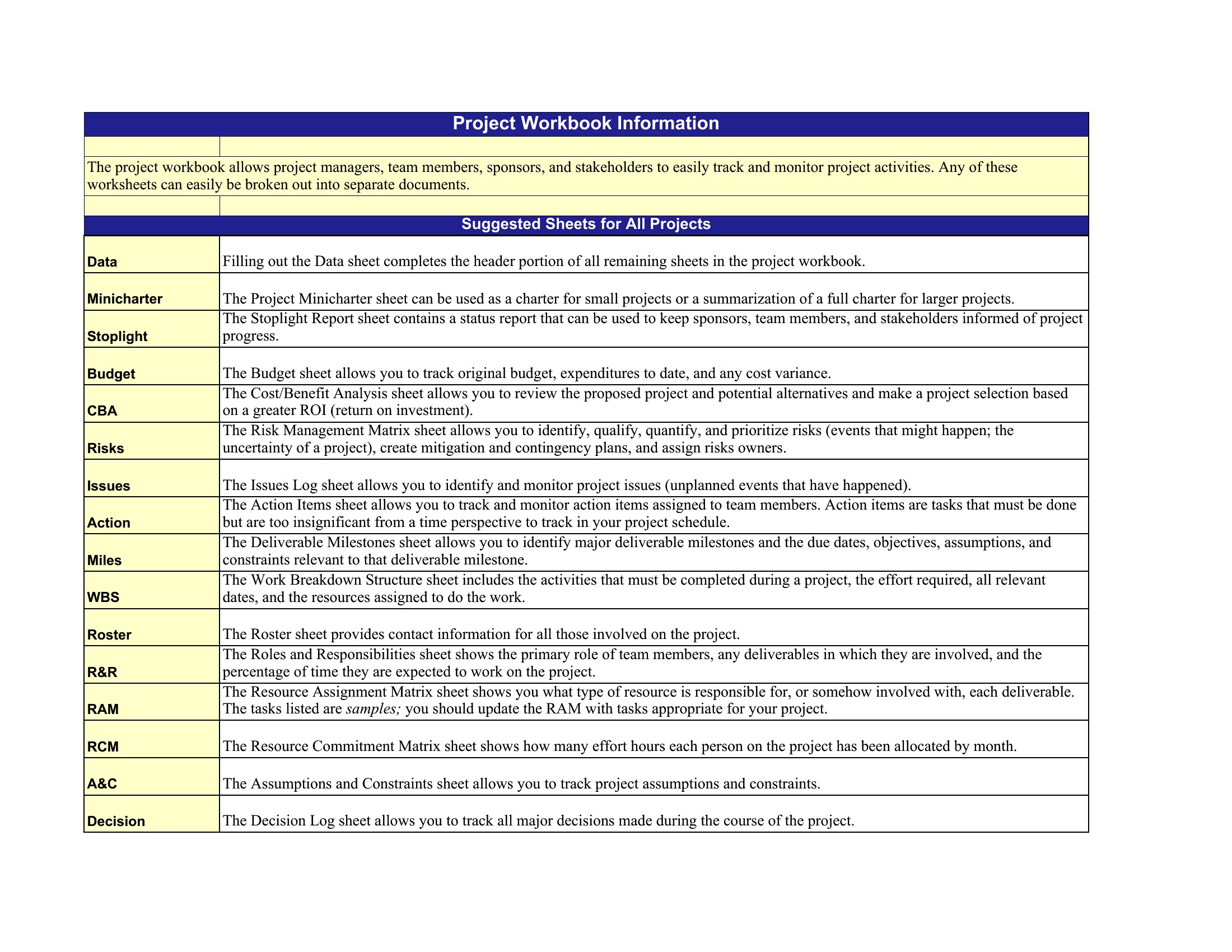
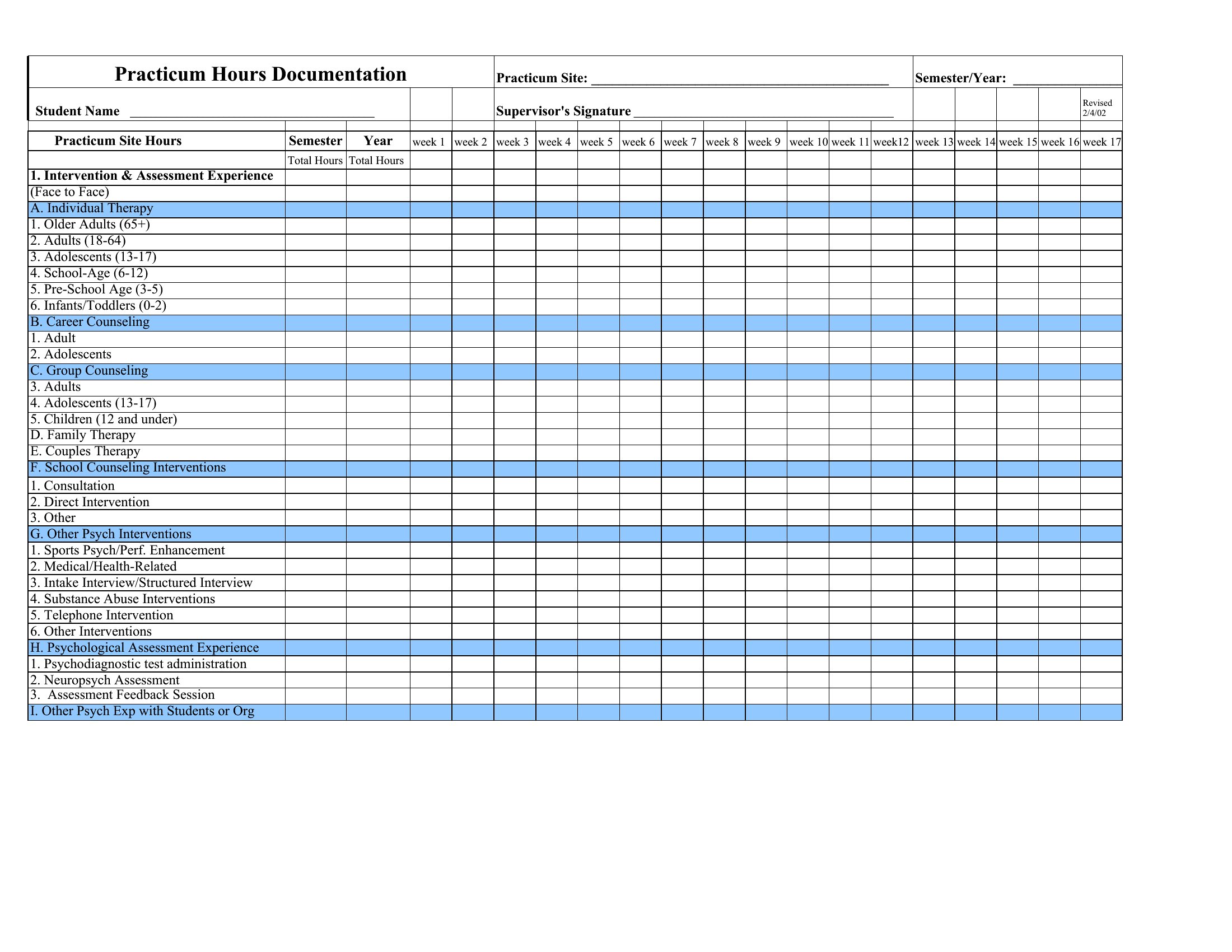
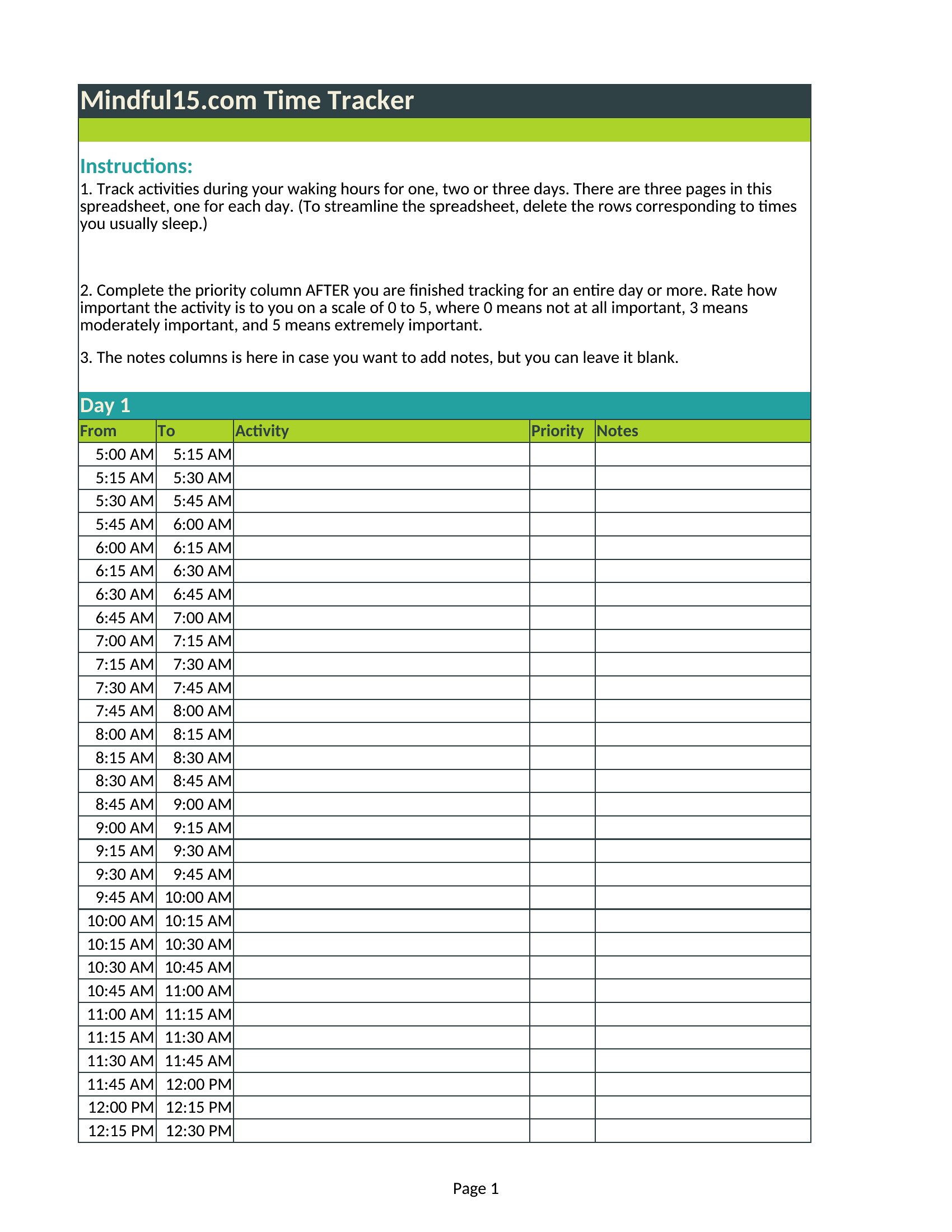
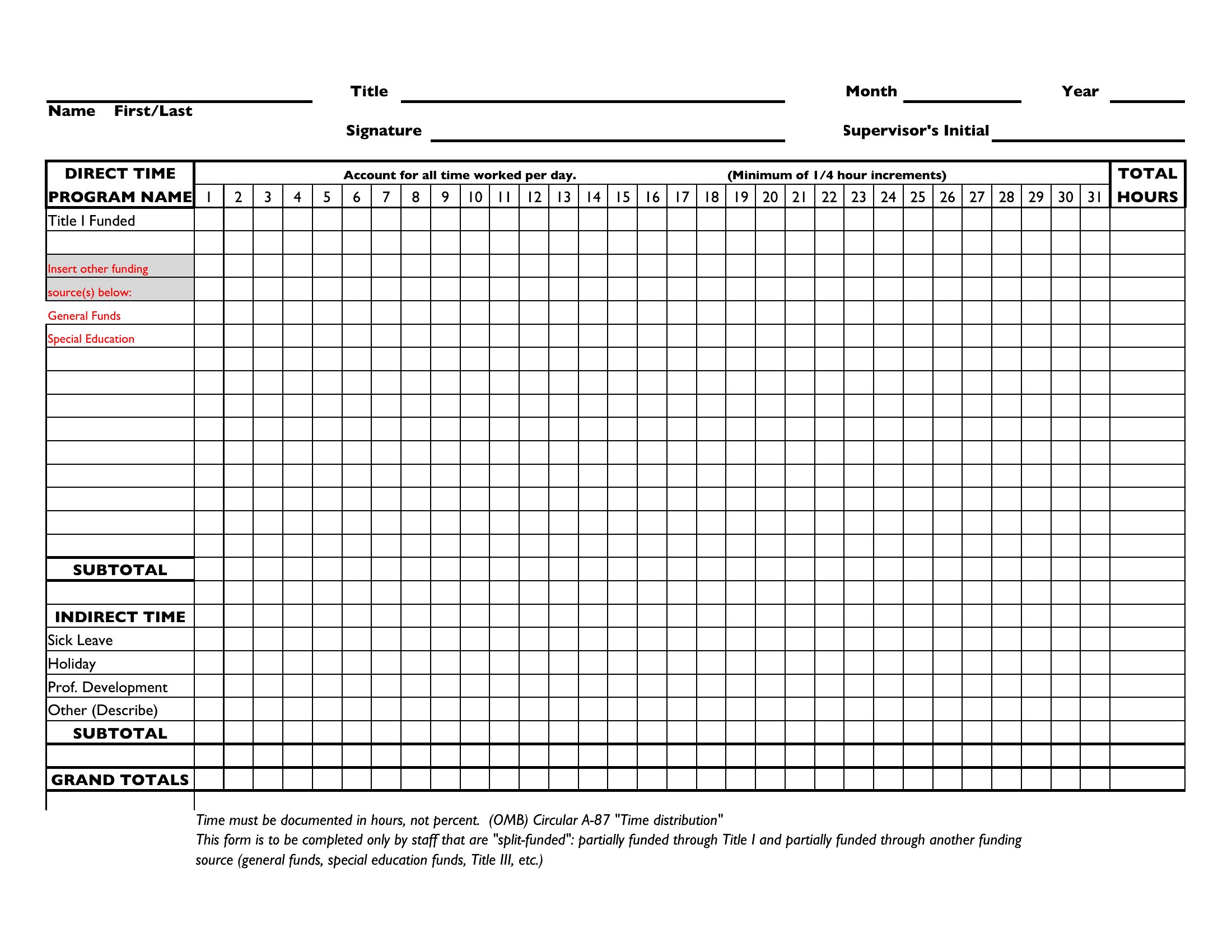
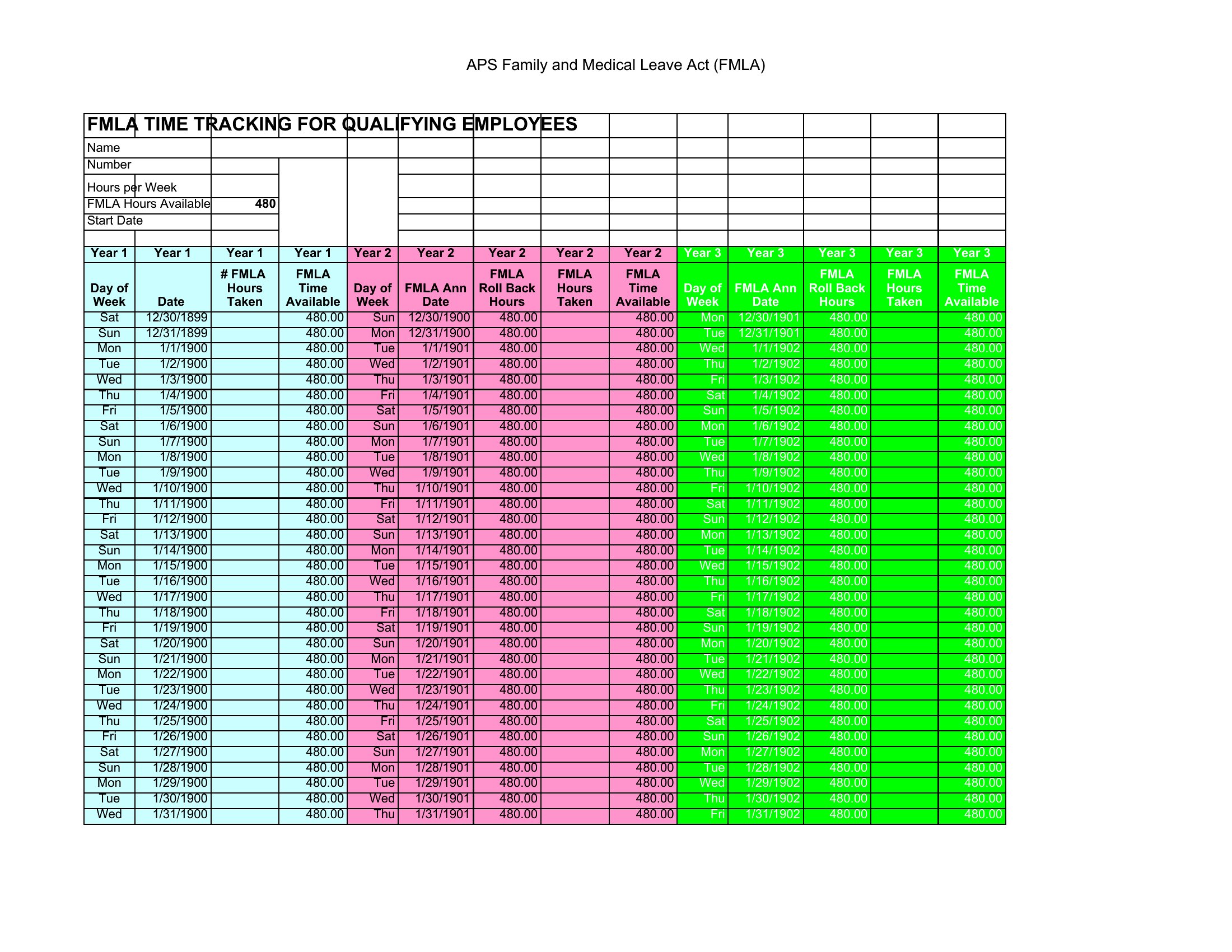
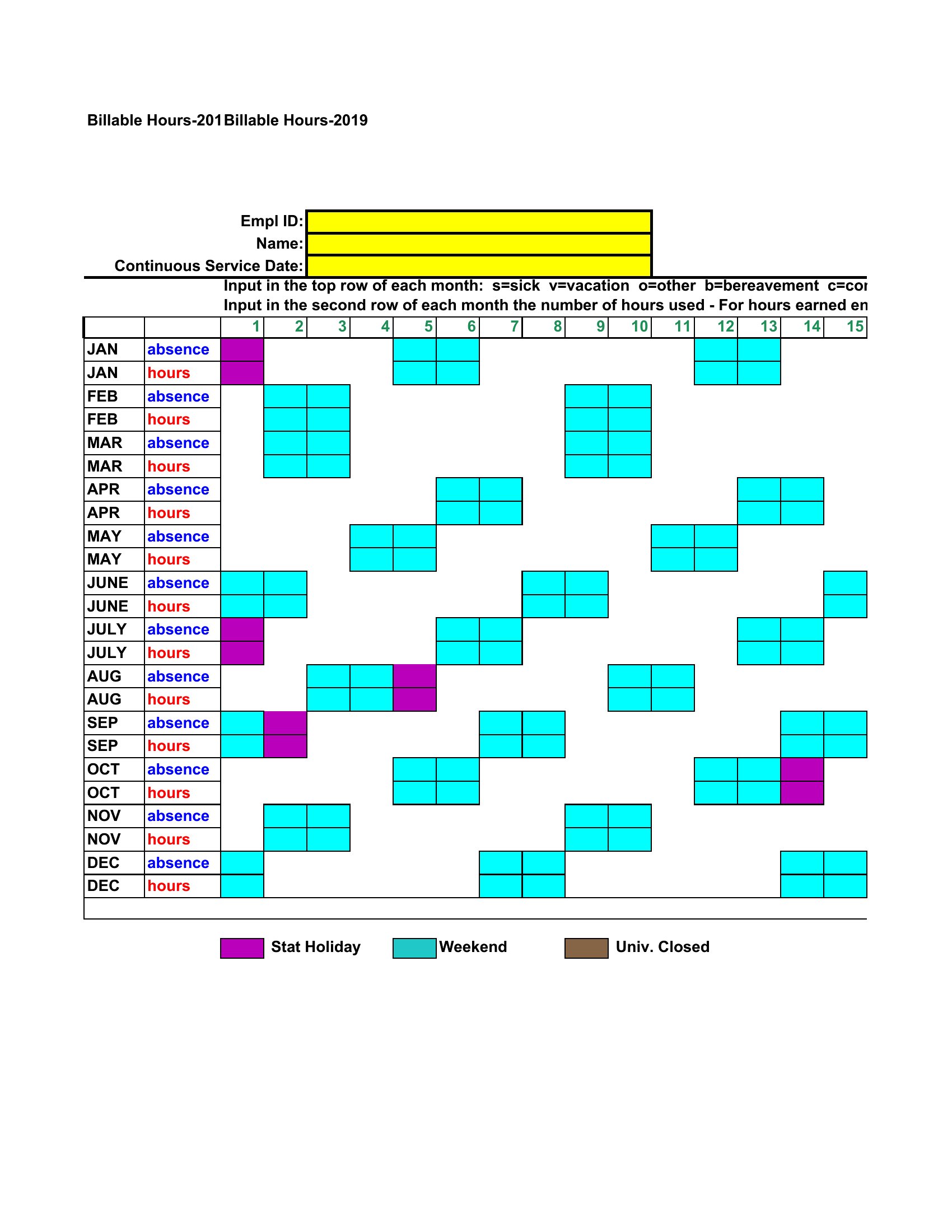
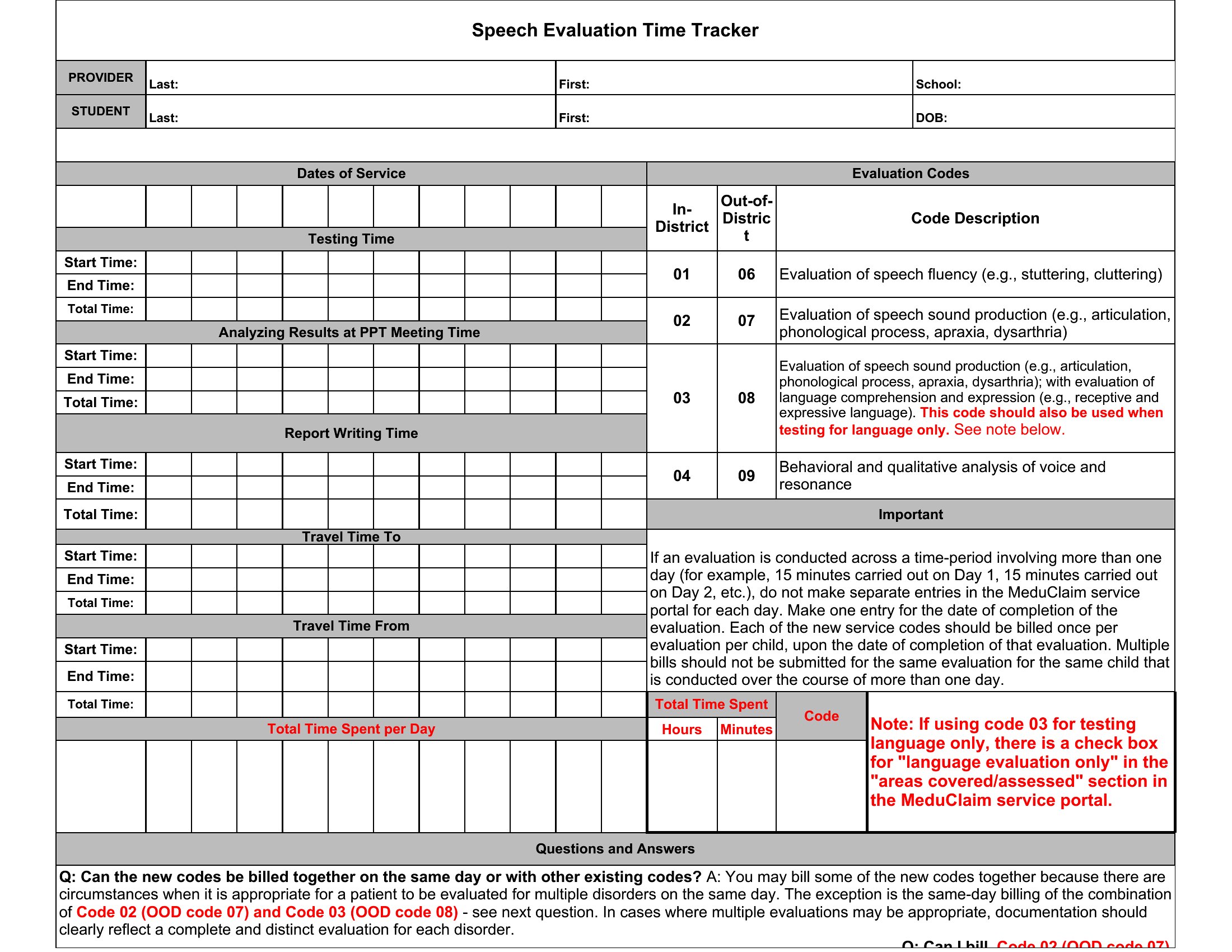
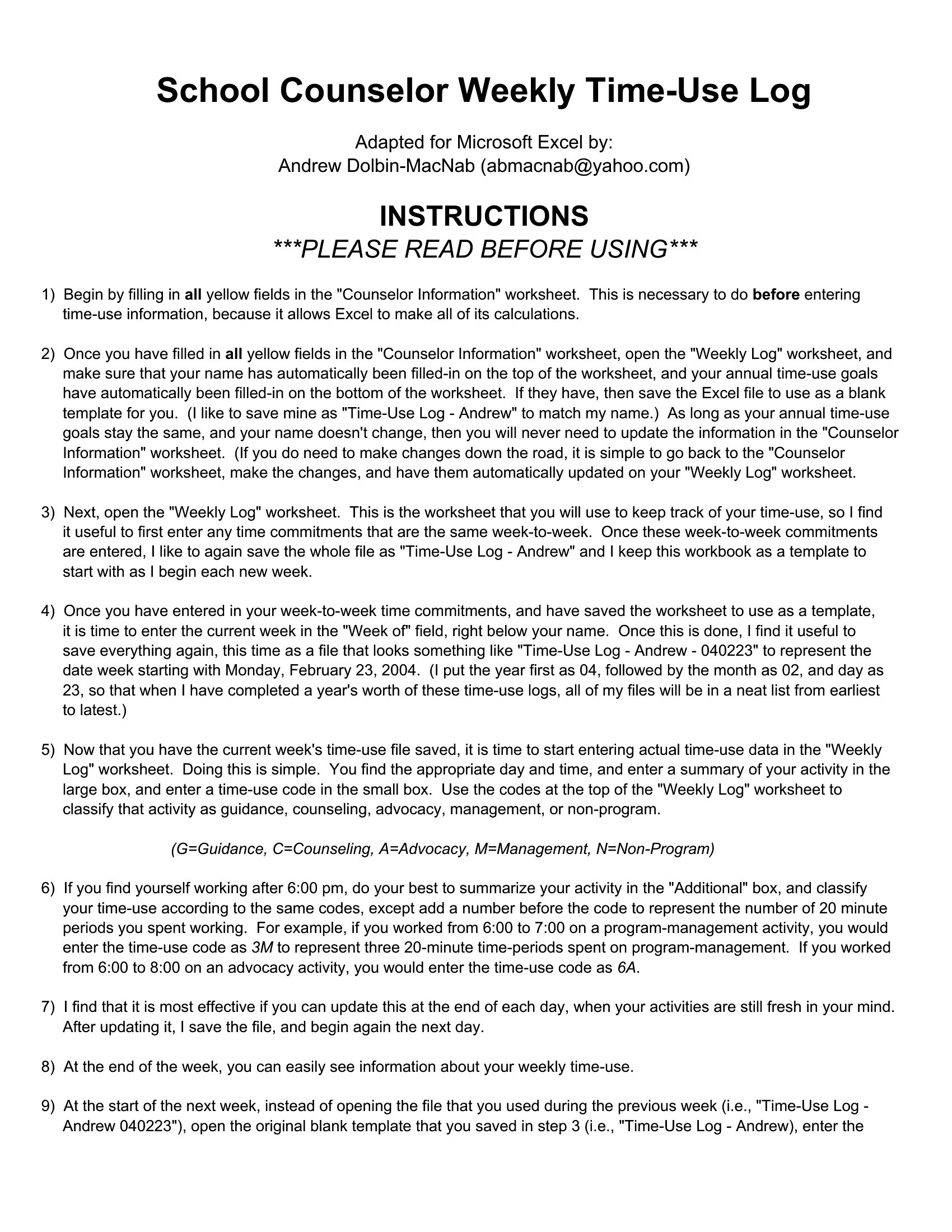
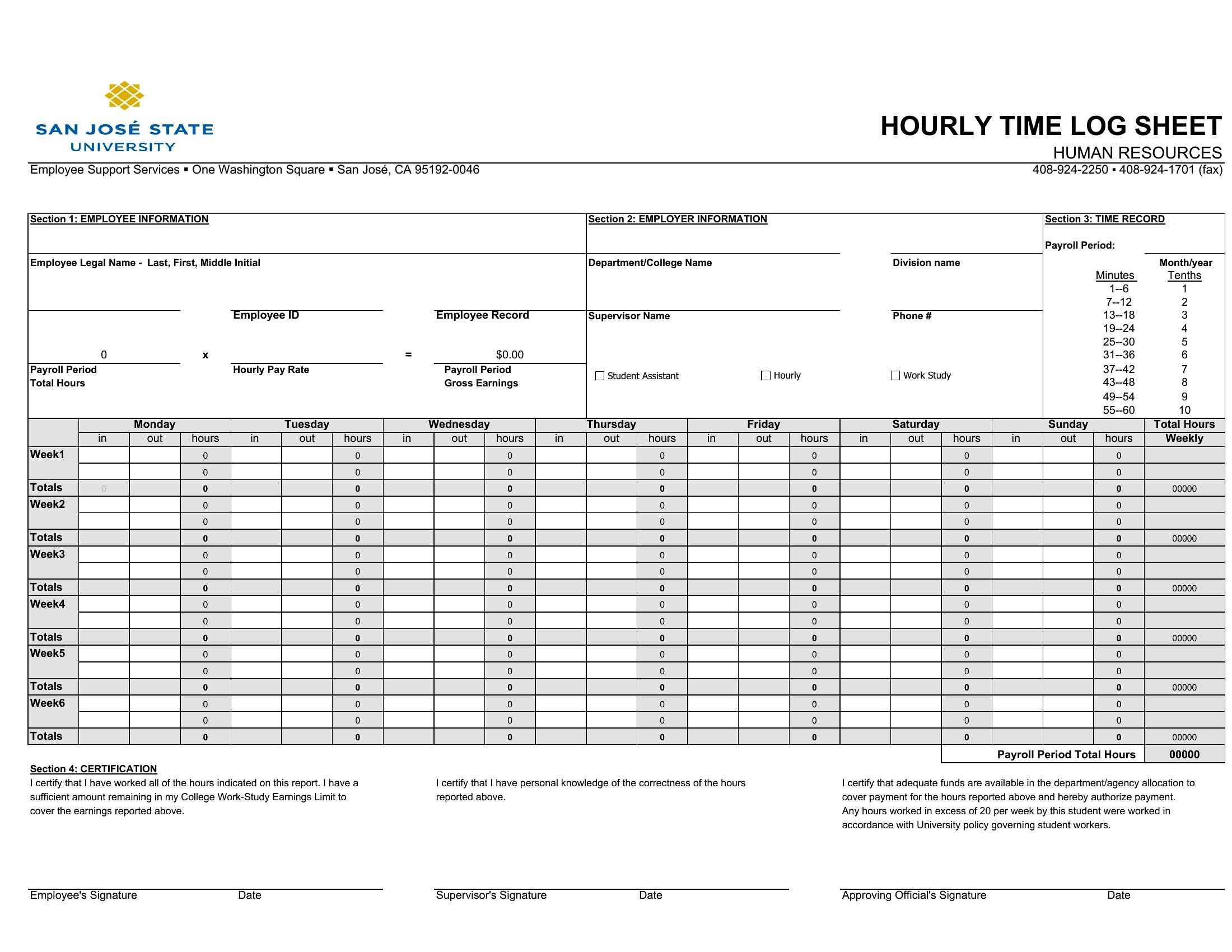
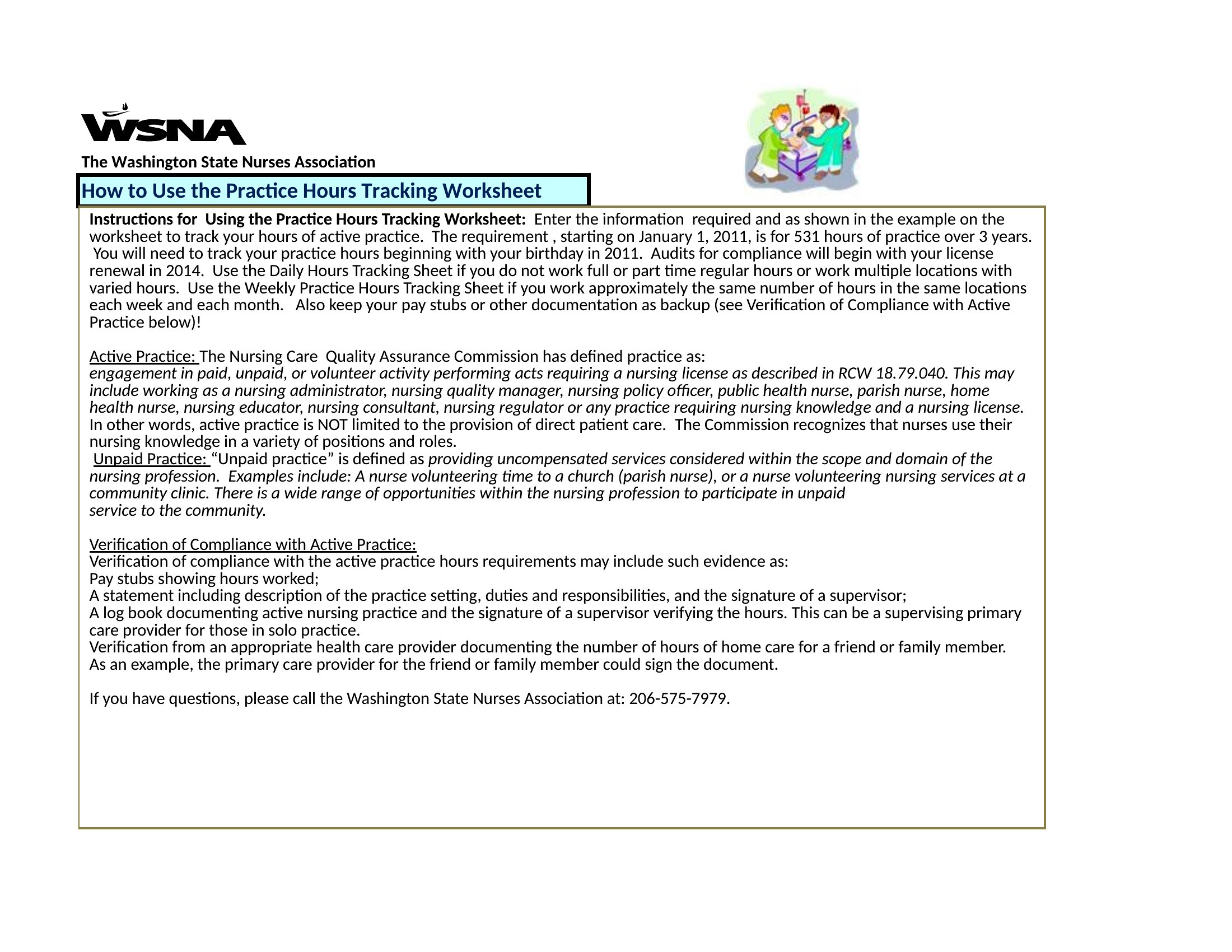
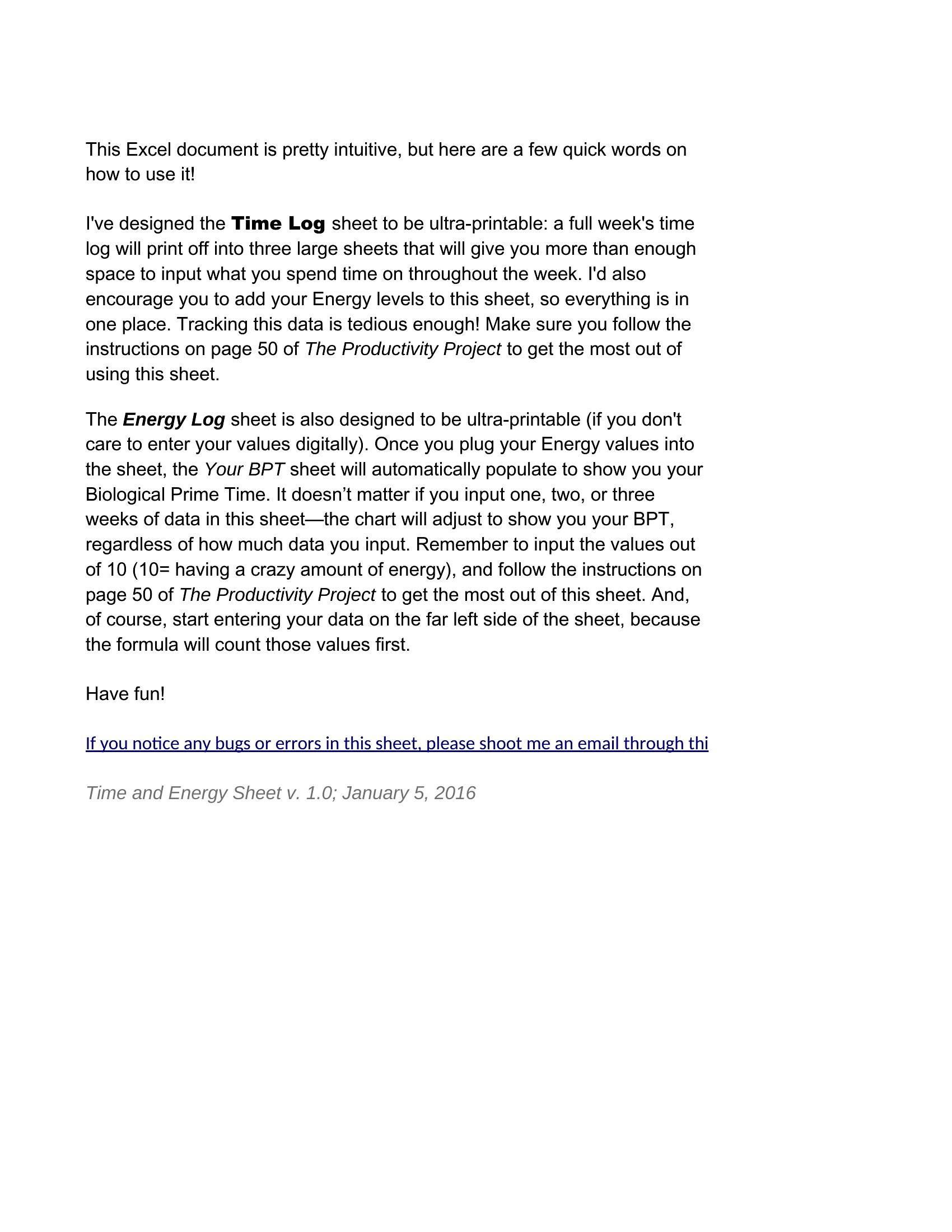
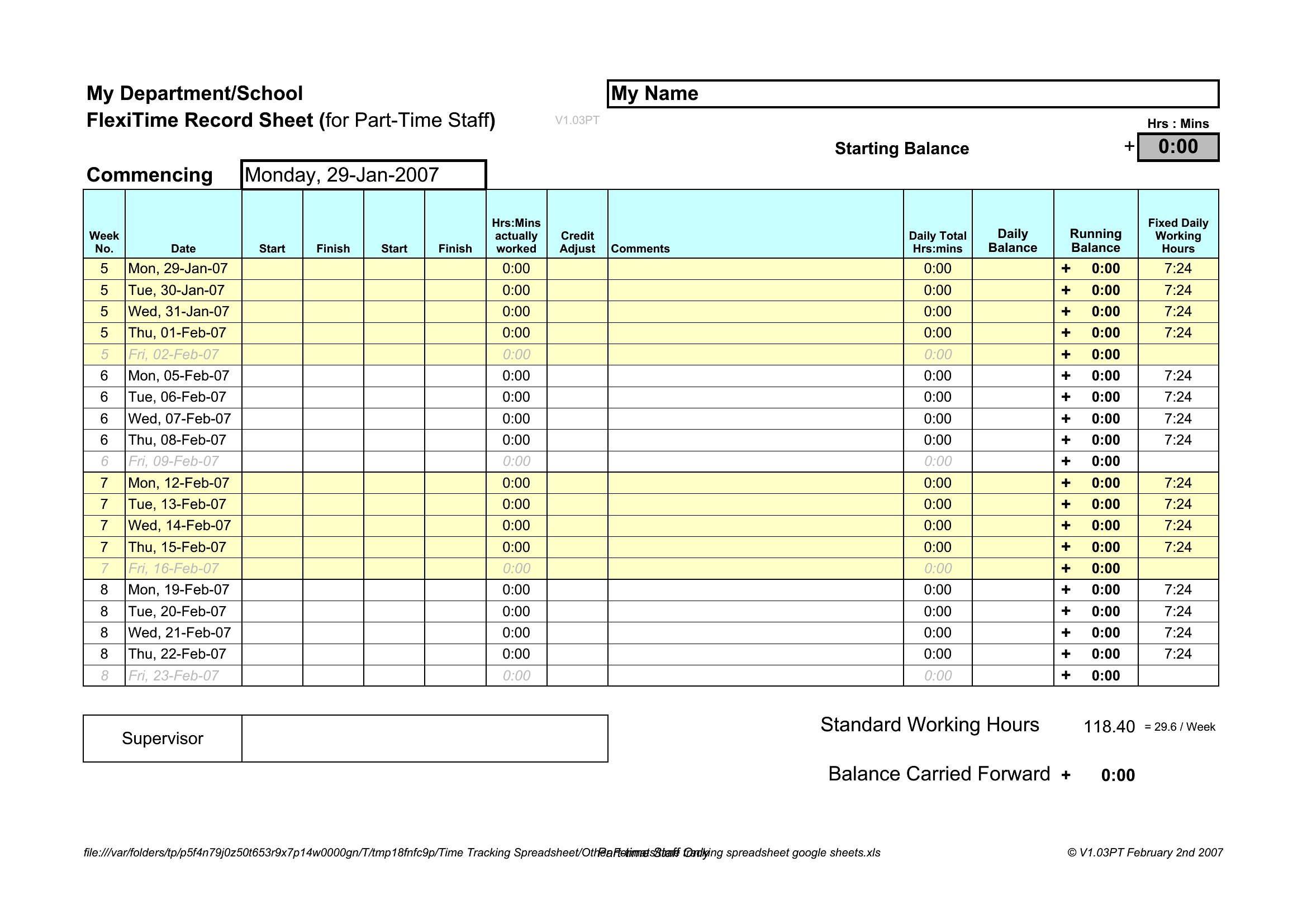
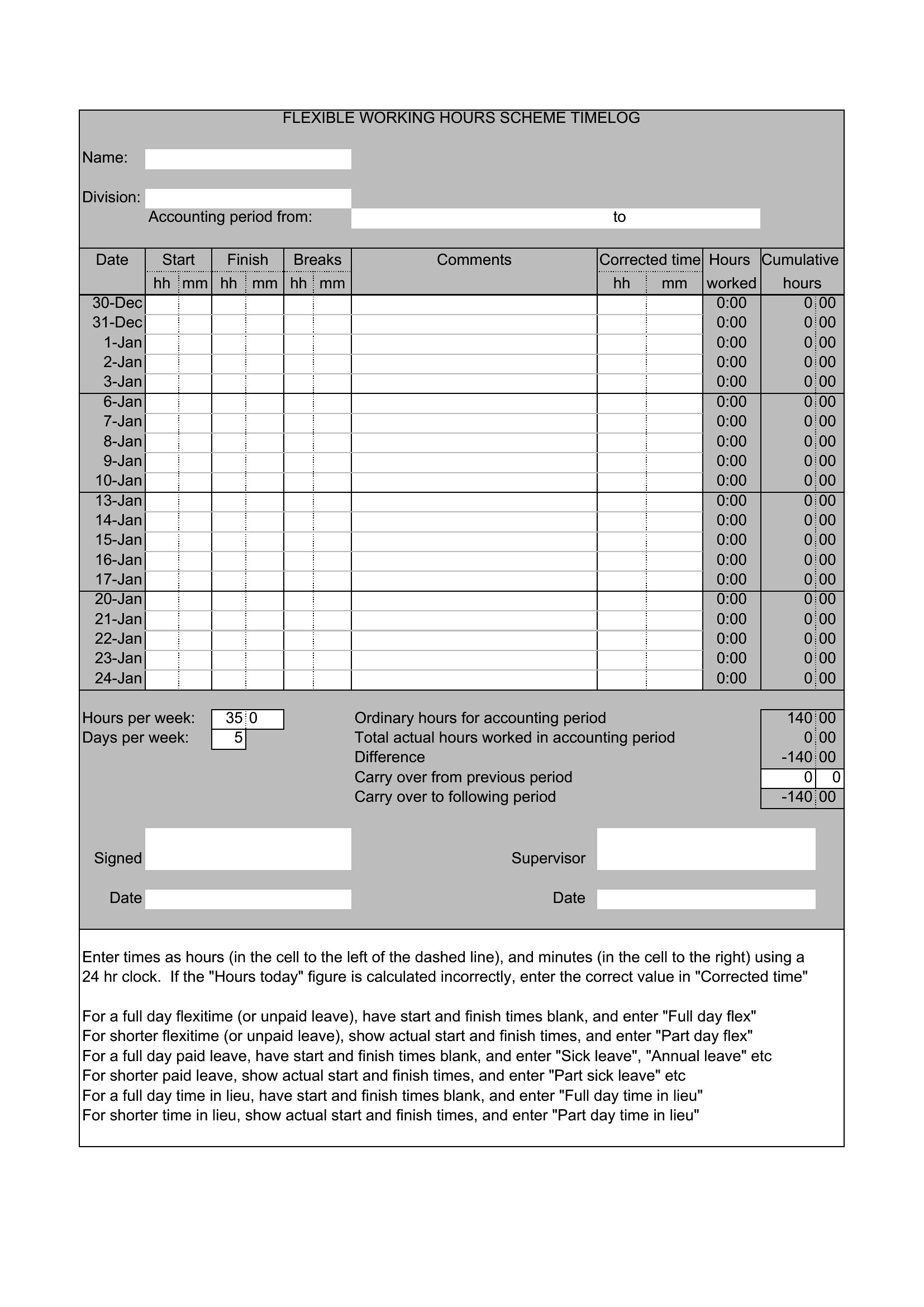
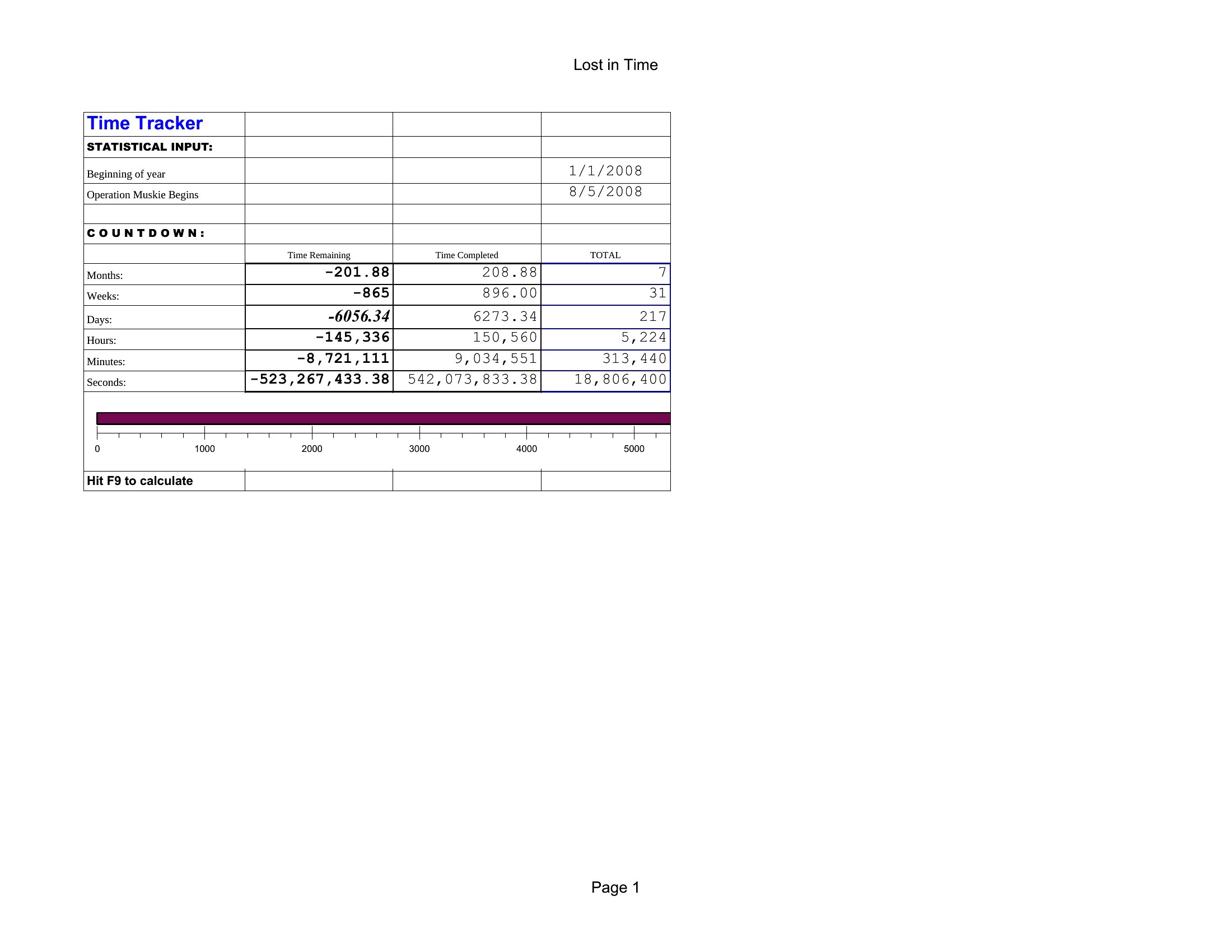
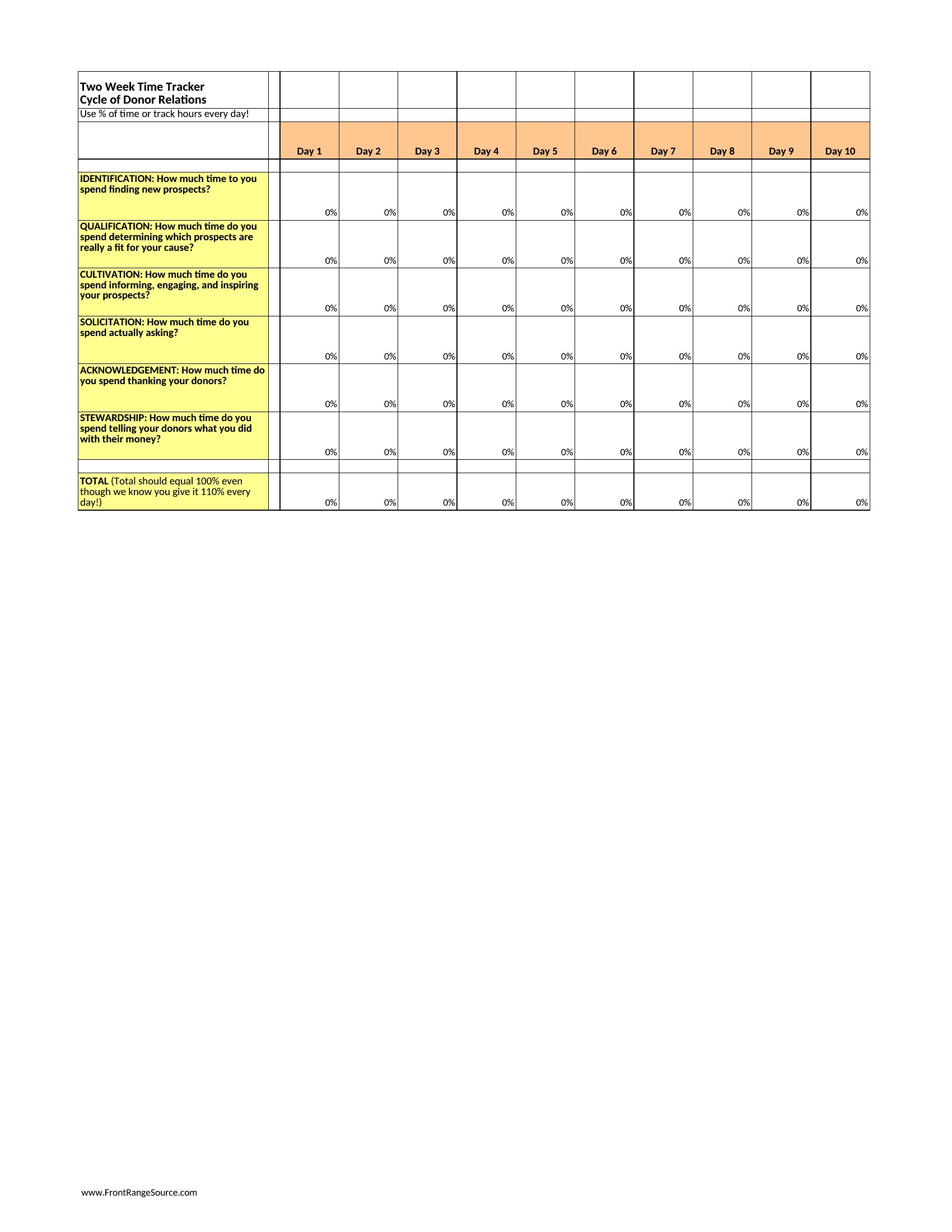
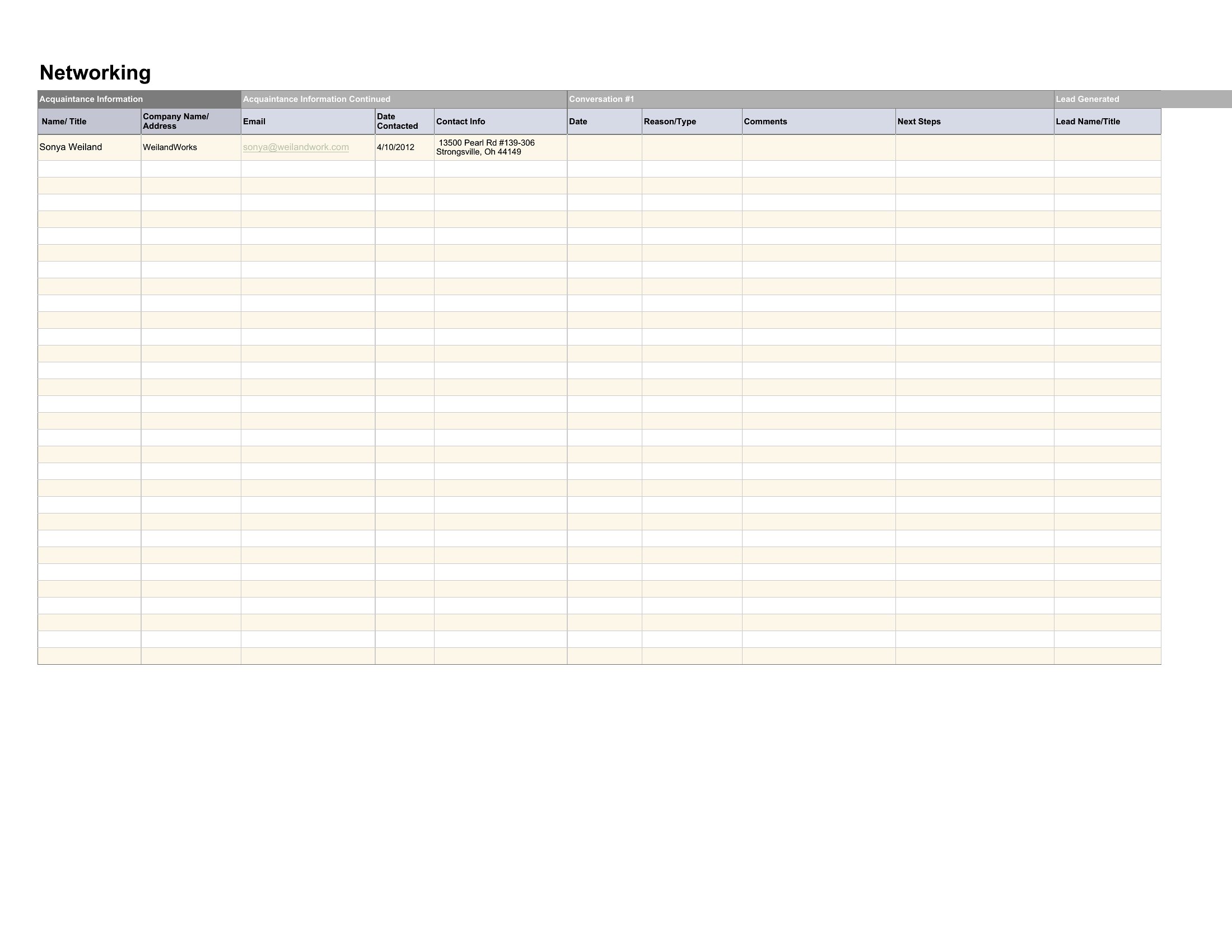
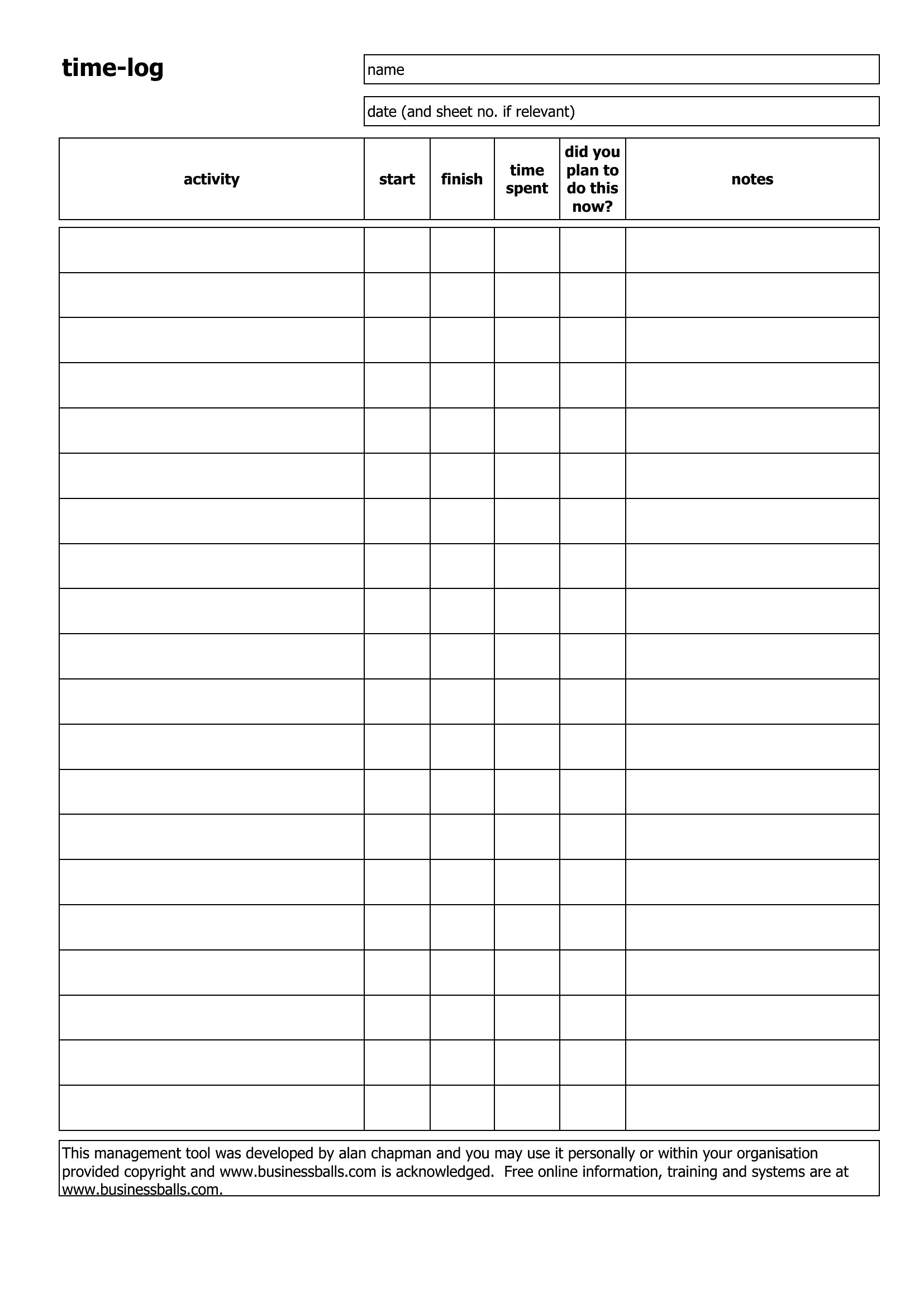
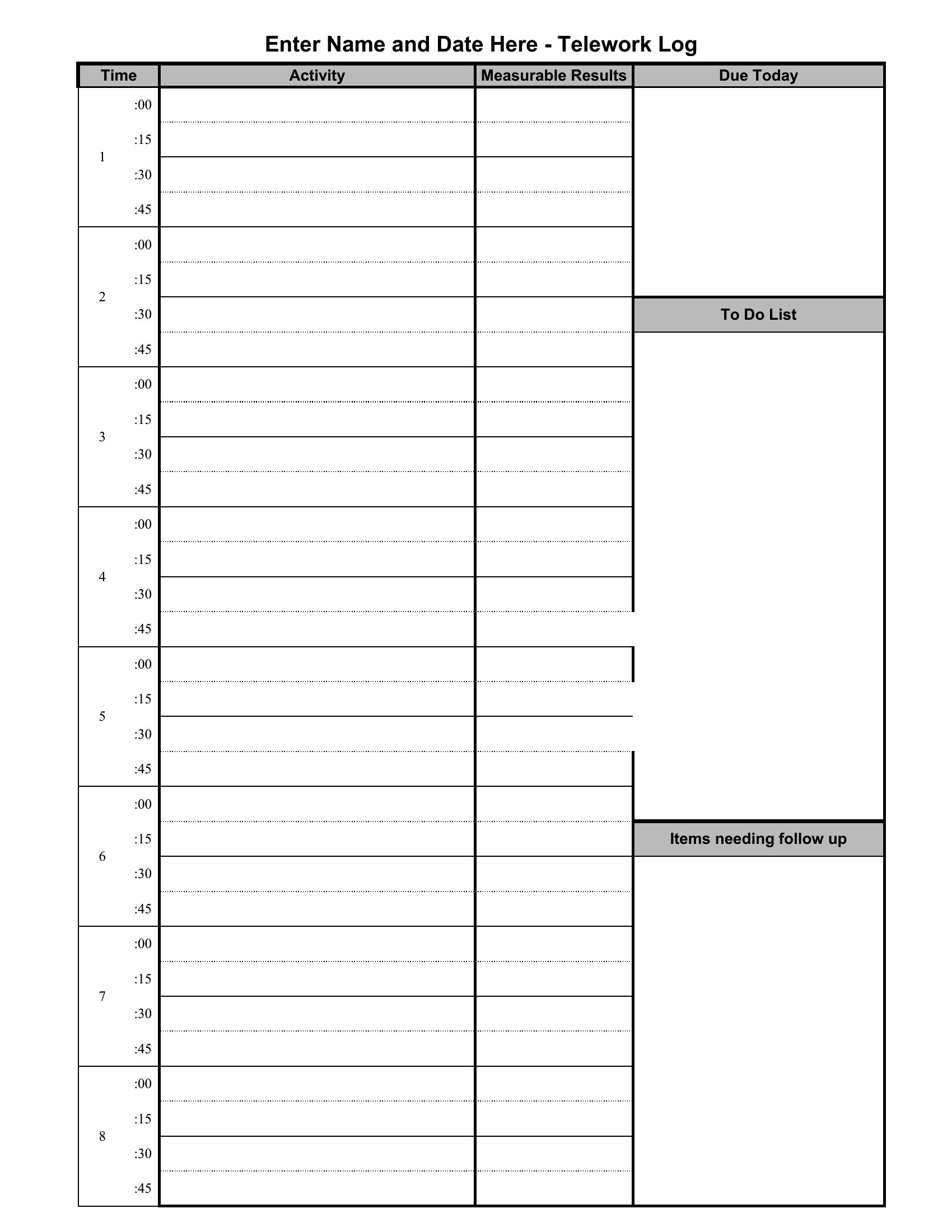
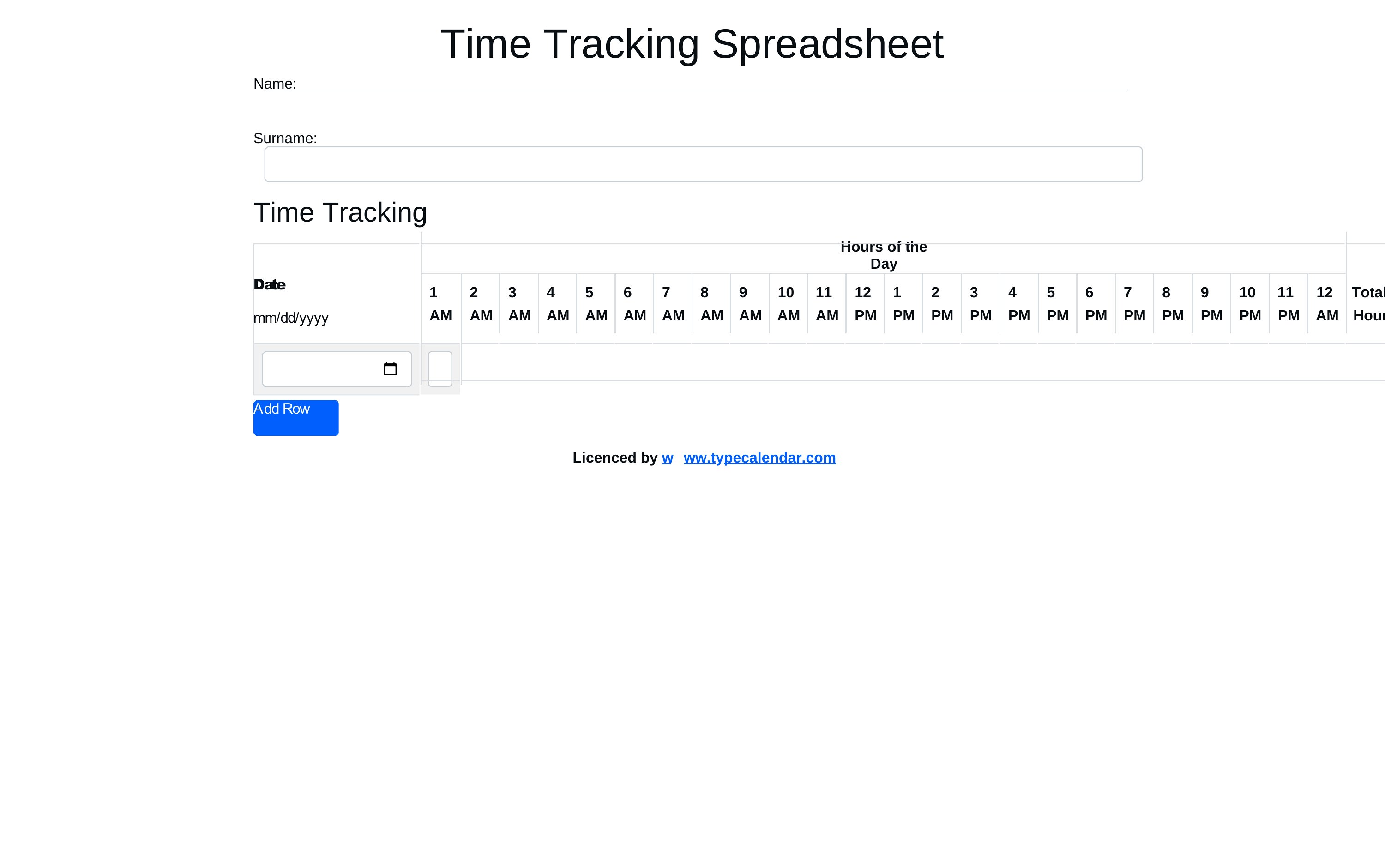
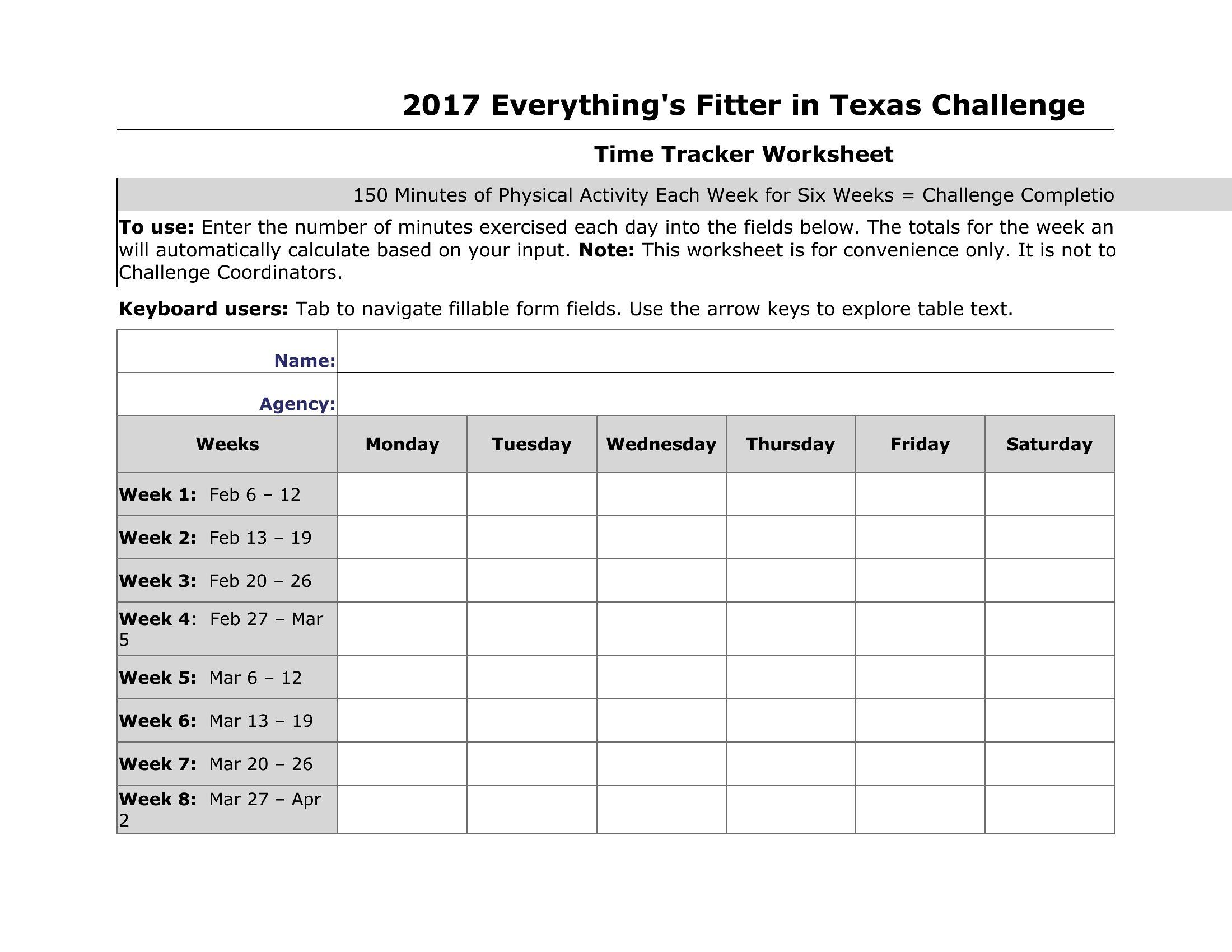
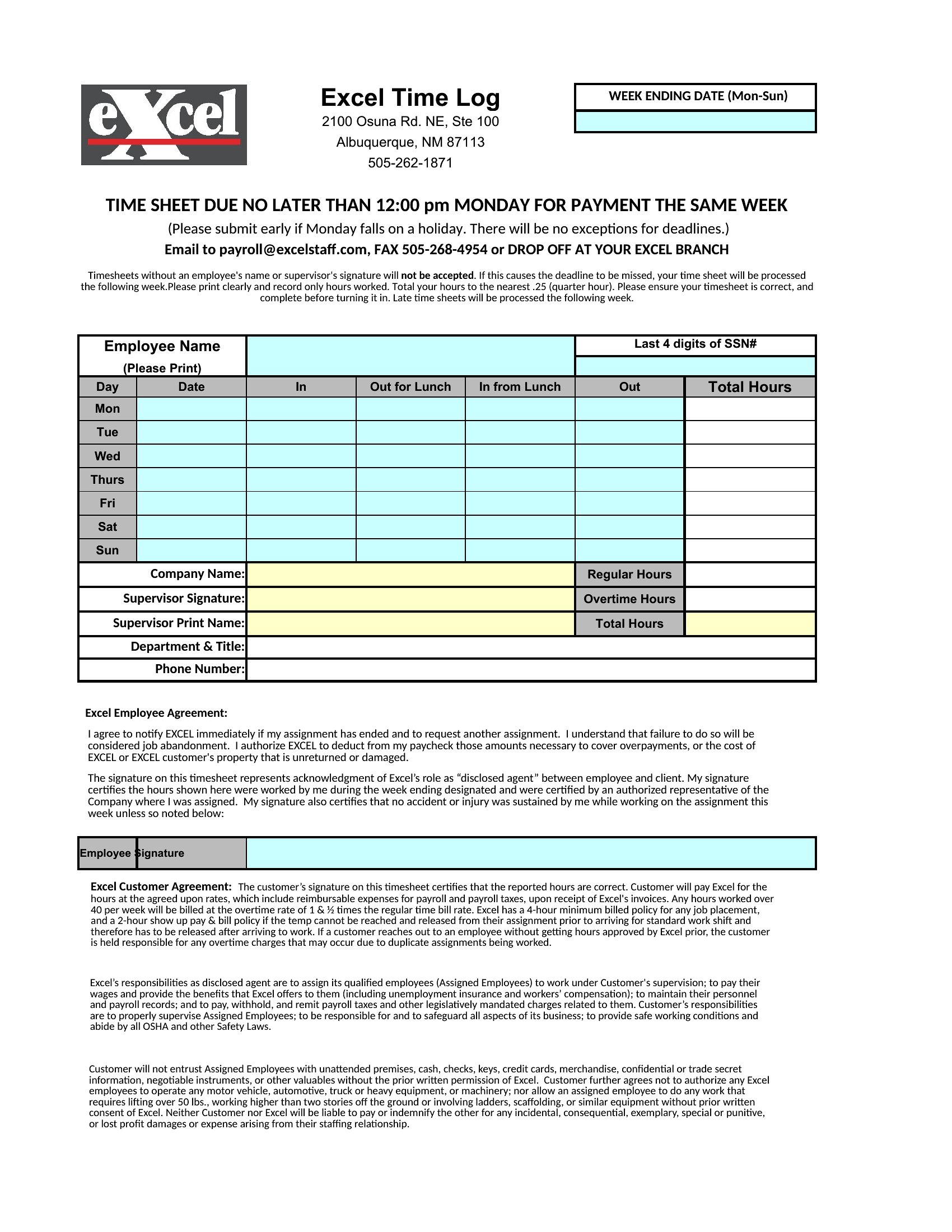
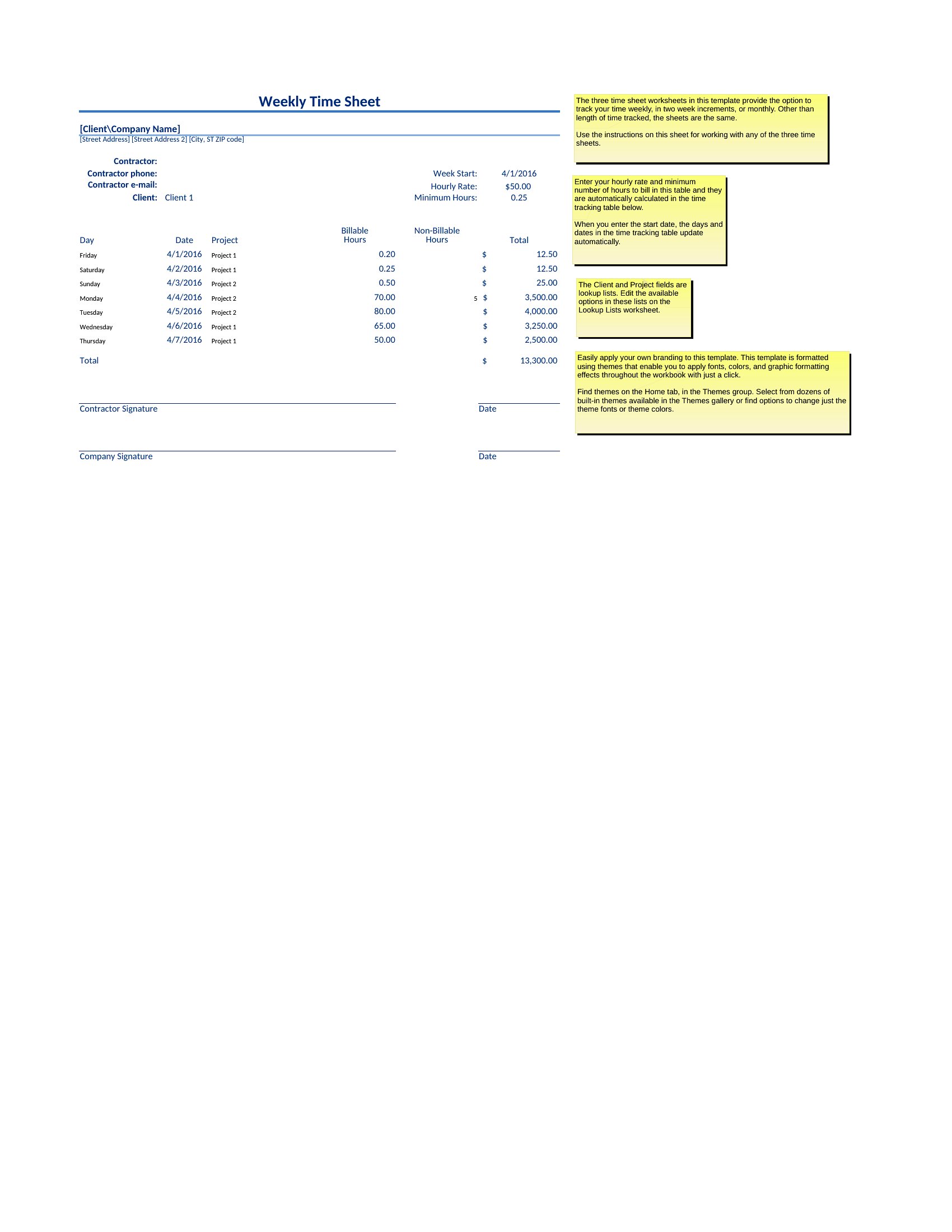
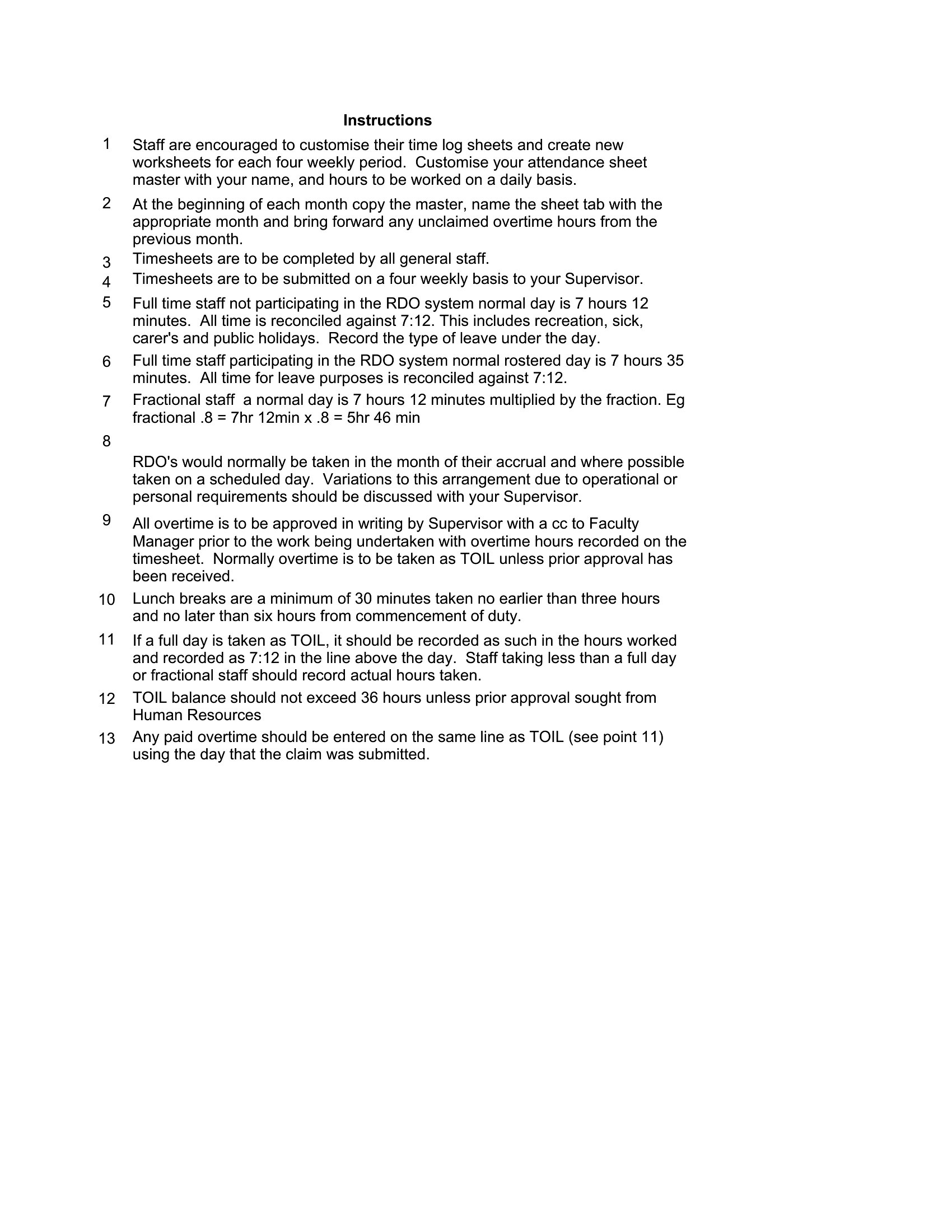
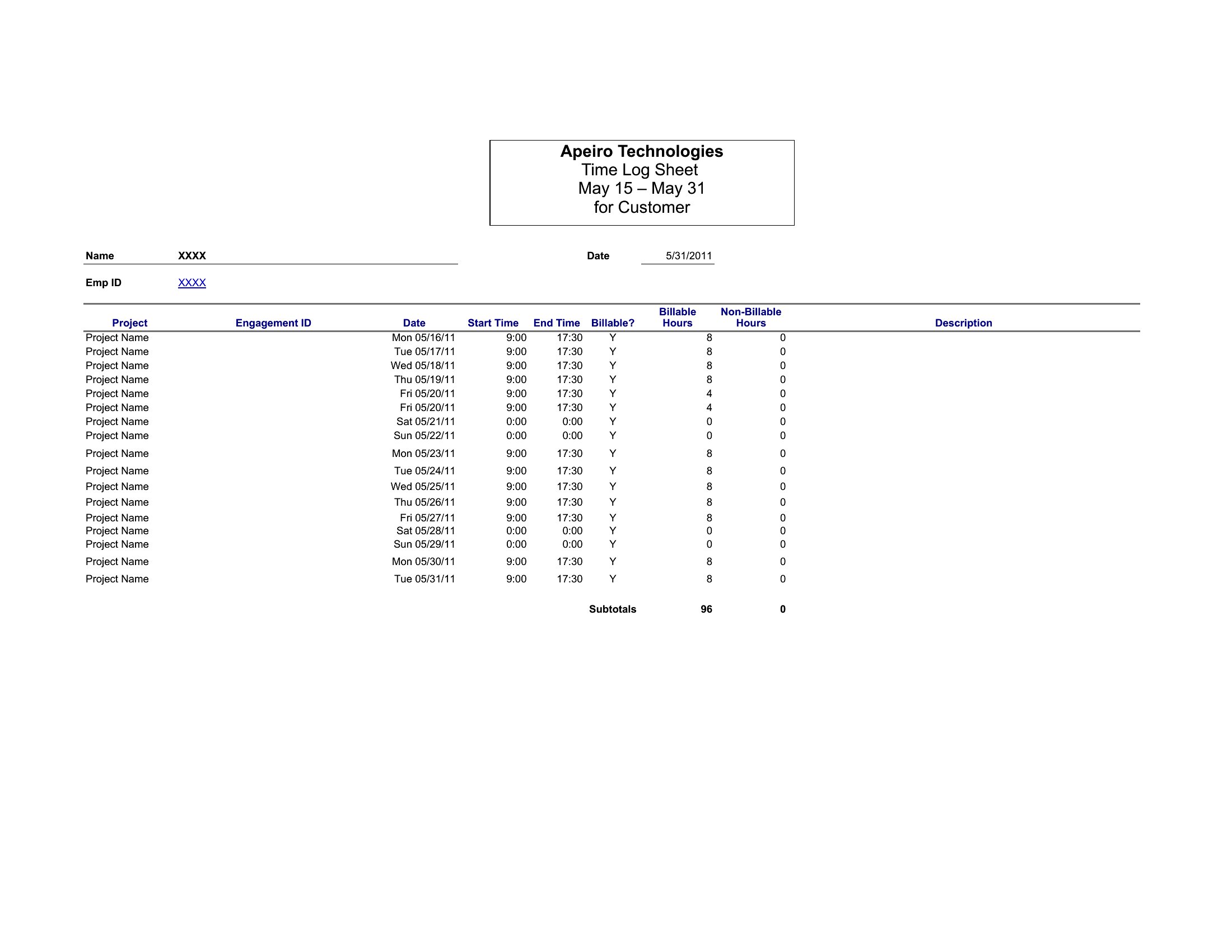
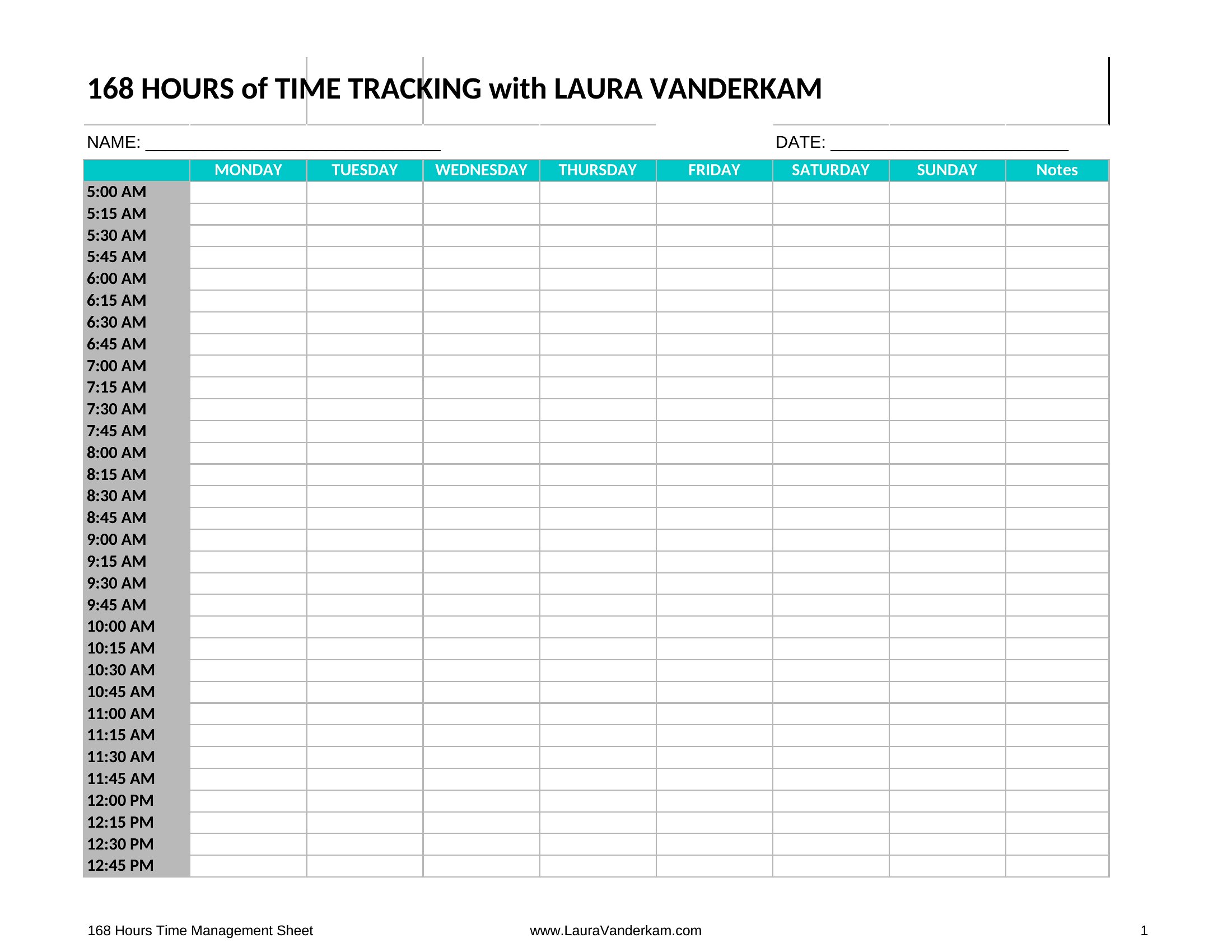
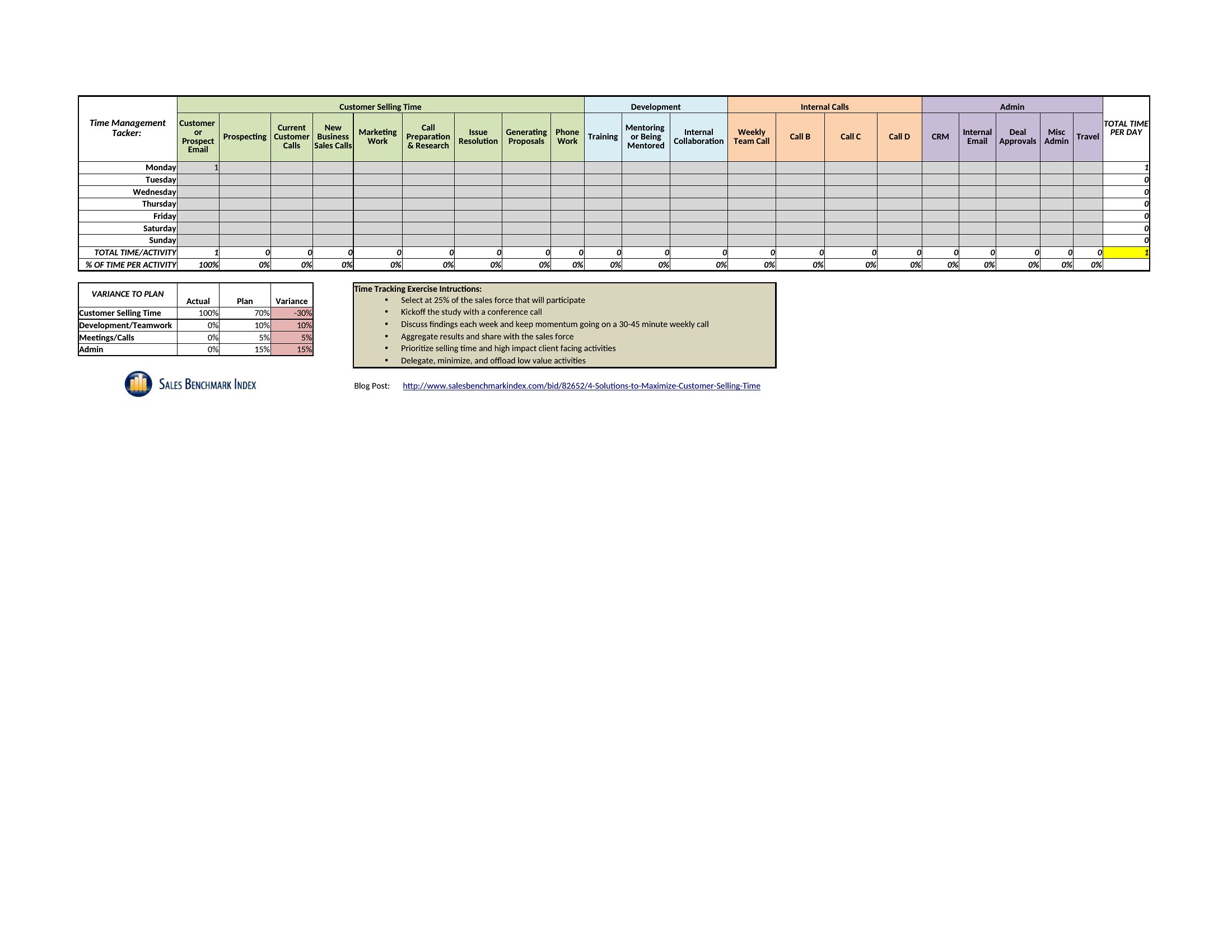
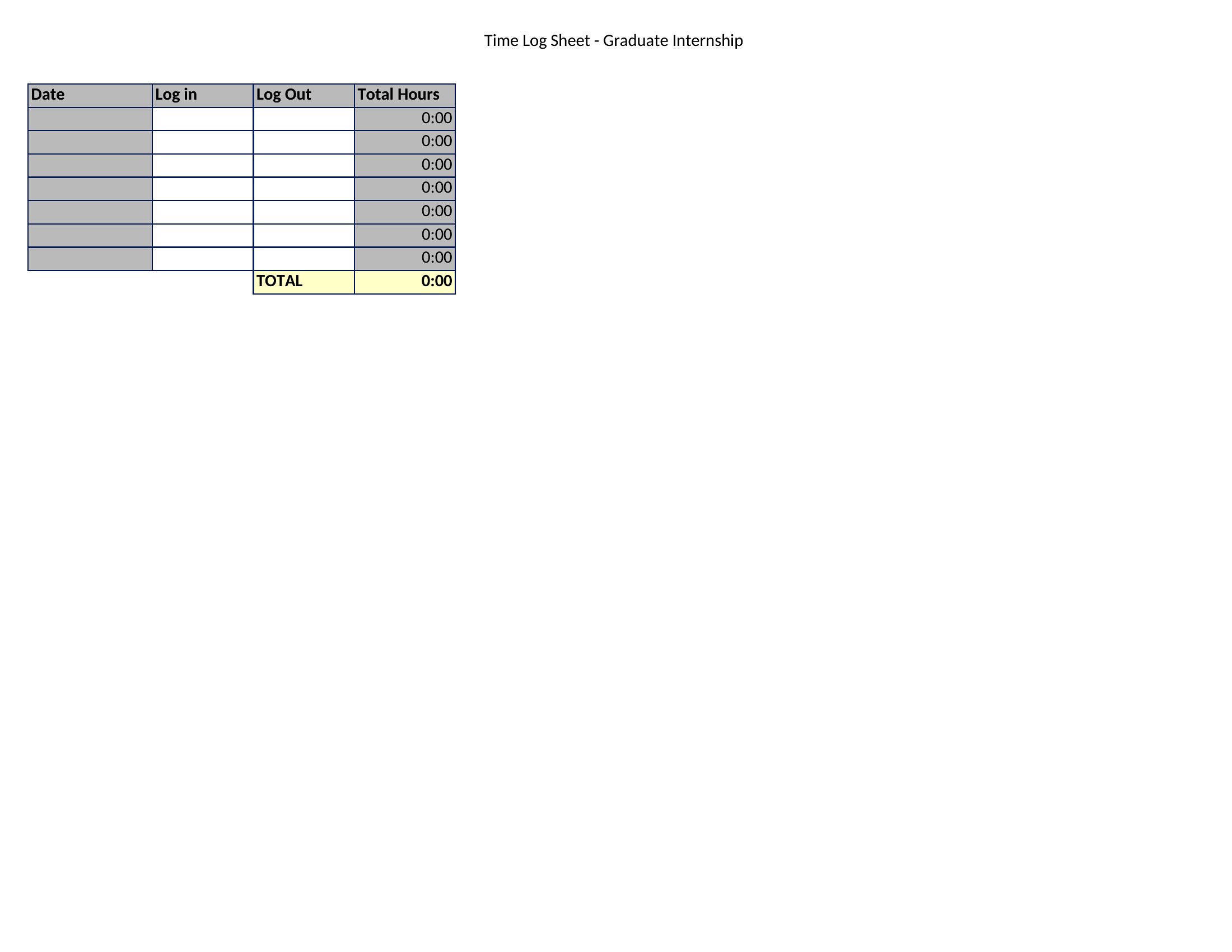
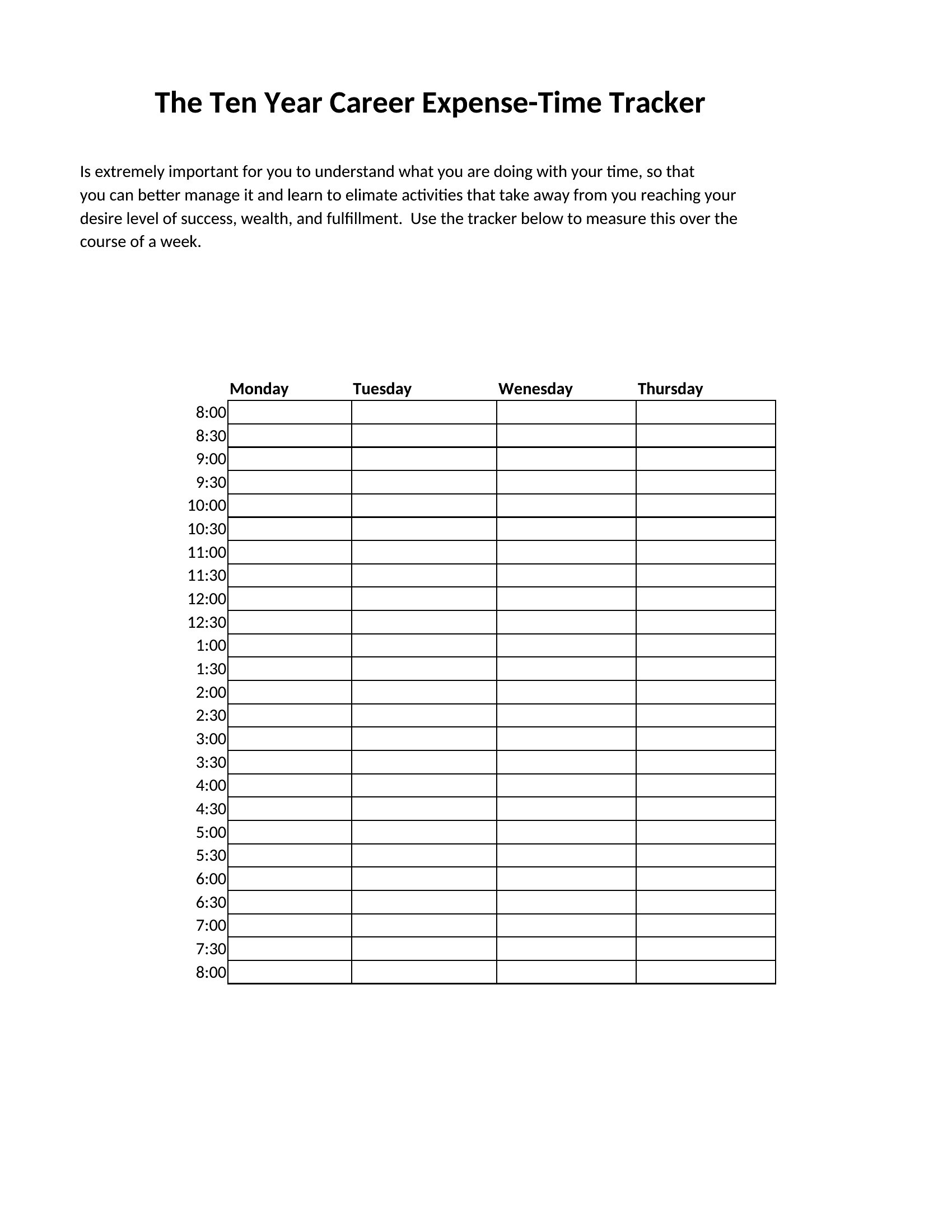
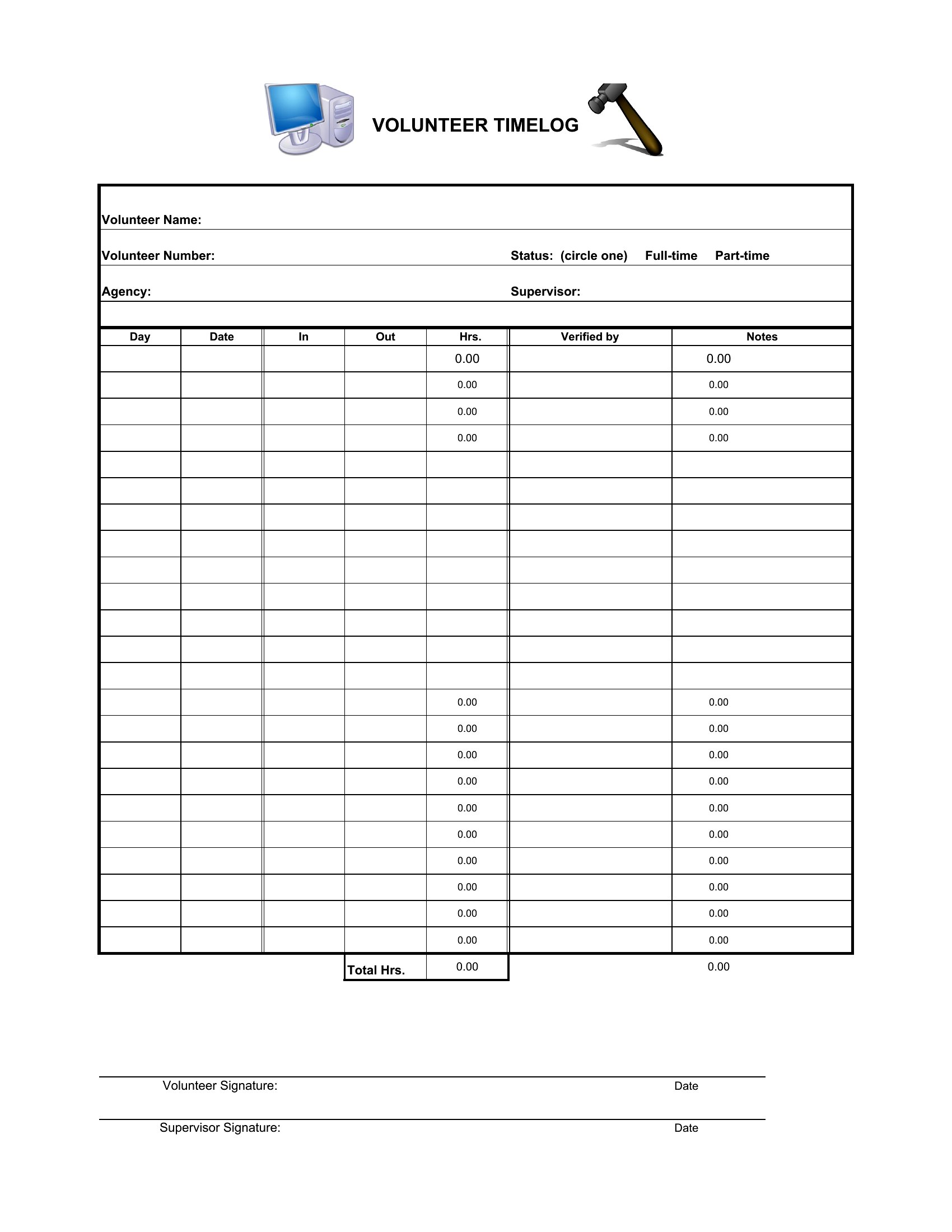
DataKnowing exactly where the hours go is the first step to billing accurately and spotting where time slips away. This set of 48 time tracking spreadsheets covers daily and weekly logs, project hours, employee timesheets, and paid-time-off tracking. Freelancers, managers, and small teams can record hours cleanly and turn them into invoices or payroll without a separate app.
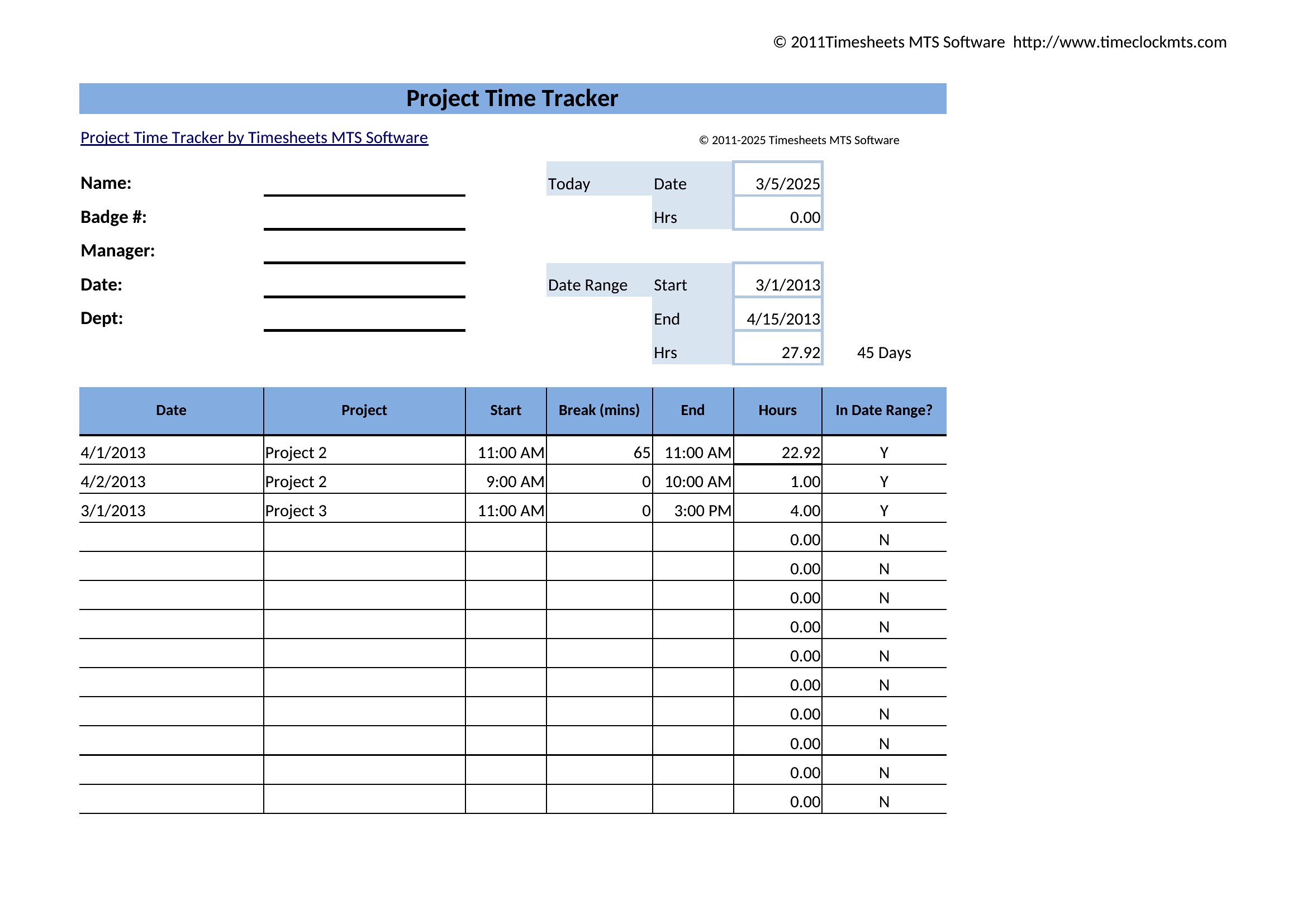
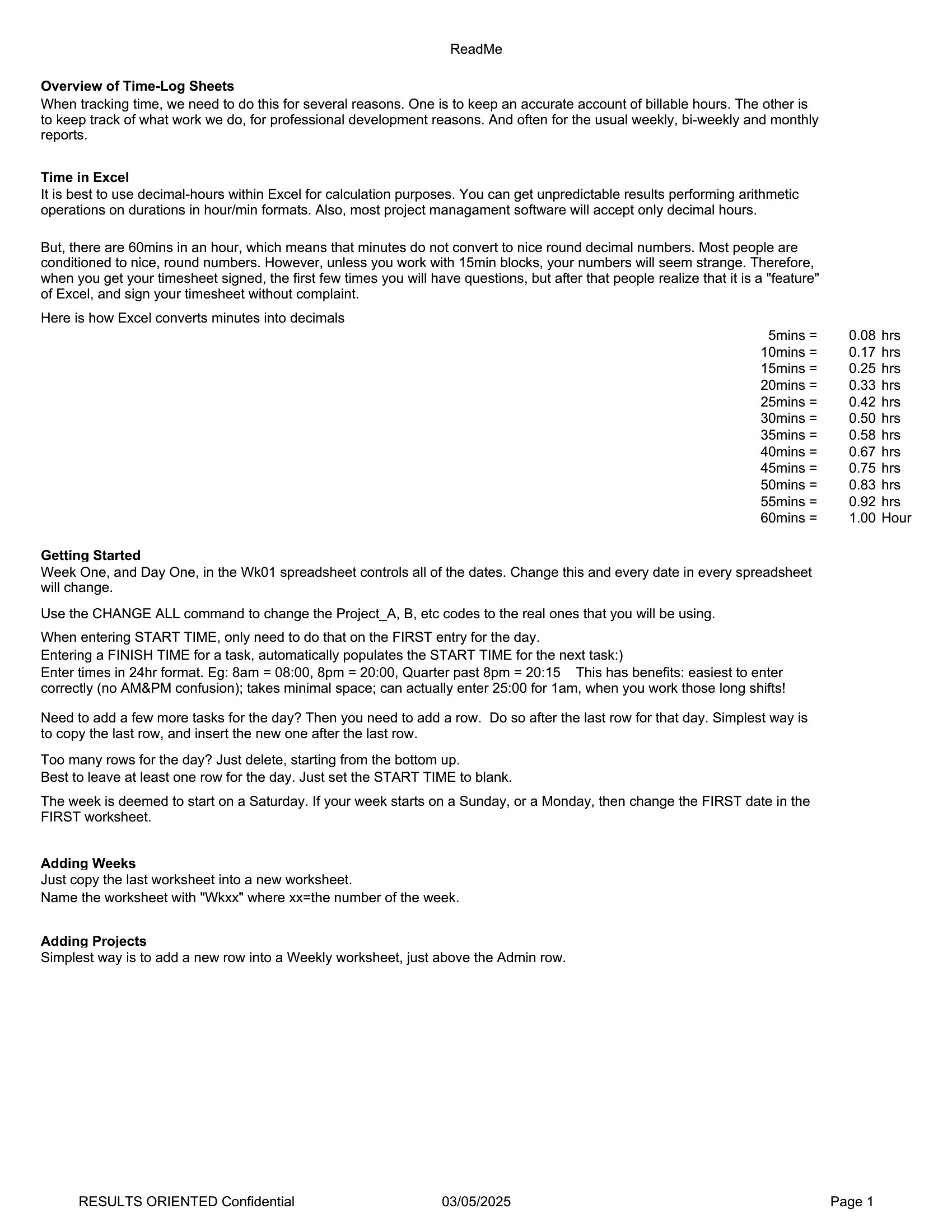
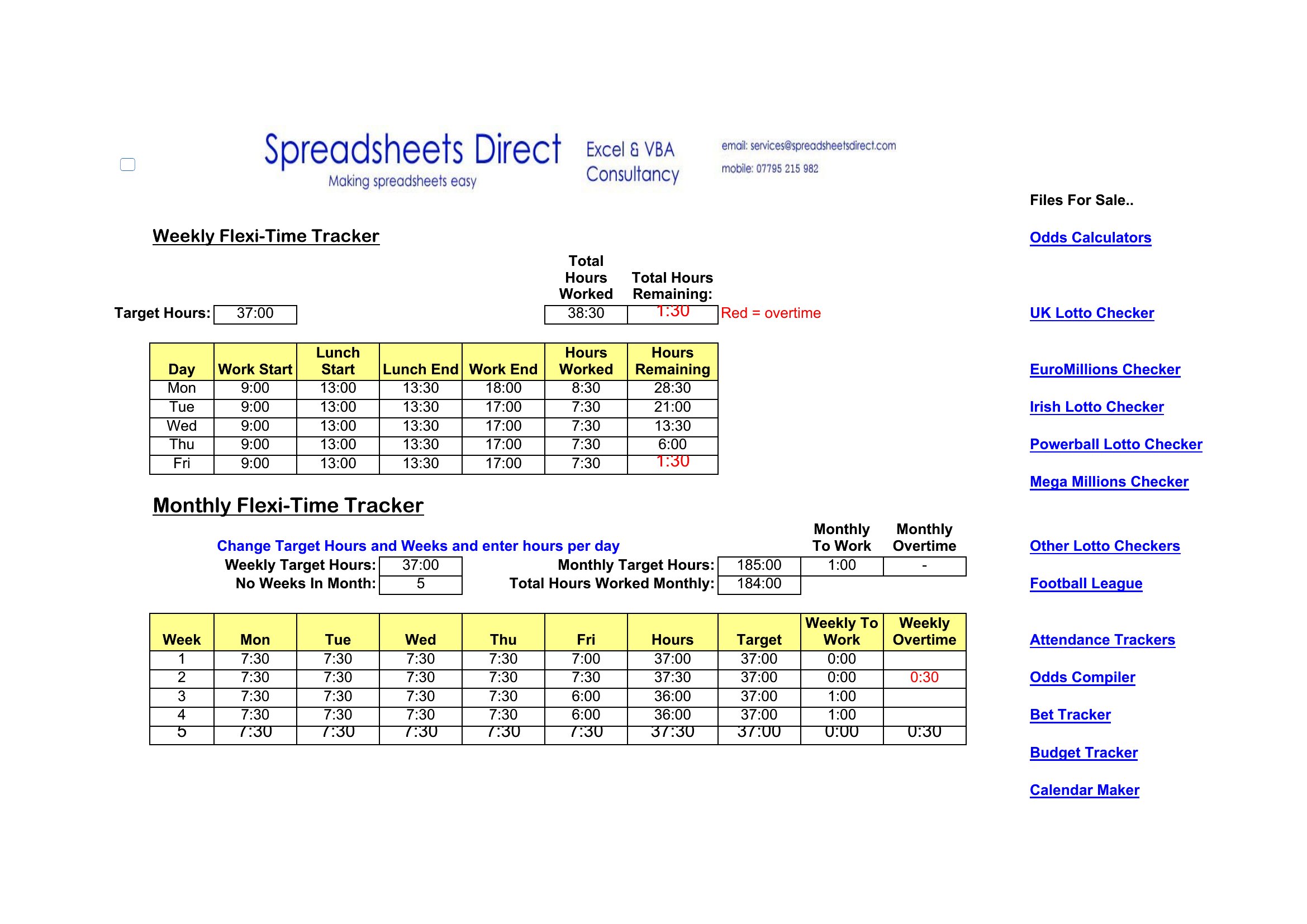
Most versions are Excel sheets that total hours and calculate pay or project time automatically as you type, with Word layouts for simpler printed logs. Enter your hours, let the formulas do the math, and export or print the summary. Adjust the columns to fit your rates and projects. Download the tracker that suits your workflow and take control of your time.
When to use this Time Tracking Spreadsheet template
- Freelance consultants tracking billable hours across multiple client projects to ensure accurate invoicing and identify time-wasting tasks before month-end.
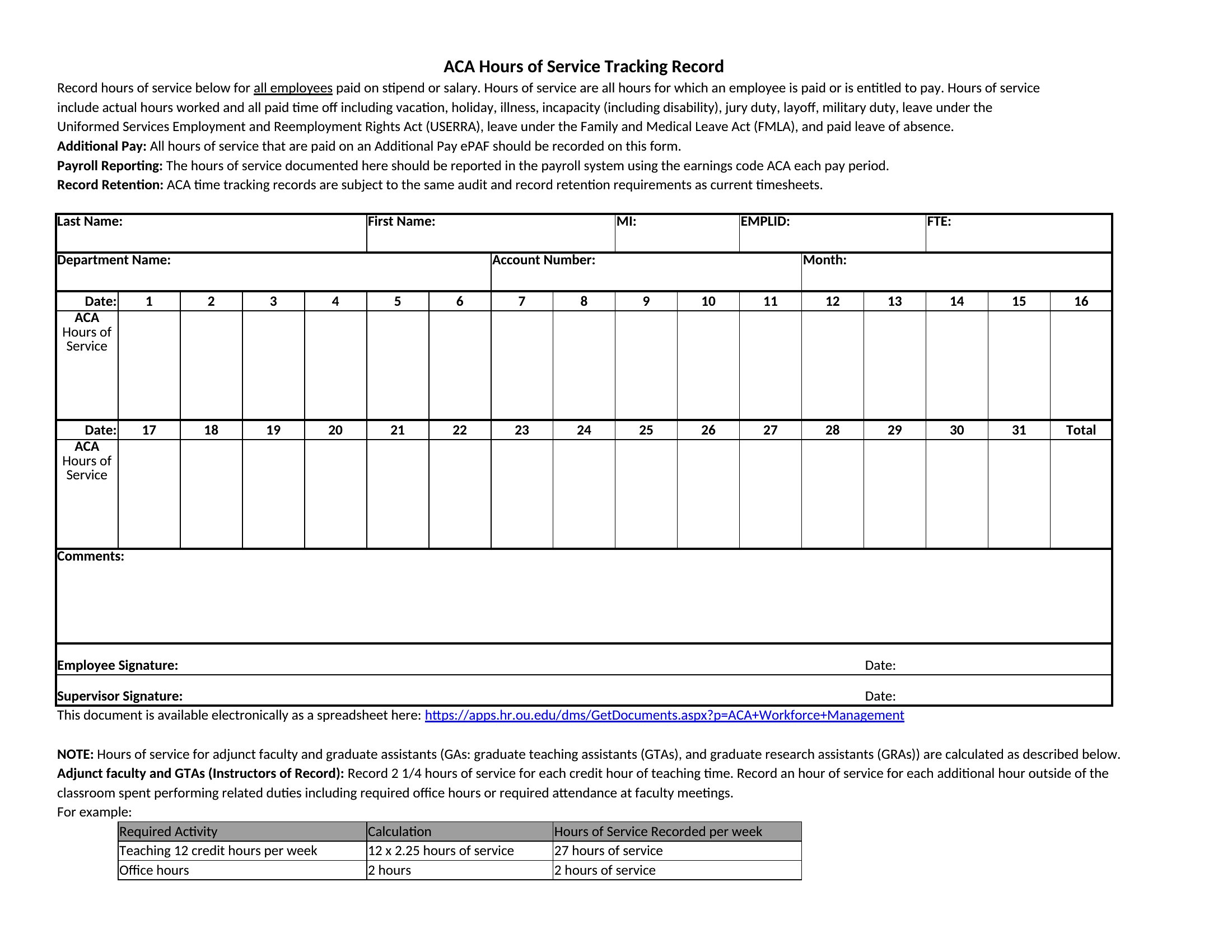
- Small business managers monitoring employee overtime and vacation balances weekly to comply with labor laws and adjust schedules proactively.
- Remote teams using daily logs to sync time entries before payroll processing, reducing disputes over unlogged hours or misclassified tasks.
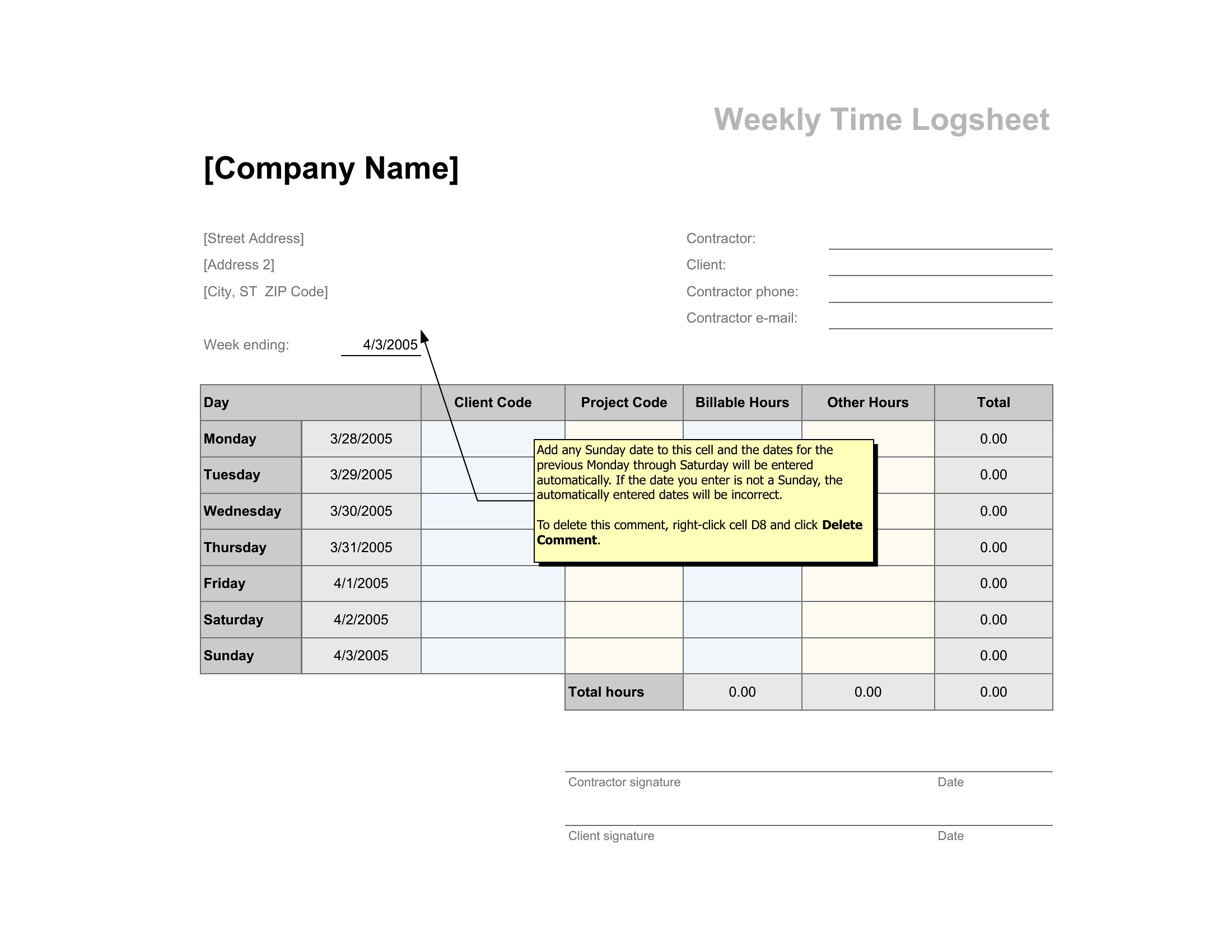
- Self-employed contractors logging project-specific hours in Excel to cross-reference with client contracts and flag discrepancies before submitting timesheets.
Which format should I download?
Use the Excel format for most time tracking needs—it offers built-in formulas, pivot tables, and automation (like auto-summing hours) to simplify payroll or invoicing calculations. Choose Word only if you need to embed the spreadsheet within a formal report or client proposal where a visual log must be presented alongside narrative explanations. Excel’s structured layout is ideal for data-heavy tracking, while Word works for hybrid documents requiring both data and text.
How to use this Time Tracking Spreadsheet template
Can these spreadsheets calculate billable vs. non-billable hours automatically?
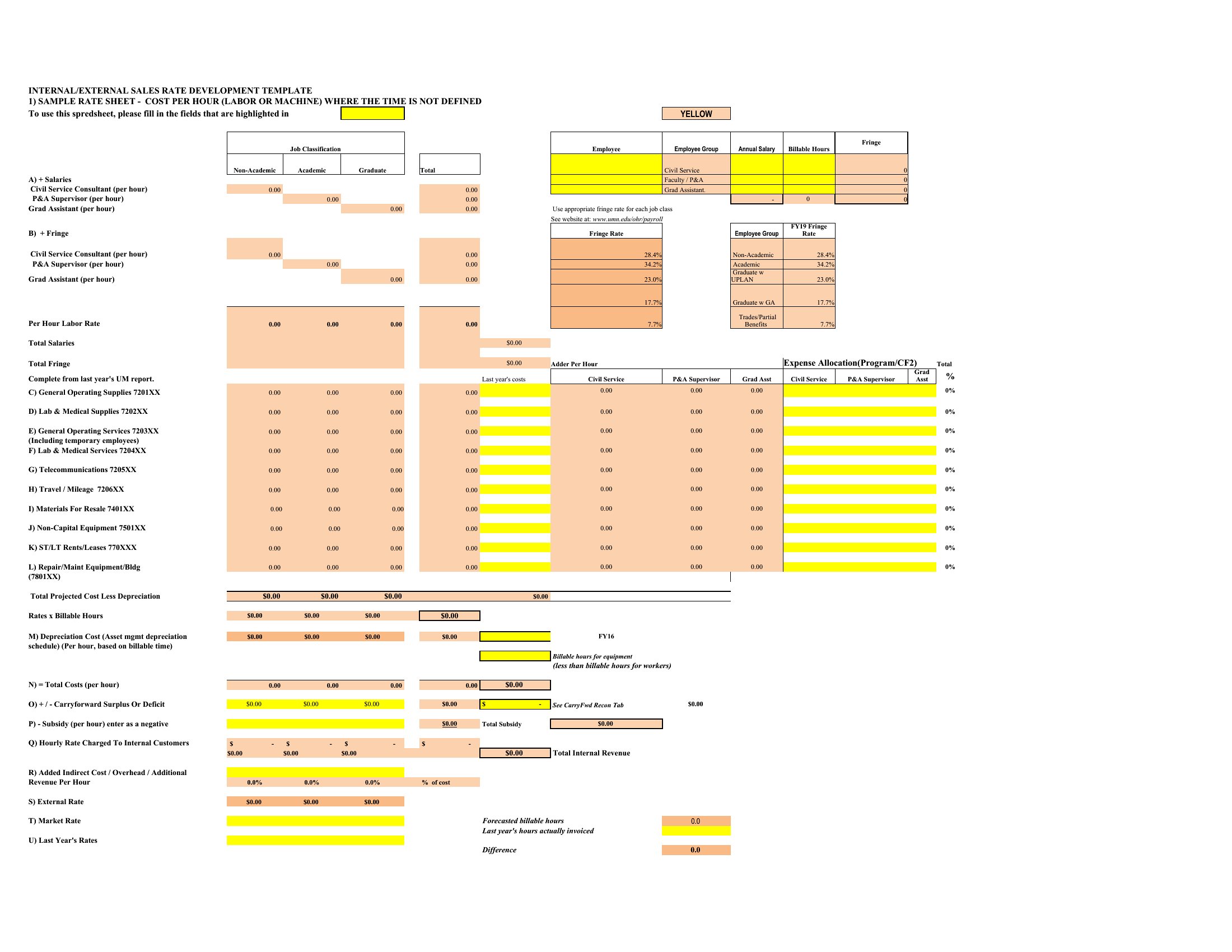
Yes, most Excel-based templates include conditional formatting and formulas to categorize hours (e.g., billable, administrative, or unpaid) based on predefined rules. Simply input your rate and project codes, and the sheet will flag non-billable time for review. Adjust the formulas if your billing structure differs from the default setup.
How do I adapt a vacation tracking template for seasonal employees with variable schedules?
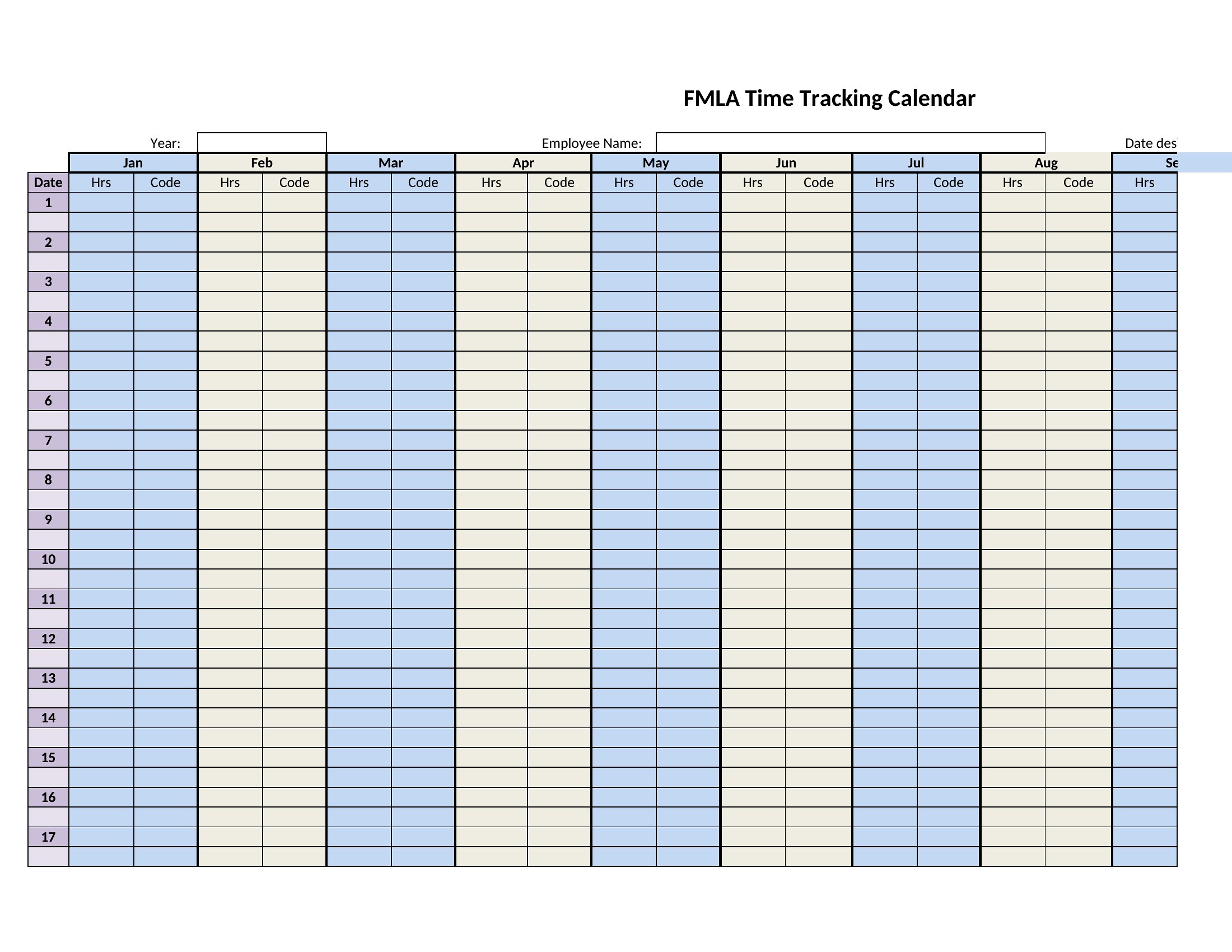
Copy the Excel template and modify the ‘Weekly Hours’ column to include a dropdown menu with your seasonal schedule (e.g., ‘Part-time 20 hrs,’ ‘Full-time 40 hrs’). Use a separate tab to log PTO accruals by schedule type, then link it to the main sheet with VLOOKUP. This keeps accruals accurate even when hours fluctuate weekly.
Are these templates compatible with payroll software like QuickBooks or Gusto?
Yes, all Excel templates export cleanly to CSV format, which most payroll platforms accept for importing hours. For seamless integration, save the file as a CSV and map the ‘Date,’ ‘Employee,’ and ‘Hours’ columns to your payroll software’s fields. Check your software’s import guide for column-name requirements—some use ‘Pay Period’ instead of ‘Date.’
Comments
Join the conversation
Sign in to share your thoughts and leave a comment on this resource.