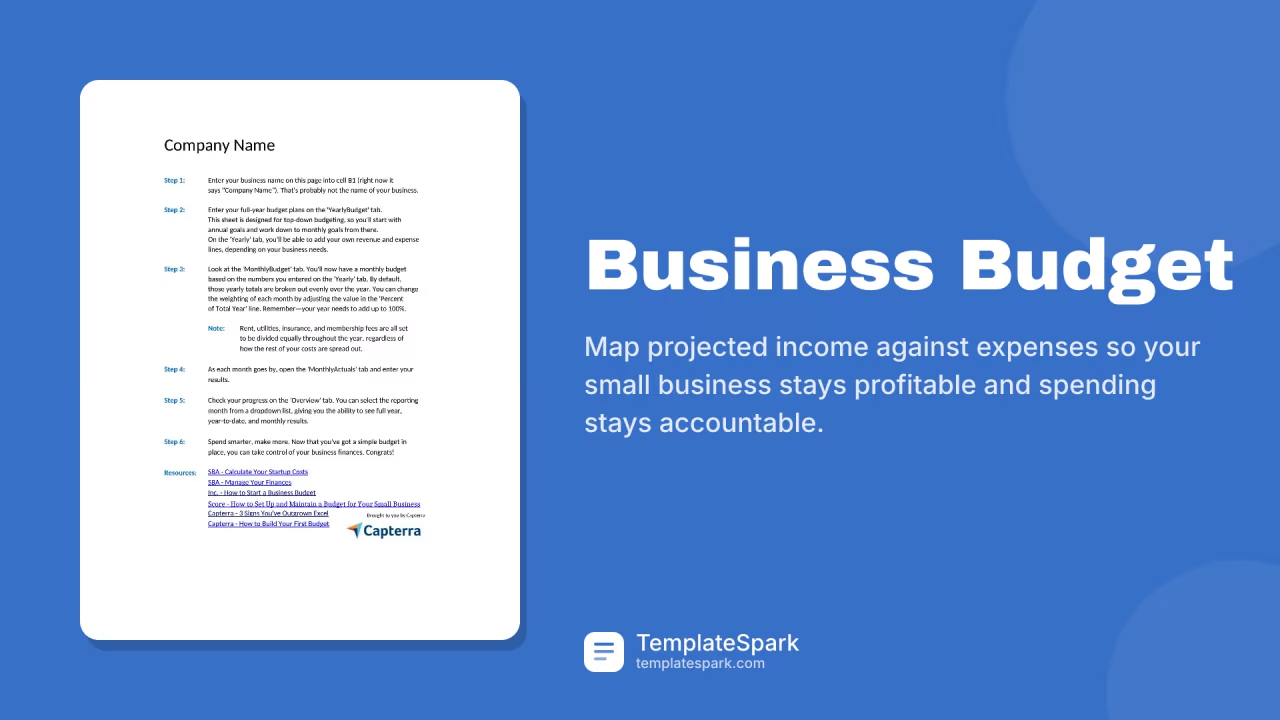
Free Business Budget Templates (Excel)
DataTemplates
FAQ
Can these templates help me reconcile discrepancies between my actual spending and the budget I set?
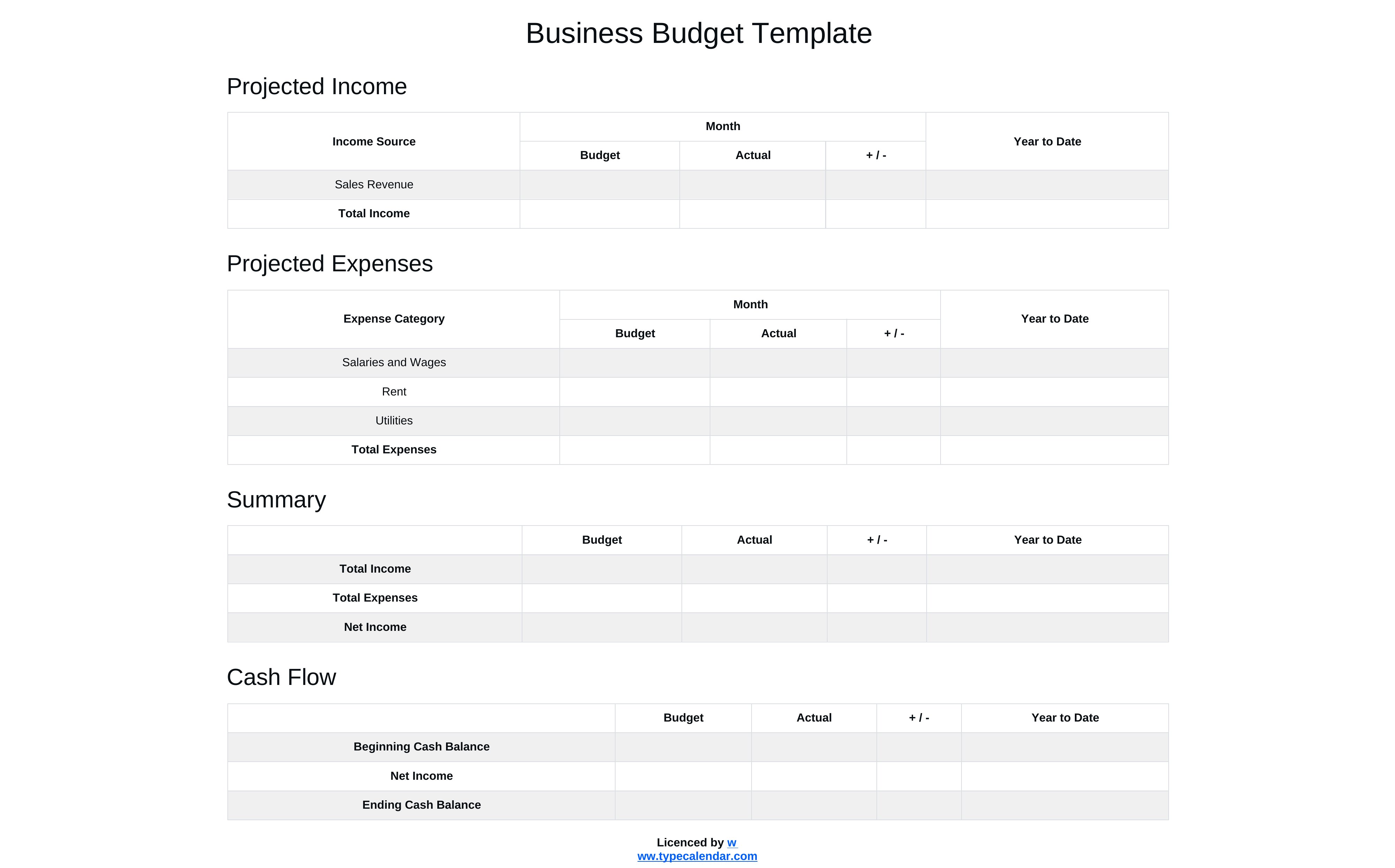
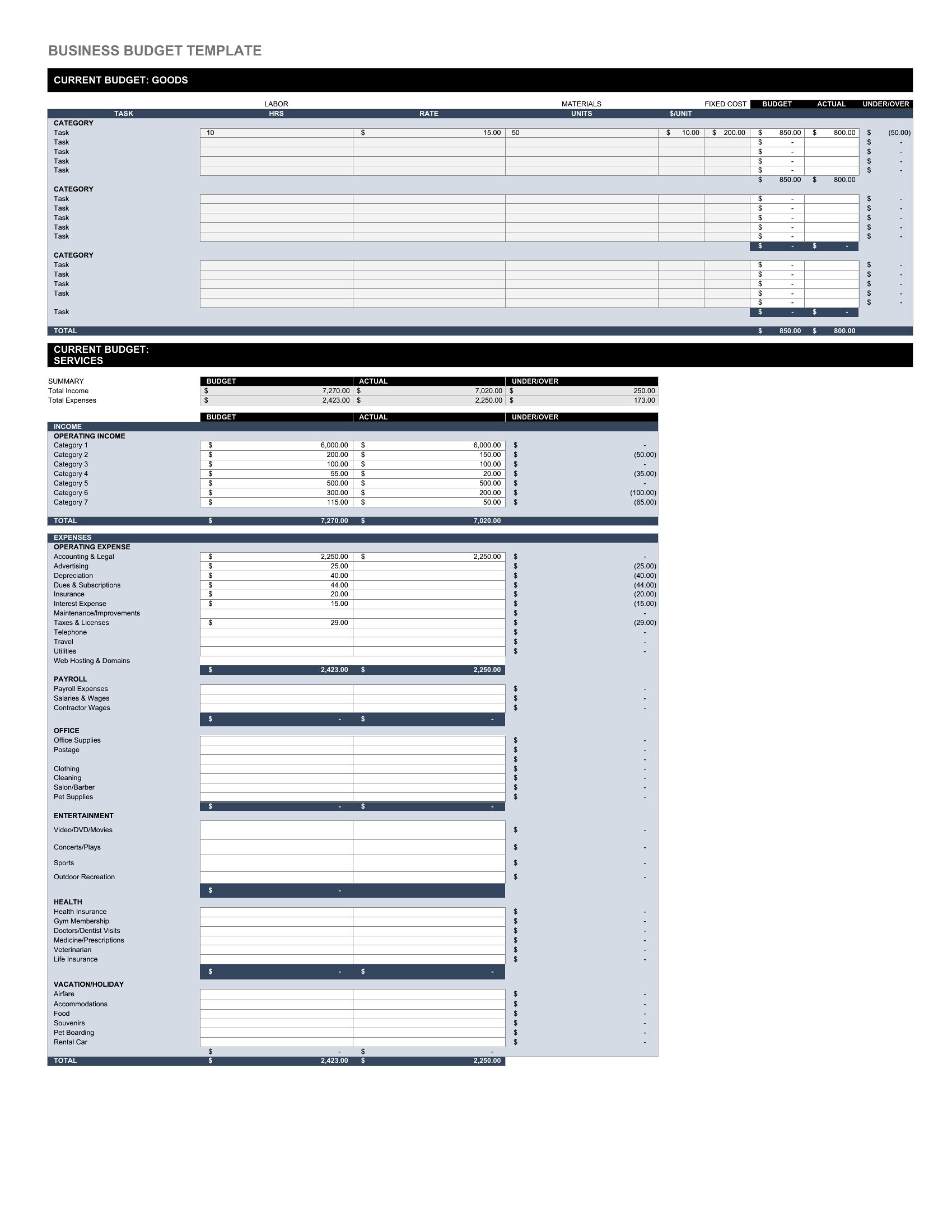
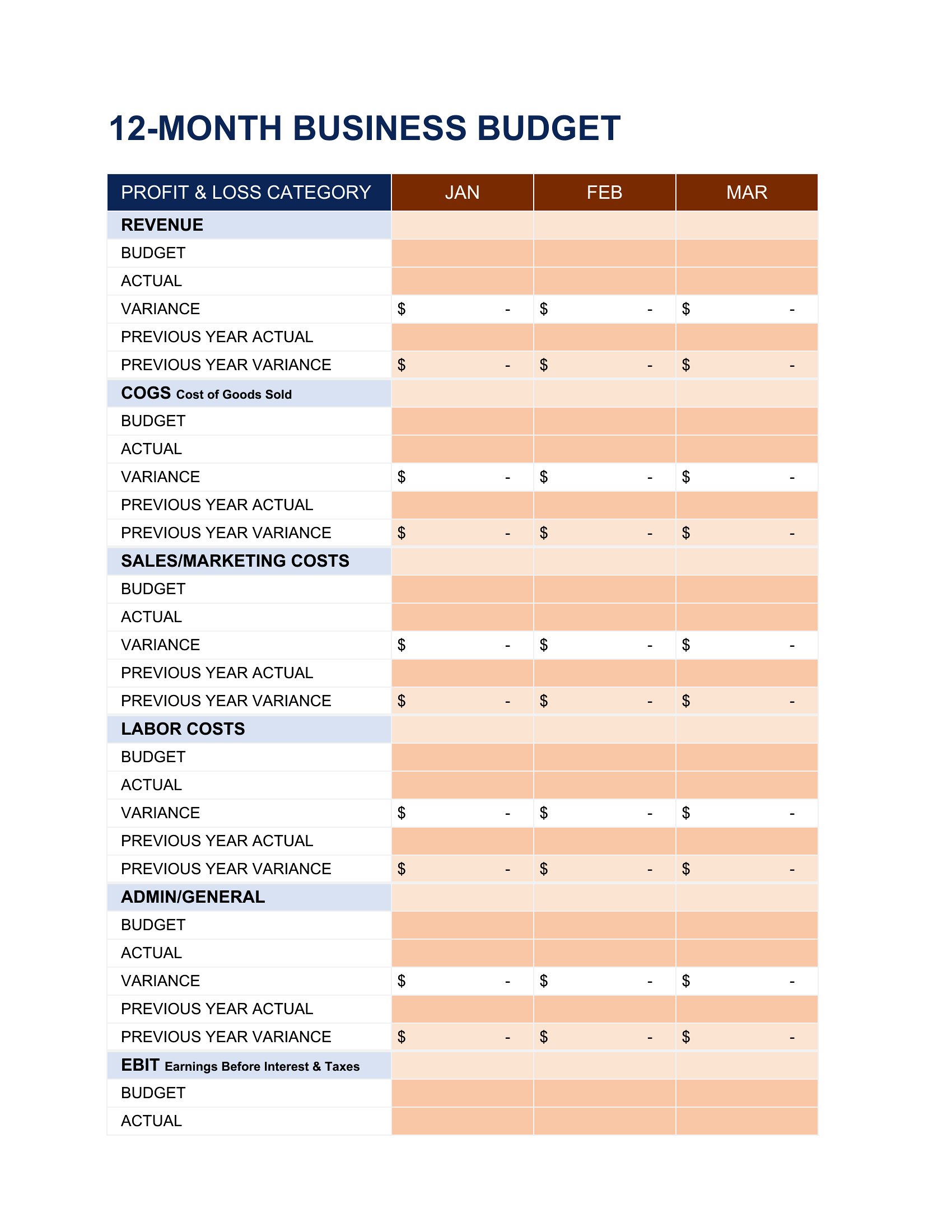
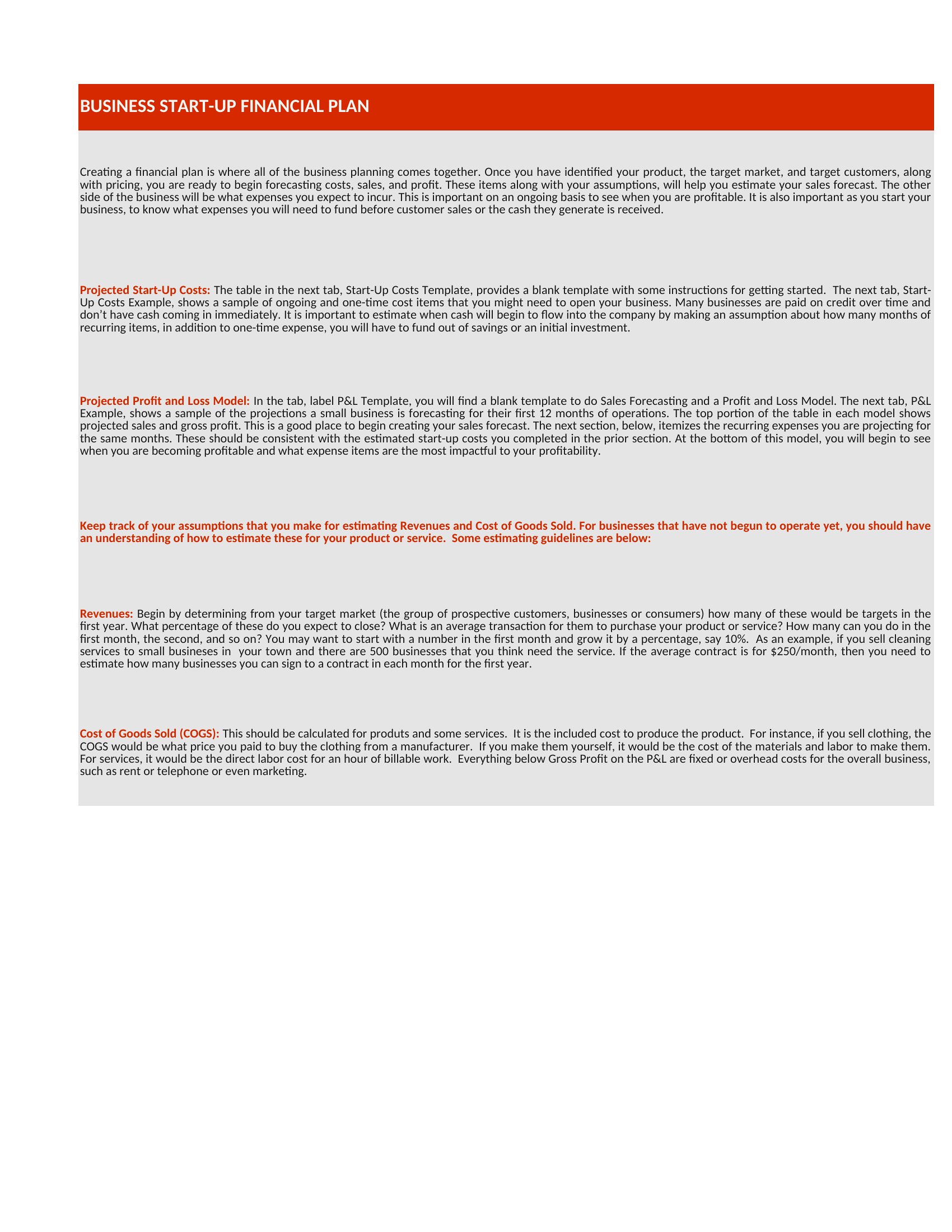
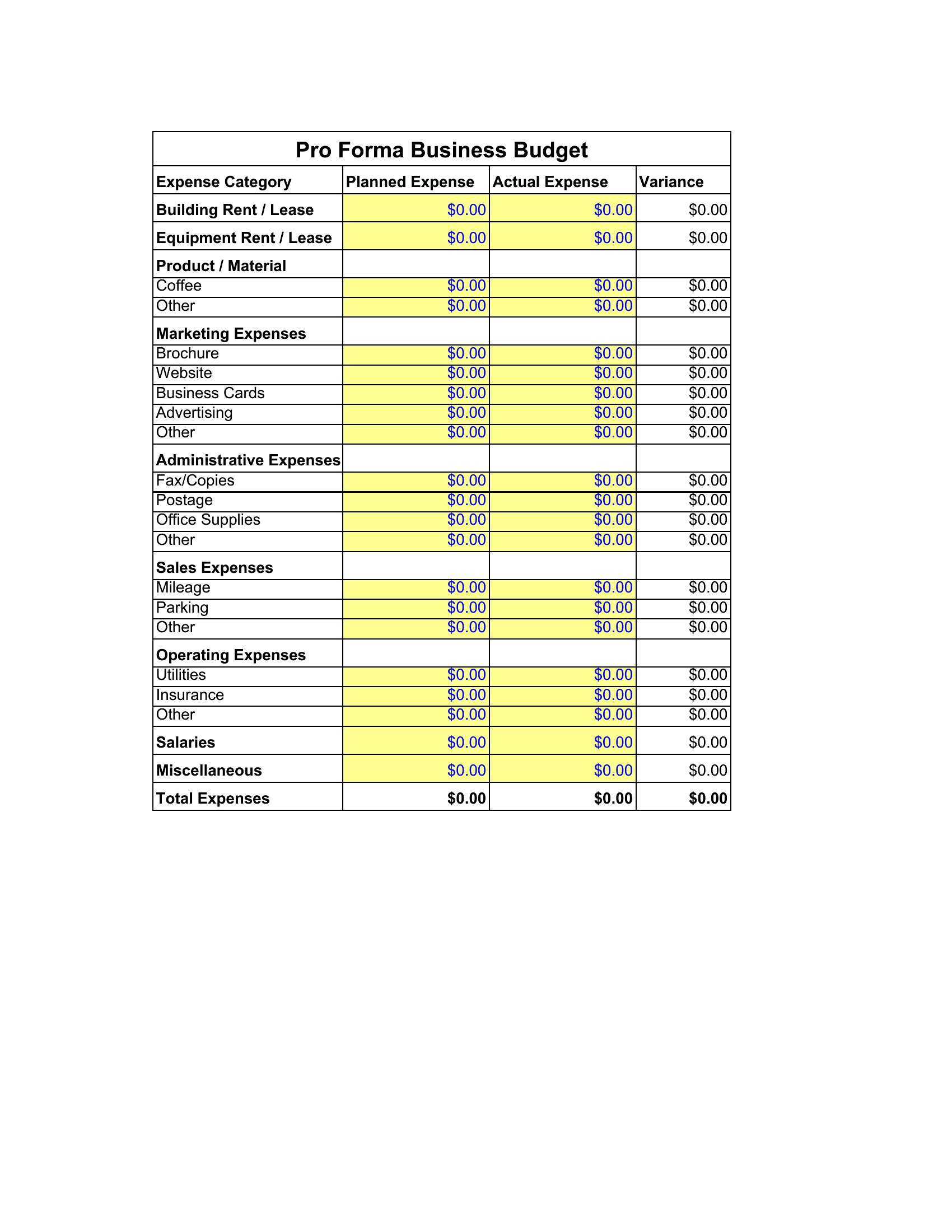
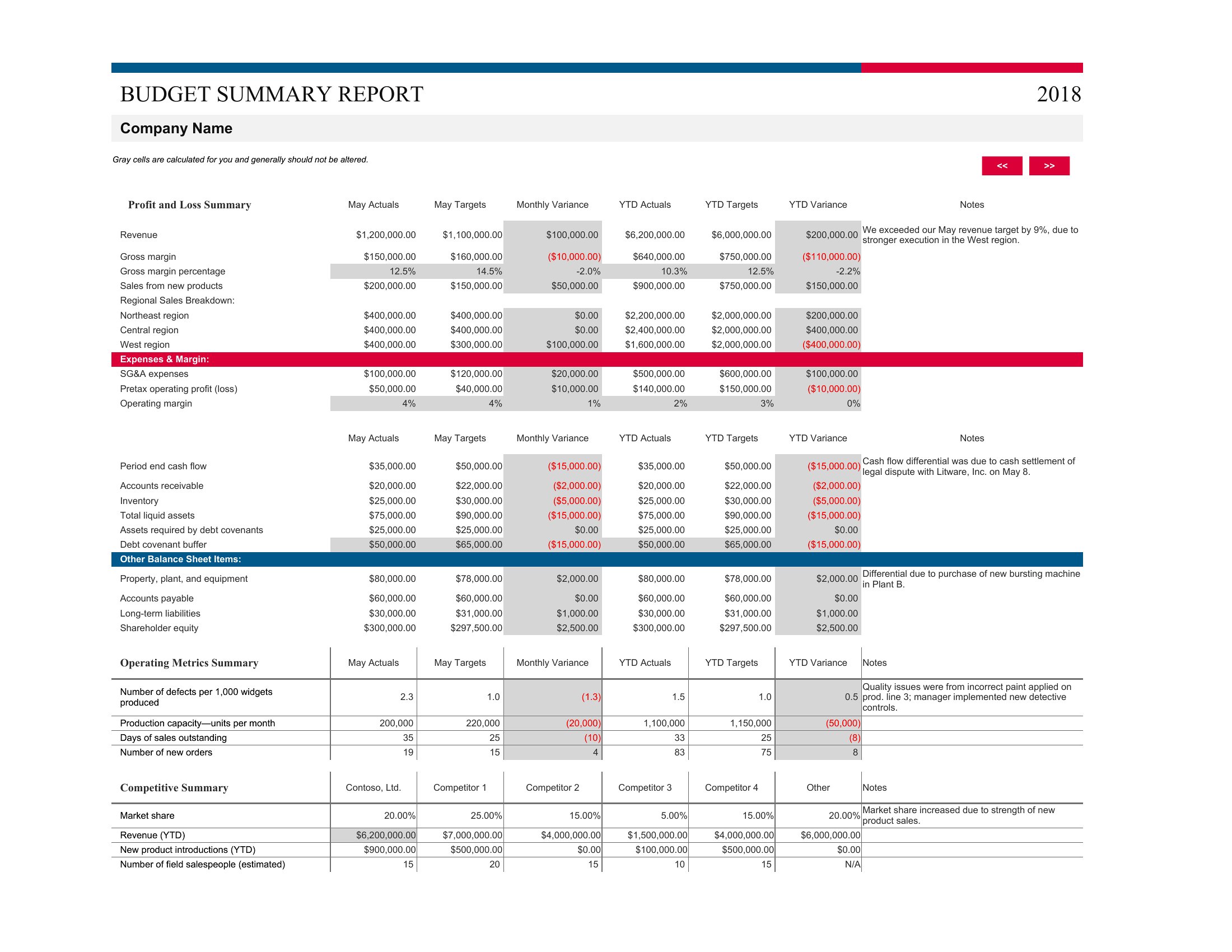
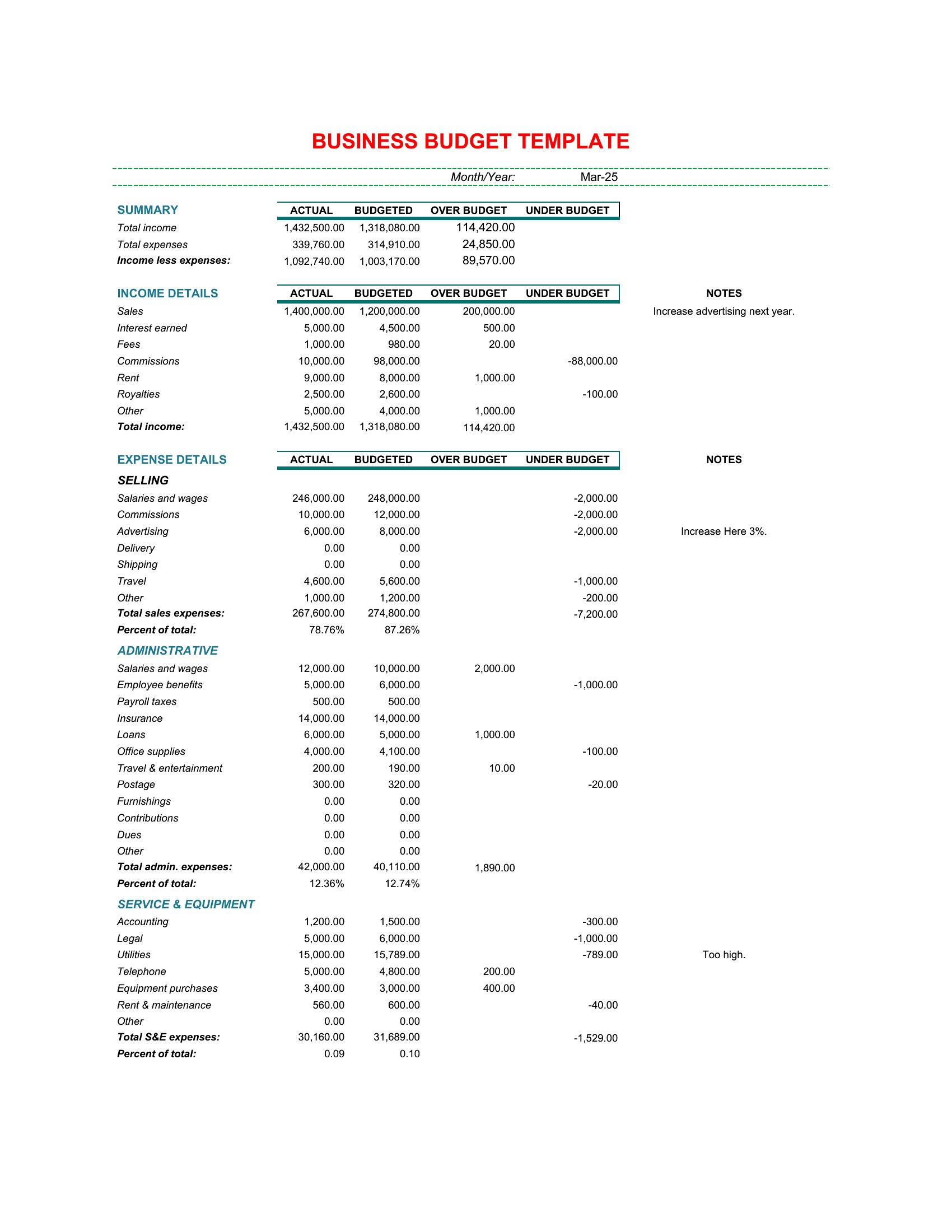
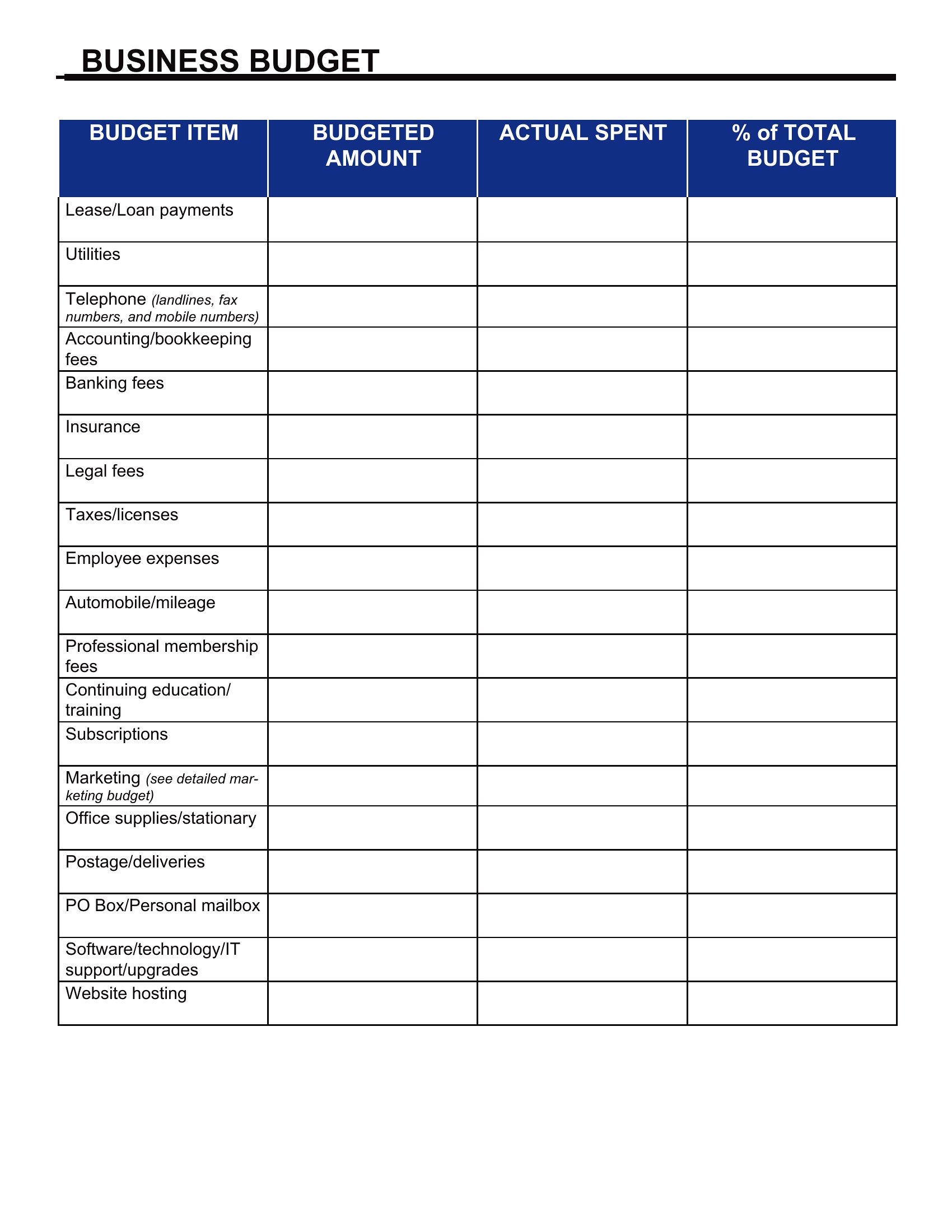
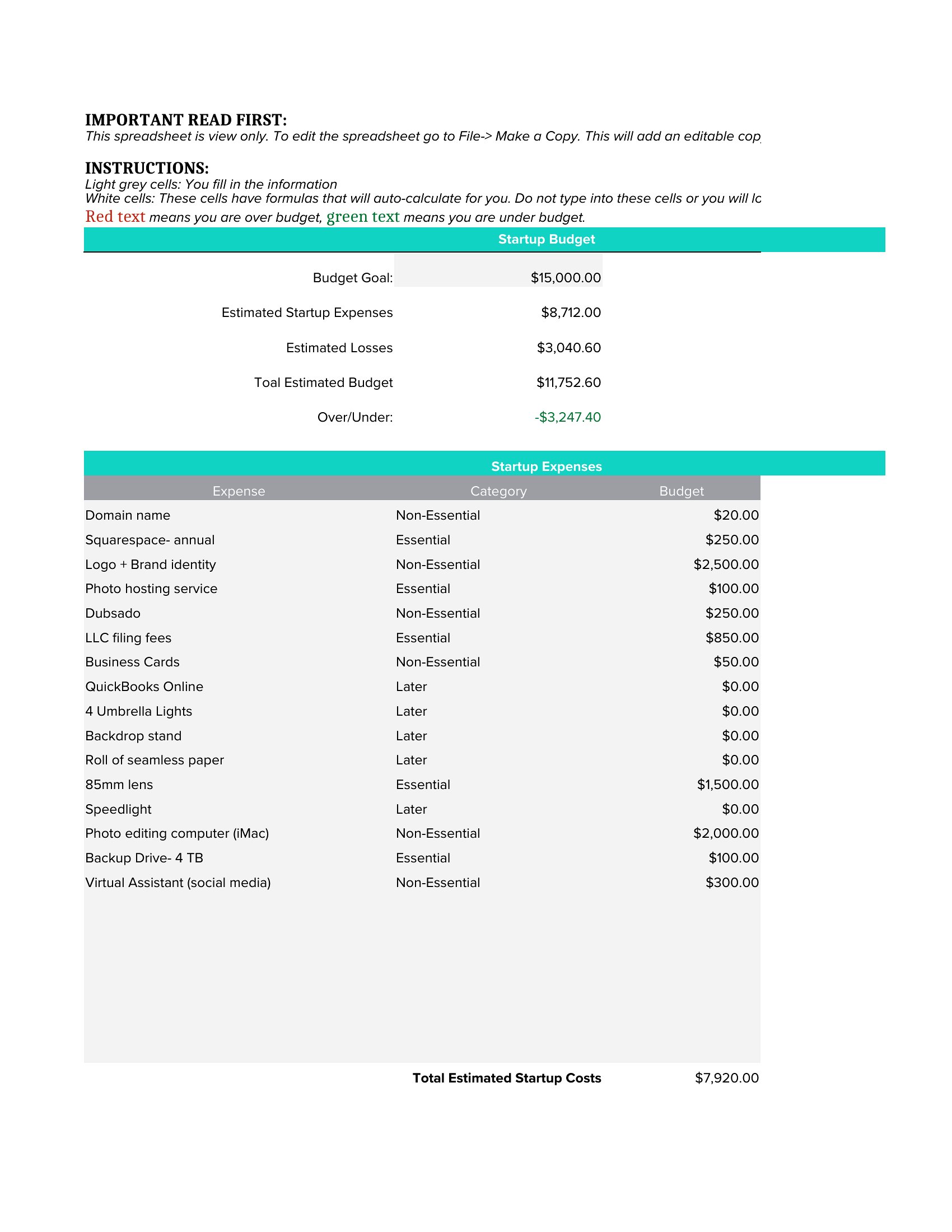
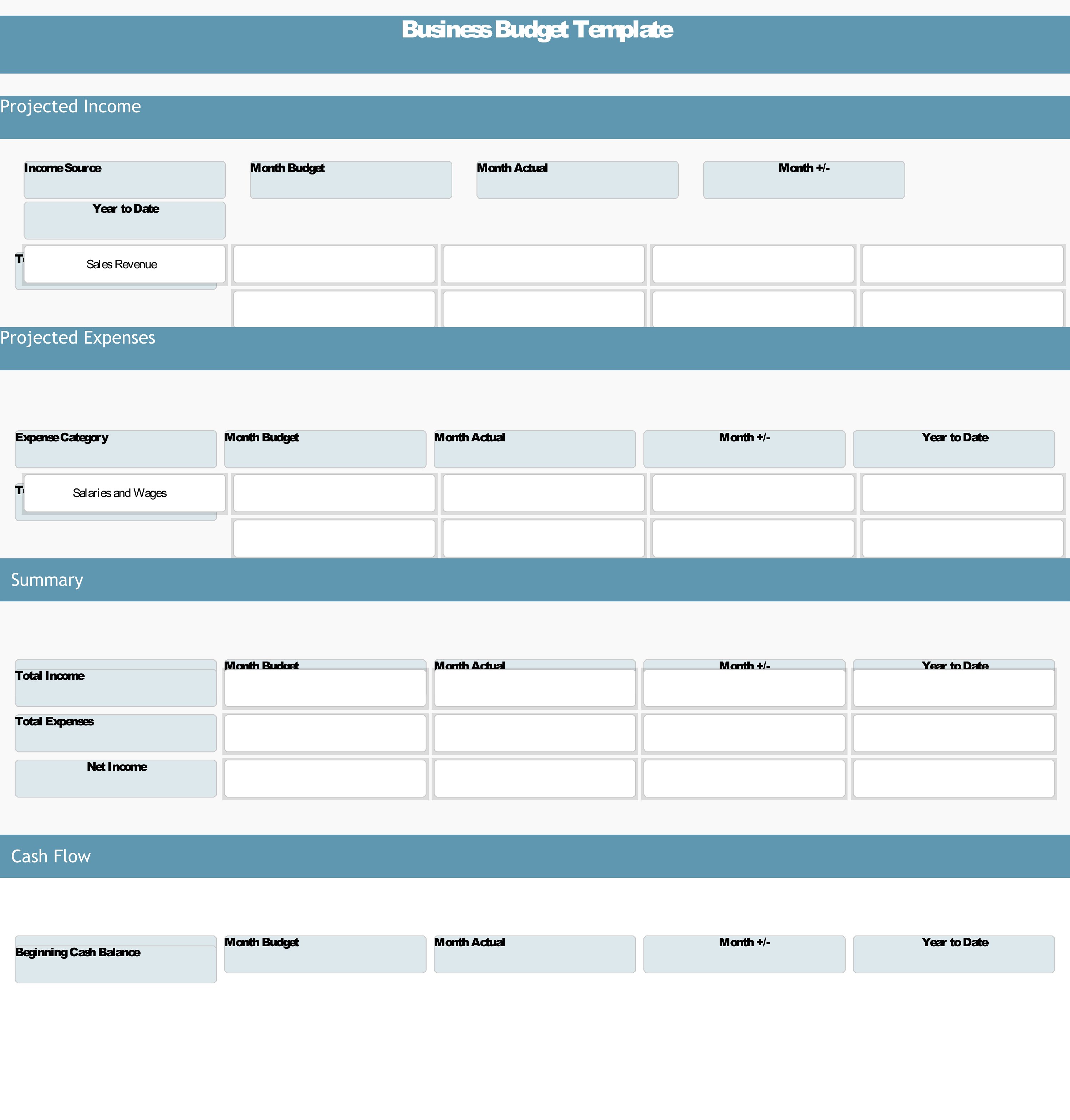
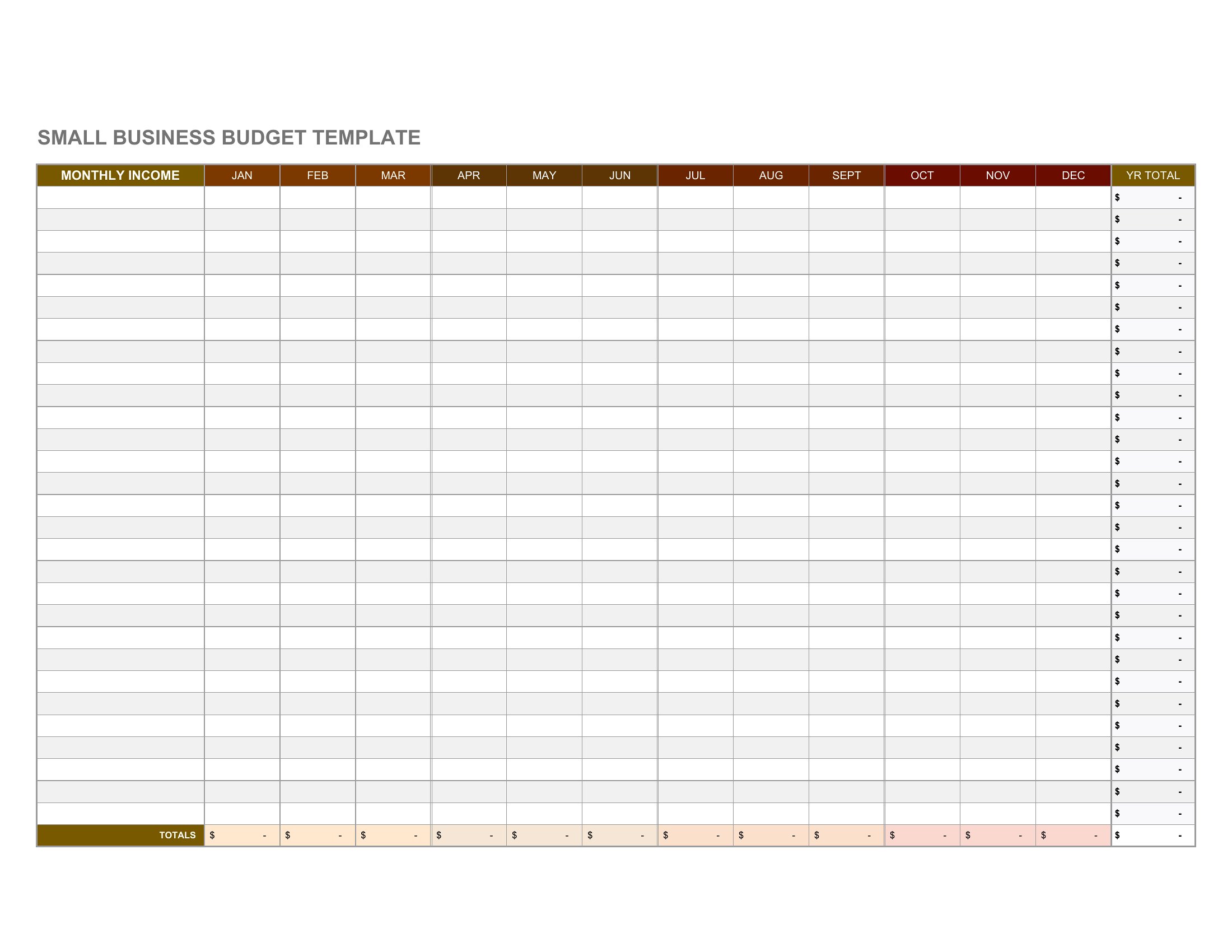
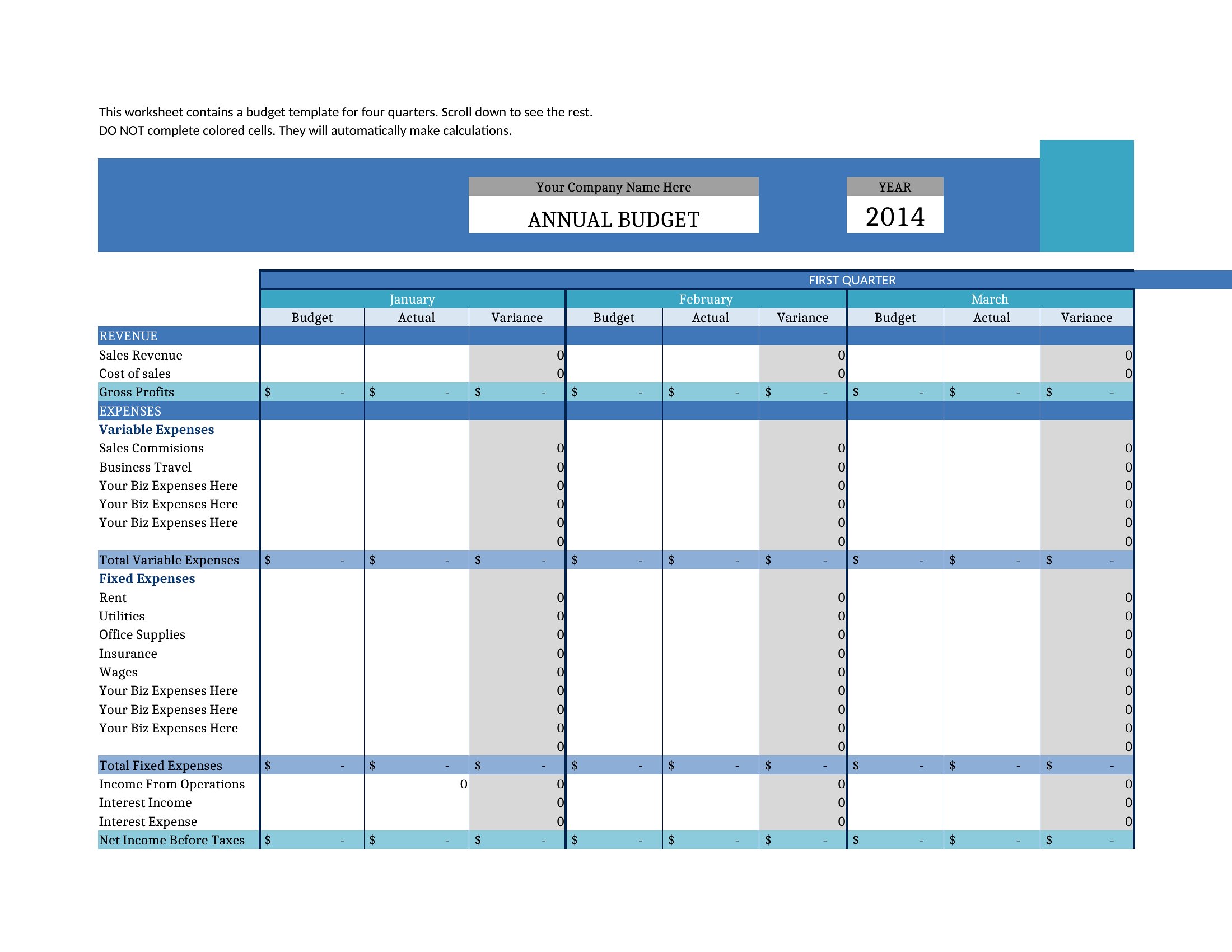
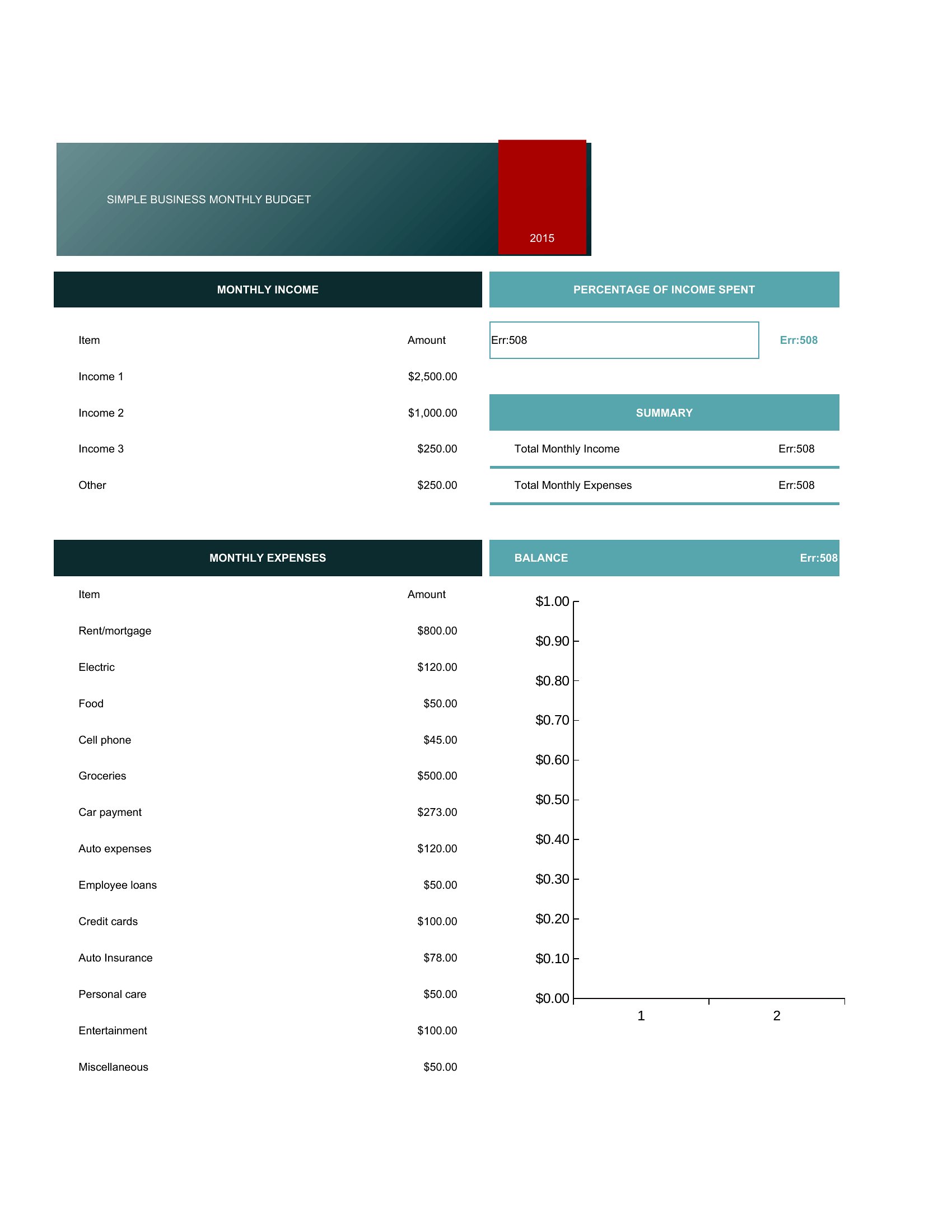
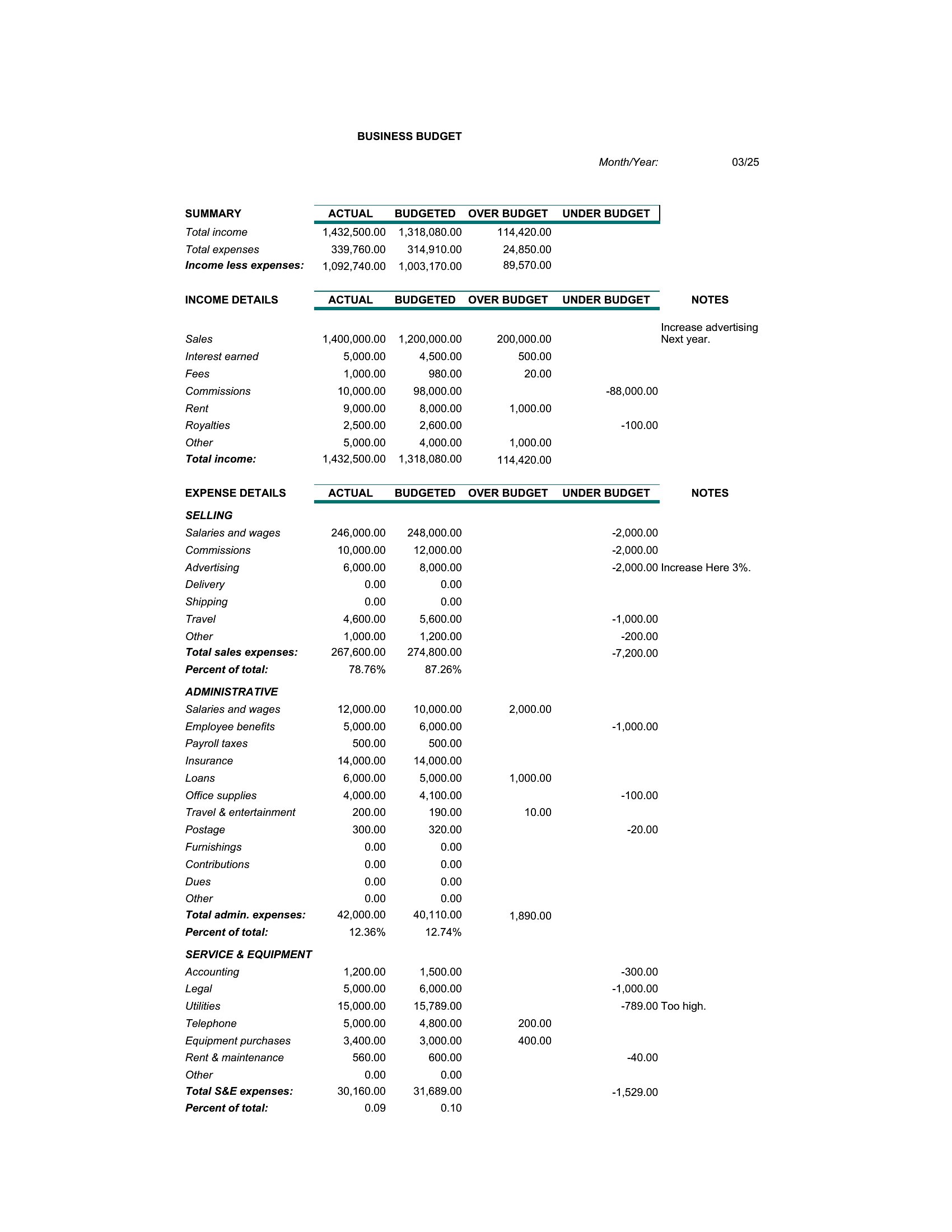
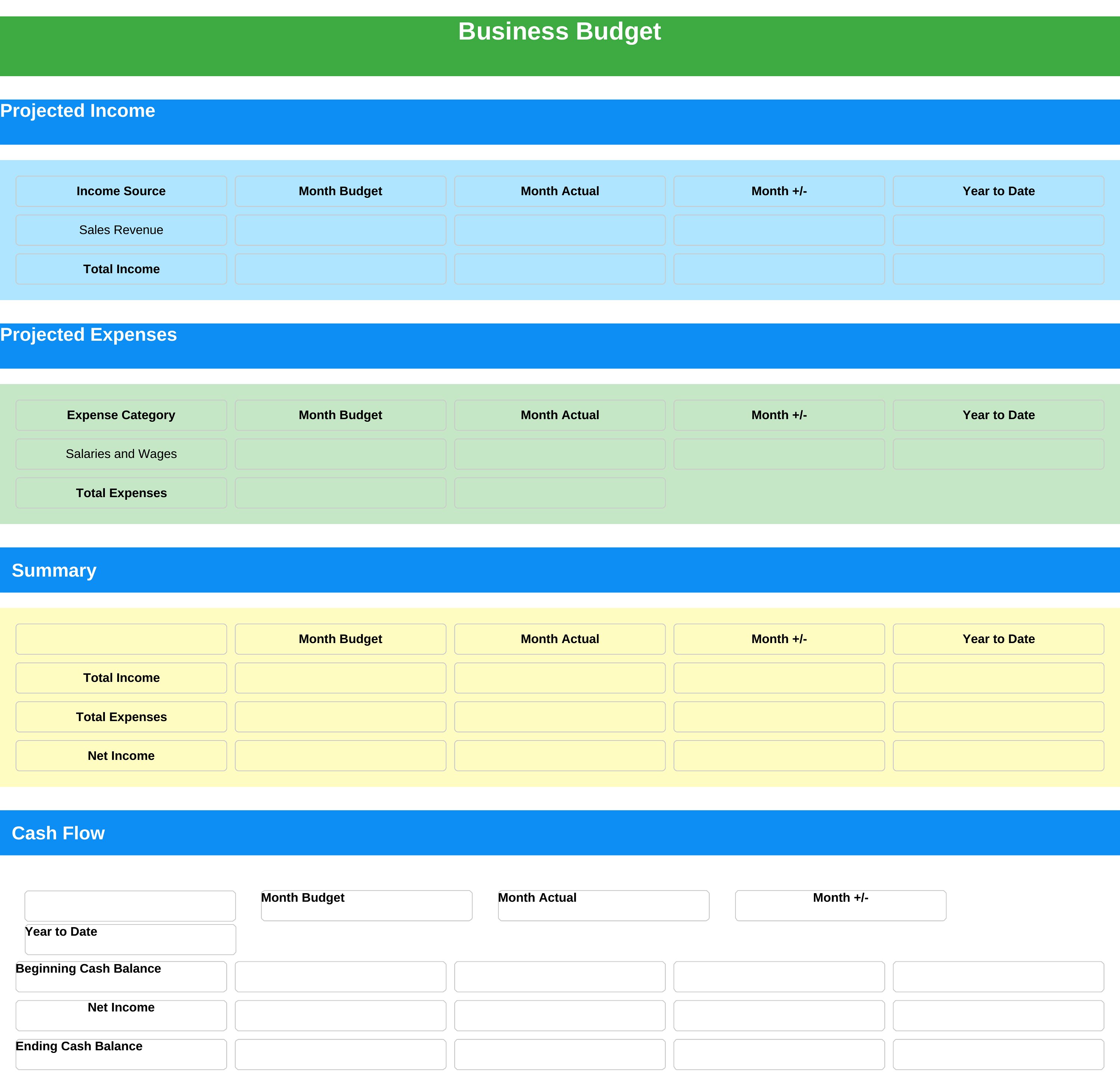
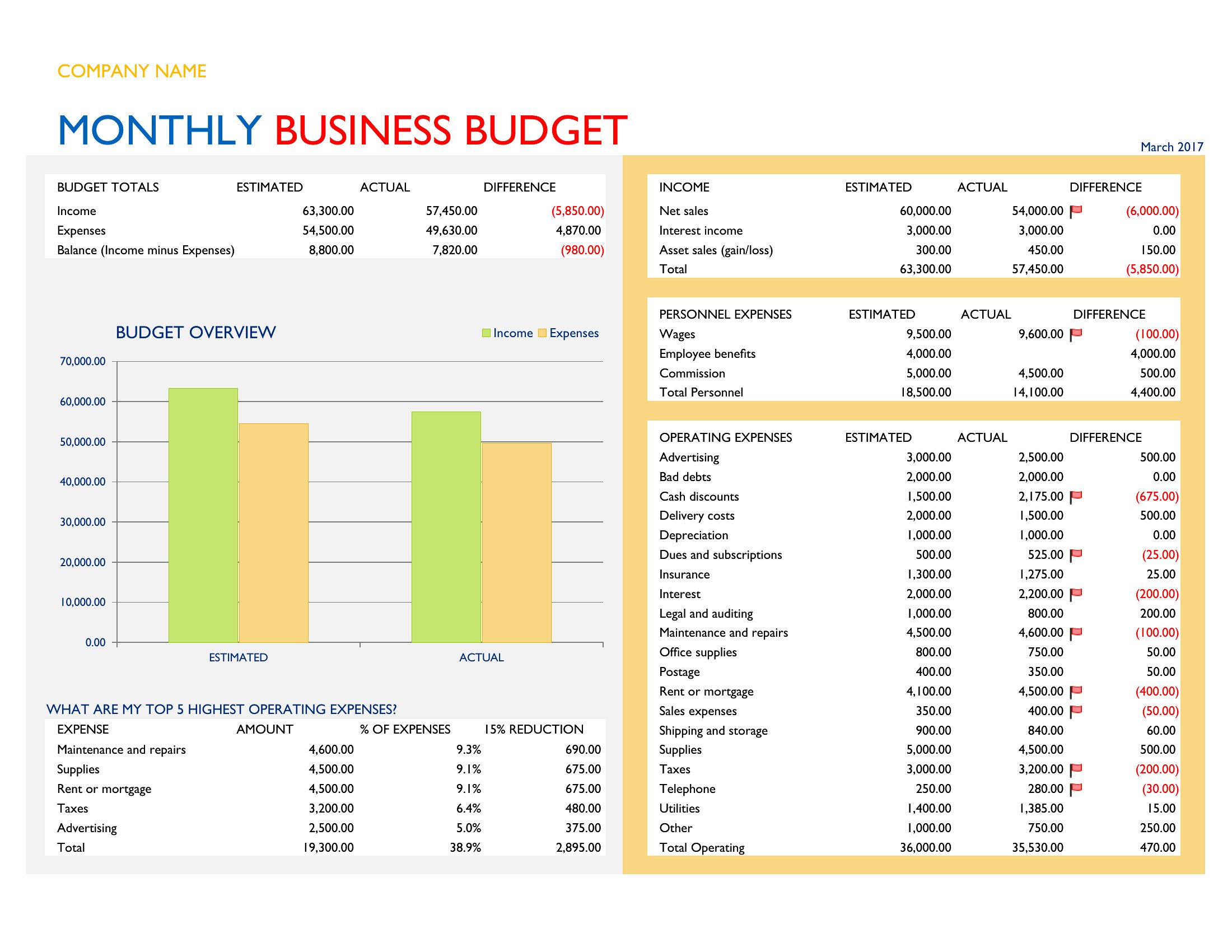
Yes, the Excel templates include sections for tracking actual income and expenses alongside your projections, with variance columns to highlight where you’re over or under budget. For example, if your marketing budget is $10K but you’ve already spent $12K on ads, the template will flag that difference so you can adjust future allocations. In Word, you’ll need to manually input and compare figures, but the layouts make it easy to spot trends at a glance.
What’s the best way to adapt these templates if my business has irregular revenue, like seasonal sales or project-based income?
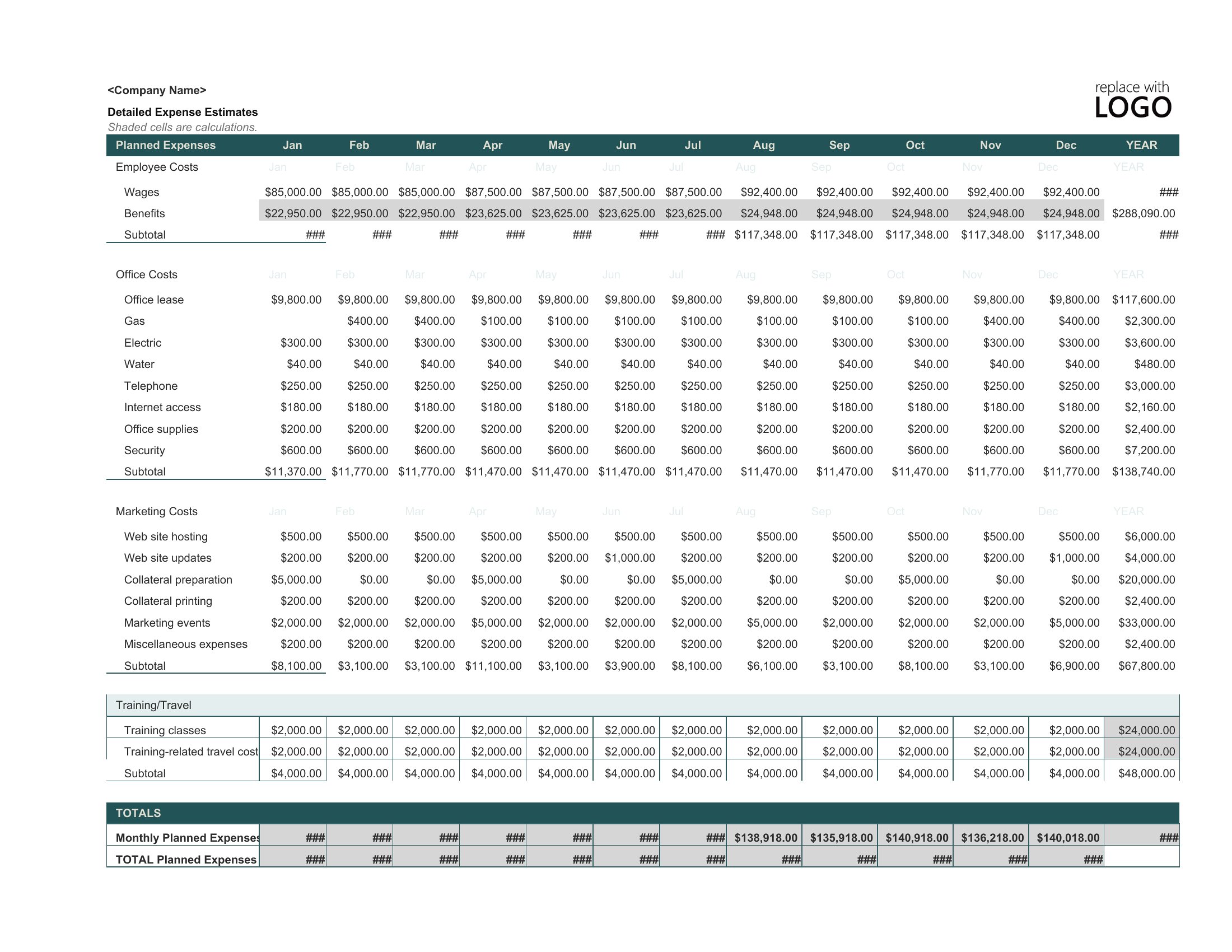
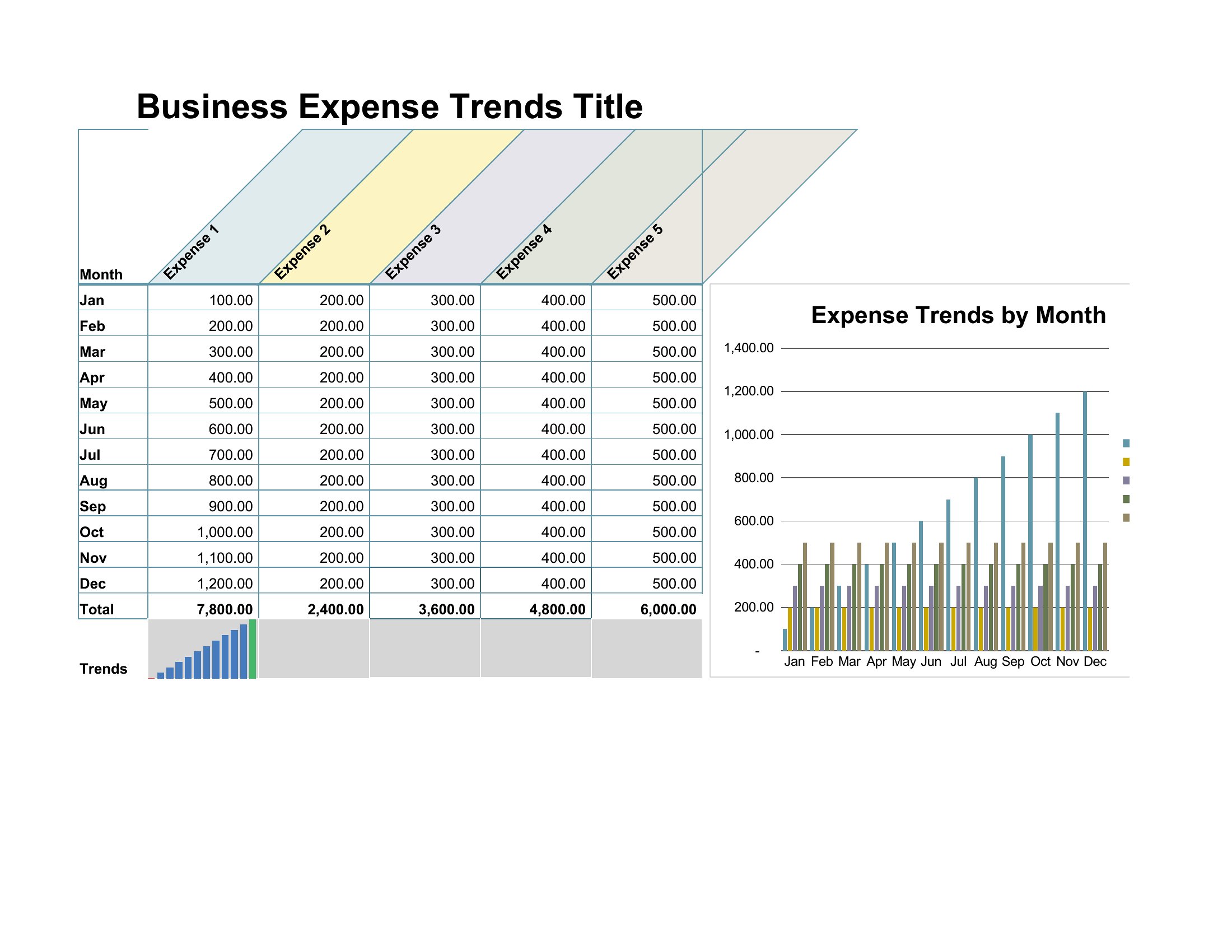
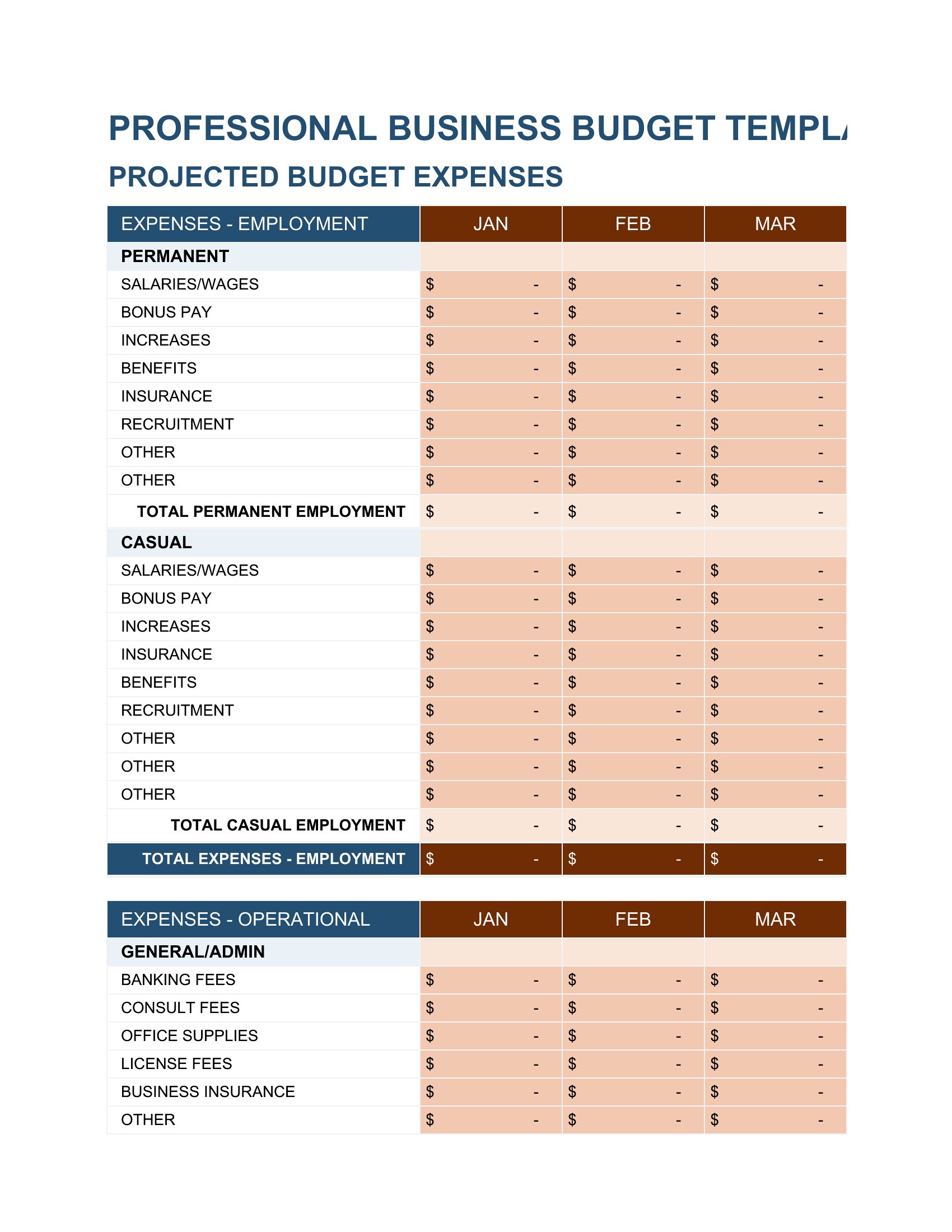
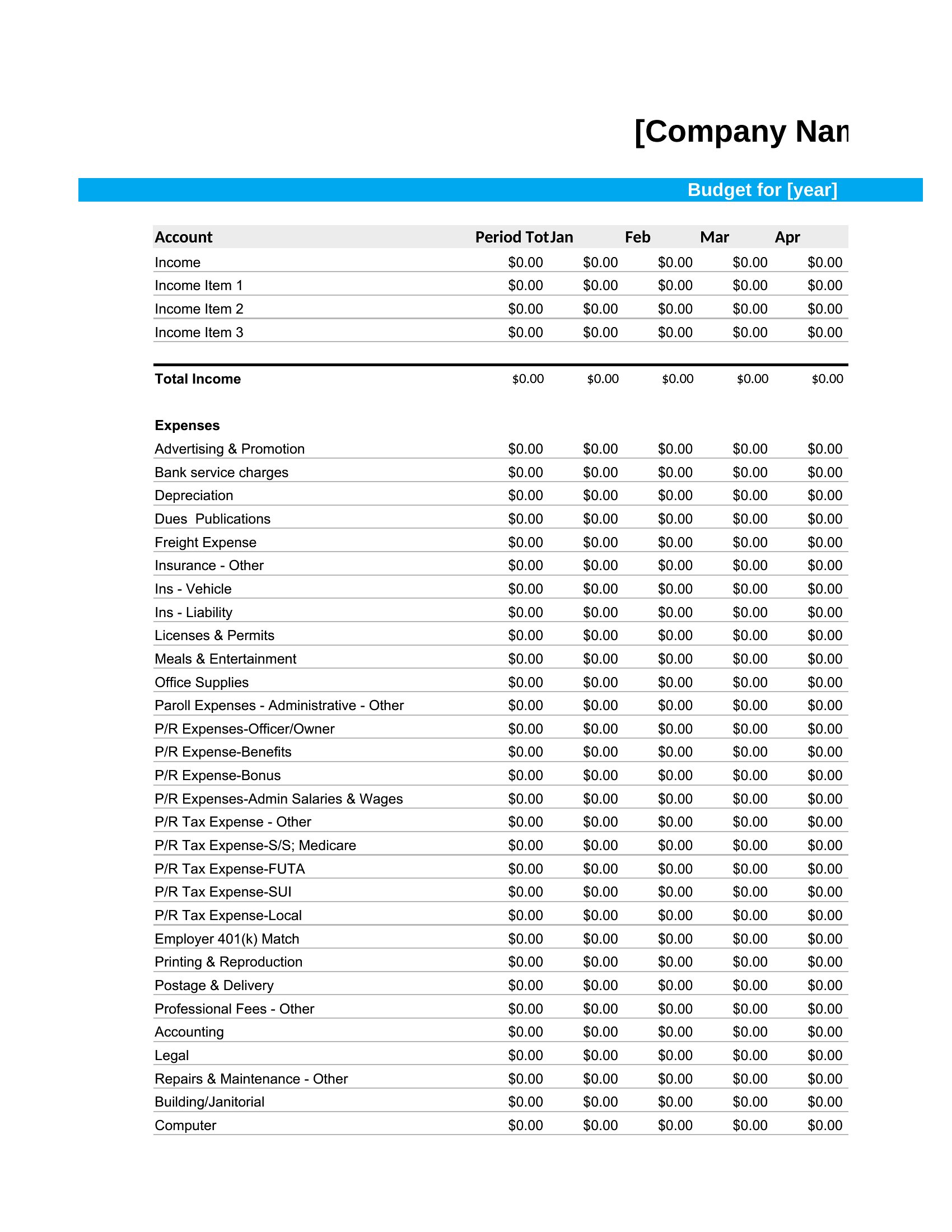
In Excel, use the monthly breakdowns to set baseline minimums for lean months and maximums for peak periods, then apply conditional formatting to cells with variable income. For Word, duplicate a section for each revenue stream (e.g., “Holiday Sales” and “Off-Season Retainers”) and insert a summary page to compare totals. Both formats let you customize categories, but Excel’s formulas will simplify recalculating totals when your income fluctuates.
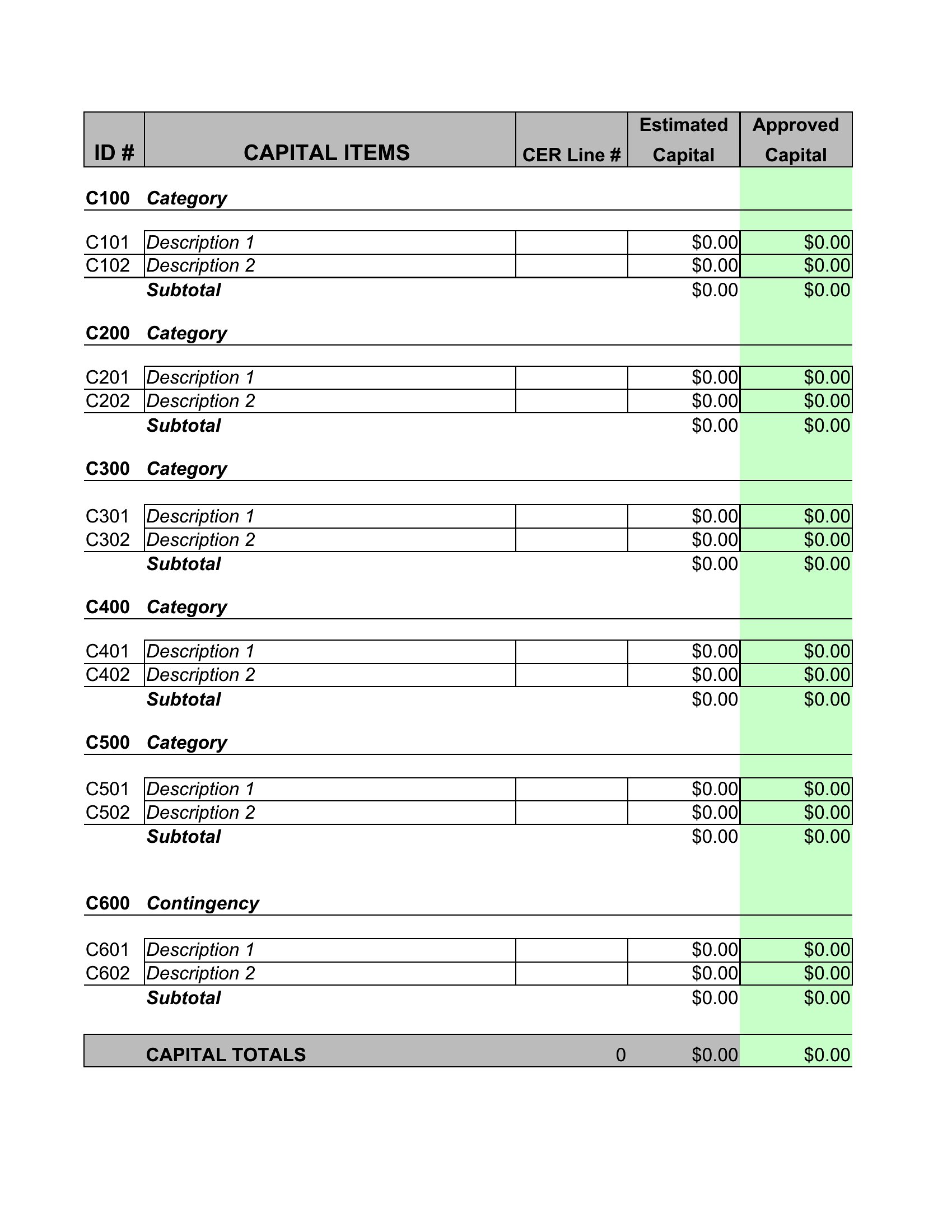
How should I handle one-time expenses, like equipment purchases or legal fees, in these budget templates?
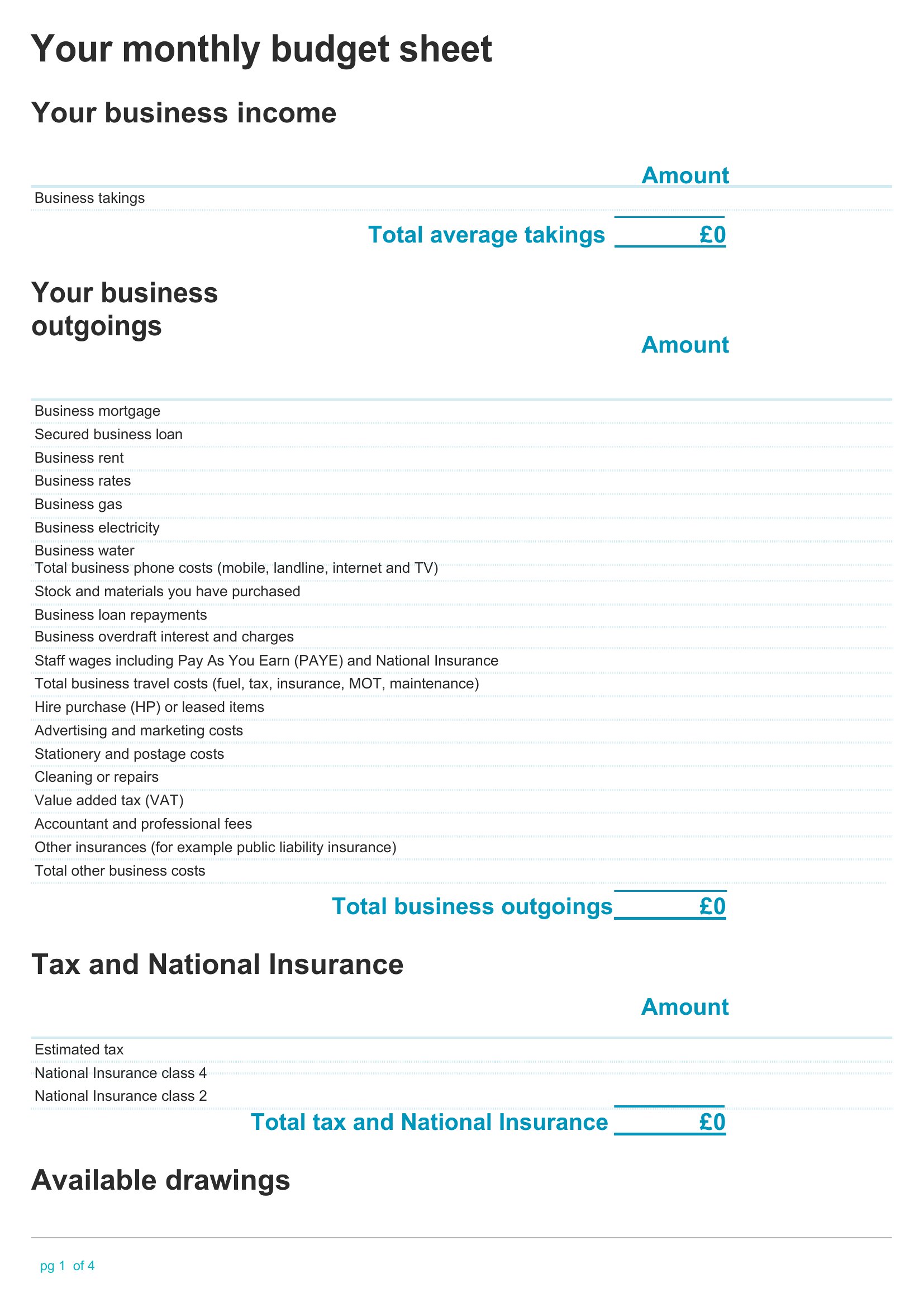
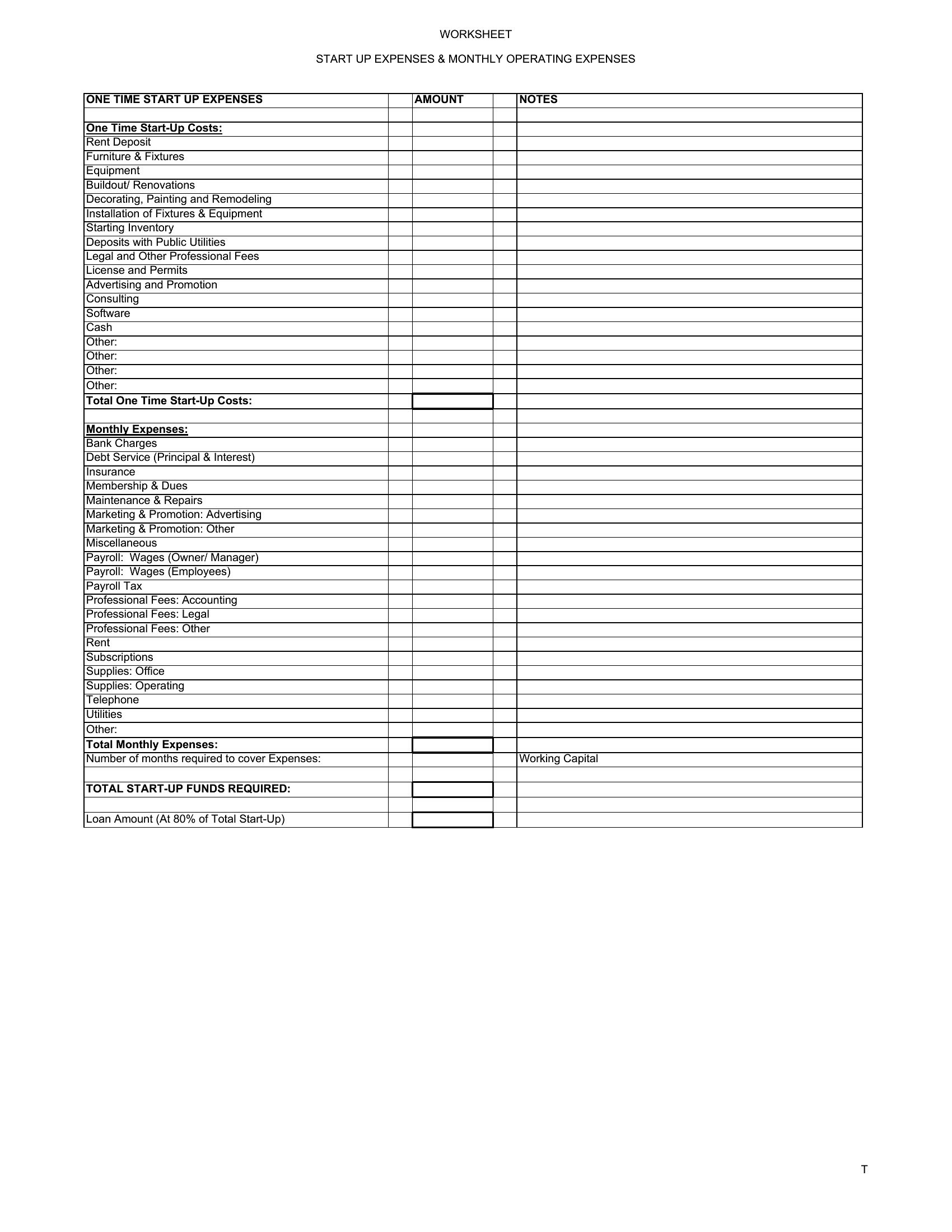
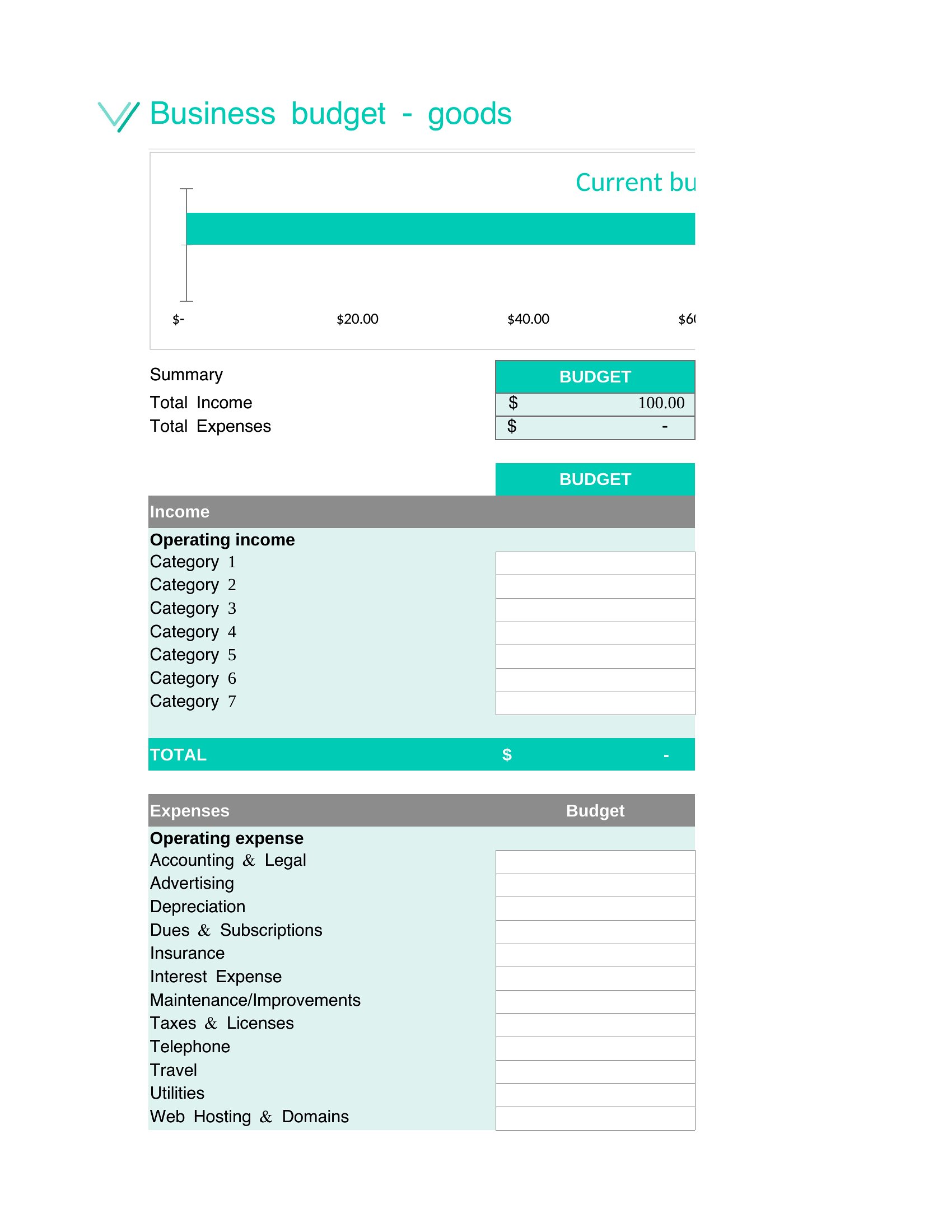
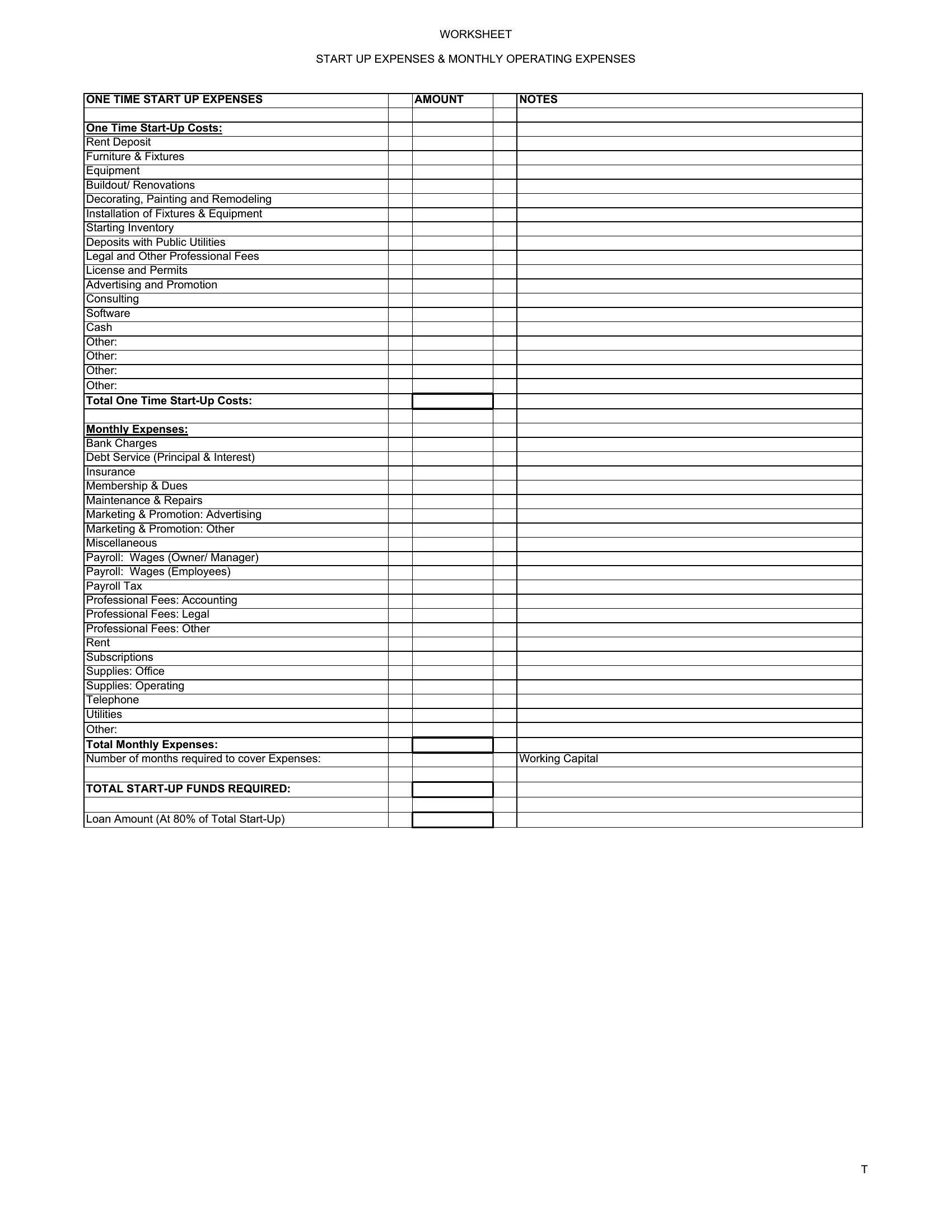
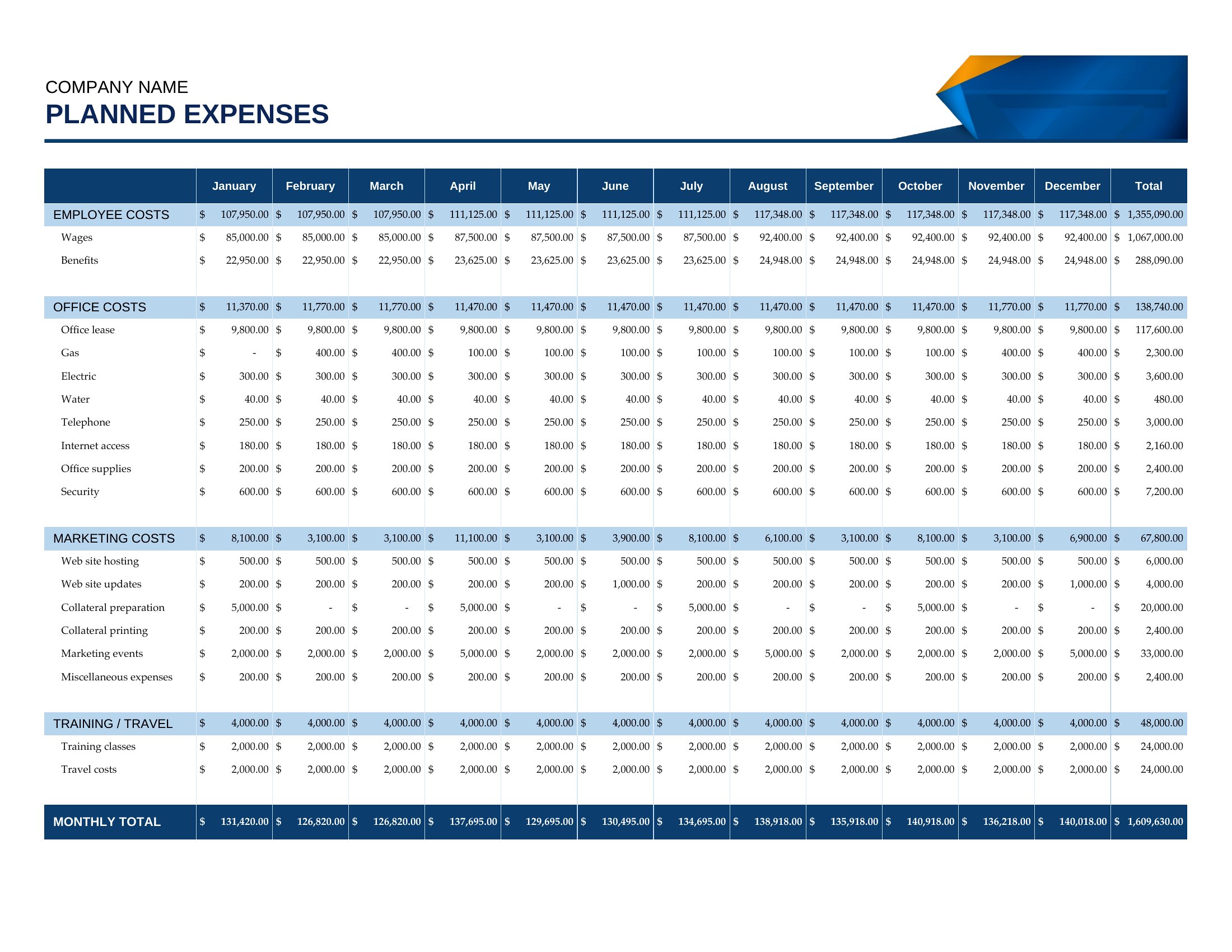
Add a separate category labeled “Capital Expenditures” or “Non-Recurring Costs” in the expense section of your template, then allocate funds from your projected profit or a designated reserve. In Excel, you can use a dropdown menu to classify these items so they don’t skew your monthly averages. In Word, simply list them under a dedicated heading and note the month they’re expected to occur—this keeps them visible but separate from recurring operational costs.
Comments
Join the conversation
Sign in to share your thoughts and leave a comment on this resource.