






FAQ
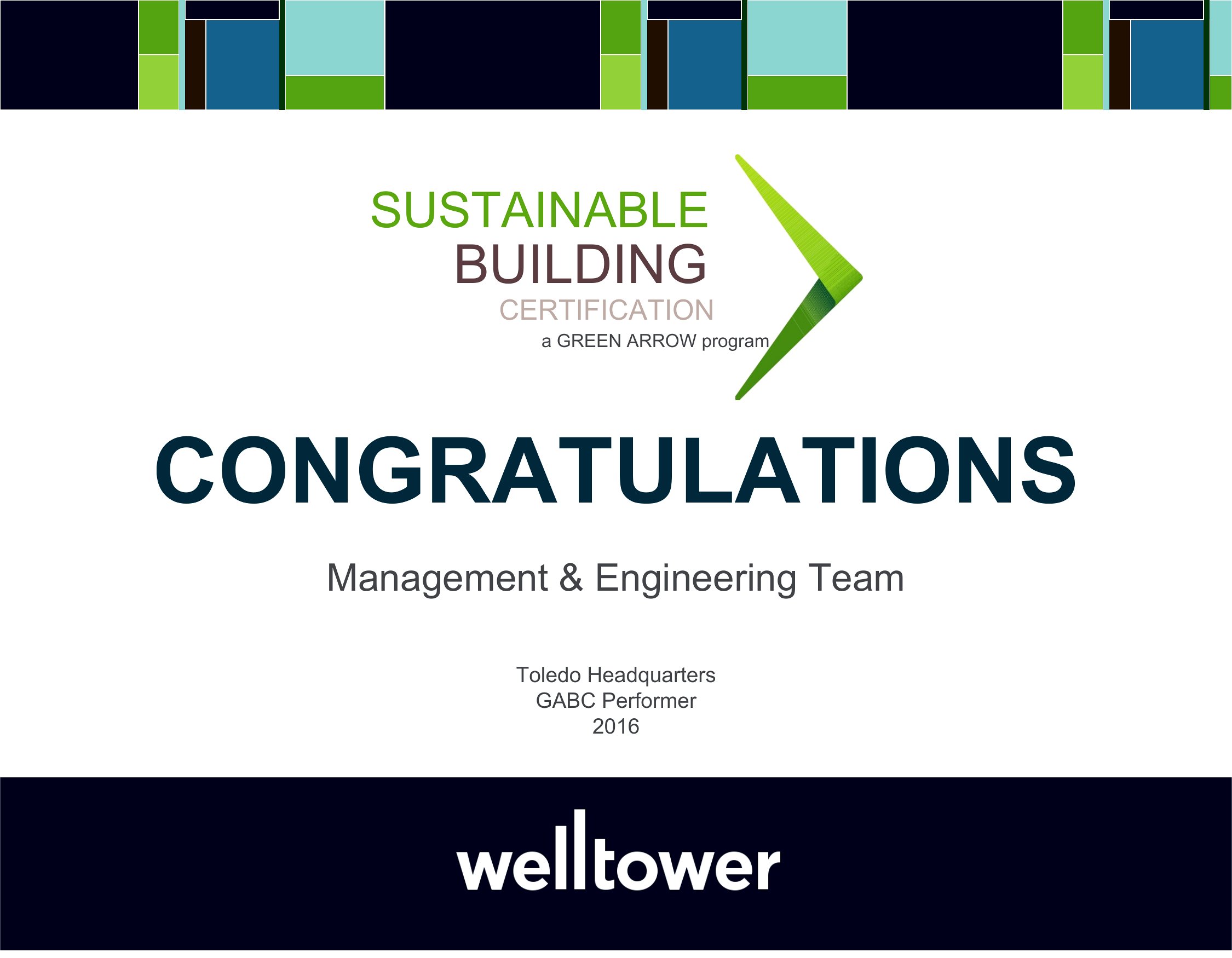
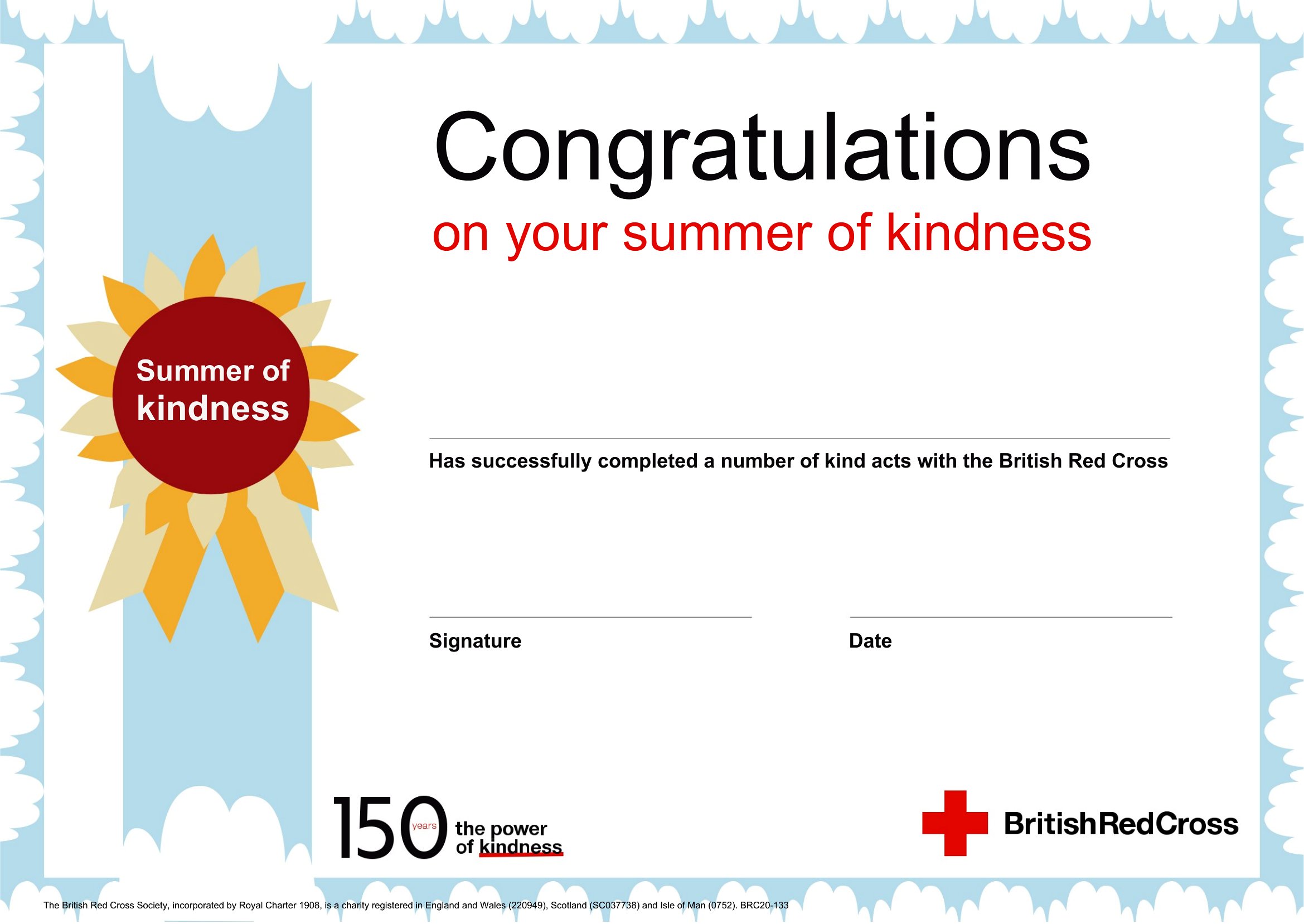
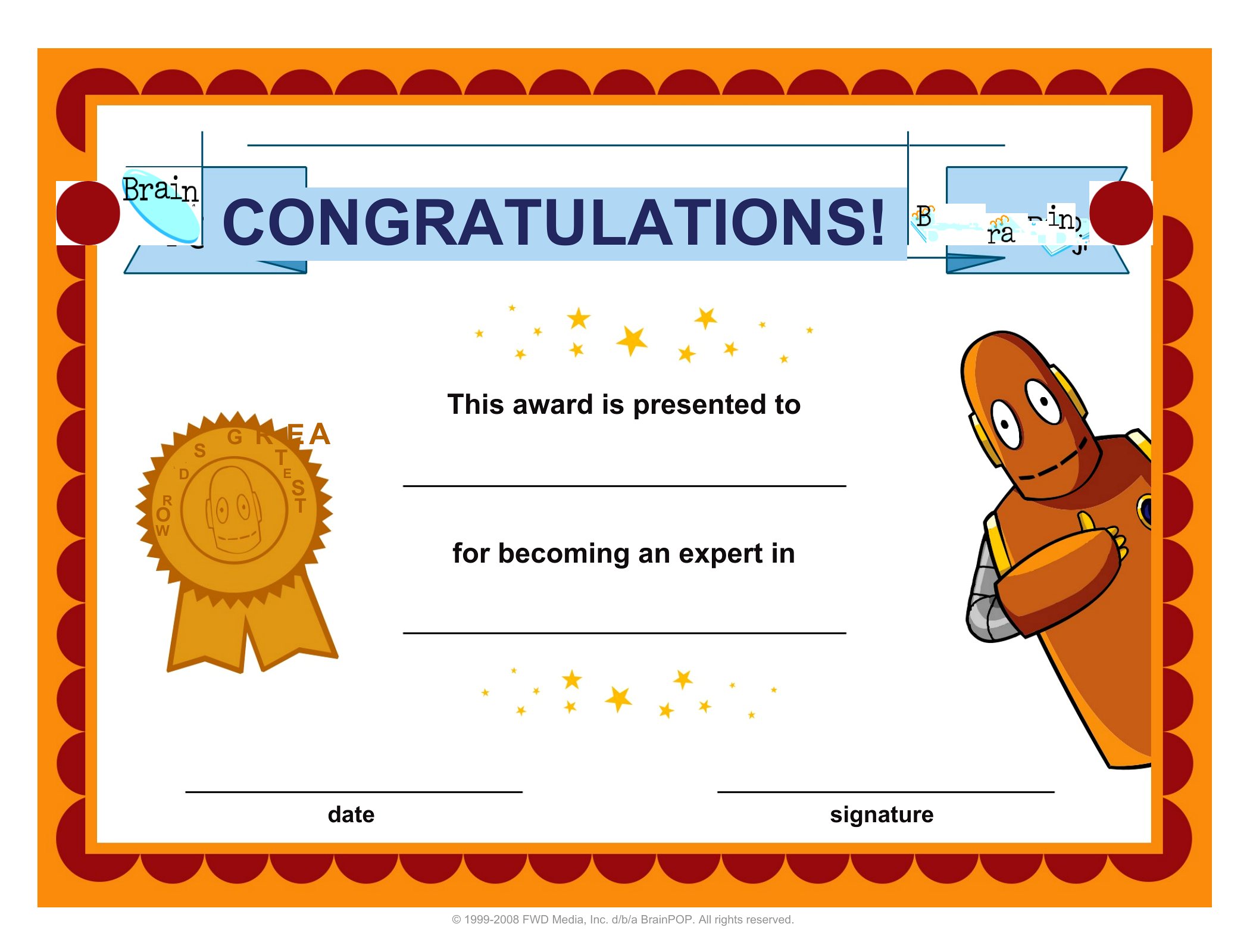
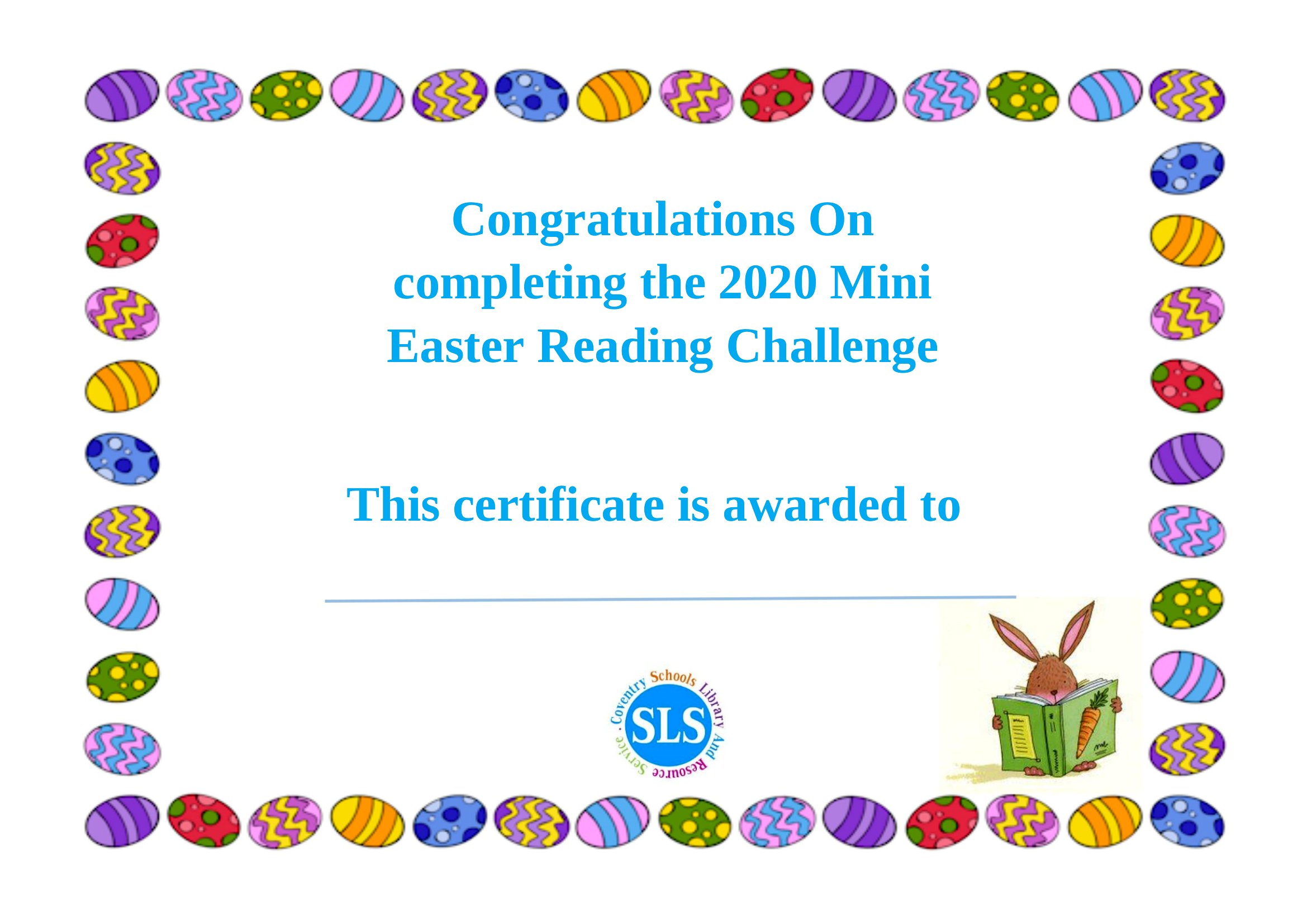
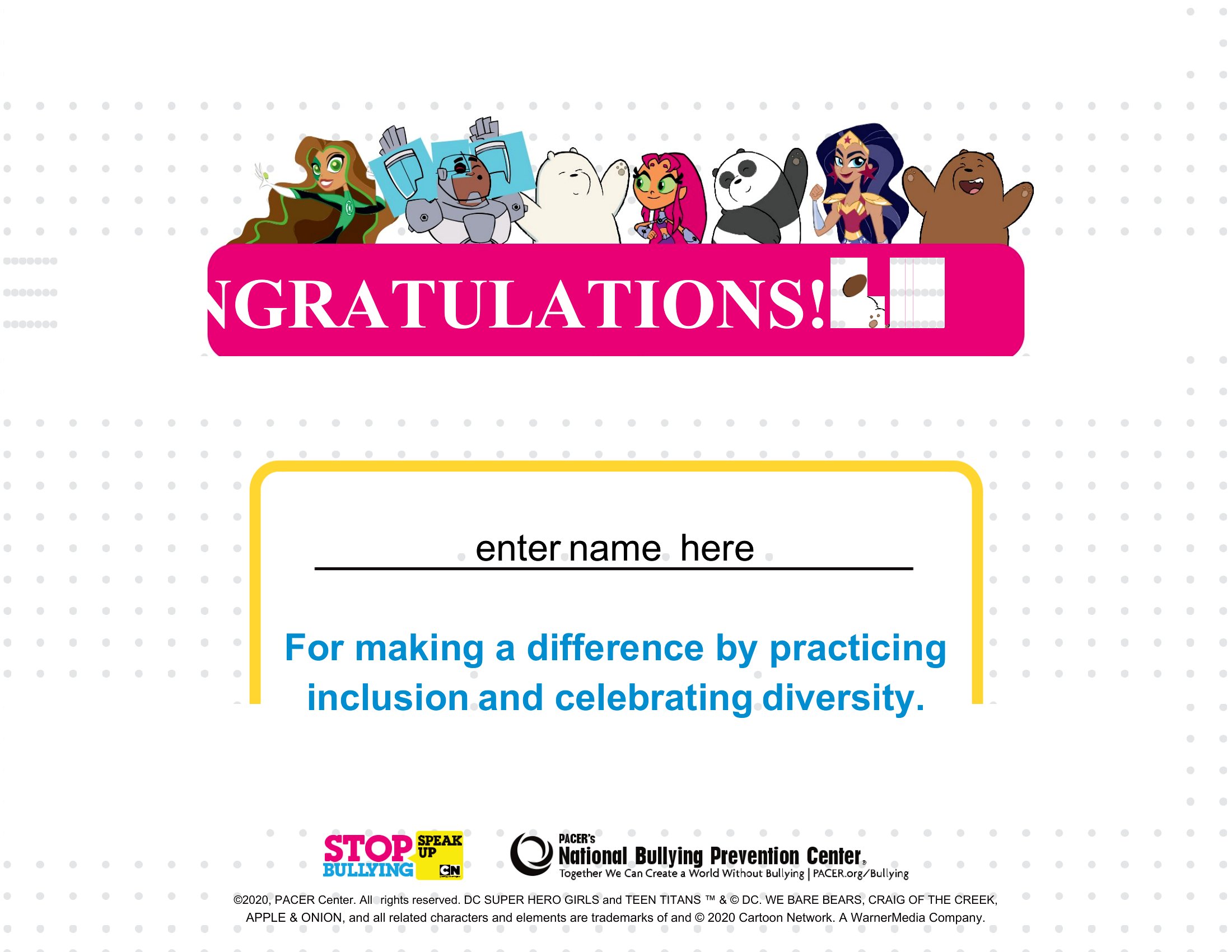
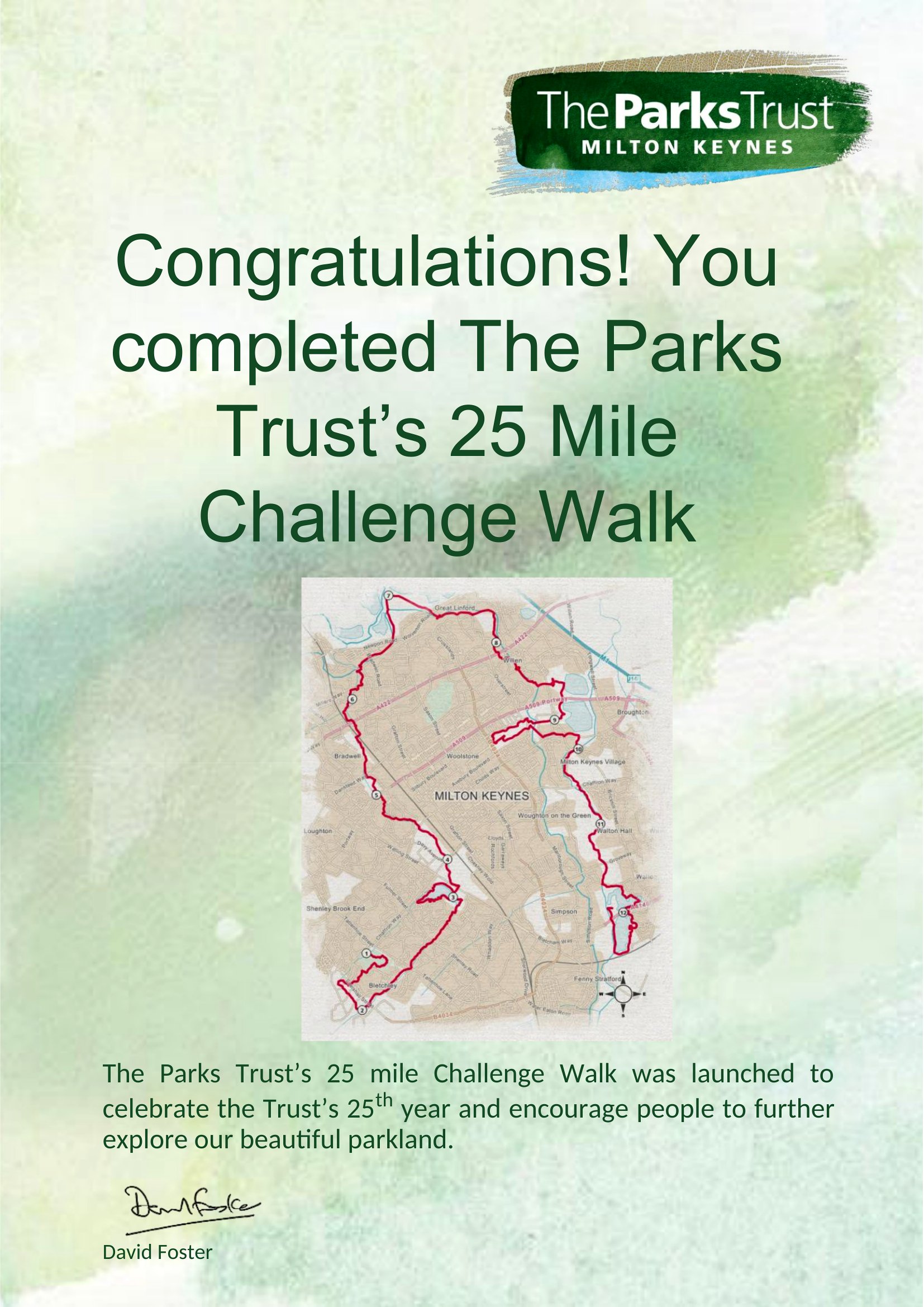
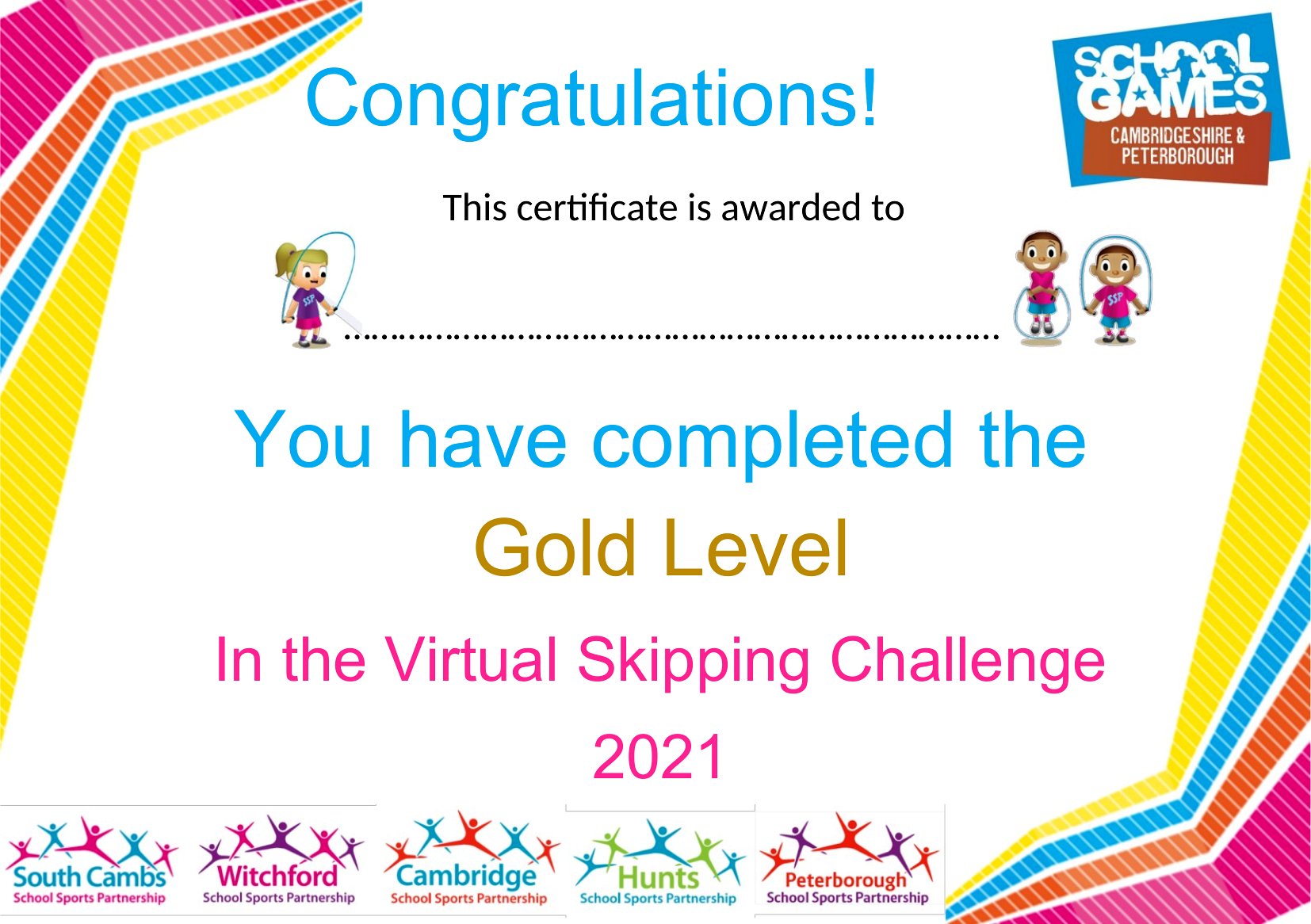
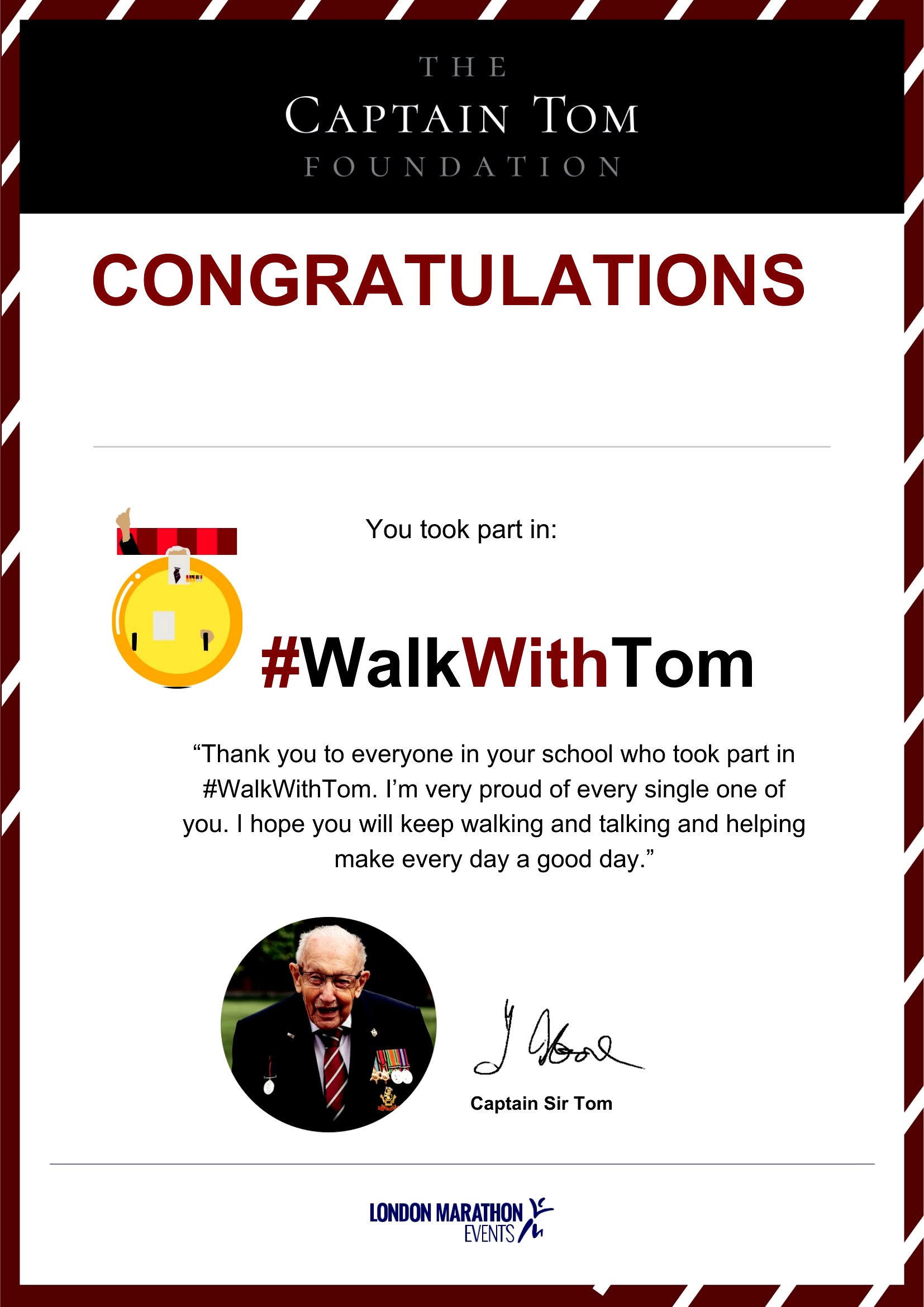
Can I add a photo or logo to the certificate without ruining the design?
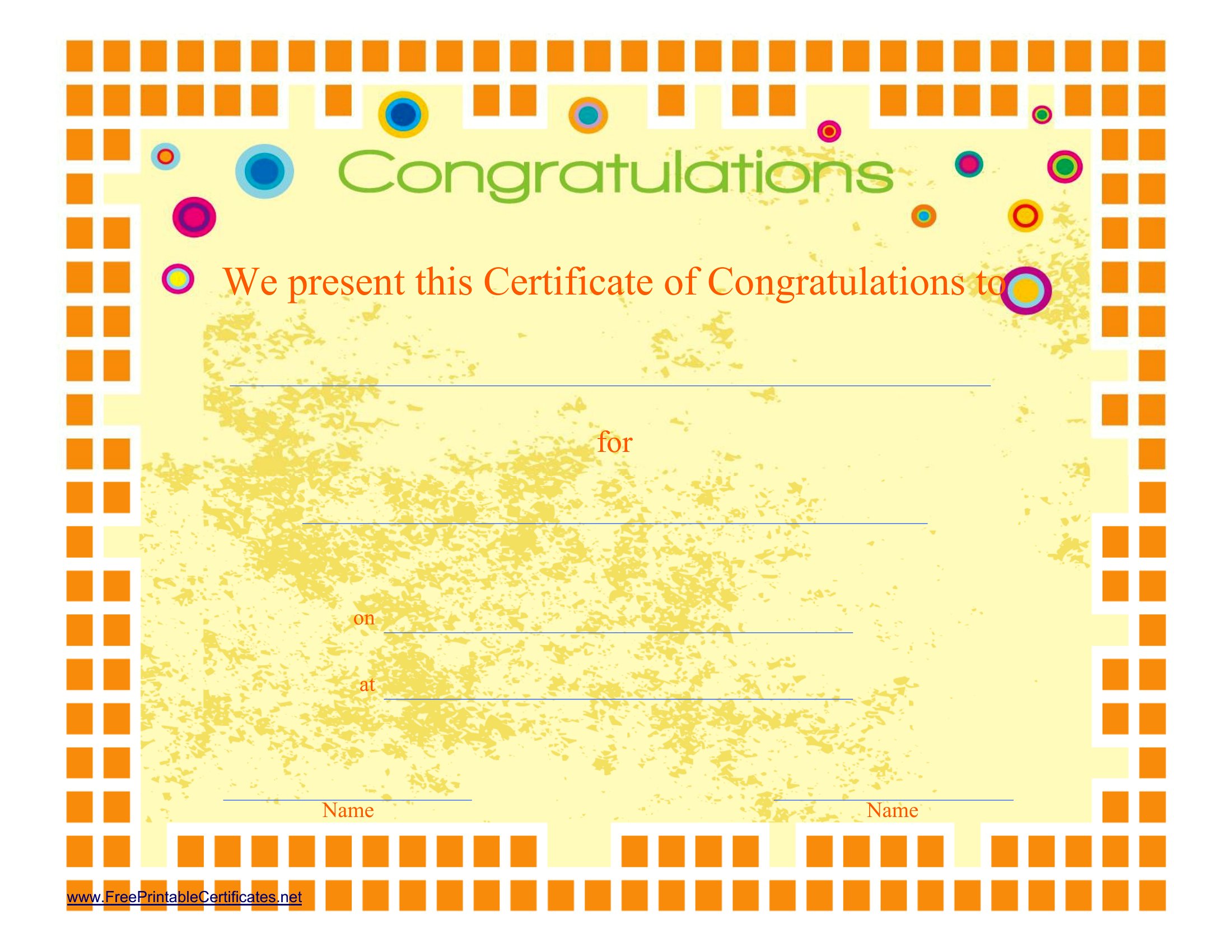
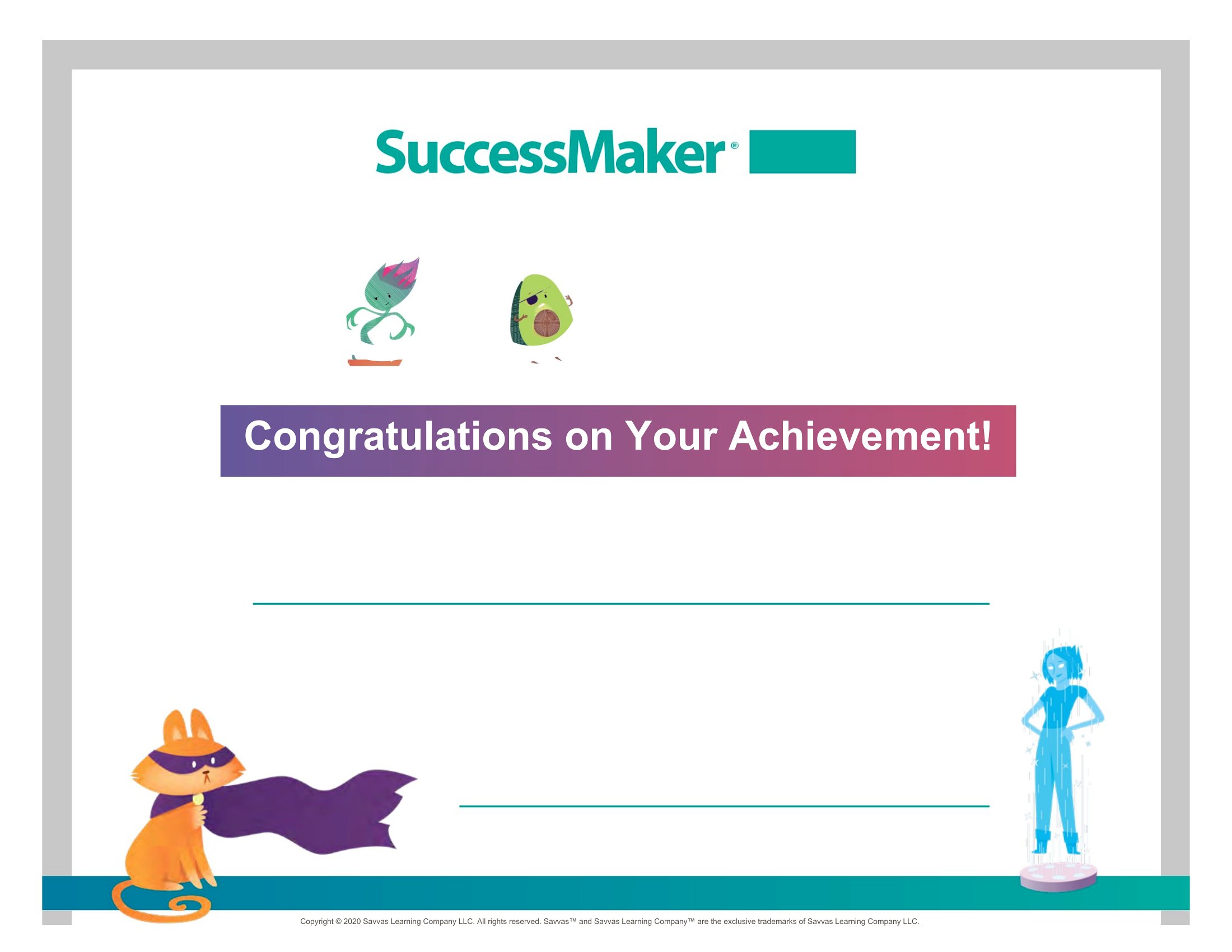
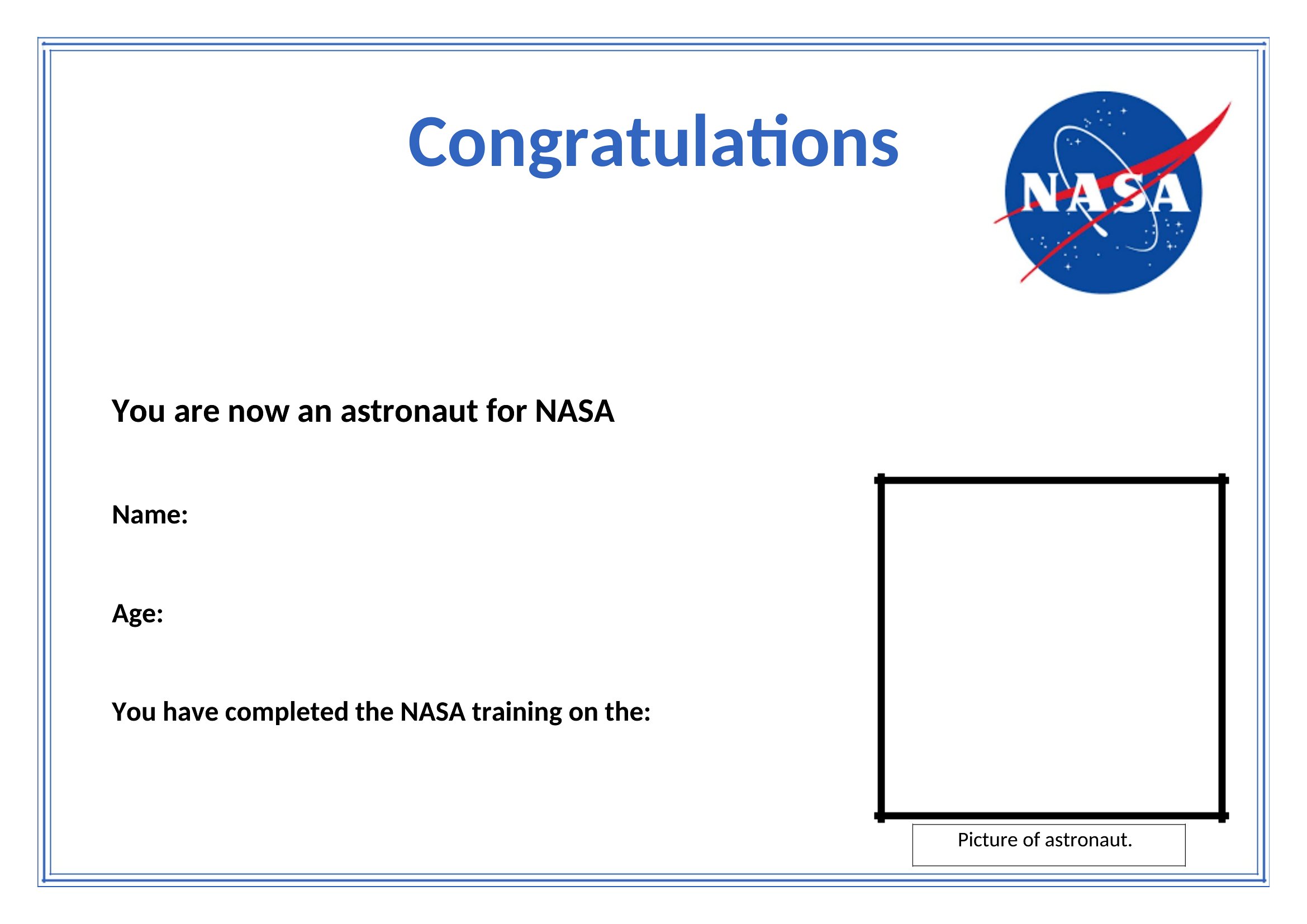
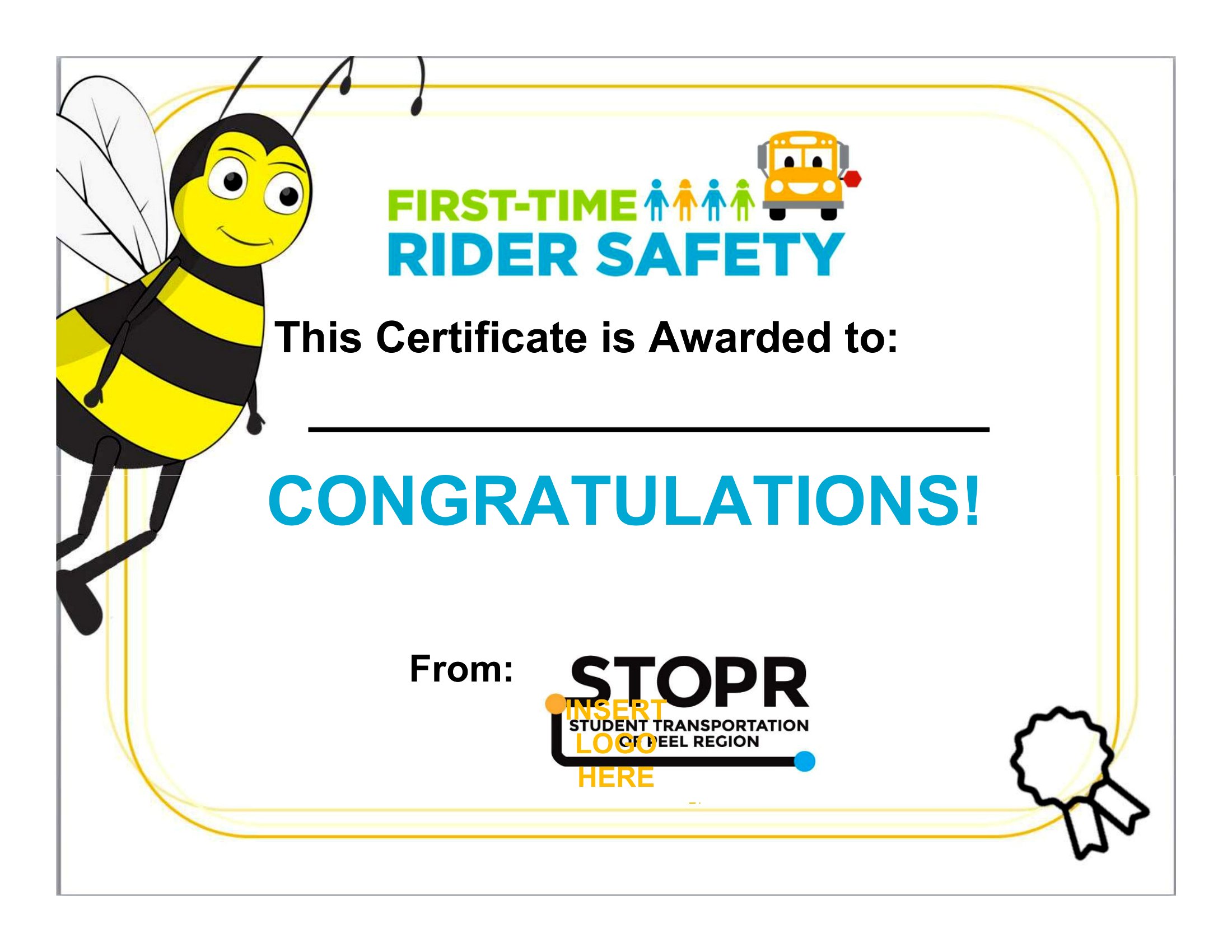
Yes, each Word template includes space for logos or small photos. Insert your image via the ‘Insert’ tab, then resize it to fit the designated area. For best results, use a high-resolution logo under 200KB to keep the file clean and professional. Avoid overcrowding the design with too many elements.
What’s the best way to personalize the certificate for someone who doesn’t speak English?
Use Word’s translation tools to adapt the text into their language, then replace the English phrases in the template. Keep the layout simple—focus on one or two key lines like ‘Congratulations’ and their achievement. For non-Latin scripts, ensure the font supports their language (e.g., Arabic or Chinese) to avoid formatting issues.
How do I make sure the certificate looks good when printed, even if I don’t have fancy paper?
Print a test copy on plain paper first to check alignment and colors. Use the ‘Page Layout’ tab to set margins to ‘Normal’ (1 inch) and enable ‘Print Preview’ to spot any cropping issues. For a polished look, choose a matte or slightly textured paper—even basic options will elevate the final product.
Comments
Join the conversation
Sign in to share your thoughts and leave a comment on this resource.