

Skip to content
50% off this one-time $1.99 pack with HALFOFF — or unlimited with Pro.HALFOFF
Premium

Free Congratulations Certificates (Word)

Business
louisturner by louisturner
Updated 0 downloads Quality-checked template

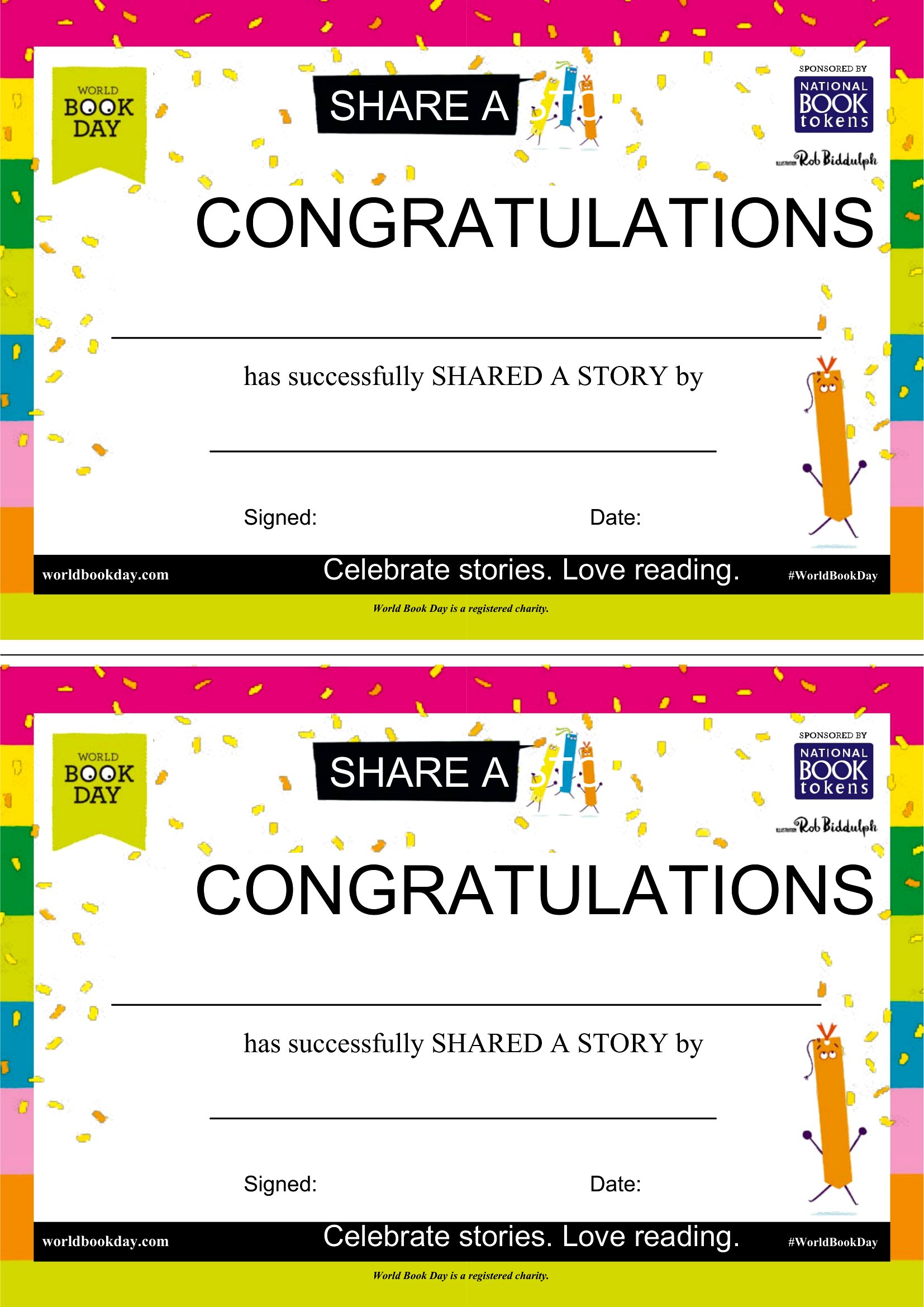
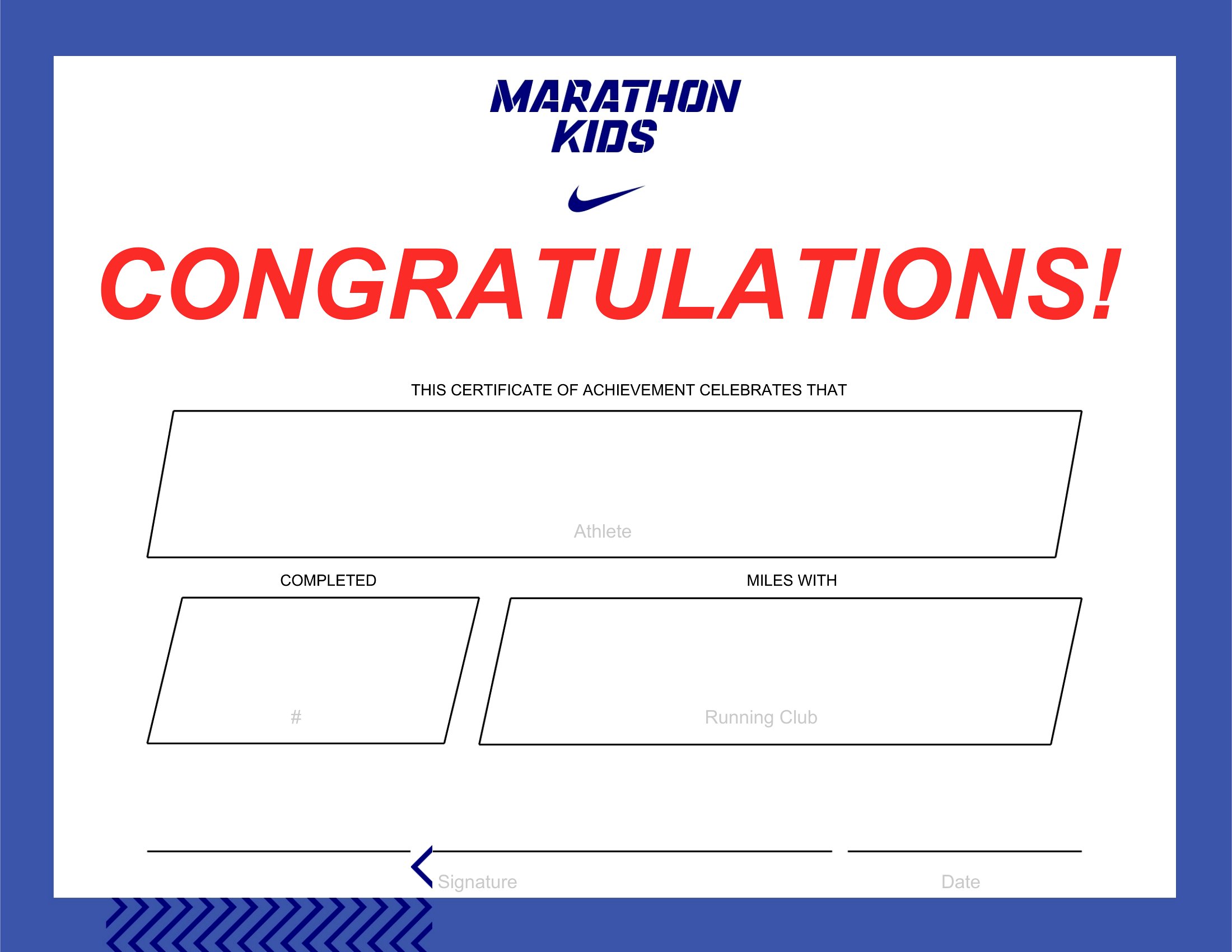
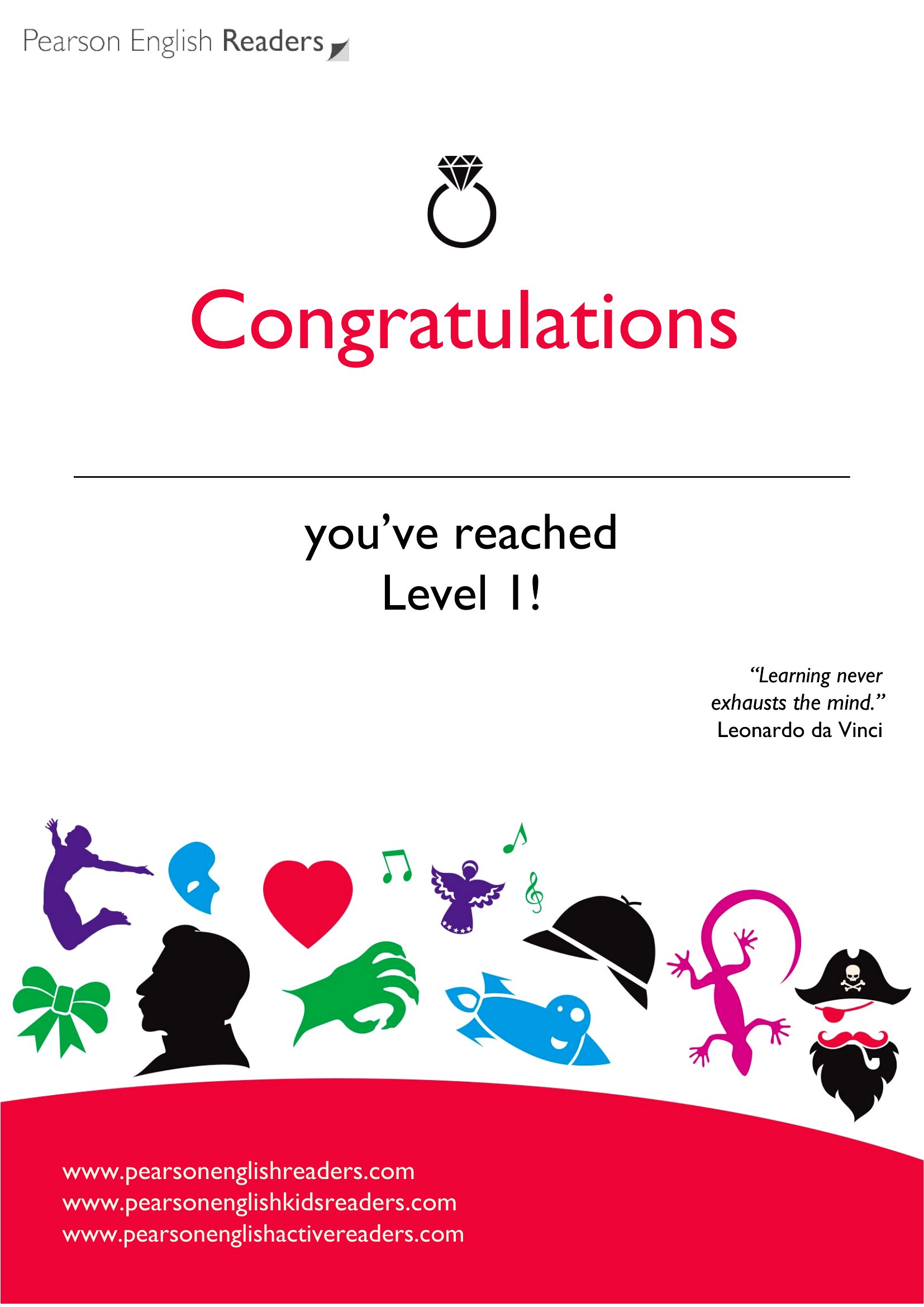
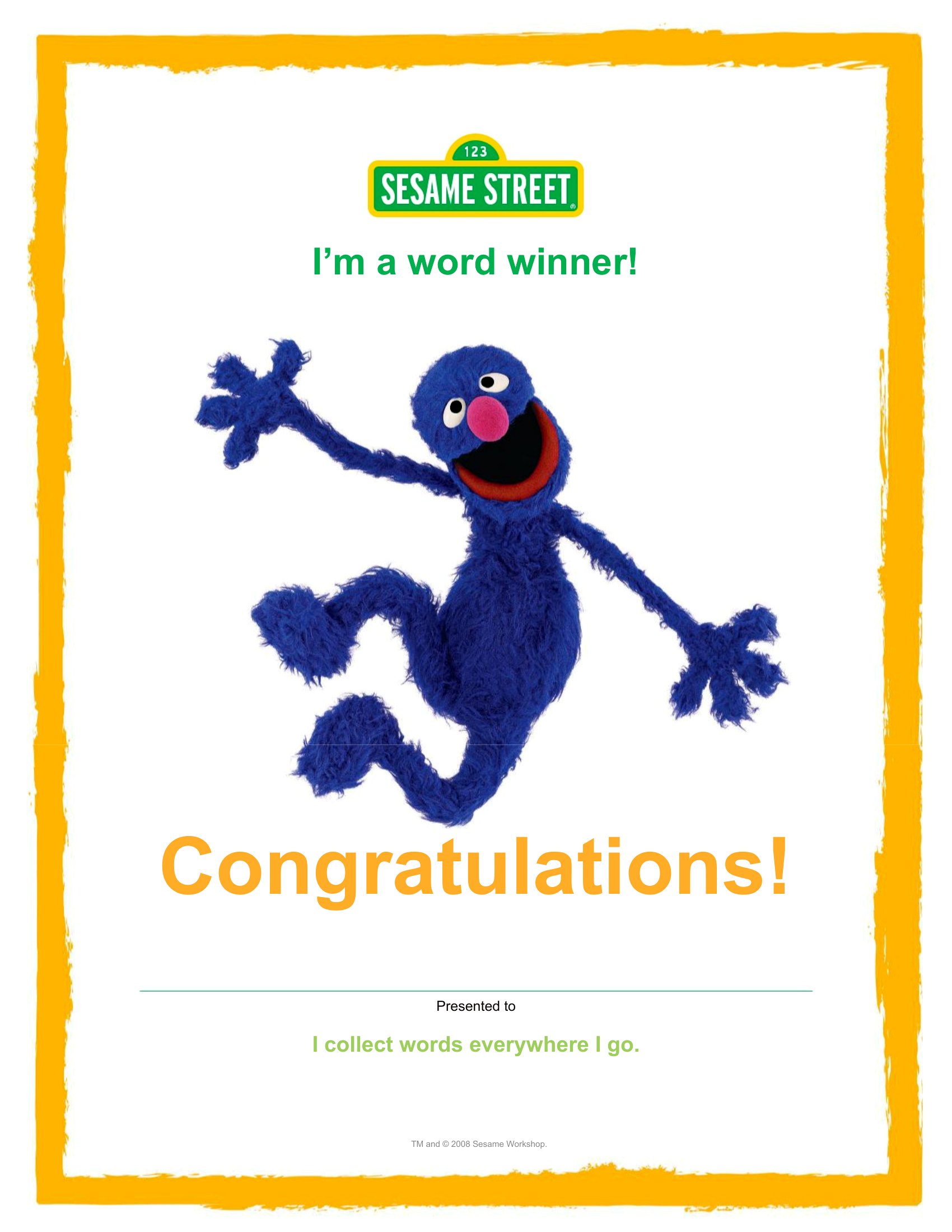
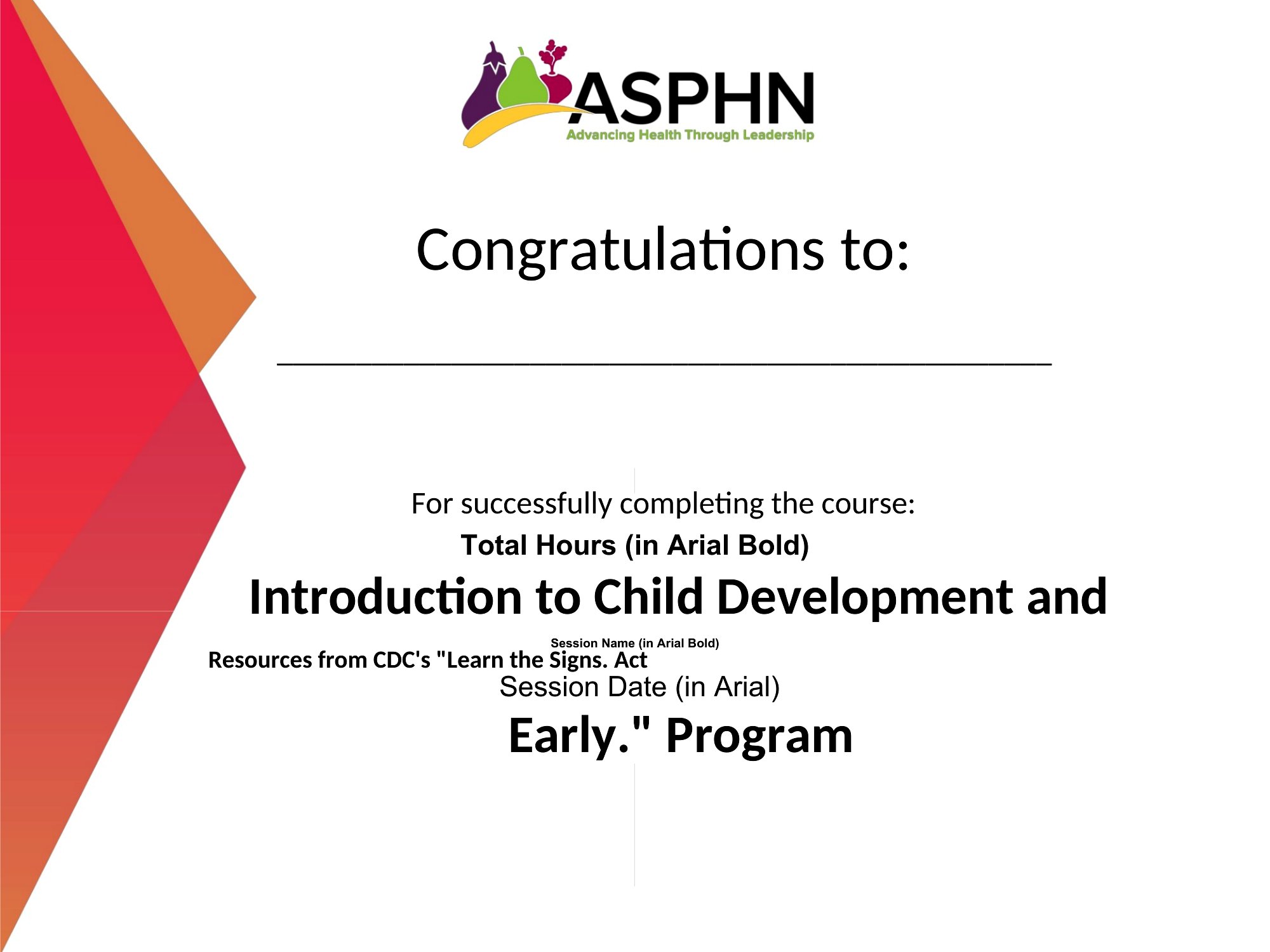
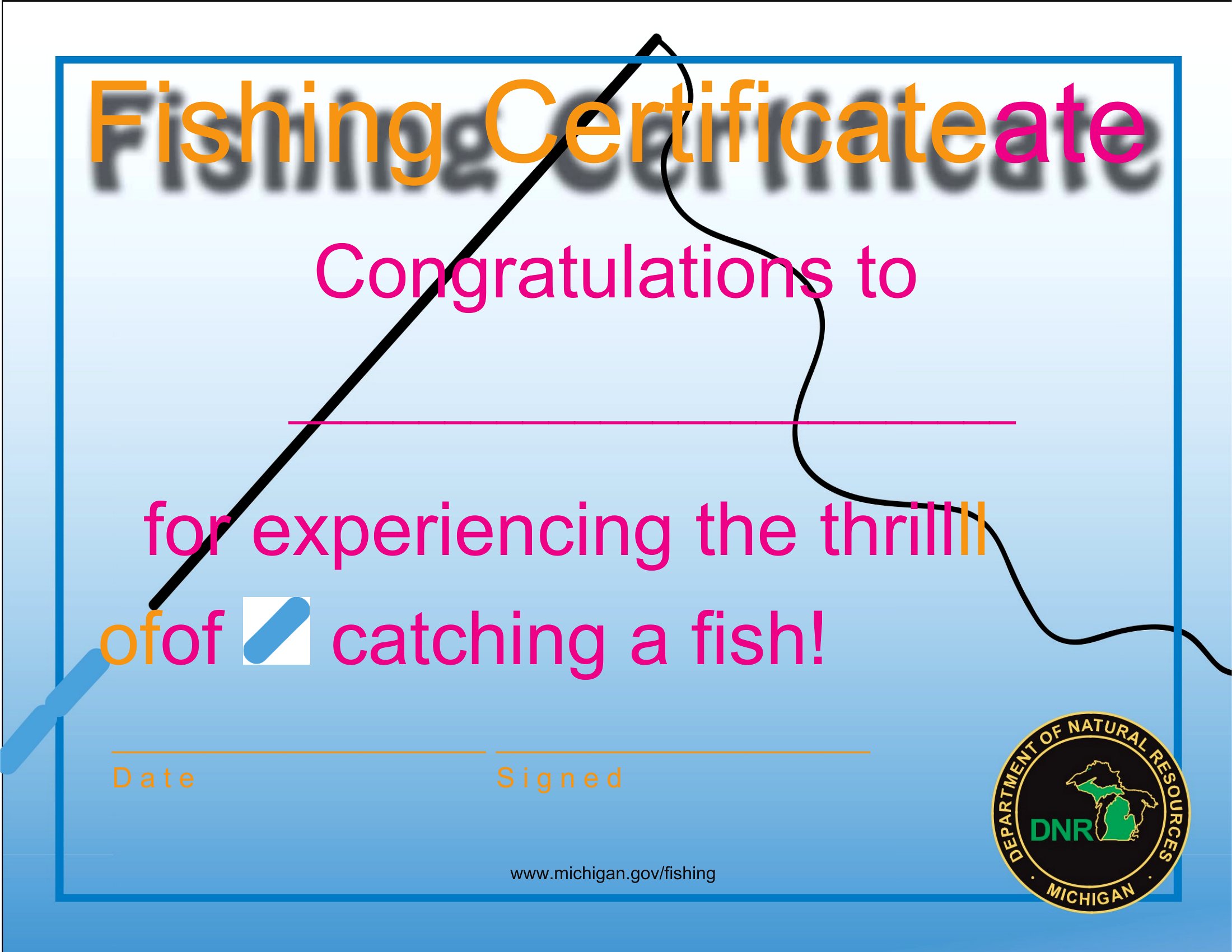
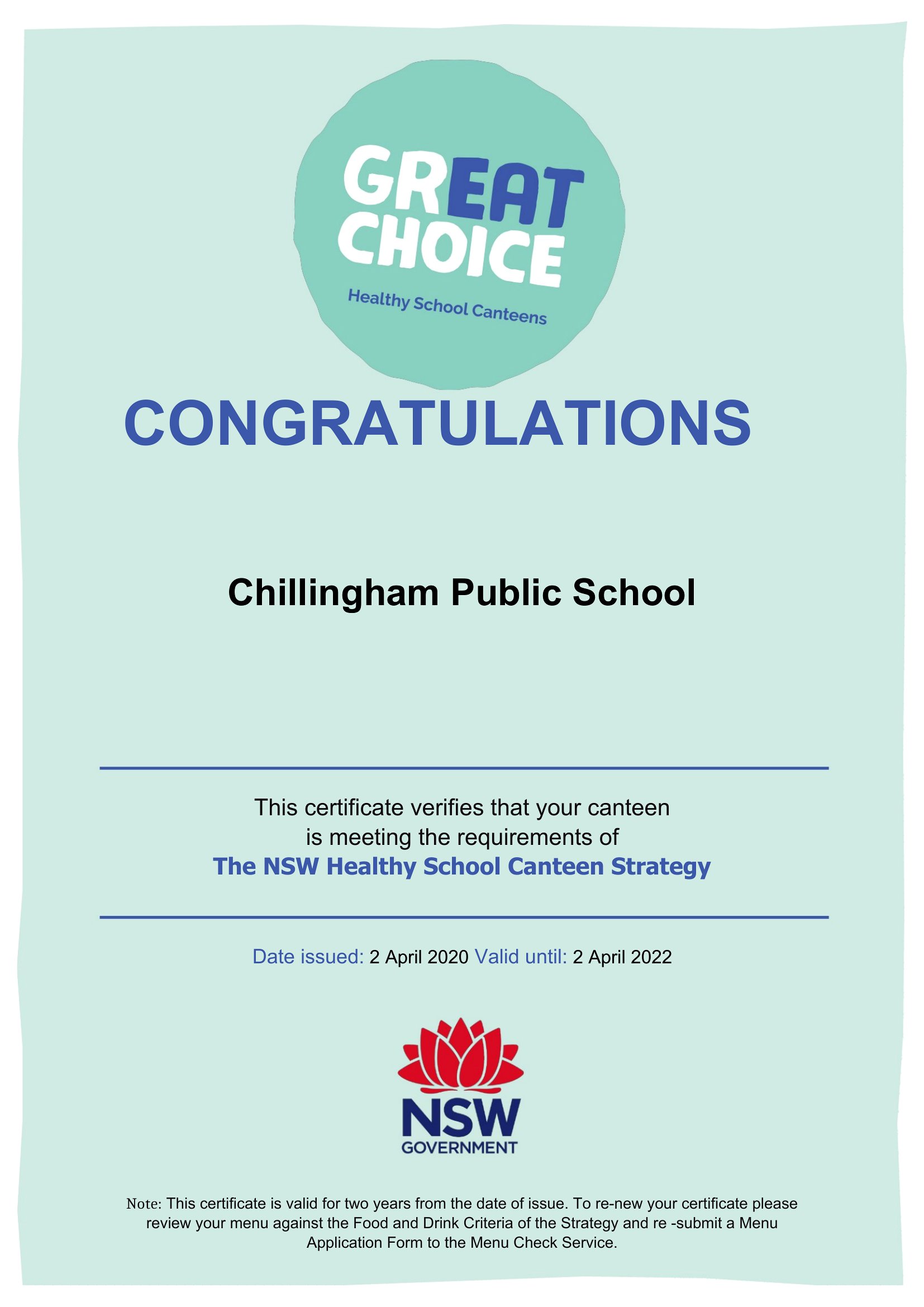
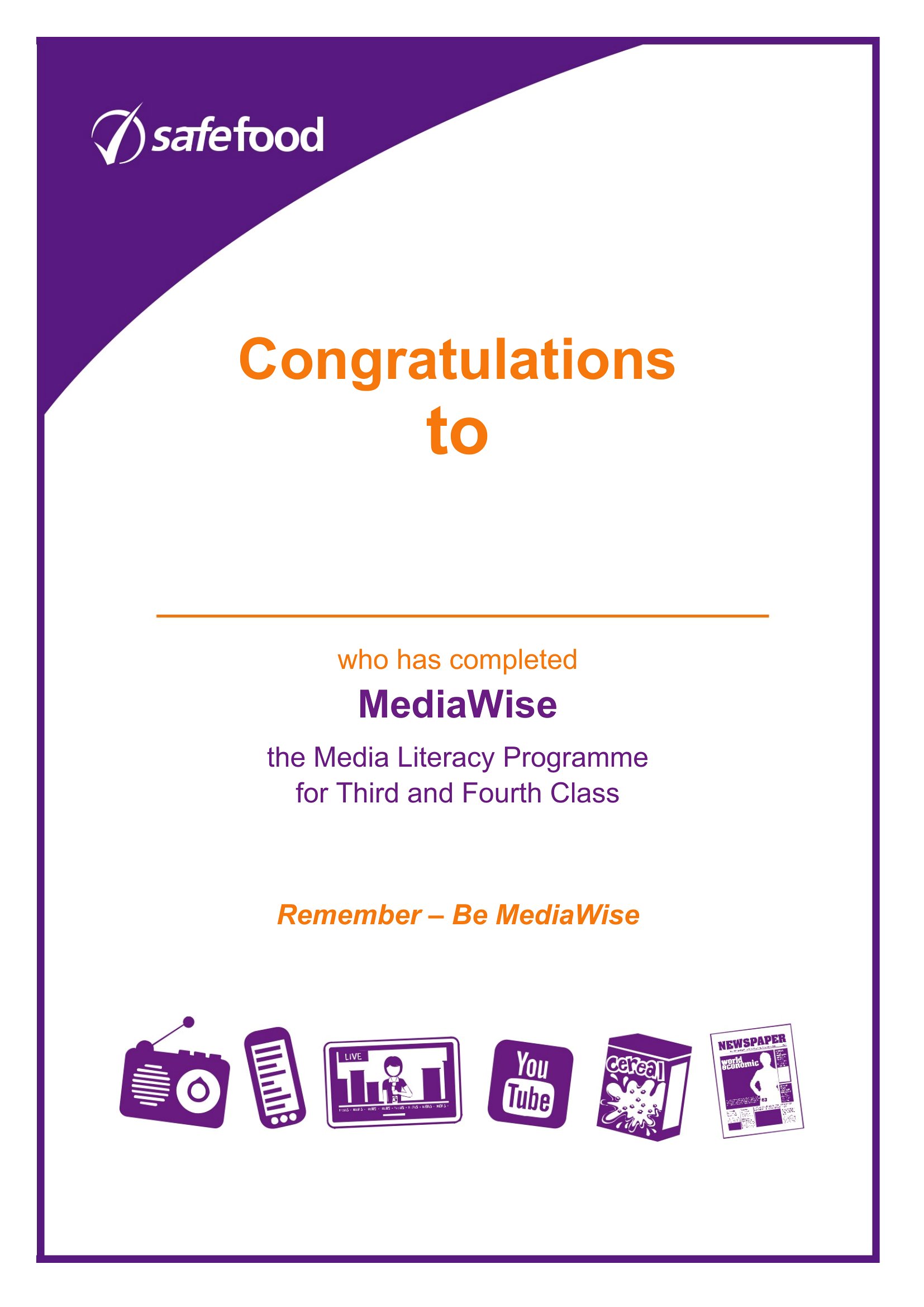
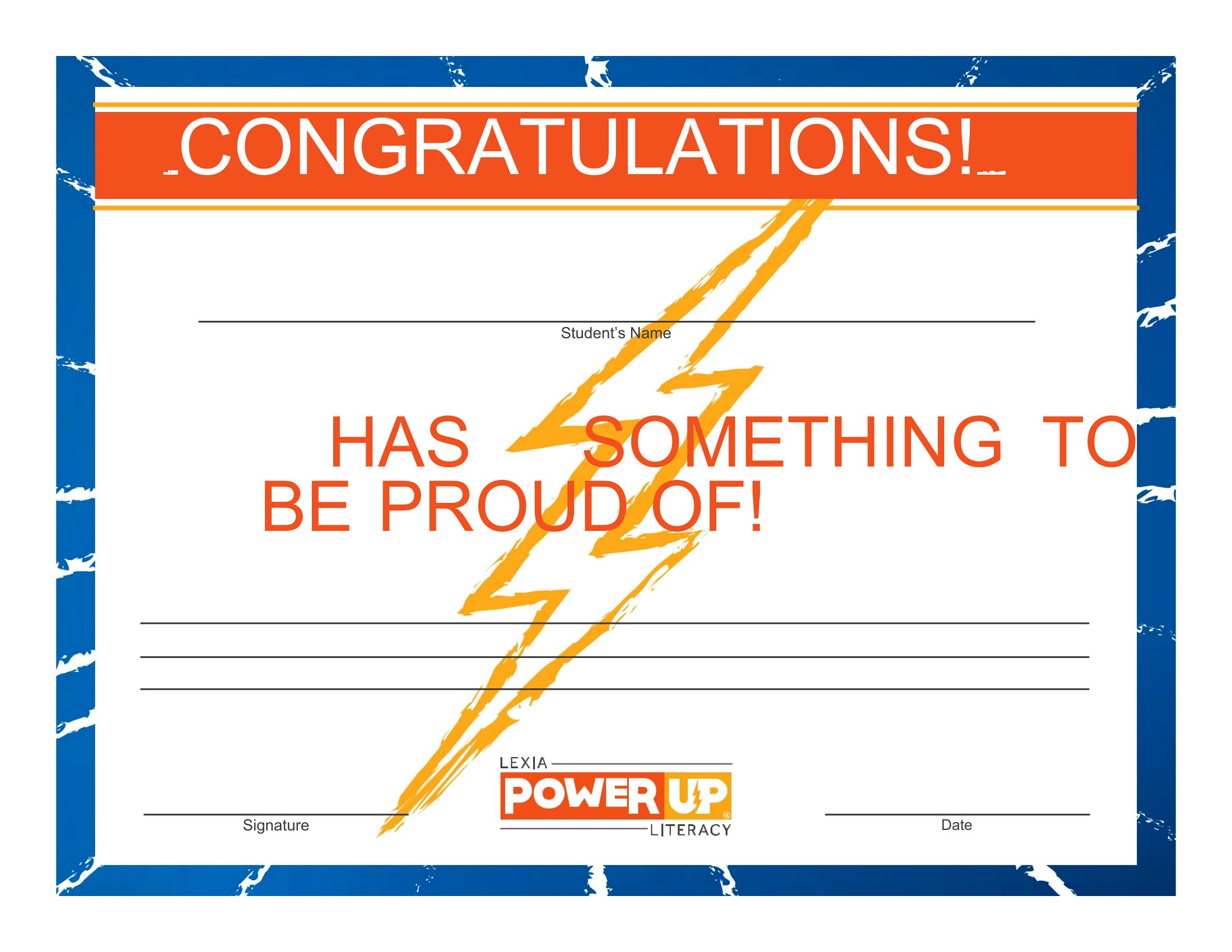
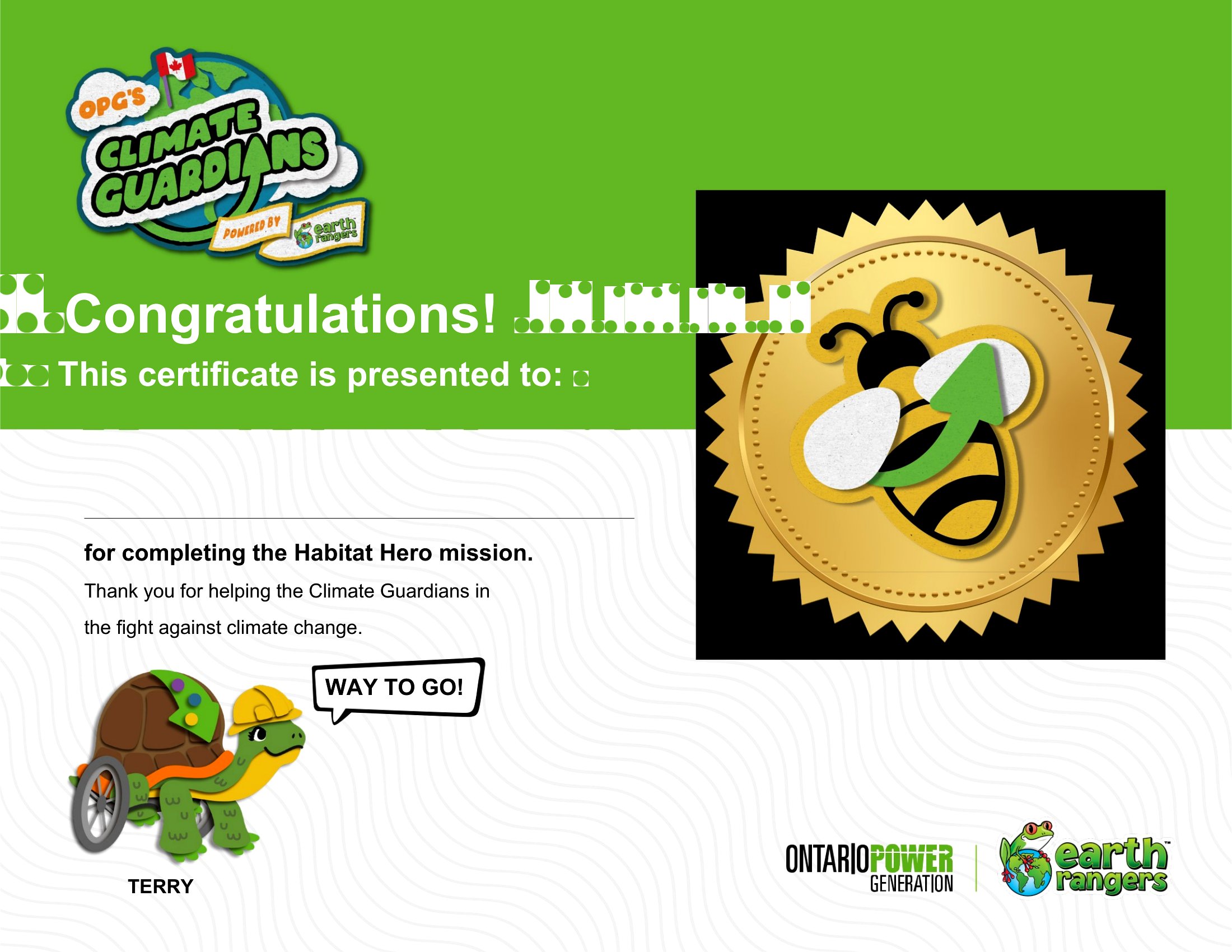
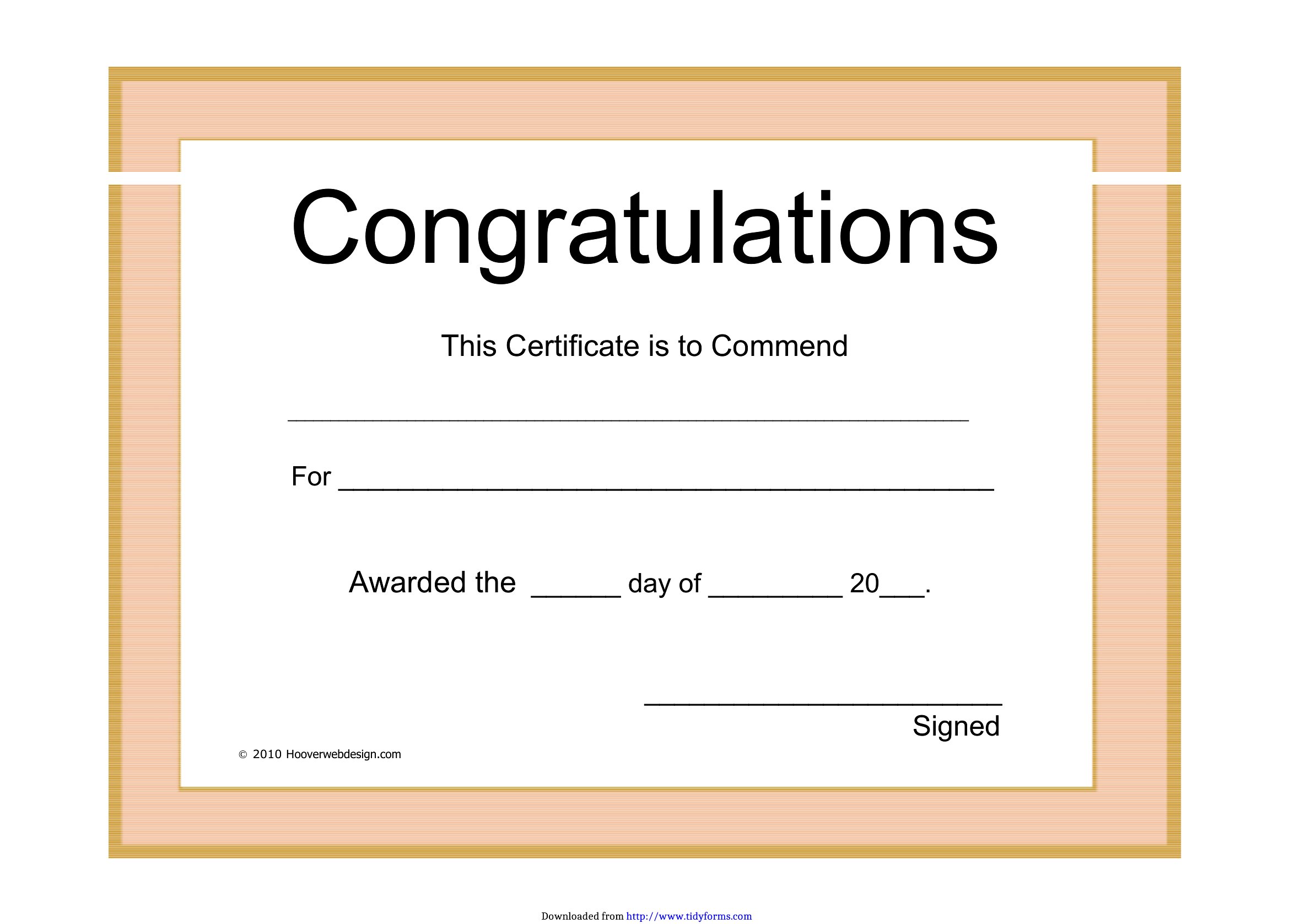
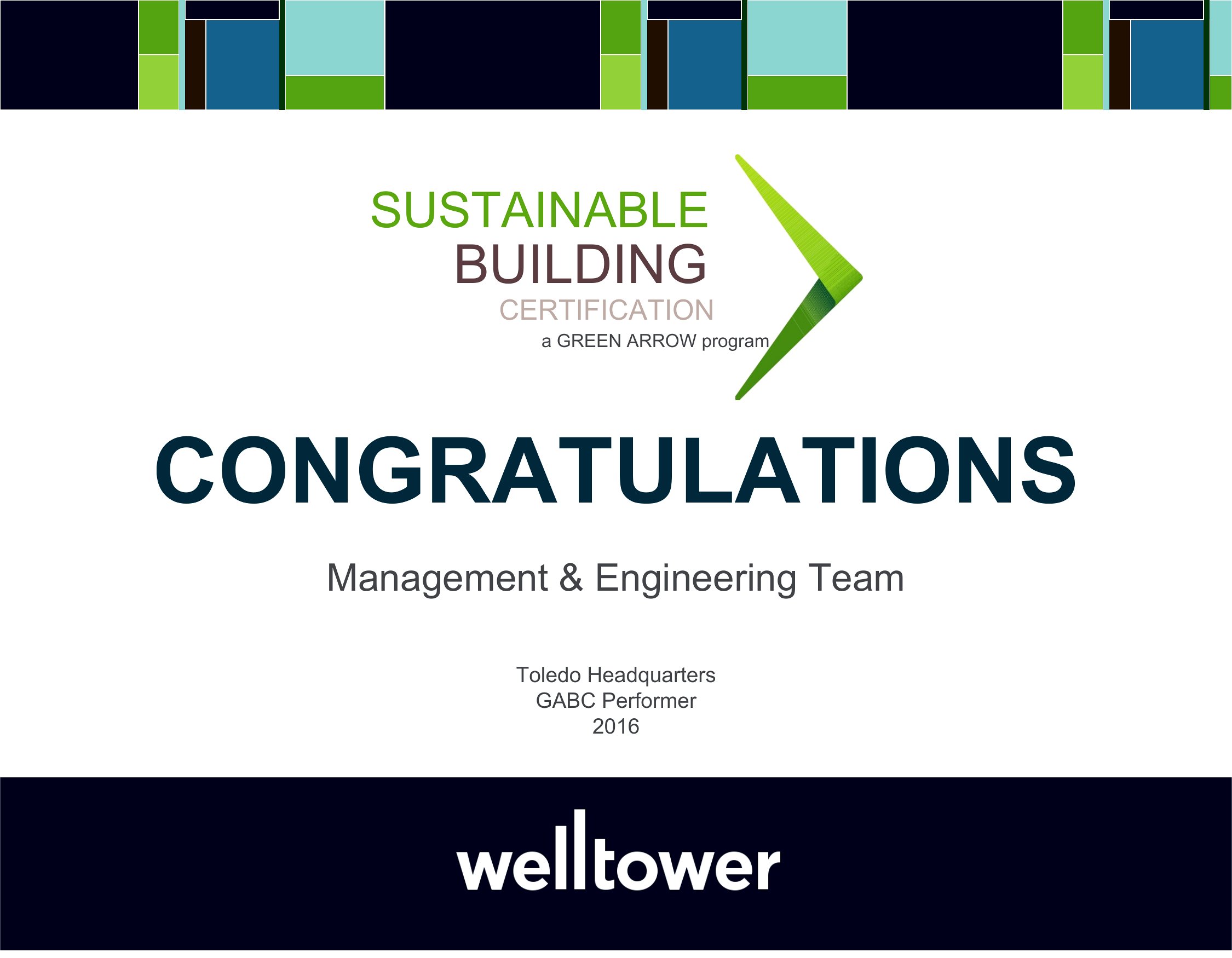
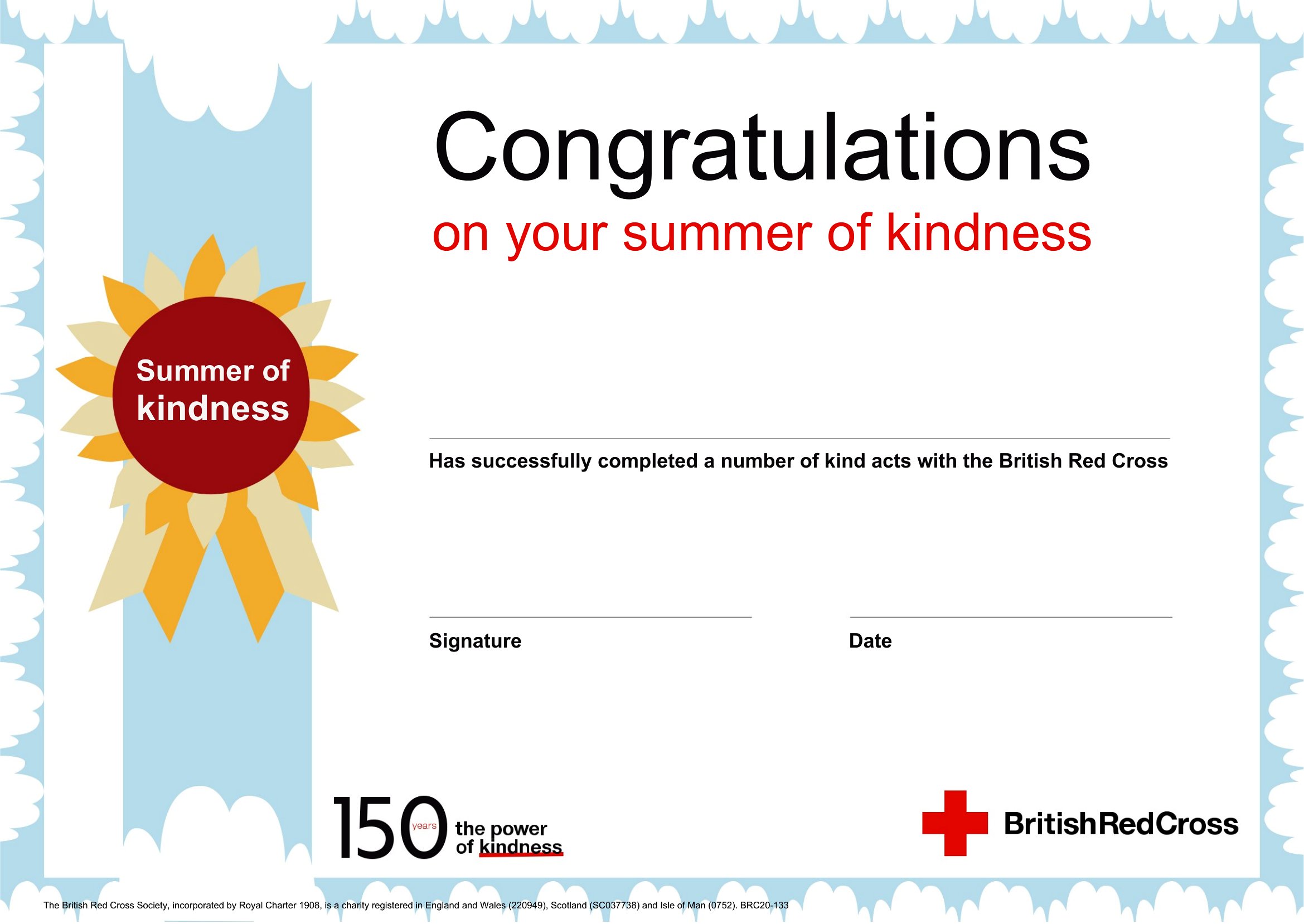
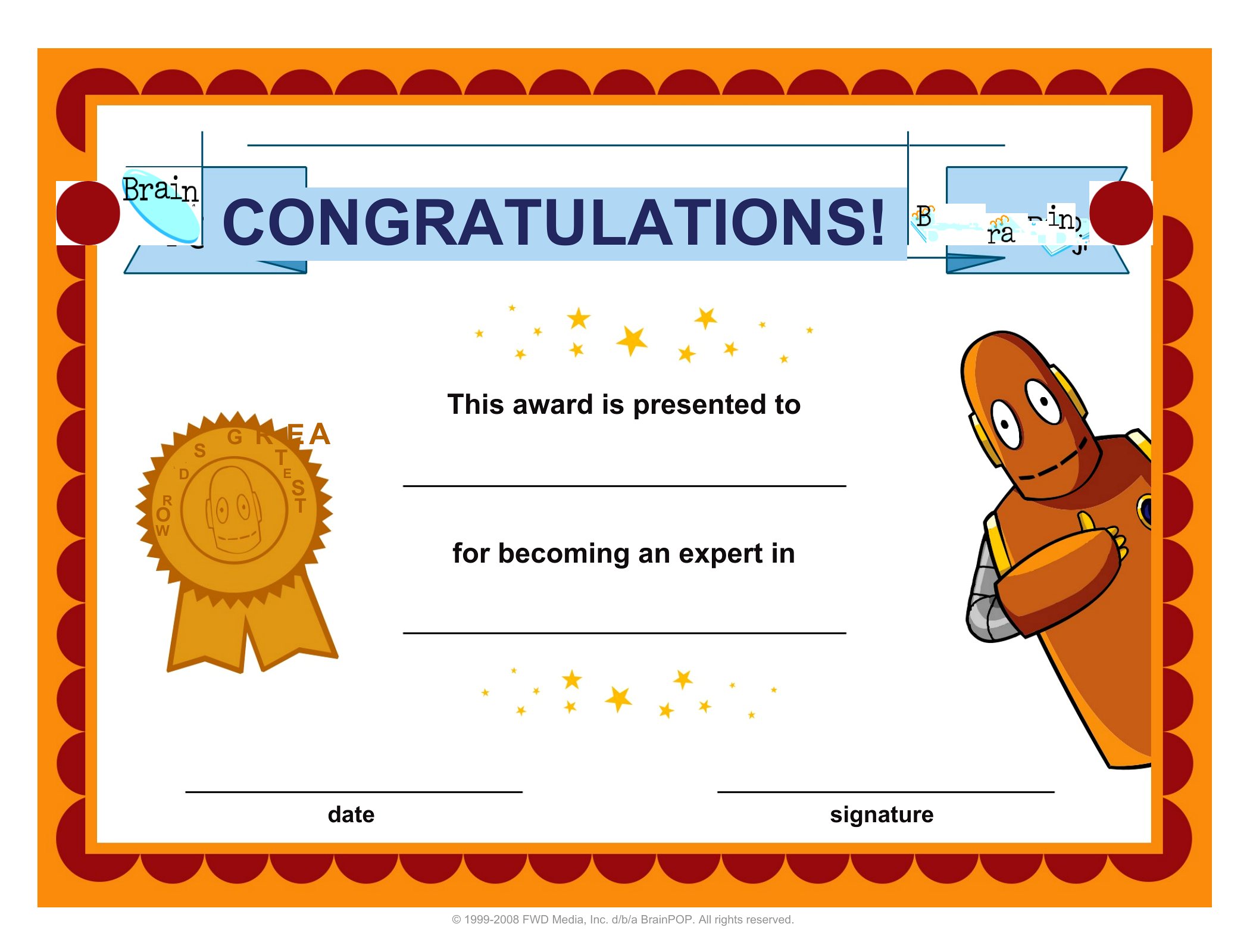
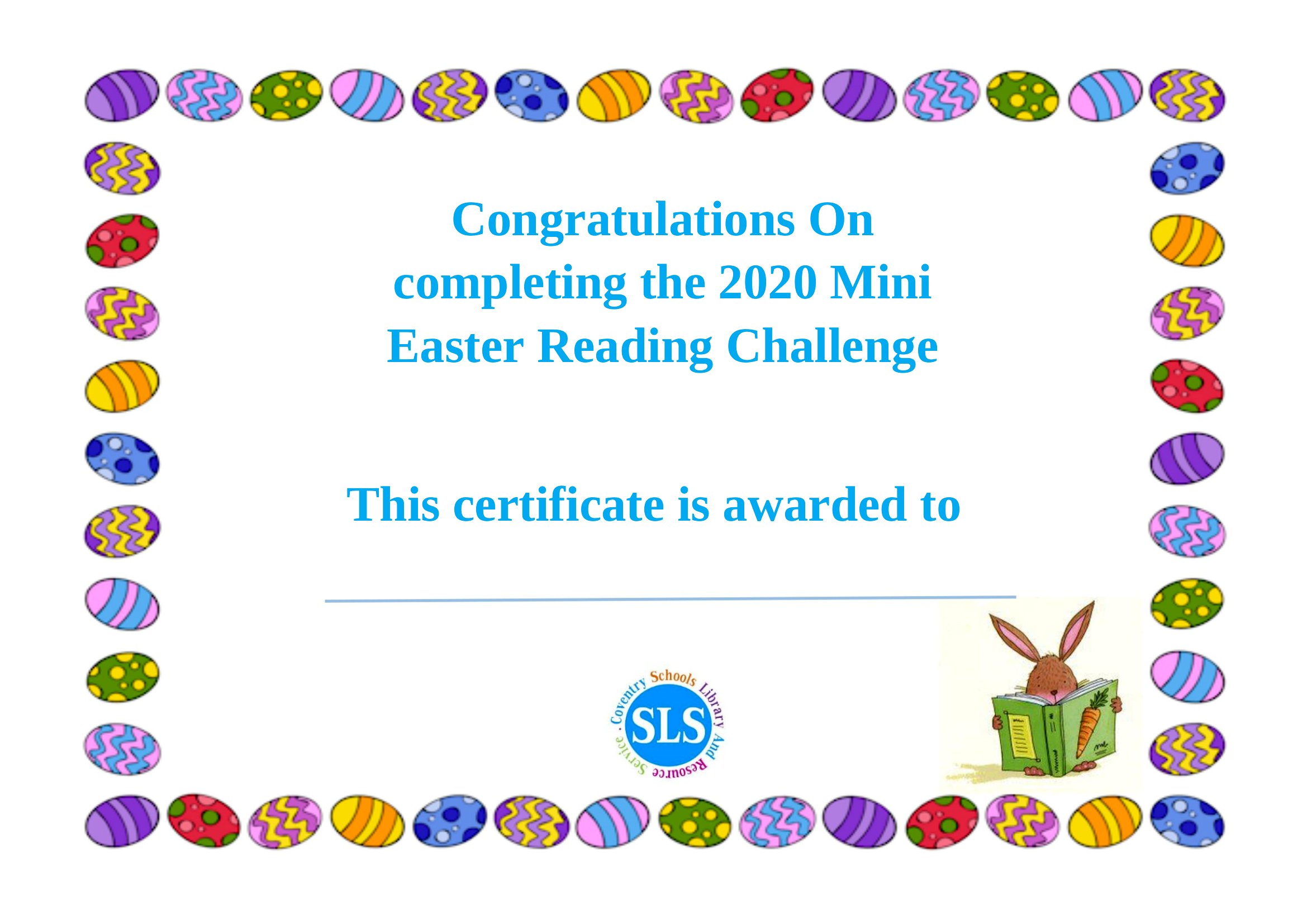
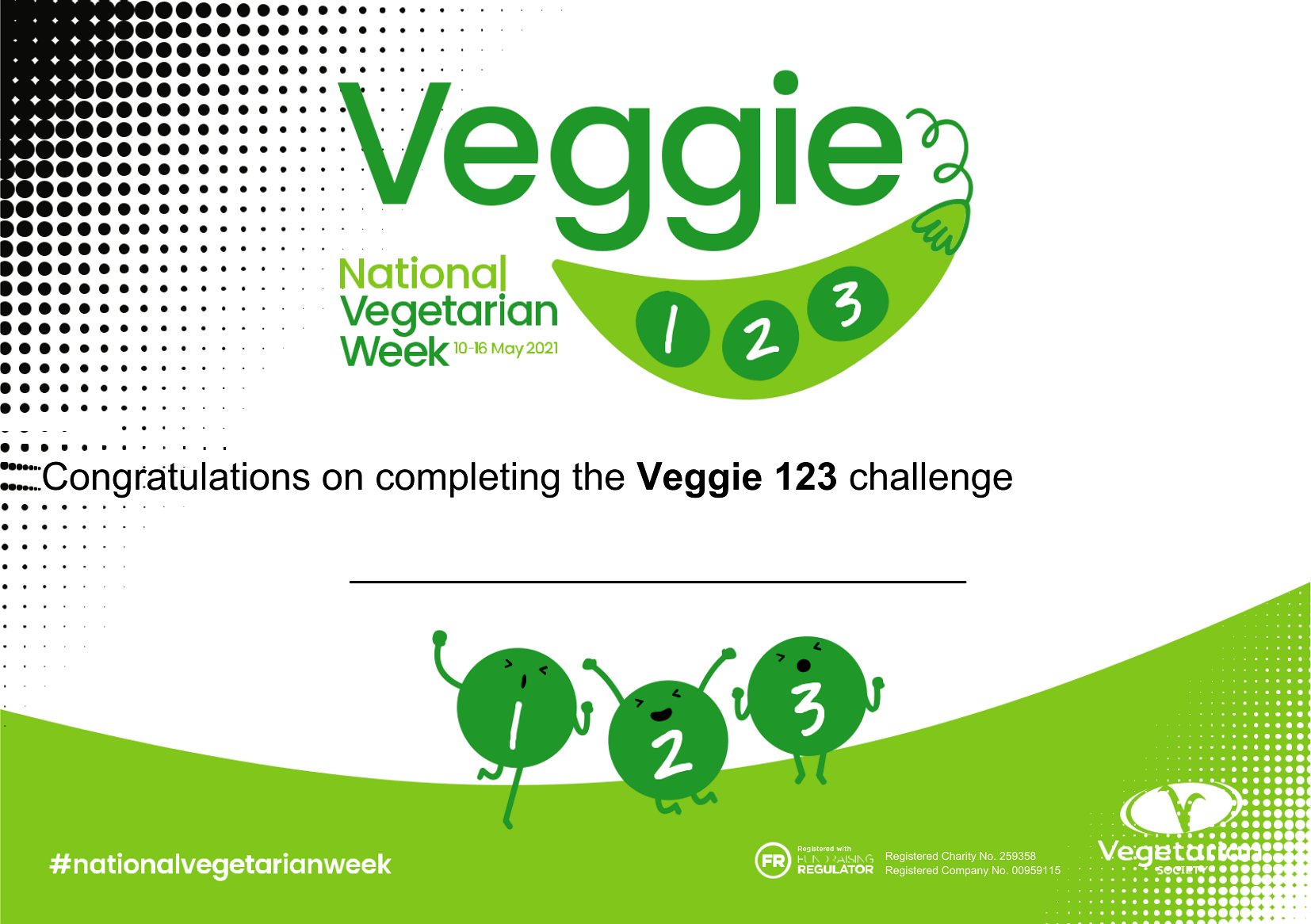
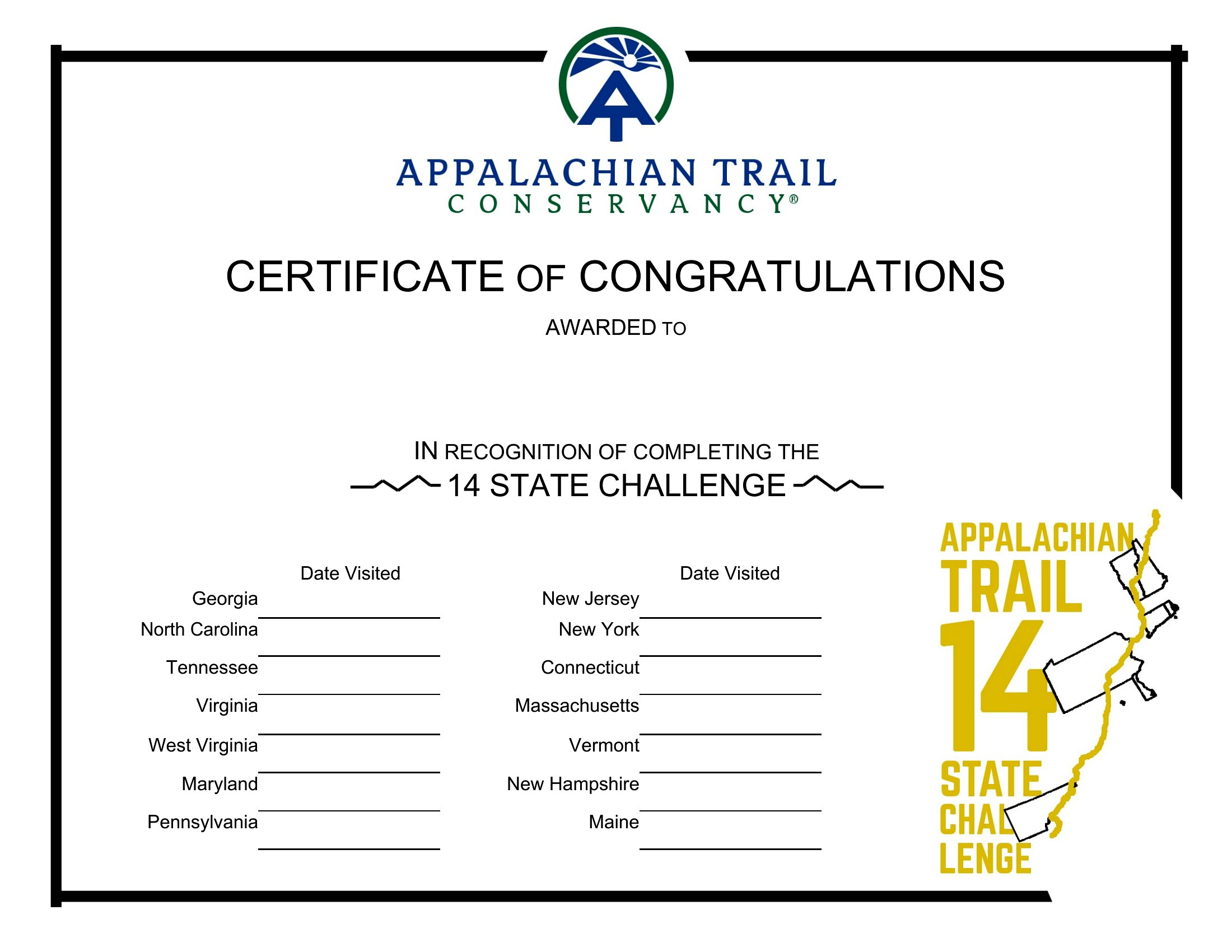
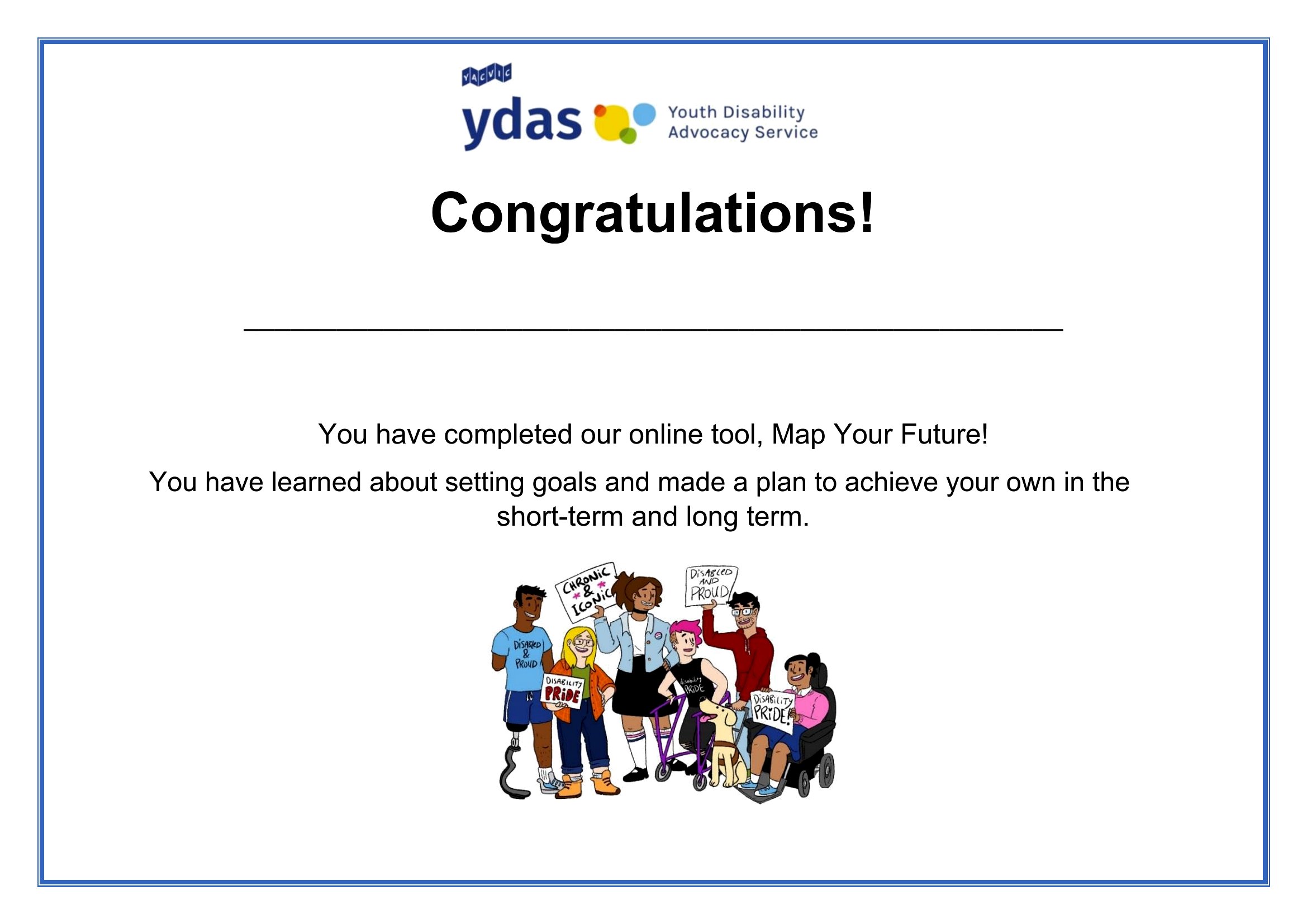
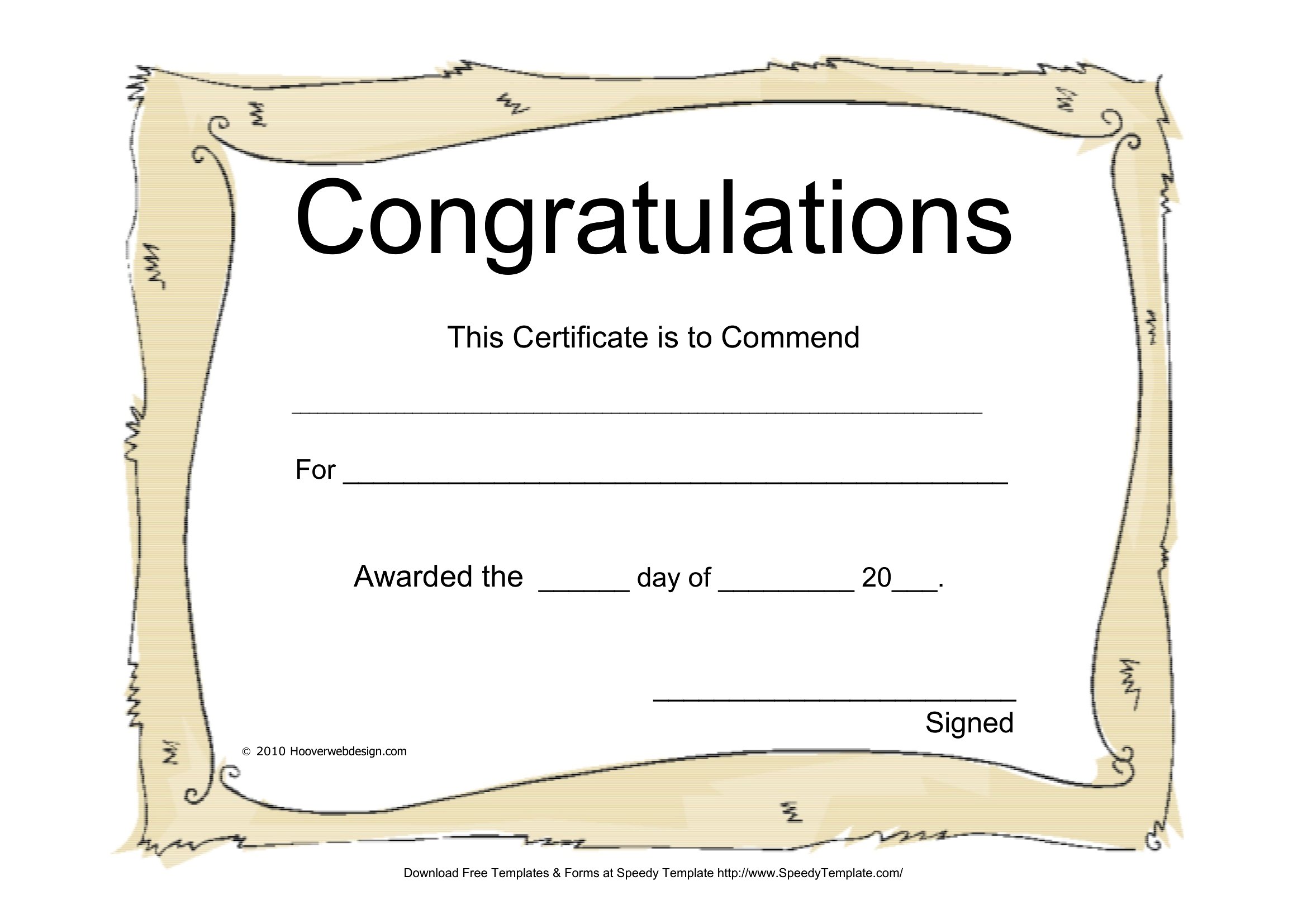
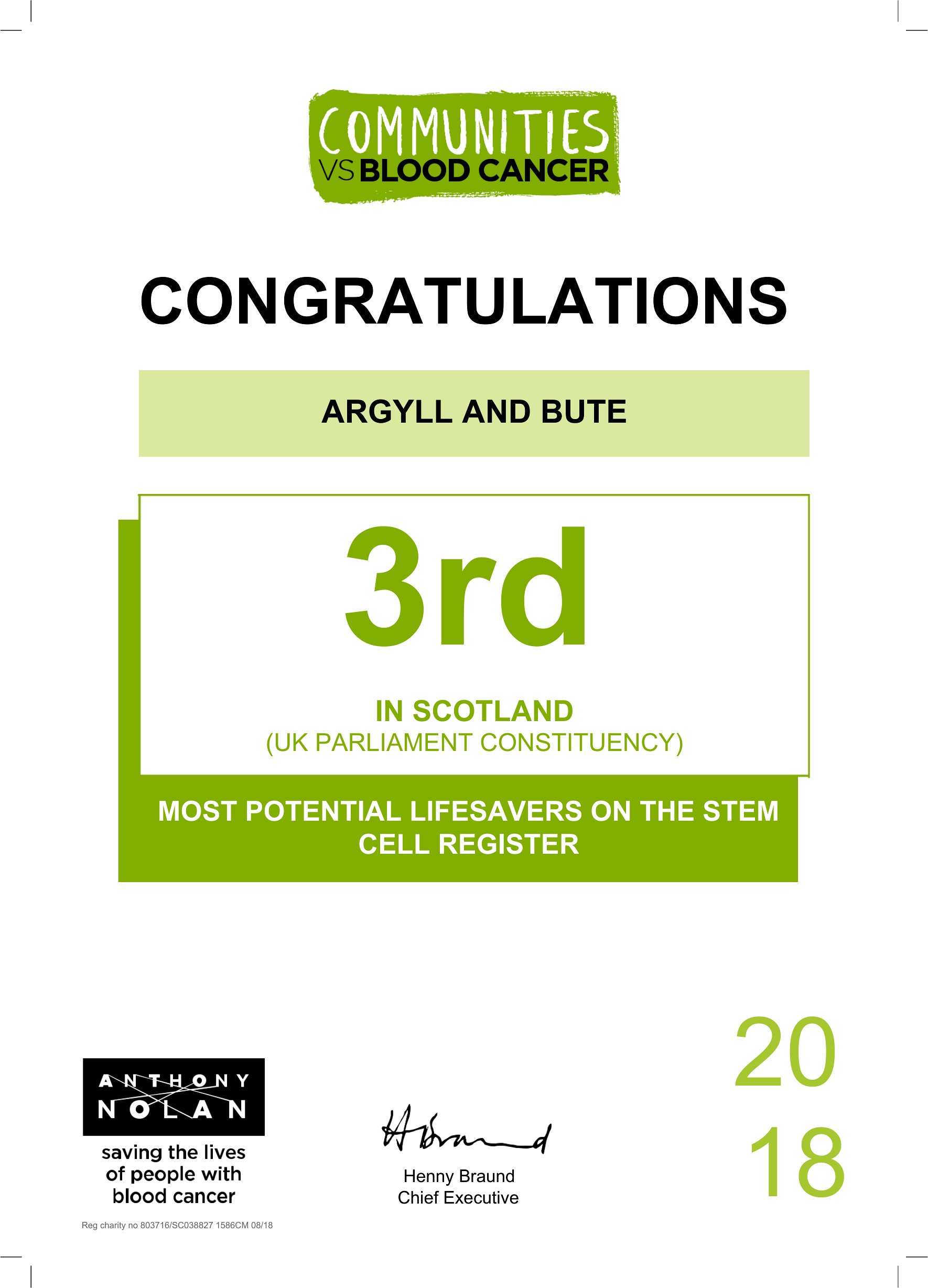
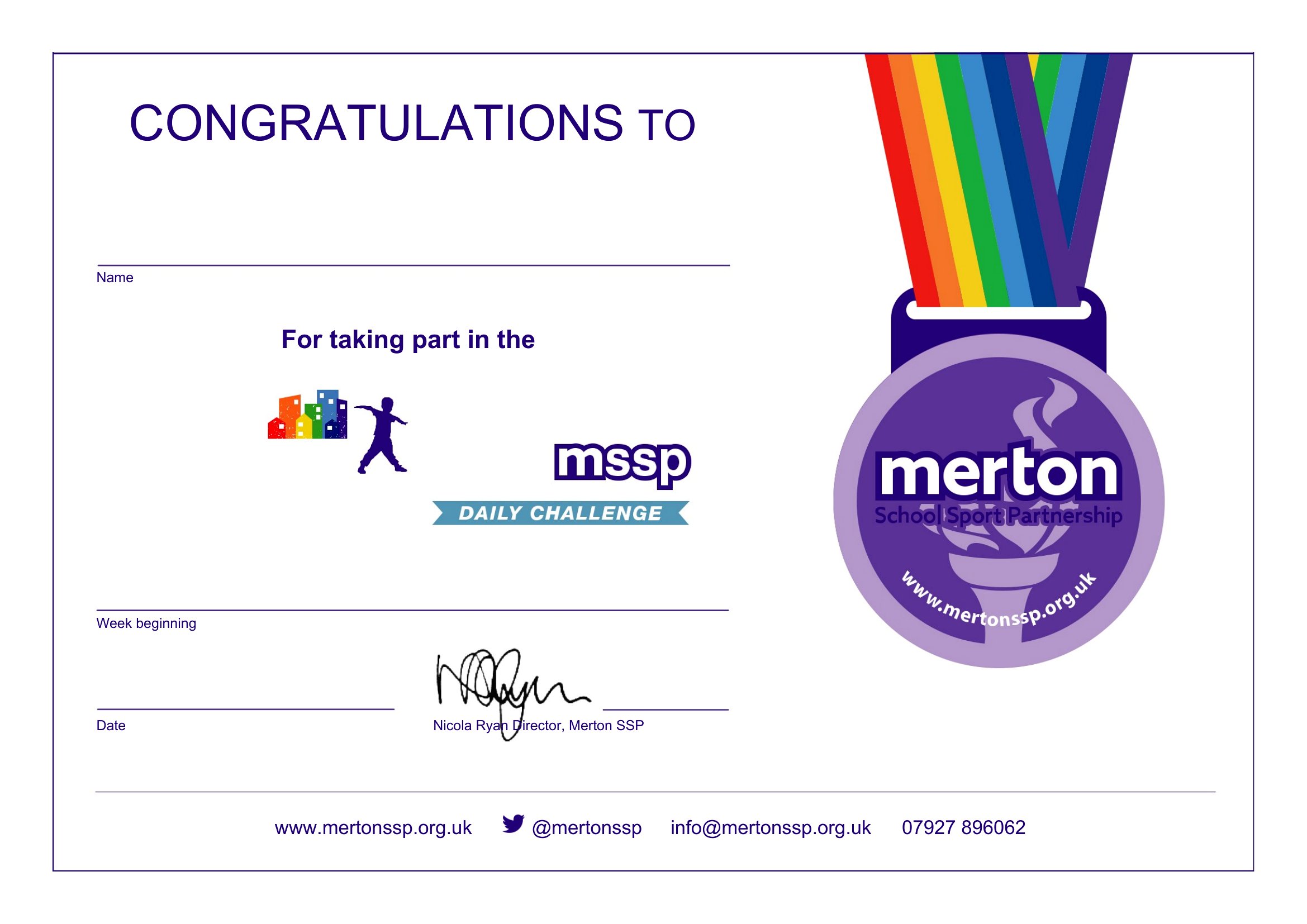
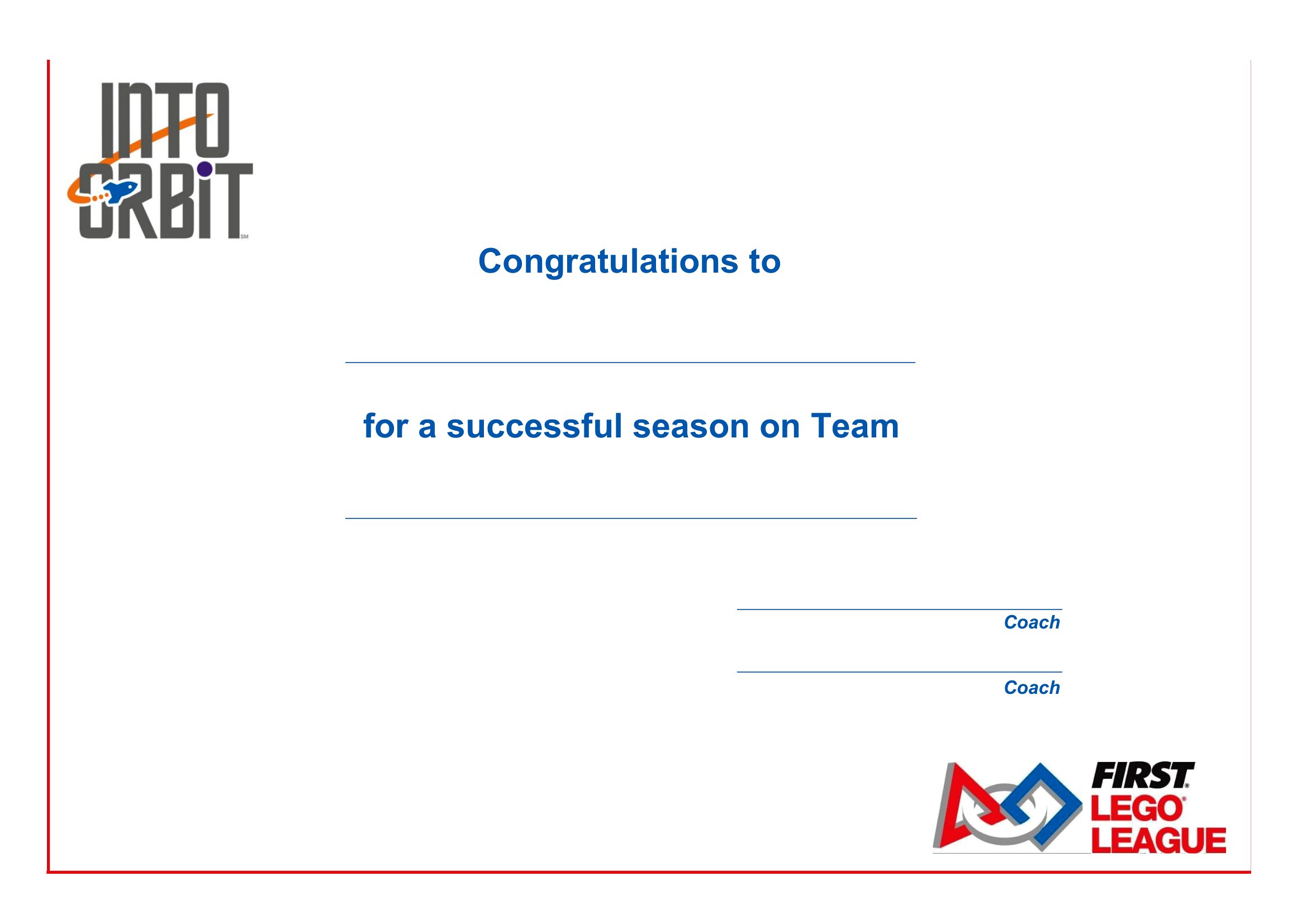
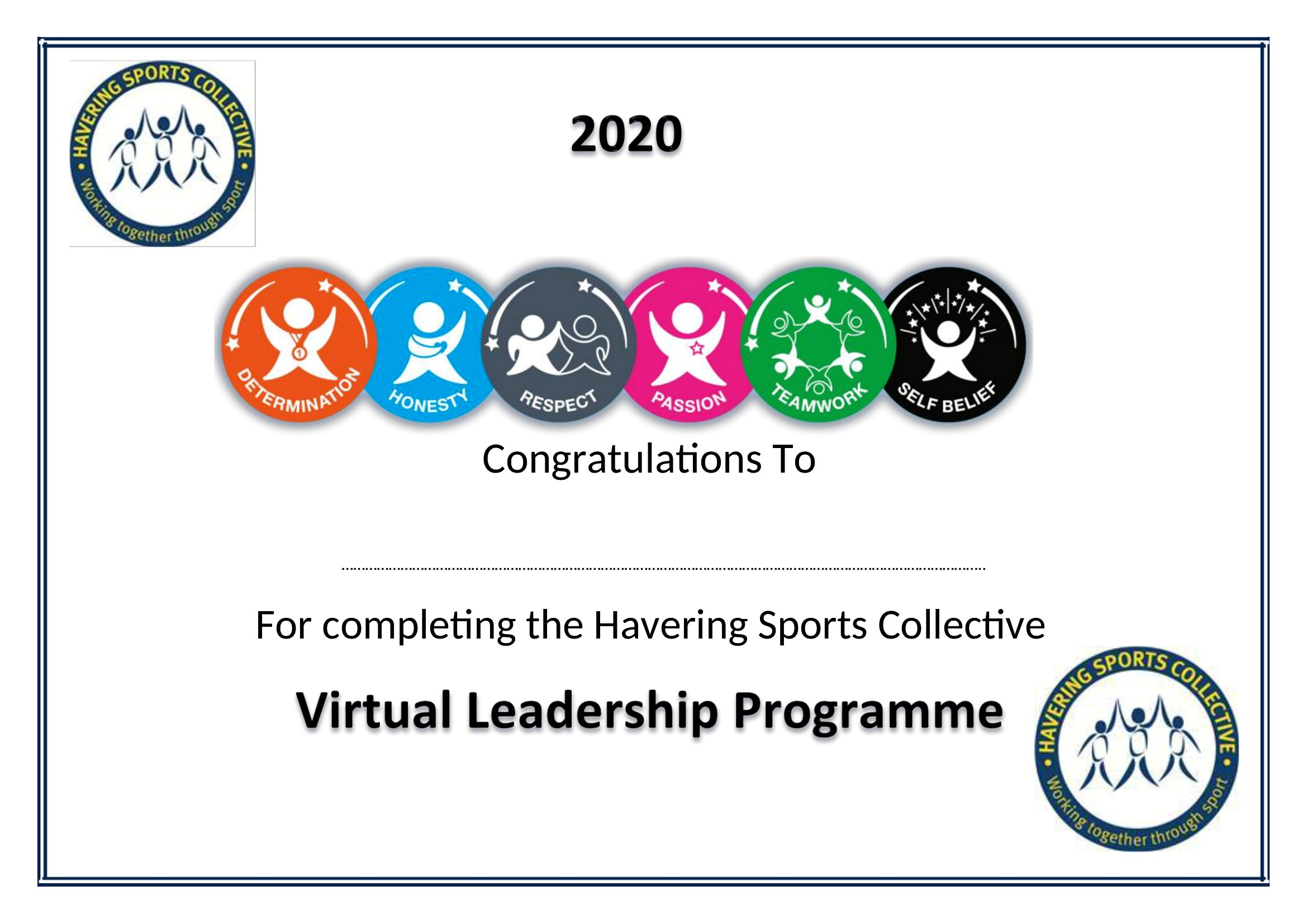
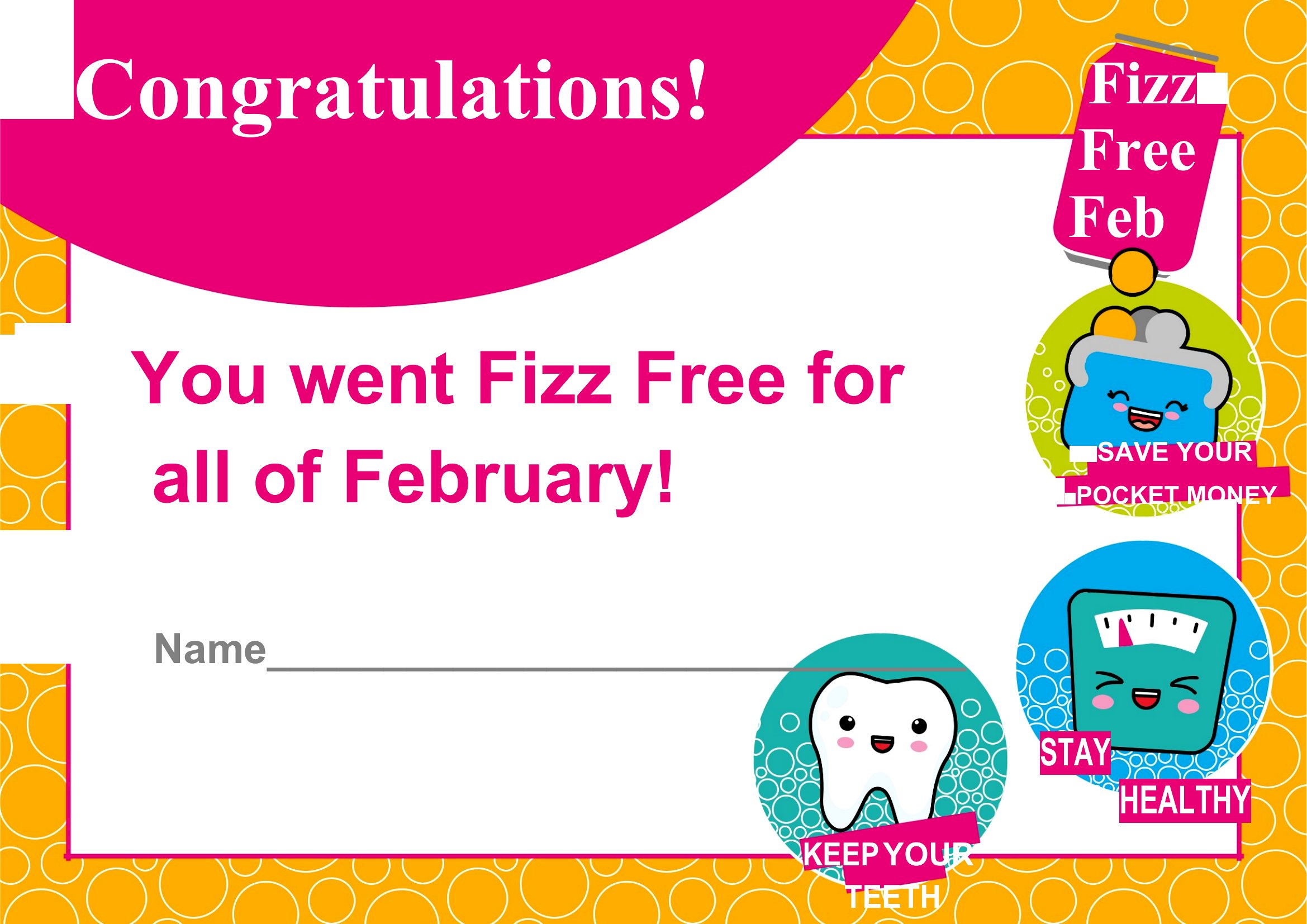
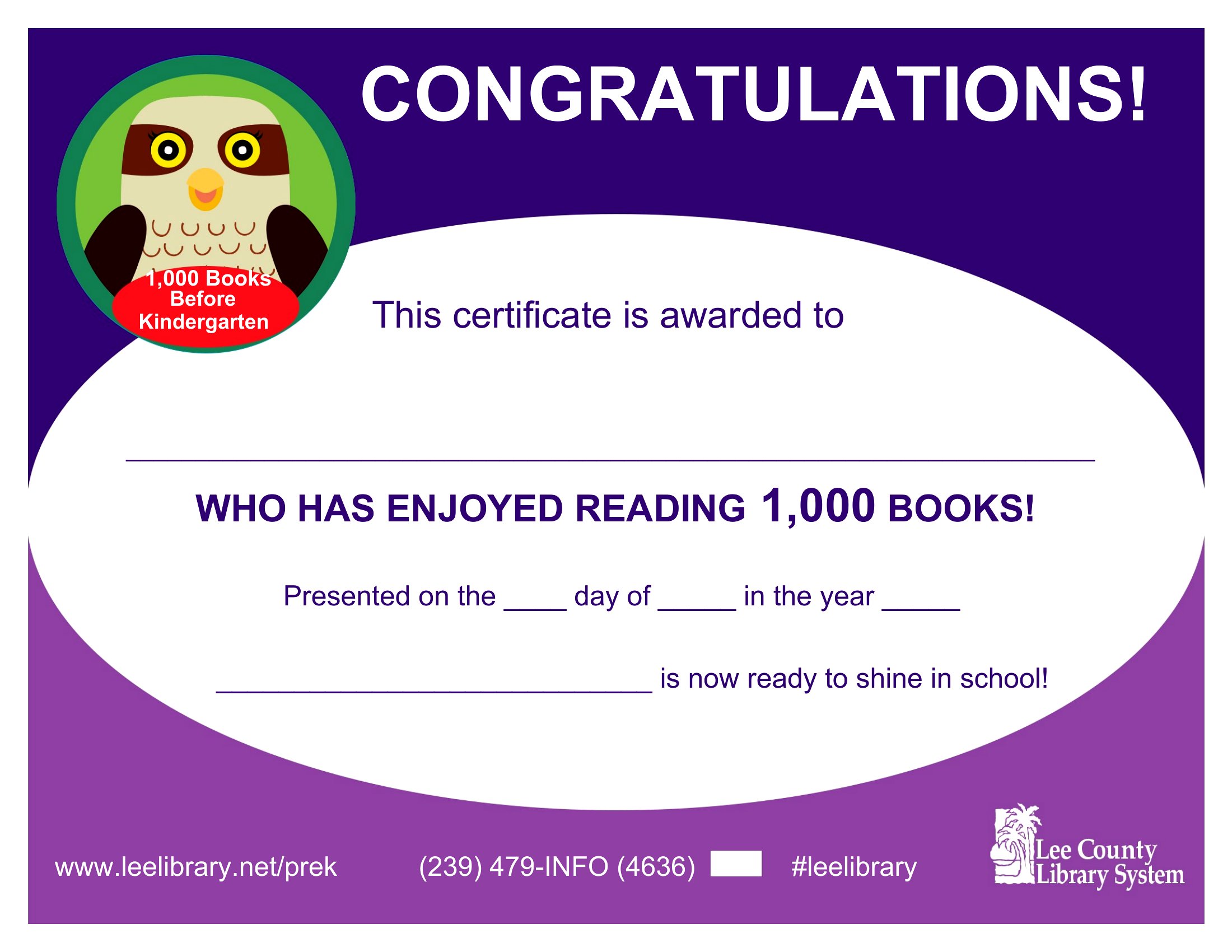
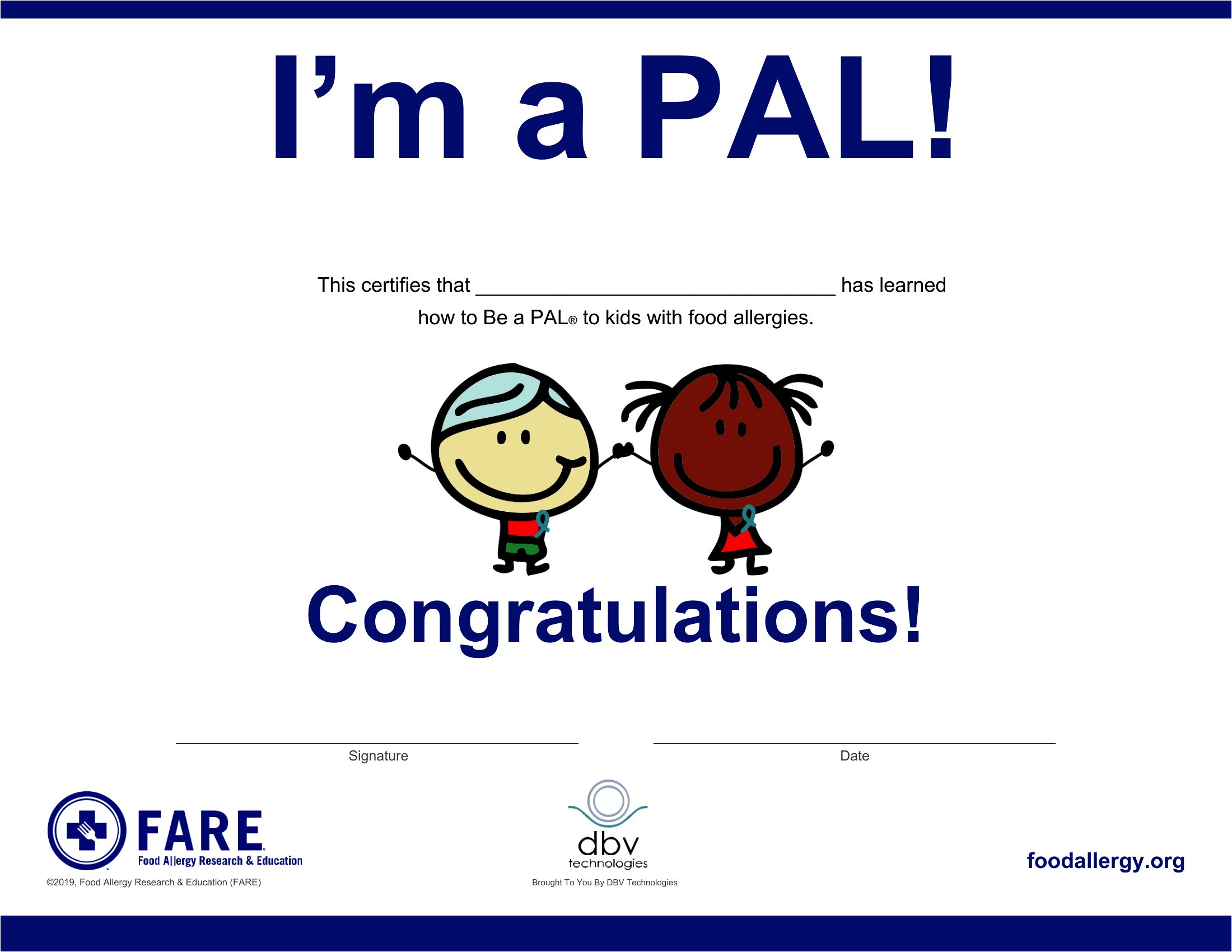
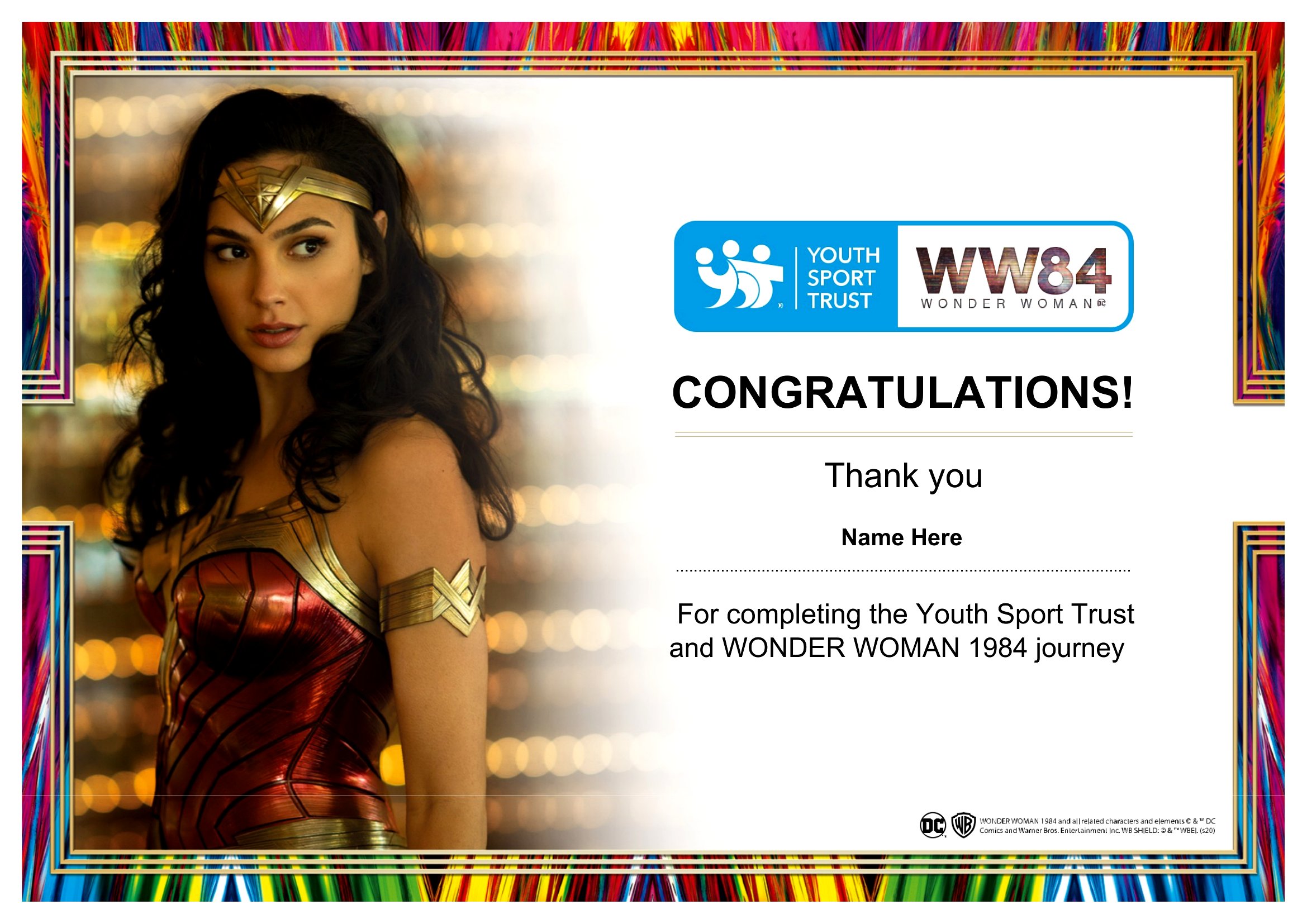
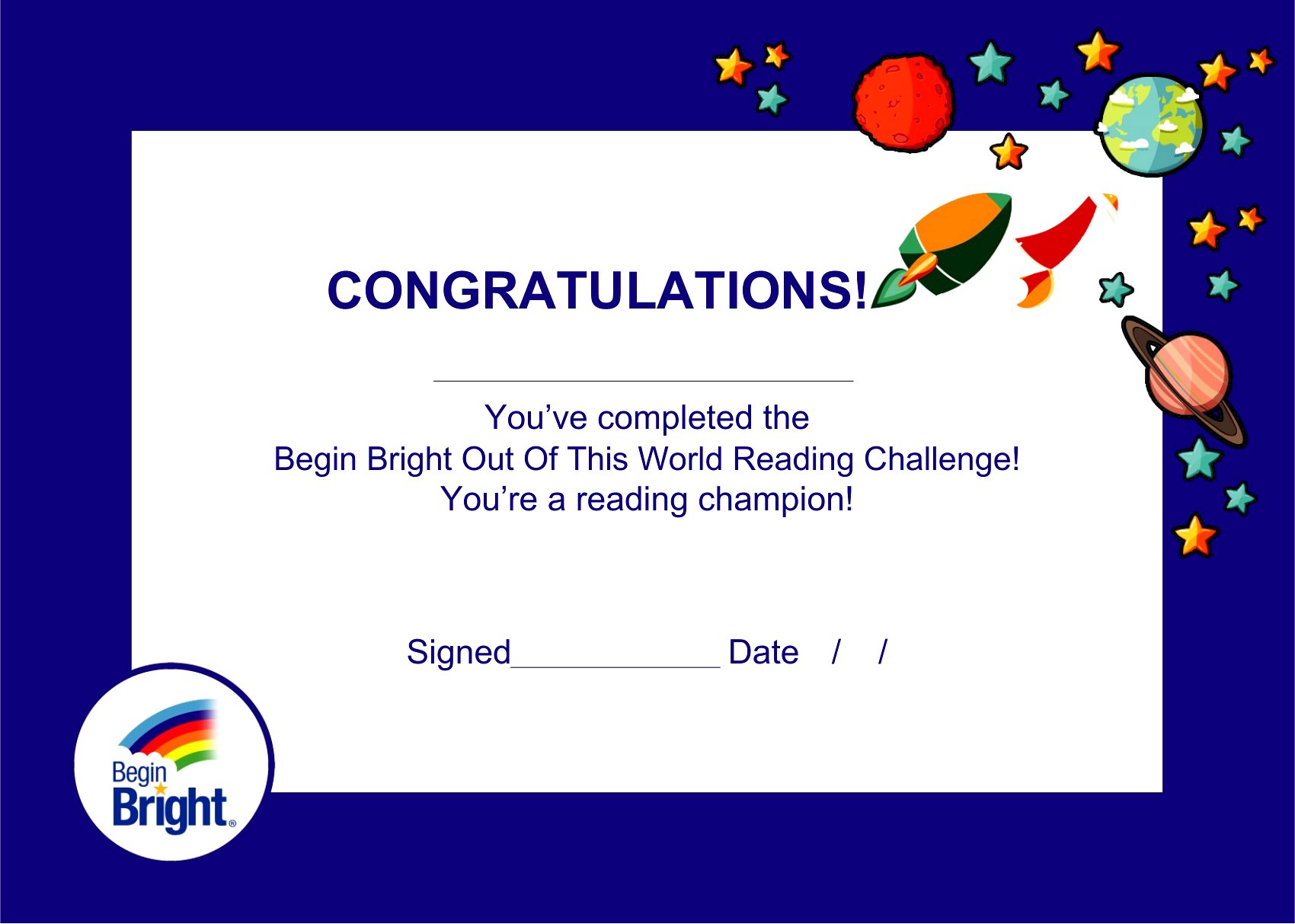
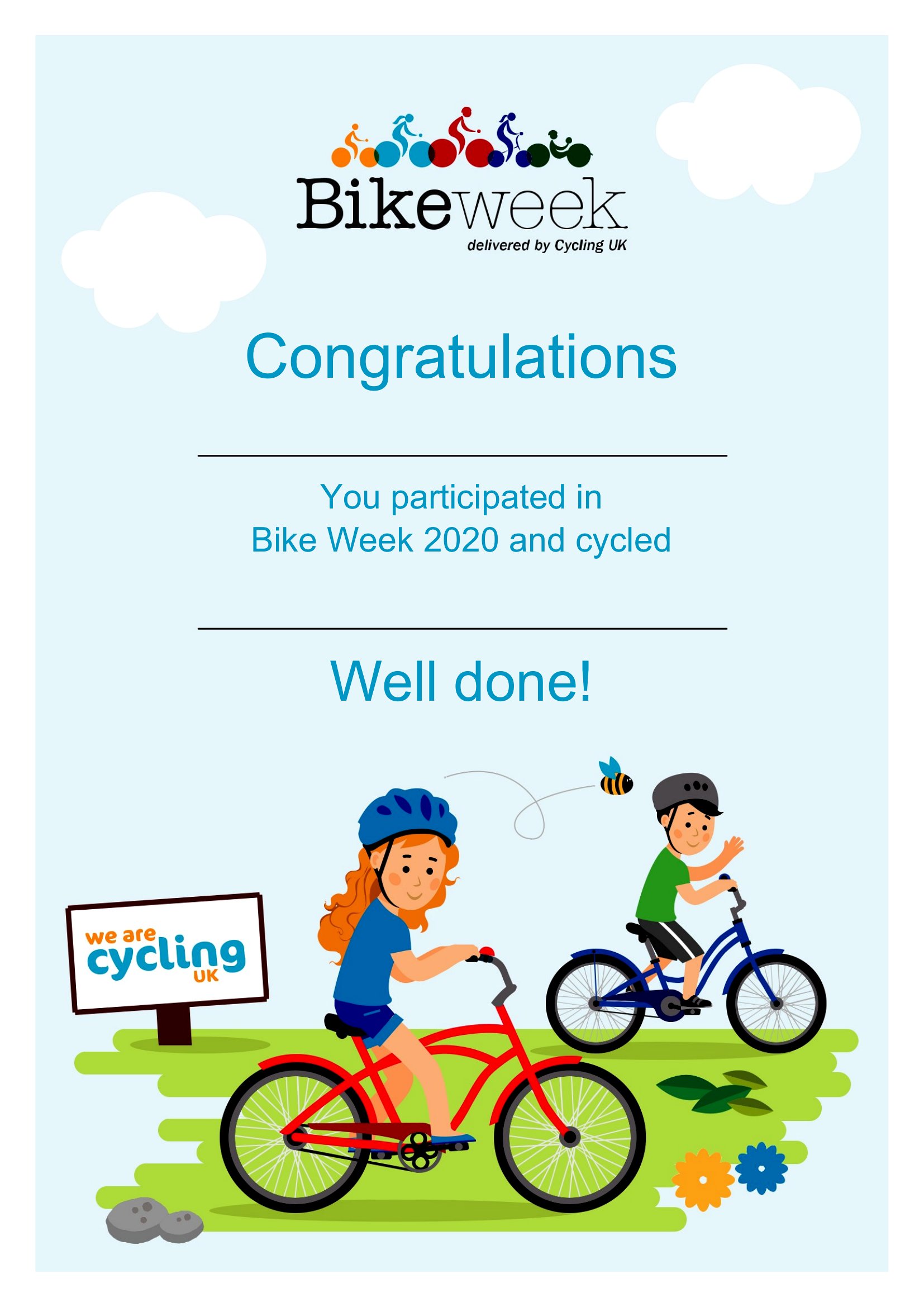
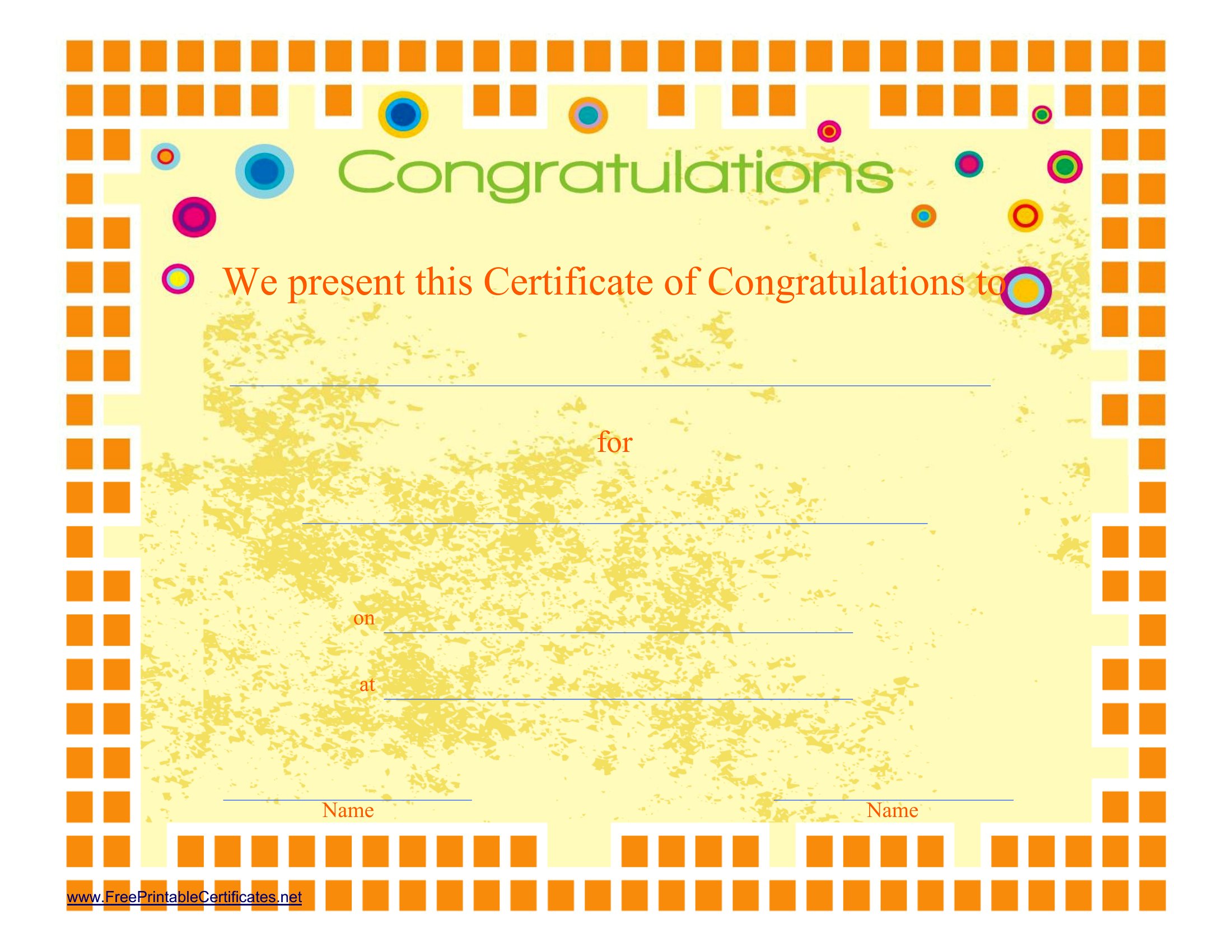
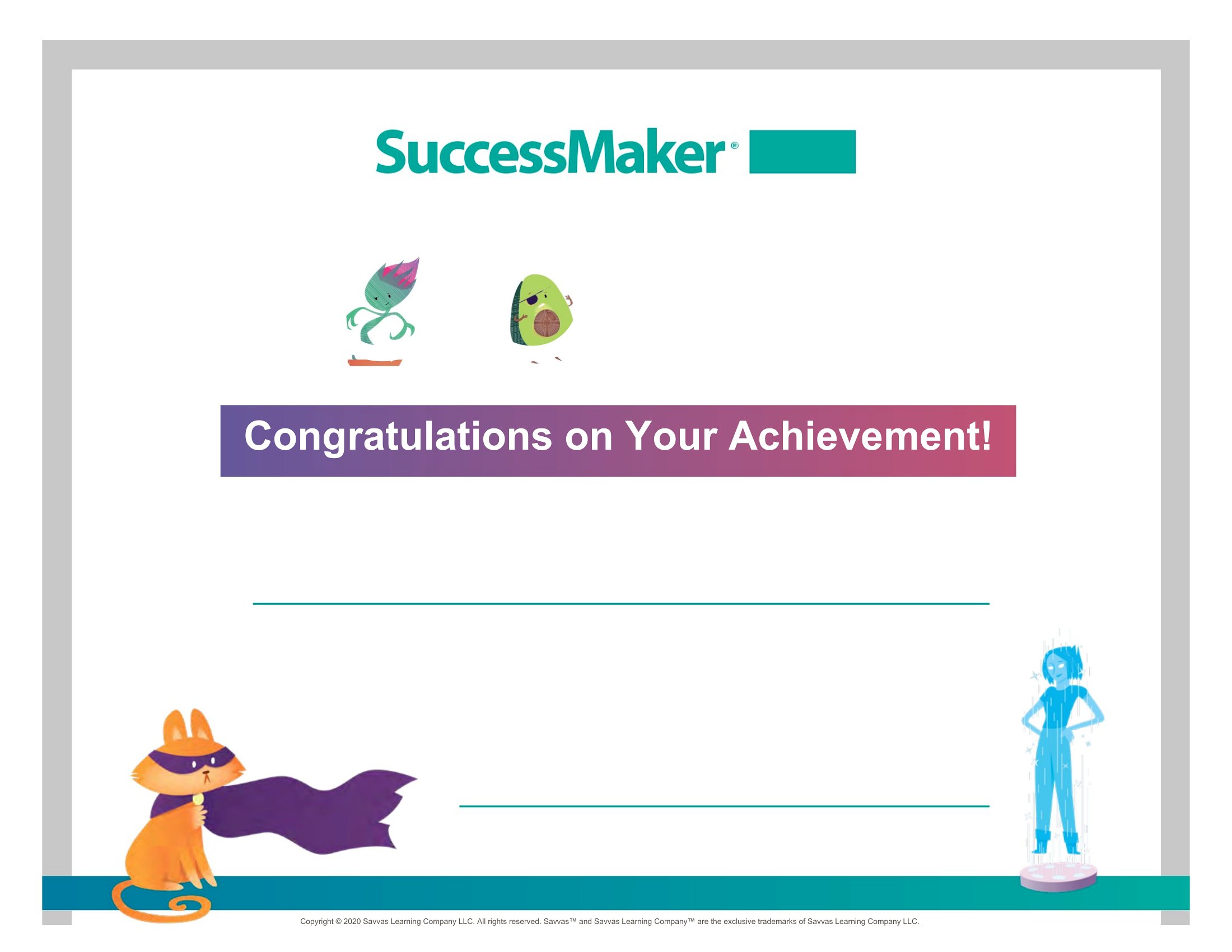
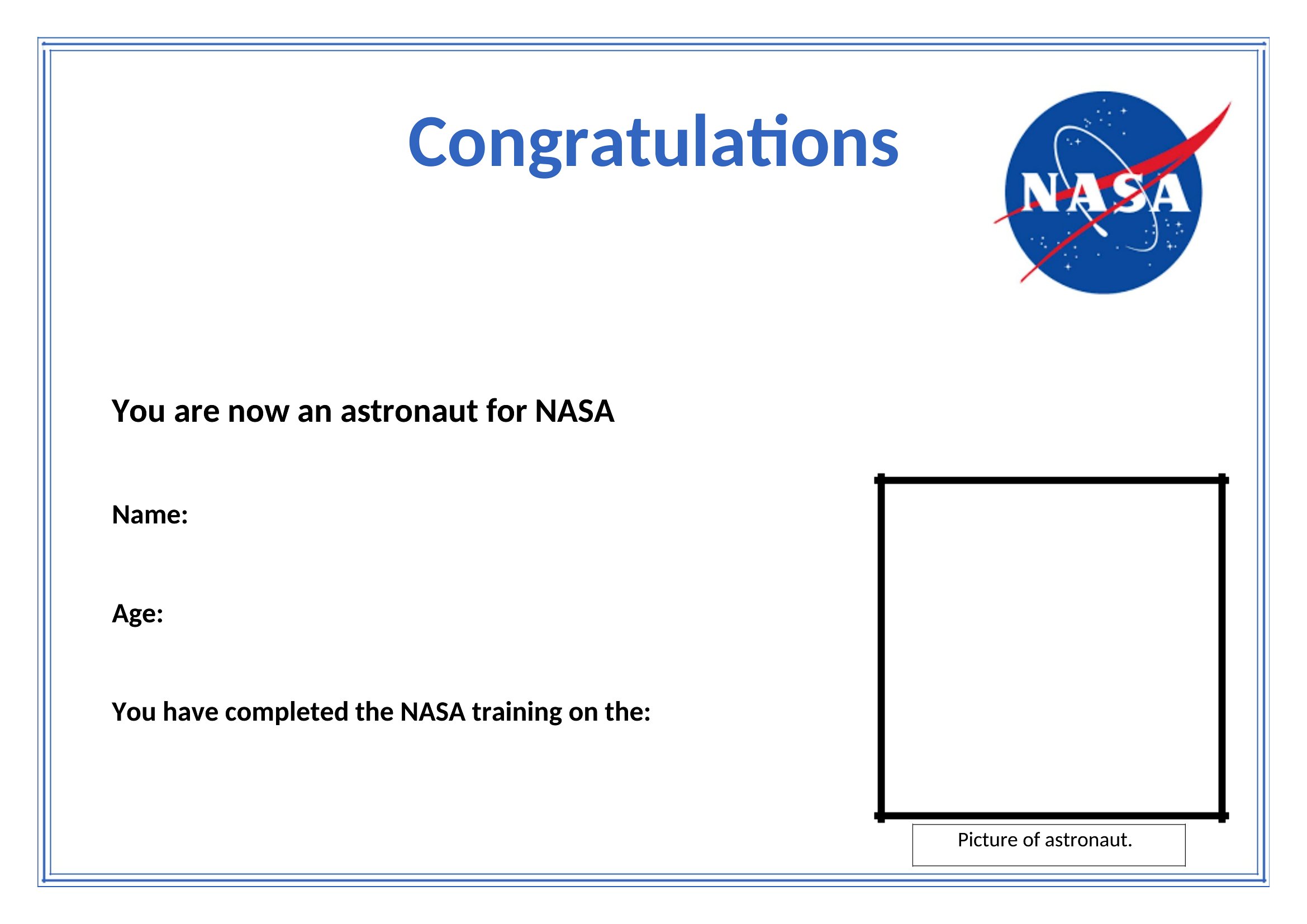
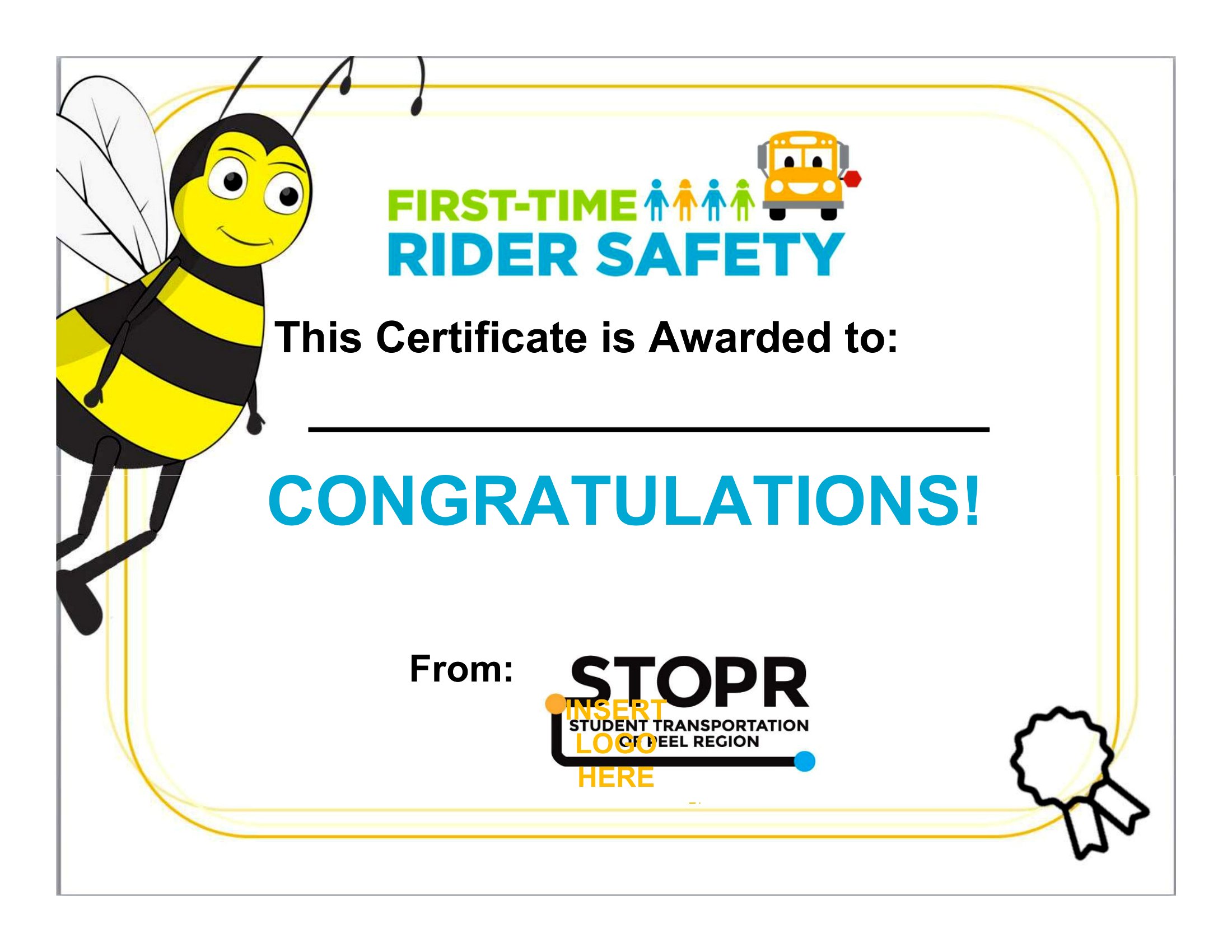
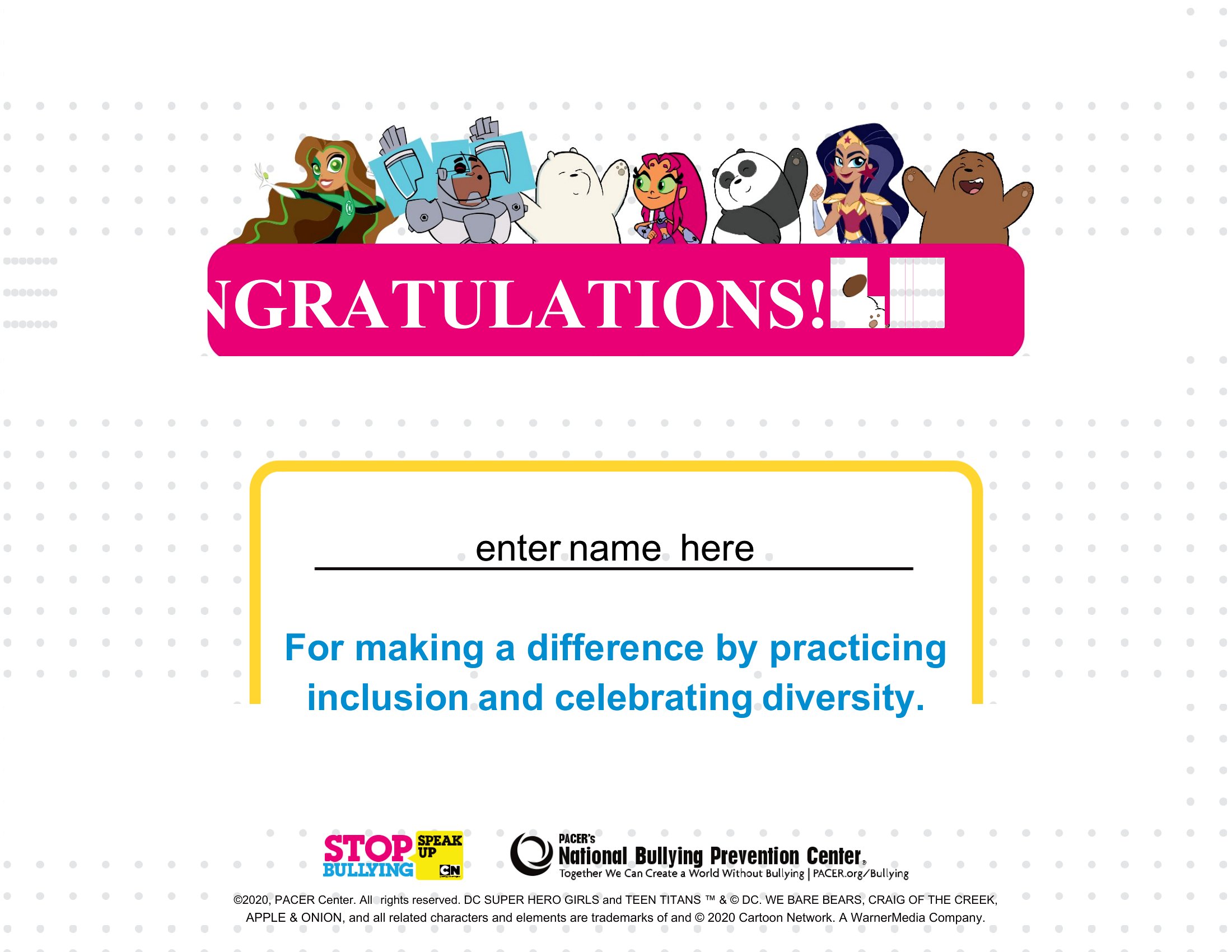
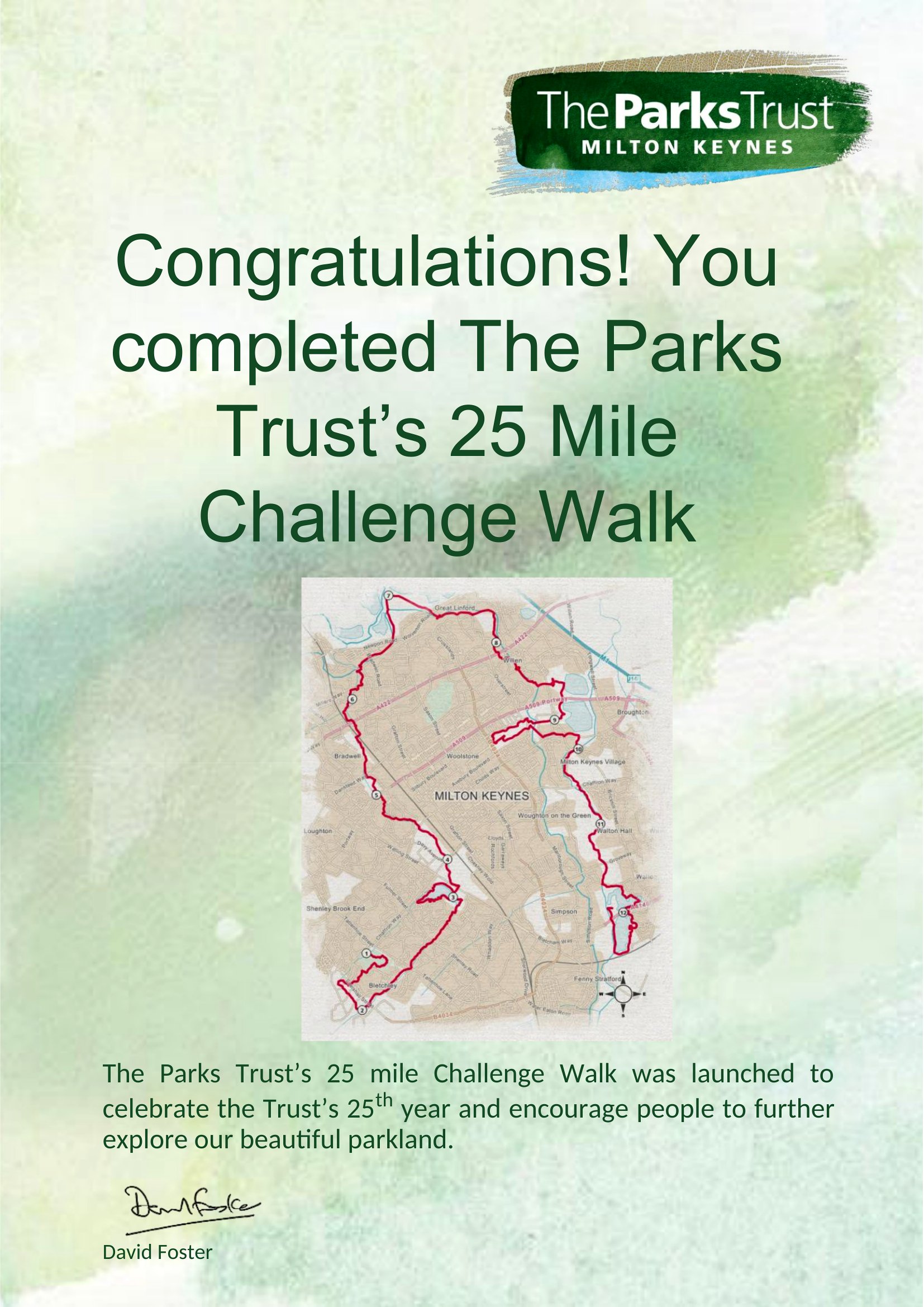
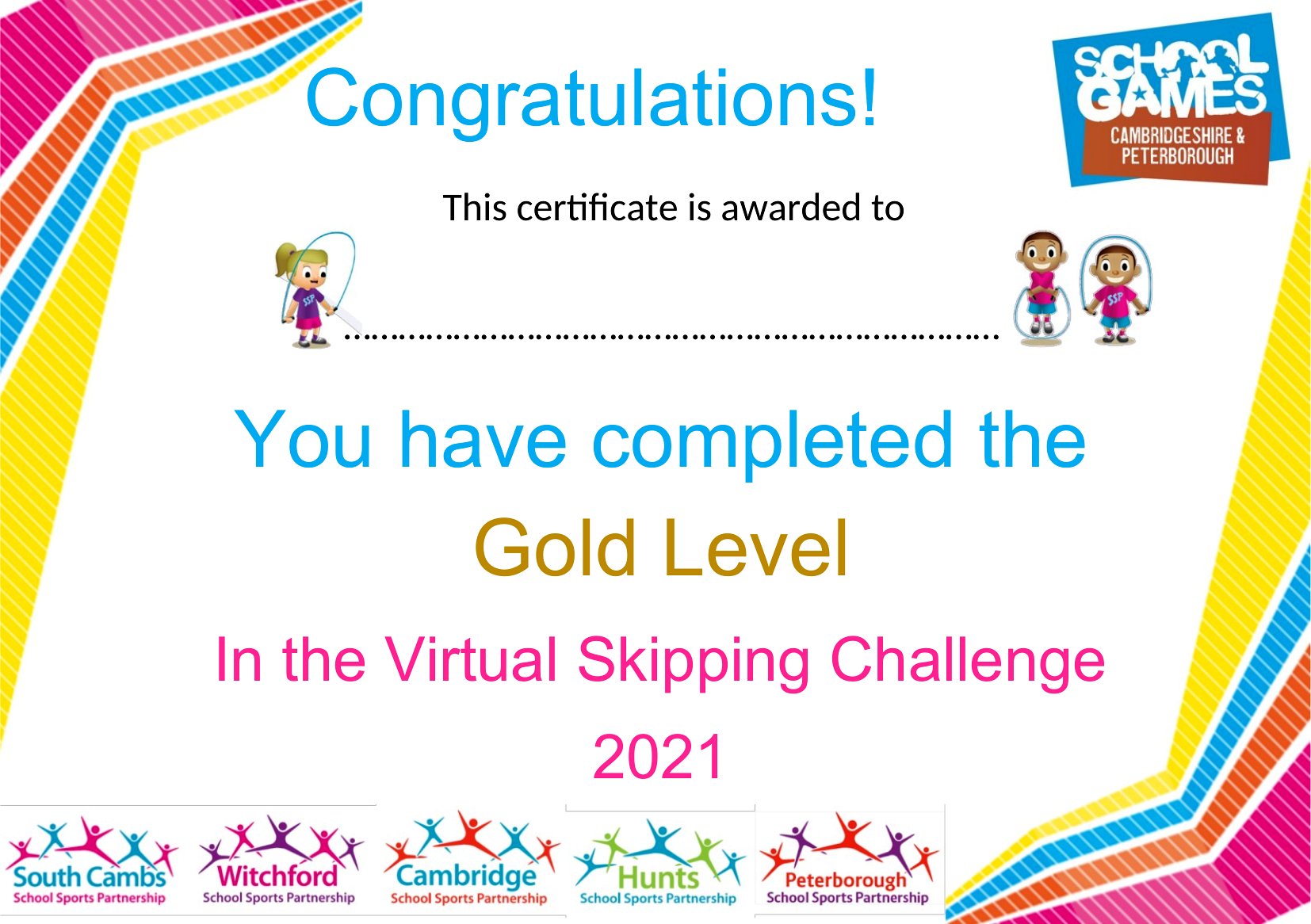
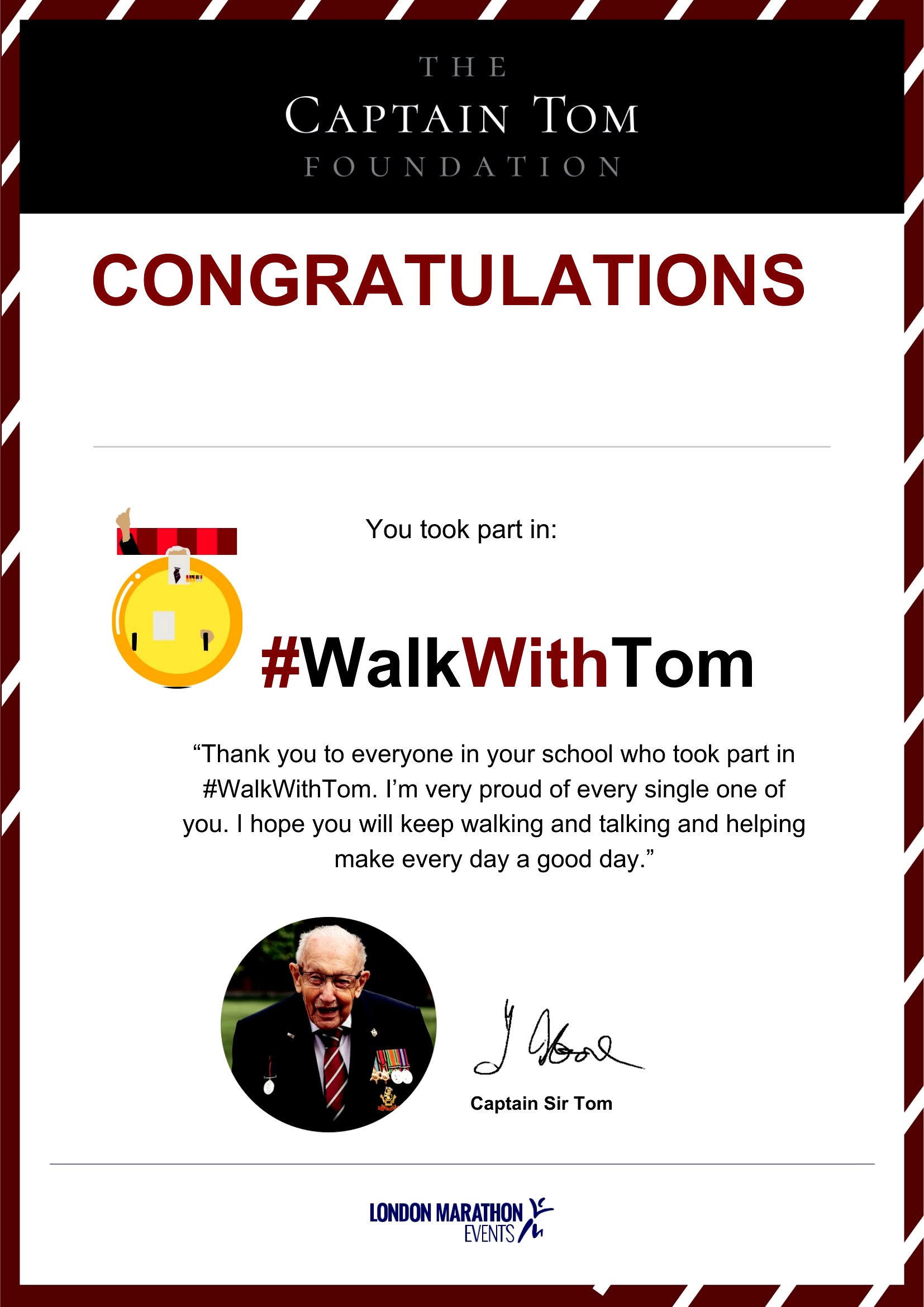
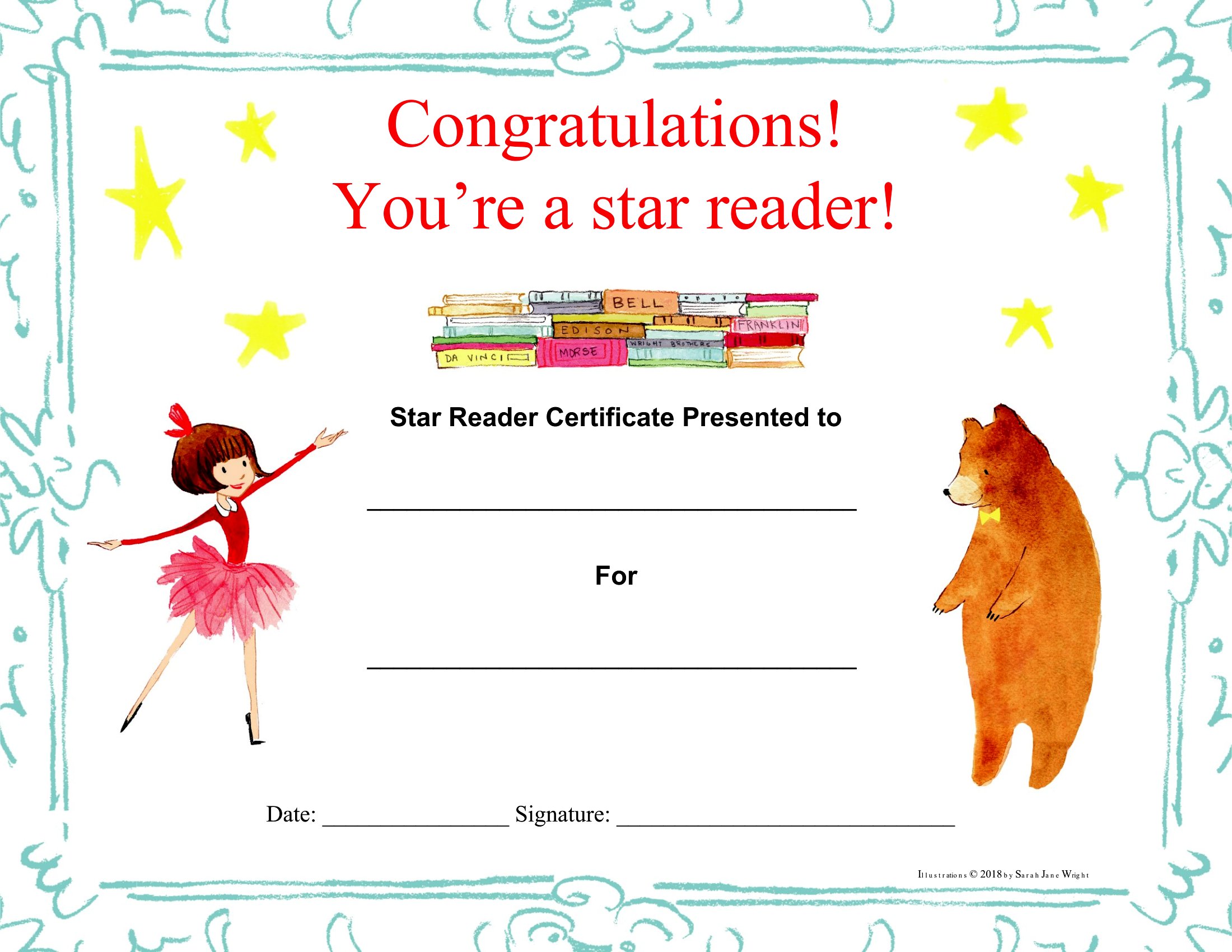
A congratulations certificate is a simple way to mark an achievement and make someone feel genuinely recognized. These 40 templates work for graduations, work milestones, contests, and classroom rewards, with designs that range from playful to formal. Teachers, managers, and event organizers can celebrate an accomplishment in just a few minutes.

Each certificate is editable in Microsoft Word, so you can type in the name, the occasion, and a short note, then print it on regular or card stock. Add a signature and you're done. Pick the design that suits the moment and have a heartfelt certificate ready to hand over.

When to use this Congratulations Certificate template

  • A high school teacher rewards a student for winning the regional science fair by printing a polished, award-style certificate to present during Friday assembly—boosting morale and encouraging future participation.
  • A small business owner recognizes a long-term employee’s 10-year anniversary with a sleek, professional certificate during a team lunch, blending gratitude with a subtle company branding touch.
  • A nonprofit volunteer coordinator distributes playful, achievement-themed certificates to event participants who complete a 5K walkathon, adding a fun, memorable keepsake to their day.
  • A corporate HR manager celebrates a remote team member’s promotion with a customizable Word certificate, emailed as a digital surprise before a virtual all-hands meeting to highlight their growth.

Which format should I download?

Word

All 40 templates are available in Microsoft Word, which is ideal for quick customization. Choose Word because it lets you edit text, adjust colors, and add names or logos without design skills. The format supports both printed certificates and digital sharing, making it versatile for in-person or remote recognition. No other formats are needed here—Word’s accessibility ensures ease of use for teachers, managers, or event planners.

How to use this Congratulations Certificate template

Can I add a photo or logo to the certificate without ruining the design?

Yes, each Word template includes space for logos or small photos. Insert your image via the ‘Insert’ tab, then resize it to fit the designated area. For best results, use a high-resolution logo under 200KB to keep the file clean and professional. Avoid overcrowding the design with too many elements.

What’s the best way to personalize the certificate for someone who doesn’t speak English?

Use Word’s translation tools to adapt the text into their language, then replace the English phrases in the template. Keep the layout simple—focus on one or two key lines like ‘Congratulations’ and their achievement. For non-Latin scripts, ensure the font supports their language (e.g., Arabic or Chinese) to avoid formatting issues.

How do I make sure the certificate looks good when printed, even if I don’t have fancy paper?

Print a test copy on plain paper first to check alignment and colors. Use the ‘Page Layout’ tab to set margins to ‘Normal’ (1 inch) and enable ‘Print Preview’ to spot any cropping issues. For a polished look, choose a matte or slightly textured paper—even basic options will elevate the final product.

Comments

Join the conversation

Sign in to share your thoughts and leave a comment on this resource.

Newsletter

Get Weekly Design Updates

Join our community to receive curated resources and inspiration.

Weekly Tips Resources Early Access

We respect your privacy. Confirmation email required. Privacy Policy