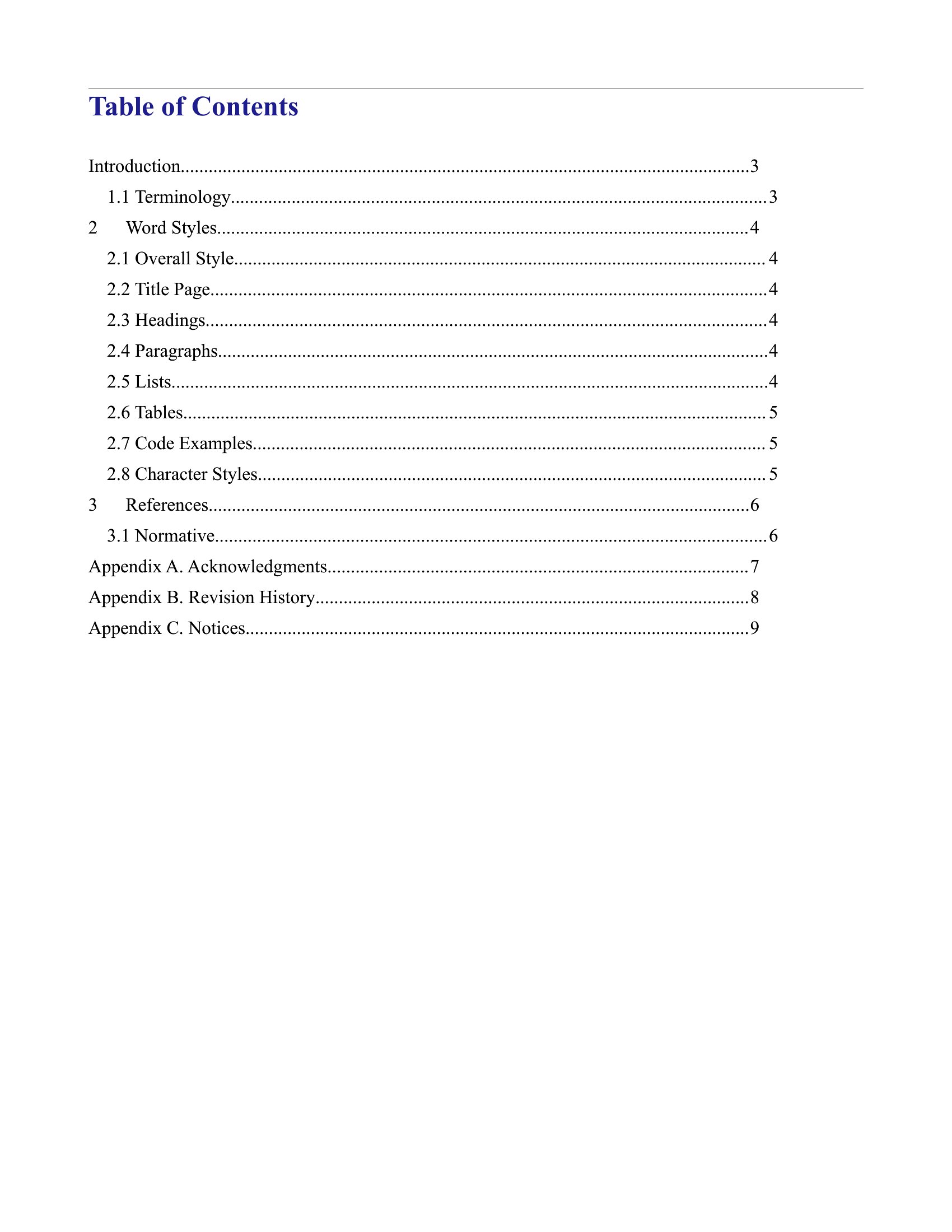
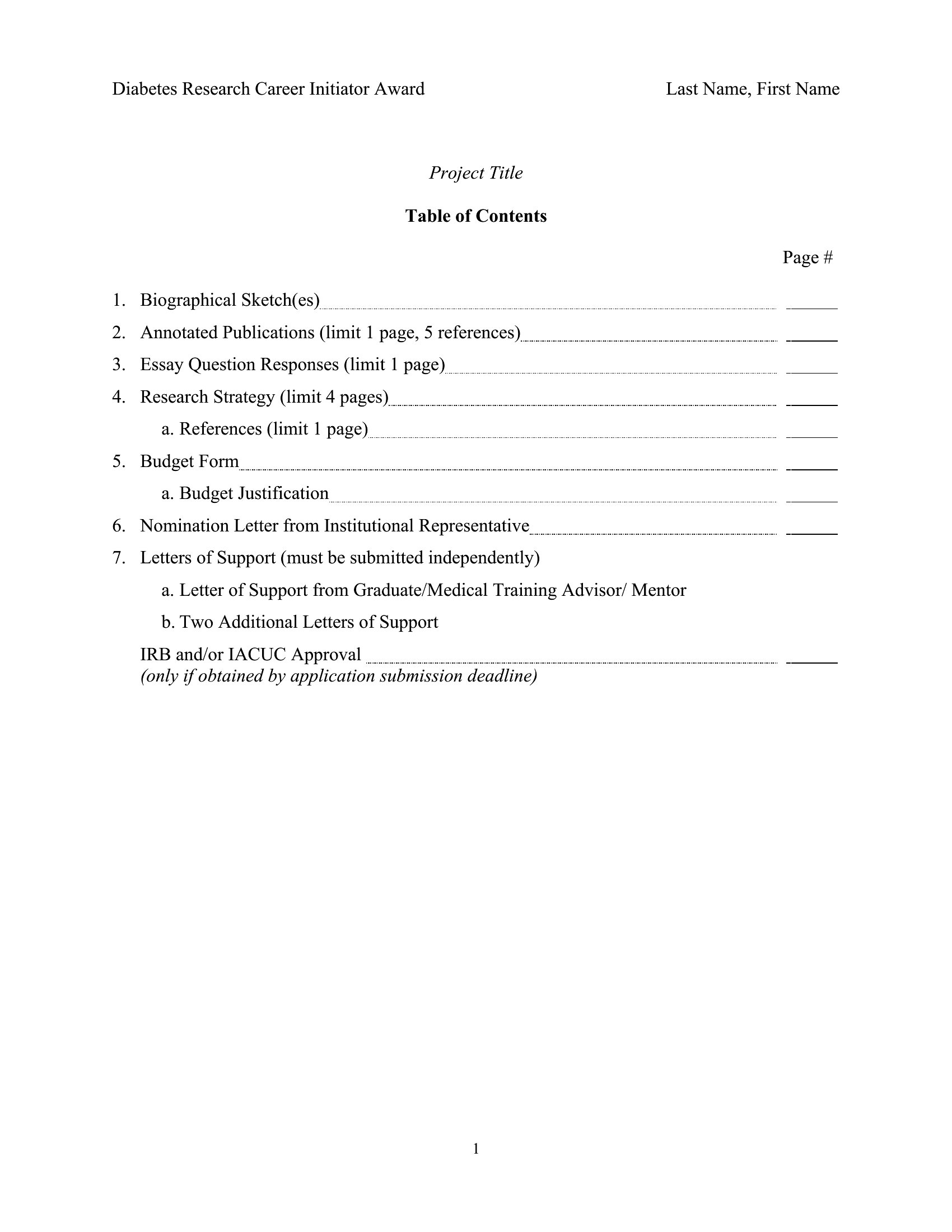
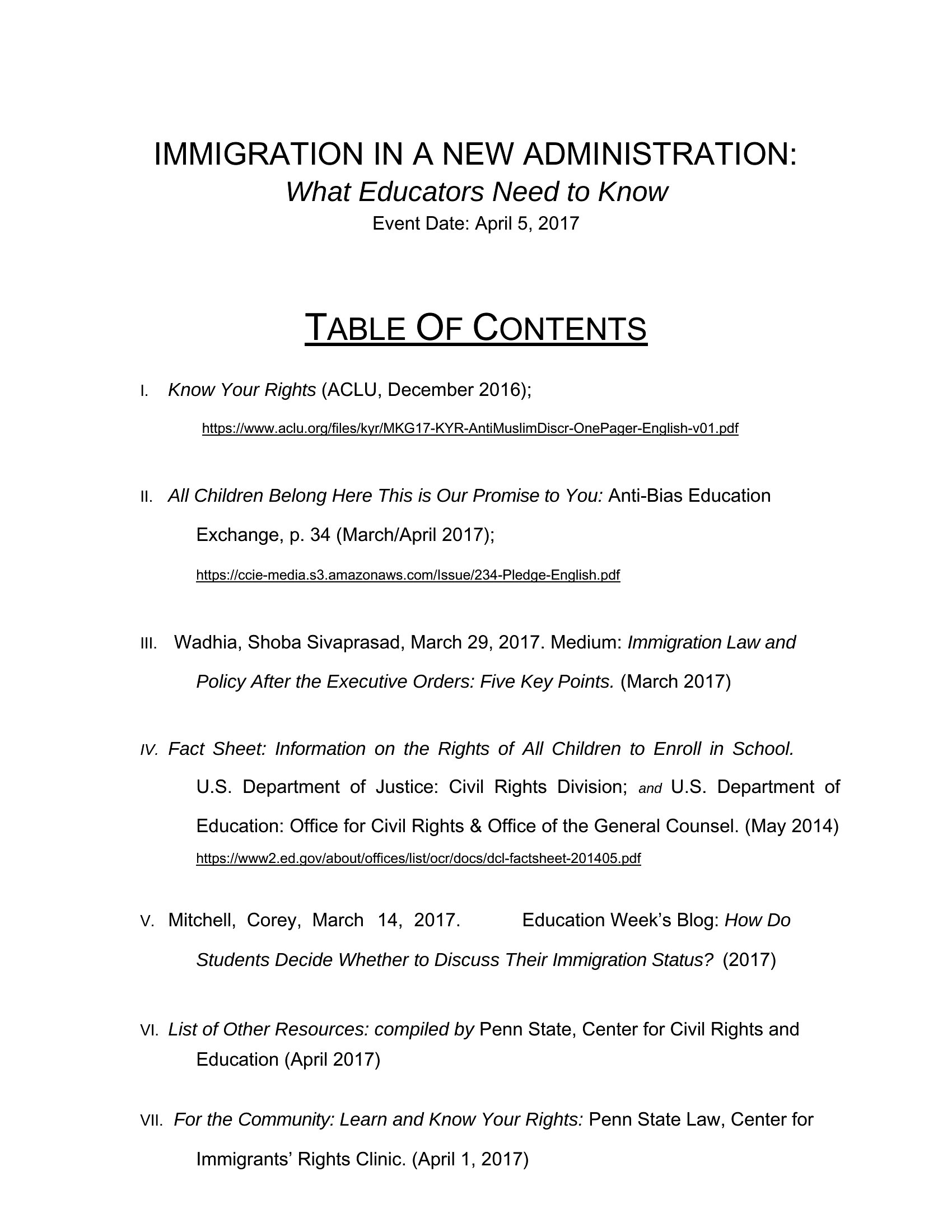
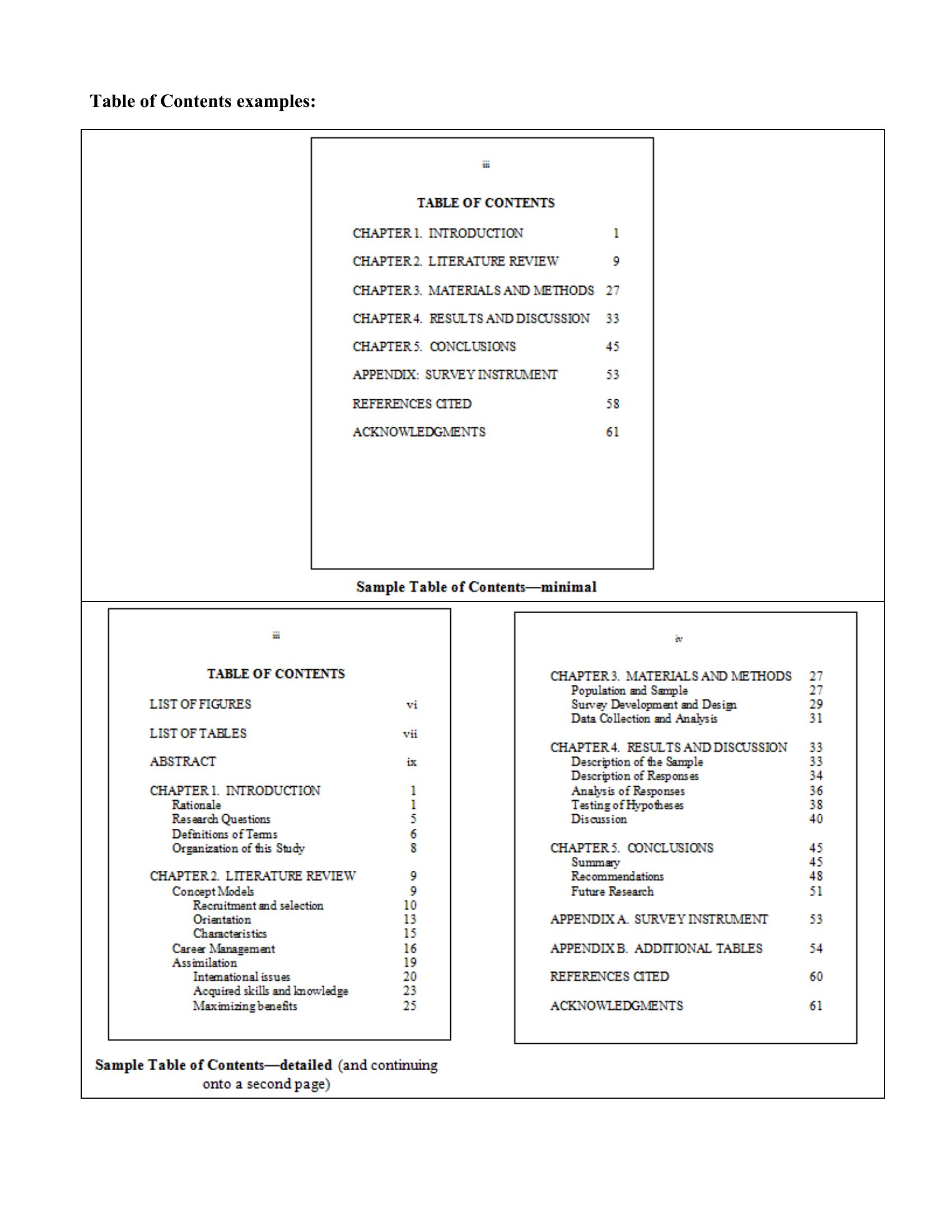
Free Table of Contents Templates (Word, PDF)
Life
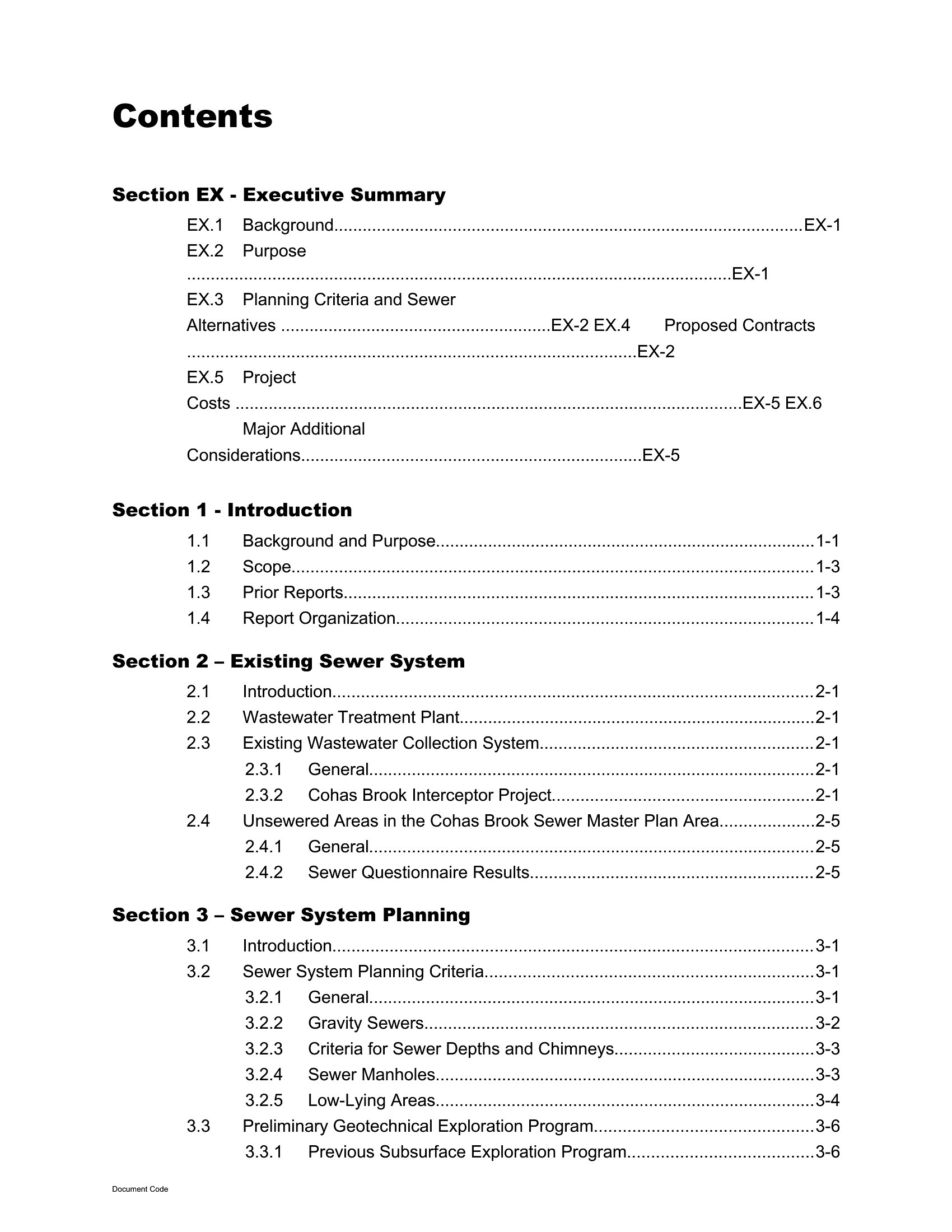
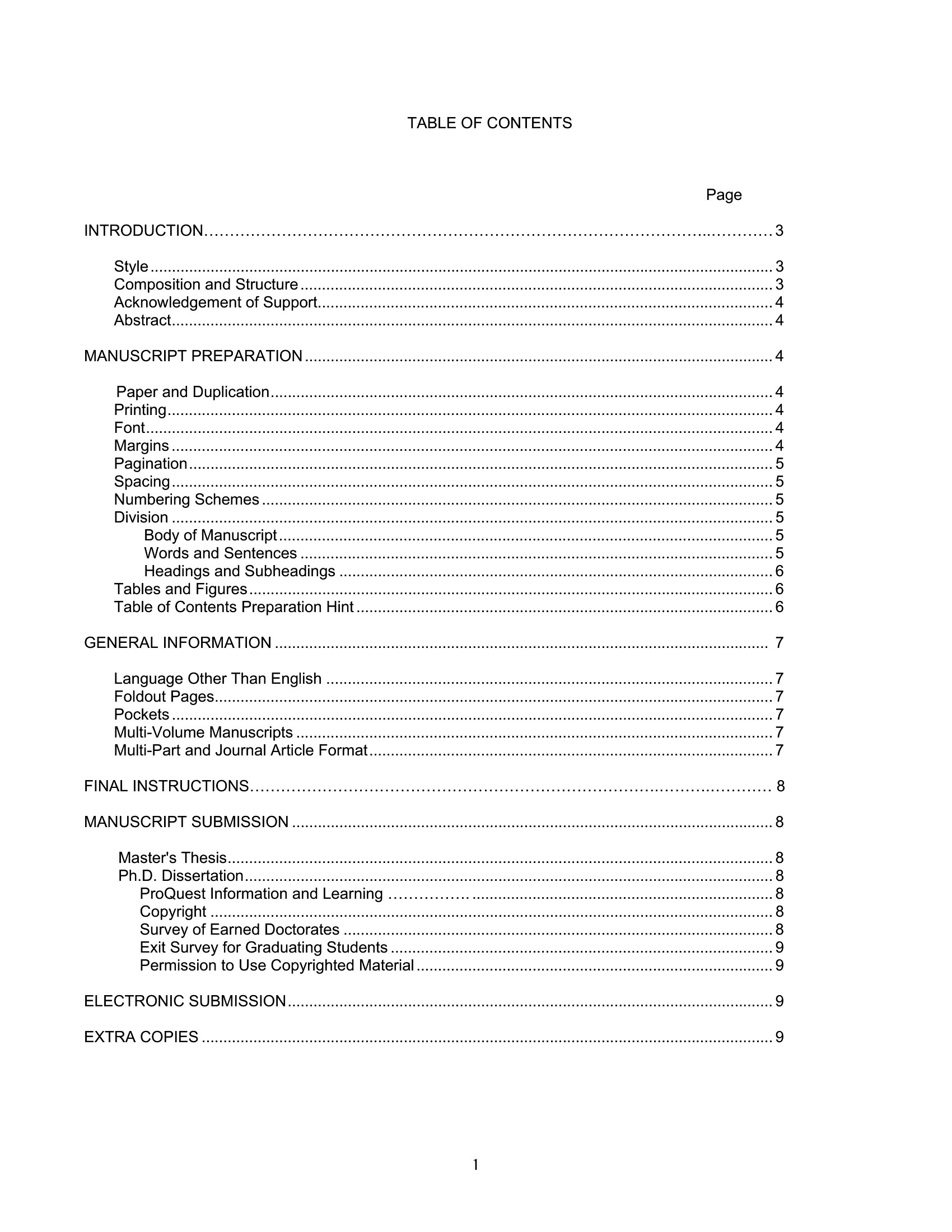
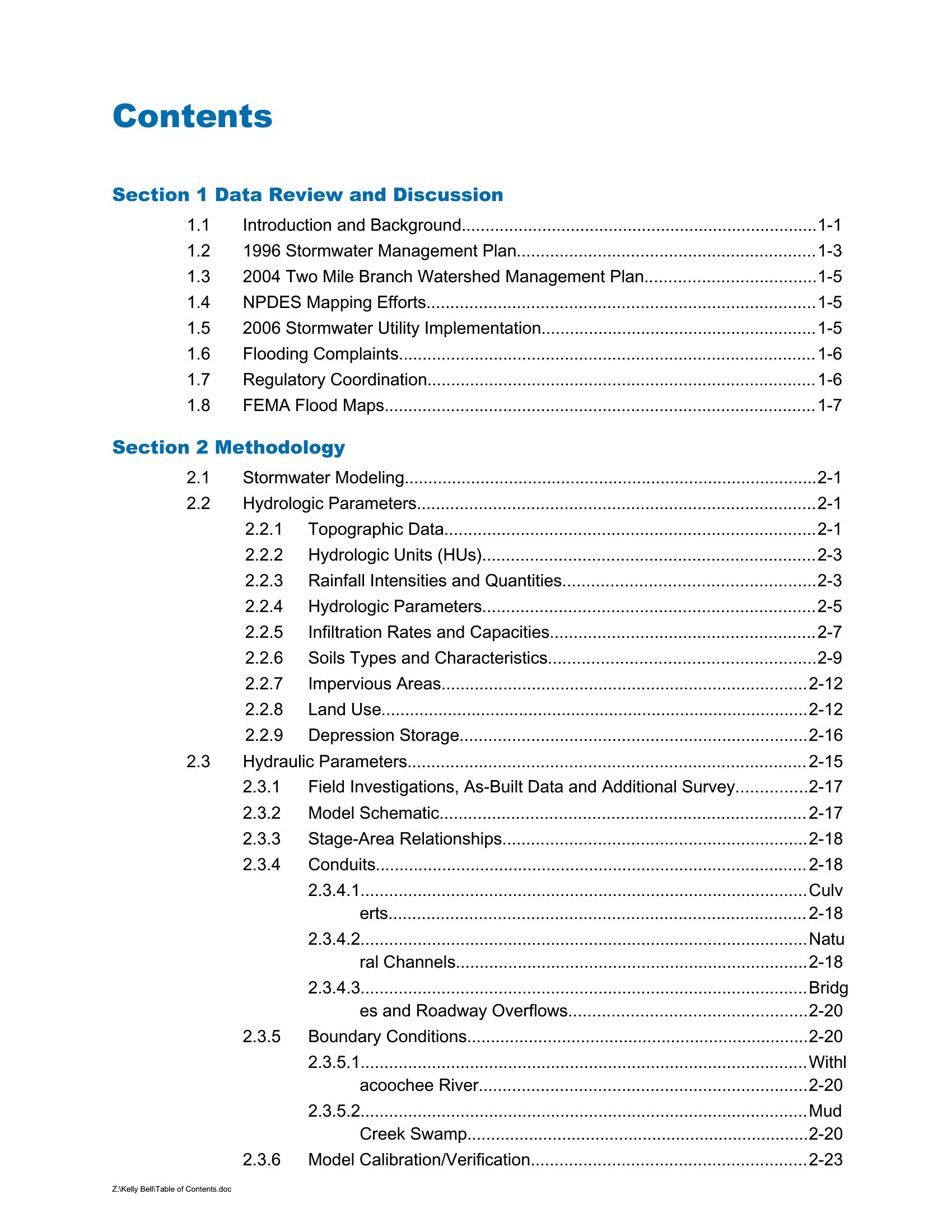
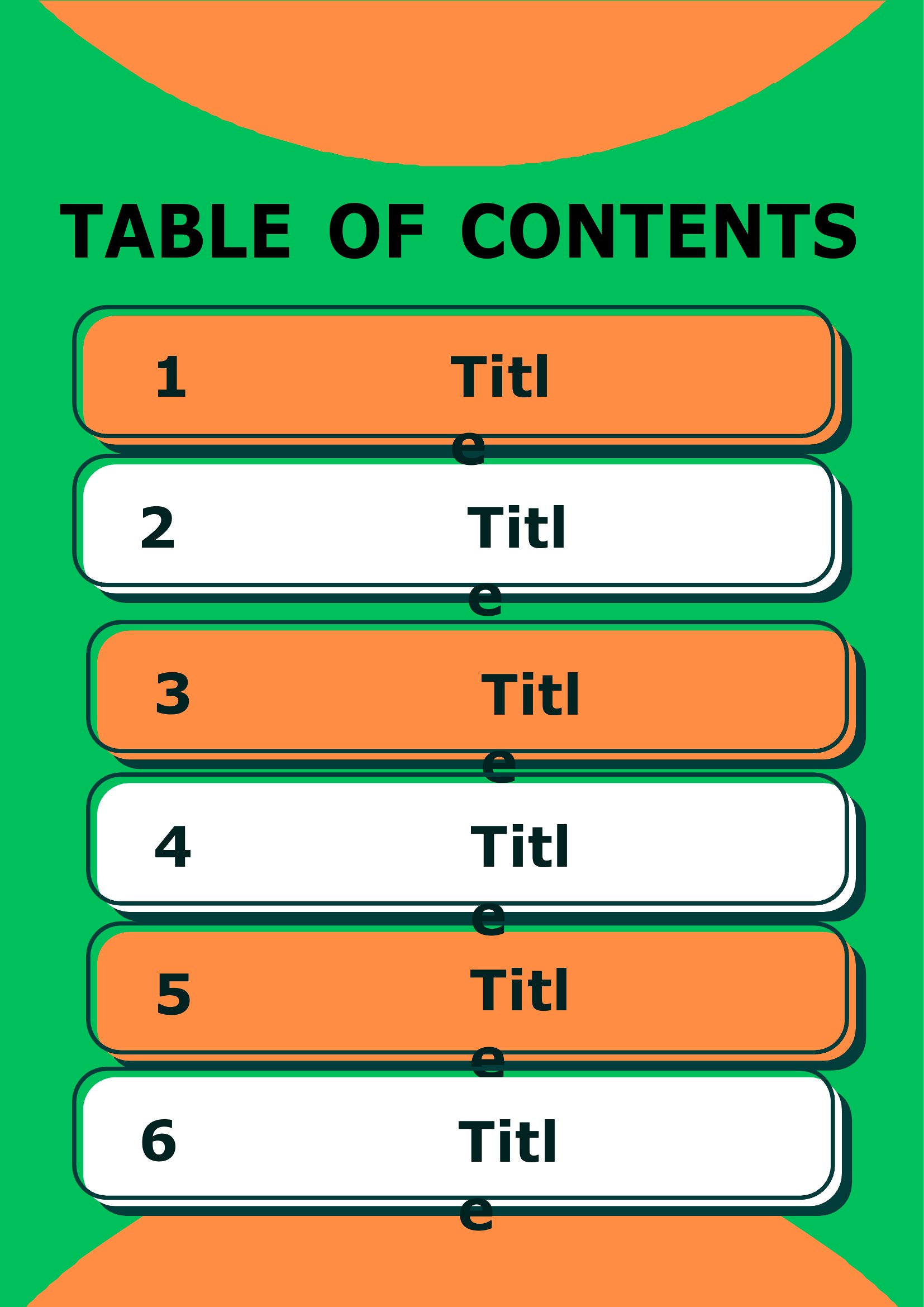
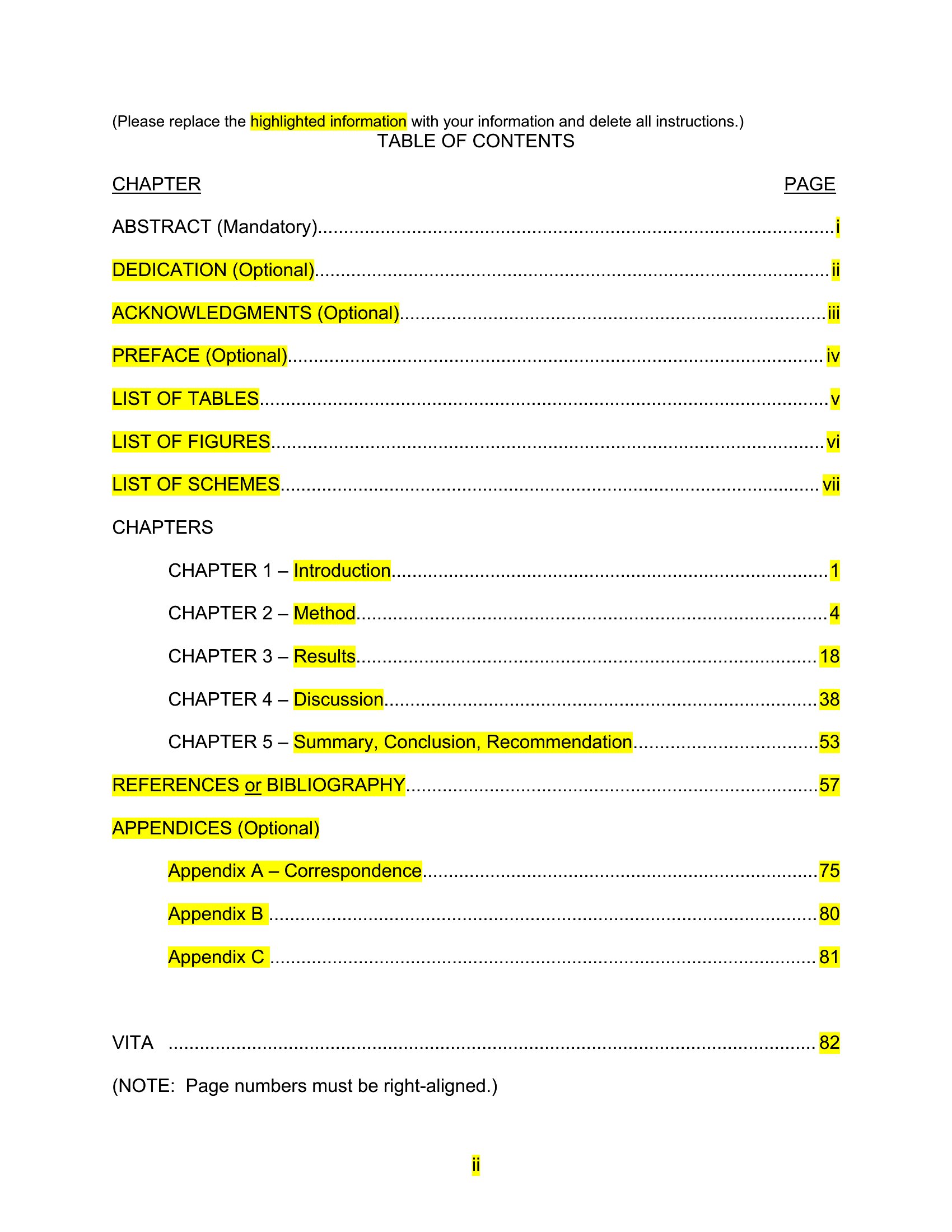
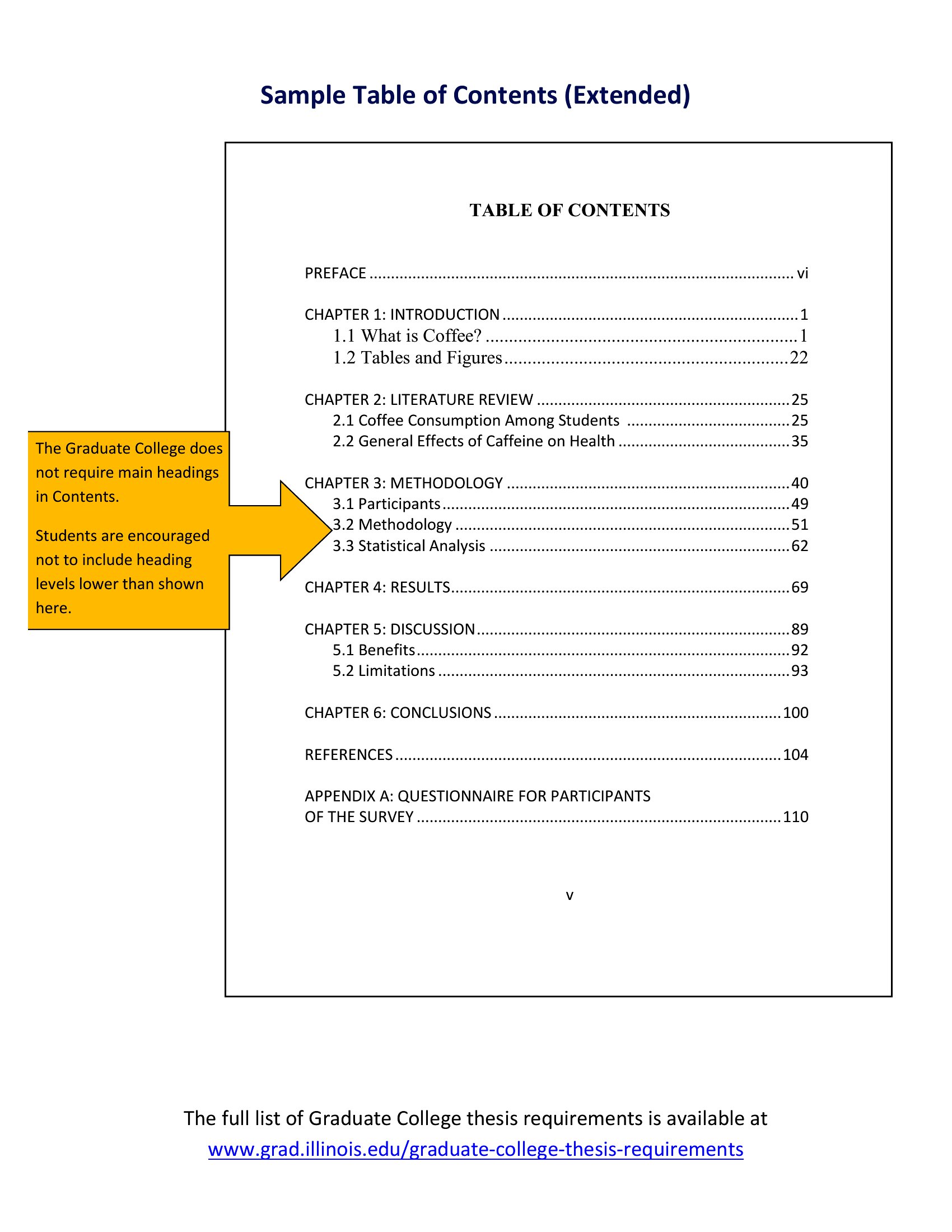
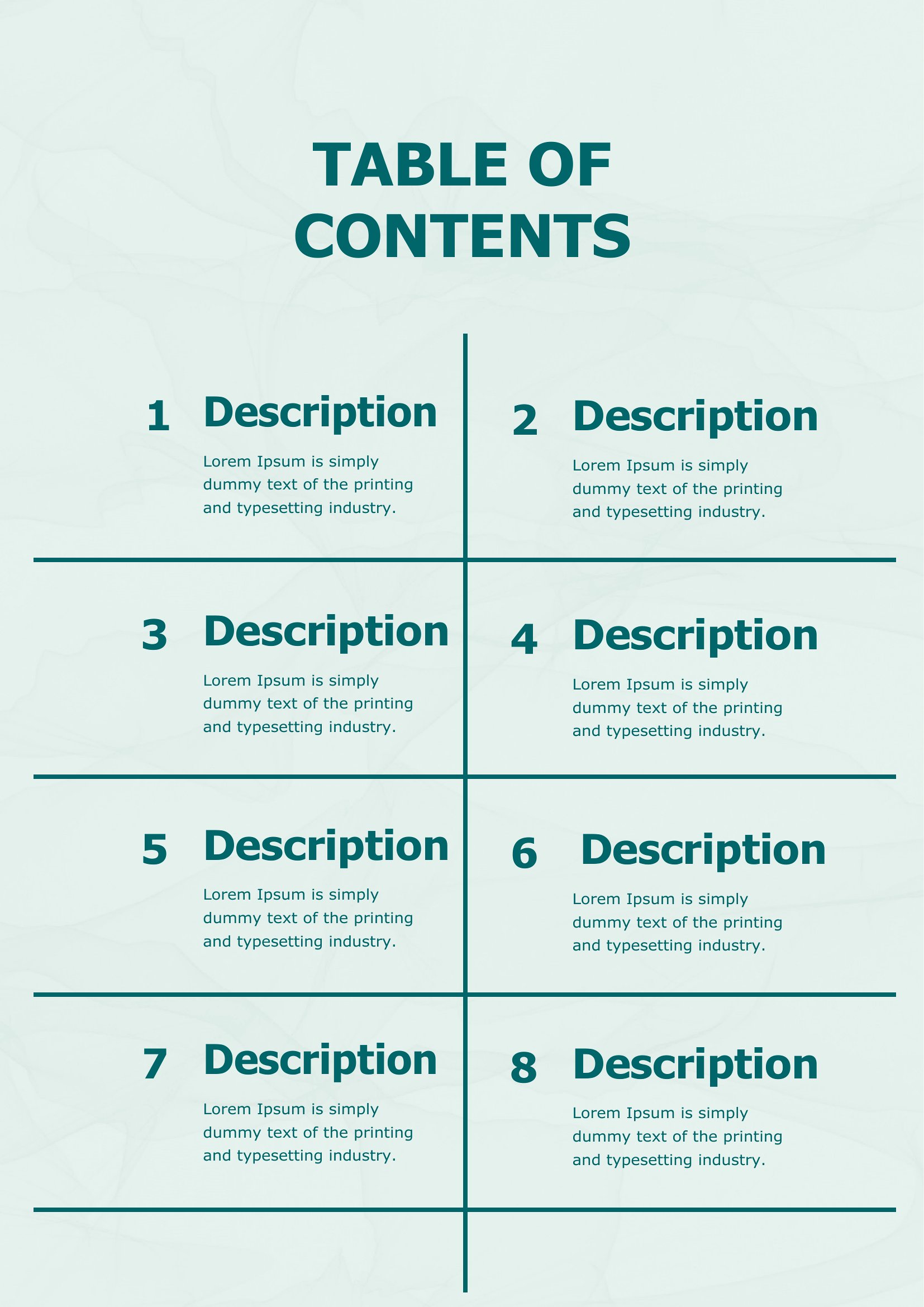
FAQ
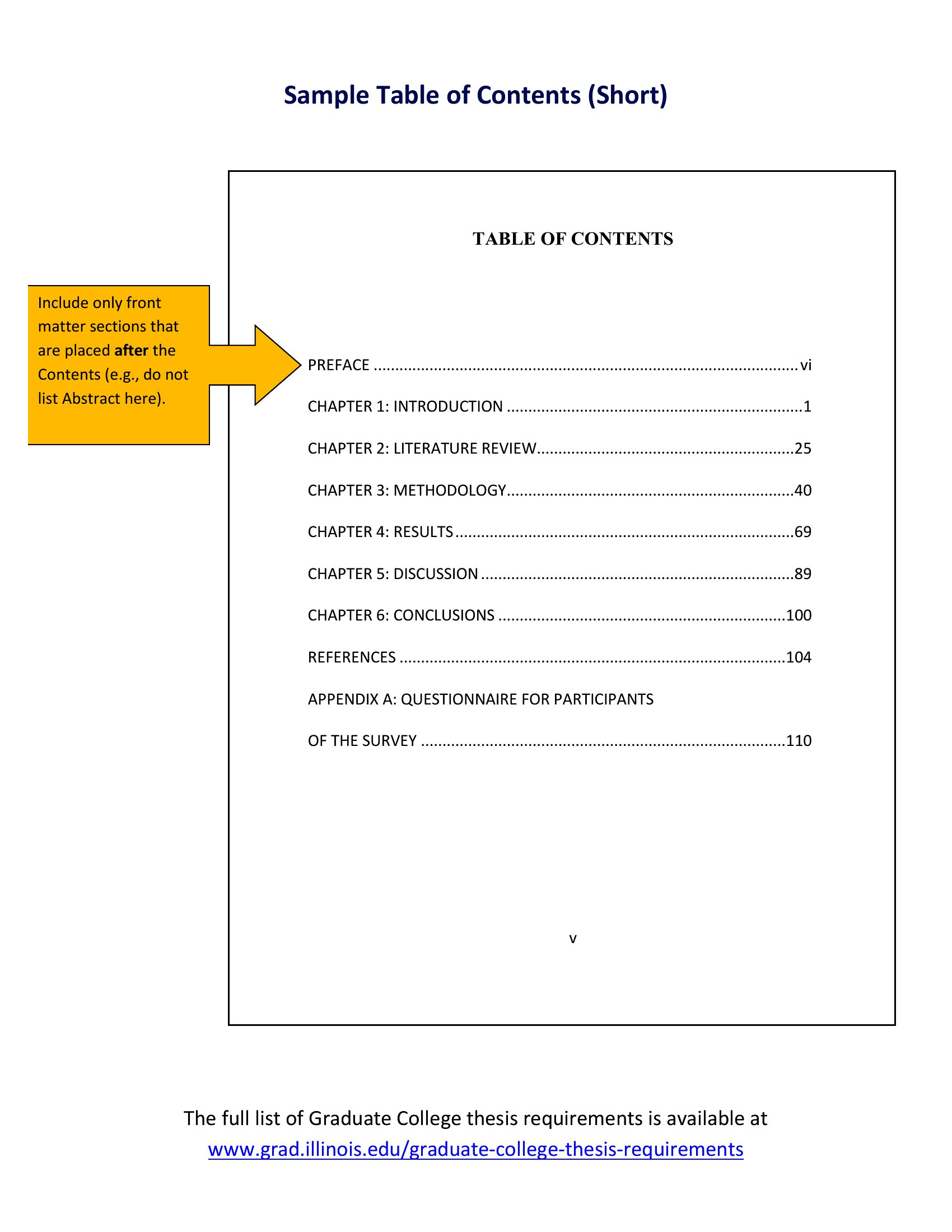
How should I handle long chapter or section titles in my table of contents?
If titles are too long to fit neatly, shorten them slightly in the table of contents while keeping the original text in the document. You can also adjust the font size or line spacing in Word to ensure everything stays readable. For PDFs, the fixed layout will automatically truncate or wrap text as needed, so plan ahead for concise headings.
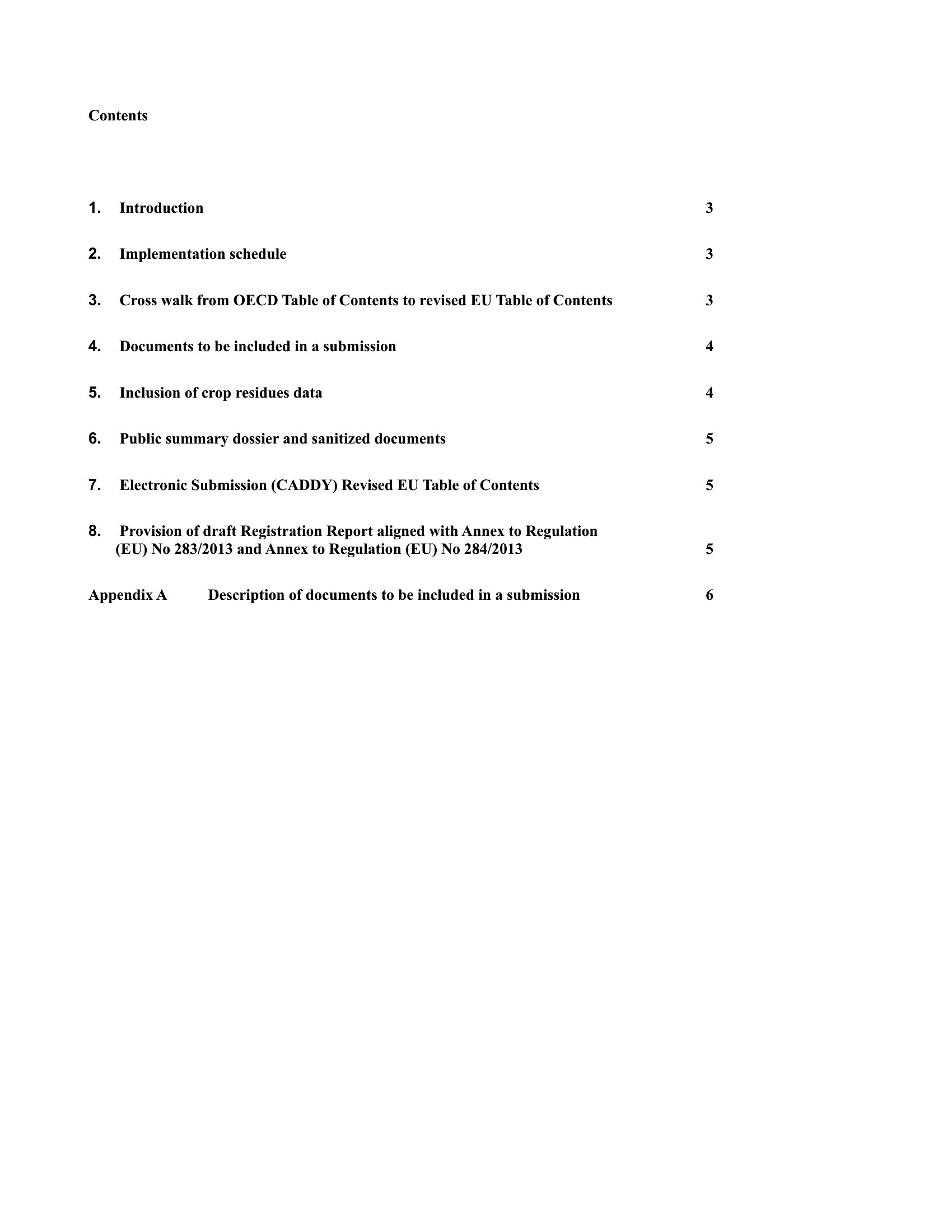
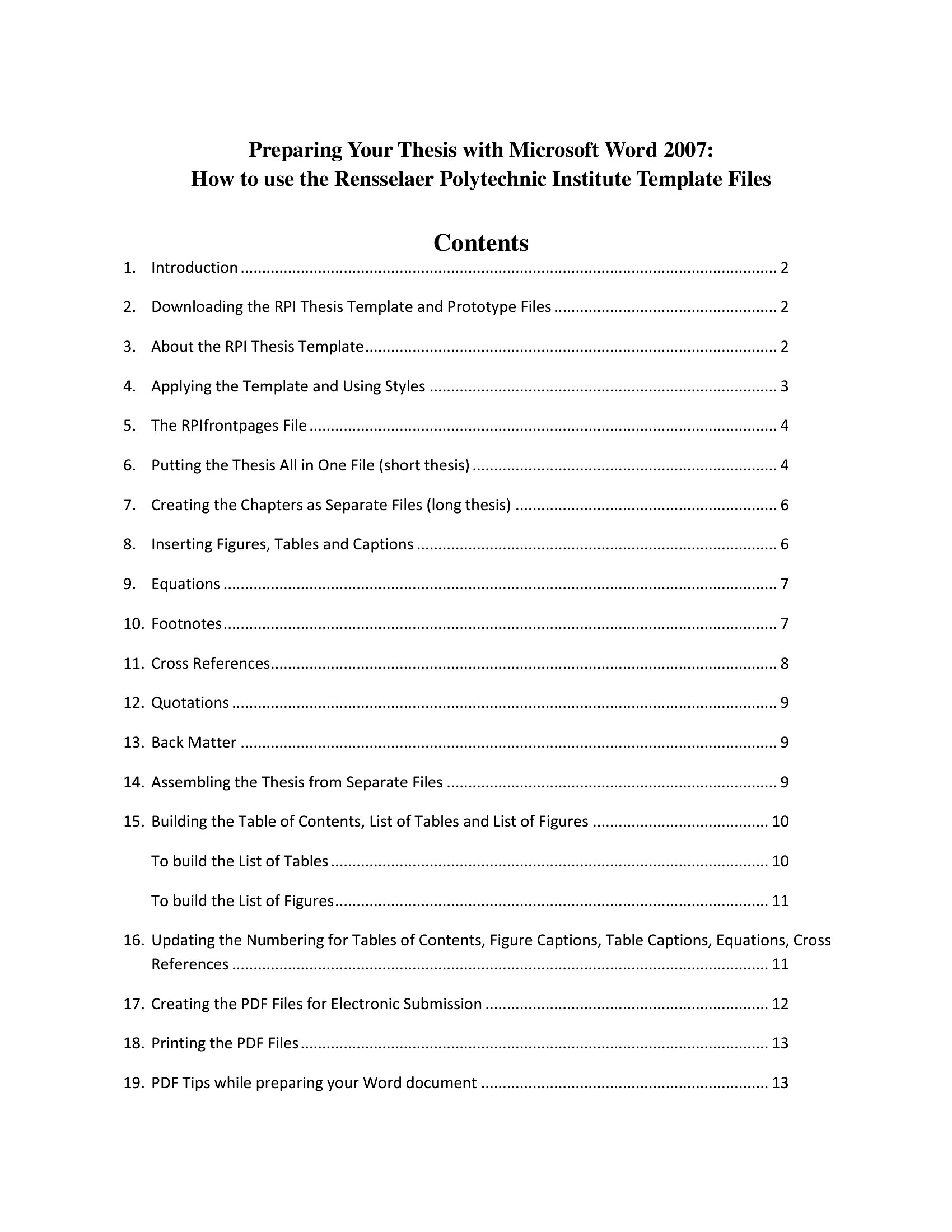
Can these templates work for a table of contents that includes hyperlinks to digital sections?
The templates themselves are designed for printed or static documents, so they won’t generate clickable links. For digital use, you’ll need to create the table of contents separately in Word using the ‘Table of Contents’ feature (References tab), which can auto-generate hyperlinks. For PDFs, consider exporting from Word or using a tool like Adobe Acrobat to add interactive links afterward.
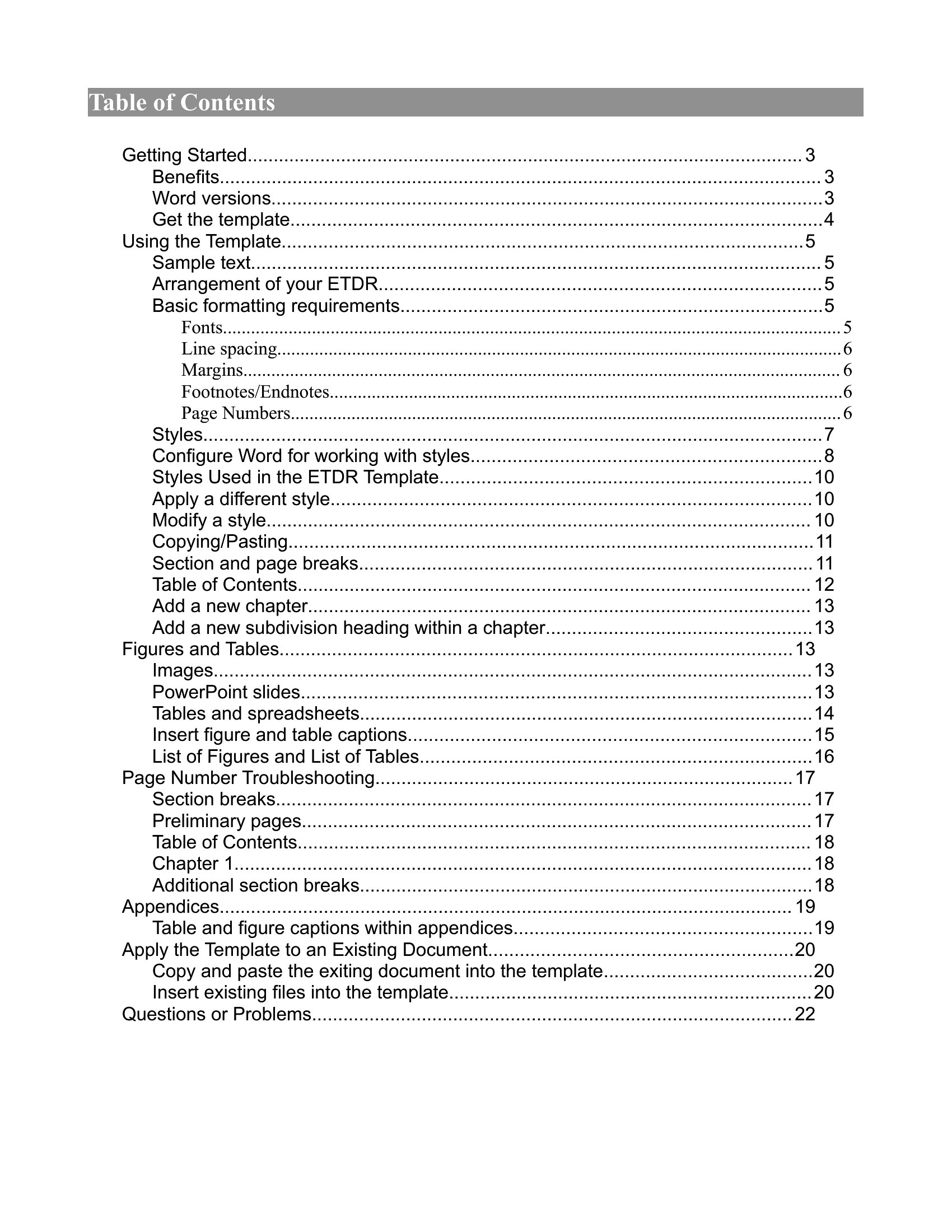
What’s the best way to maintain consistency in page numbers if I’m adding or removing content later?
In Word, use the ‘Update Table’ function after editing to refresh page numbers automatically. For PDFs, if you’re working from a Word draft, update the table in Word first, then re-export to PDF to avoid mismatches. Always preview the final PDF to ensure numbers align correctly with your content—especially if you’ve adjusted margins or section breaks.
Comments
Join the conversation
Sign in to share your thoughts and leave a comment on this resource.