









Free Employee of the Month Certificates (Word, PDF)
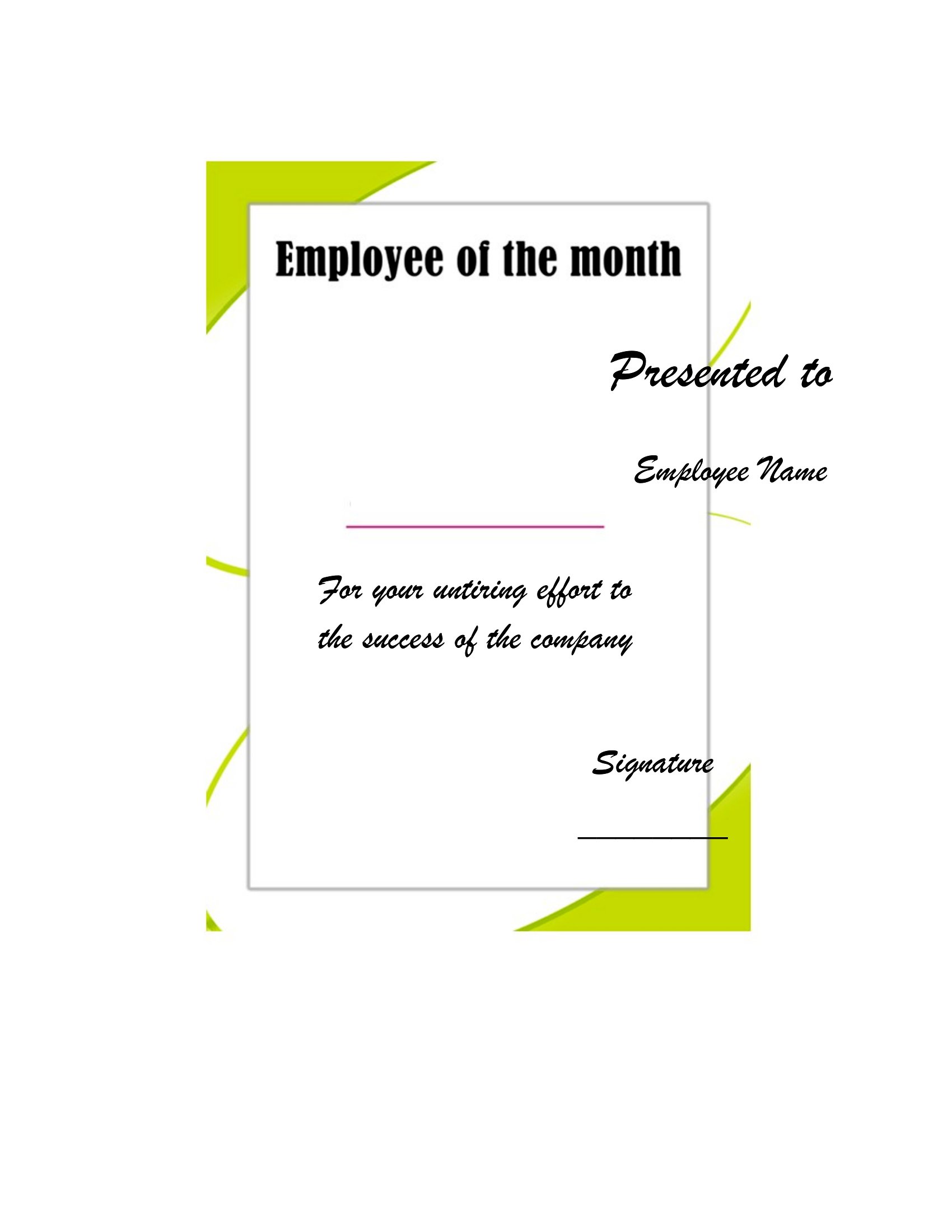
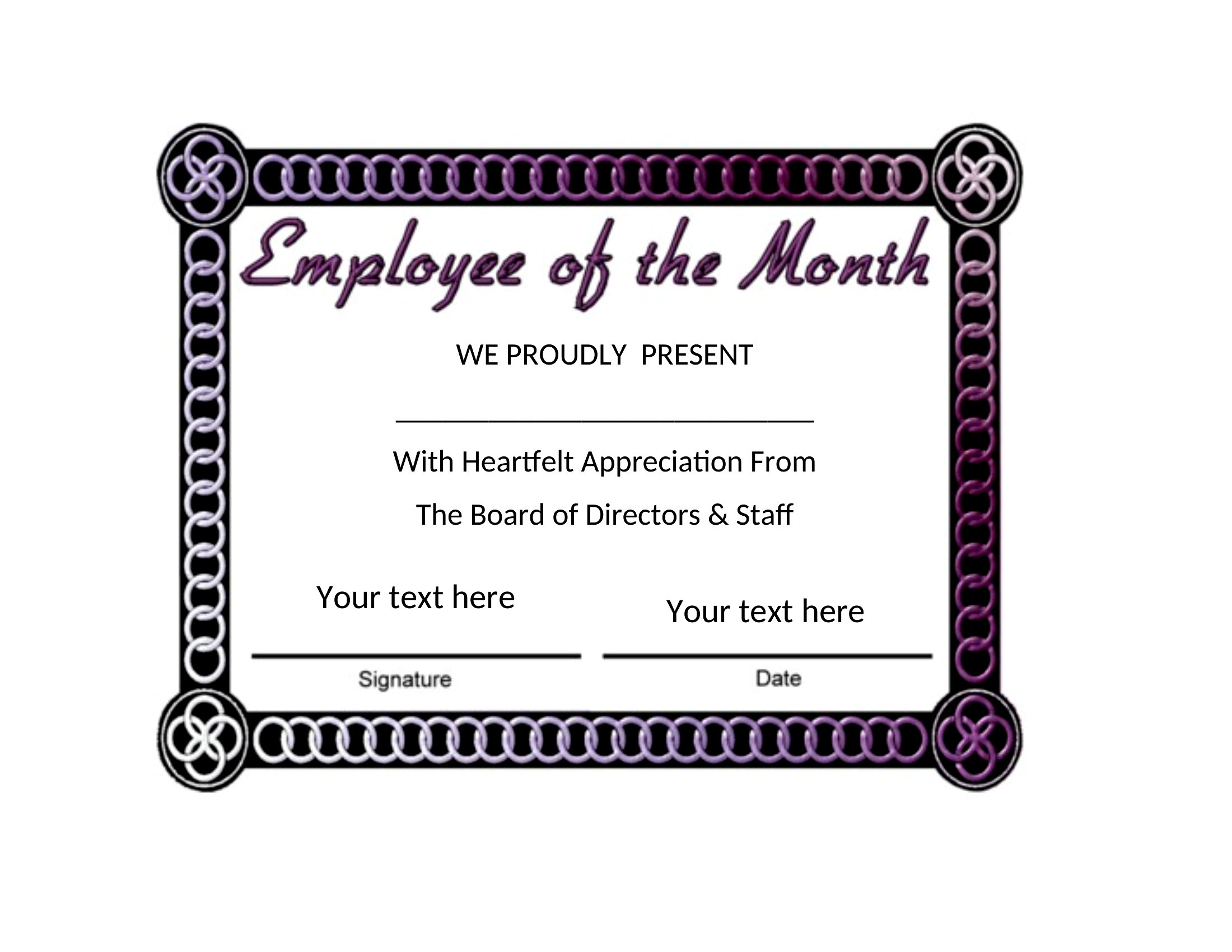
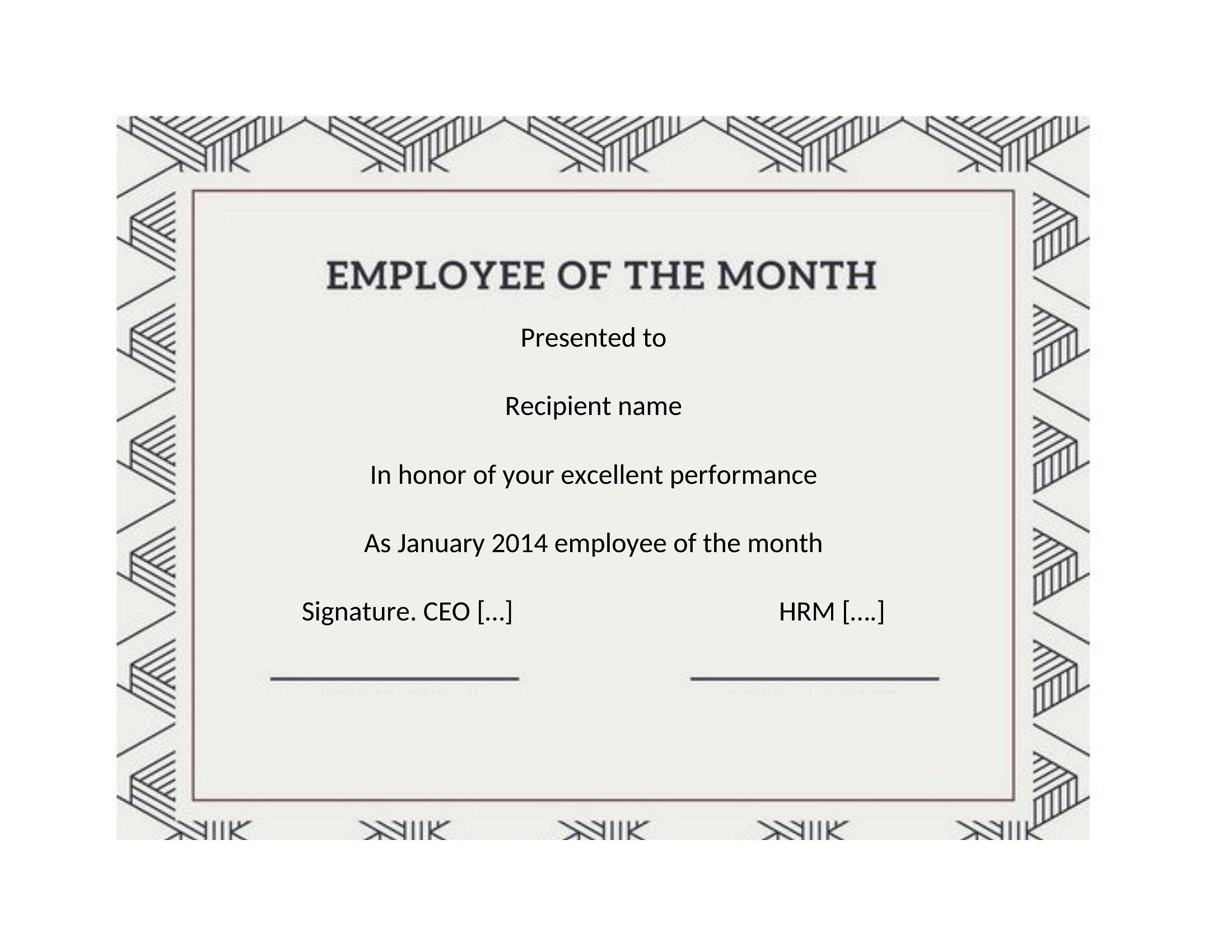
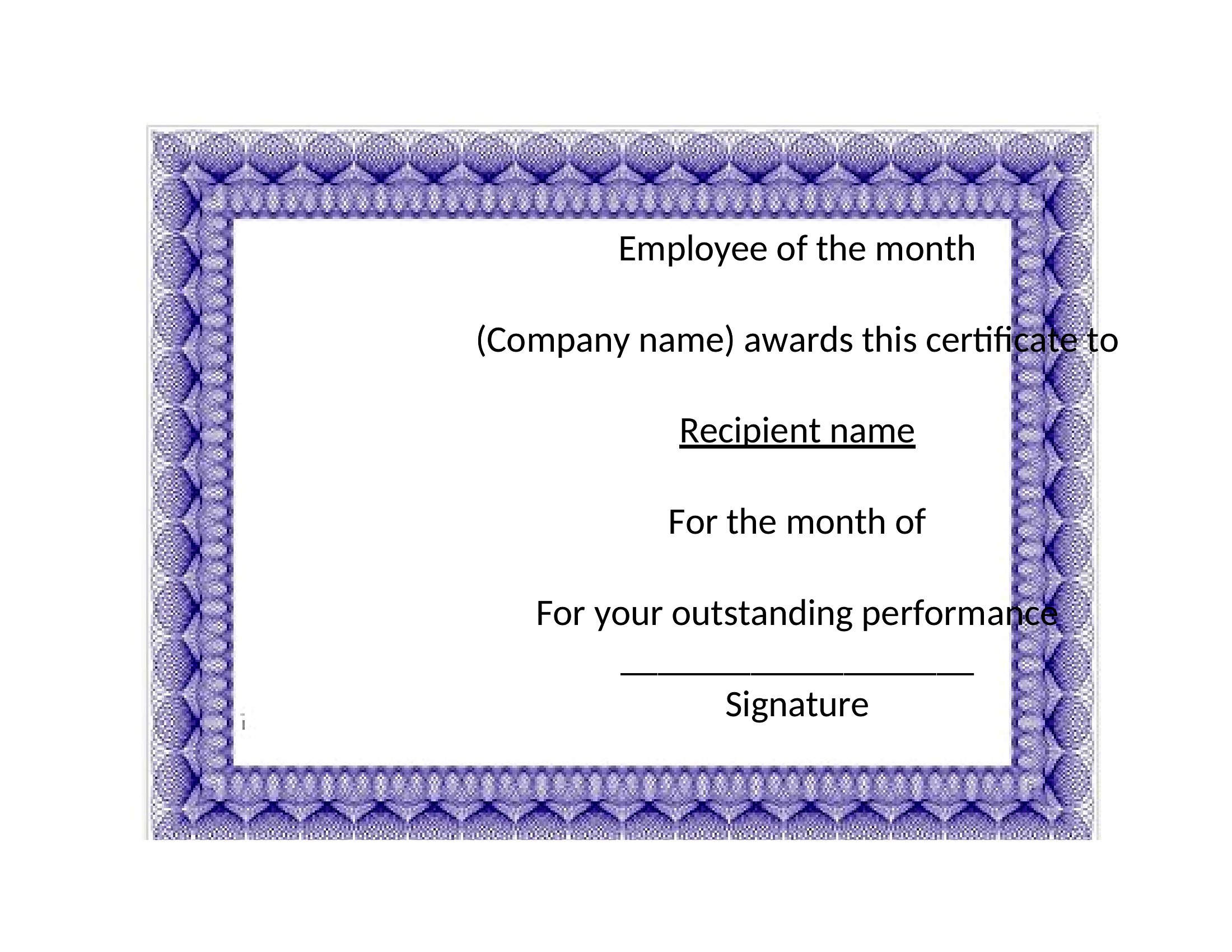
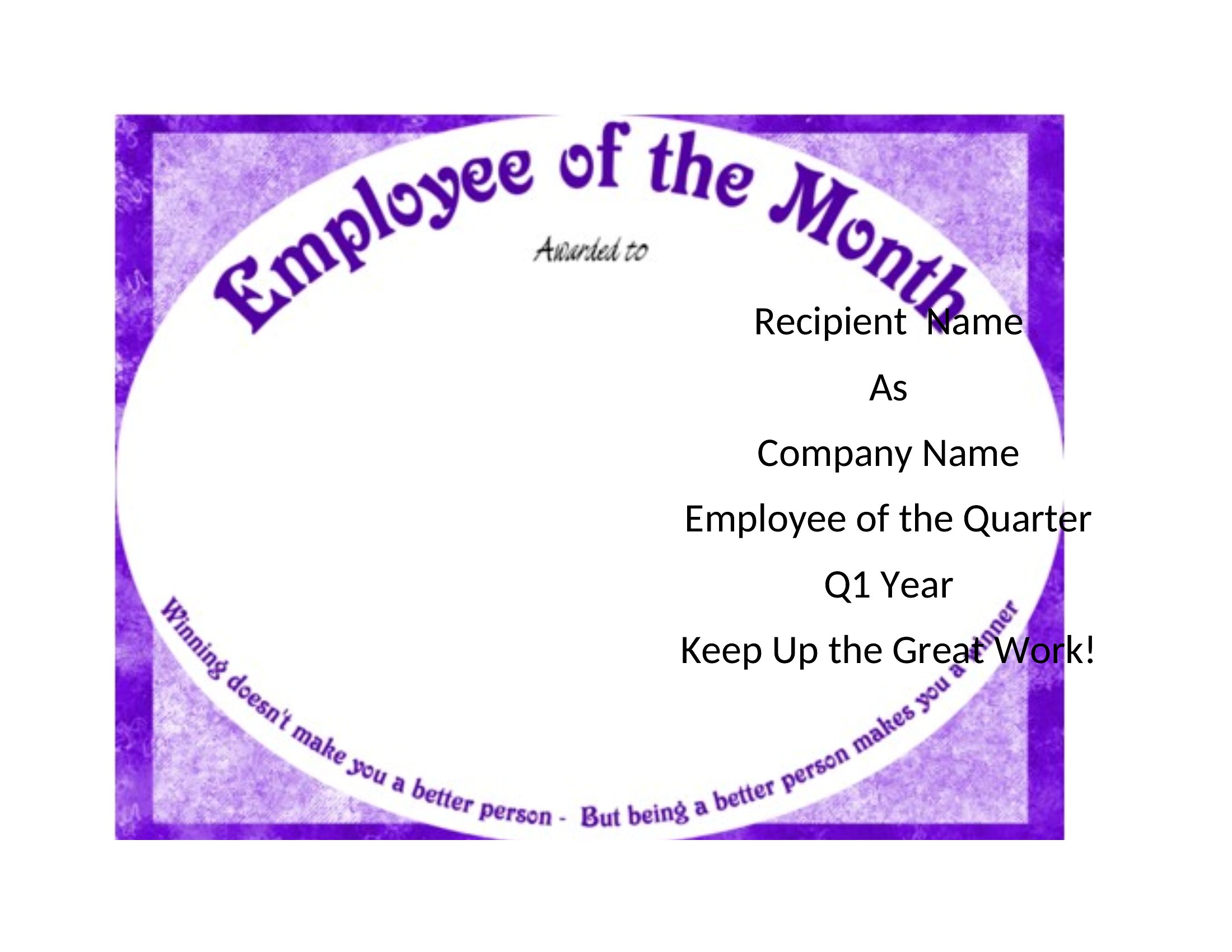
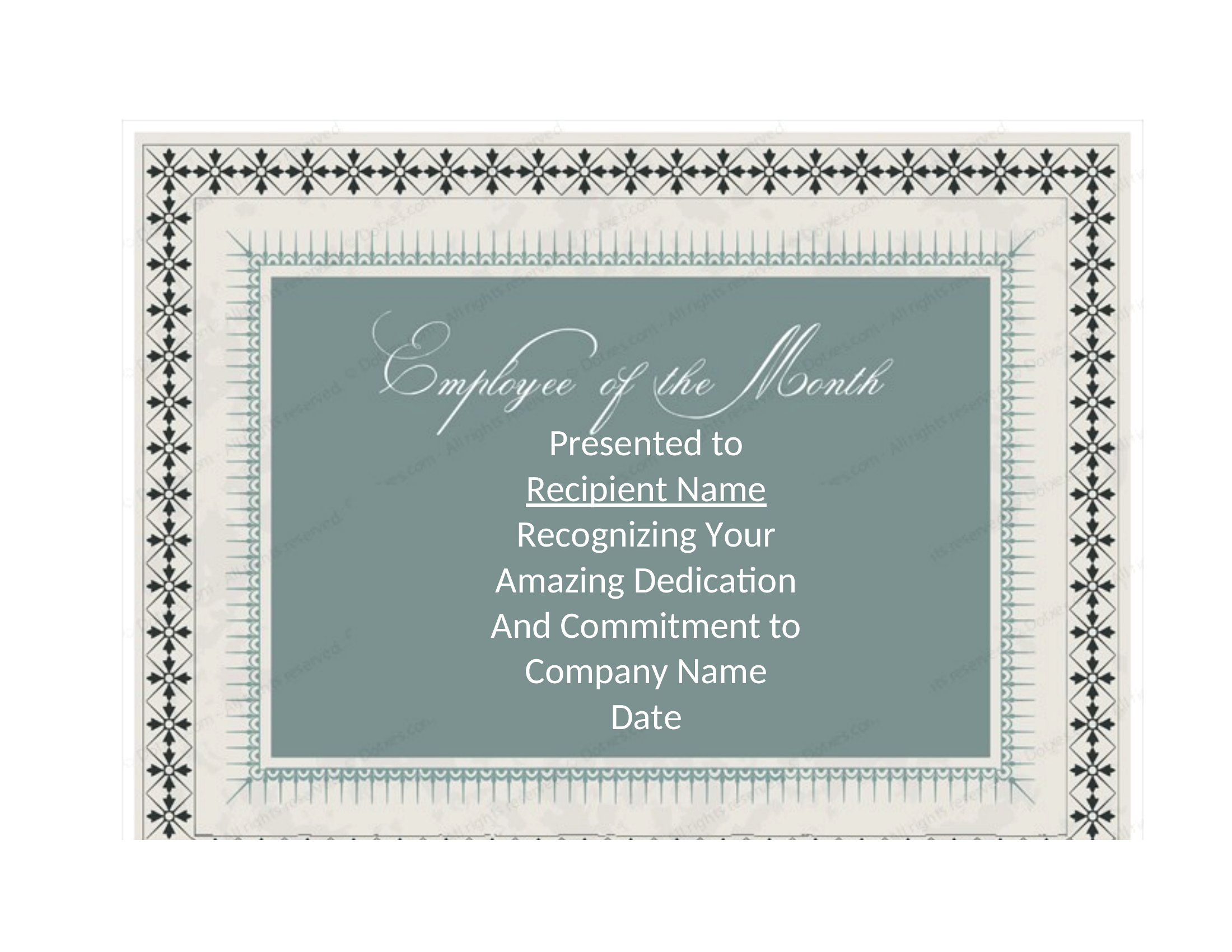
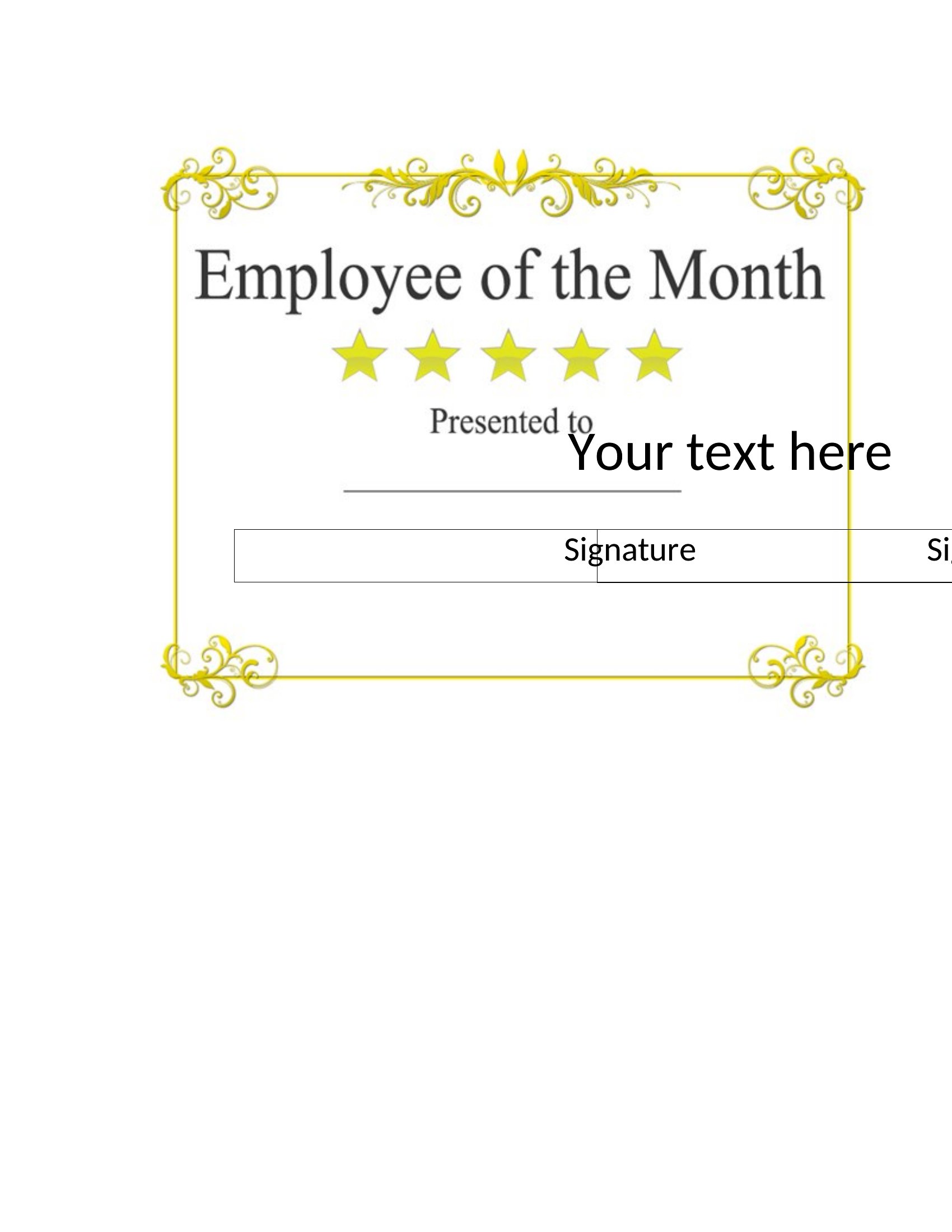
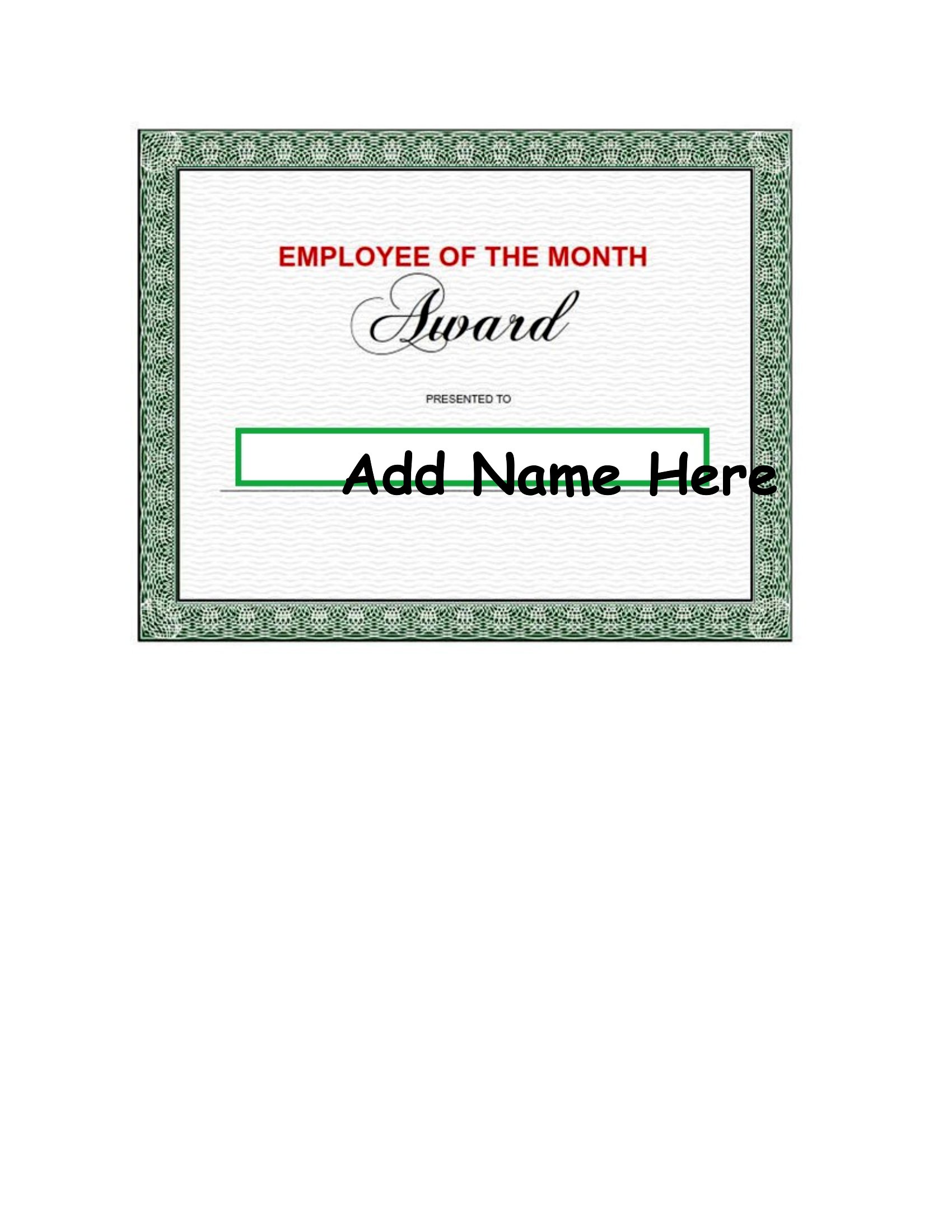
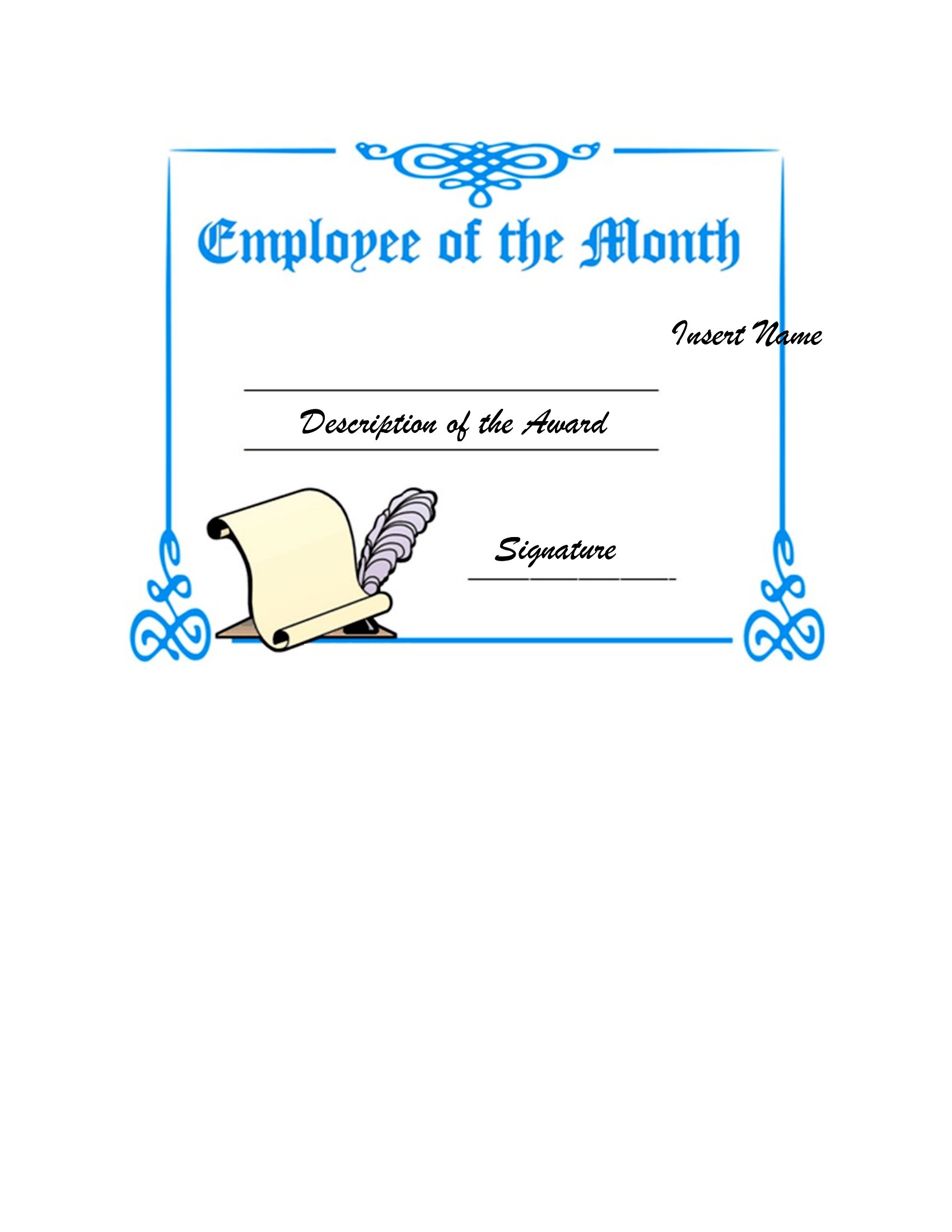
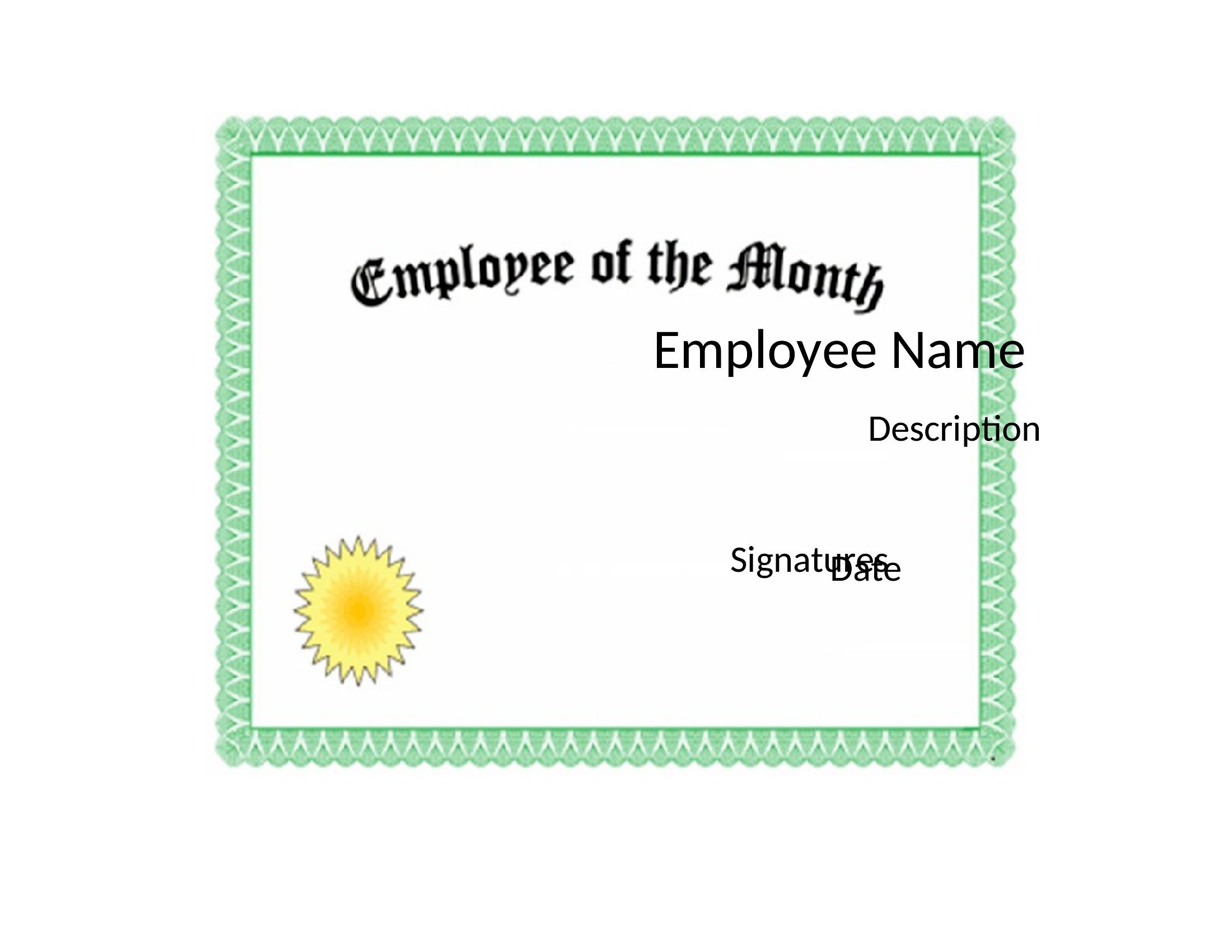
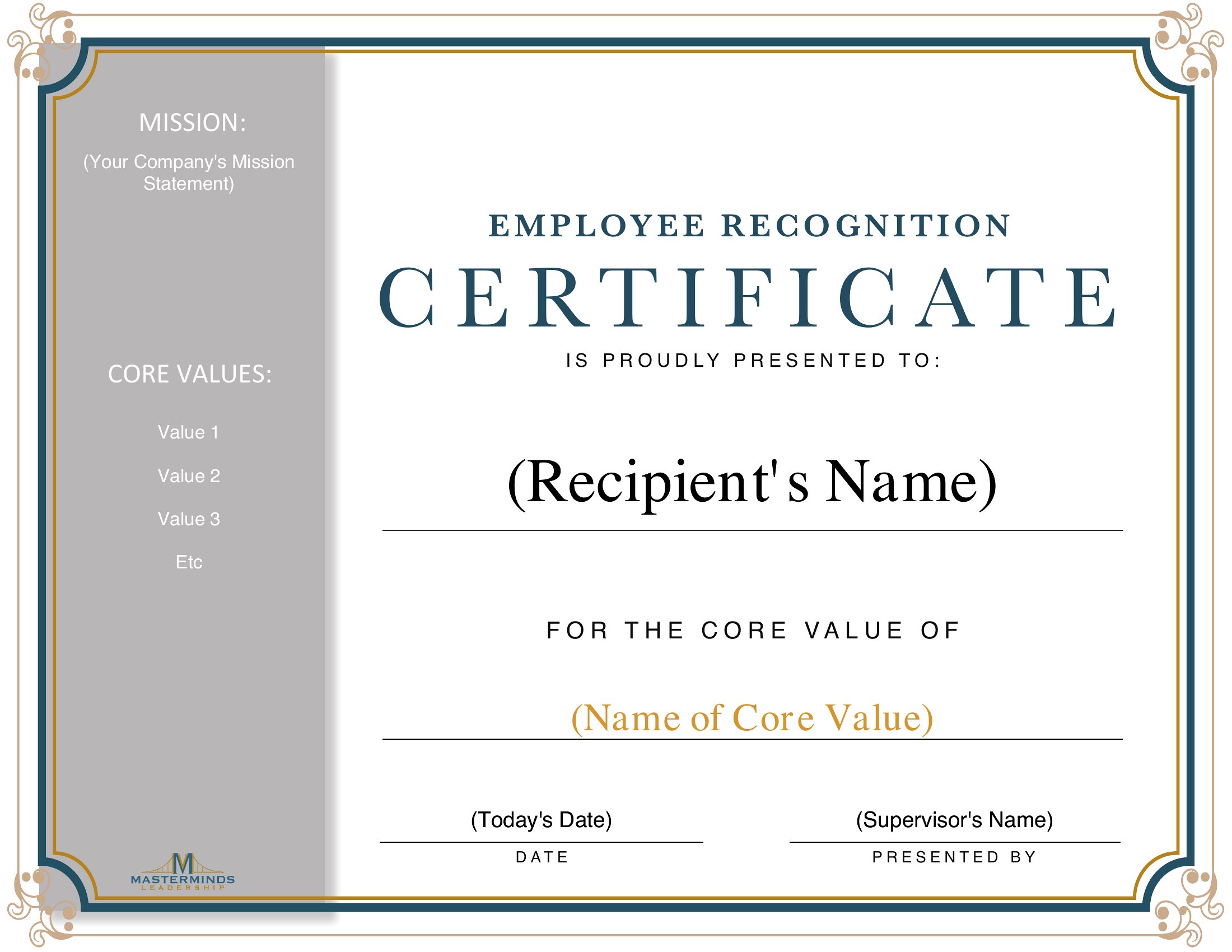
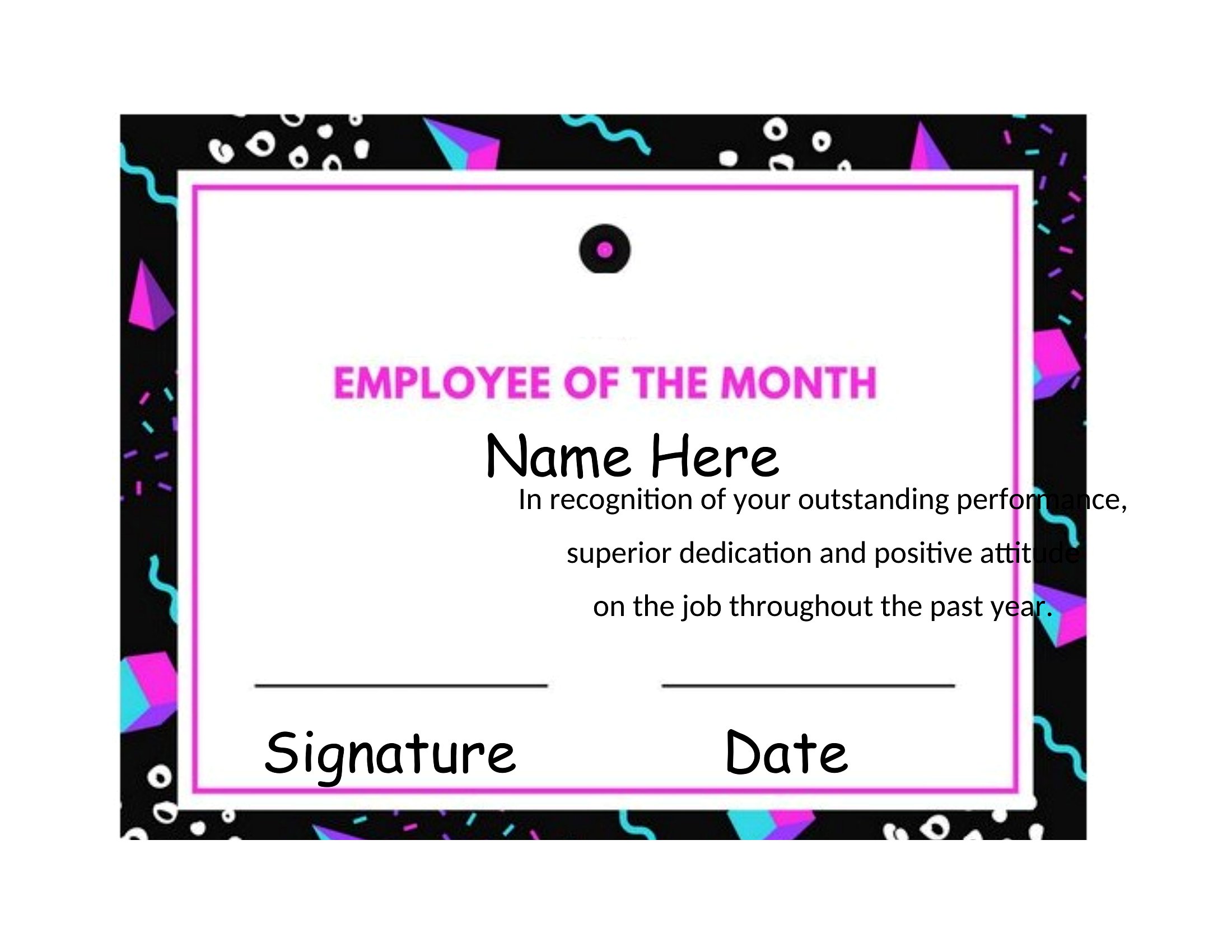
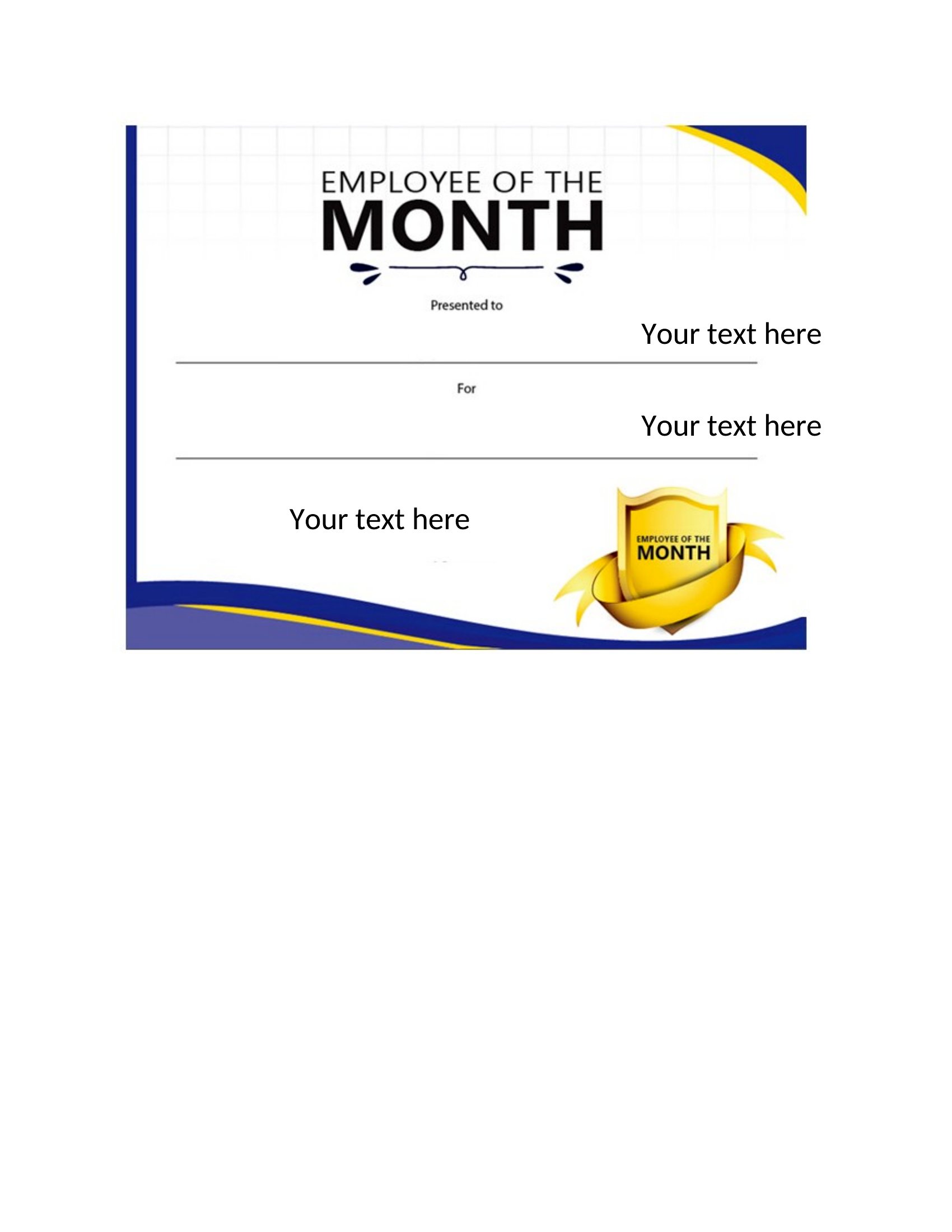
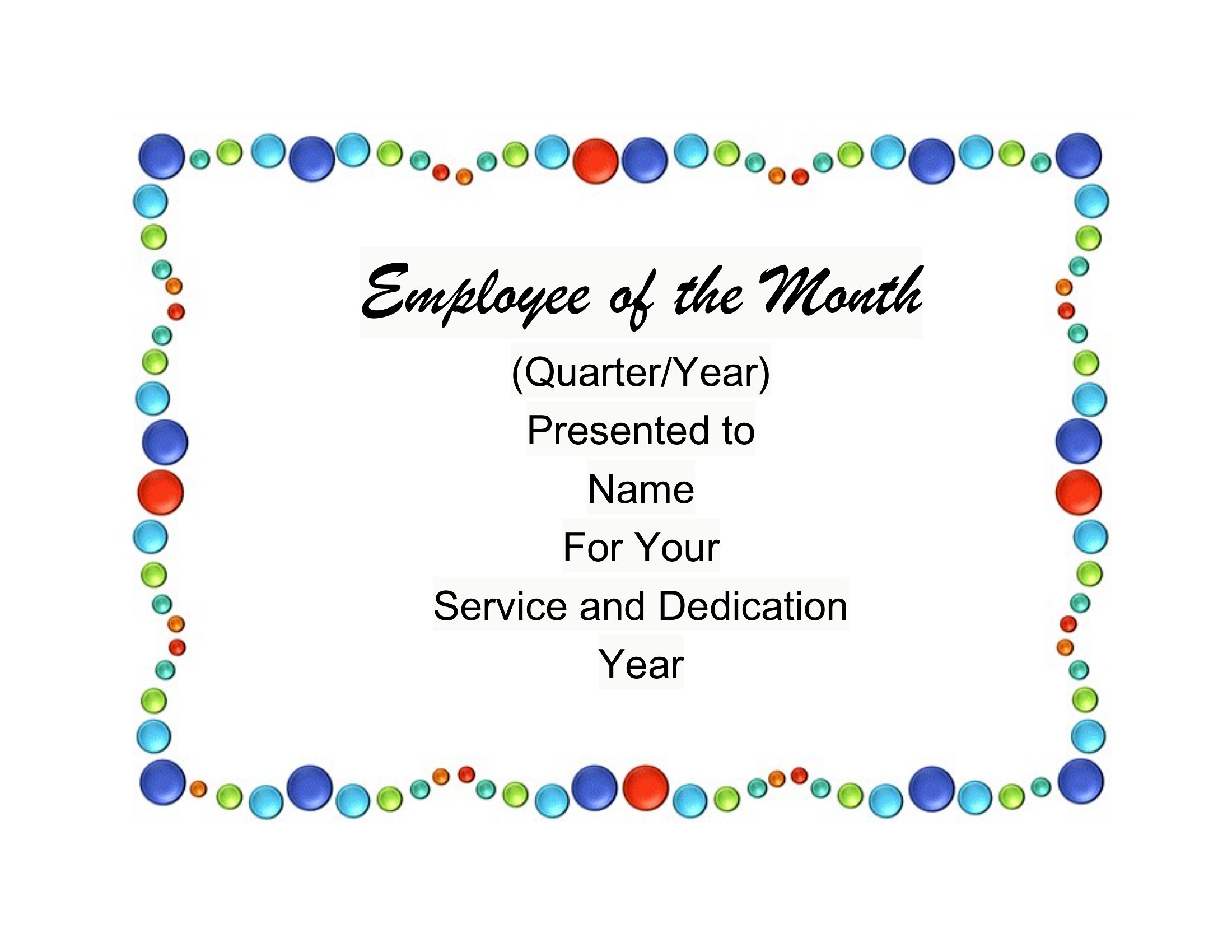
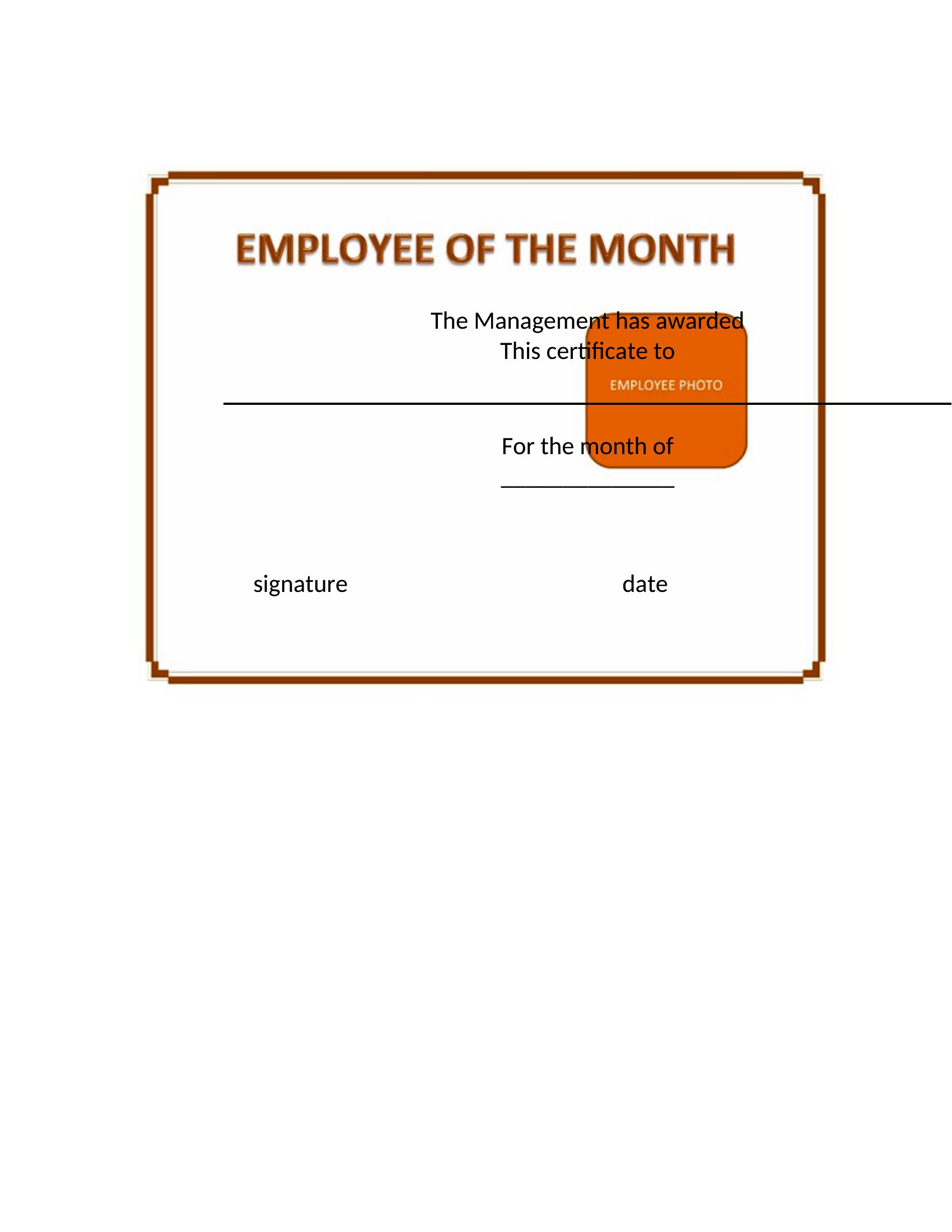
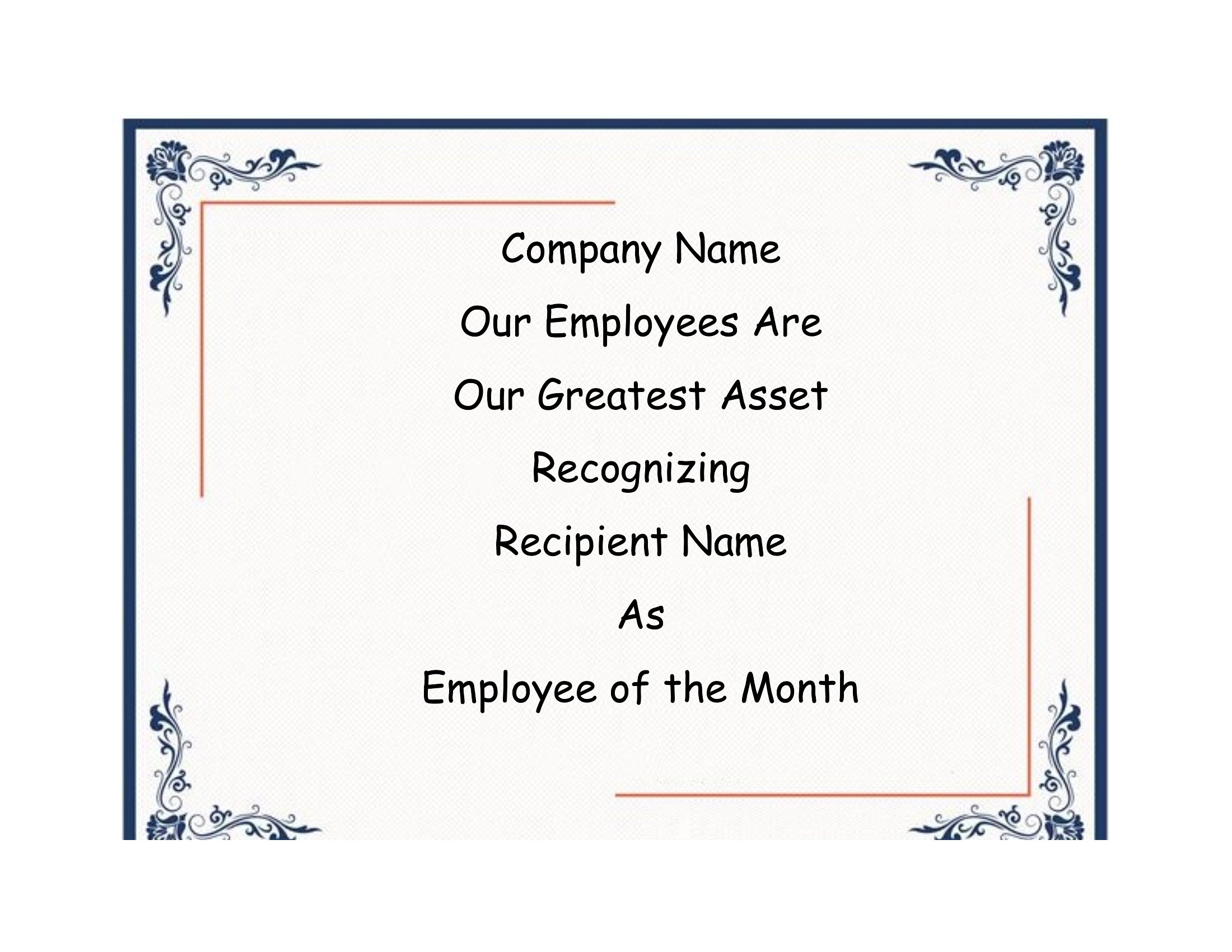
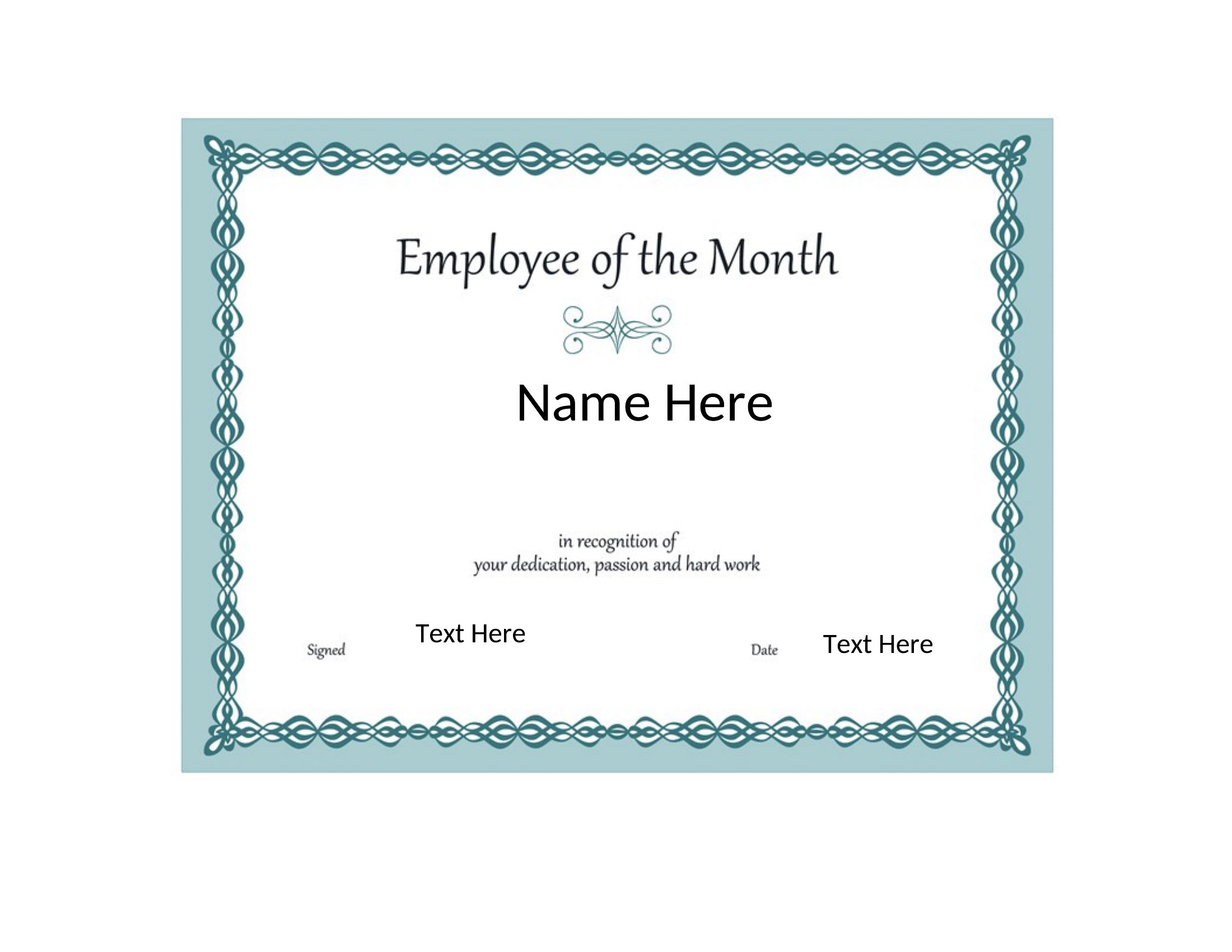
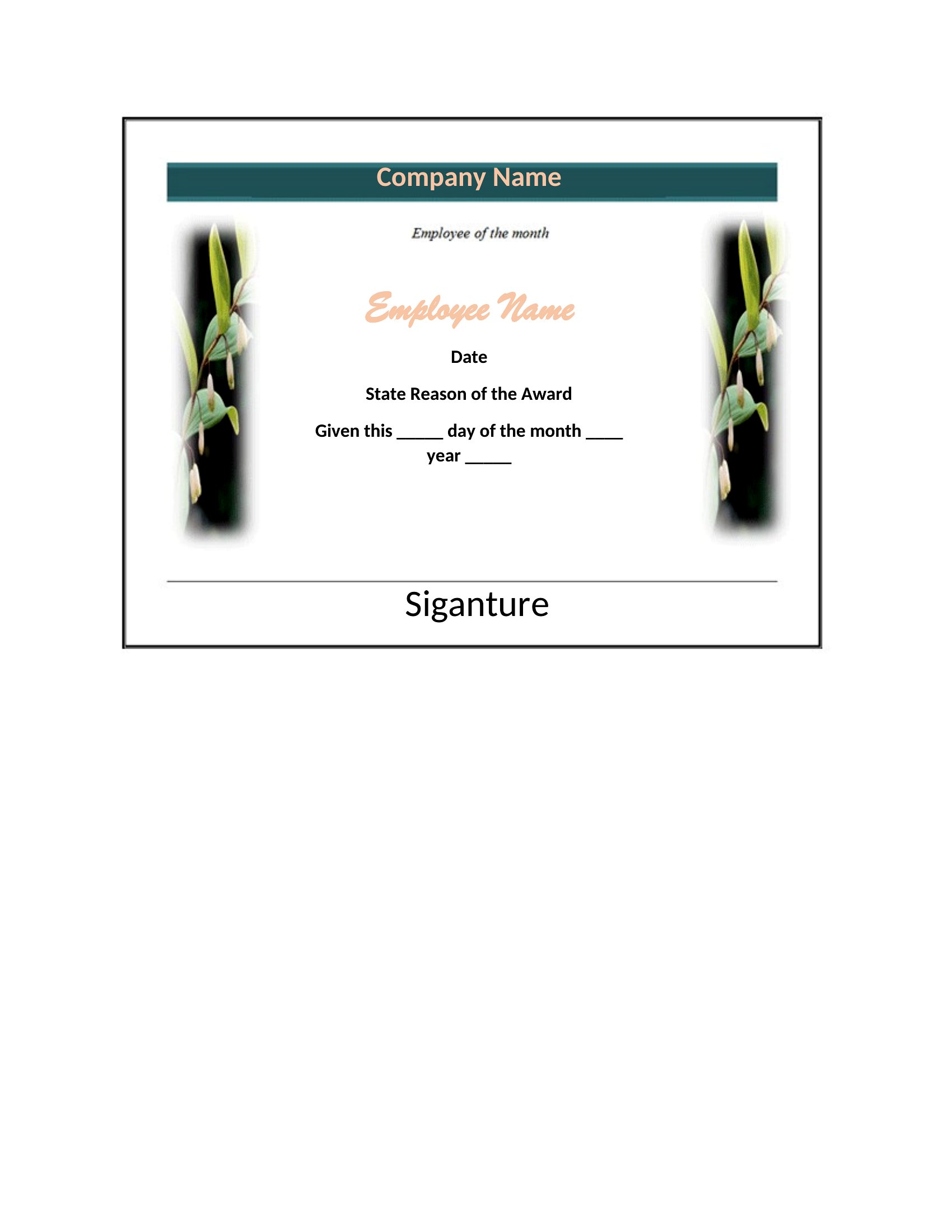
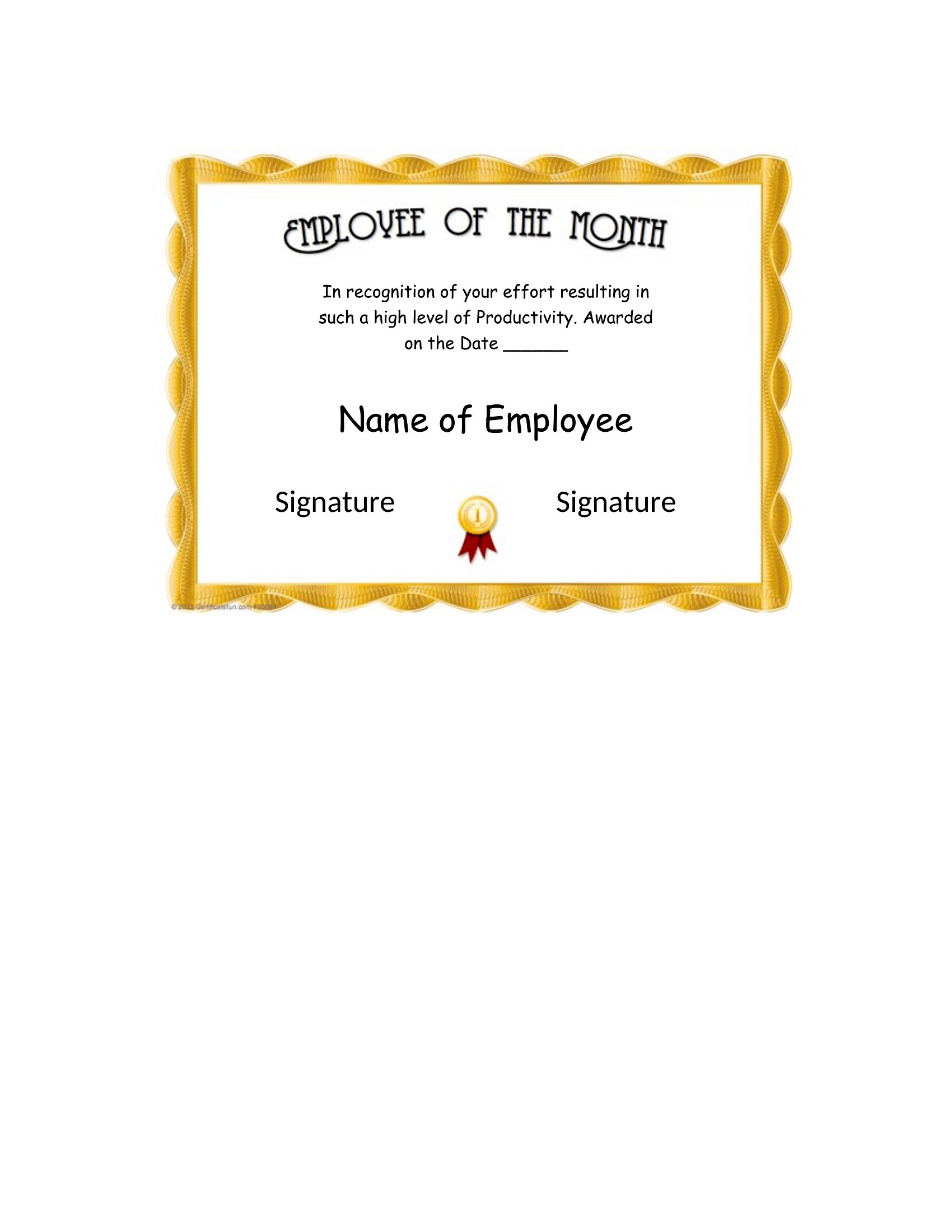
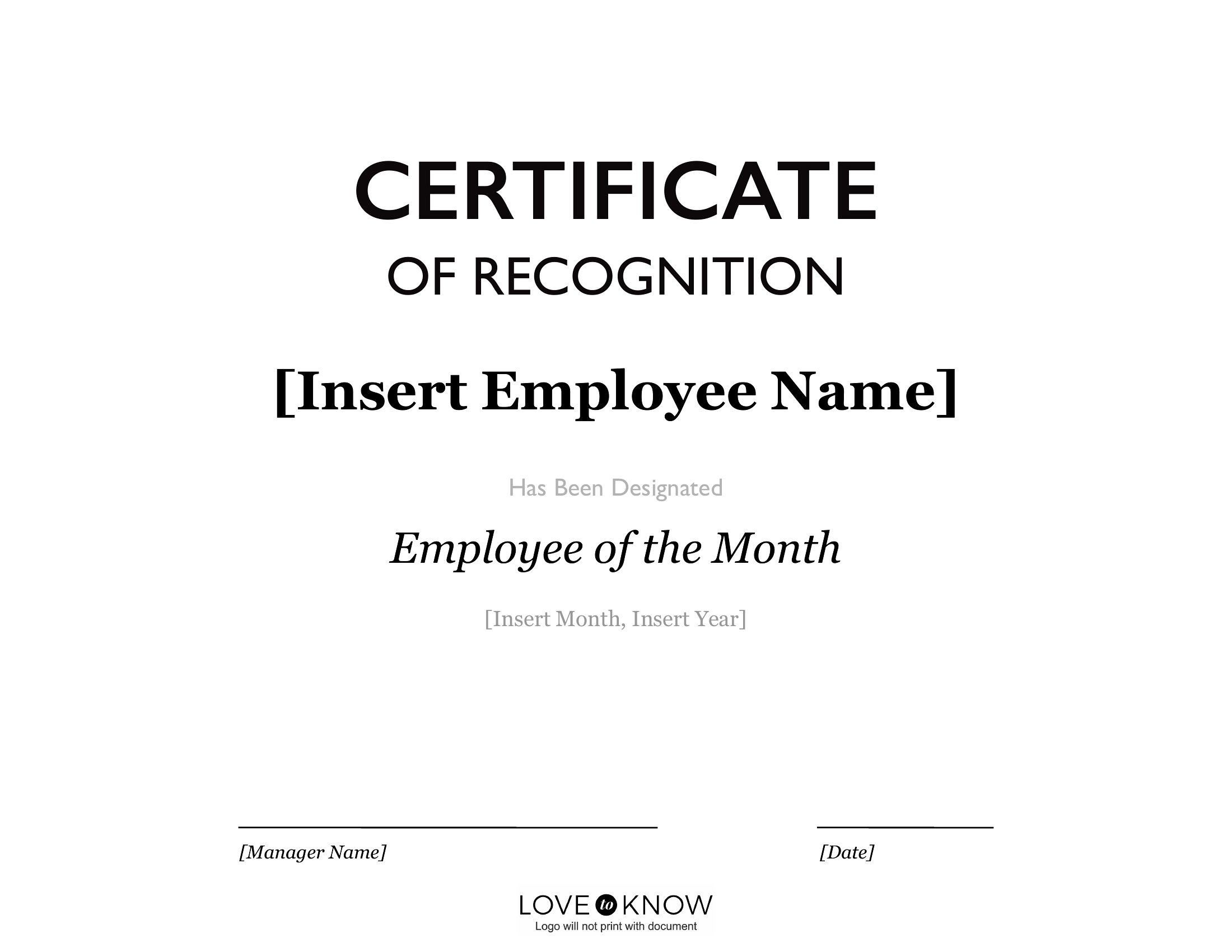
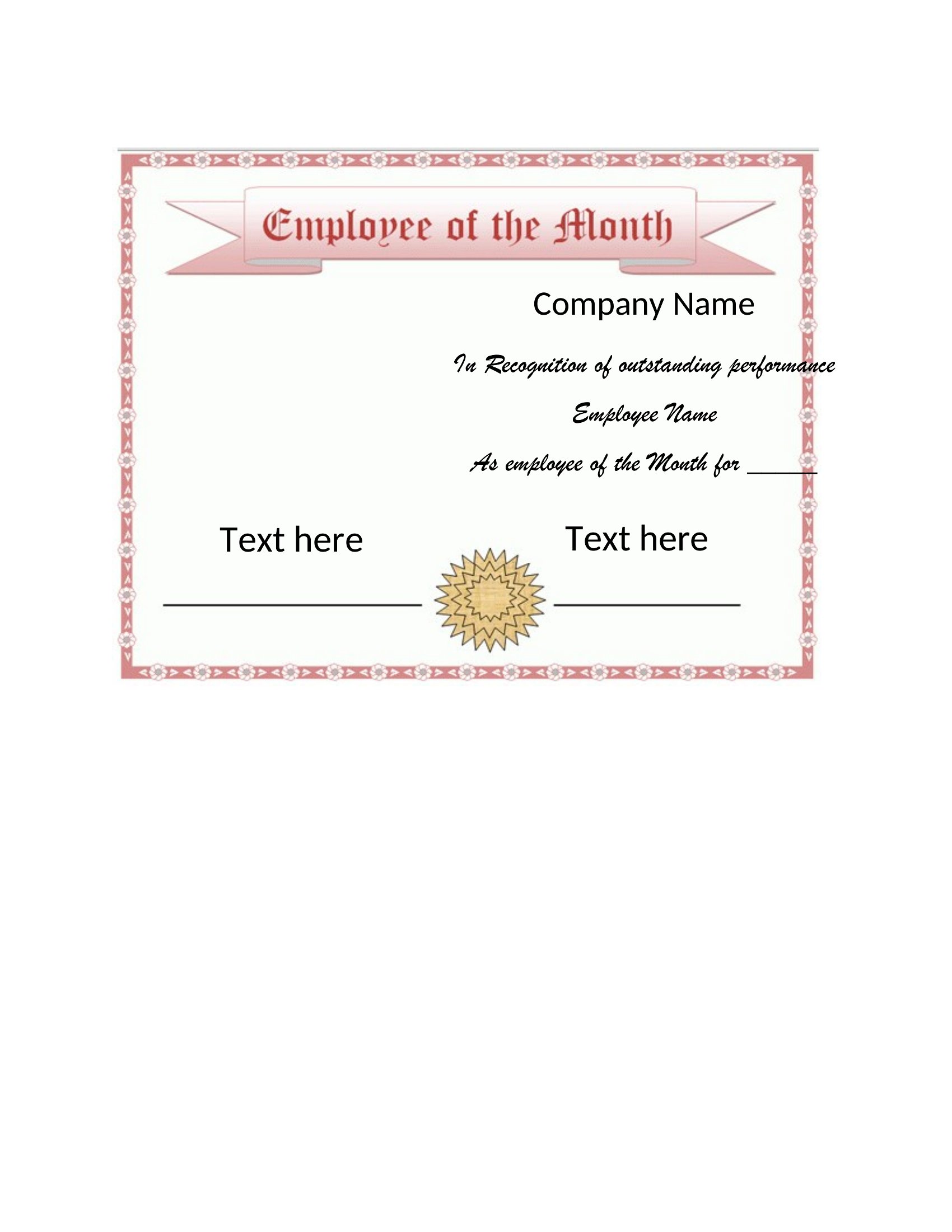
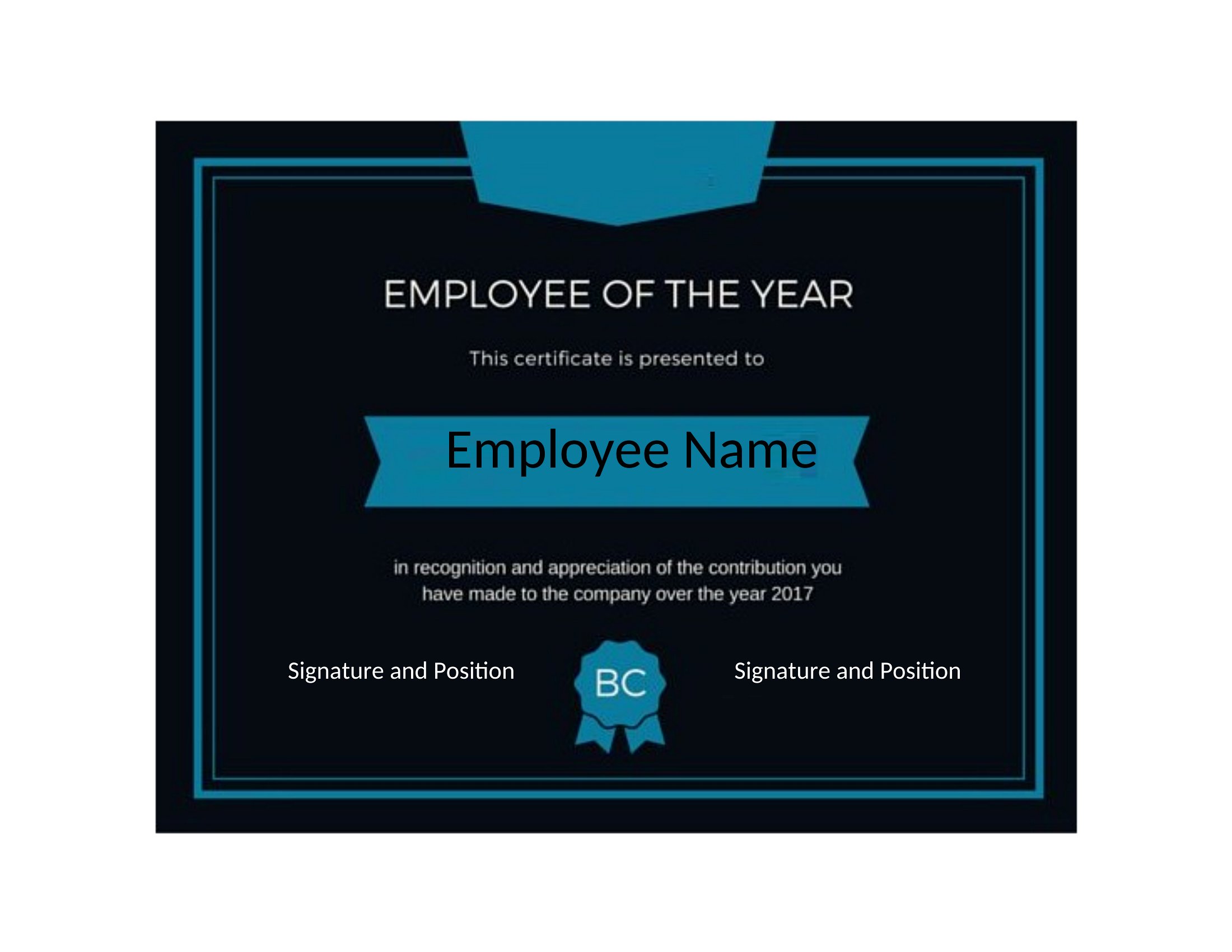
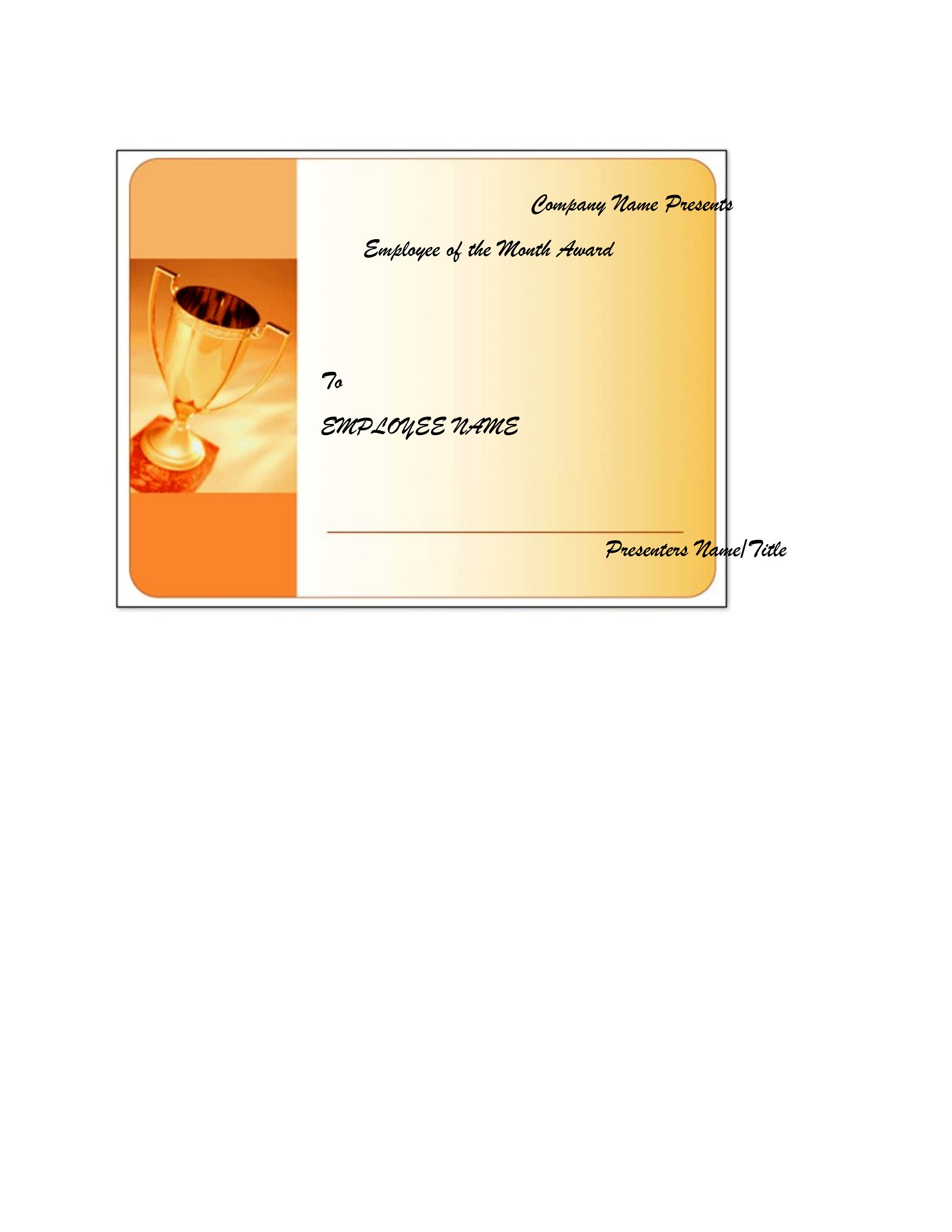
BusinessGiving a hardworking team member a little recognition goes a long way, and a printed certificate makes the moment feel official. This set of 33 Employee of the Month certificates gives managers, HR teams, and small-business owners a polished award to hand out at the next staff meeting. The designs lean professional but warm, with space for the recipient's name, the month, and a quick note about why they earned it.
You can open the layouts in Word to type your details or grab a print-ready PDF when you just need to fill in a name by hand. Swap the wording, drop in your company logo, and the certificate is ready to print on standard paper or card stock. Pick the style that suits your office and have an award framed before the meeting wraps up.
When to use this Employee of the Month Certificate template
- Small business owners with 10–50 employees who want to boost morale during quarterly team meetings by adding a personalized touch to their recognition awards.
- HR coordinators at mid-sized companies who need to print certificates quickly for end-of-month awards without relying on external designers or expensive software.
- Managers at retail stores or call centers where frequent turnover means replacing certificates but maintaining a consistent brand look across locations.
- Nonprofit organizations running volunteer programs that want to create professional-looking certificates for monthly volunteer spotlights without breaking their budget.
Which format should I download?
Choose Word if you plan to customize the certificate repeatedly—such as swapping logos or tweaking text—before printing. Word’s editable fields make it ideal for managers who handle multiple awards each month. Opt for PDF if you need a final, polished version that can’t be altered accidentally, like for a framed display or digital distribution. Since these templates are pre-designed, PDF works well for one-time prints or sharing with employees via email.
How to use this Employee of the Month Certificate template
Can I add a company logo or team photo to these certificates?
Yes, most templates include designated spaces for logos or images. In Word, you can insert your logo directly; in PDFs, check if the design has a placeholder layer for graphic overlays. For best results, use a high-resolution image and preview it before printing. Always ensure your logo fits within the certificate’s borders to avoid cutting off key details.
What if I need to recognize someone extra formally, like a long-tenured employee?
These templates include space for a brief note of achievement—use it to highlight tenure, specific contributions, or milestones like ‘15 Years of Service.’ For longer messages, some designs allow you to add a footnote or include a separate thank-you card with the certificate. Adjust the font size in Word to ensure readability while keeping the layout balanced.
How do I ensure the certificates look professional if my company has a specific color scheme?
All templates feature neutral backgrounds and text colors, but you can easily update them. In Word, use the theme colors feature to match your brand palette, or manually adjust the font/background hues. For PDFs, save the template as an editable Word file first, make color changes, then export back to PDF. Avoid using more than two accent colors to maintain a clean, polished look.
Comments
Join the conversation
Sign in to share your thoughts and leave a comment on this resource.