Free Comparison Chart Templates (Word, Excel)
DataTemplates
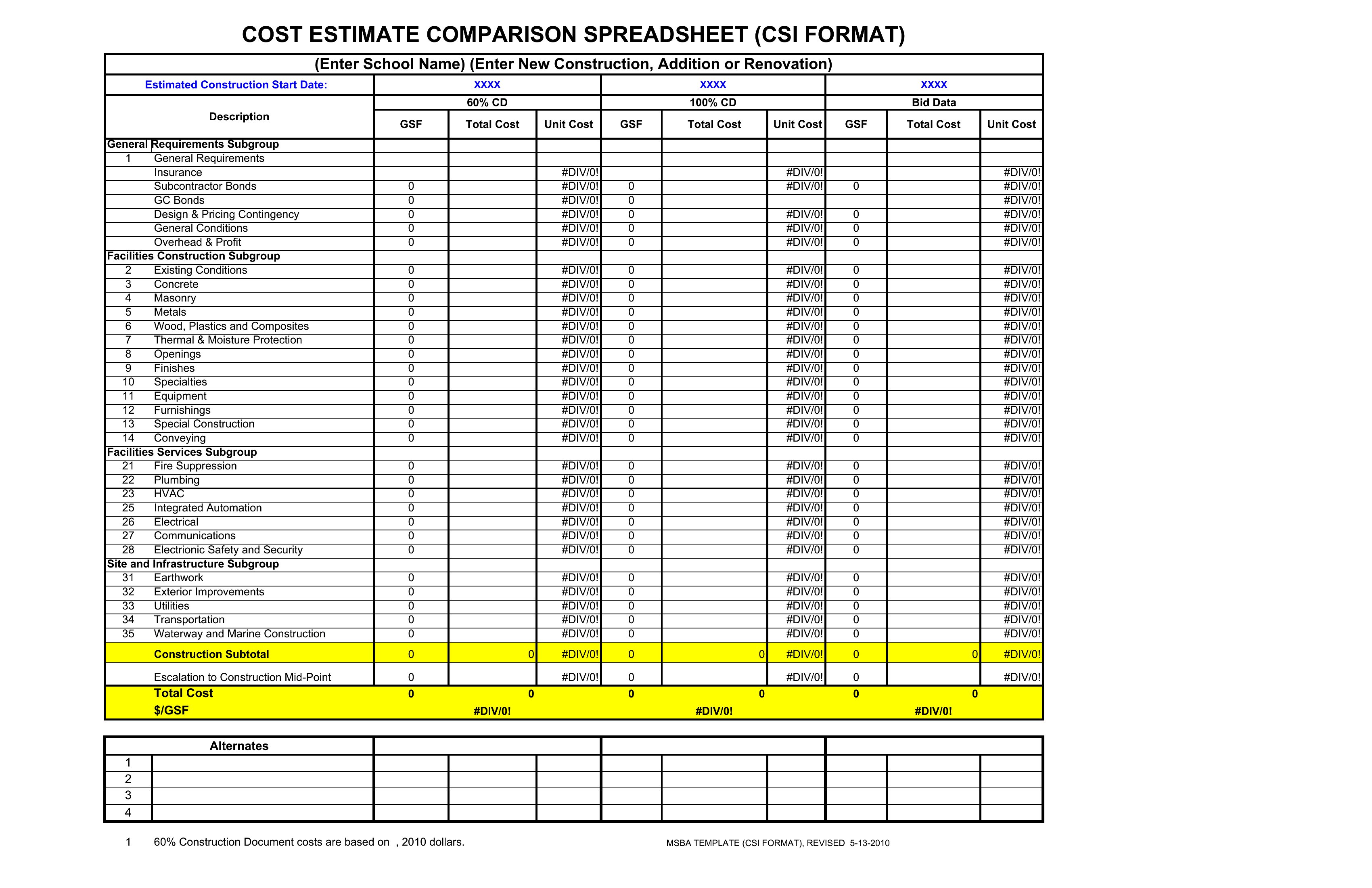
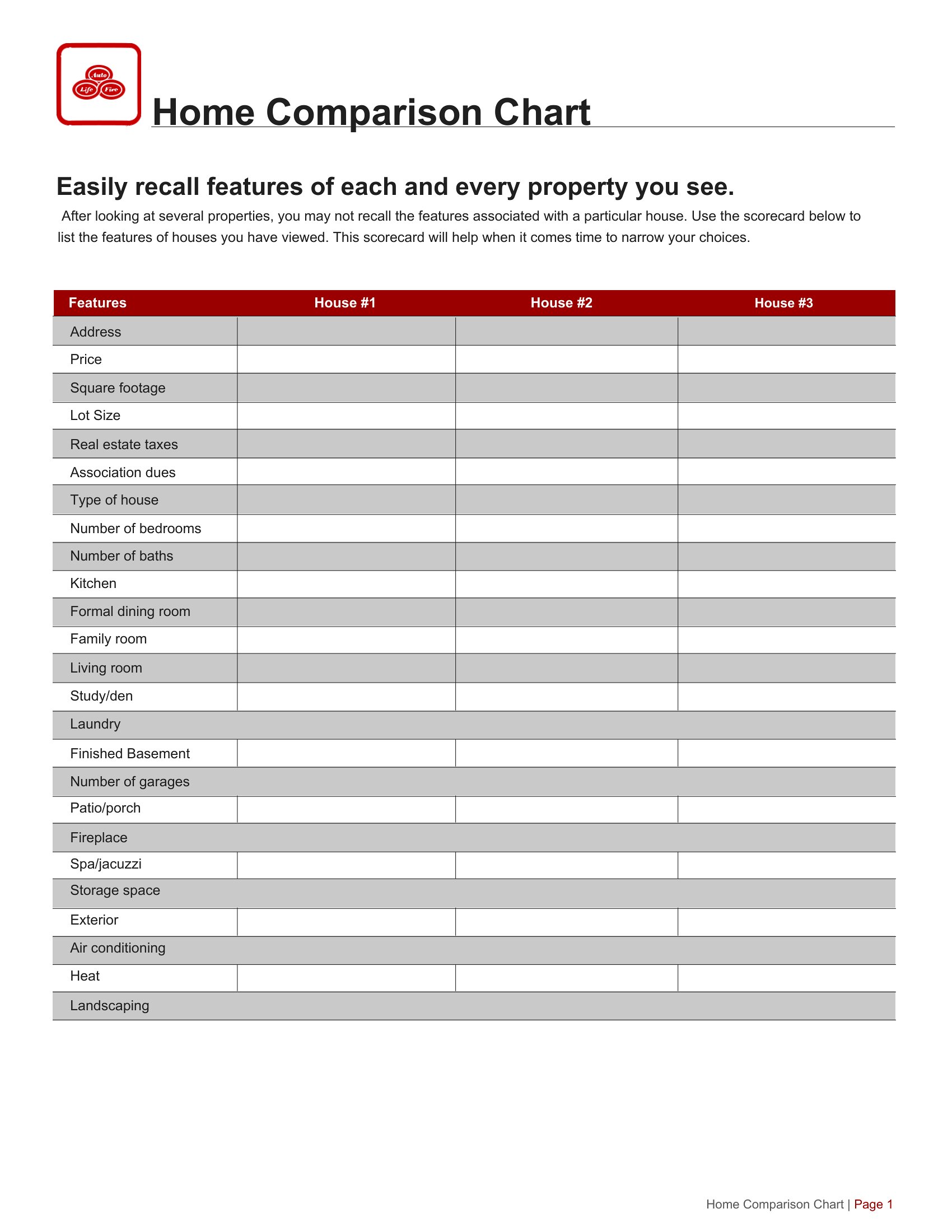
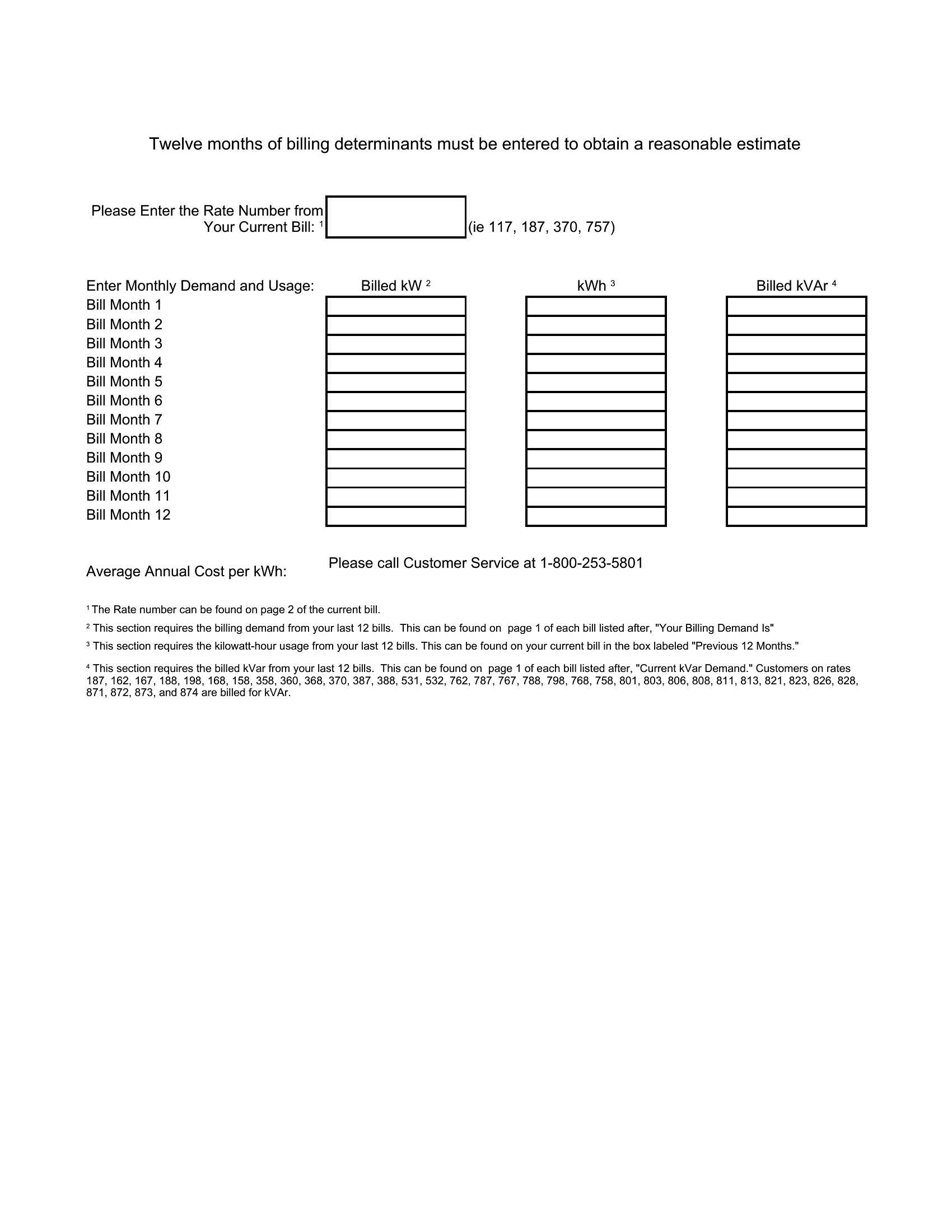
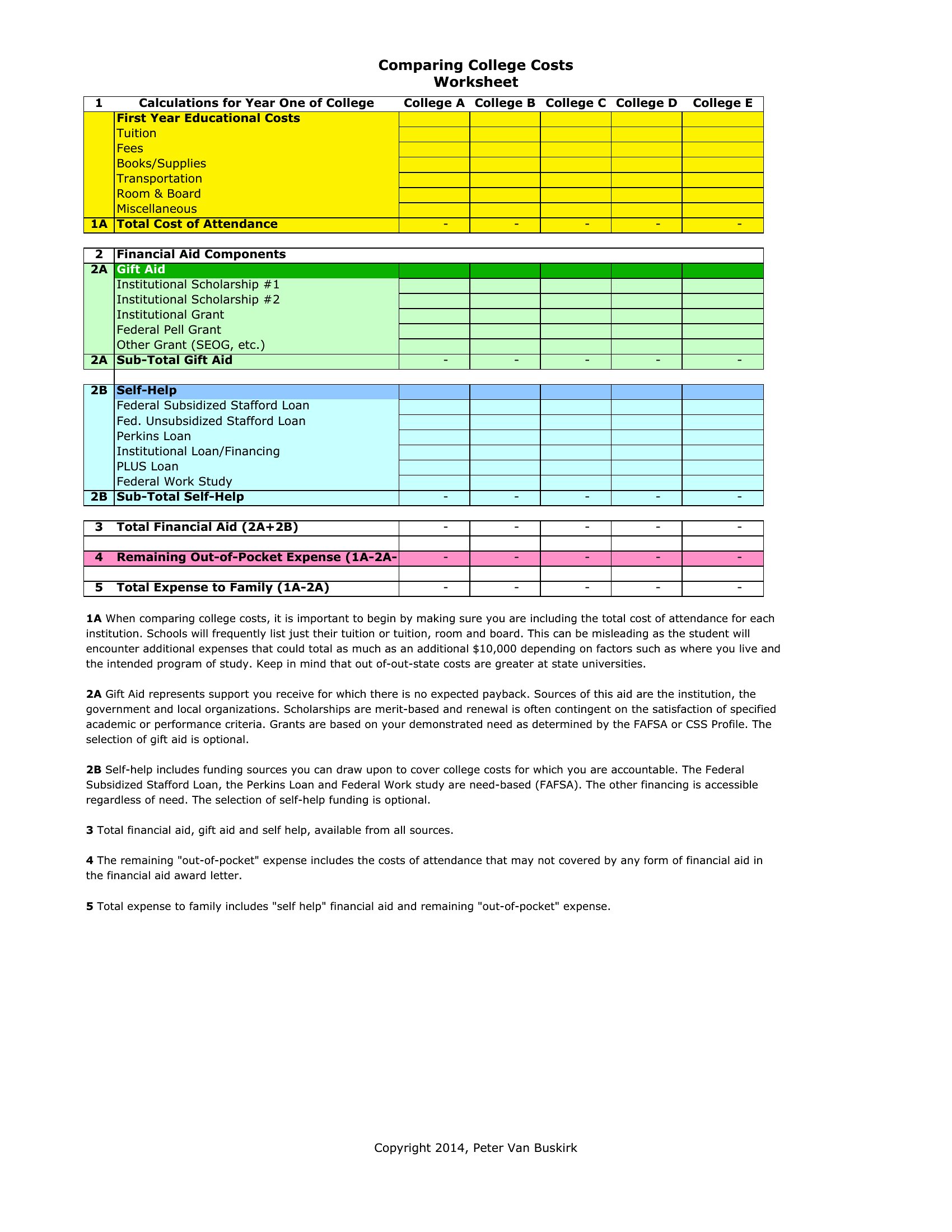
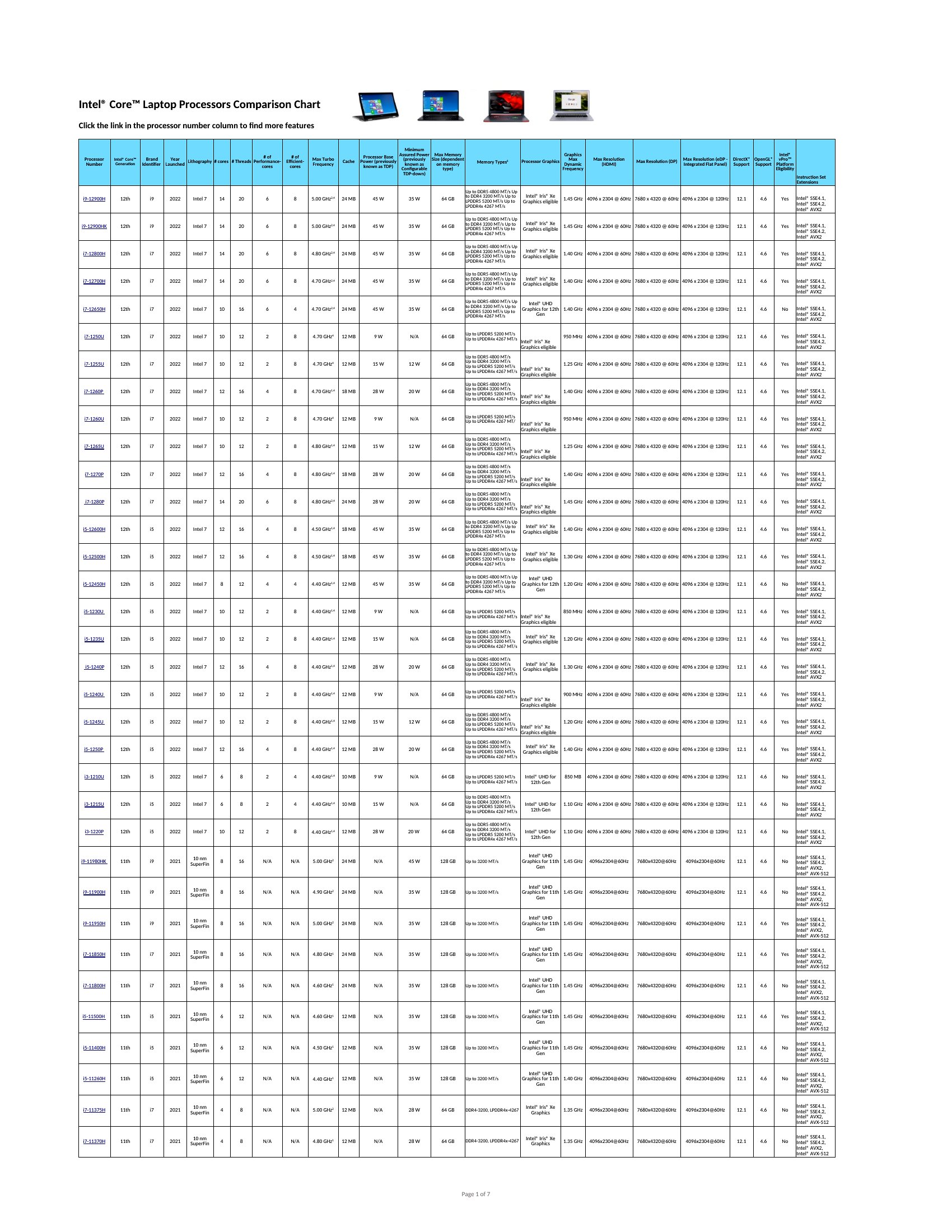
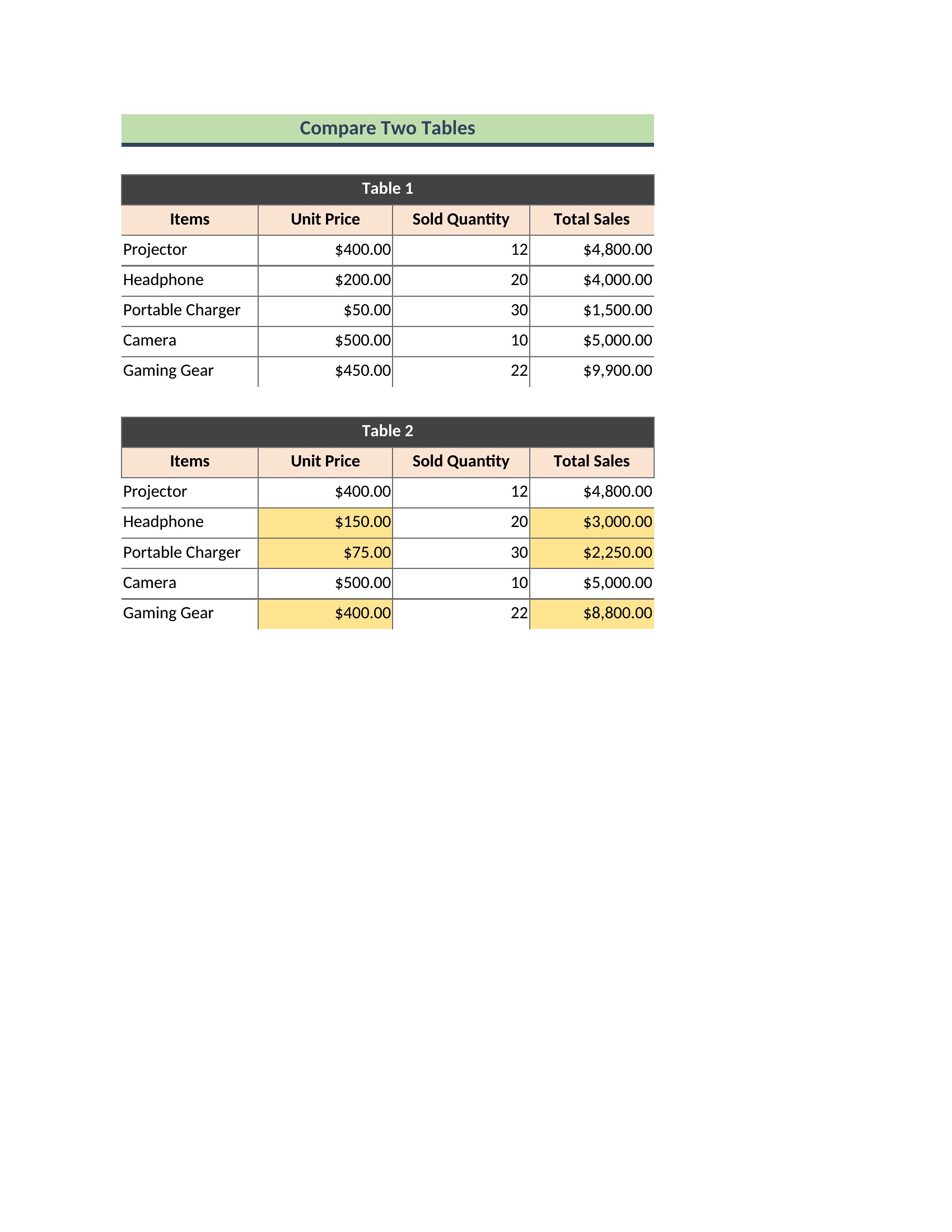
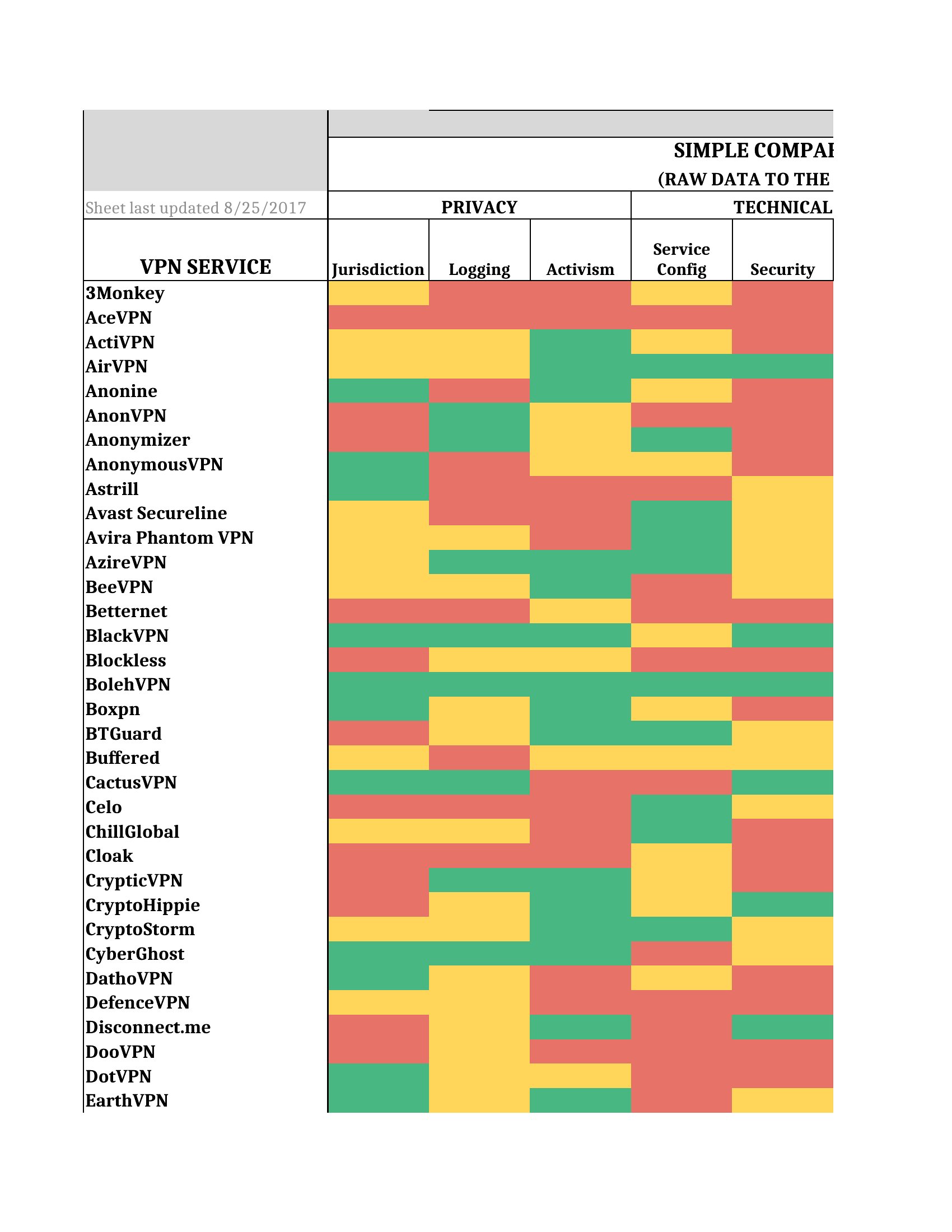
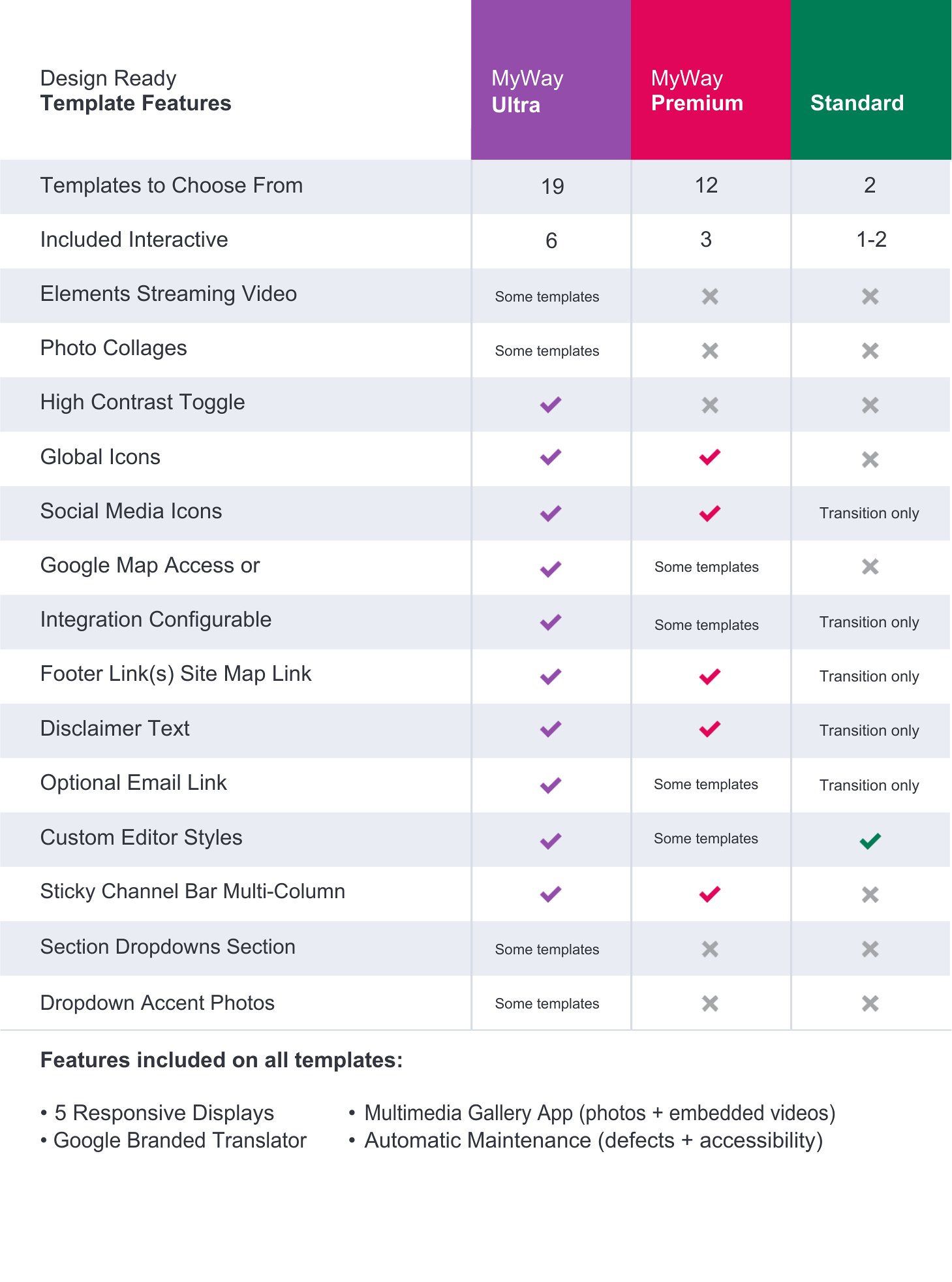
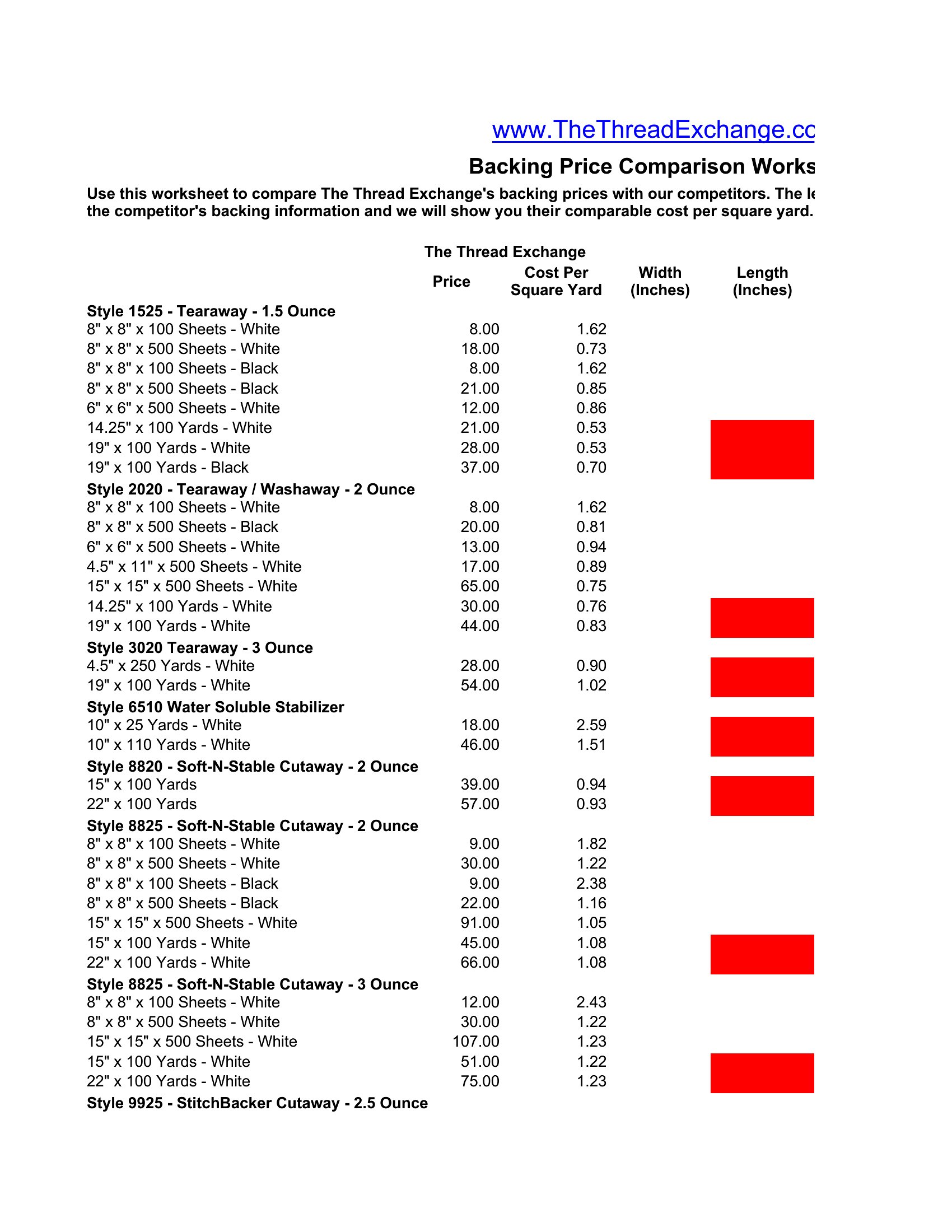
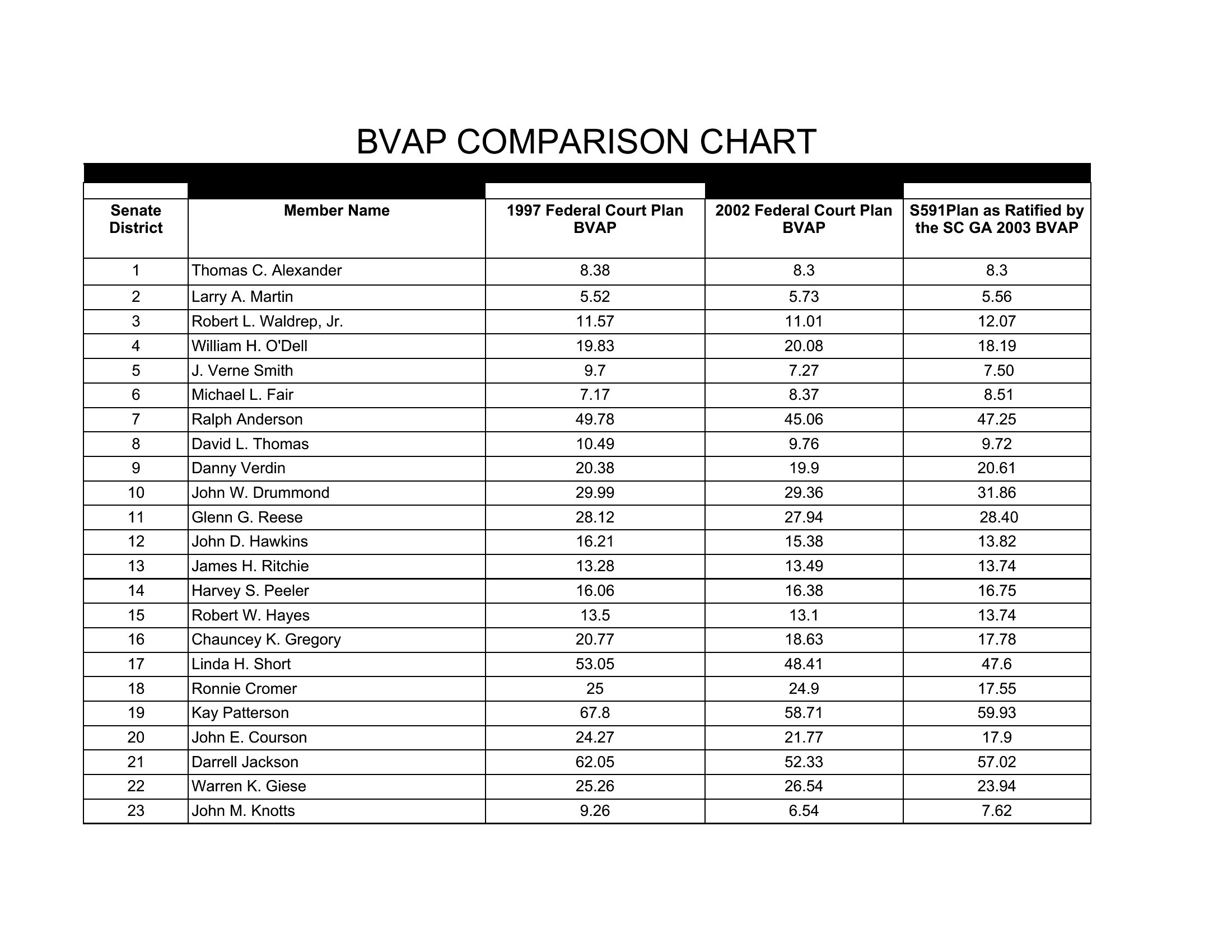
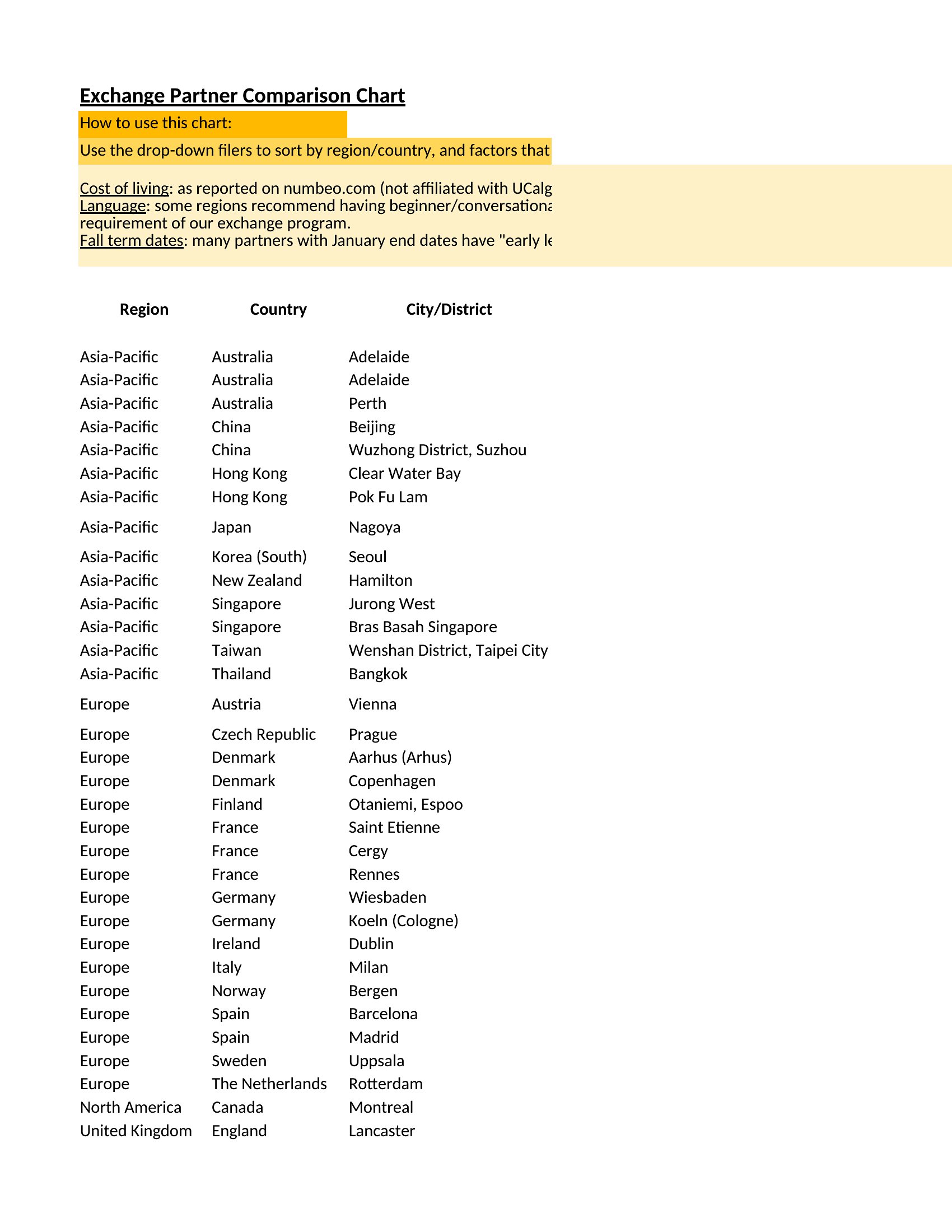
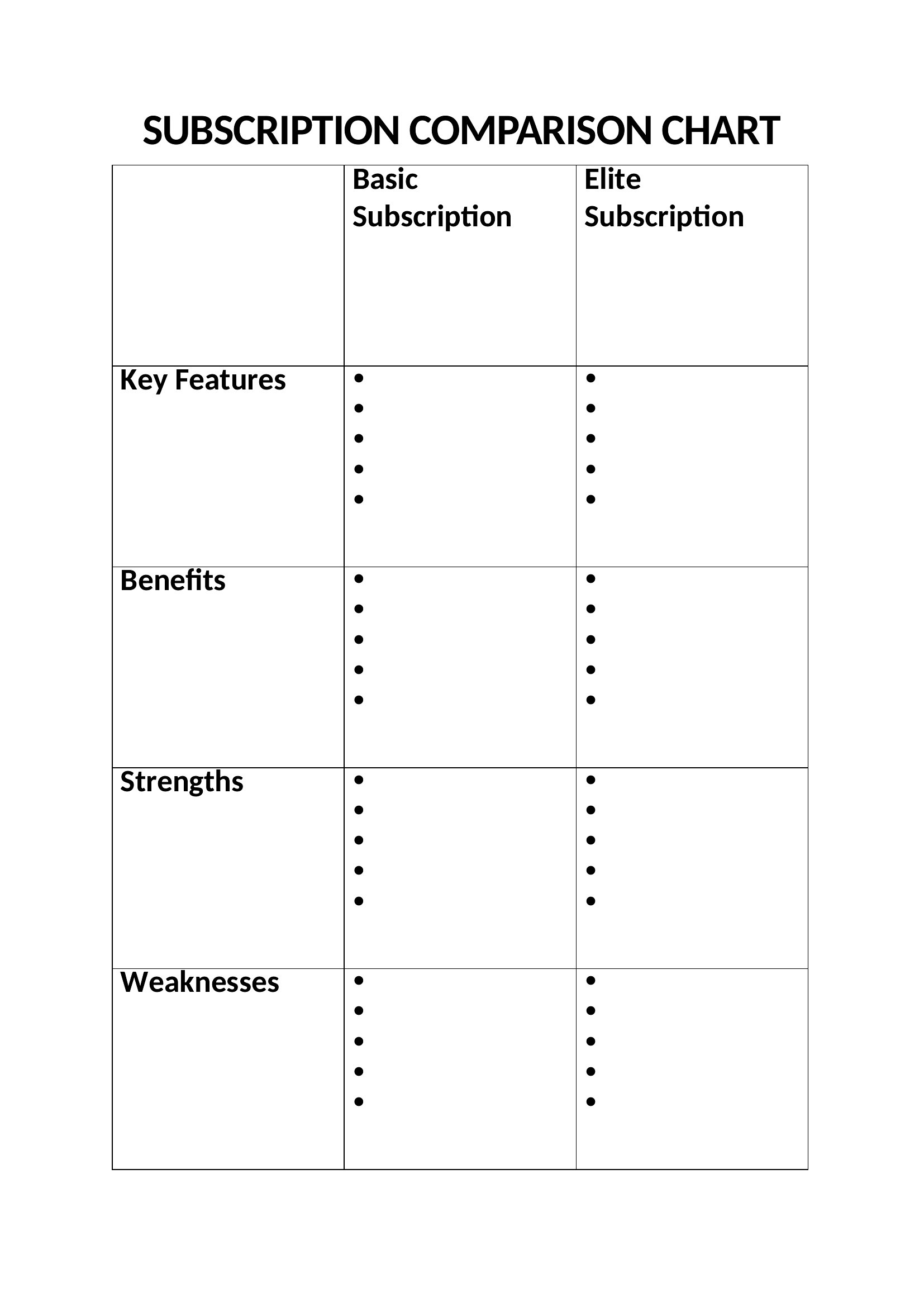
FAQ
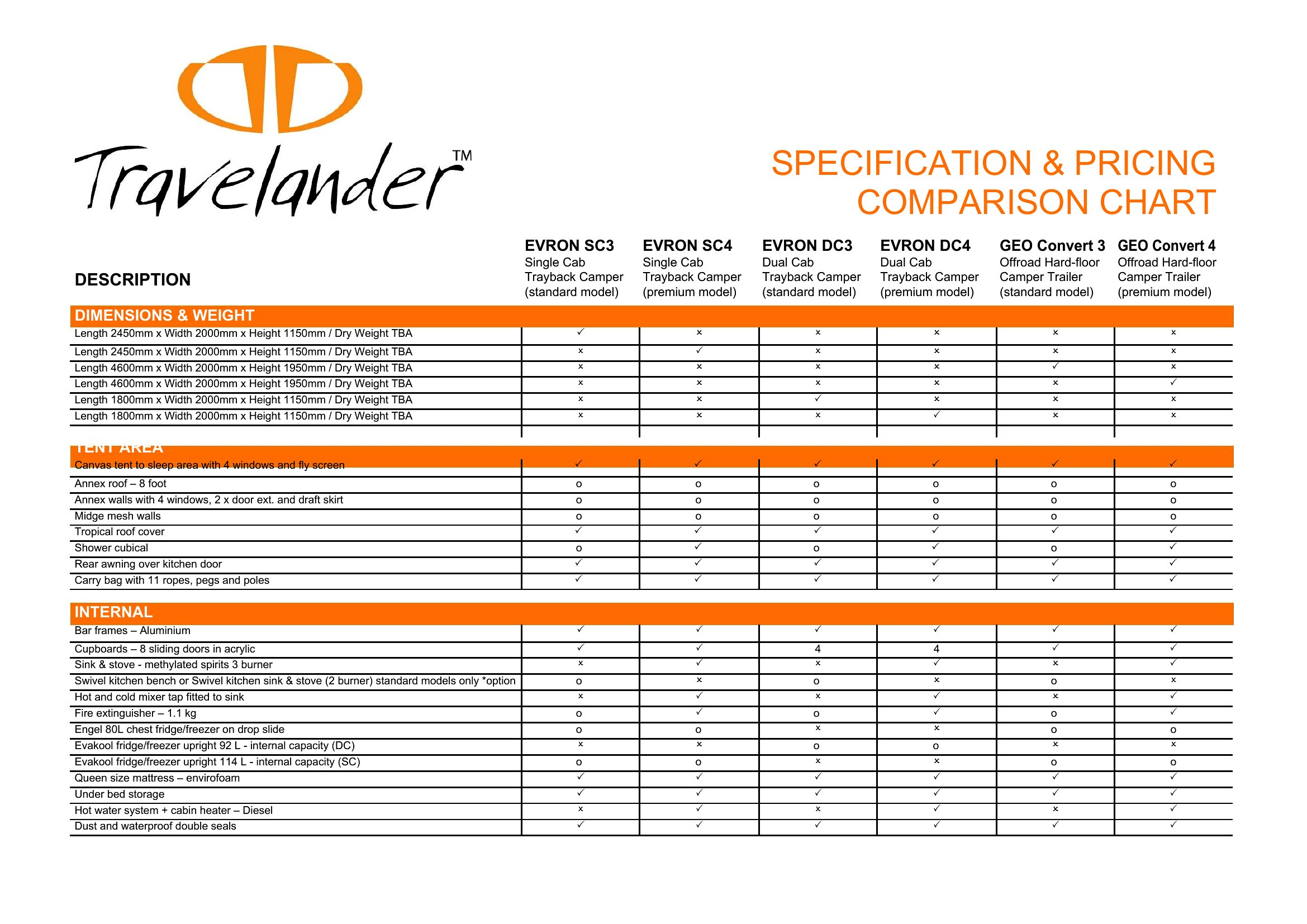
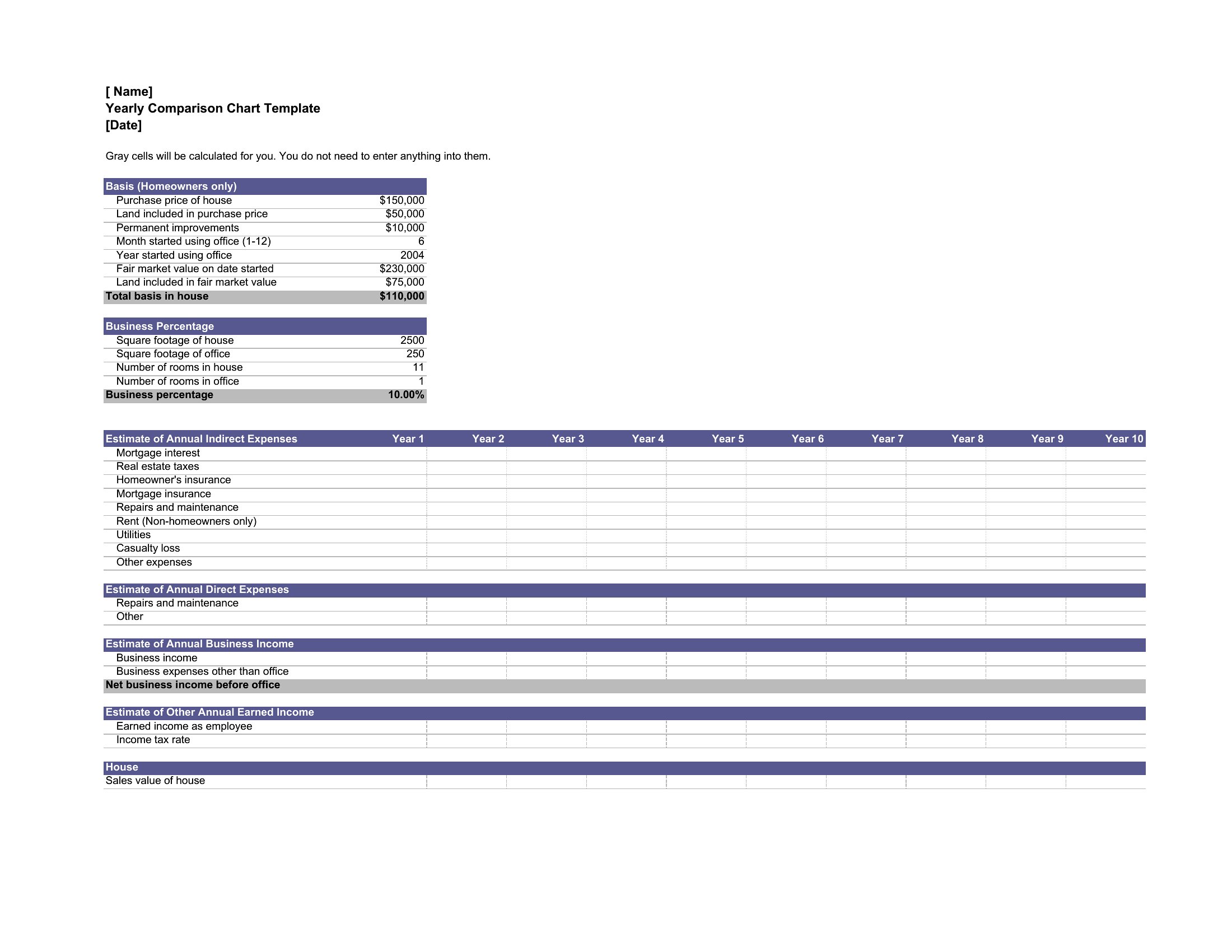
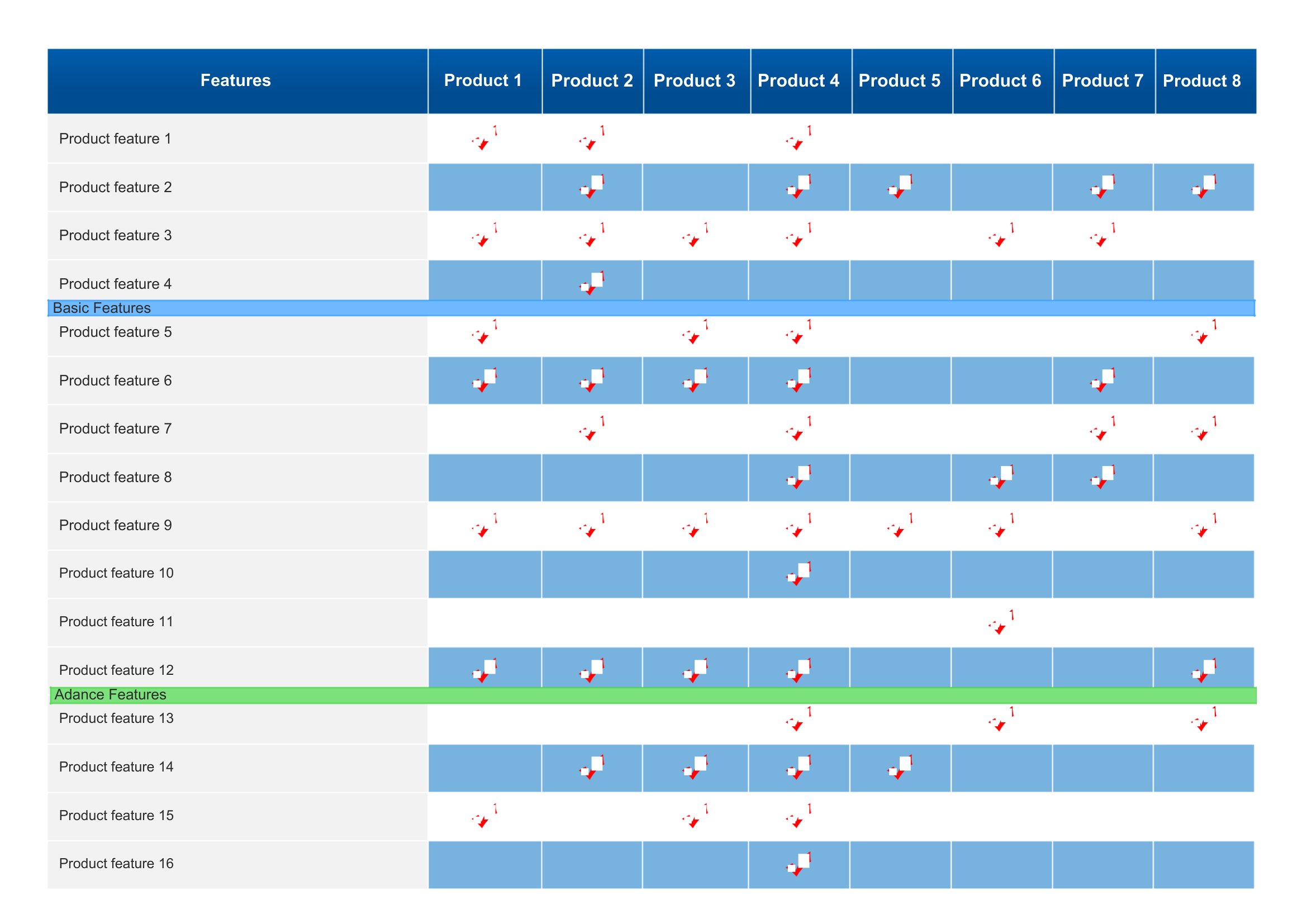
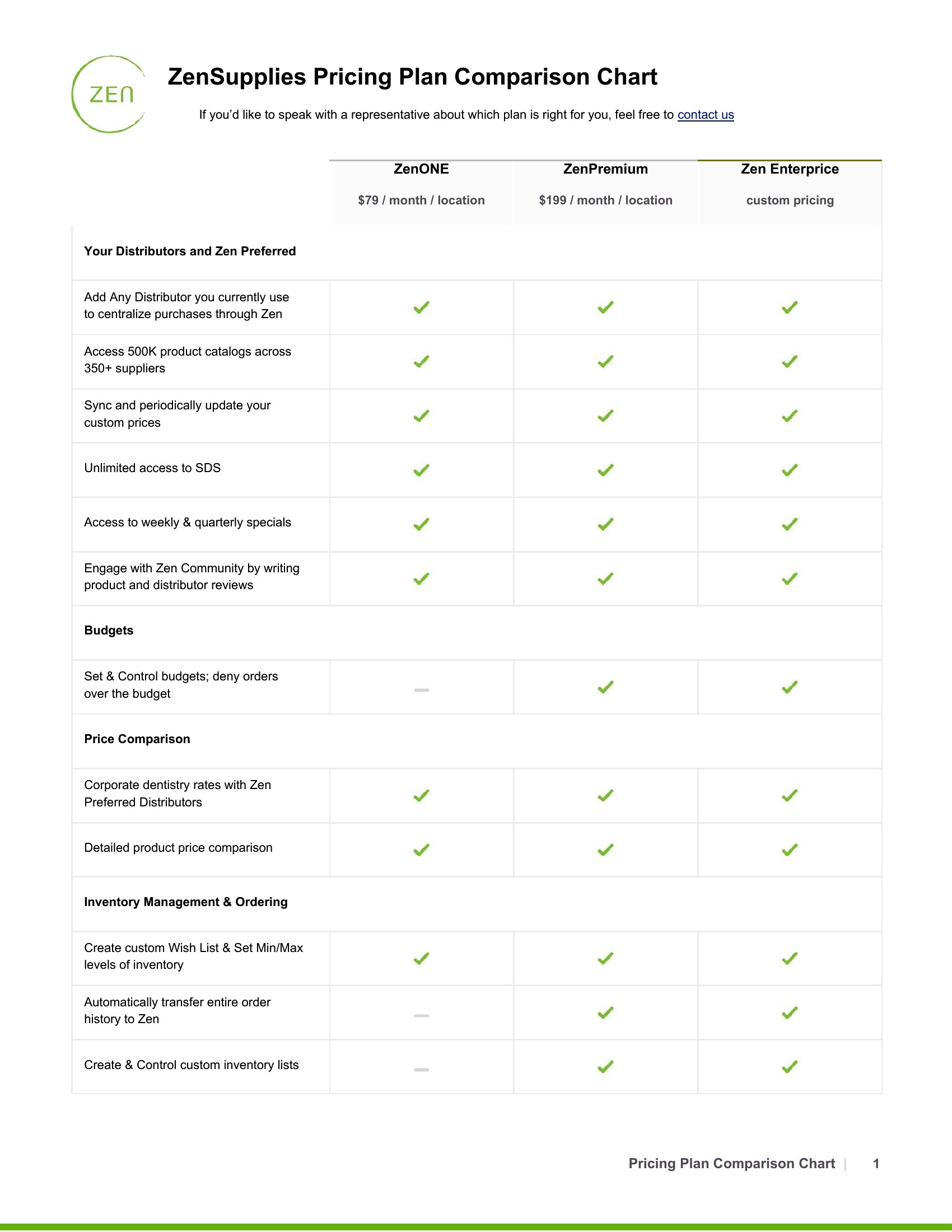
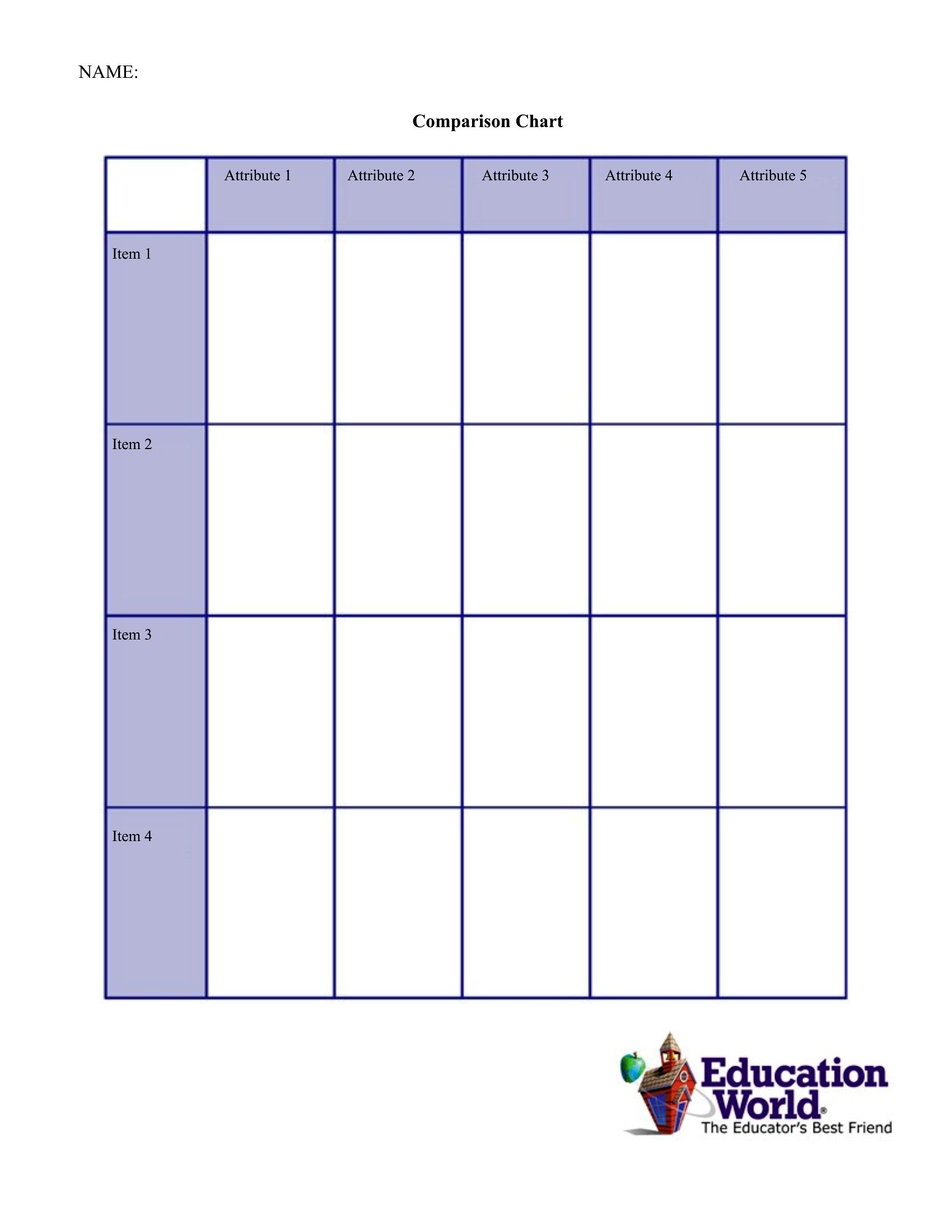
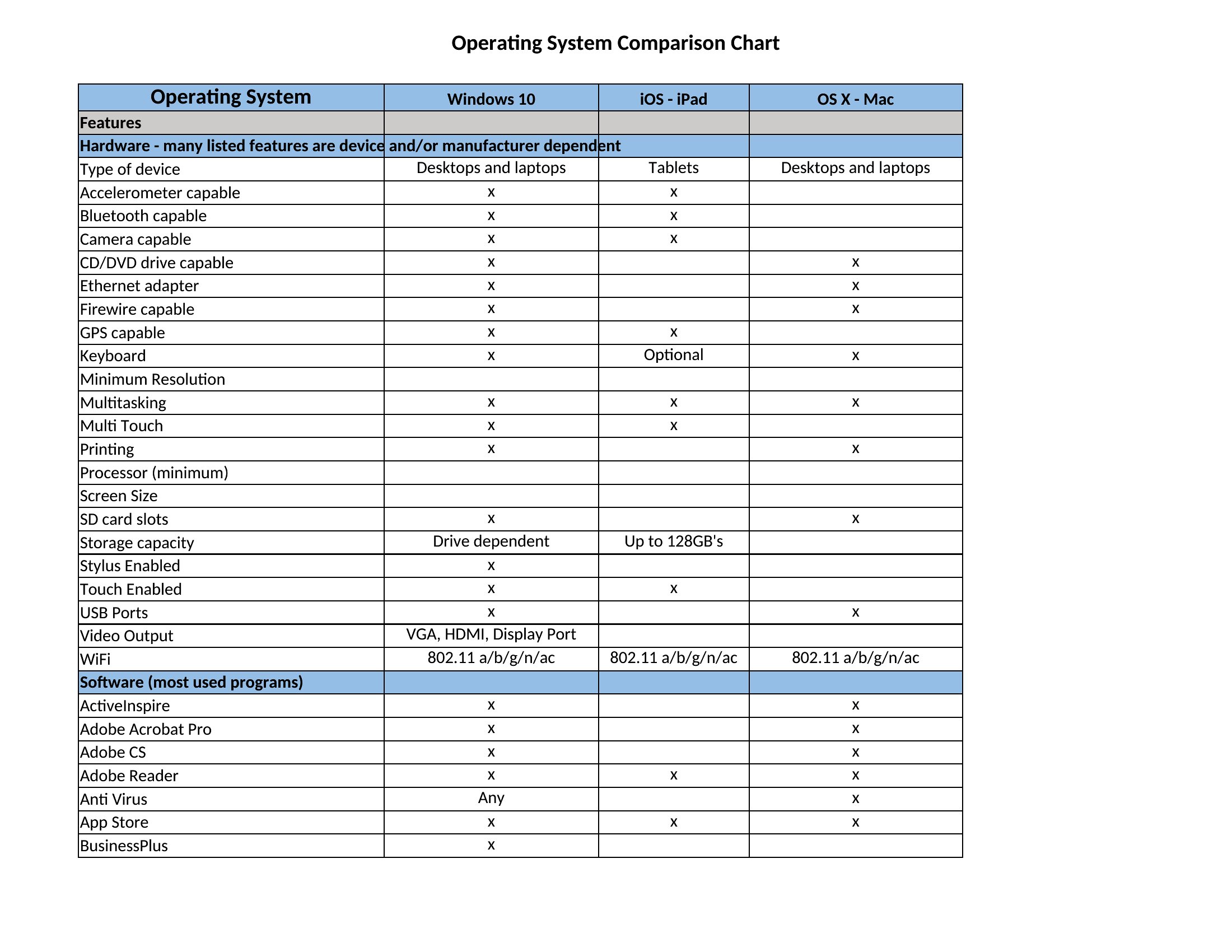
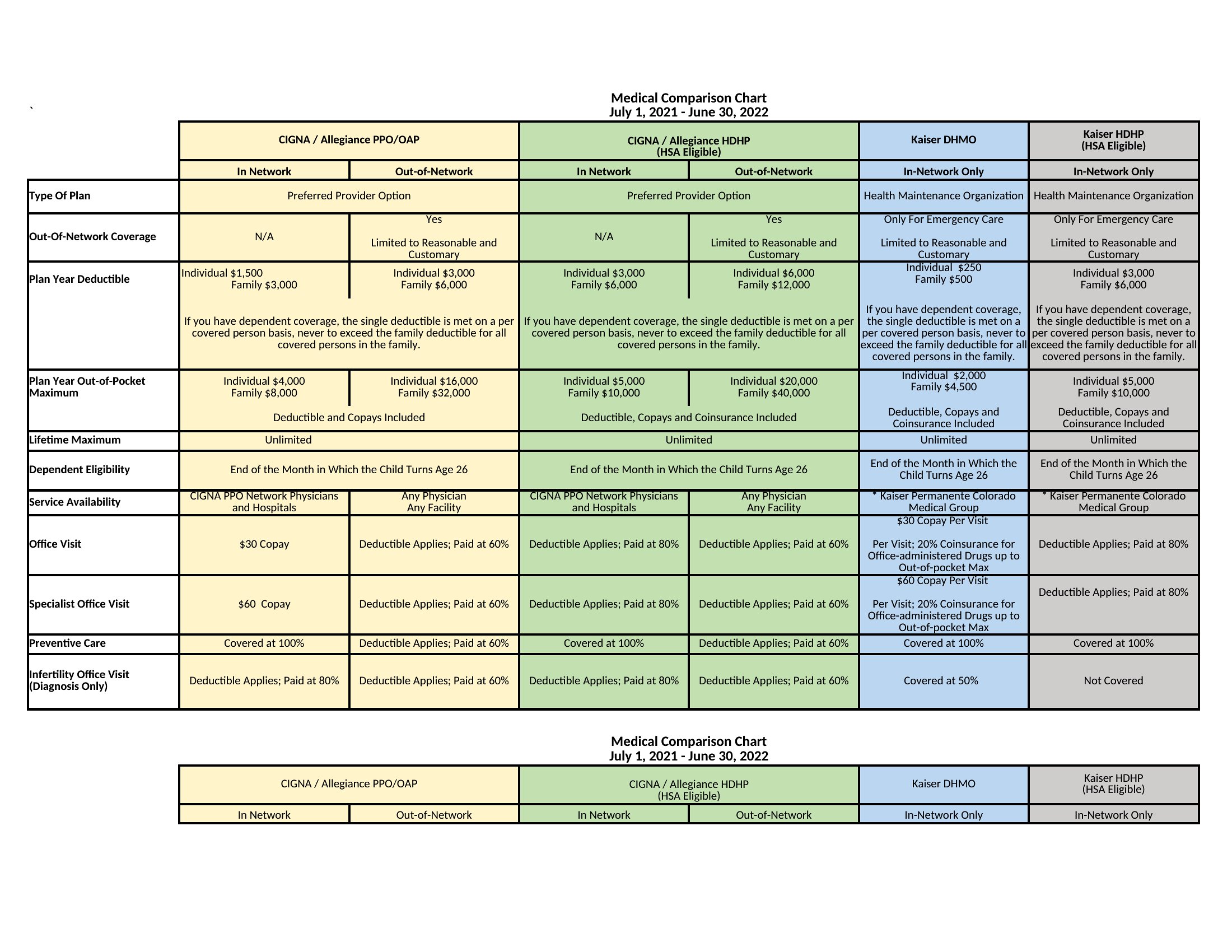
Can I use these templates to compare more than three options?
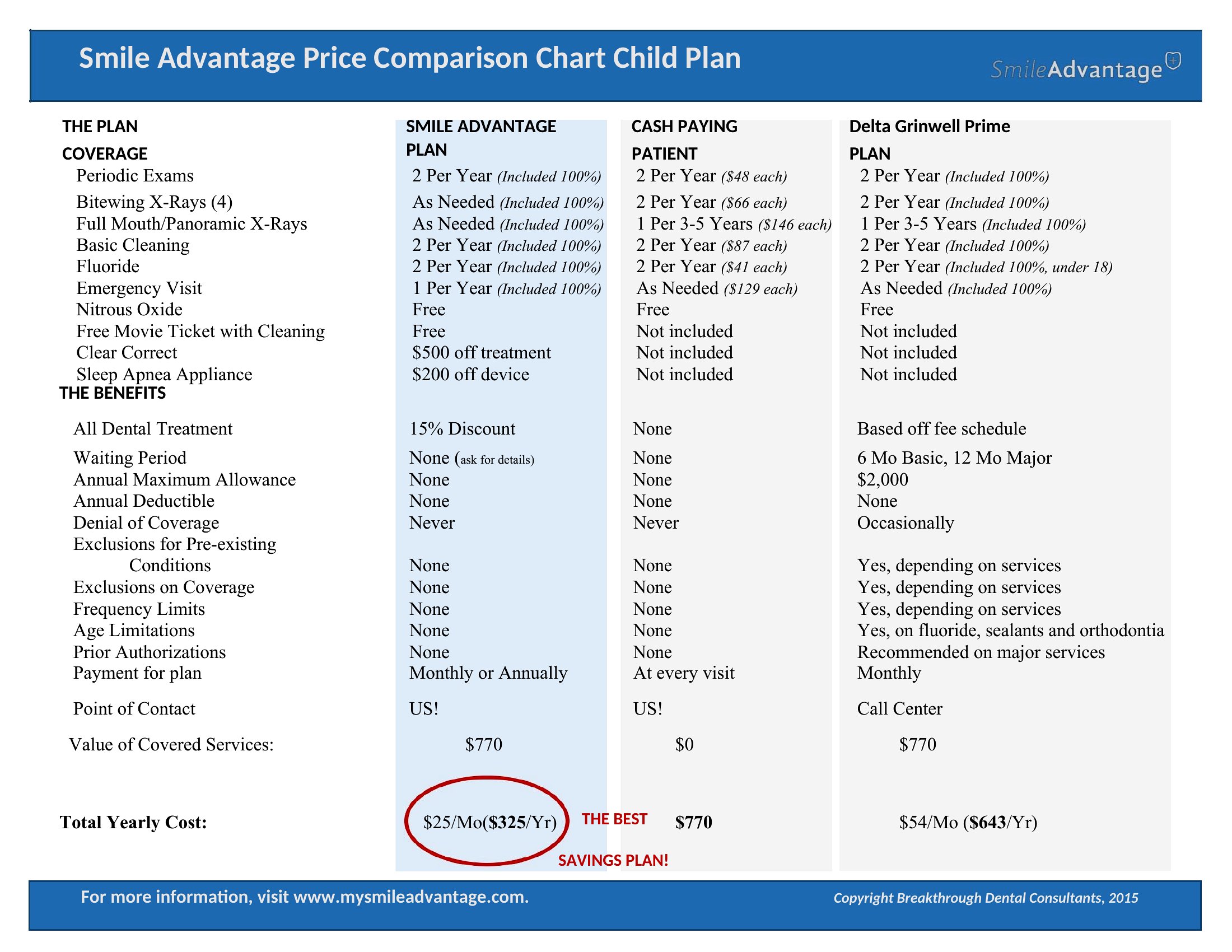
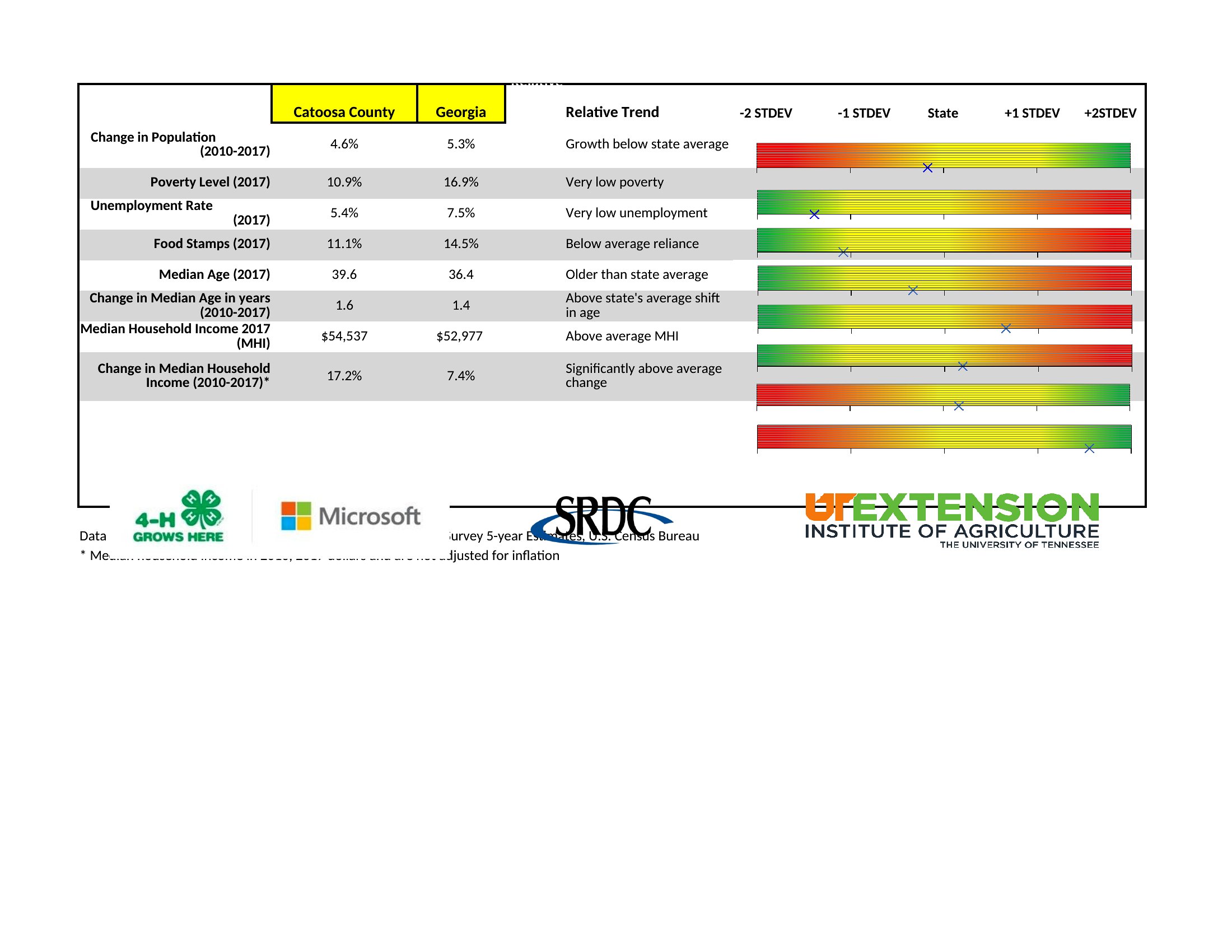
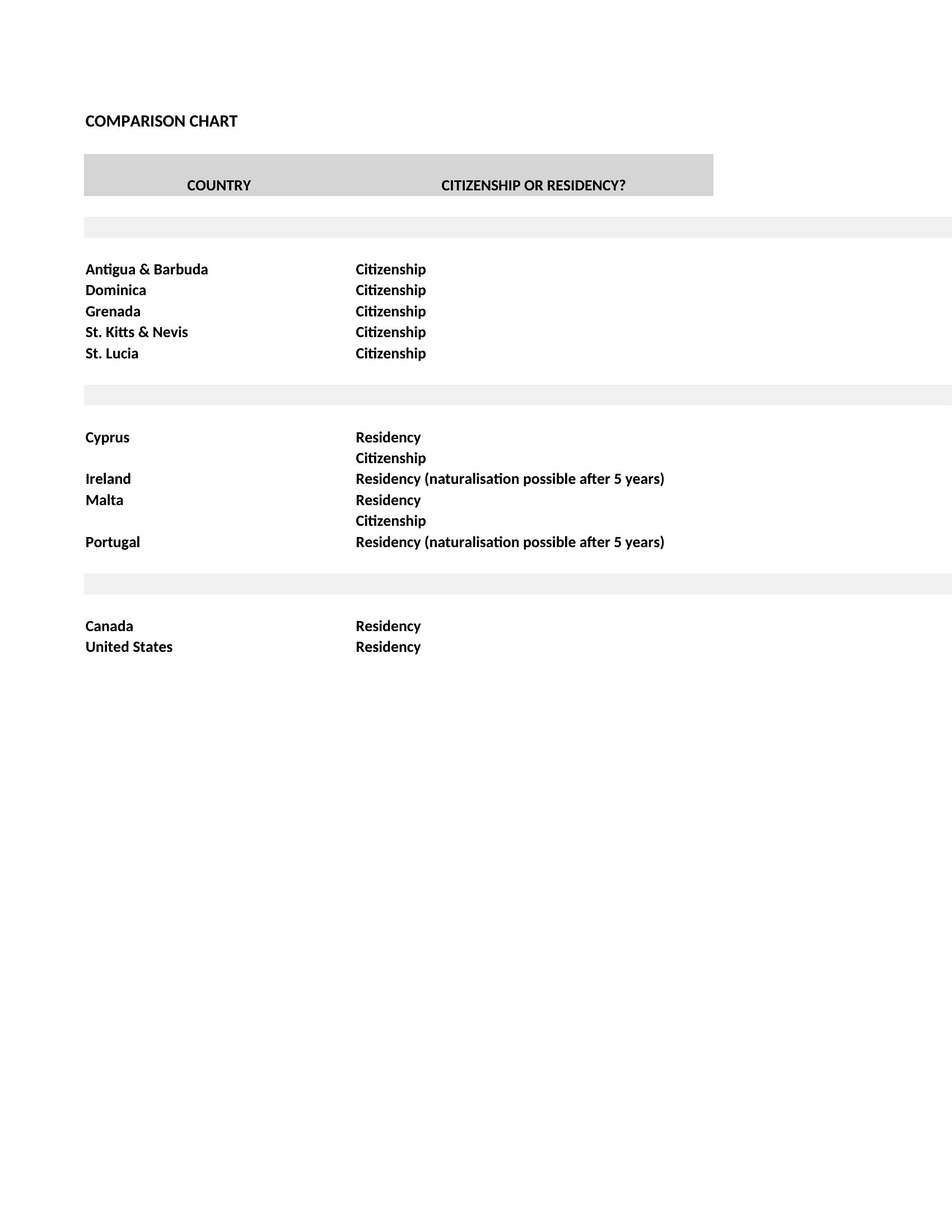
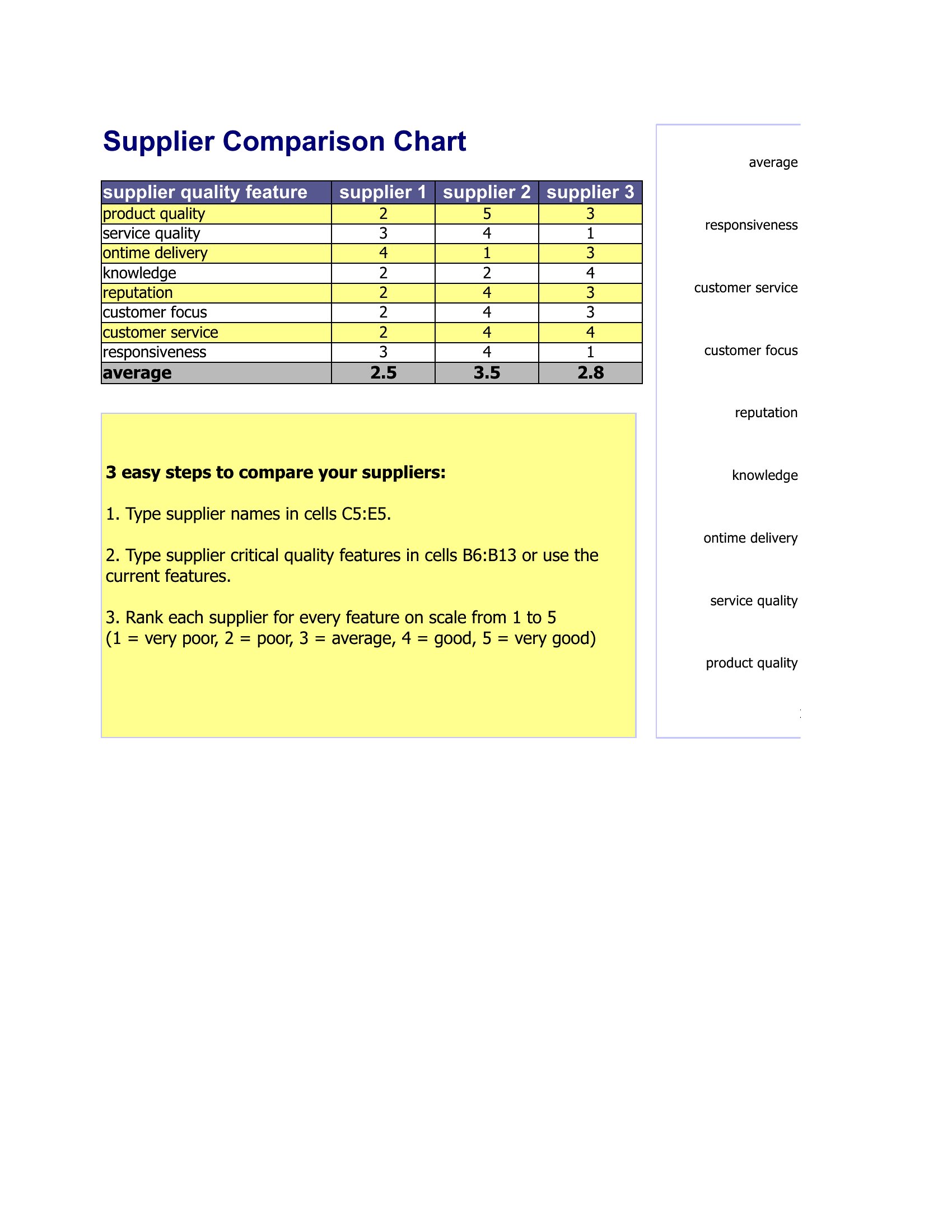
Yes, these templates are designed to handle as many rows as you need. For Word, simply duplicate the existing rows, and for Excel, add new rows while maintaining consistent column headers. If comparing more than five options, consider using Excel’s sorting tools to organize results by priority or score.
How do I ensure my comparison is fair if some vendors/products don’t disclose certain details?
Leave the relevant cells blank or use a note like ‘N/A’ or ‘Not disclosed’ in your comparison. For Word, you can merge cells or add a footnote; in Excel, use conditional formatting to highlight gaps. This keeps your comparison transparent while acknowledging limitations—just avoid filling missing data with assumptions.
Are these templates suitable for comparing intangible services, like consulting firms or support teams?
Absolutely. Focus on measurable criteria like response times, client testimonials, or service-level agreements, and use qualitative descriptors (e.g., ‘Expertise level: High/Medium/Low’) for subjective factors. The Excel templates work well for adding weighted scores, while Word formats let you include narrative justifications beside each criterion.
Comments
Join the conversation
Sign in to share your thoughts and leave a comment on this resource.