Free Printable Booklet Templates (Word)
LifeTemplates

Booklet Join






Booklet Code

Booklet Play
FAQ
How do I ensure my booklet prints with the correct fold order?
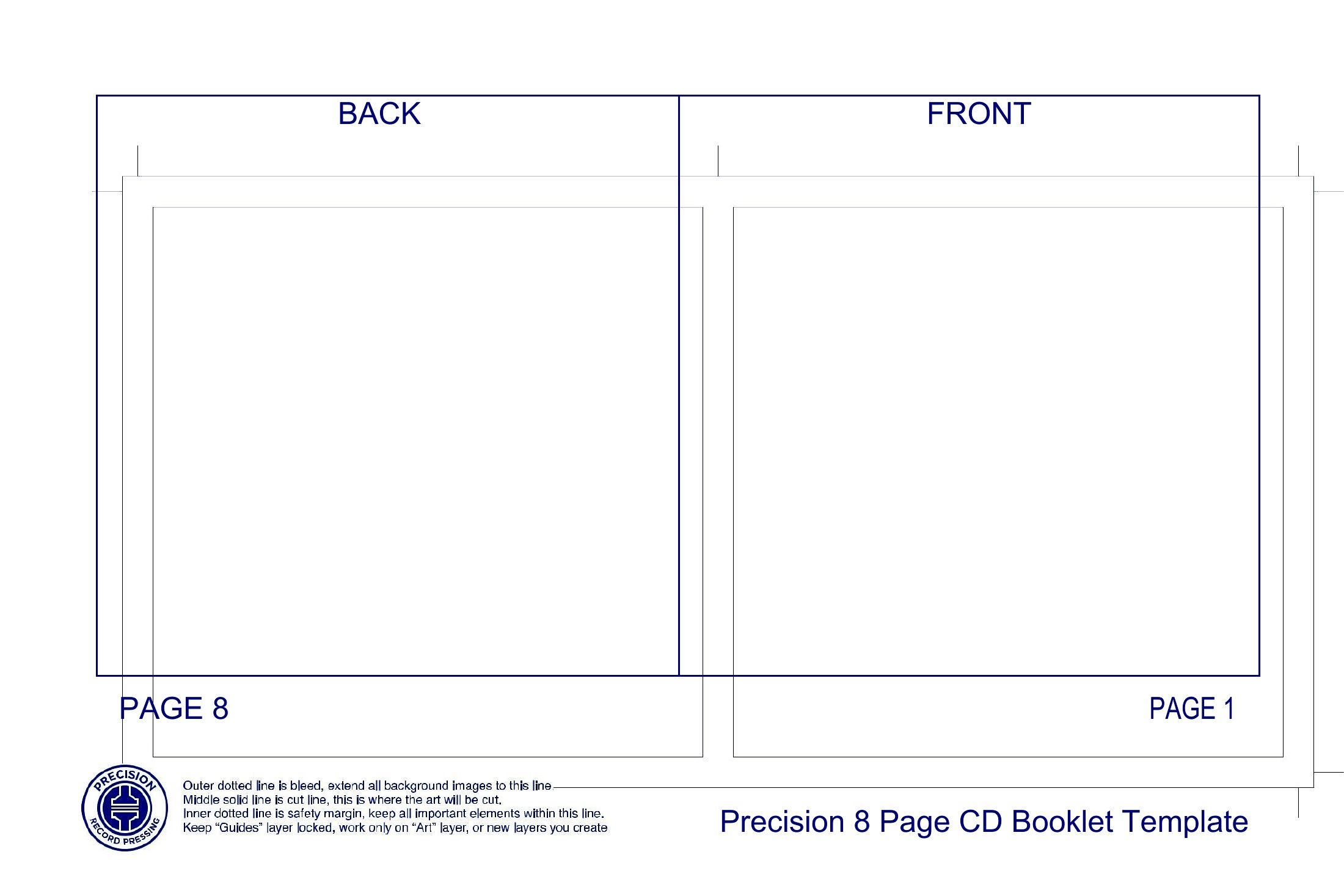
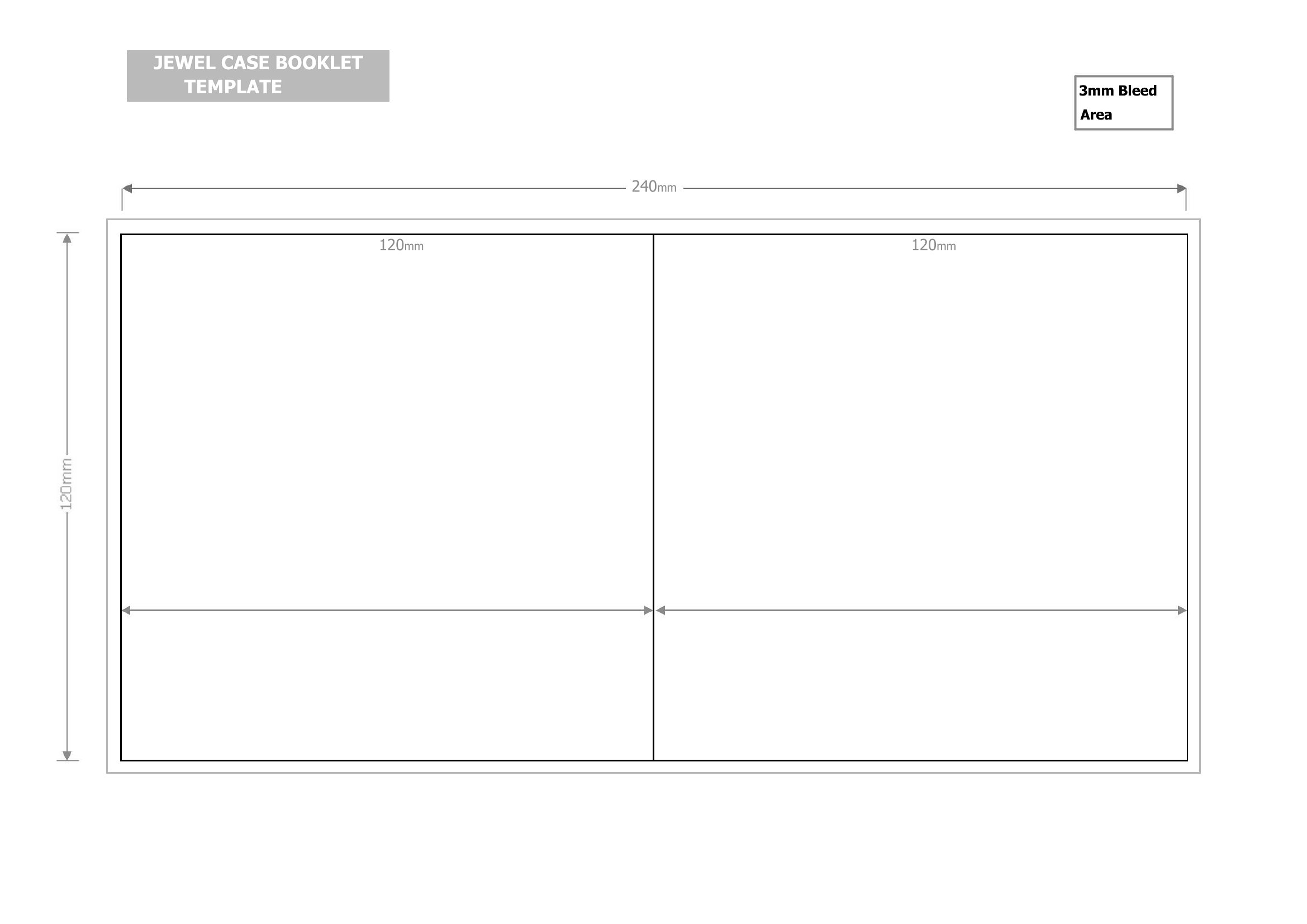
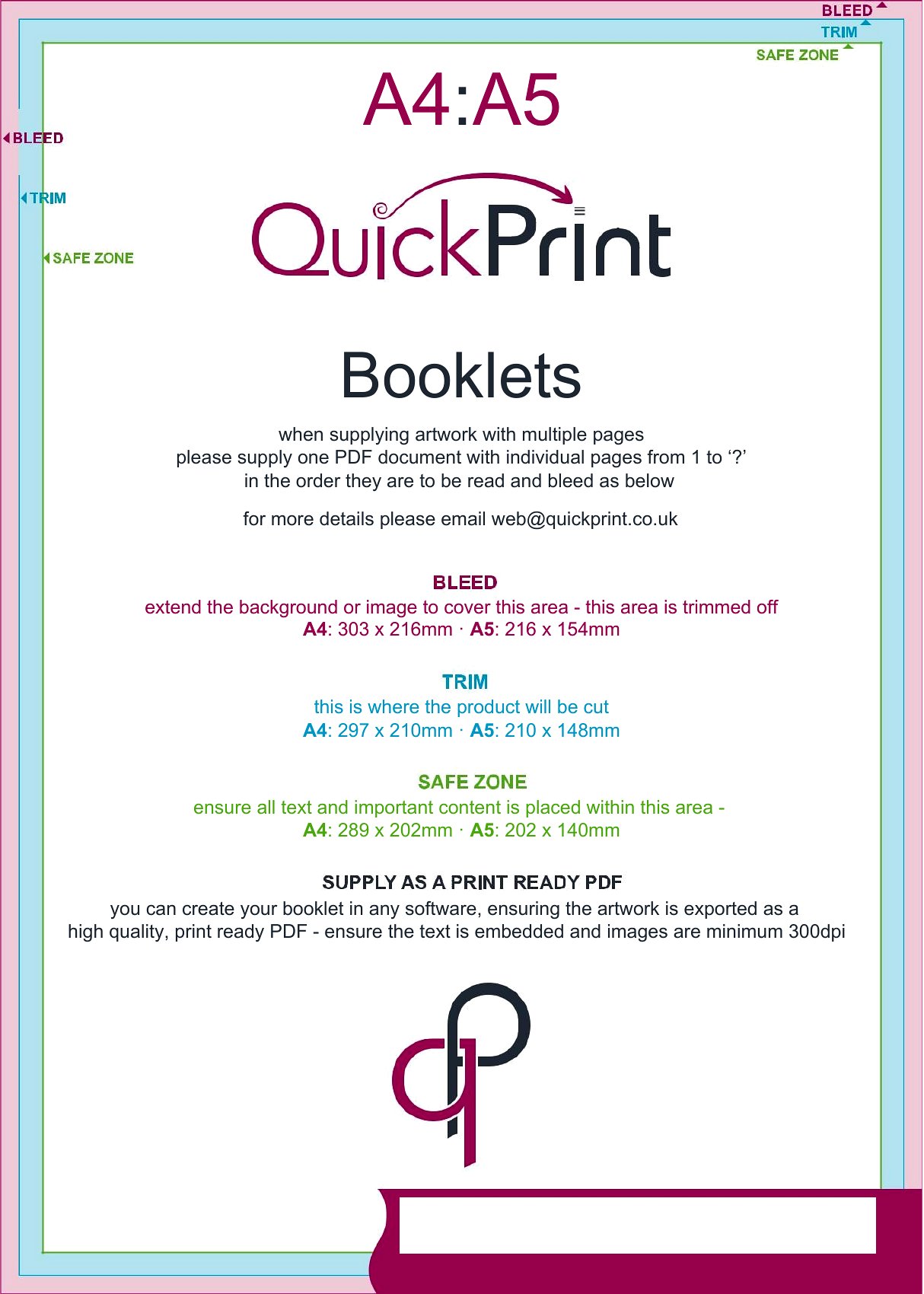
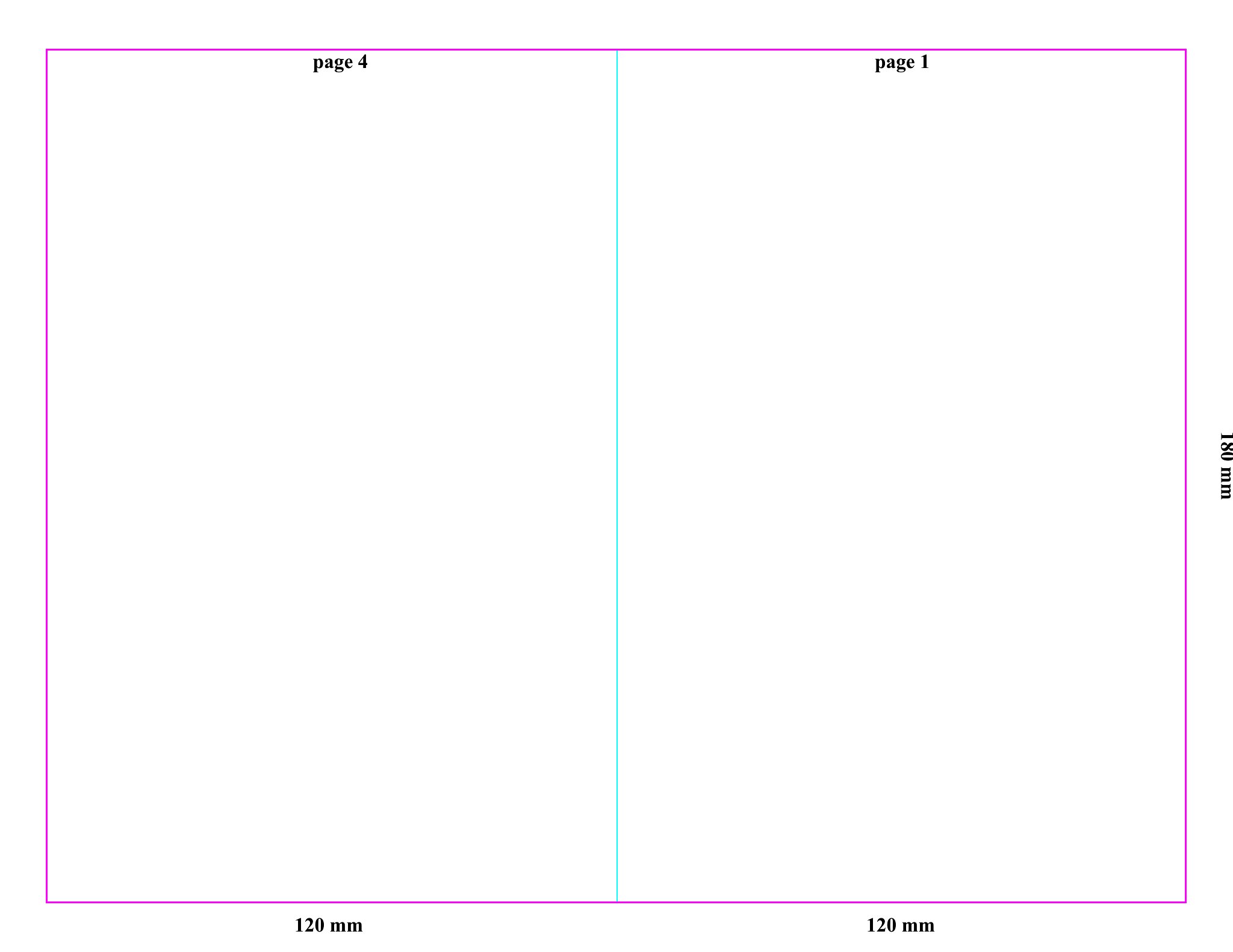
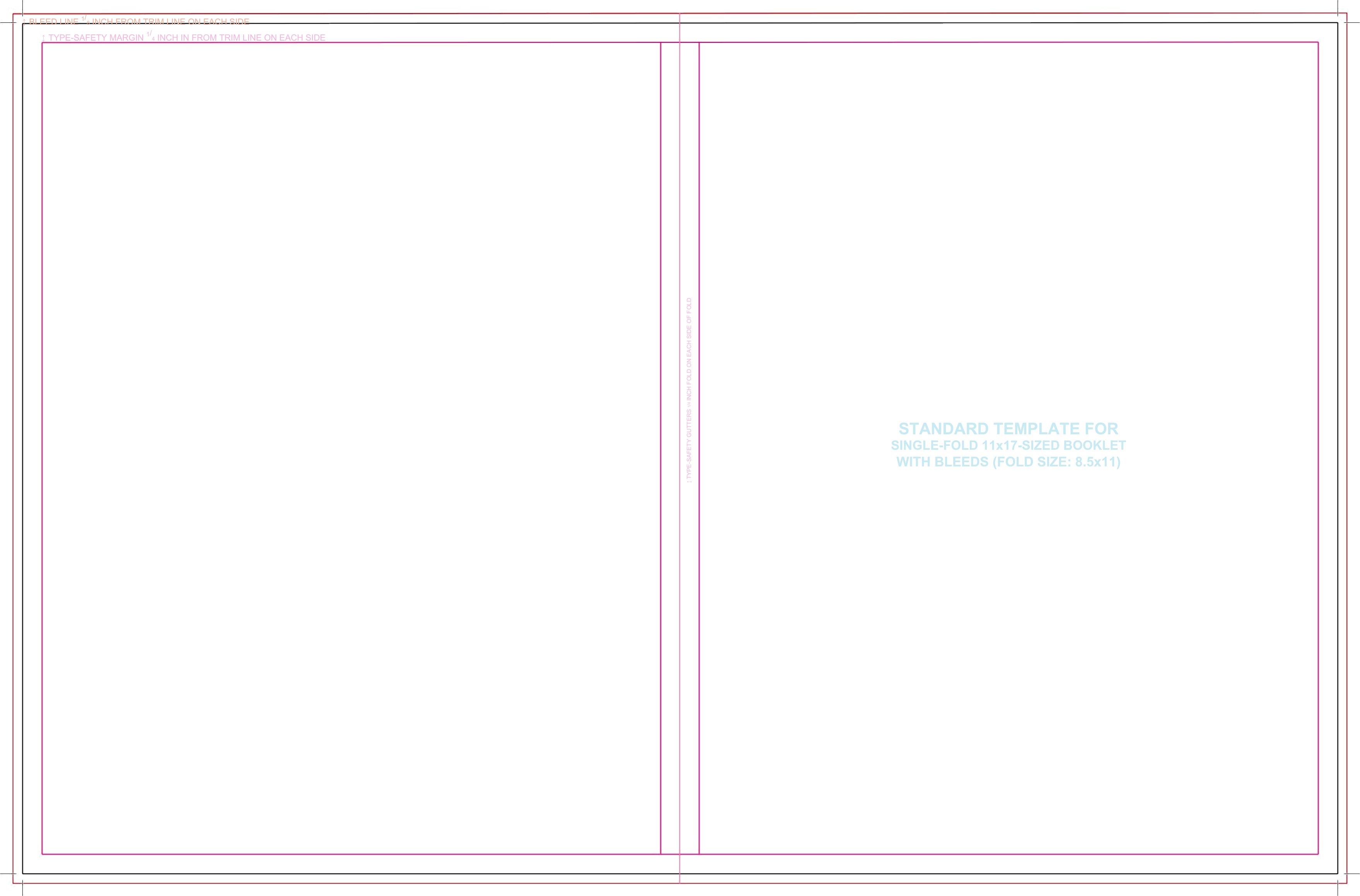
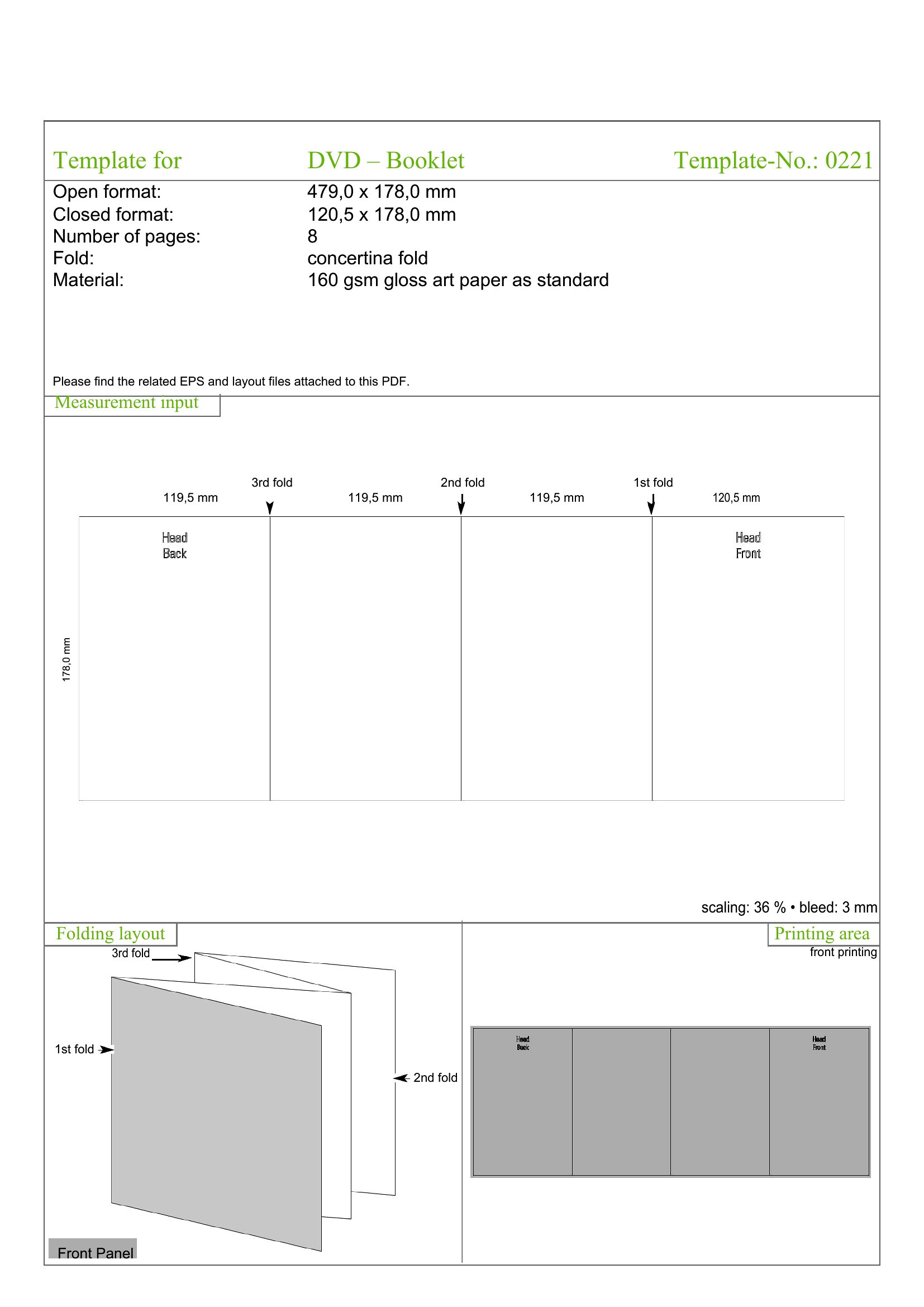
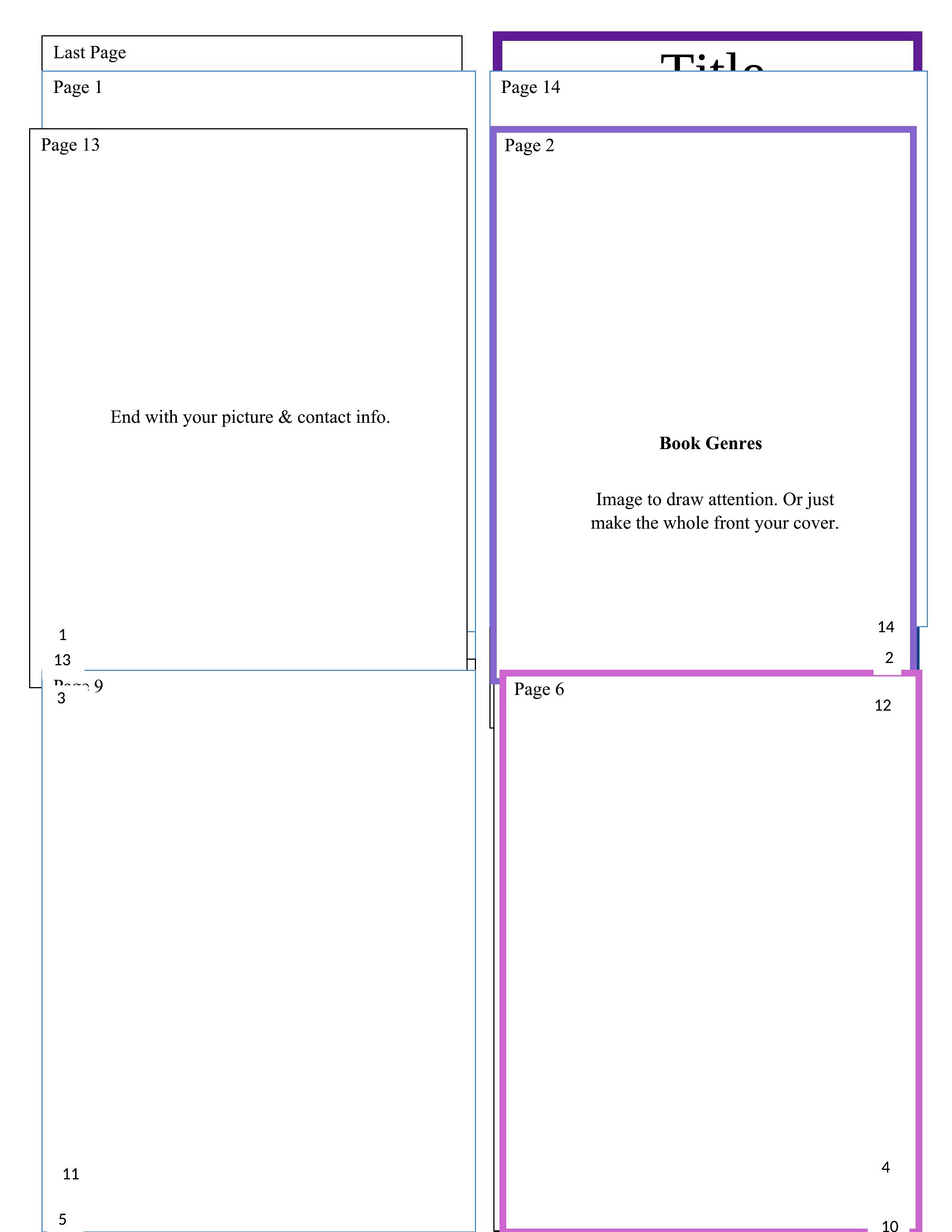
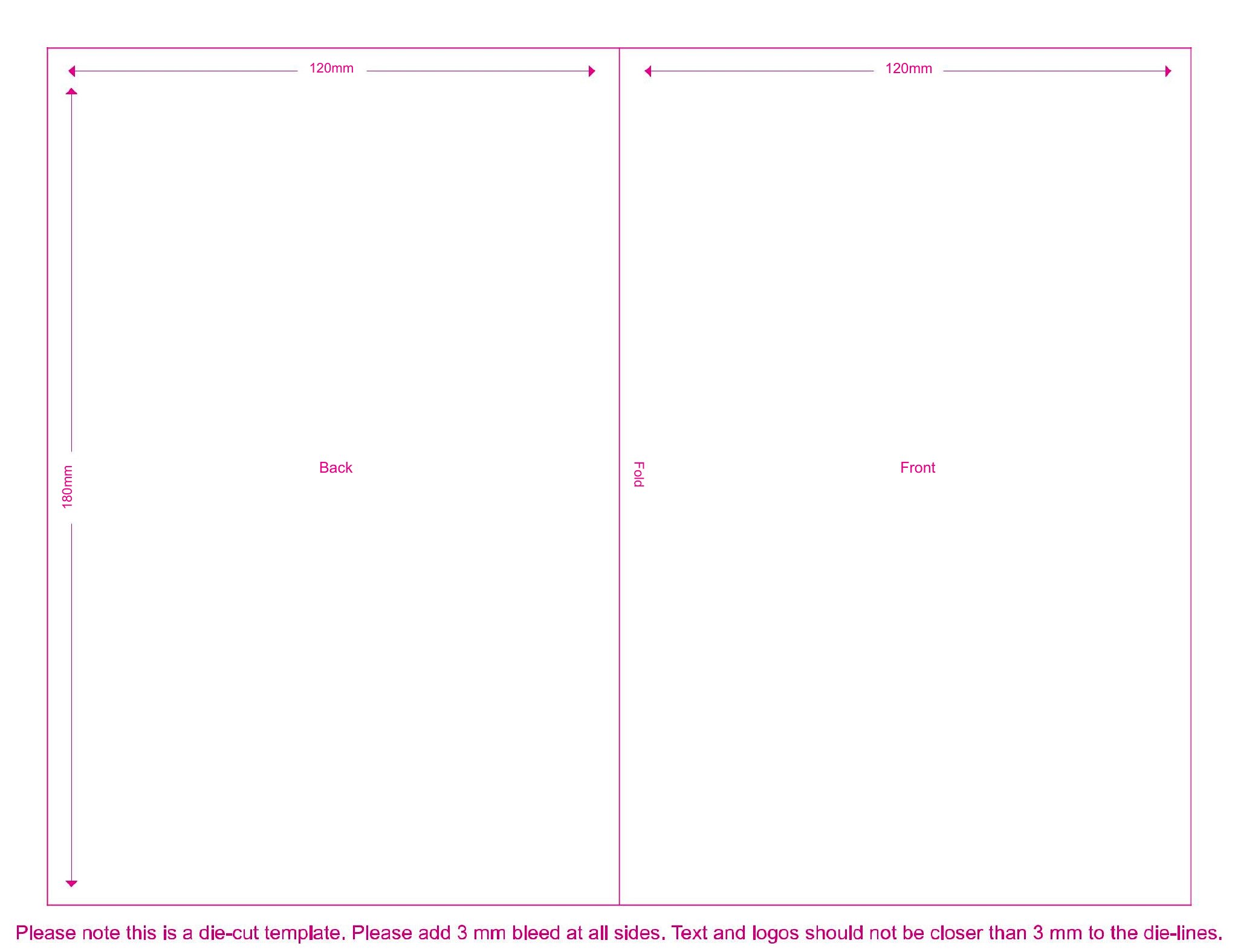
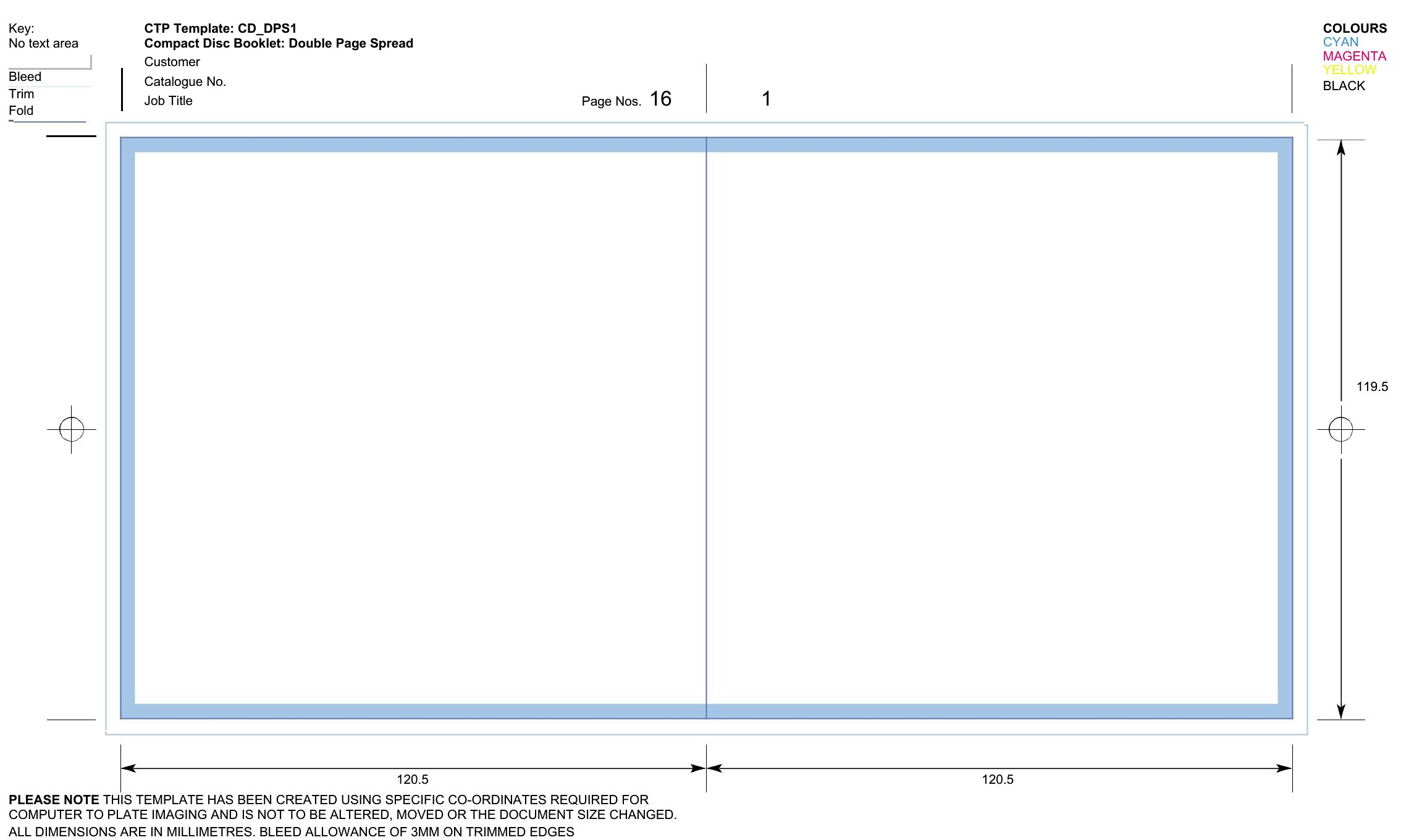
Each Word template includes predefined sections and guides for internal margins (gutters) and fold lines. Before printing, use Word’s ‘Print Preview’ to check the layout, and print a test copy on plain paper first. For perfect folds, set your printer to ‘actual size’ and use cardstock or thick paper to prevent warping. If issues persist, adjust the ‘fold marks’ layer (visible in template guides) and reprint.
Can these templates help me design a booklet with both portrait and landscape pages?
Yes, some templates in this collection support mixed orientations, but you’ll need to manually adjust page breaks and section properties in Word. Start by inserting a ‘section break’ between portrait and landscape pages, then set each section’s orientation separately. Test the layout in preview mode to confirm text wraps and images align correctly across page transitions.
What’s the best way to add a custom logo or repeating header/footer to my booklet?
Use Word’s ‘Header & Footer’ tool to insert your logo or repeating text. For consistency, place the logo in the center or aligned to one side, and set the ‘Different First Page’ option if the first page lacks a header. To avoid overlap, adjust the margin settings in the ‘Layout’ tab of the header/footer section. Save the file as a template afterward to reuse the header/footer across future booklets.
Comments
Join the conversation
Sign in to share your thoughts and leave a comment on this resource.