Printable Bank Deposit Slips (Word, Excel, PDF)
PaymentsTemplates

FAQ
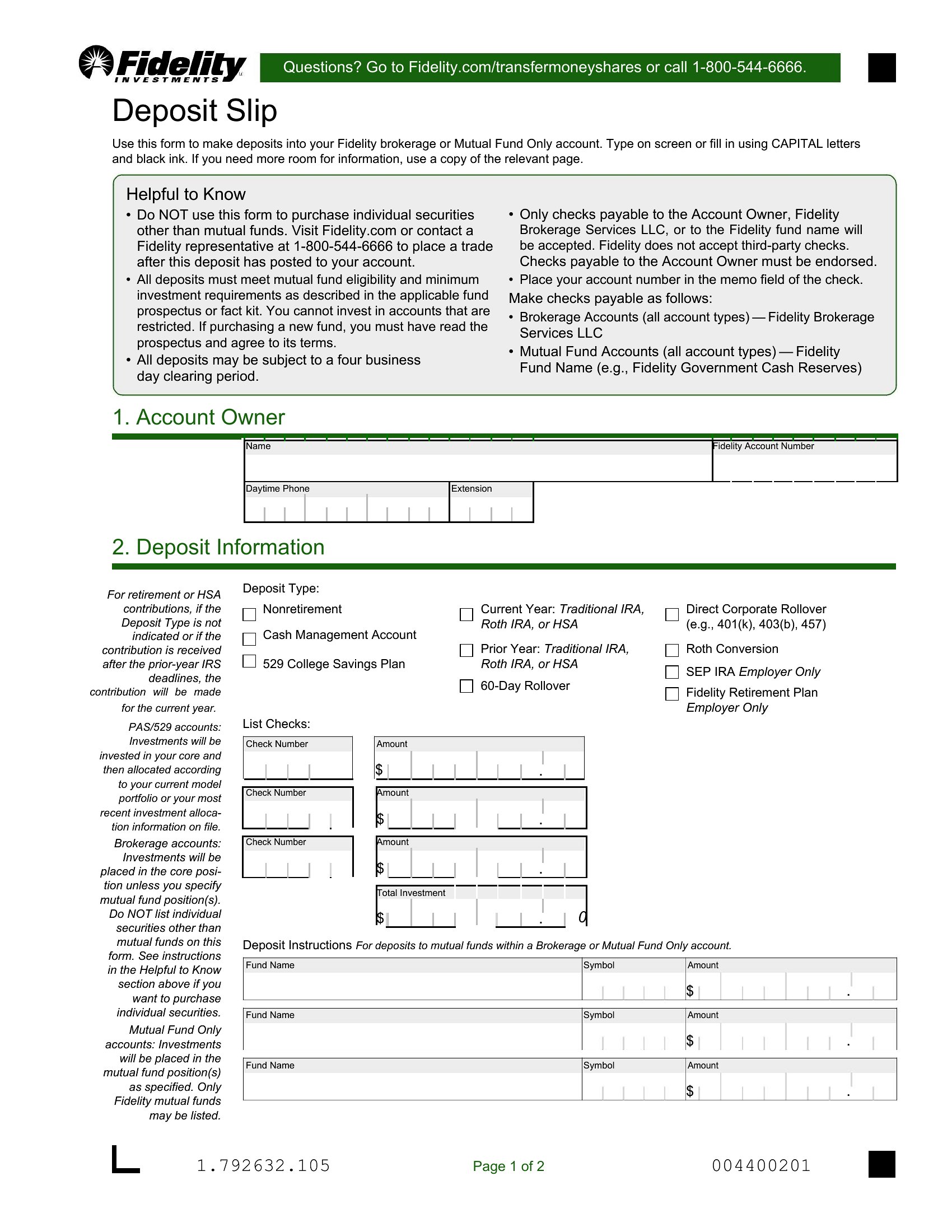
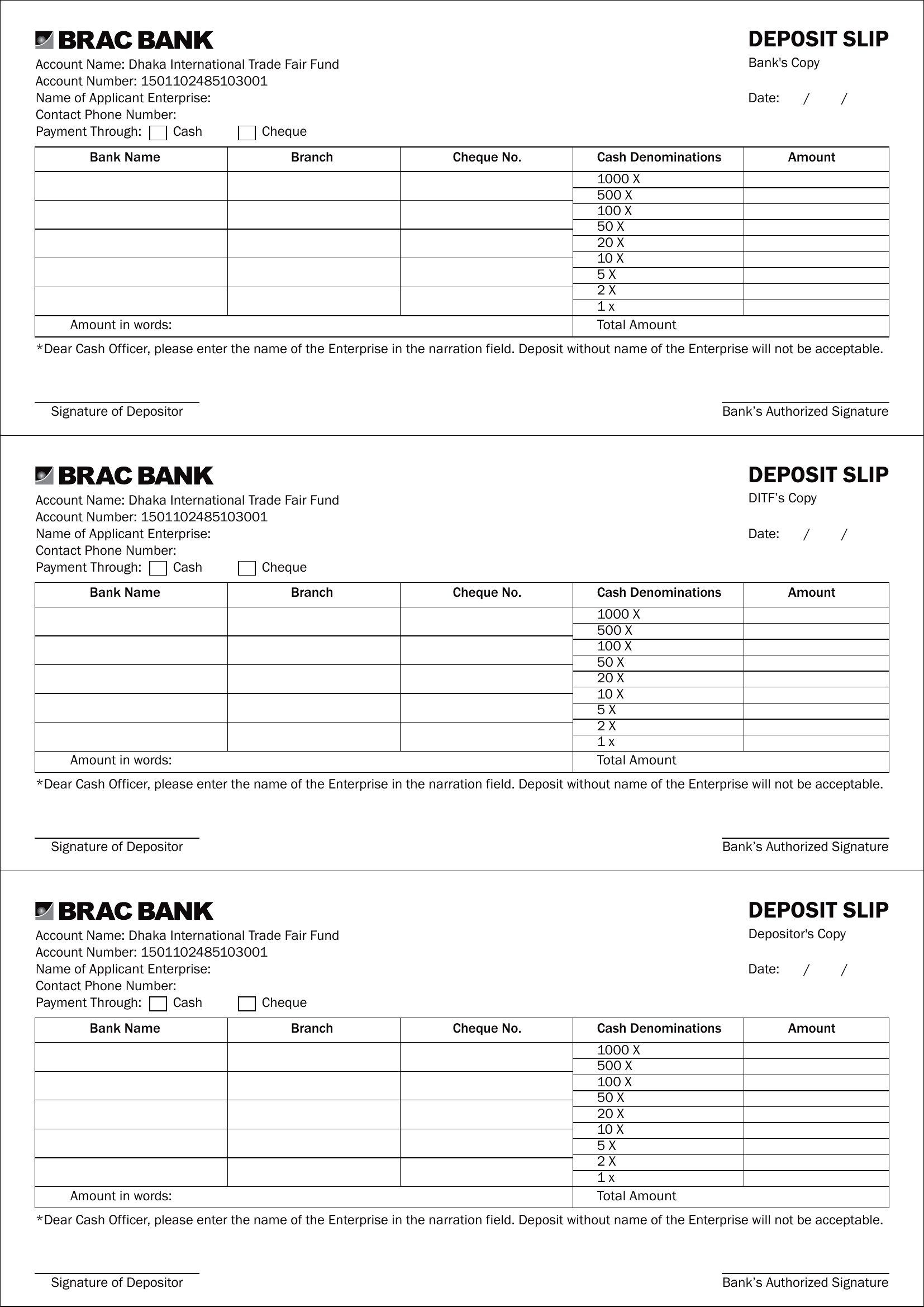
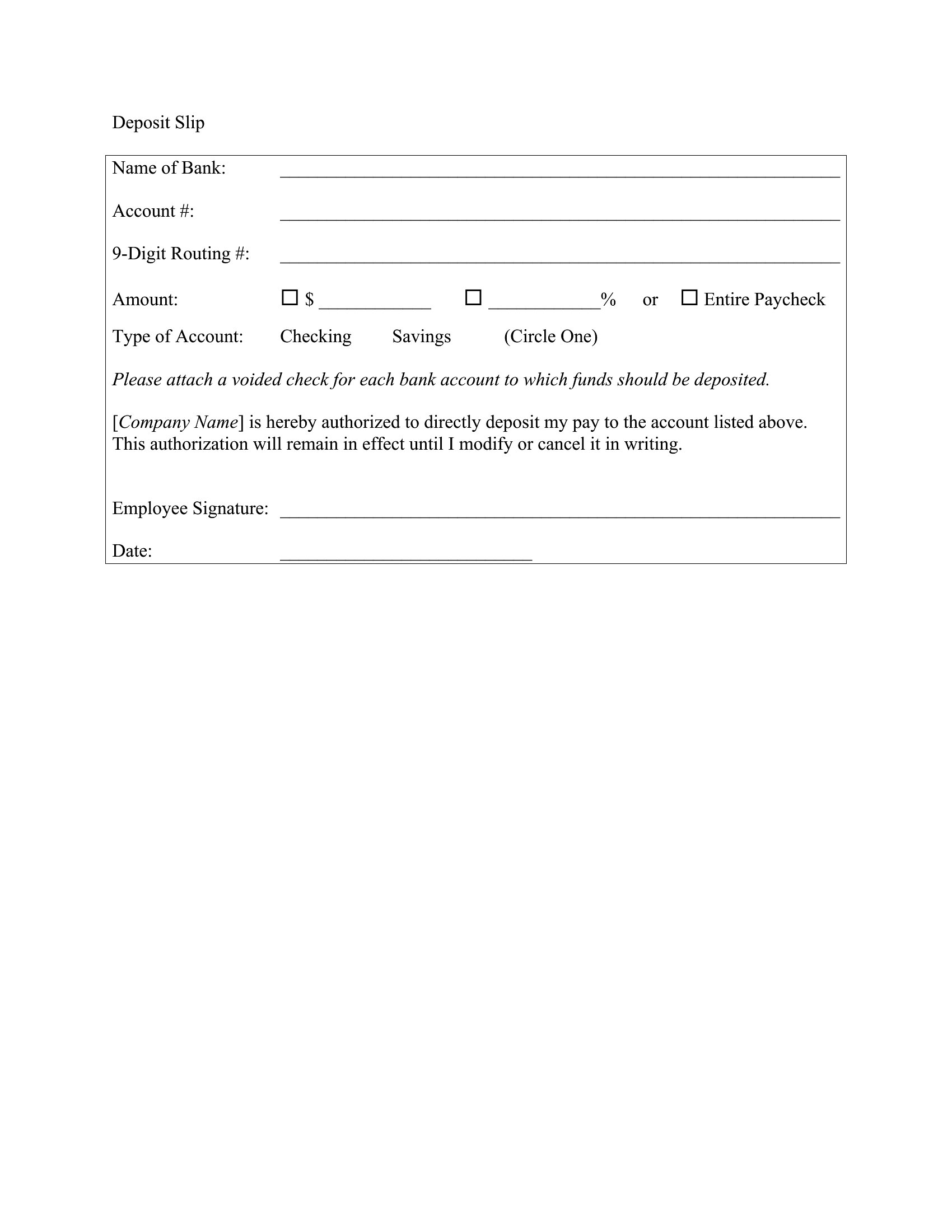
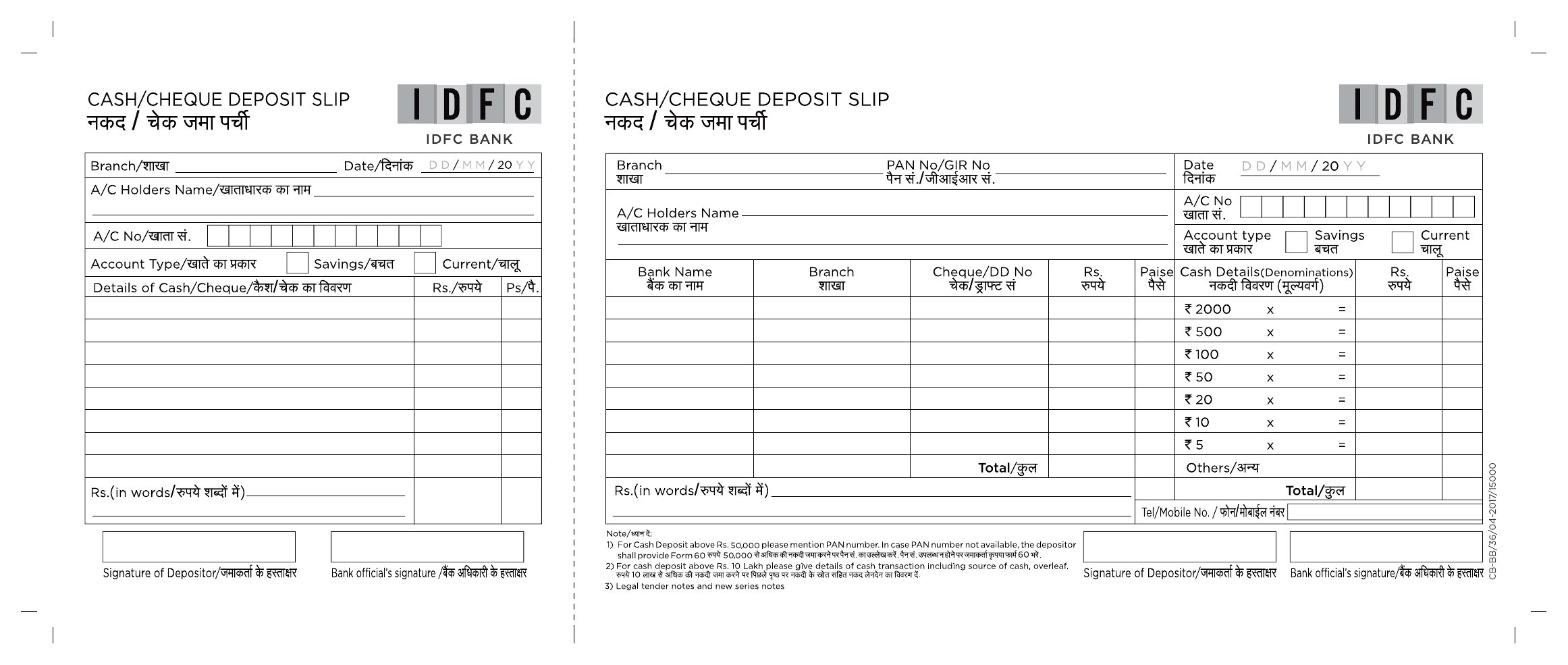
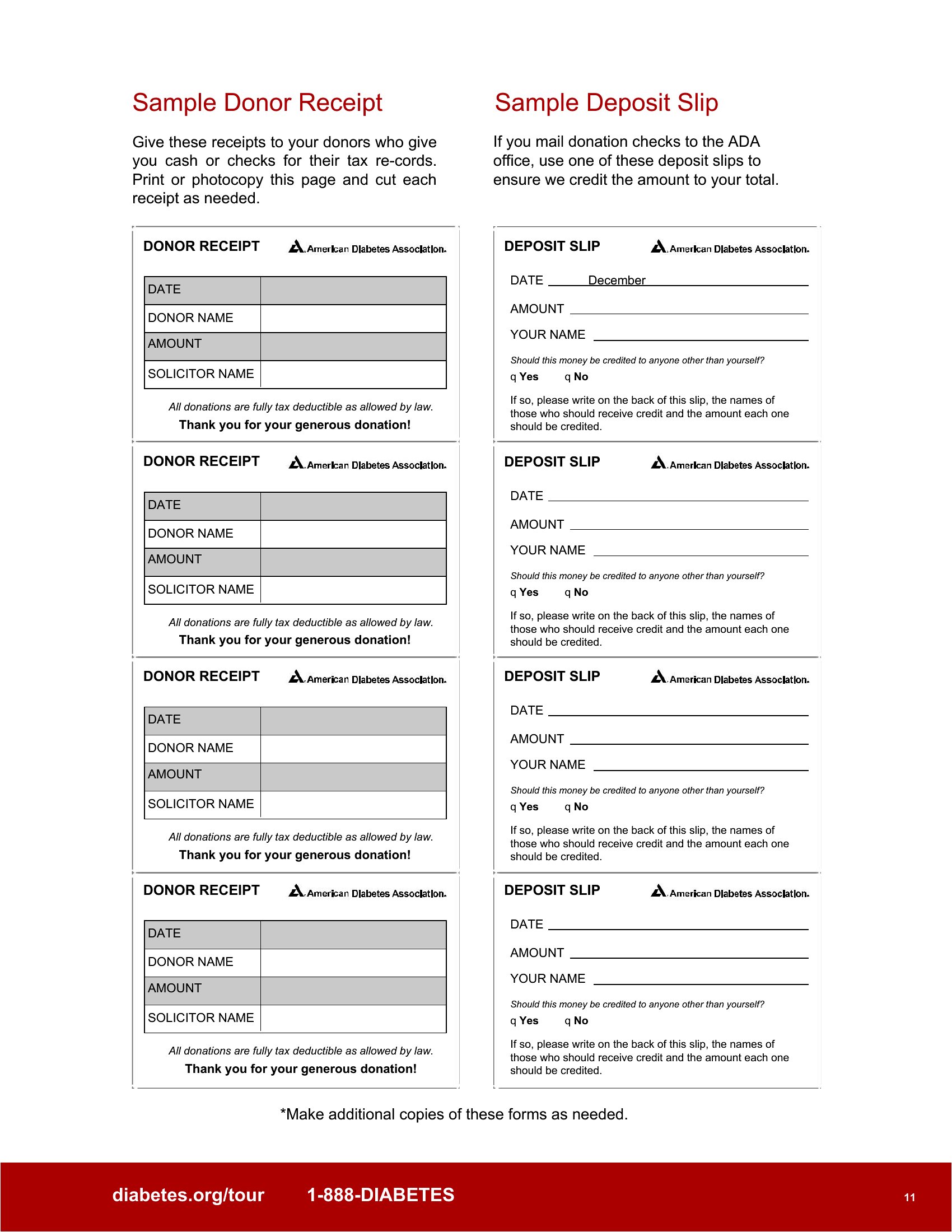
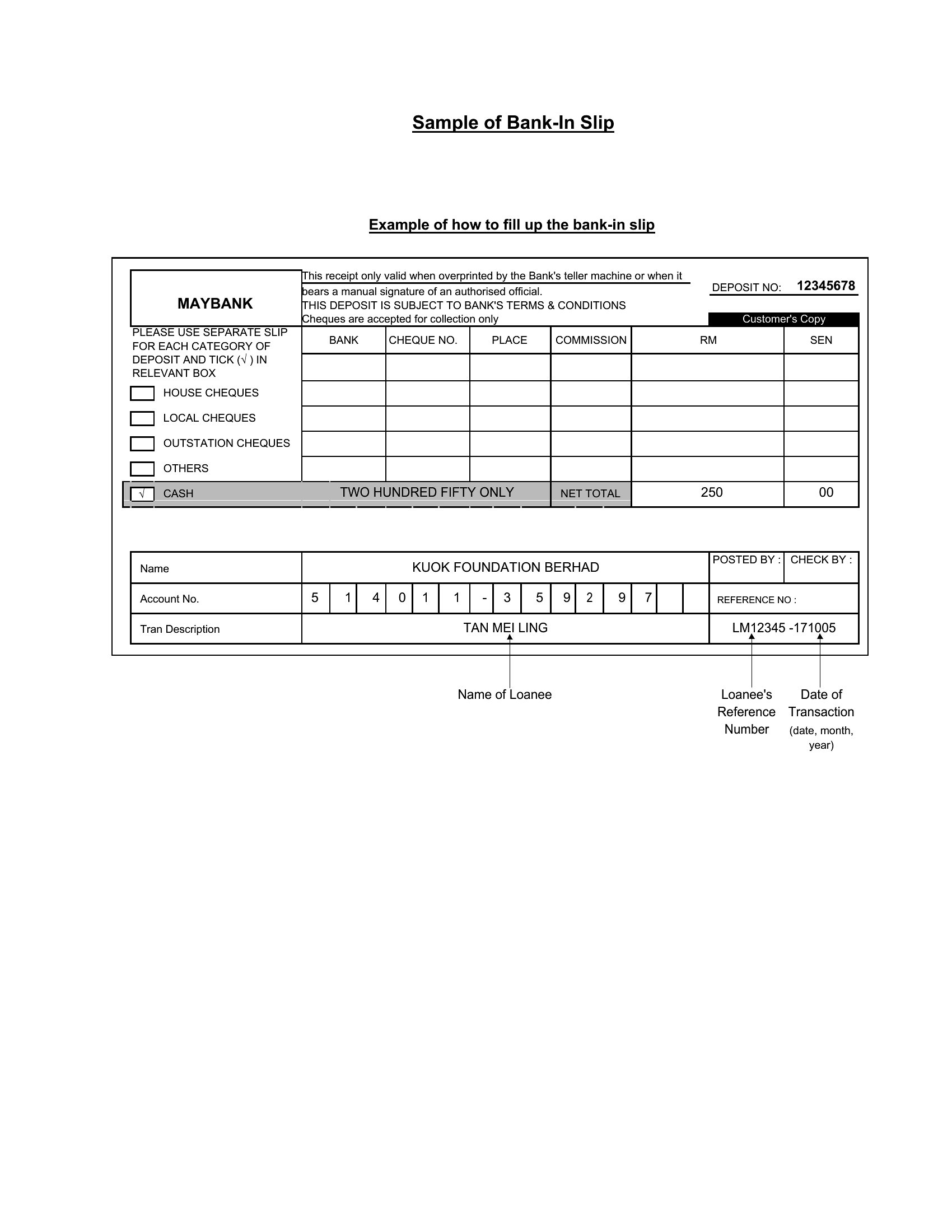
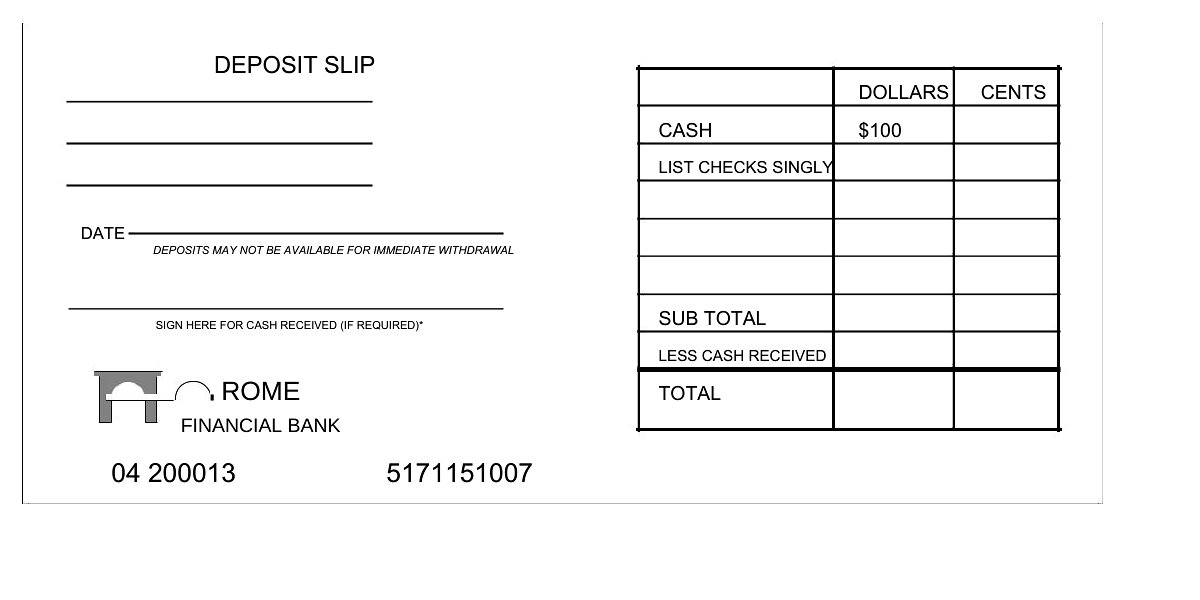
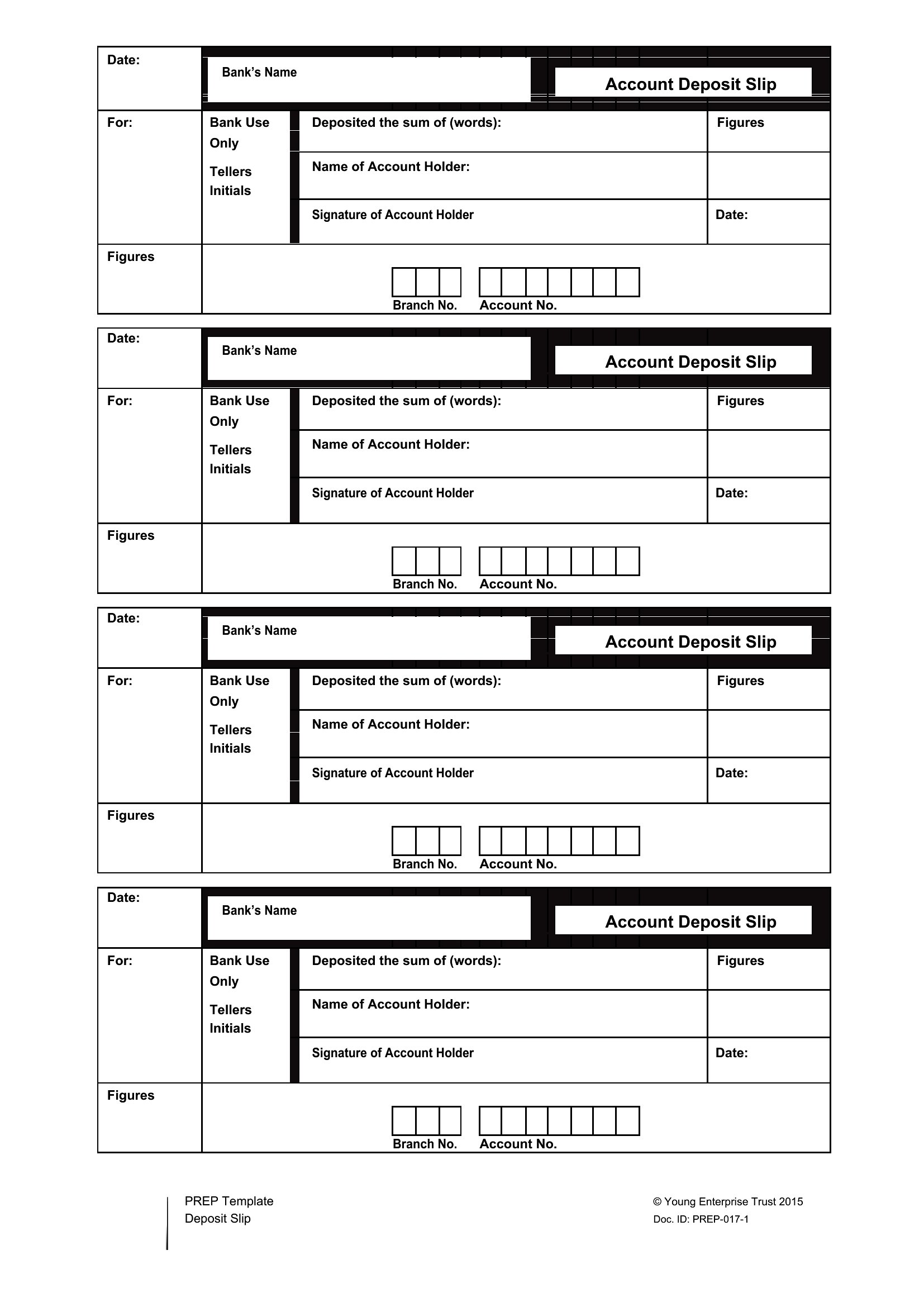
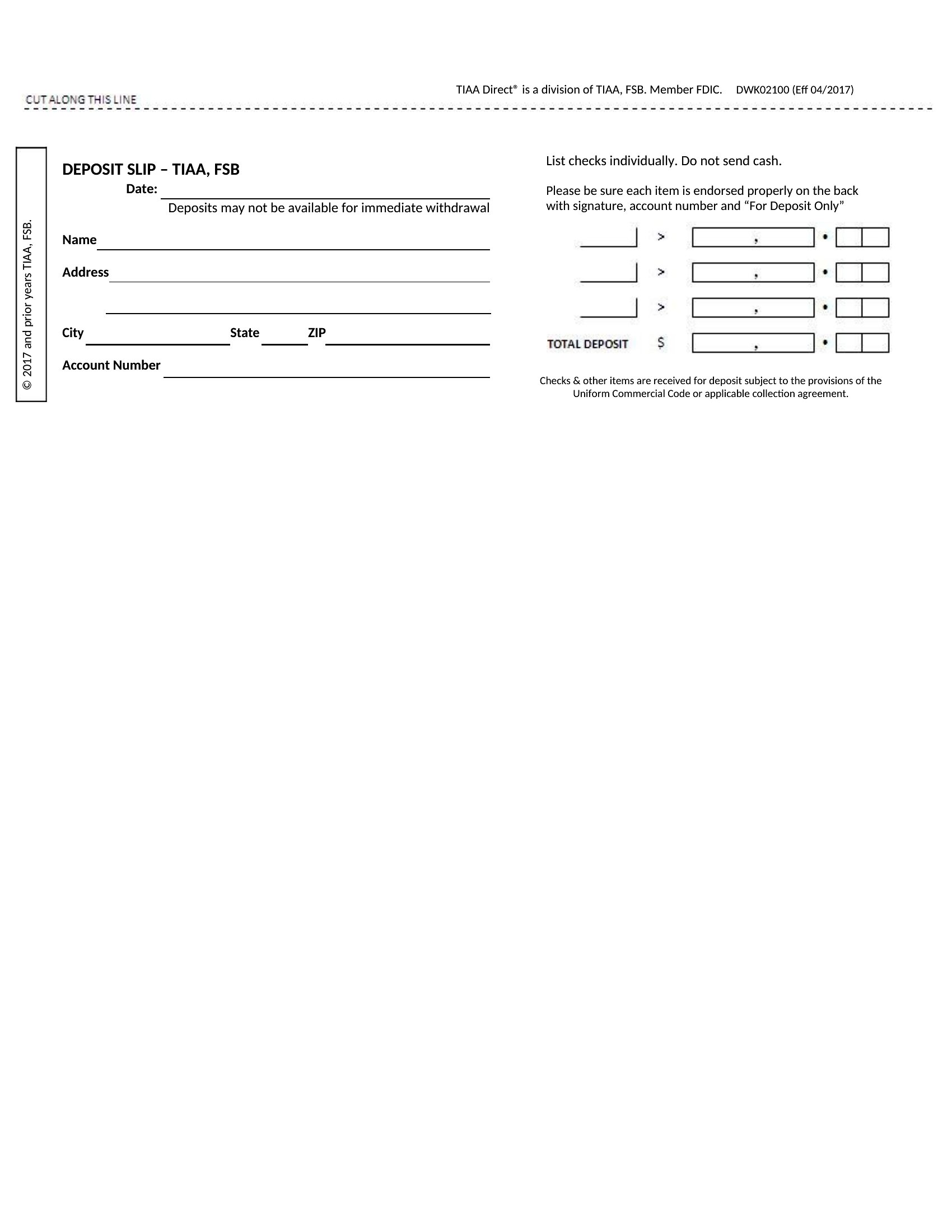
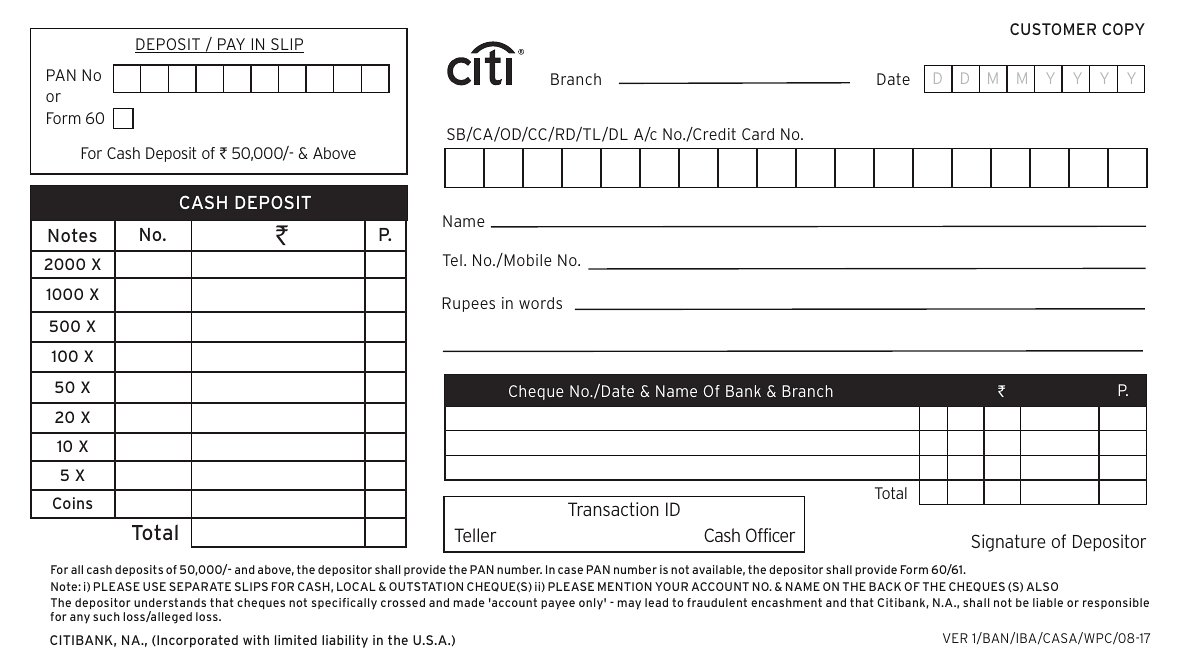
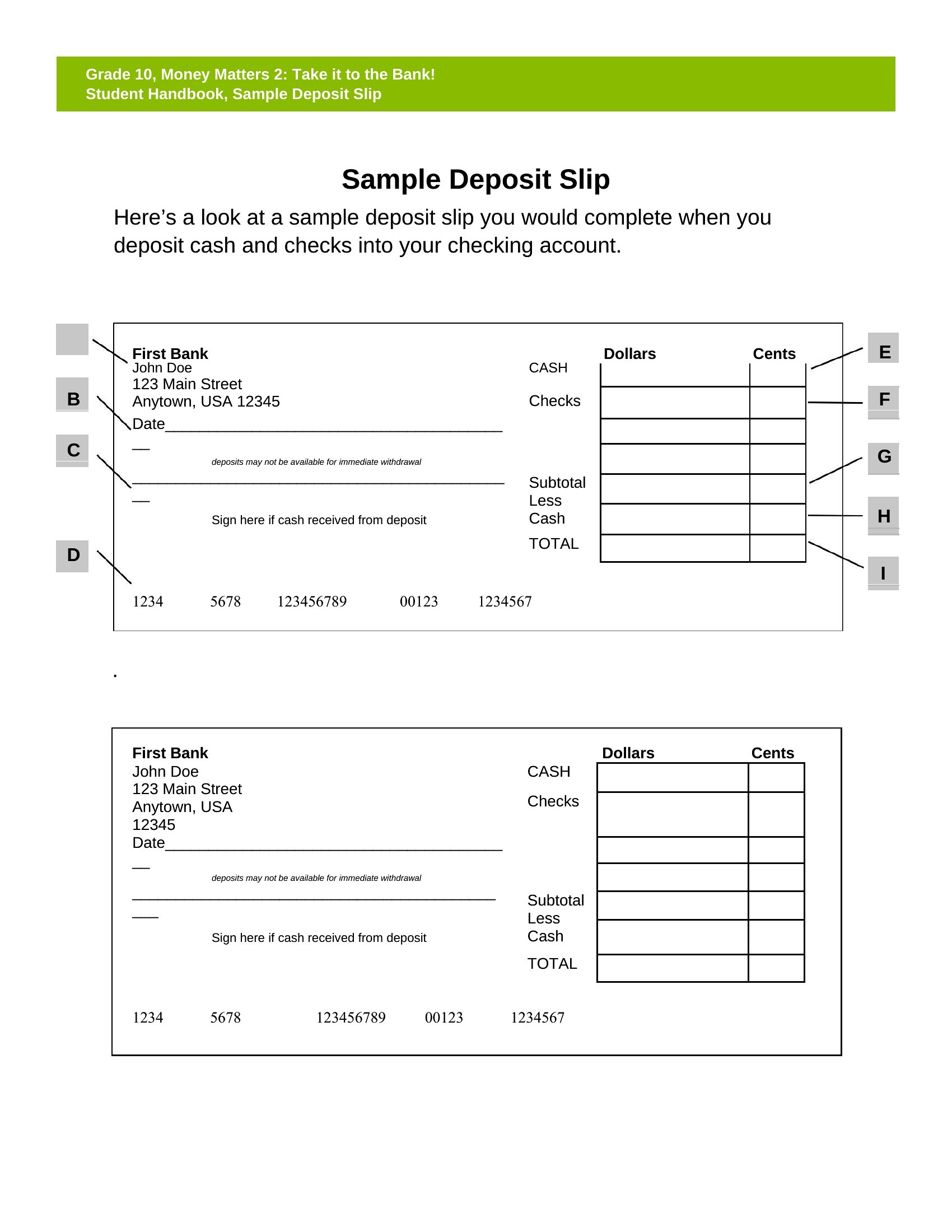
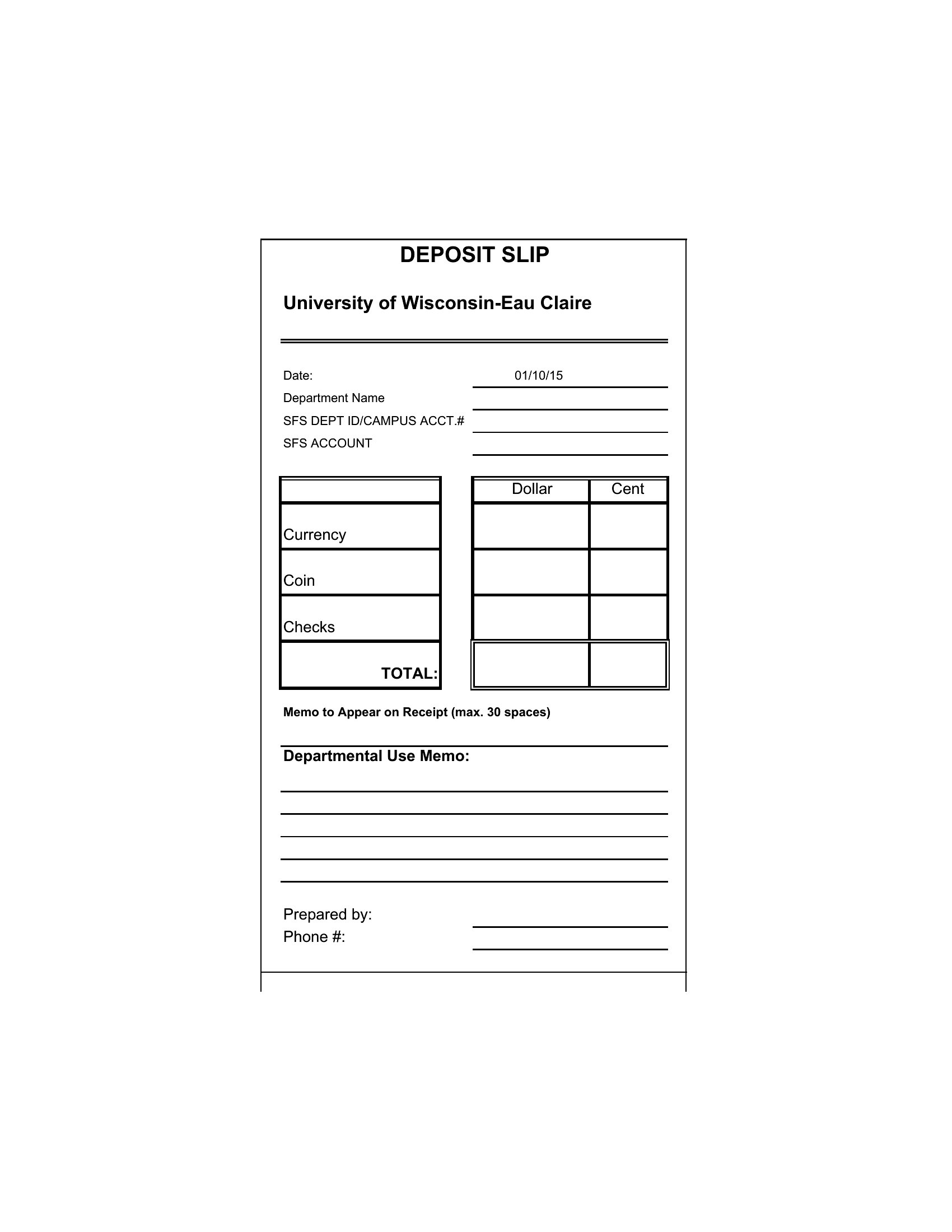
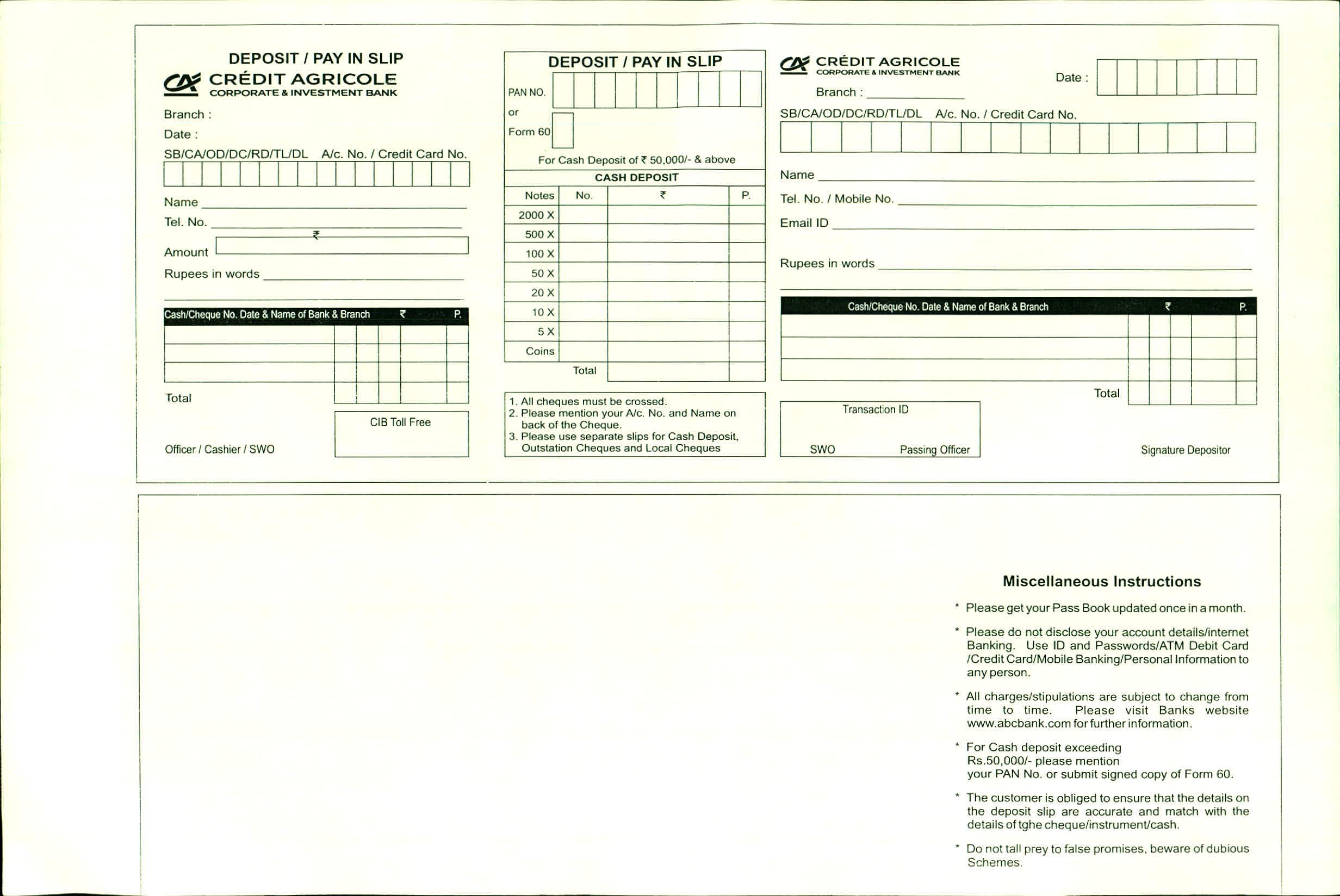
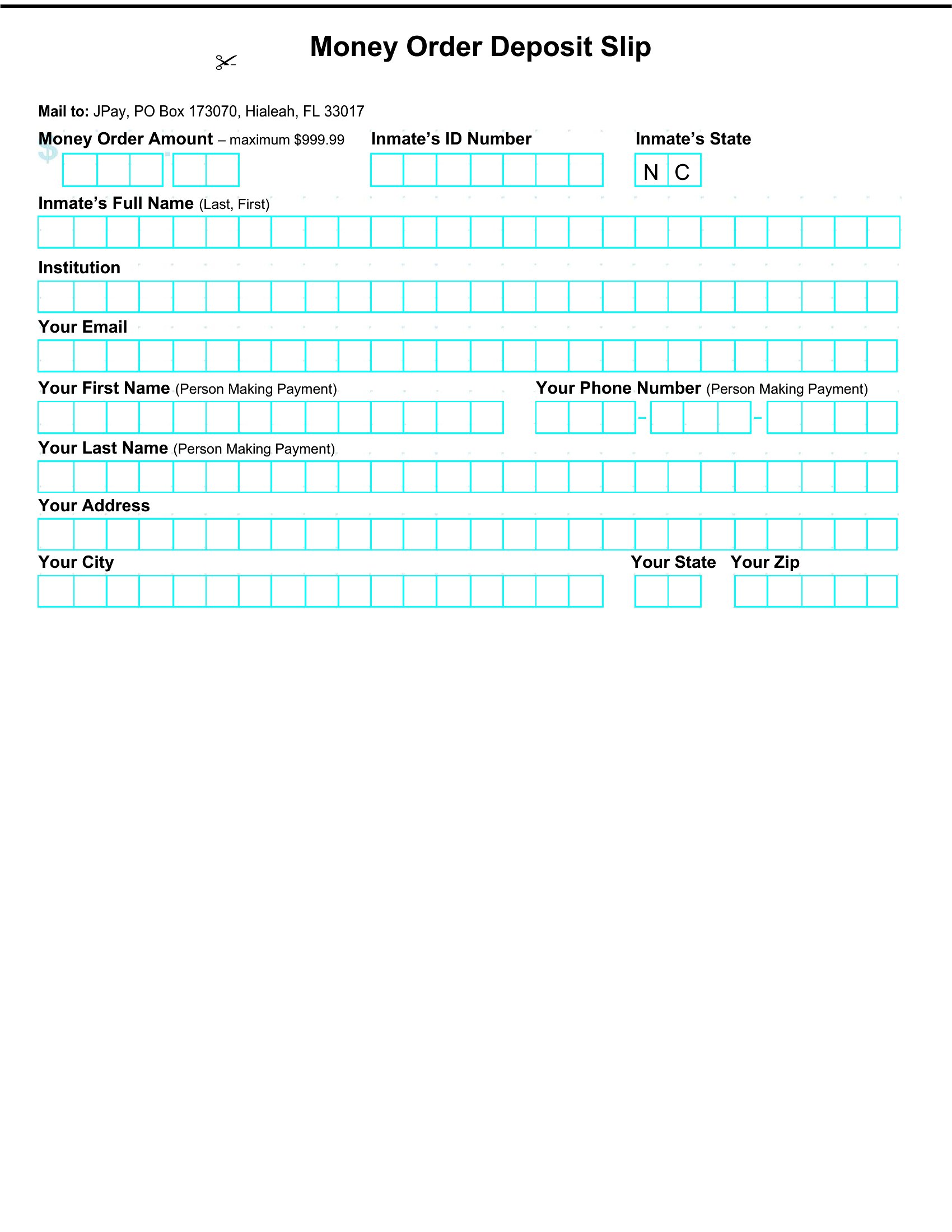
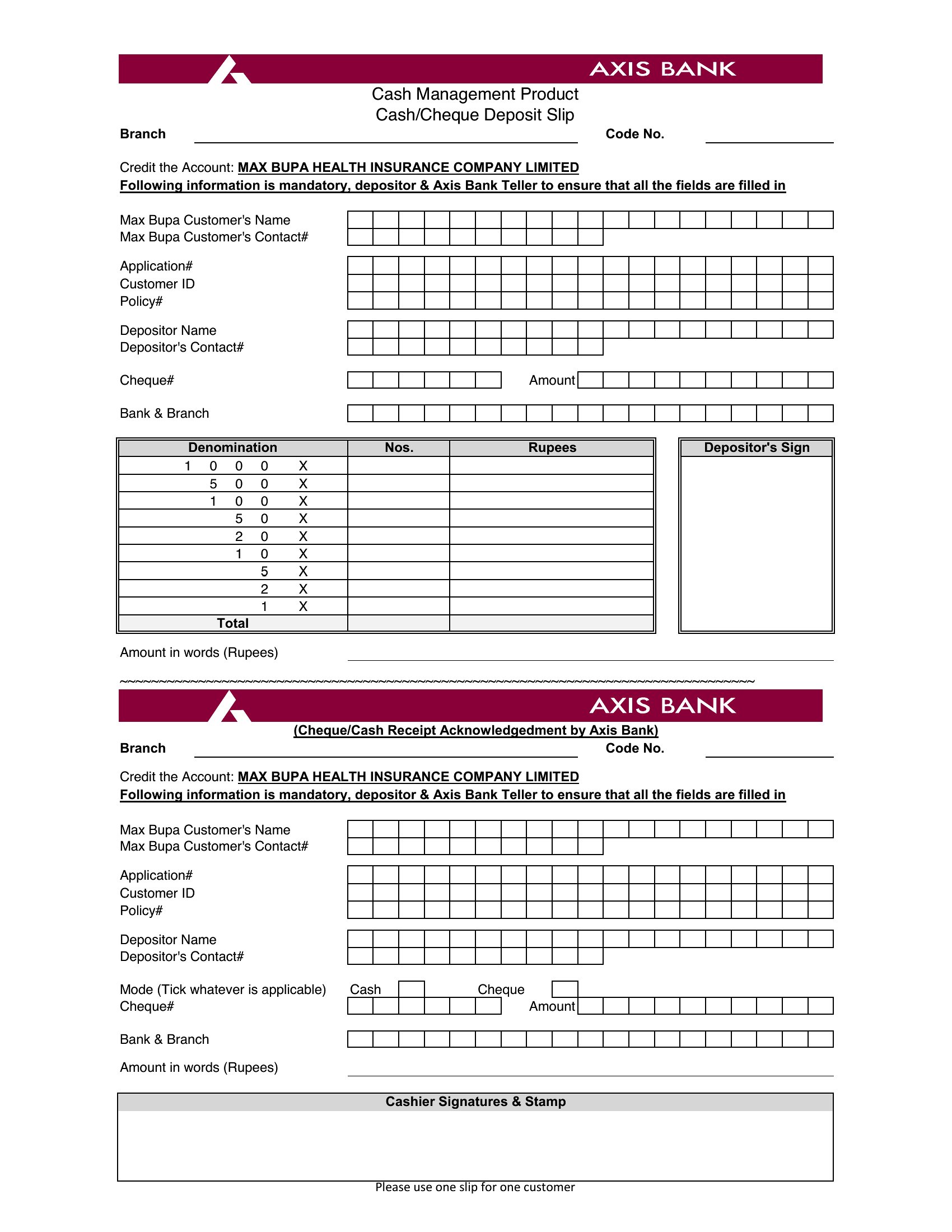
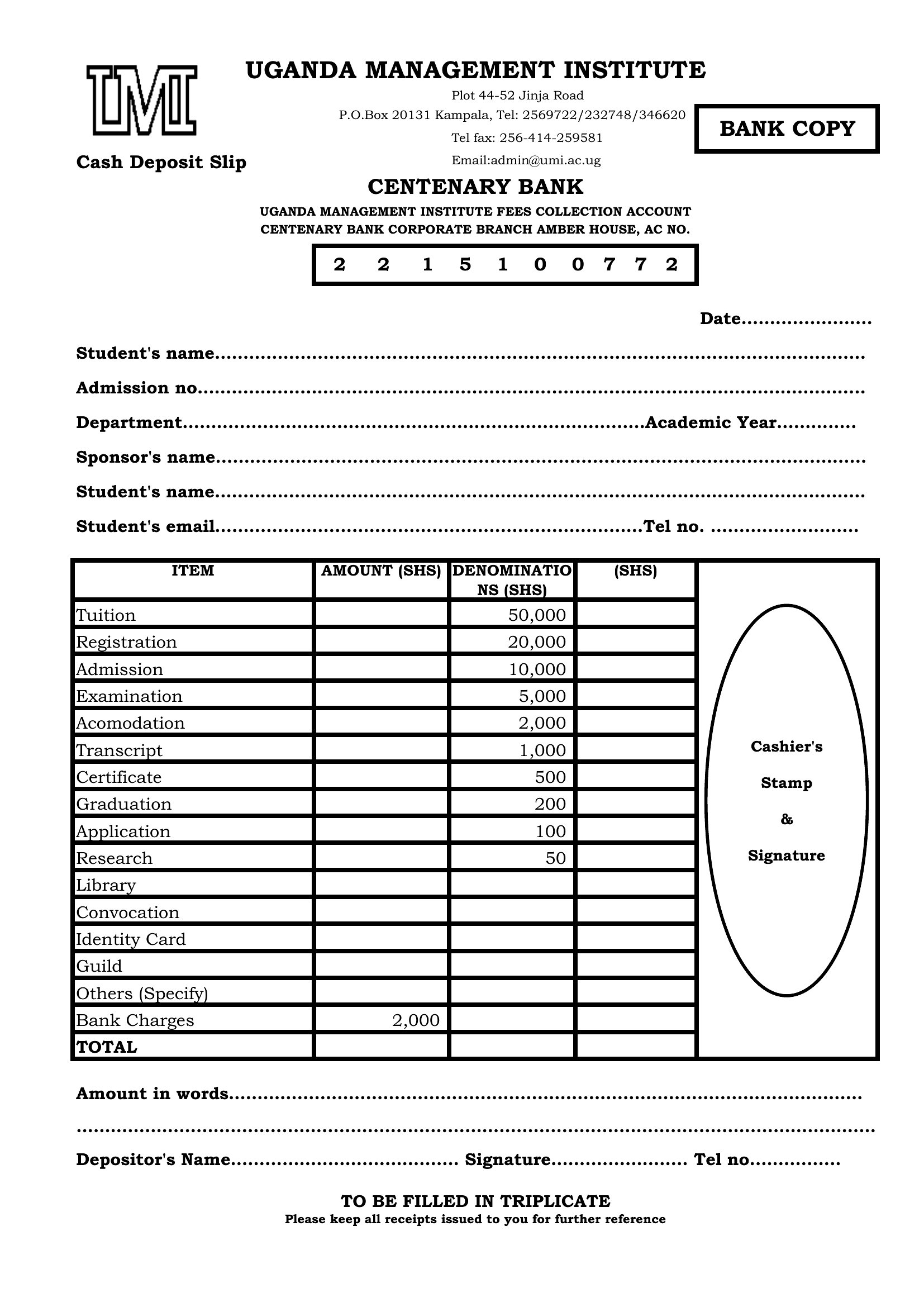
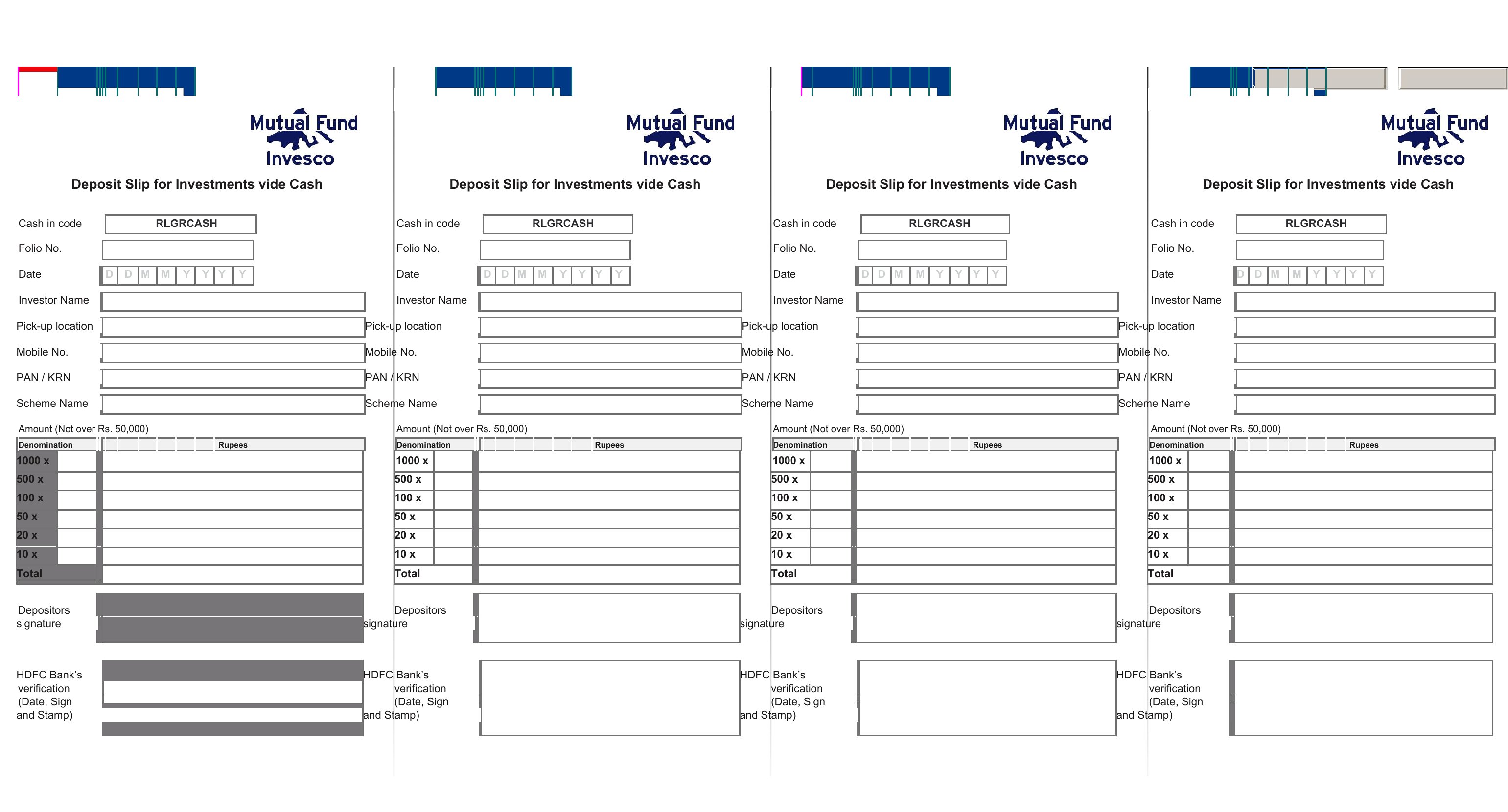
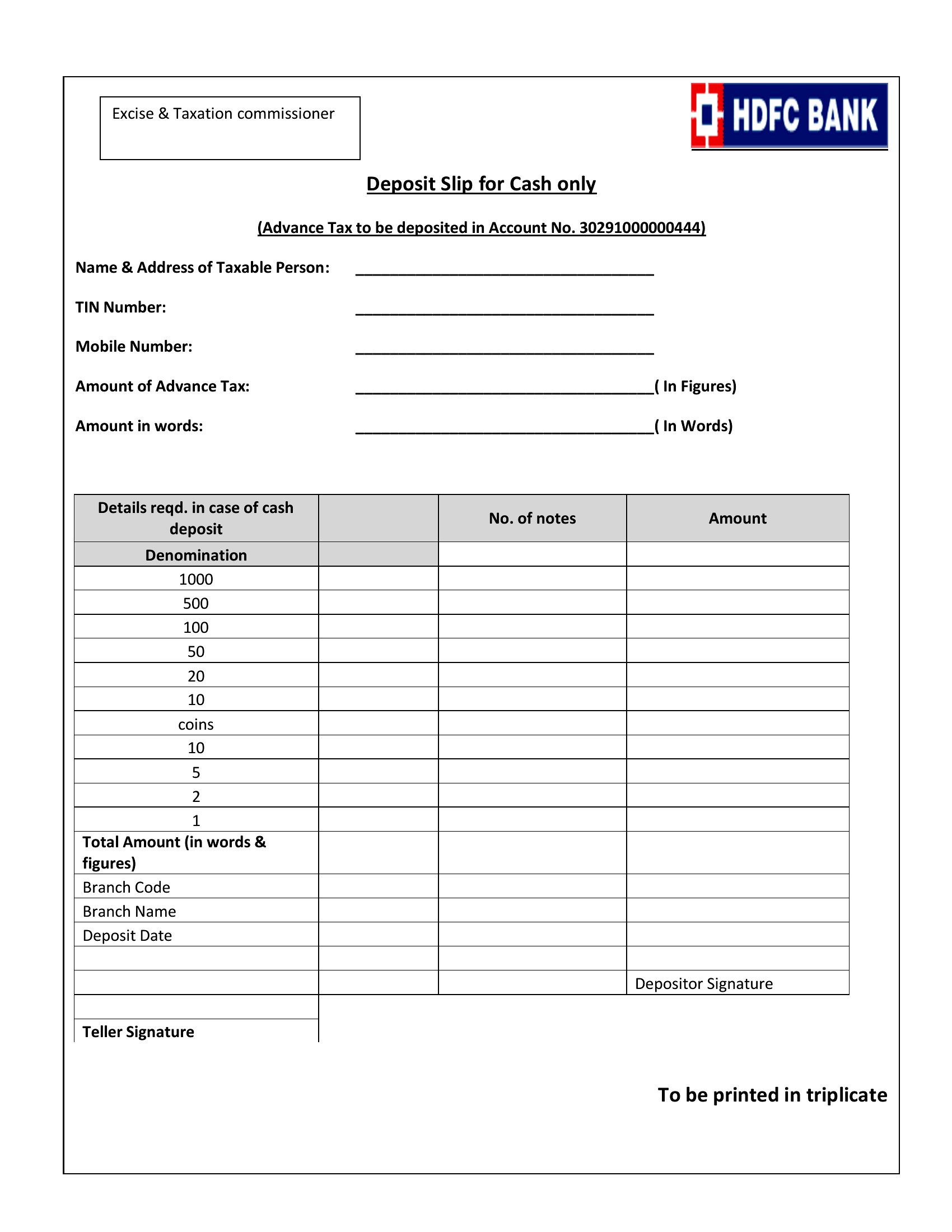
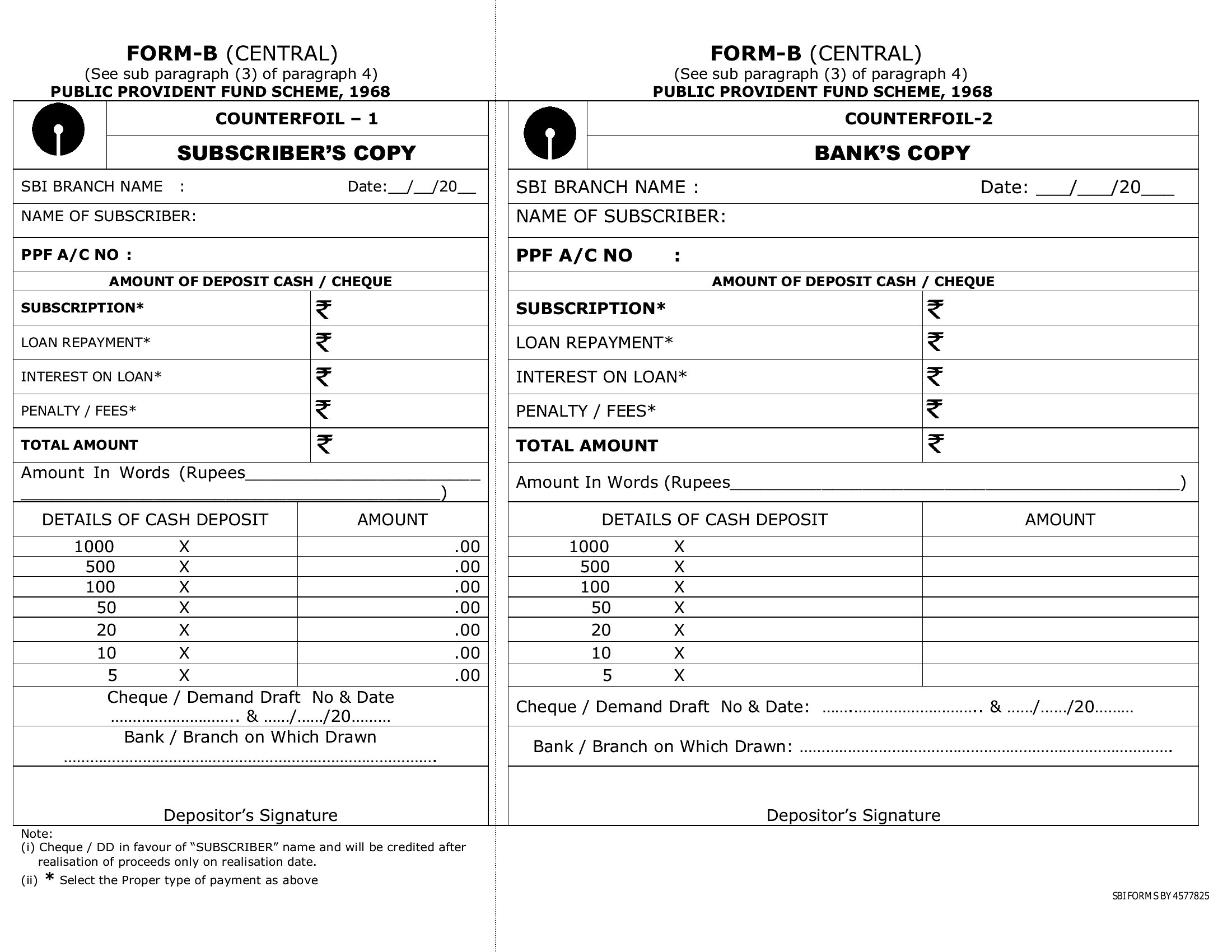
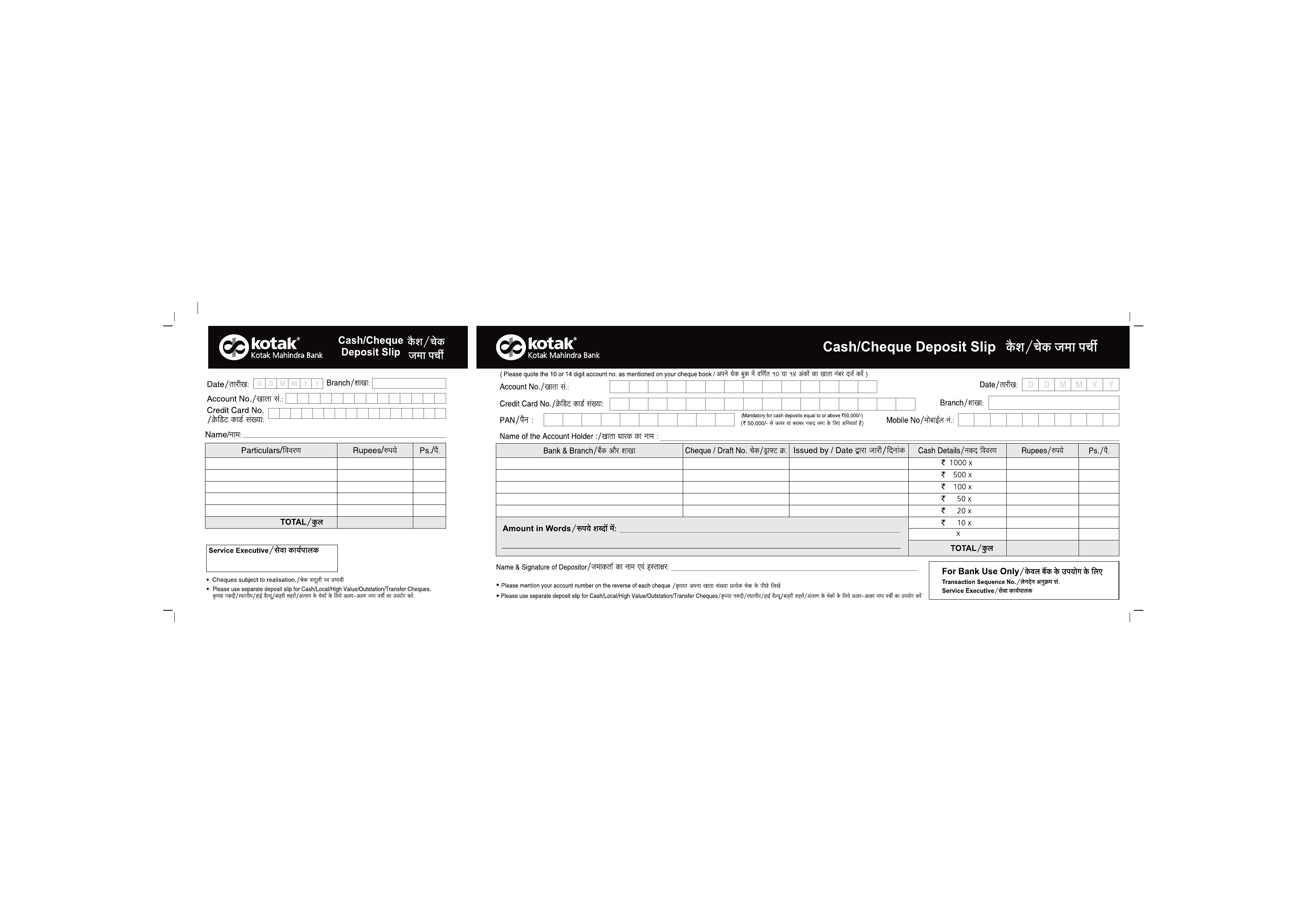
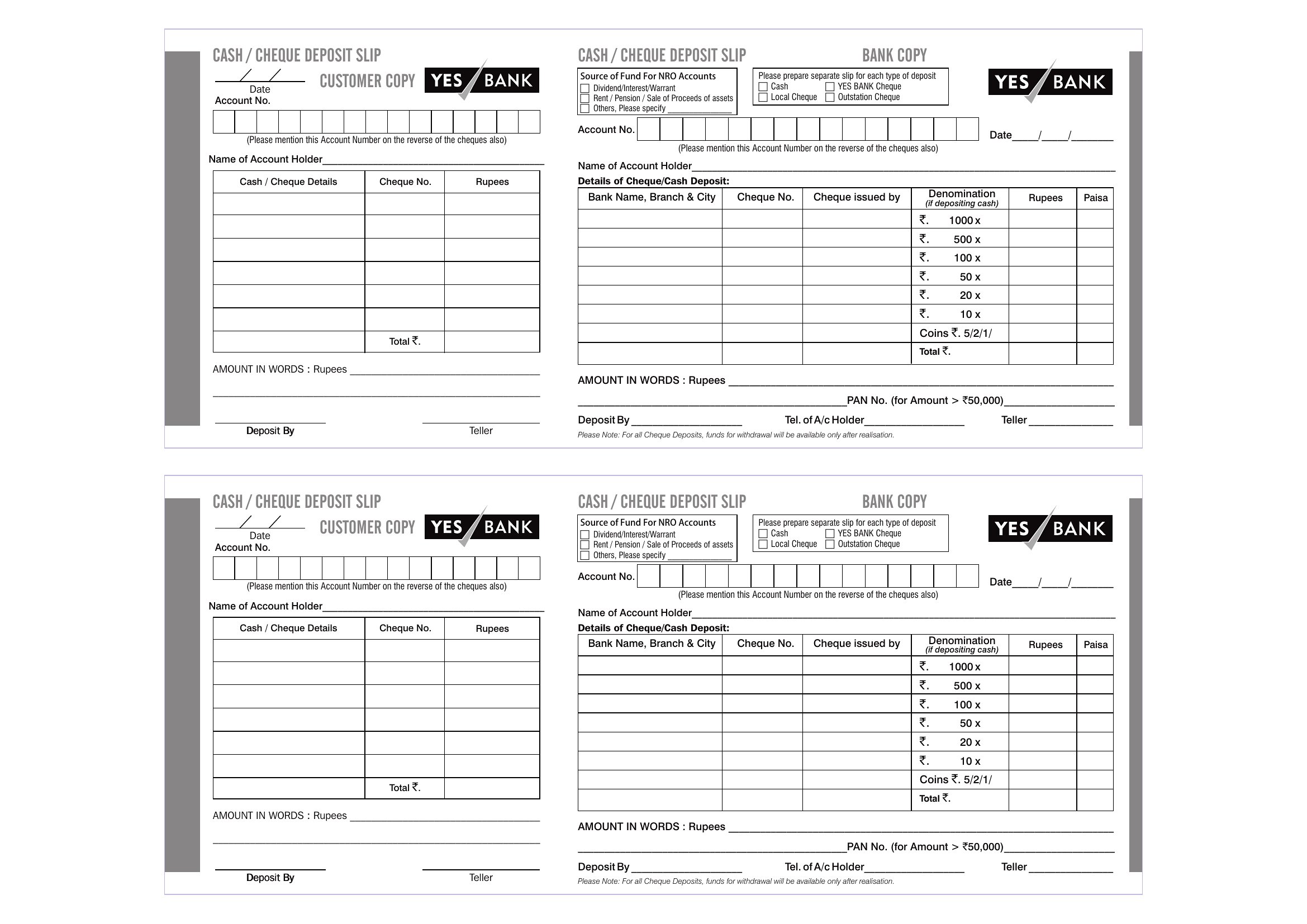
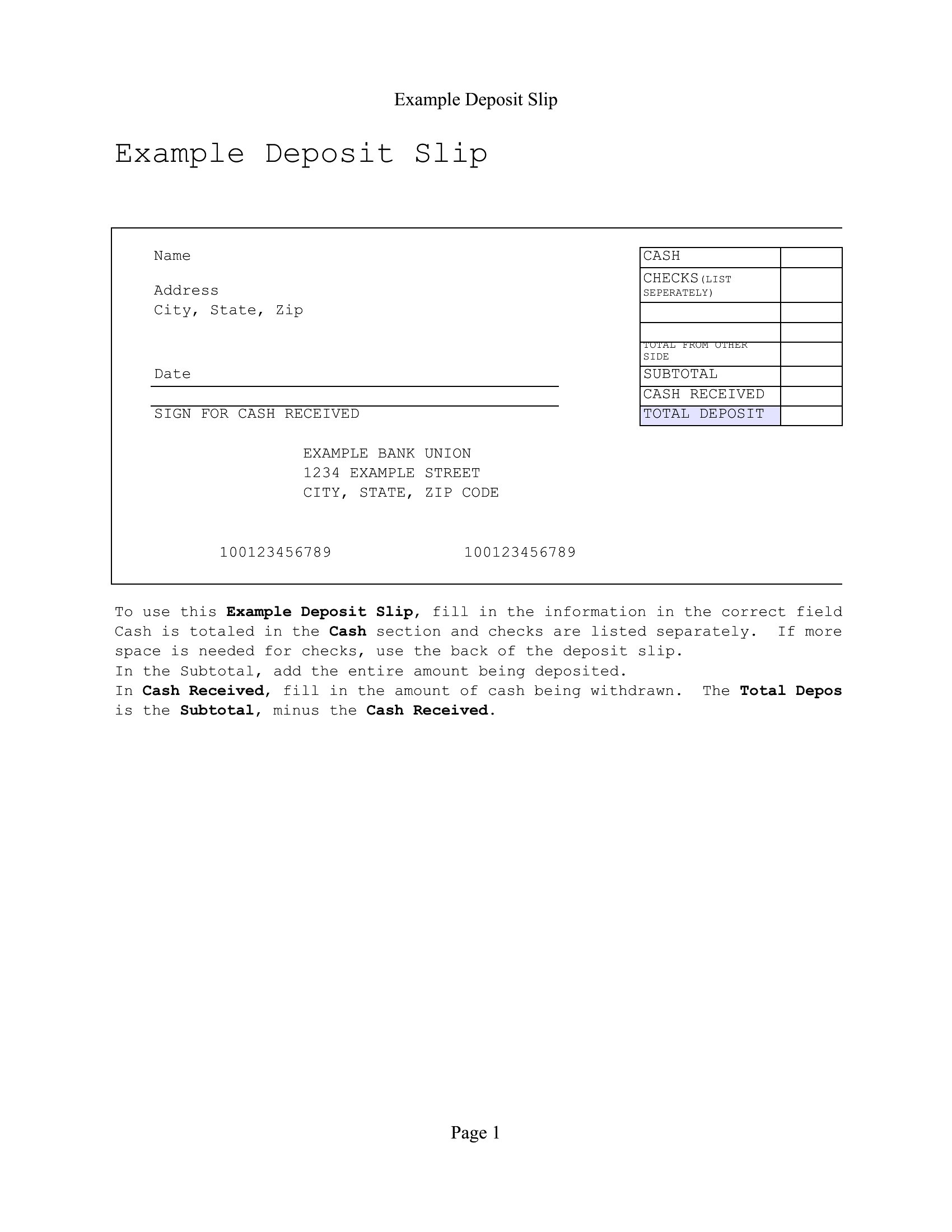
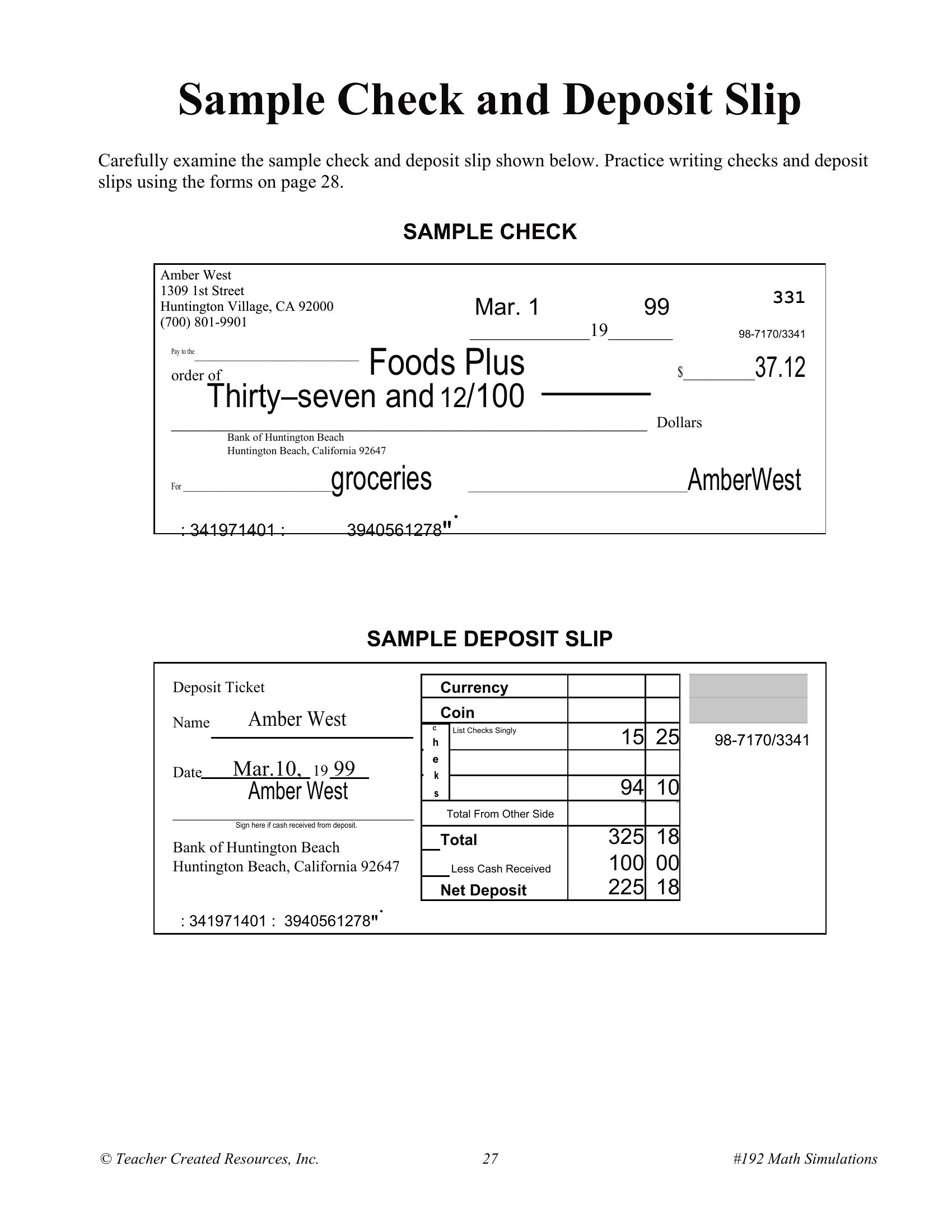
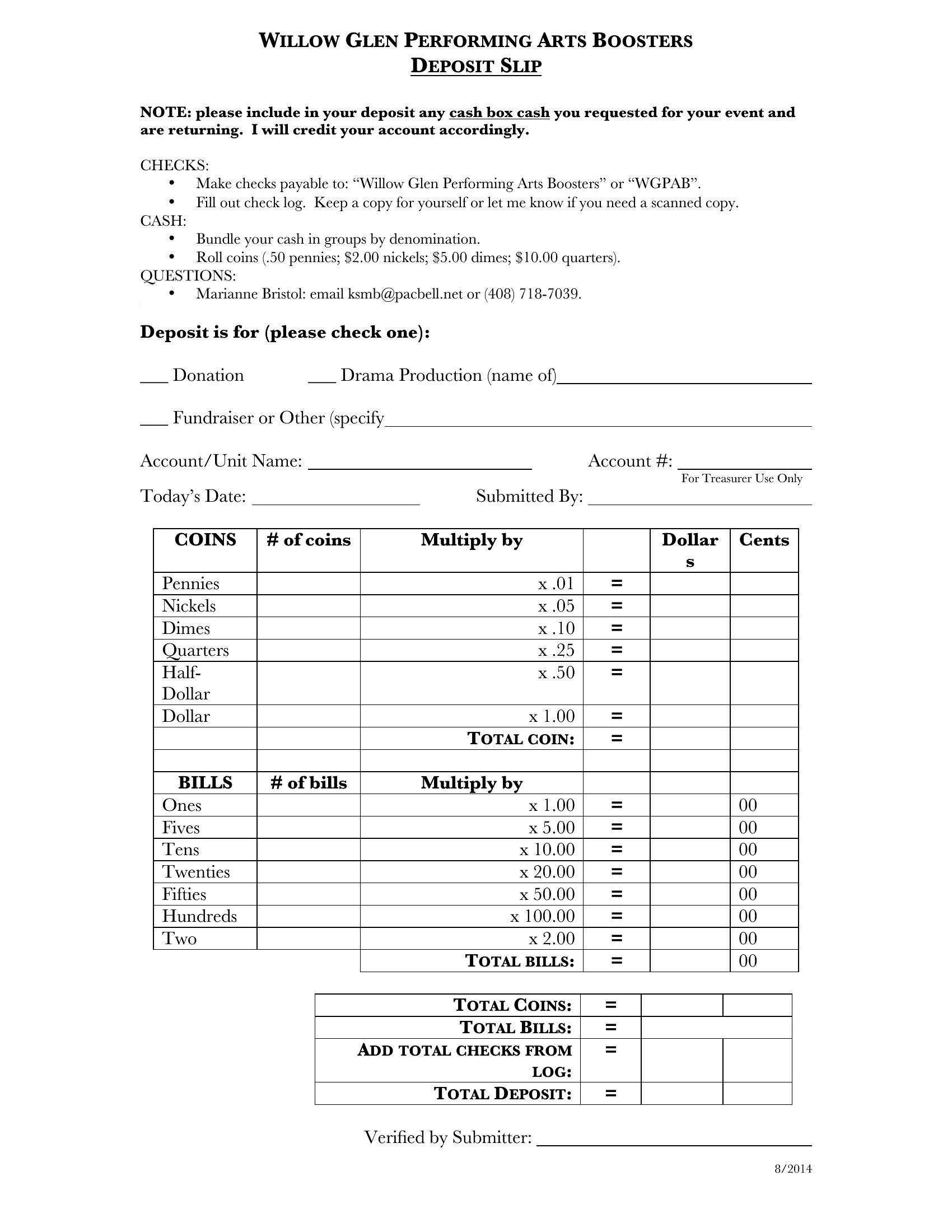
Can I customize these deposit slips to include my business logo or specific instructions for tellers?
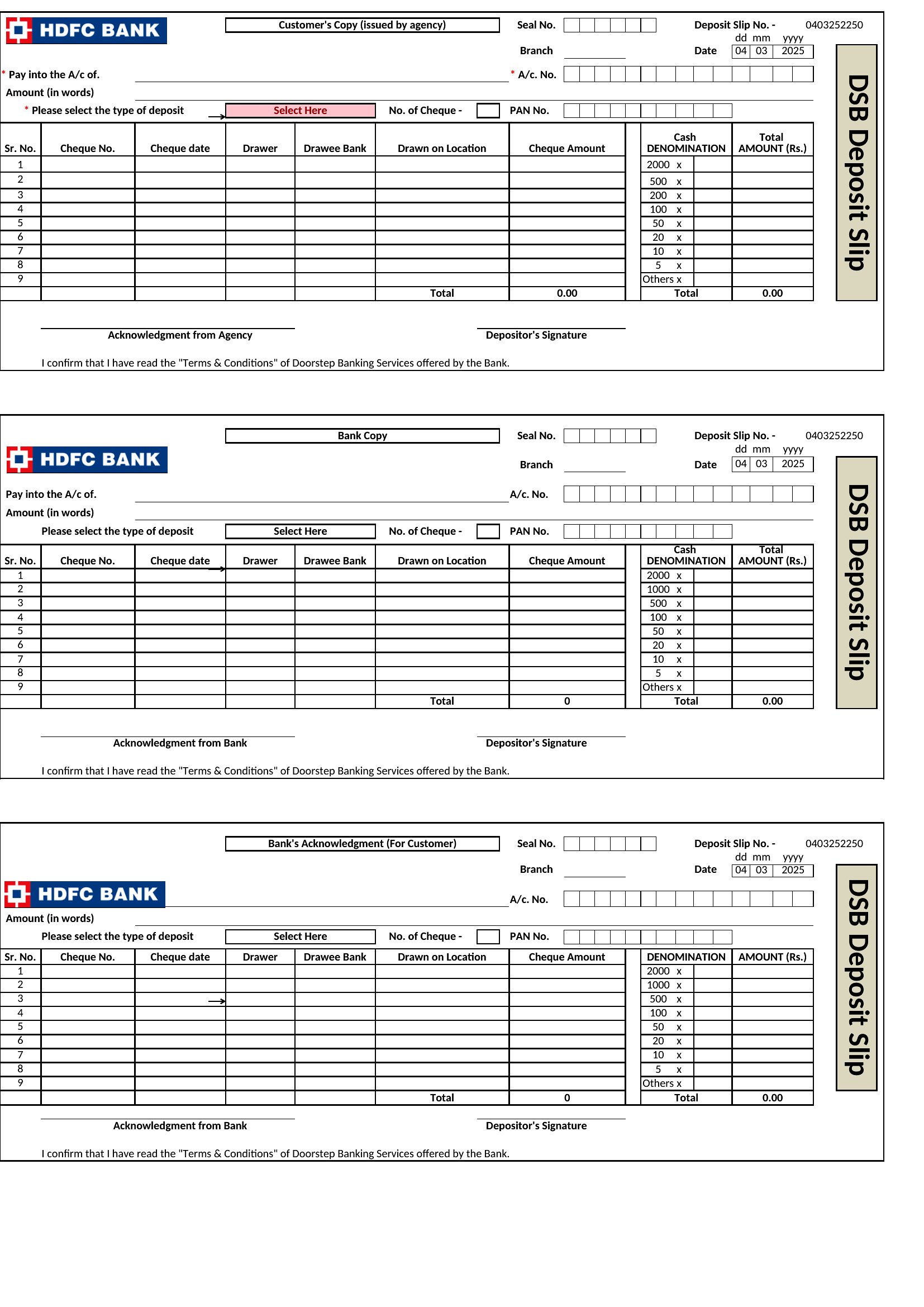
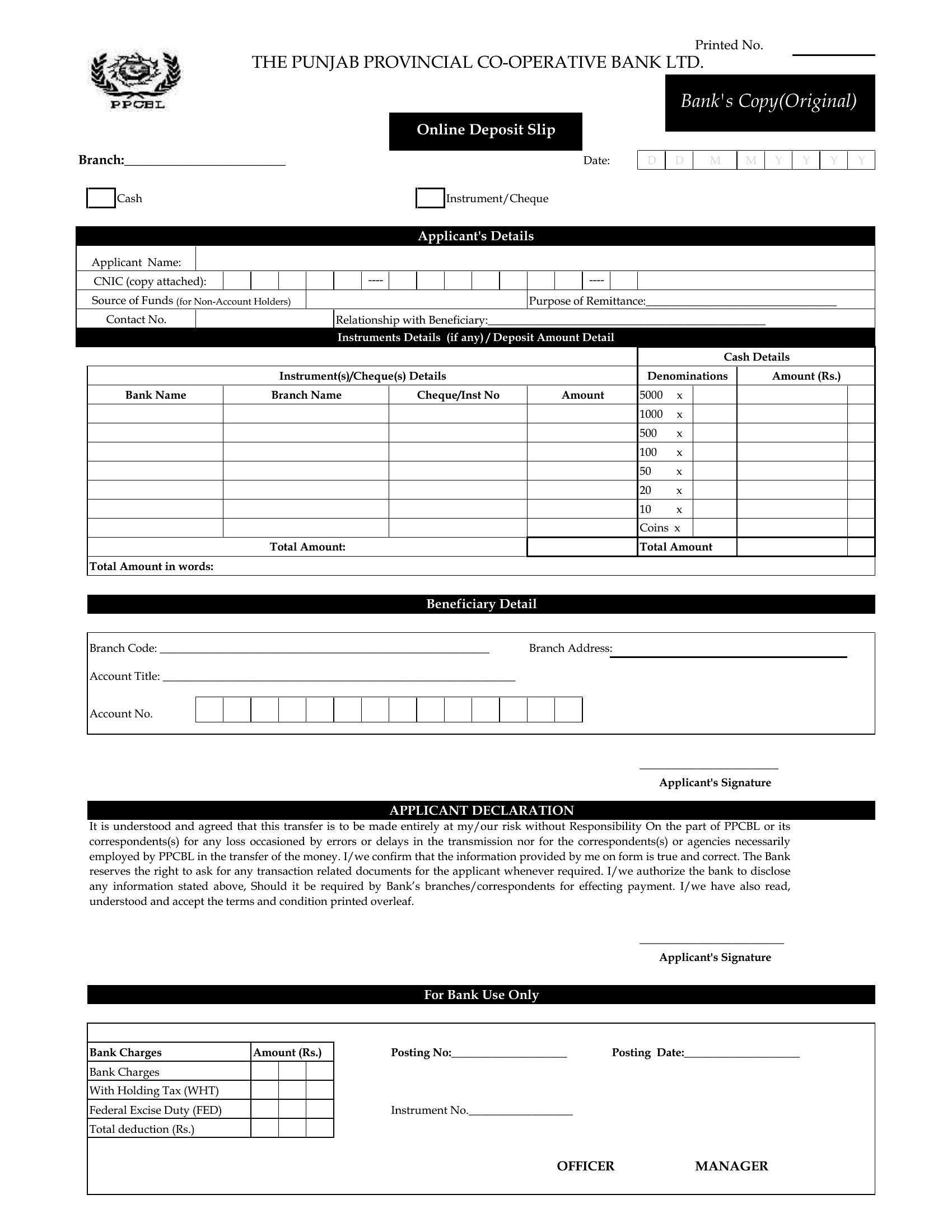
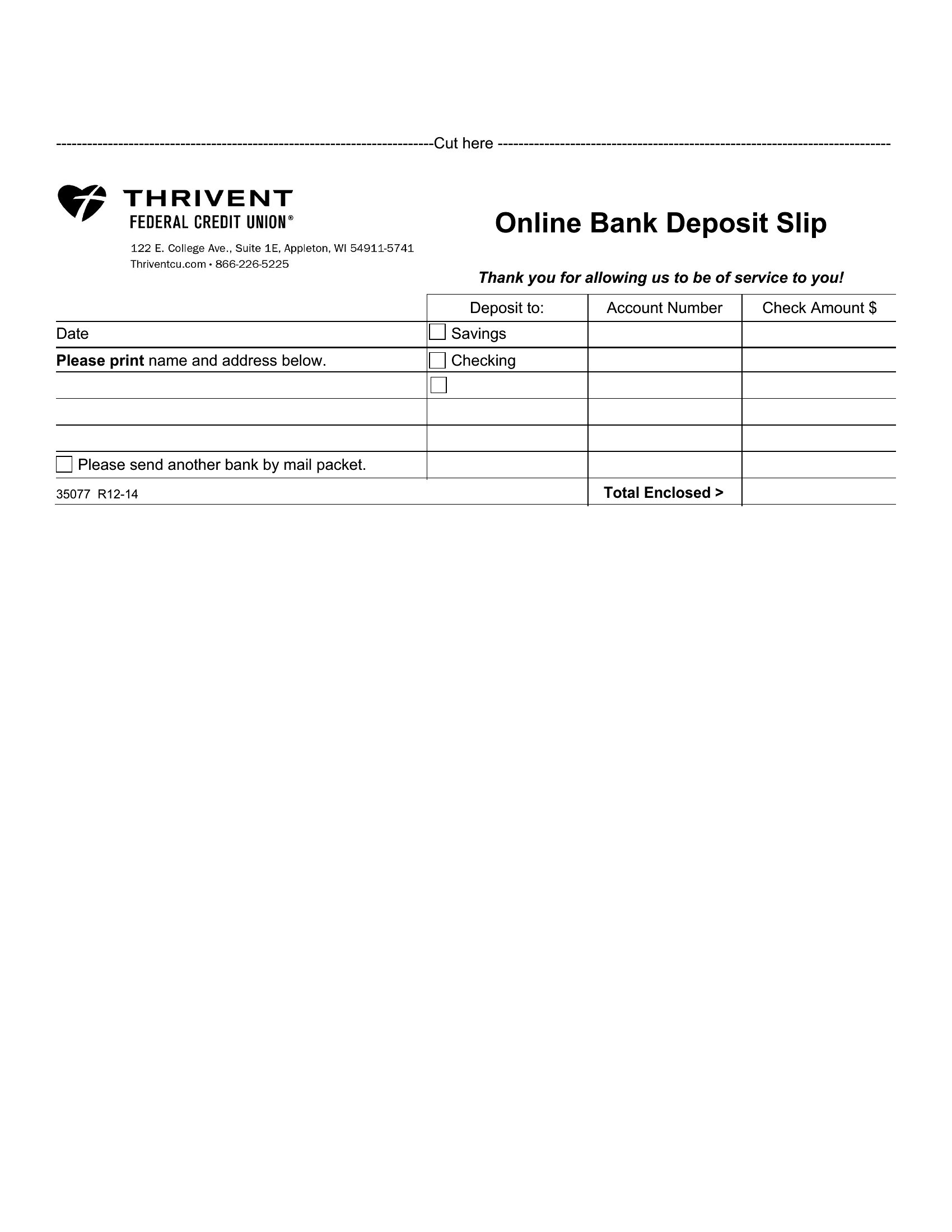
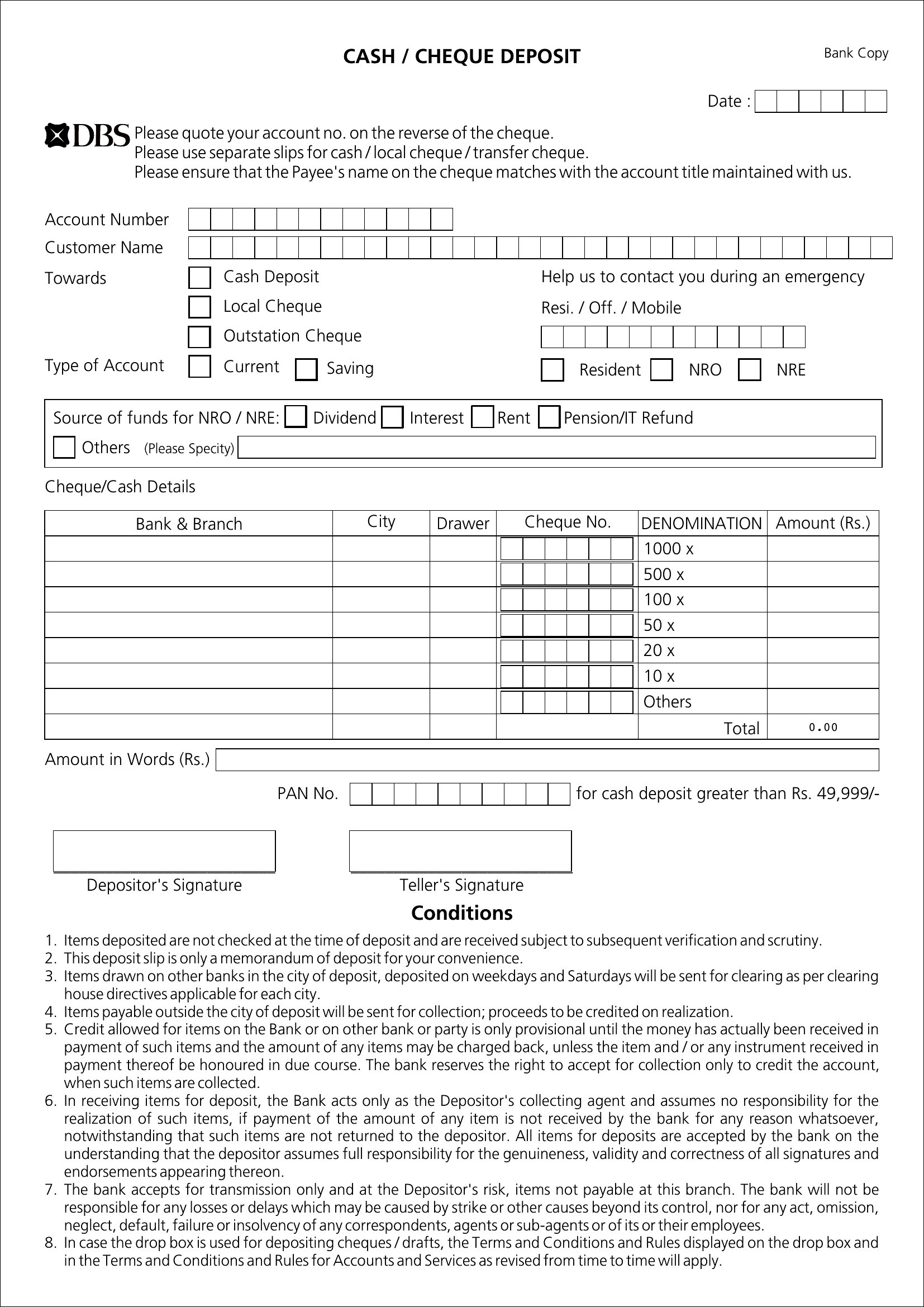
Yes, the Word and PDF formats allow you to add your logo or notes, but verify your bank’s requirements first—some branches may not accept slips with extra markings. Always keep a copy of the final version you use for consistency. For Excel, you can embed logos in the header/footer, but focus on clarity to avoid teller confusion.
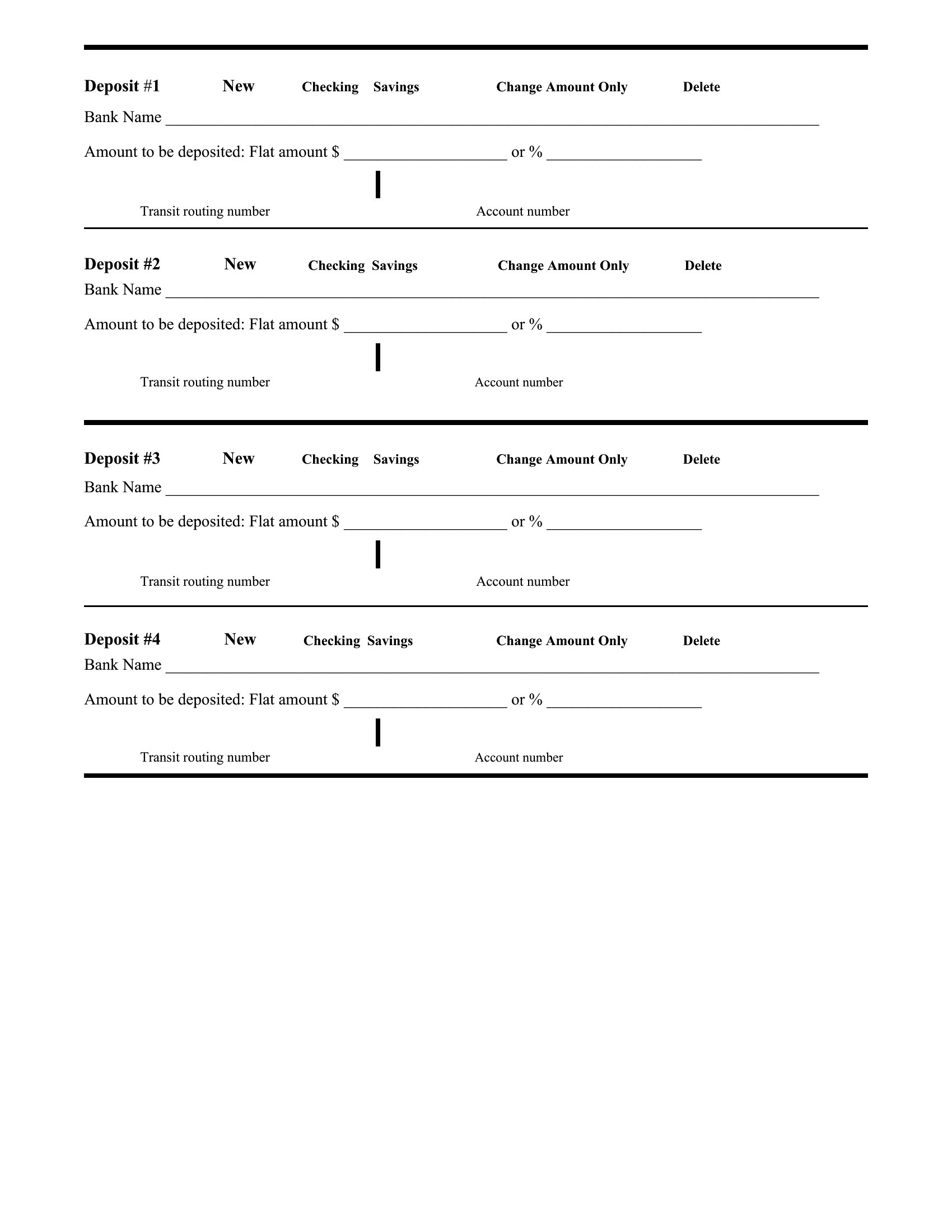
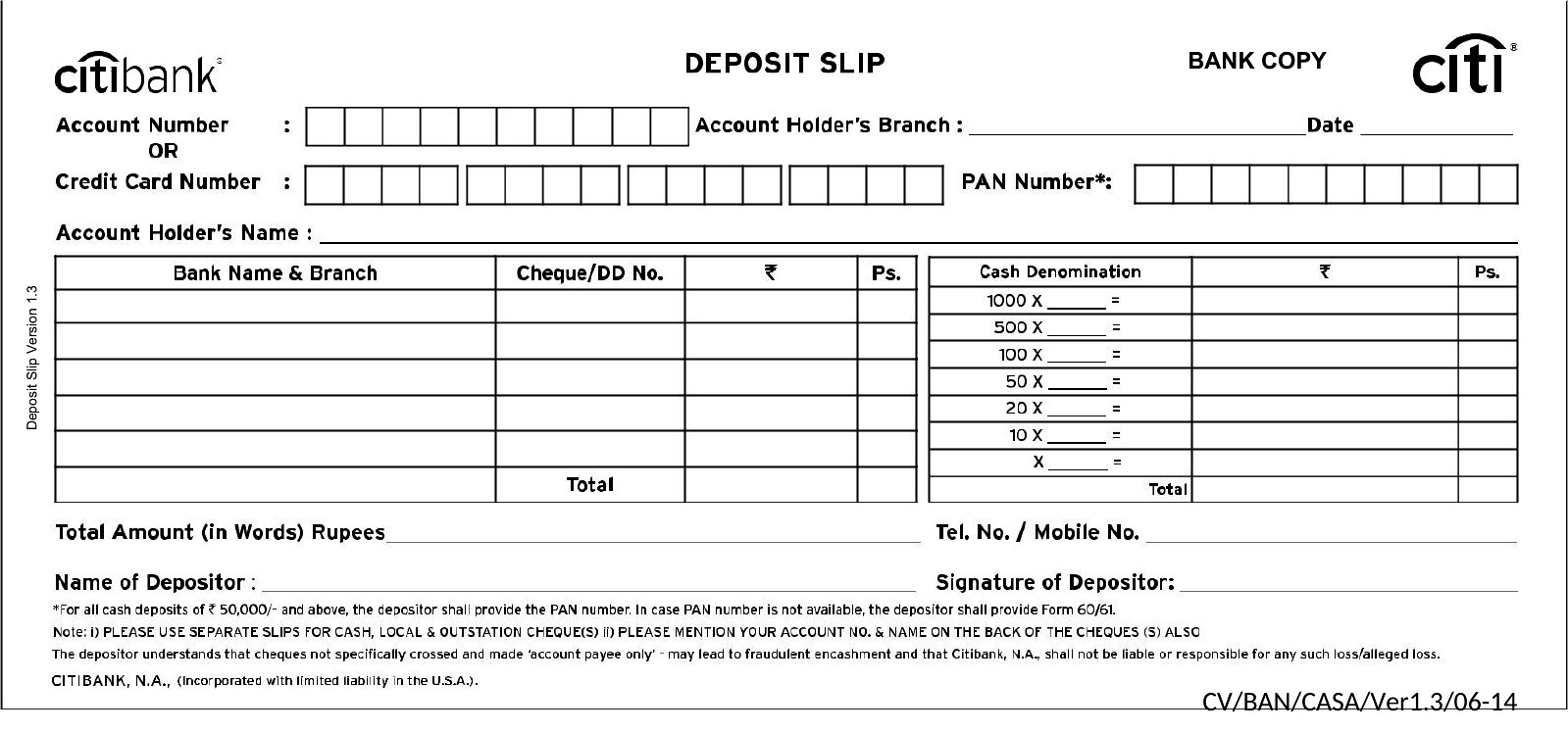
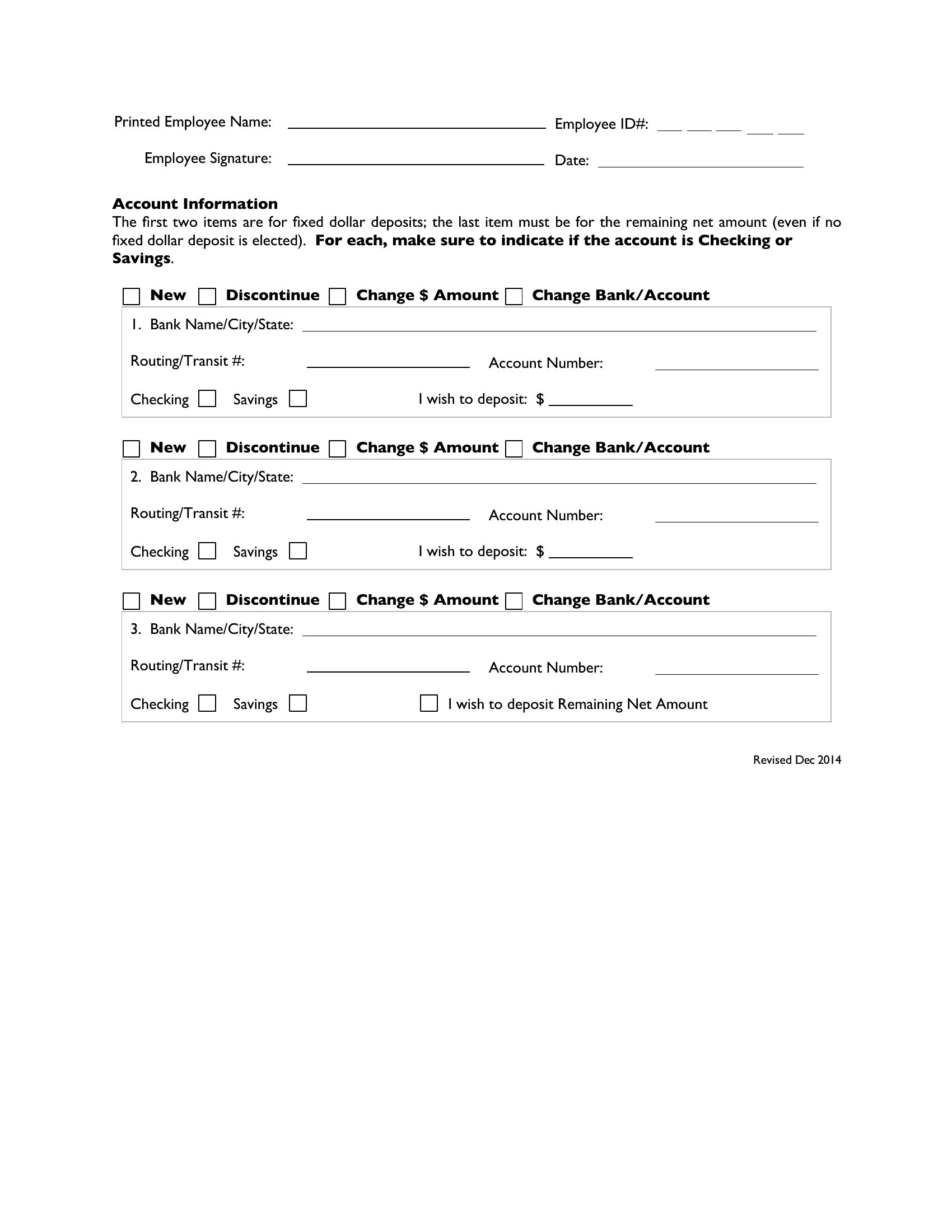
What’s the best way to organize deposit slips if I’m handling multiple accounts or currencies?
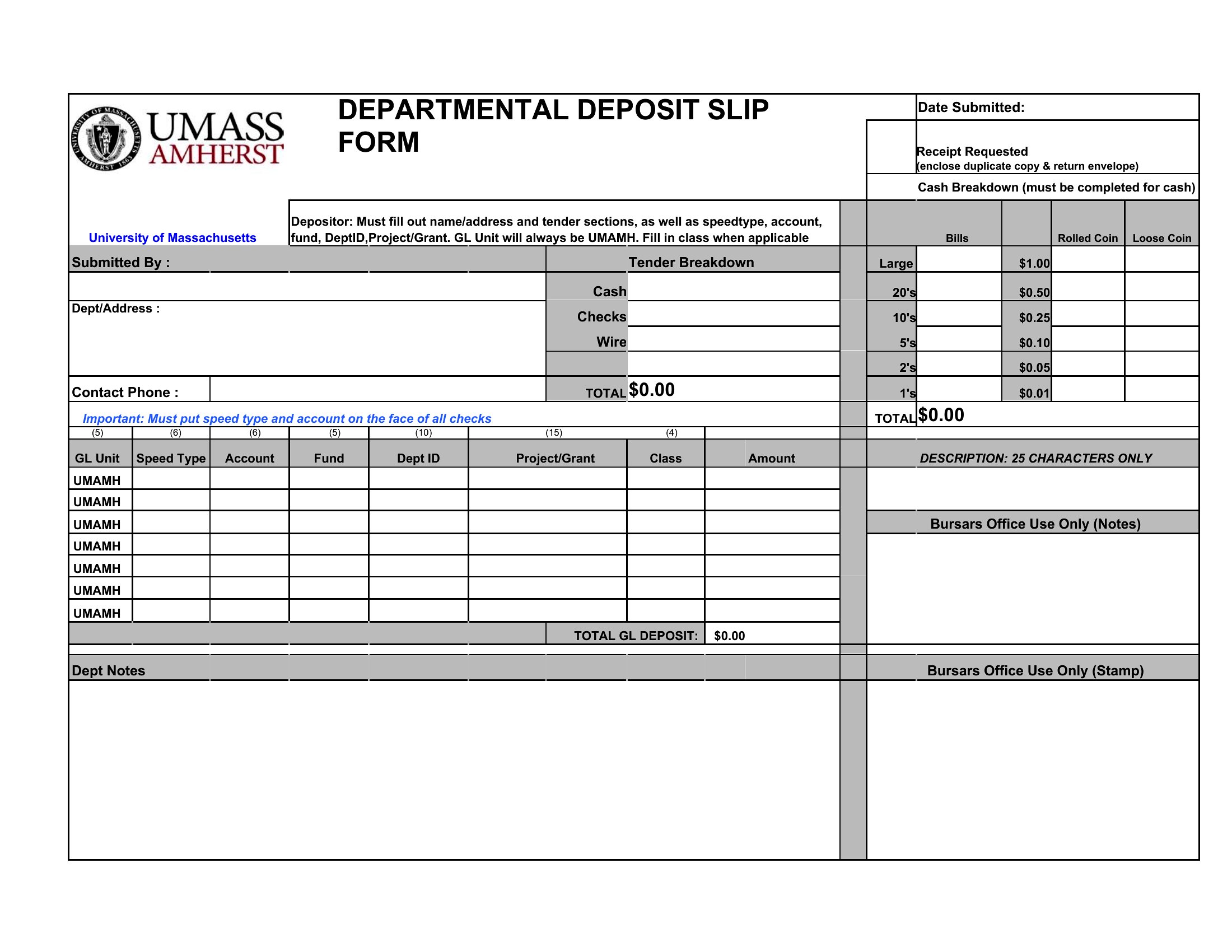
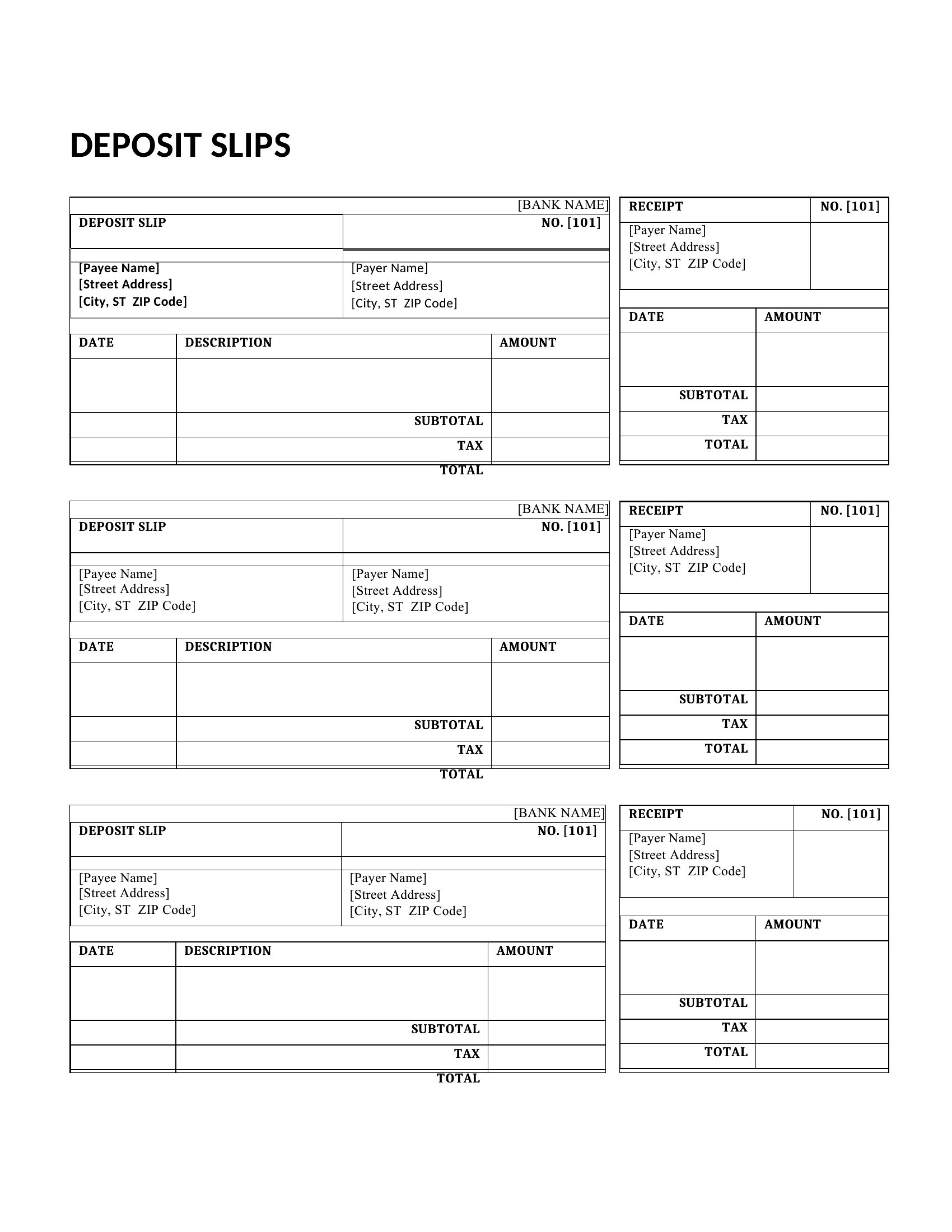
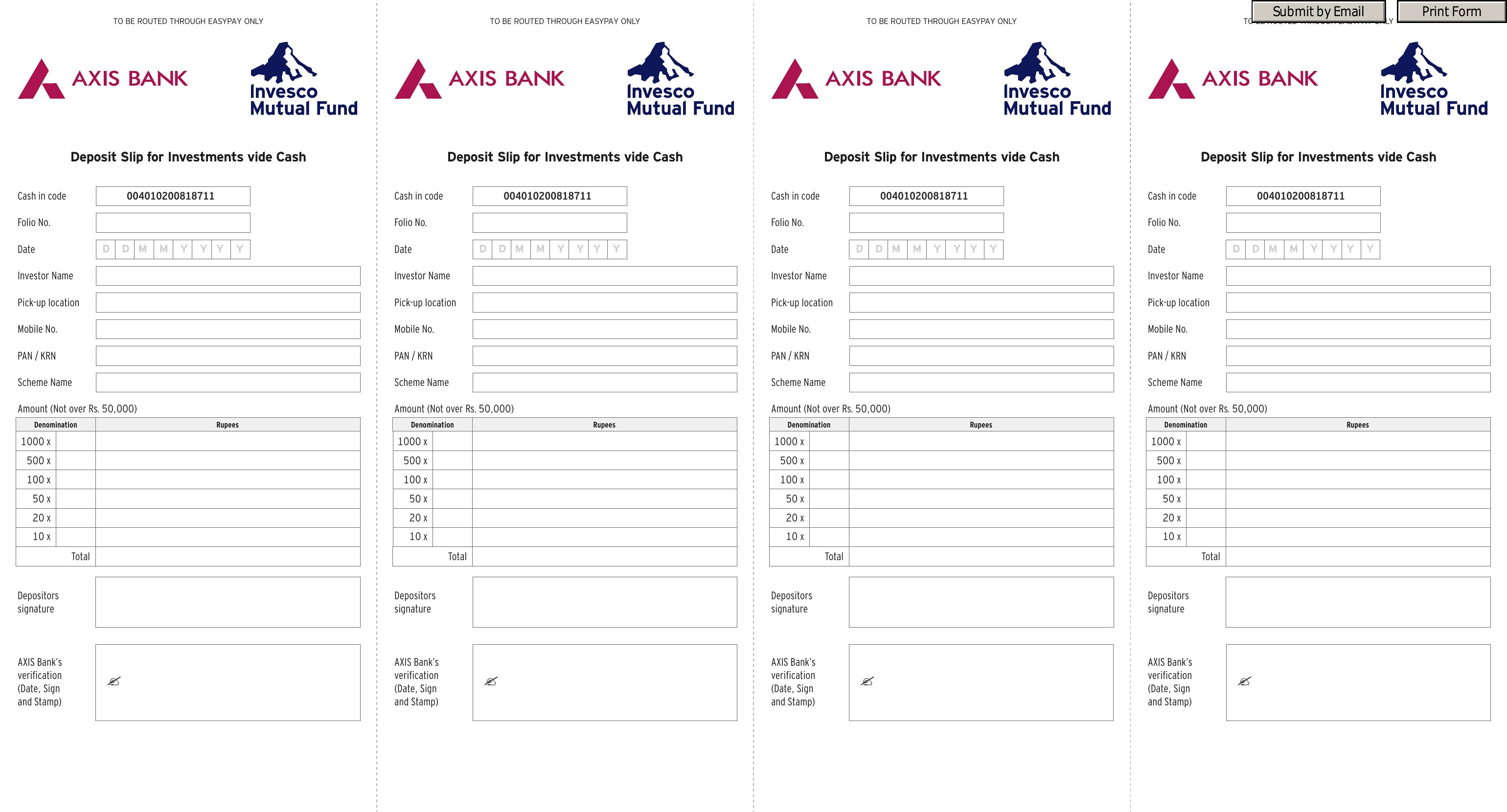
Use Excel to create a tabbed system where each sheet corresponds to an account or currency type. Label columns clearly (e.g., ‘USD – Savings,’ ‘EUR – Checking’) and include a dropdown menu for transaction types to minimize errors. For Word or PDF, print multiple slips per page with account numbers pre-filled to streamline sorting later.
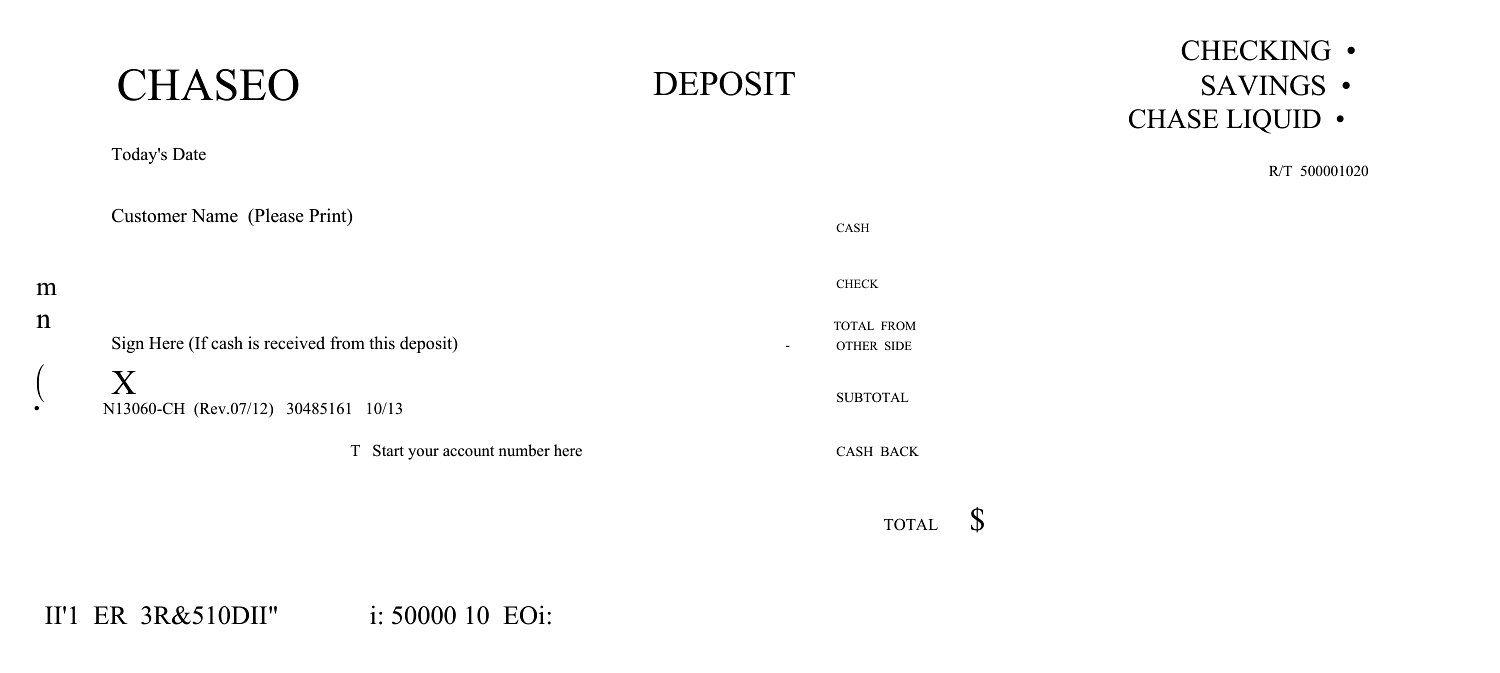
Do these templates include fields for cash back or ATM withdrawals if I’m combining a deposit with a withdrawal?
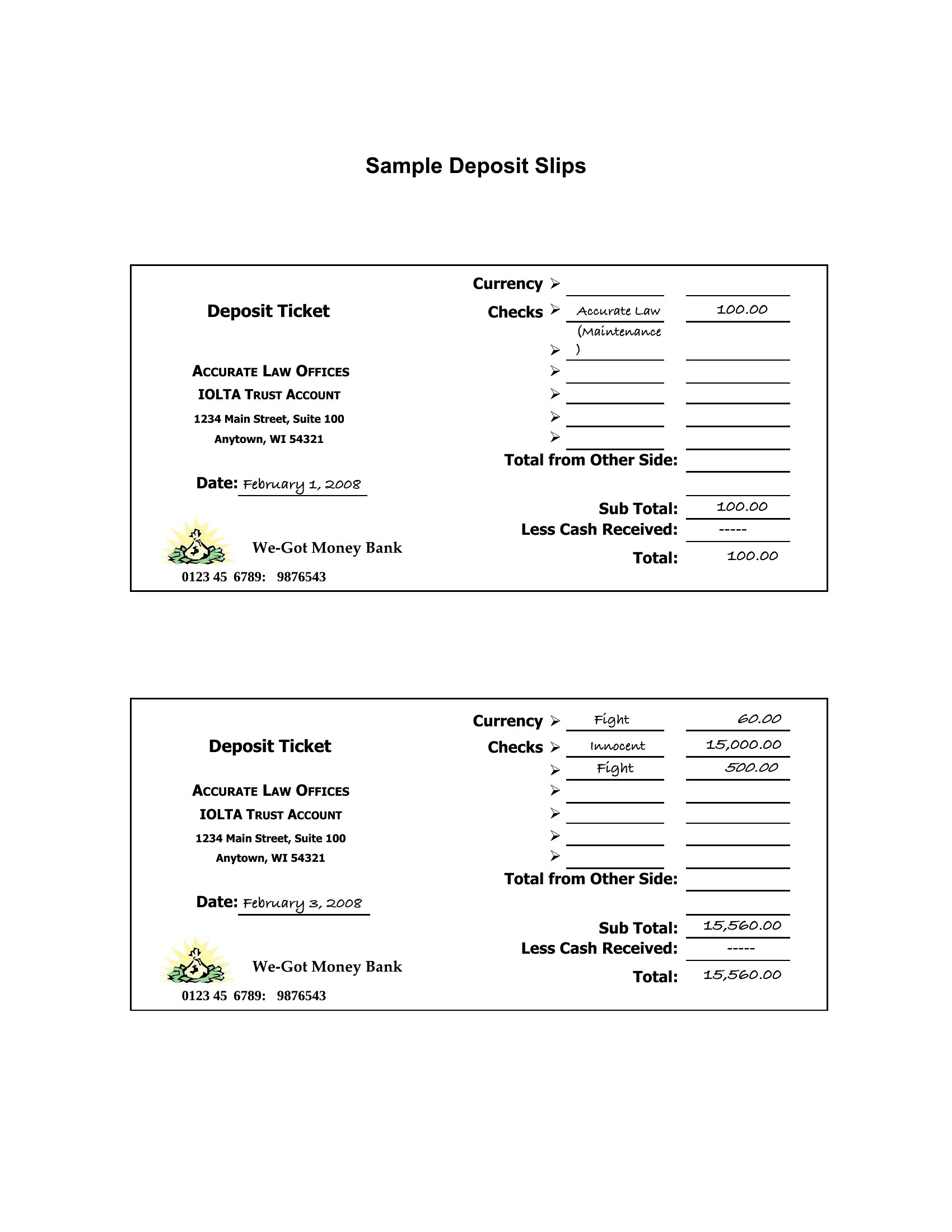
Most templates in this collection focus on deposits, but some Excel versions include an ‘additional notes’ section where you can manually log withdrawals or cash back. For critical accuracy, cross-check with your bank’s standard slip or use a separate note. Always confirm with your teller about combined transactions, as policies vary by institution.
Comments
Join the conversation
Sign in to share your thoughts and leave a comment on this resource.