

FAQ
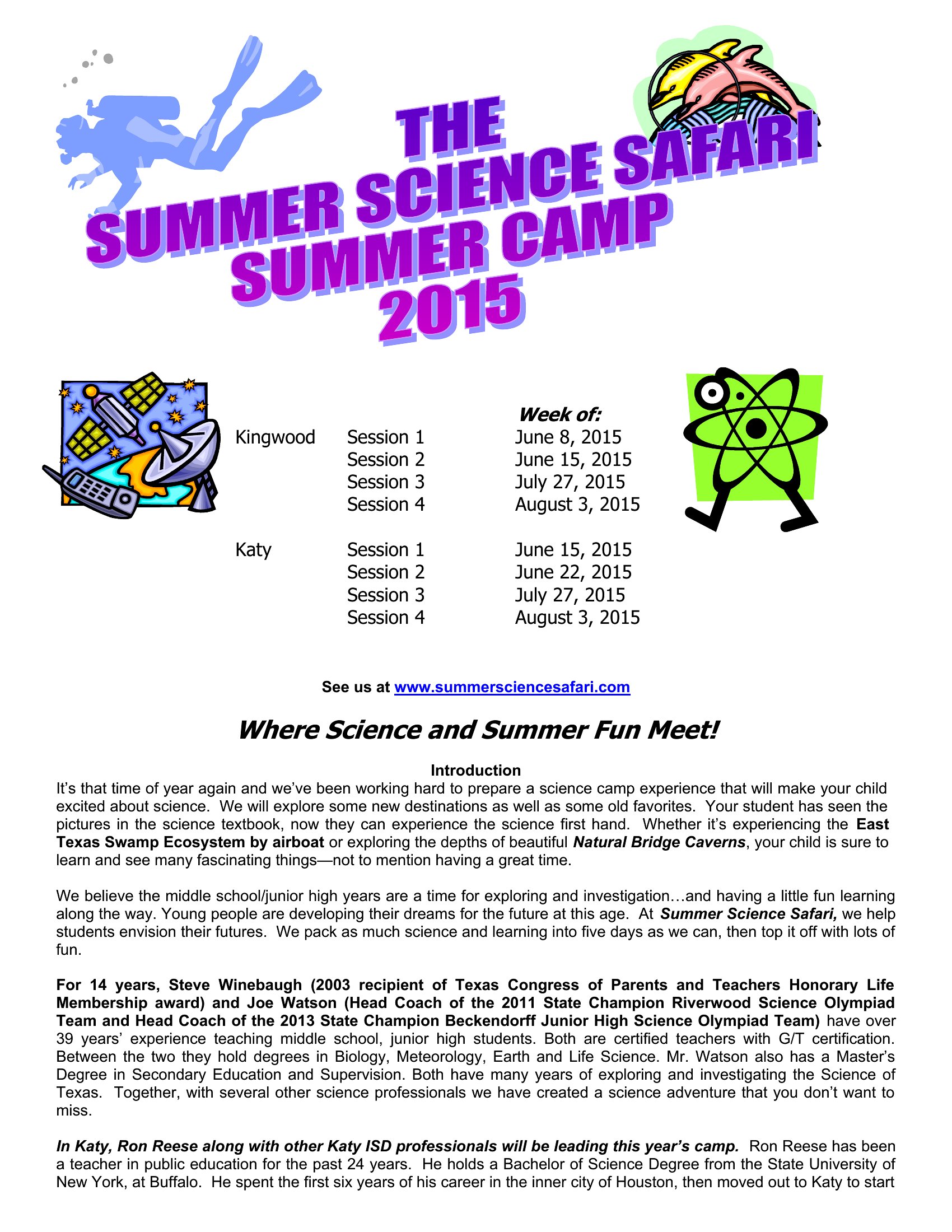
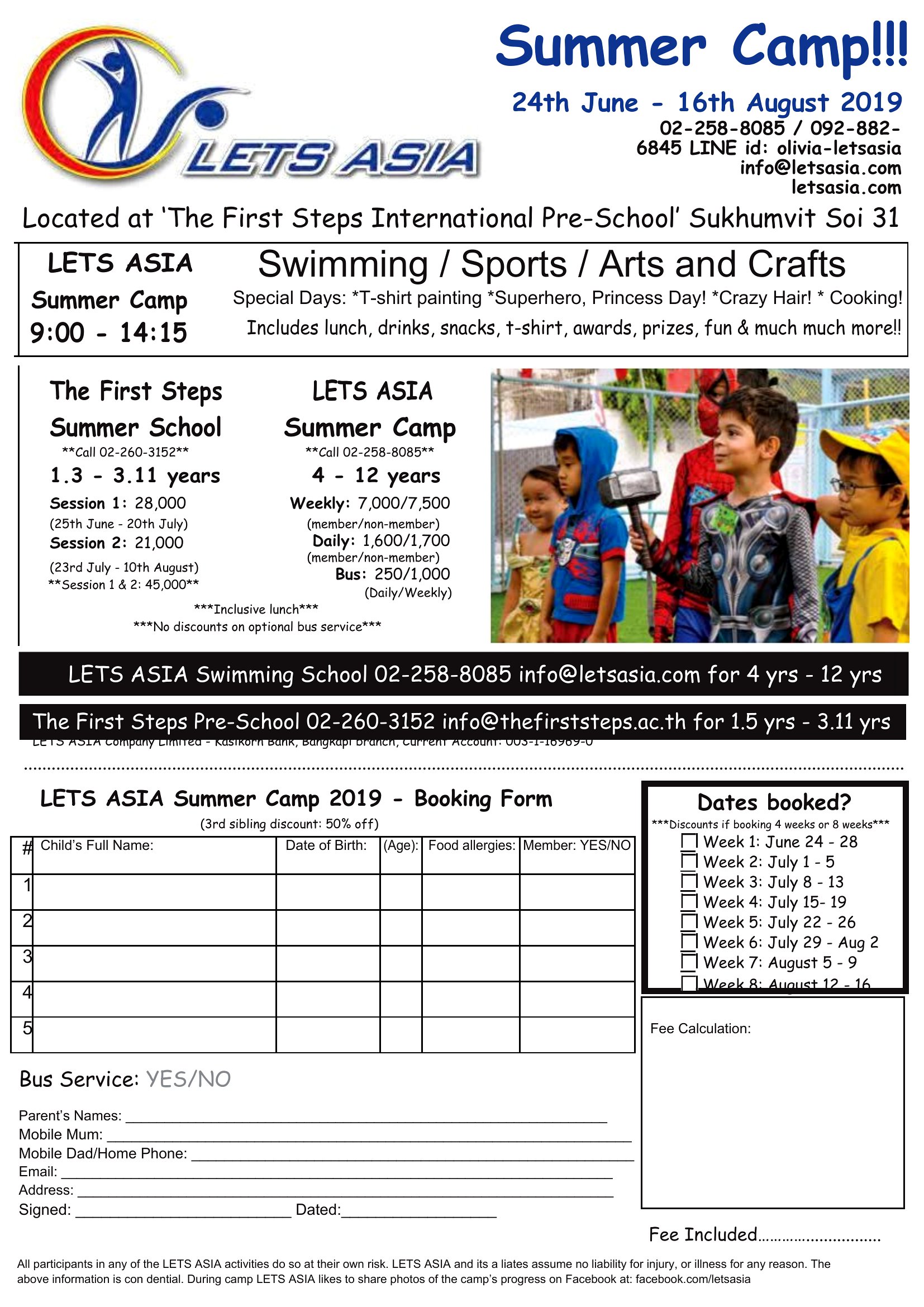
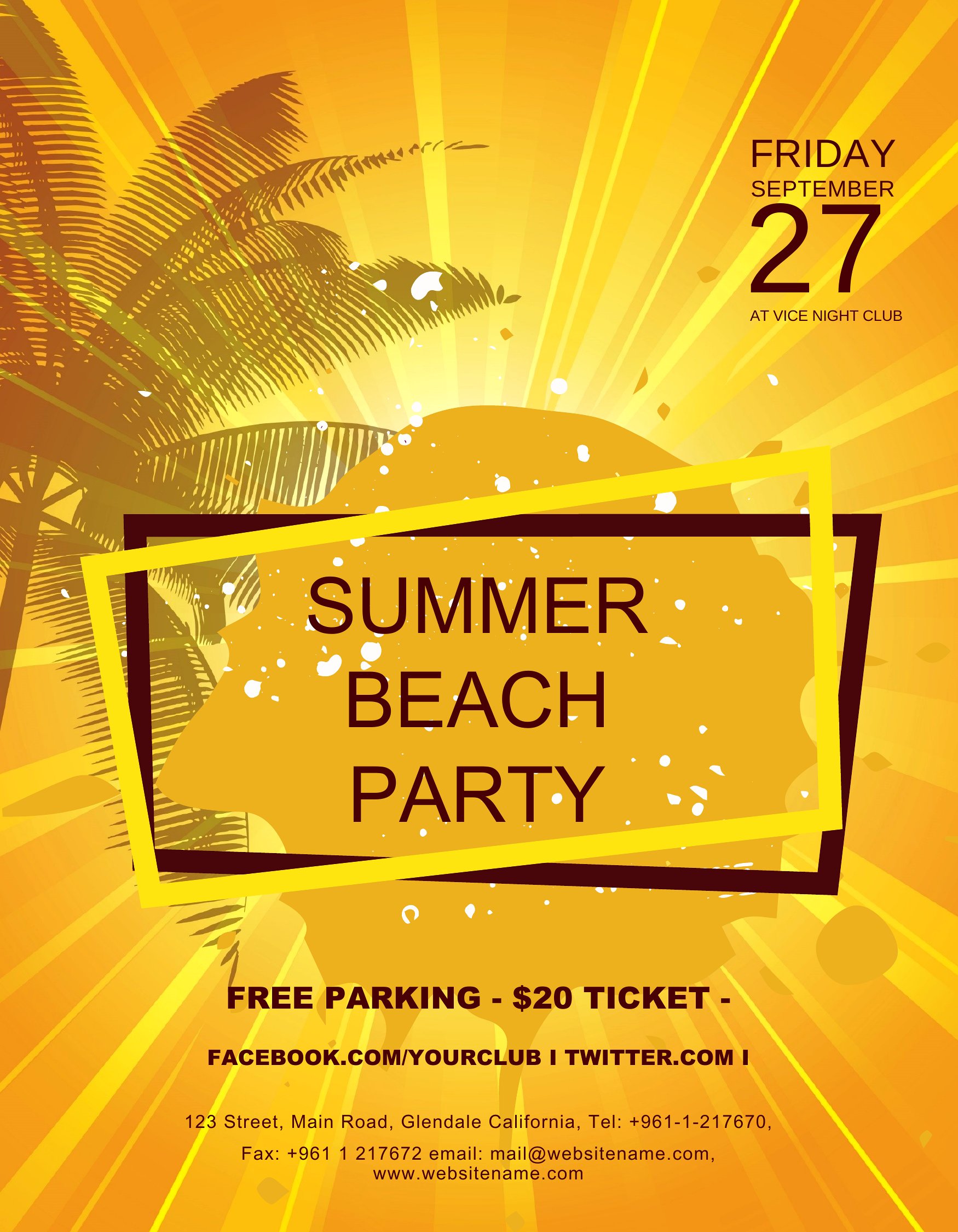
How can I ensure the flyer’s colors match my camp’s branding?
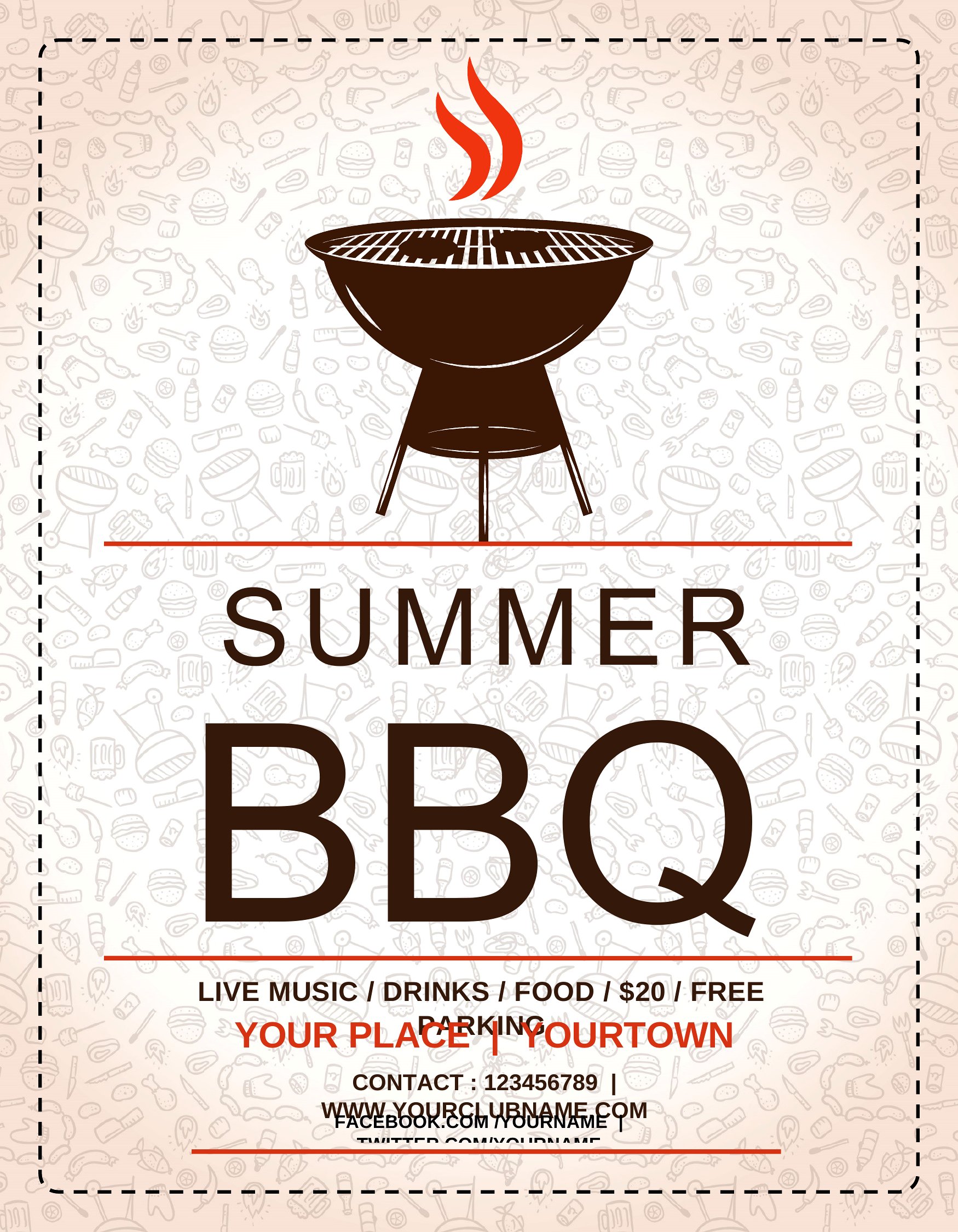
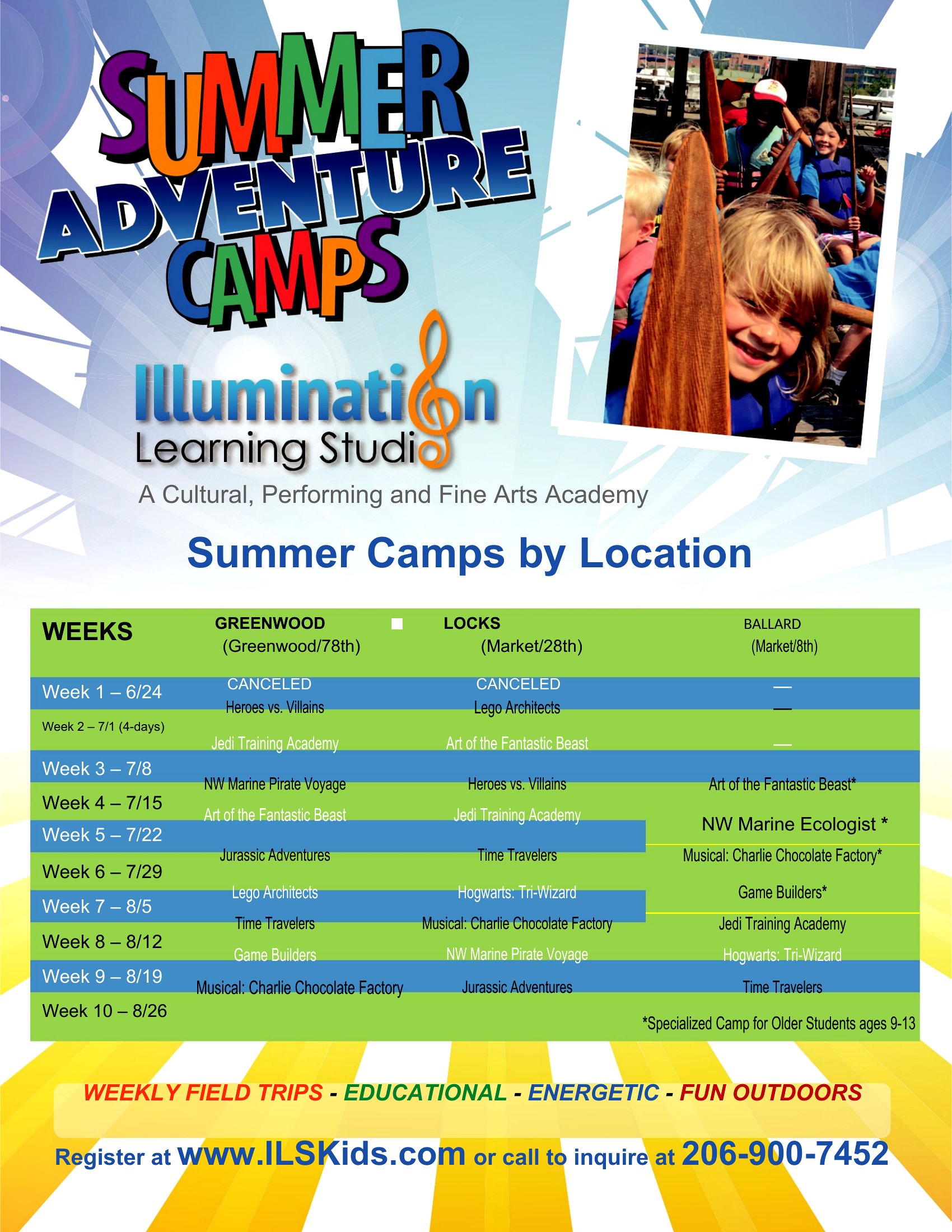
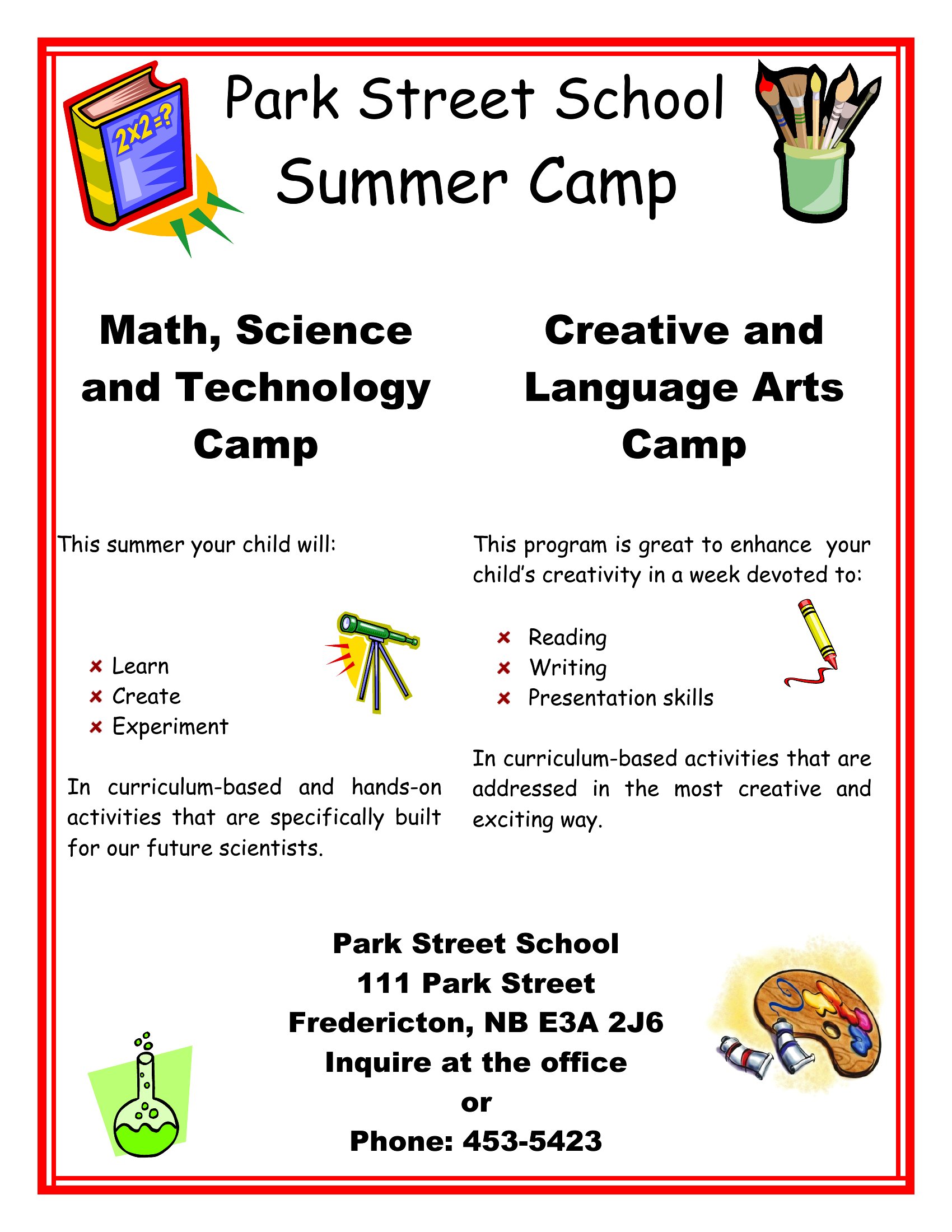
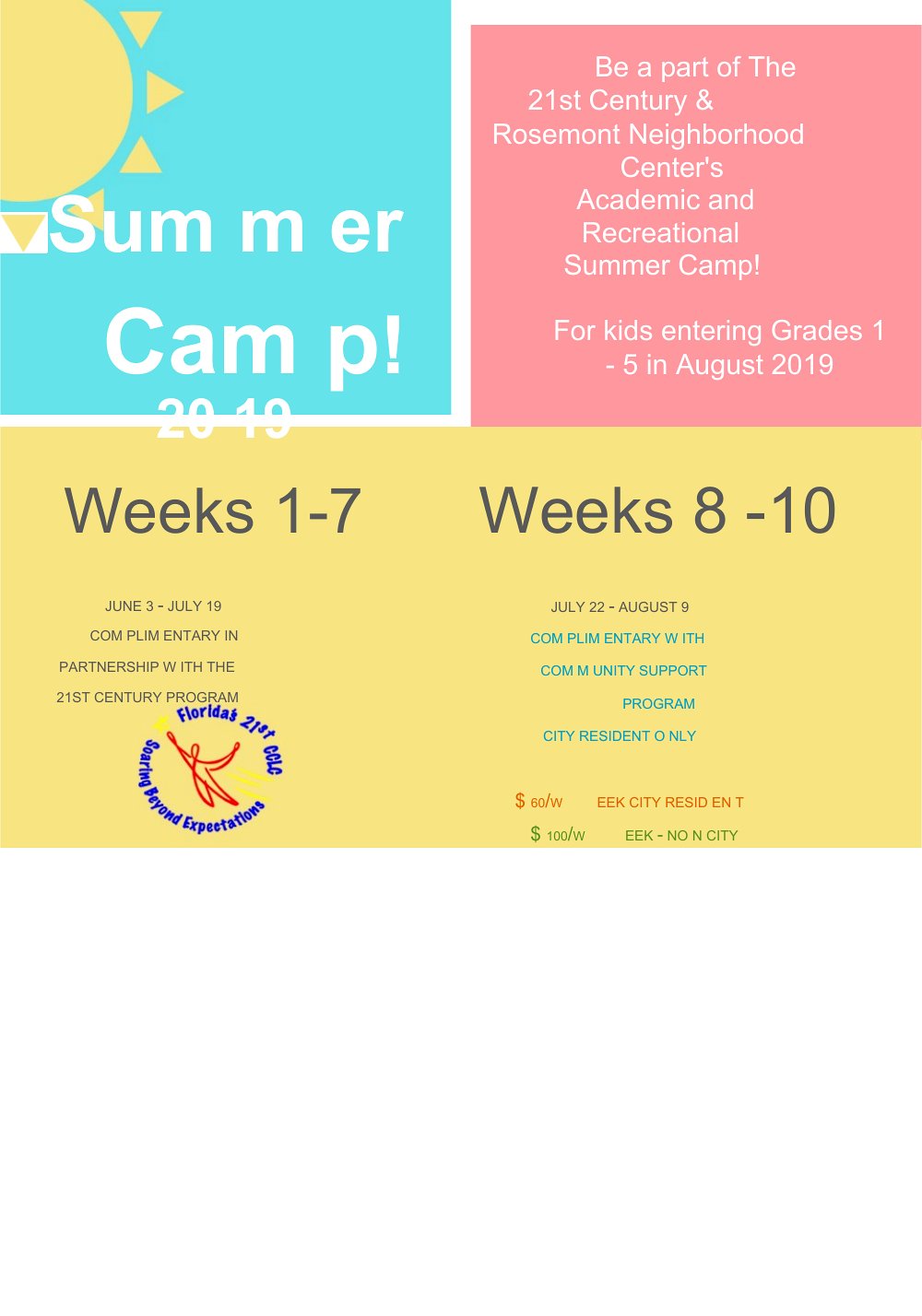
When editing in Word, locate the color palette section (usually under ‘Design’ or ‘Page Color’) and replace the default shades with your camp’s hex codes. For a quick fix, use the ‘Theme Colors’ feature to apply consistent hues across headings and accents. Save the template afterward to preserve your changes for future use.
What’s the best way to organize the flyer’s text so parents see key details first?
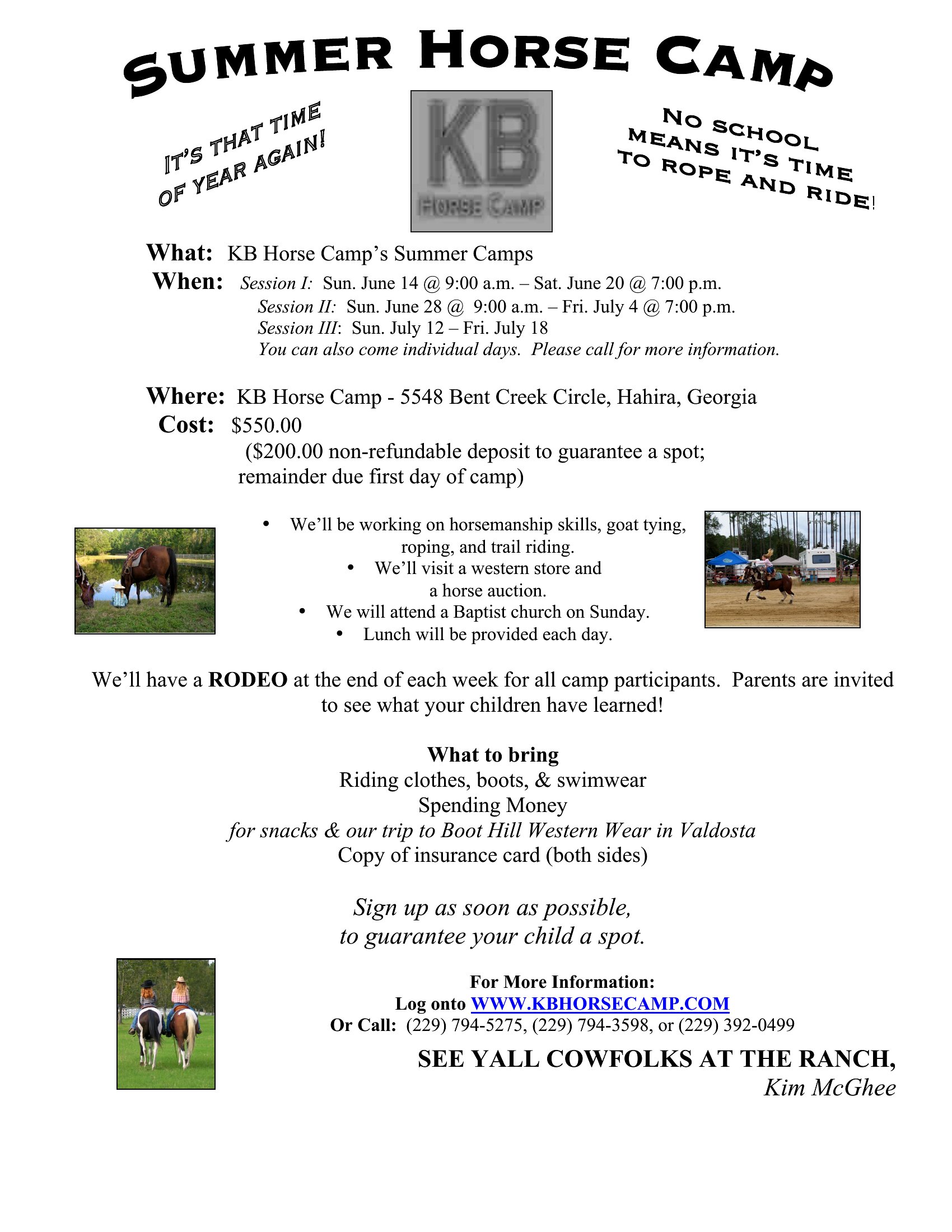
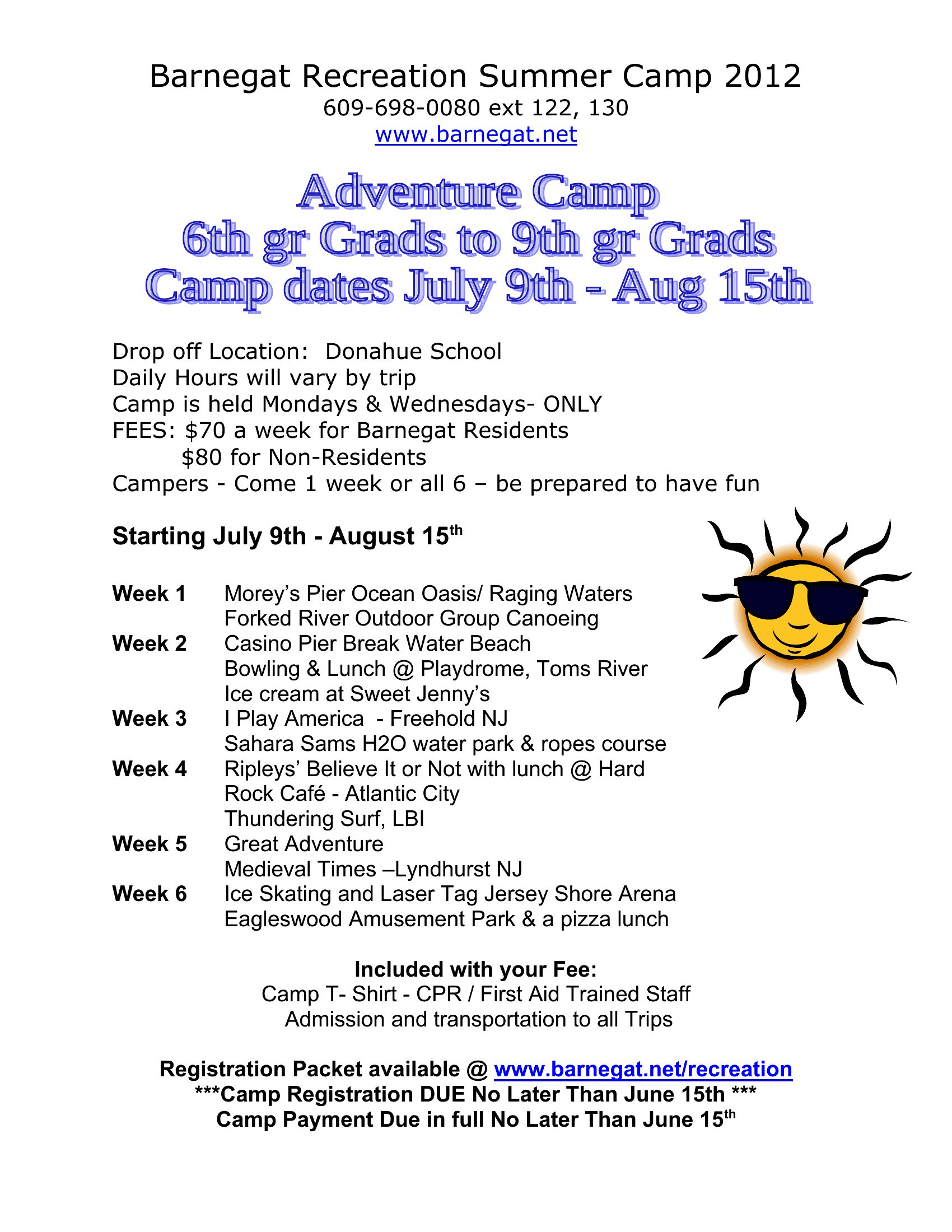
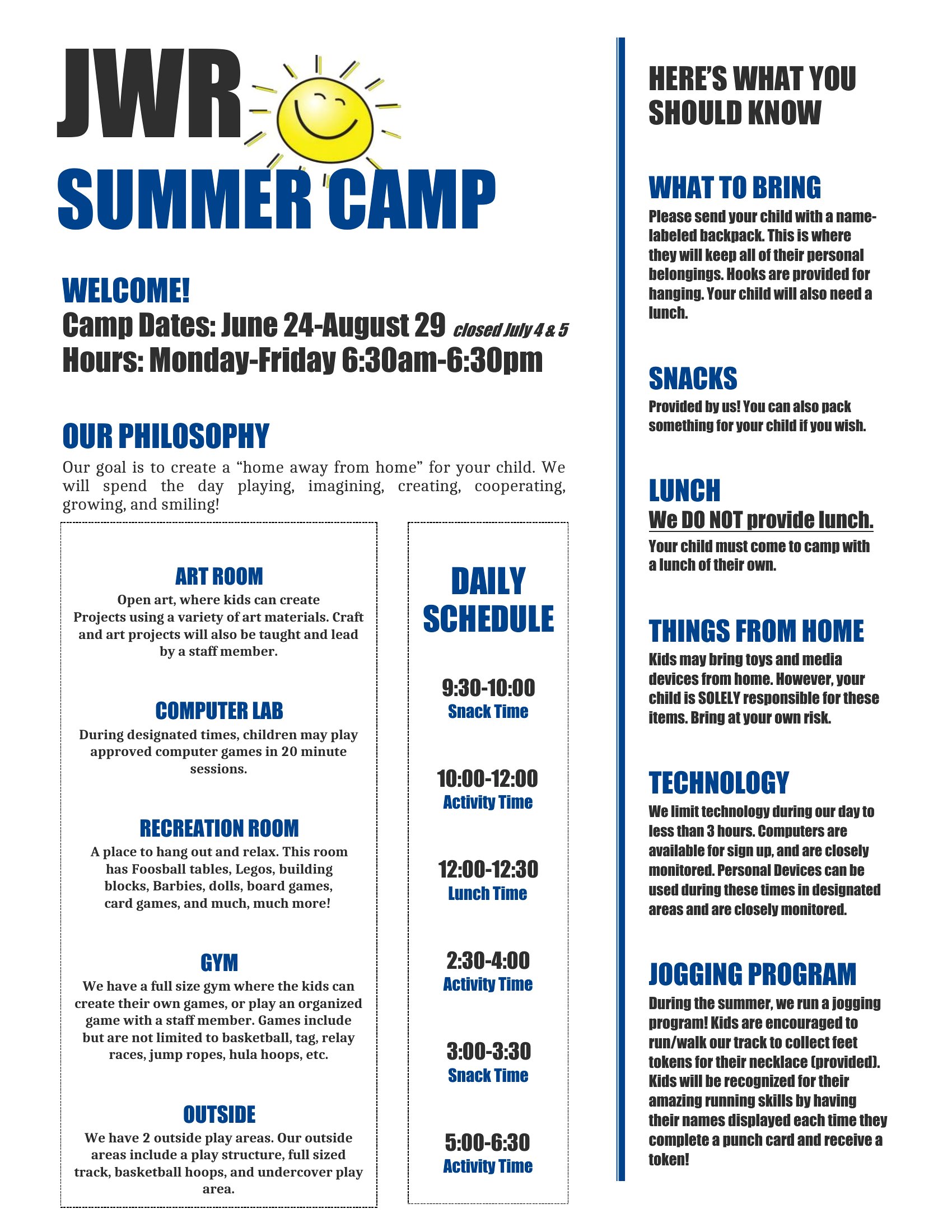
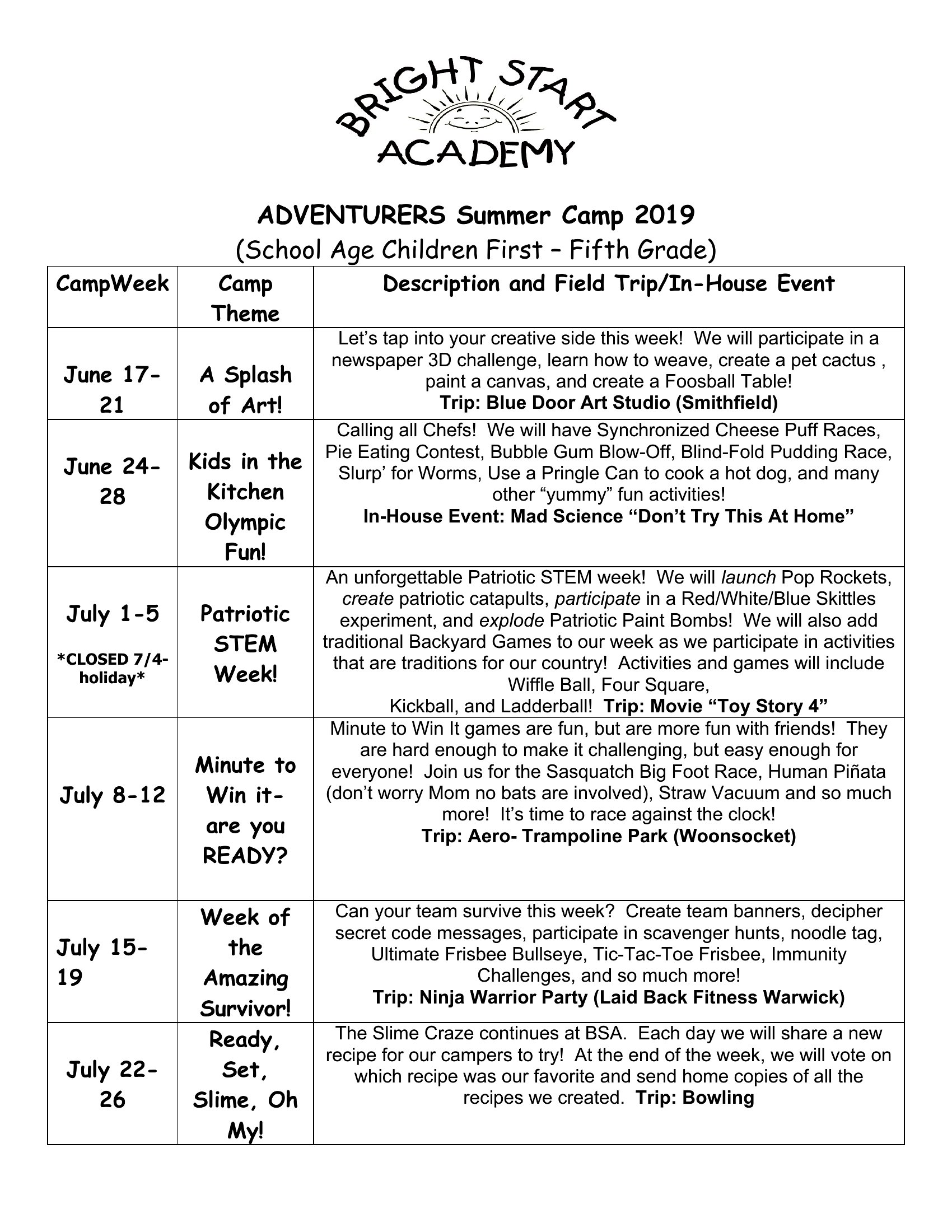
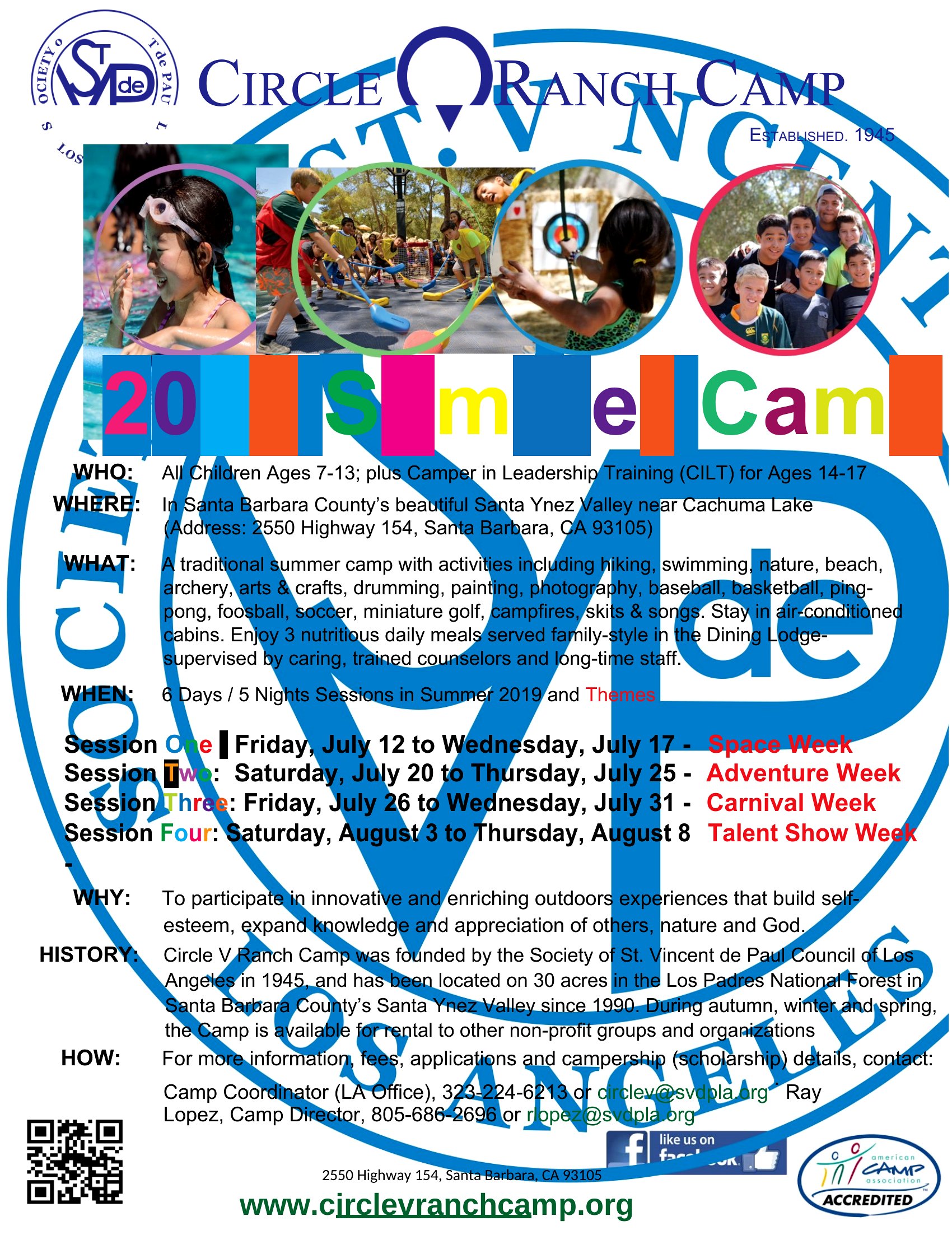
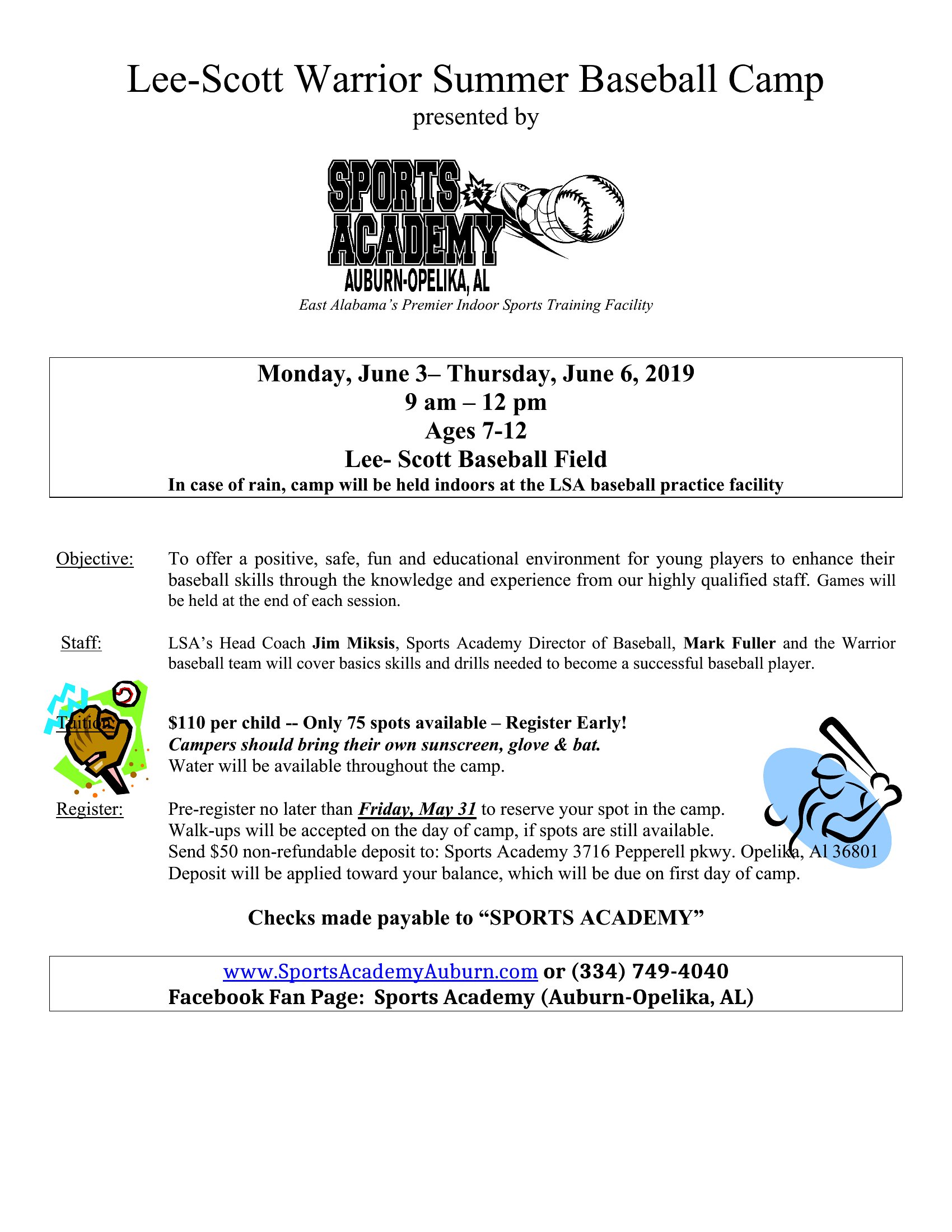
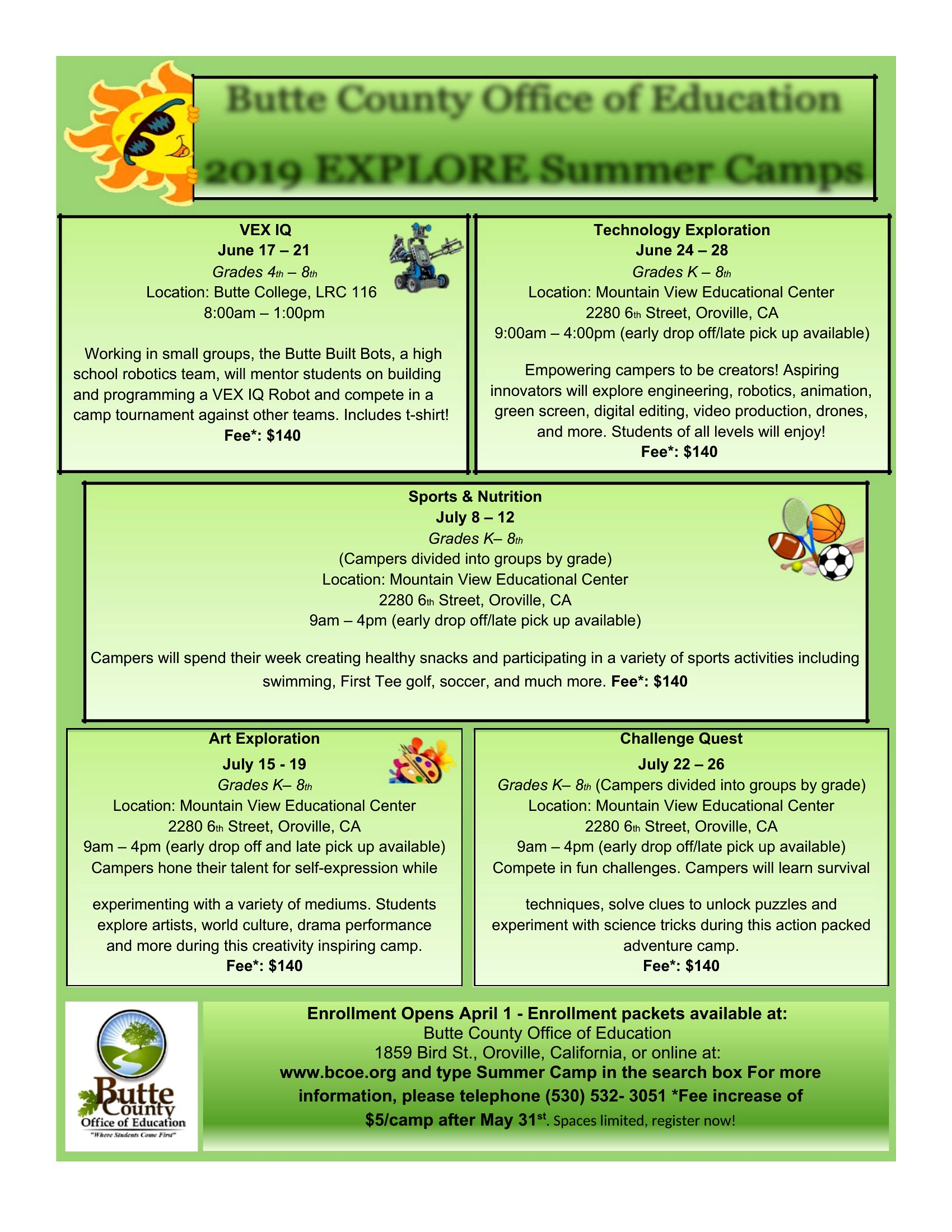
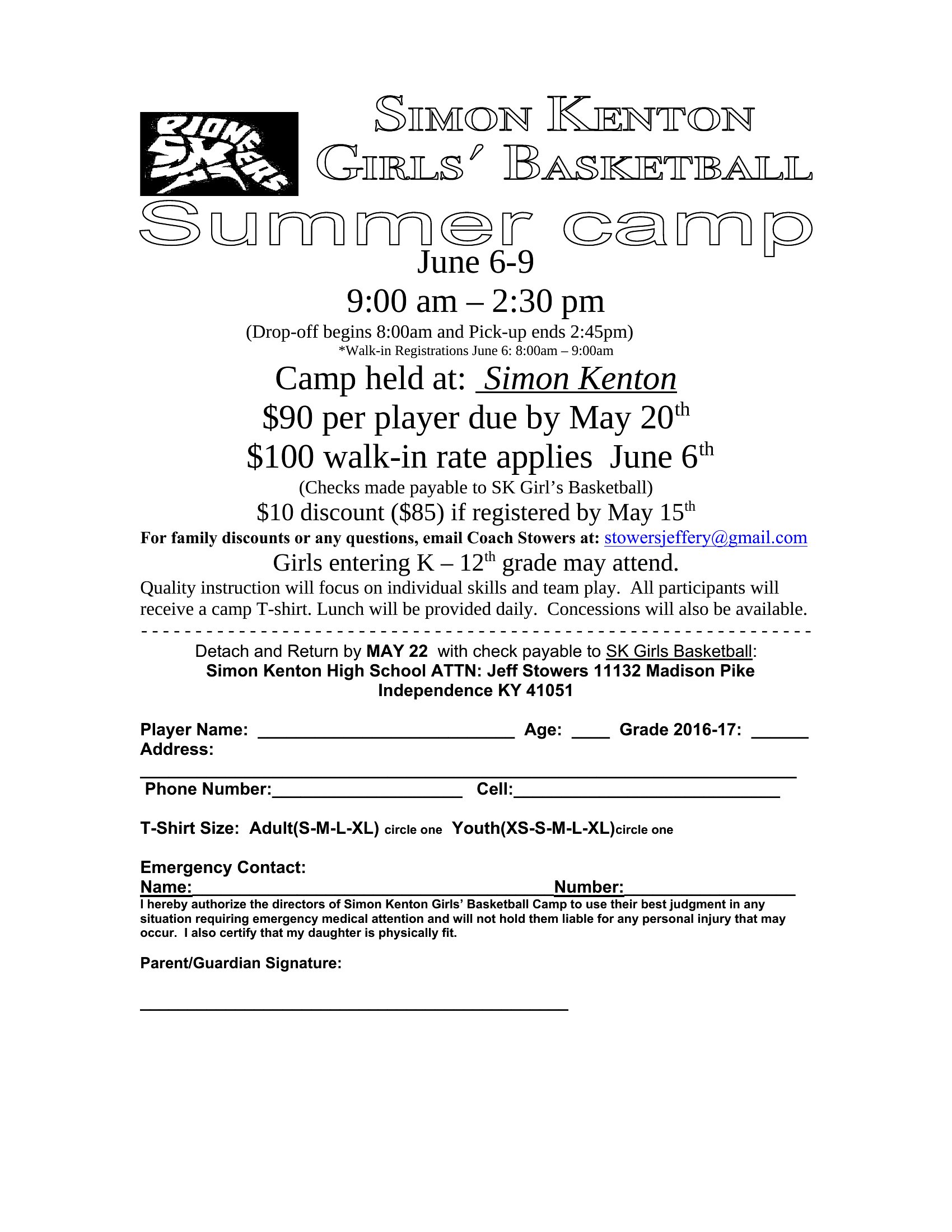
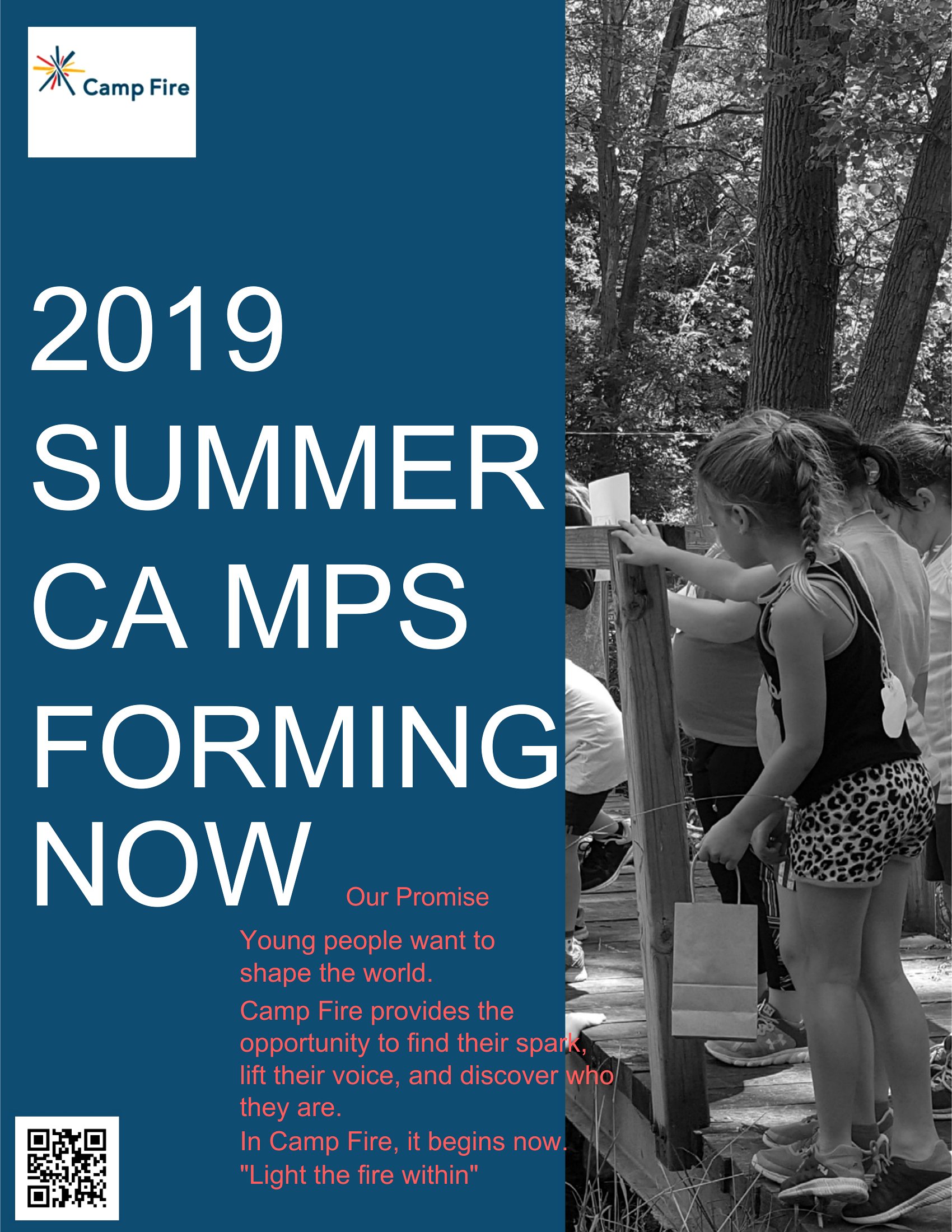
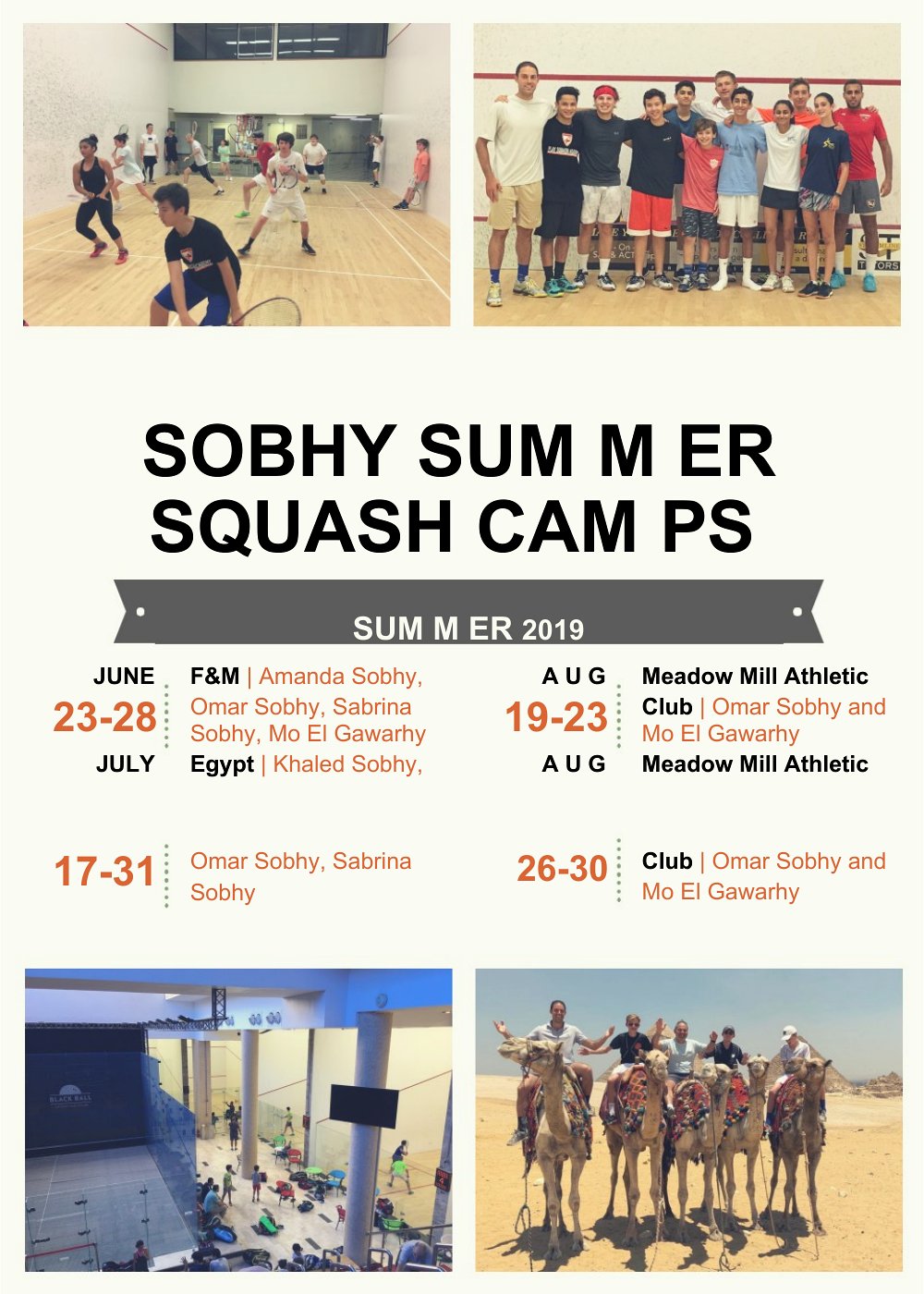
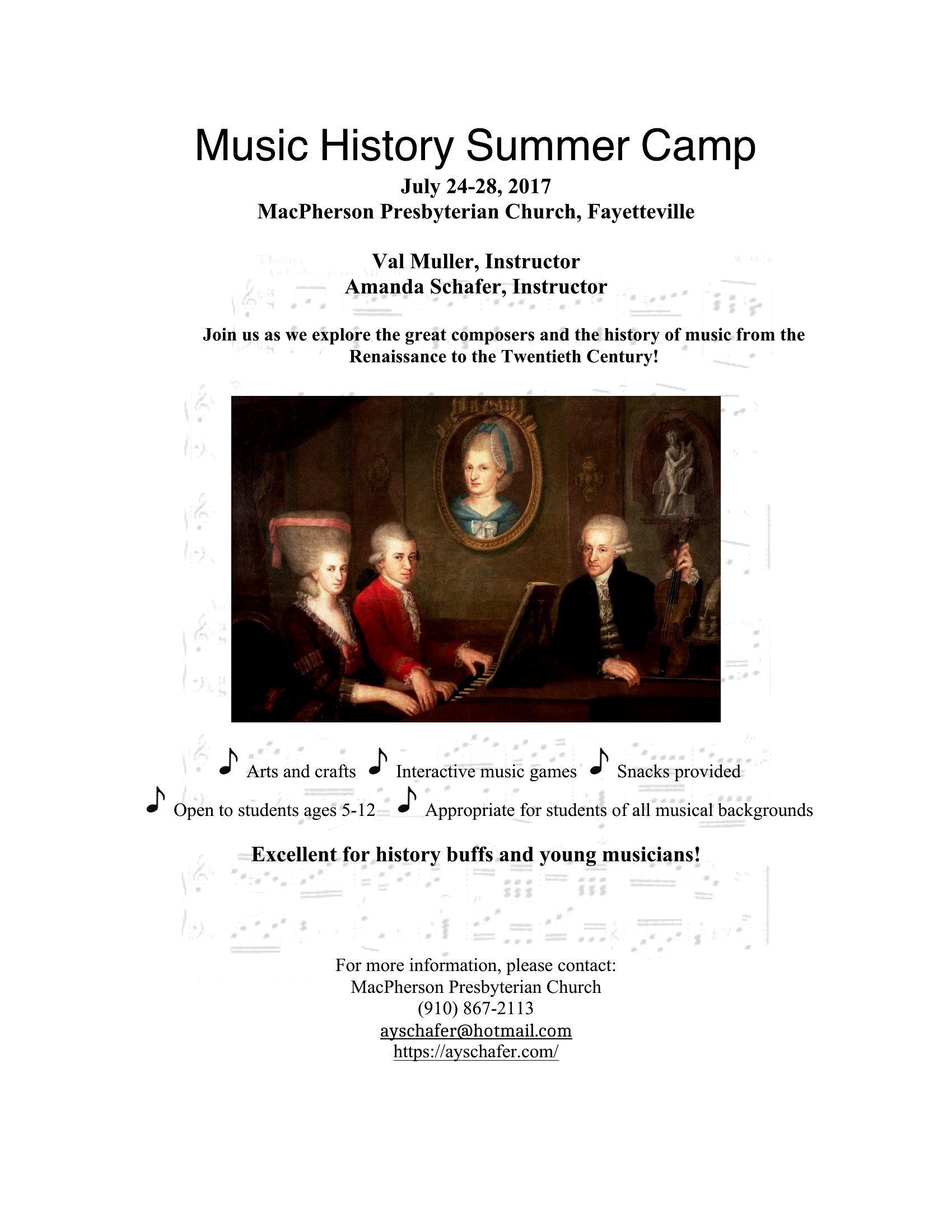
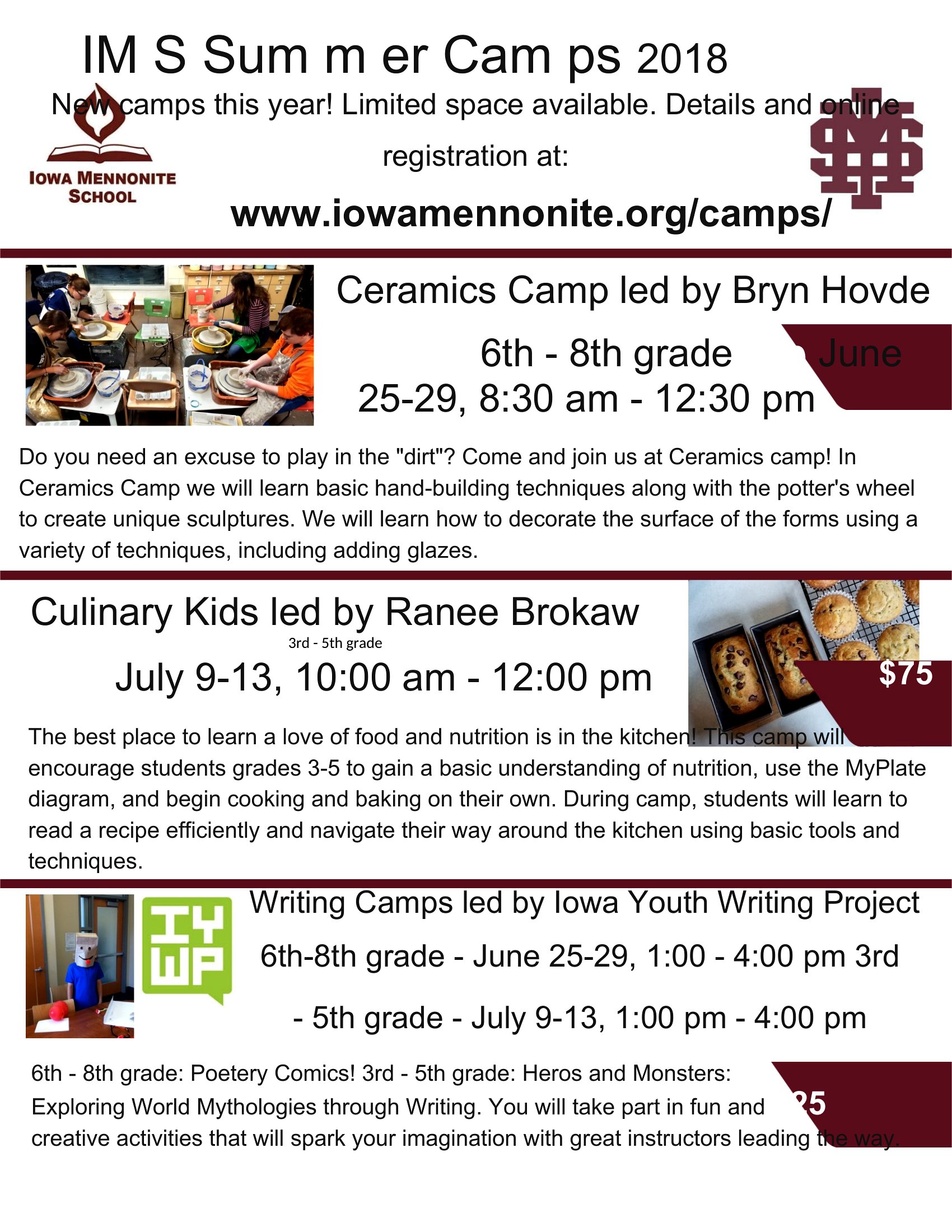
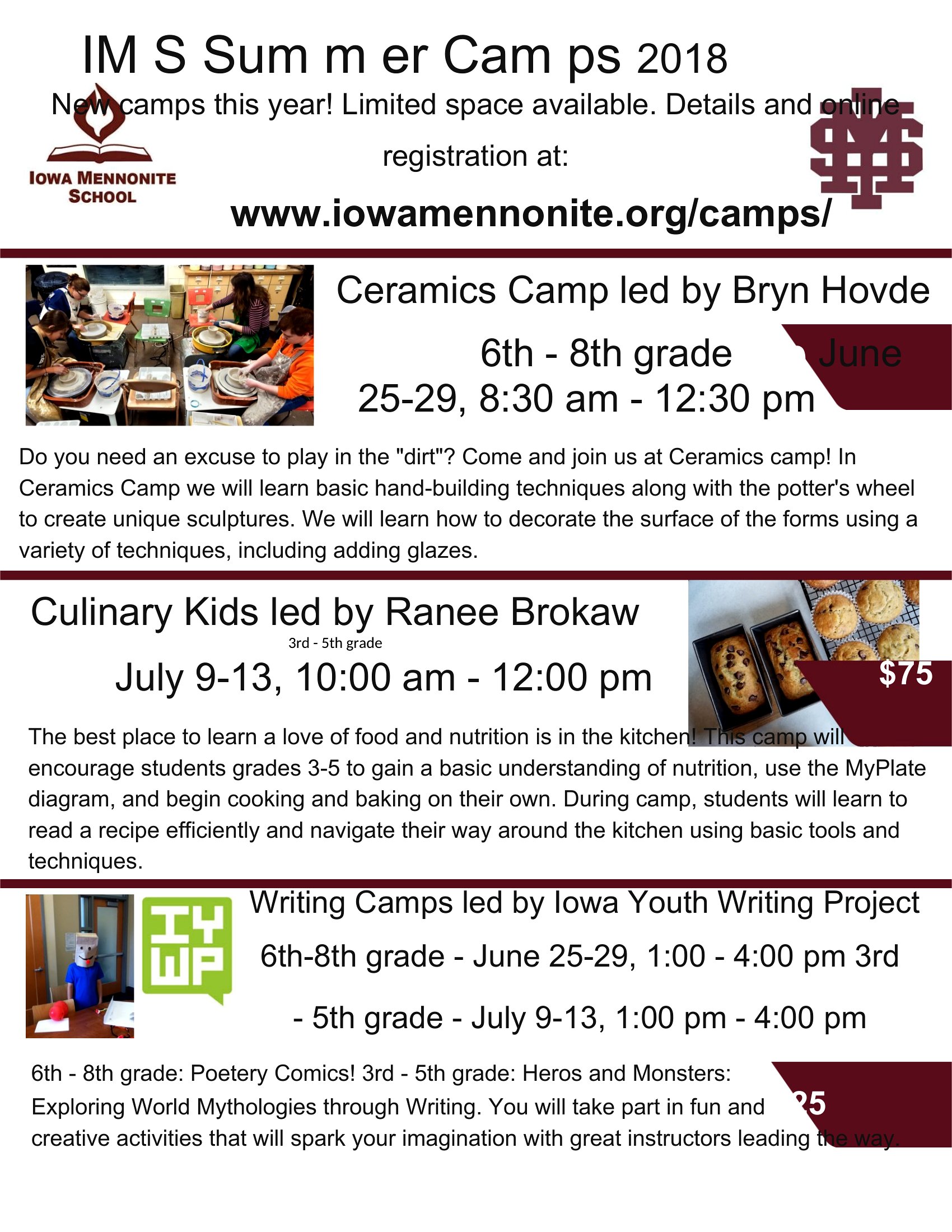
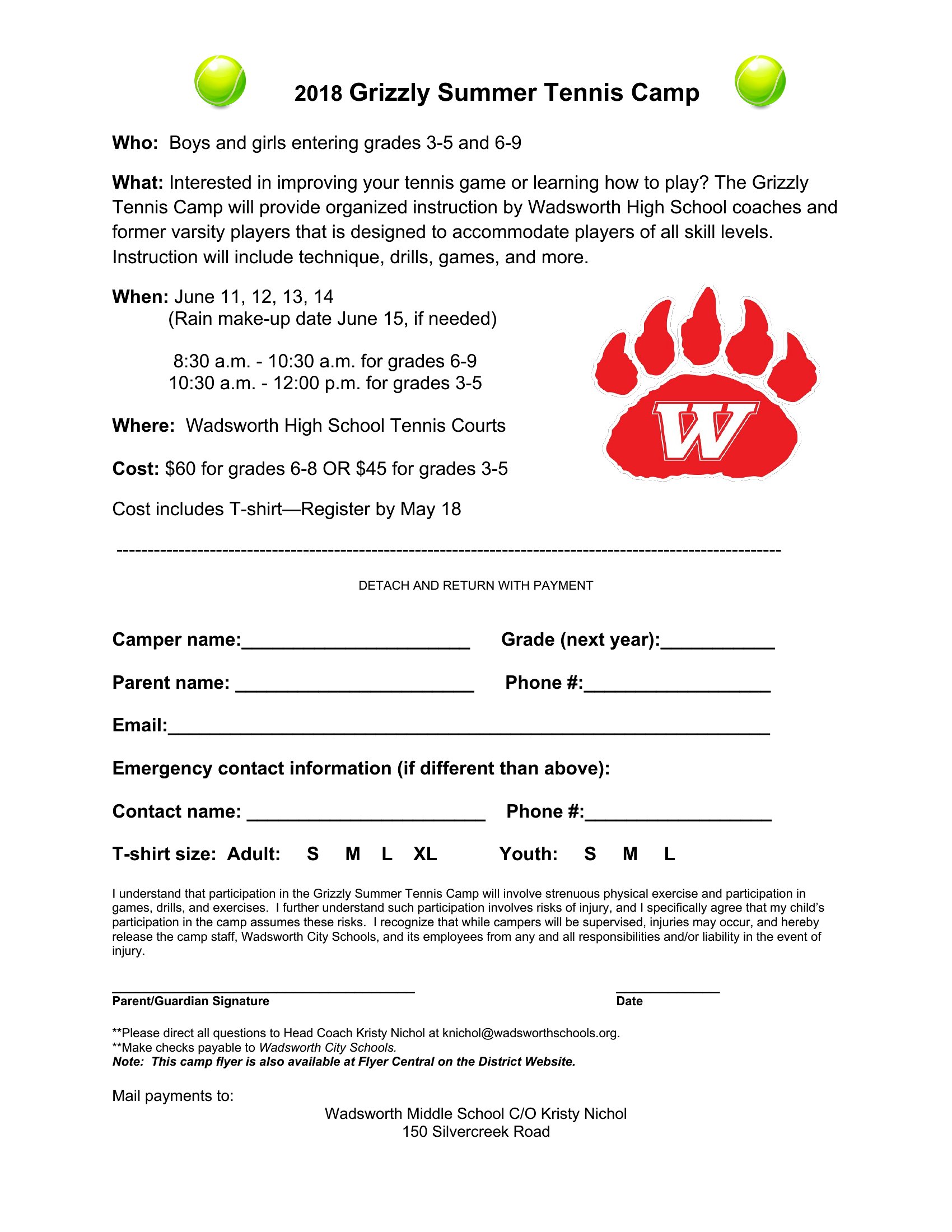
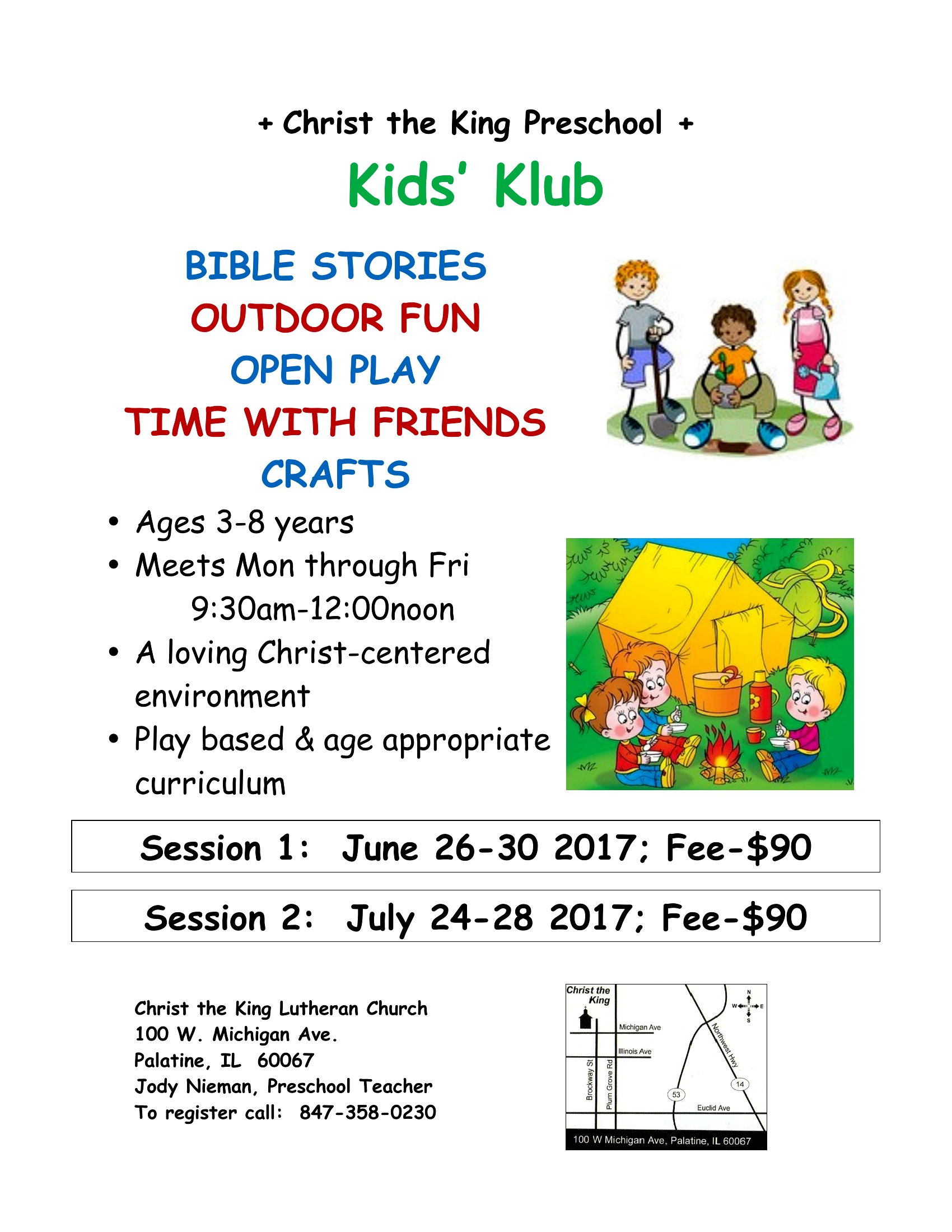
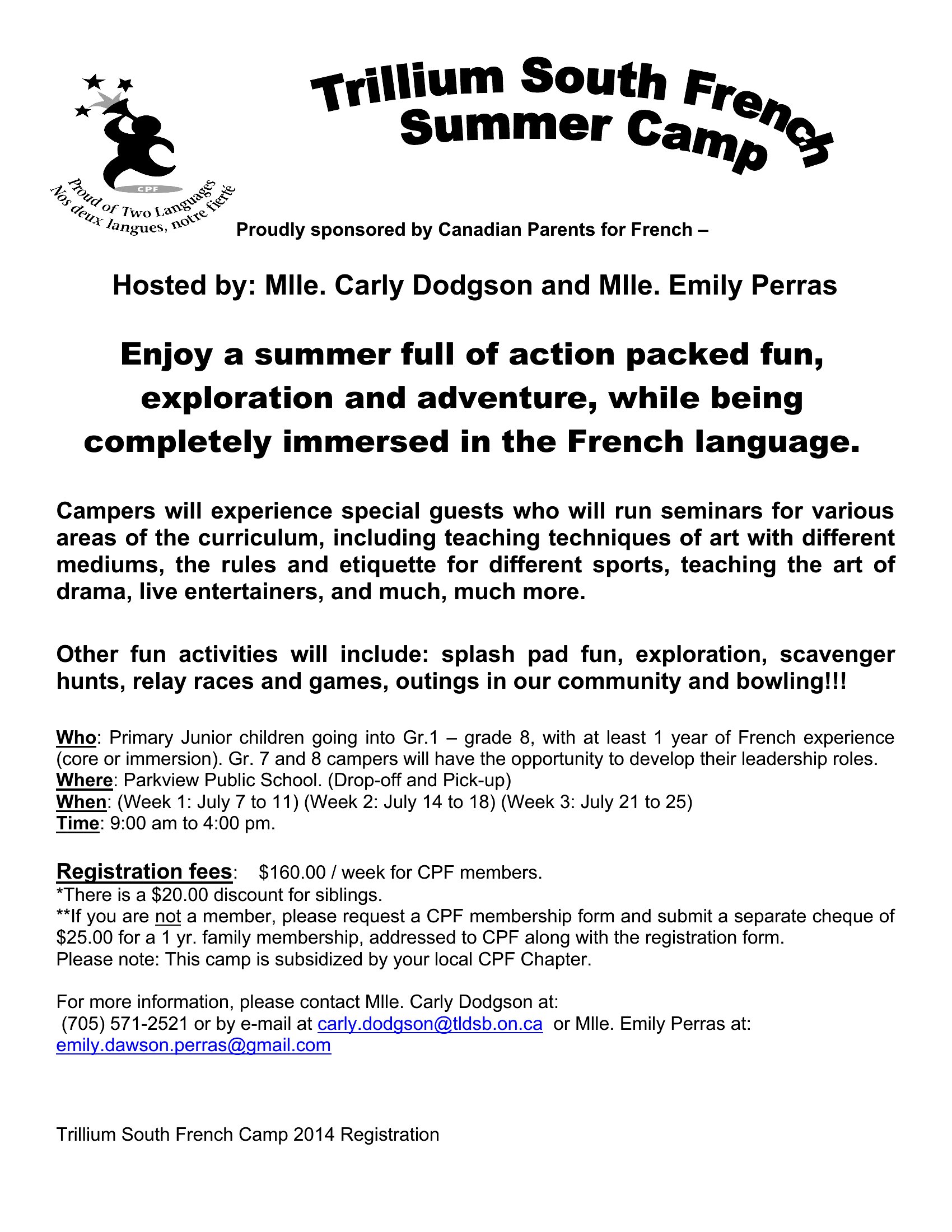
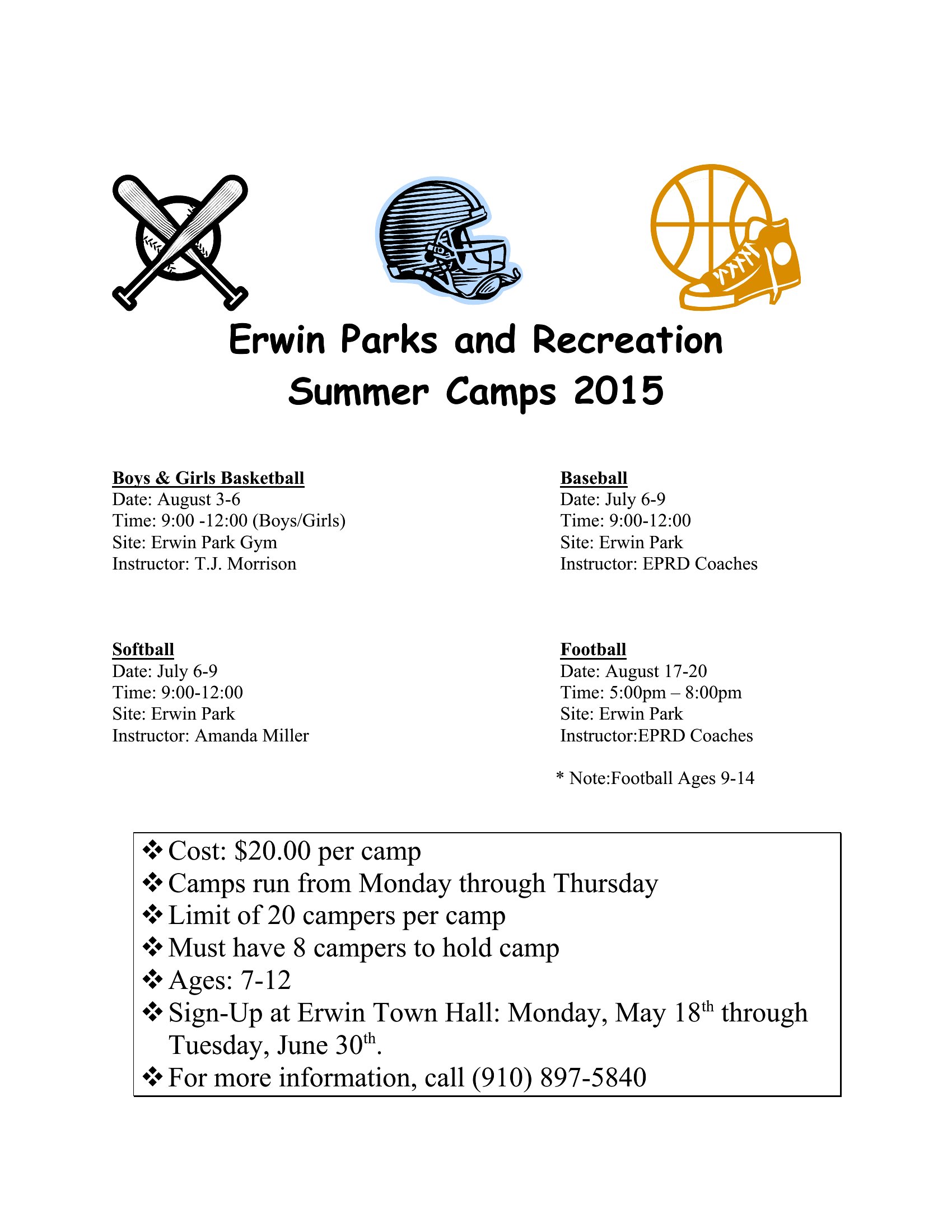
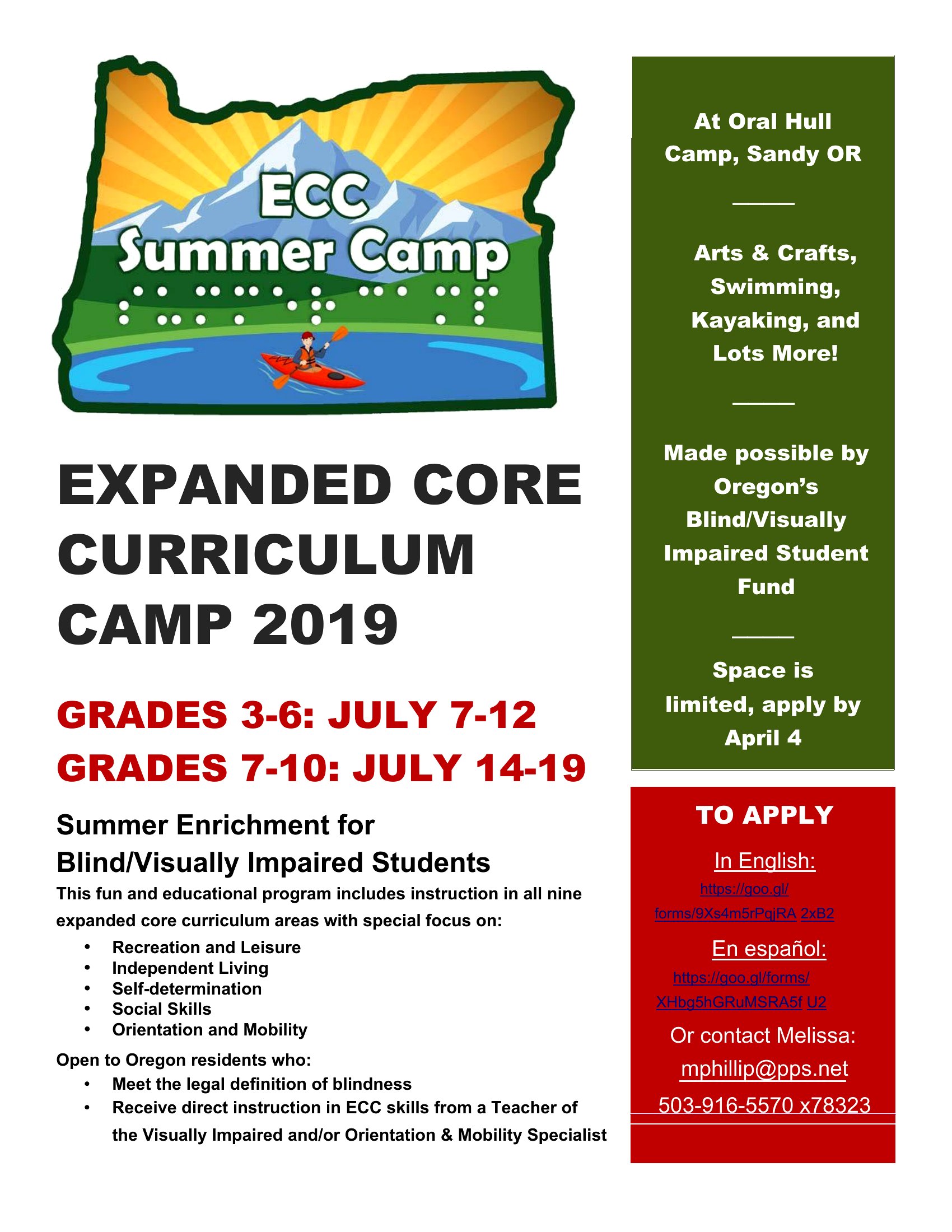
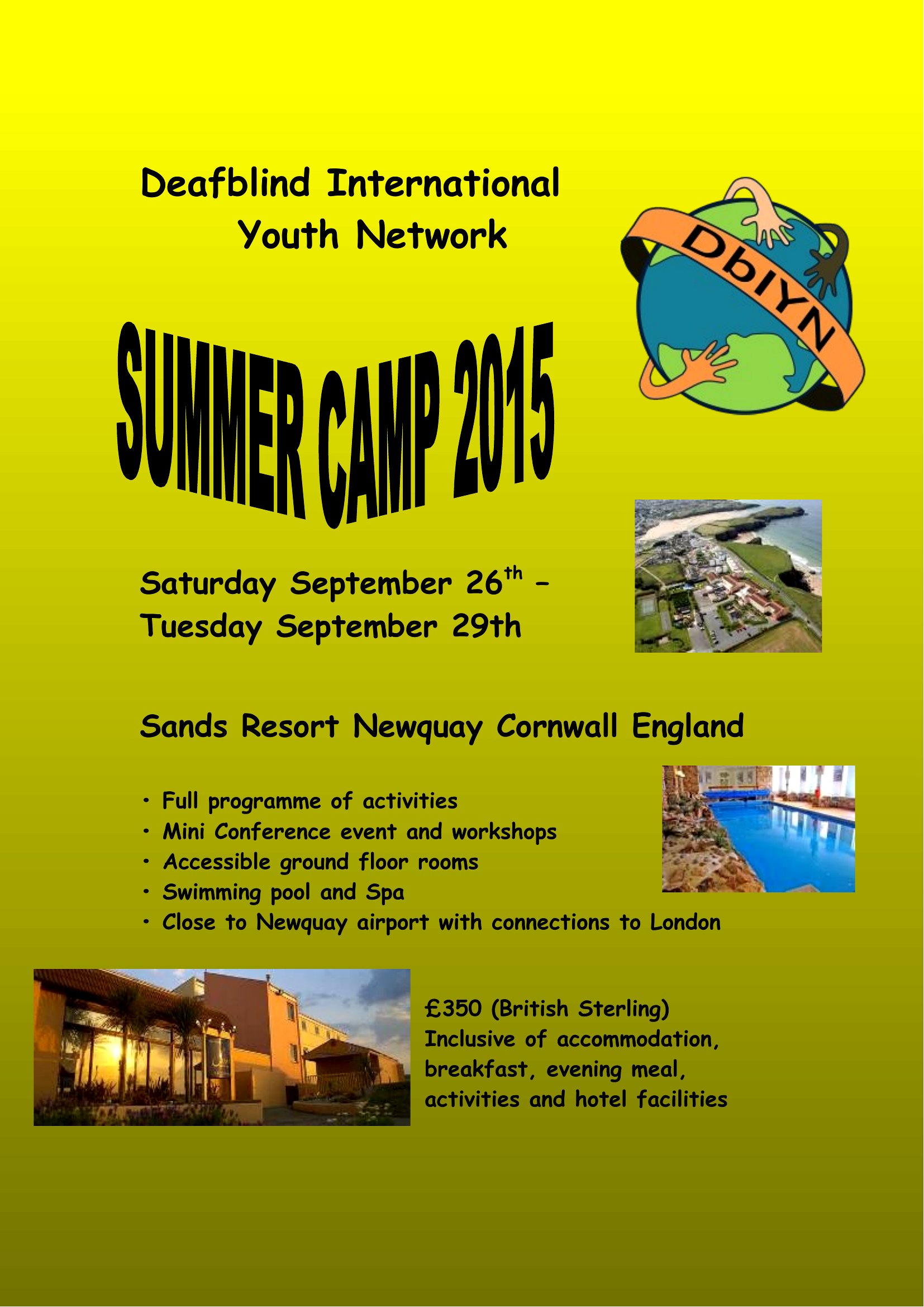
Prioritize visibility by placing your camp’s name, age group, and most exciting activity in large, bold text at the top. Use bullet points for dates, times, and fees, and reserve smaller fonts for additional details like policies or contact info. The templates already separate sections—just rearrange content to guide the eye naturally.
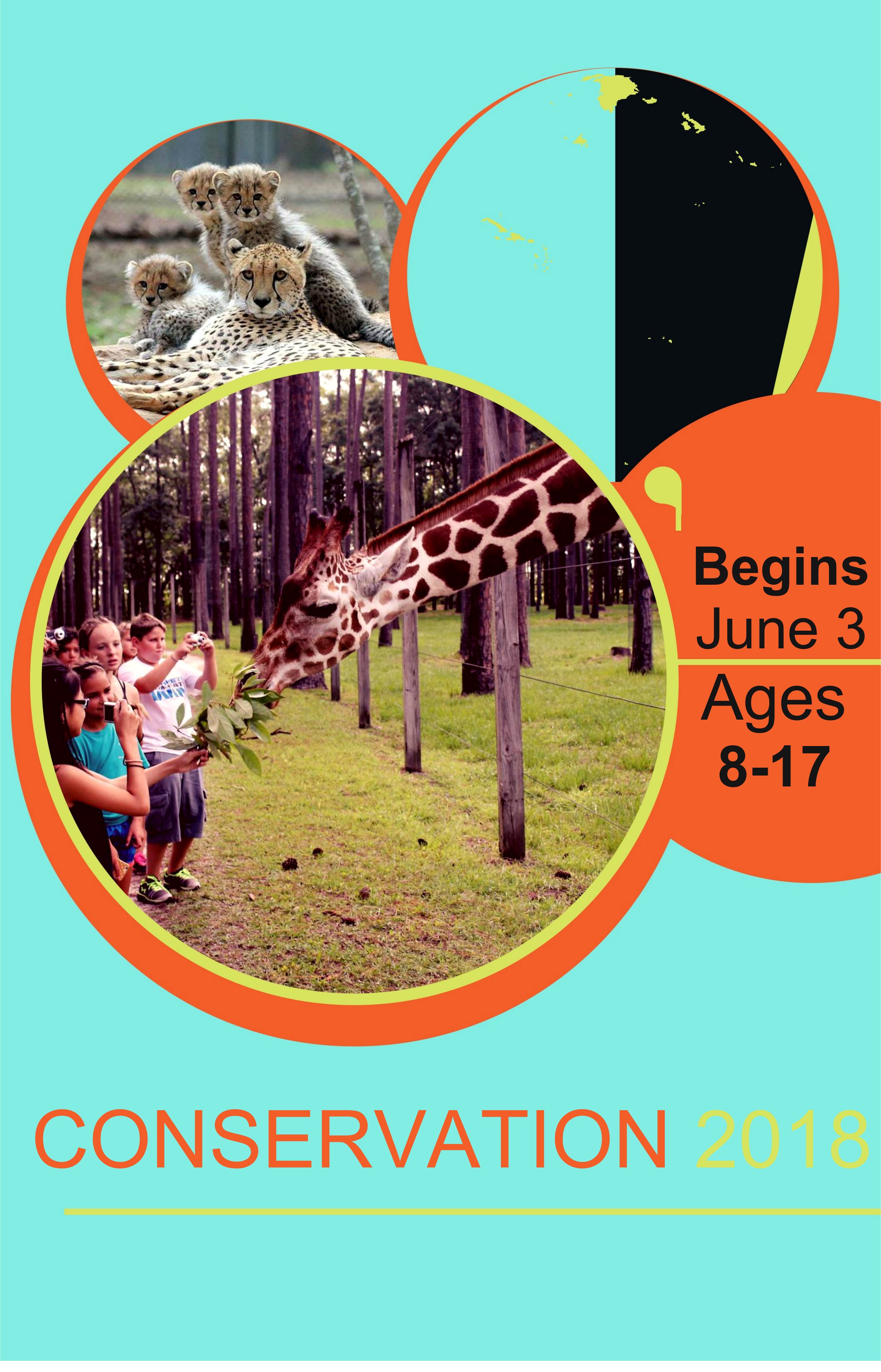
Can I add a photo of my camp facility or staff to the flyer in Word?
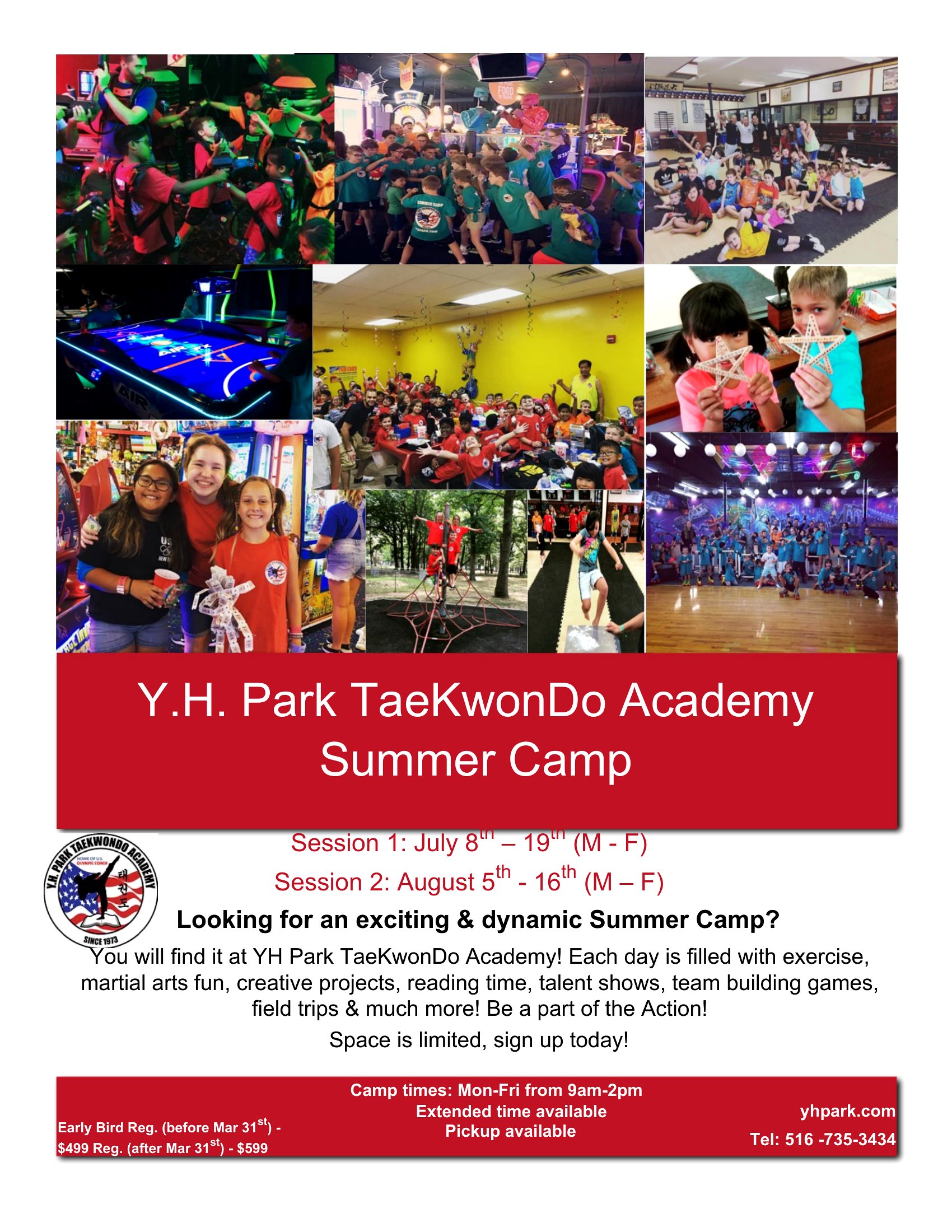
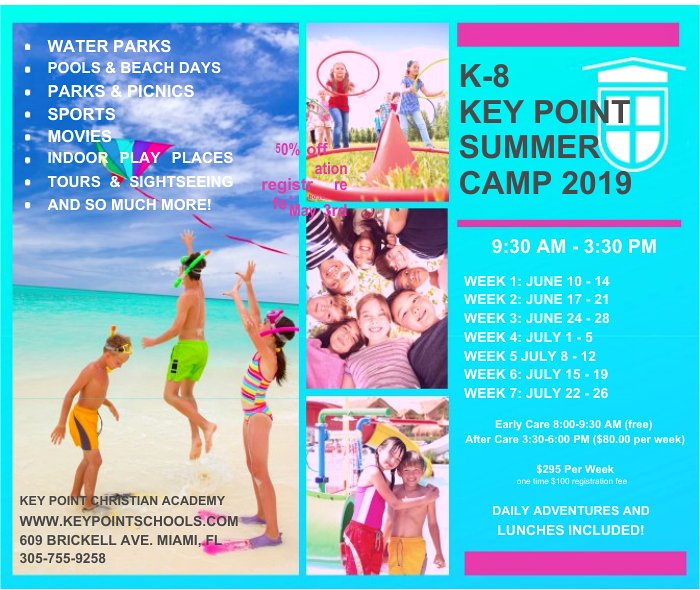
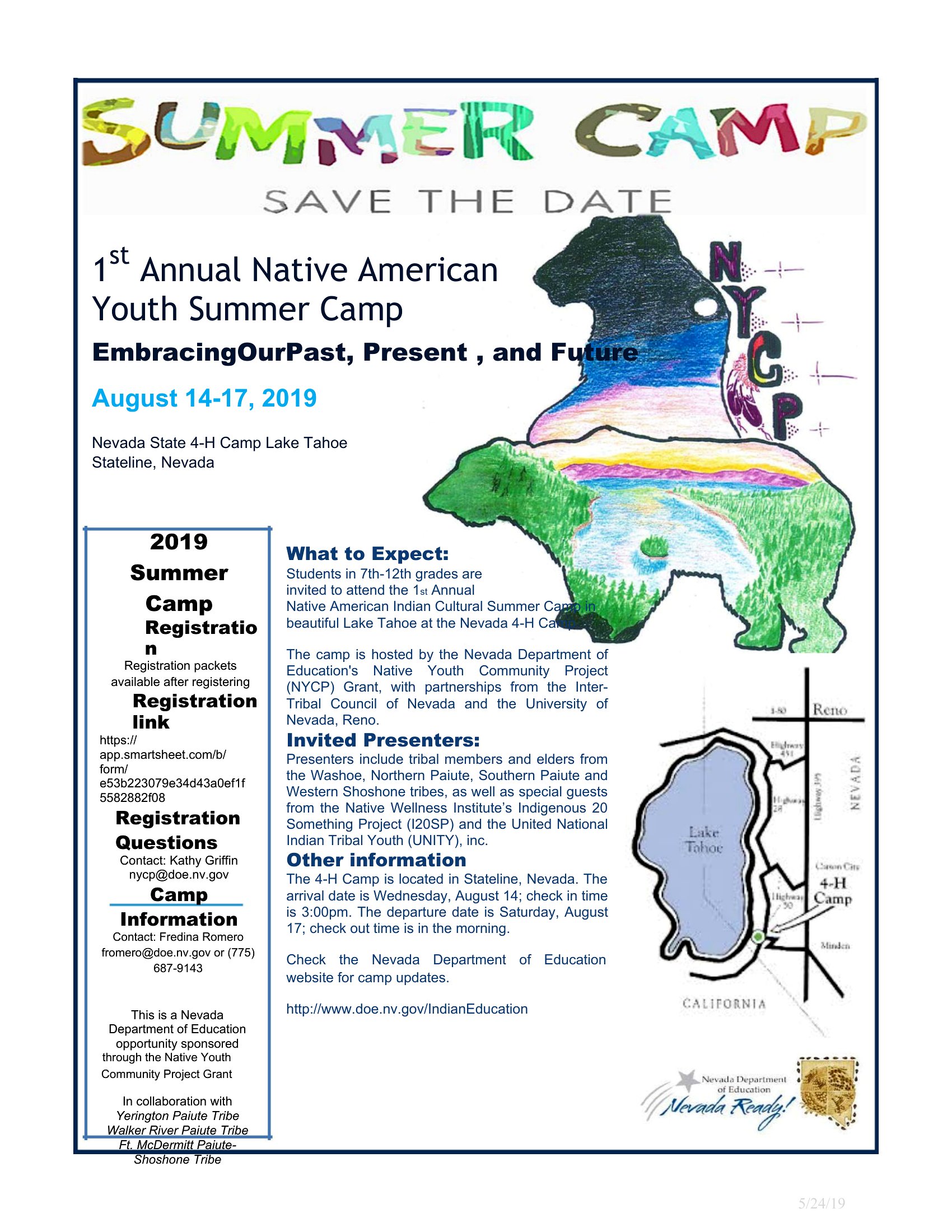
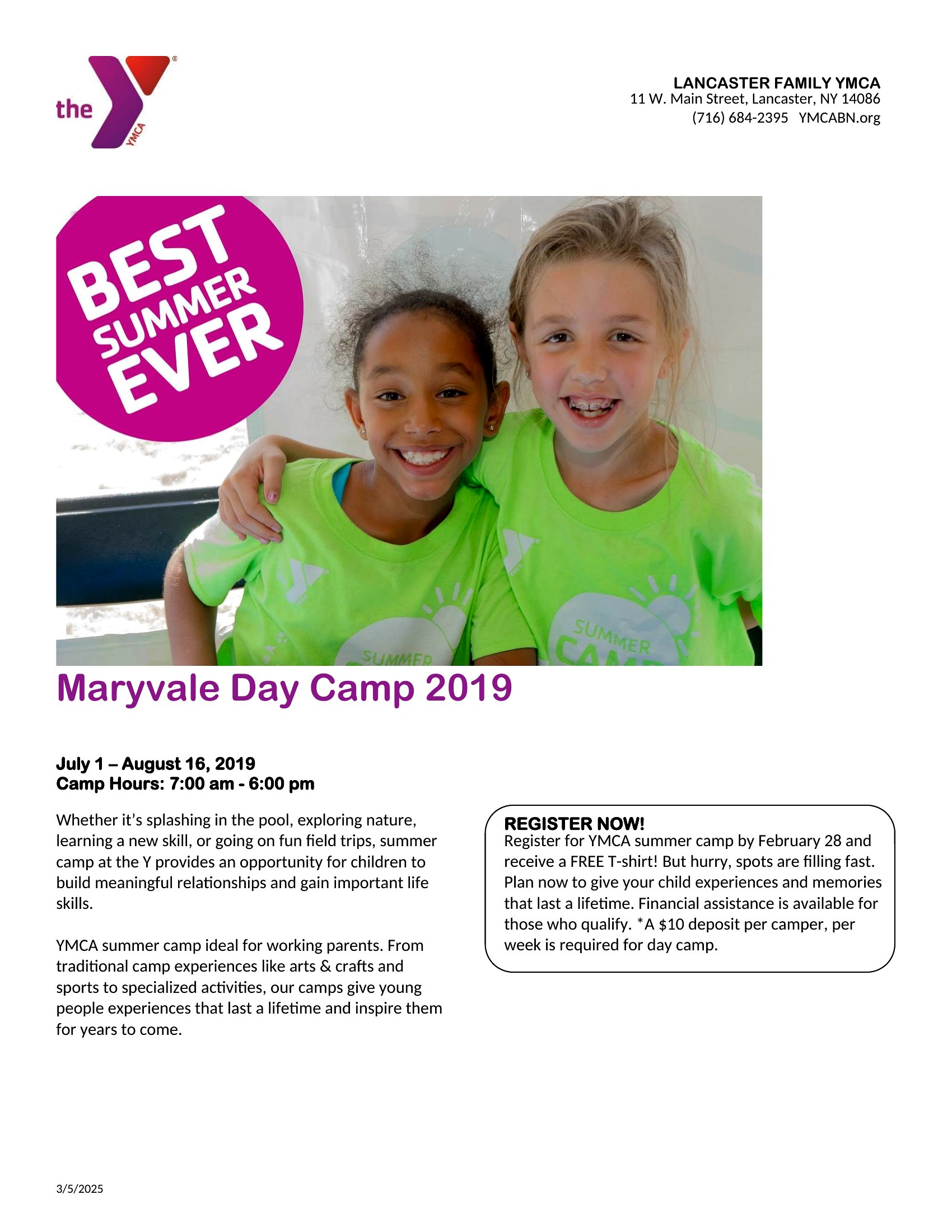
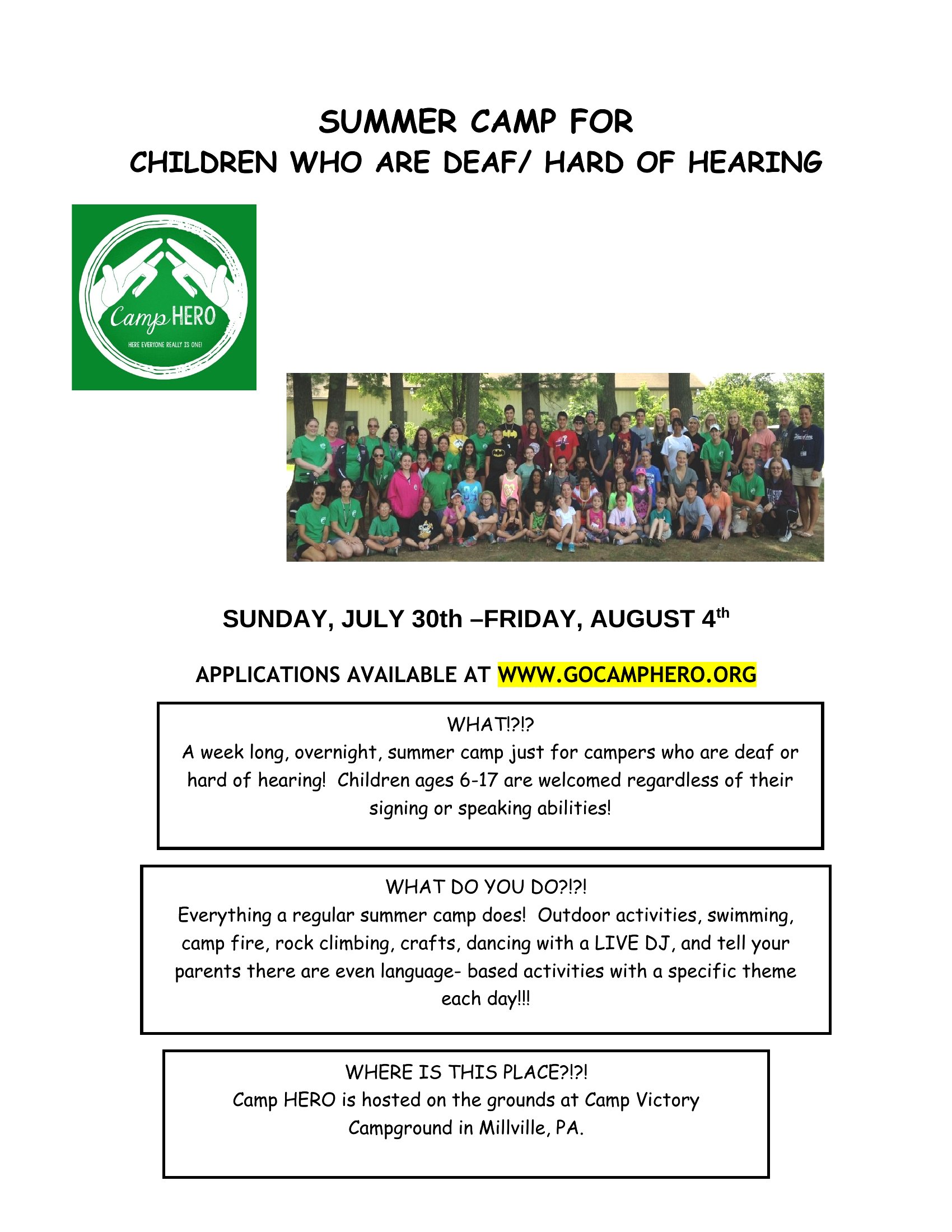
Yes, insert photos by clicking ‘Insert’ > ‘Pictures’ and uploading an image from your device. Resize it to fit the designated photo placeholder (usually near the top or bottom) and adjust brightness/contrast under ‘Picture Format’ to ensure clarity. Avoid overcrowding—one high-quality image of happy kids or a clean facility works best.
Comments
Join the conversation
Sign in to share your thoughts and leave a comment on this resource.